How to Download a Website with Wget Login Credentials
Use Wget to retrieve pages you’re authorized to access: identify the login type, authenticate safely, and persist the right cookies.
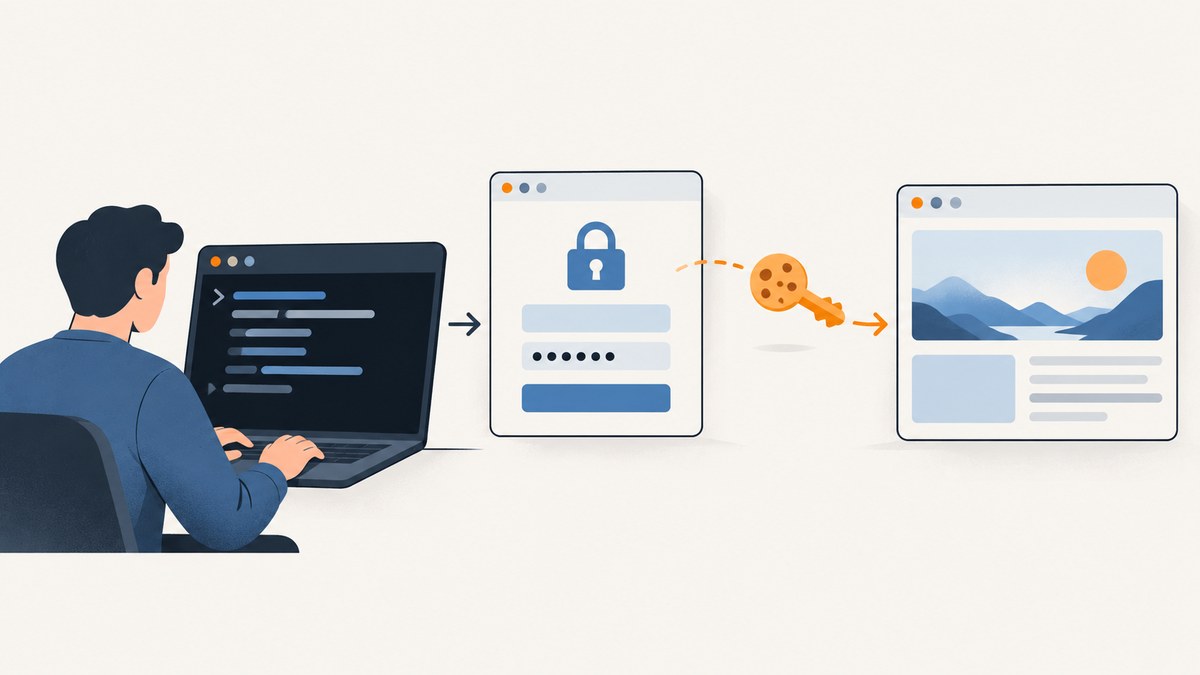
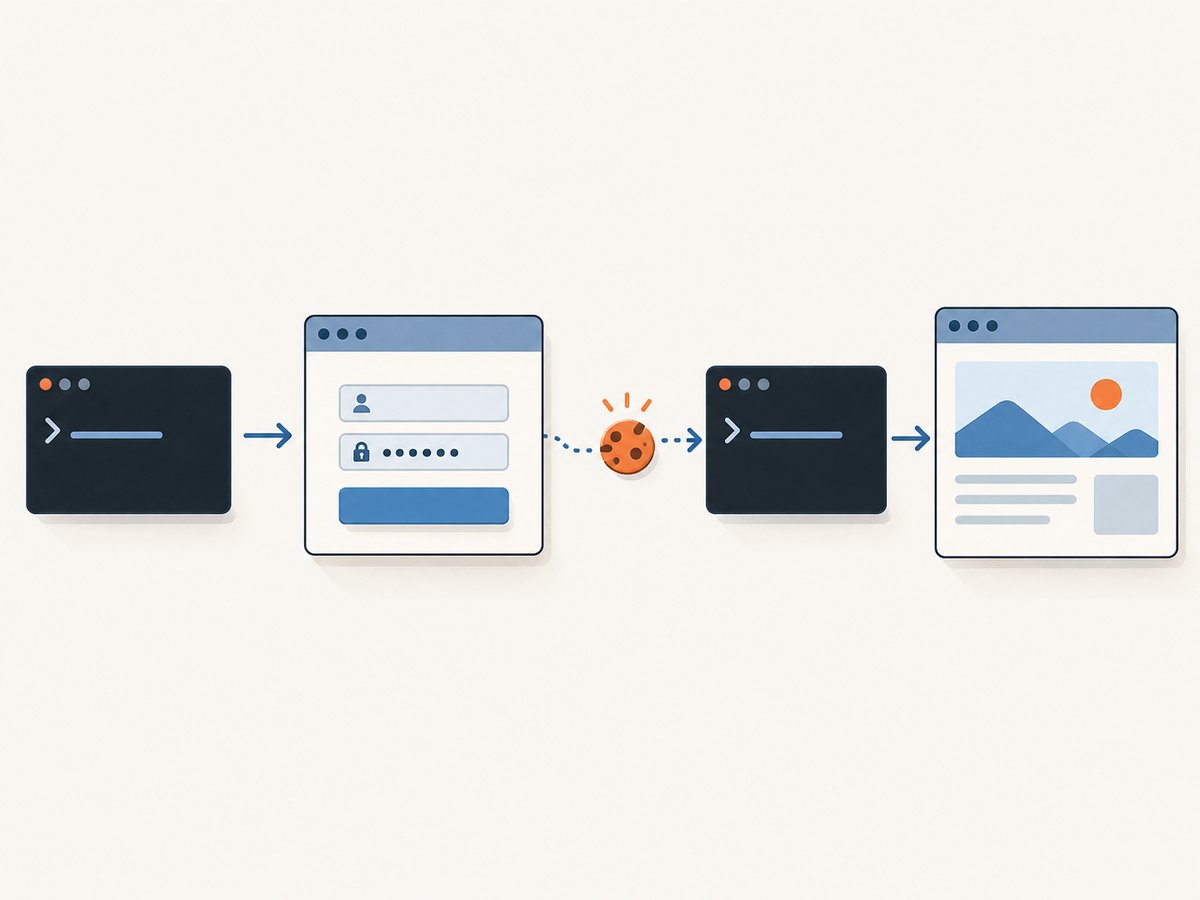
To download a page behind a login with Wget, first identify how the site authenticates you. For an HTTP authentication challenge, use --http-user and --http-password. For a normal login form, submit the site’s actual form fields, save the returned cookies, then load those cookies when retrieving the protected page. Recursive downloading alone does not log you in.
Use these methods only for sites and content you are authorized to access. Login endpoints, form fields, hidden tokens, redirects, and session rules vary by site; there is no universal Wget command that can sign into every website. The examples below use placeholders that you must adapt to the site’s documented or observed login flow. See the GNU Wget manual for the options and example patterns.
1. Identify the kind of login
Try to distinguish an HTTP authentication challenge from a web form. An HTTP challenge is handled by the server before it serves the resource and prompts an HTTP client for credentials. A web form is an ordinary page: you submit fields to an endpoint, and the site commonly establishes a session with cookies.
| What you see | Likely mechanism | Wget approach |
|---|---|---|
| A browser or client authentication prompt before the page appears | HTTP authentication | --http-user and --http-password |
| A page with username and password fields | Form login and session | POST the actual form data, save cookies, then load them on the target request |
| Login redirects, JavaScript, MFA, or an identity provider | Site-specific flow | Check the site’s authorized access guidance; plain Wget may not be sufficient |
If wget -r URL saves the login page, that usually means Wget made a request without the authenticated state the server expects. First establish the correct authentication method; only then decide whether to retrieve one page or follow links recursively.
2. HTTP authentication: use the challenge options
When the server challenges the request using HTTP authentication, Wget supports the following flags:
wget --http-user='YOUR_USERNAME' --http-password='YOUR_PASSWORD' 'https://example.com/protected/report.html'Replace the username, password, and URL with values for an account that is authorized to access the resource. Wget selects an authentication scheme based on the server’s challenge; the manual describes Basic, Digest, and Windows NTLM handling depending on that challenge.
Avoid embedding credentials in a URL such as https://user:password@example.com/. The Wget manual warns that URL credentials can be visible to other users through process listings. Command-line arguments may also be visible to local process-inspection tools, depending on the operating system and environment, so consider your machine’s policies and prefer protected credential handling when available.
Keep credentials out of shell history
Typing a password directly into a command may save it in shell history. A safer operational pattern is to prompt for it in a short script, or use a credential facility approved for your environment. For a one-off interactive Bash session, a prompt avoids placing the literal secret in the command text:
read -r -p 'Wget username: ' WGET_USER
read -r -s -p 'Wget password: ' WGET_PASS
printf '\n'
wget --http-user="$WGET_USER" --http-password="$WGET_PASS" \
  'https://example.com/protected/report.html'
unset WGET_USER WGET_PASS
The password still has to be passed to Wget as an argument, so this does not eliminate every local exposure. Do not run such commands on shared systems unless that exposure is acceptable under your security requirements.
3. Form login: save and reuse cookies
Many sites accept a form submission, verify it, and return one or more cookies that represent the authenticated session. Wget can save cookies from a POST and load them on a later request. Its cookie loader expects a Netscape-format text cookie file.
The general sequence is: identify the real form action and field names, submit the POST while saving cookies, then request the protected URL with that cookie file.
Step 1: inspect the authorized login form
Determine the form’s submission URL (the action), method, and field names. A field labeled “Email” might submit under a name such as email, username, or something site-specific. Forms may also require hidden values, CSRF tokens, a particular referer, or other headers. Use the site’s own documentation or inspect the form while logged in; do not assume the examples below match your target.
Step 2: prepare the POST body
For simple URL-encoded fields, create a file with the exact form body. This example is illustrative only:
cat > login-form.txt <<'EOF'
username=YOUR_USERNAME&password=YOUR_PASSWORD
EOF
chmod 600 login-form.txt
Do not commit this file, upload it, or leave it in a shared directory. If your real form has special characters, encode them according to the form’s expected encoding. Wget sends --post-file content as-is, including a trailing newline; the manual notes that the file must be a regular file with a size Wget can determine in advance. It does not validate that the body is valid form data.
Step 3: submit the login and save cookies
wget \
  --save-cookies cookies.txt \
  --keep-session-cookies \
  --post-file=login-form.txt \
  --header='Content-Type: application/x-www-form-urlencoded' \
  --max-redirect=20 \
  'https://example.com/actual-login-endpoint'
Replace the endpoint and body fields with the real values. The content type shown is appropriate for a URL-encoded form, but a site may use a different encoding or request format. The redirect limit is illustrative; adjust it to the site’s legitimate flow. Inspect Wget’s output and the resulting cookie file, taking care not to disclose credentials or session values in logs.
Step 4: request the protected page with the saved cookies
wget \
  --load-cookies=cookies.txt \
  --keep-session-cookies \
  --output-document=report.html \
  'https://example.com/protected/report.html'
Keep --keep-session-cookies when saving if the session cookie has no expiration time. Wget does not preserve session cookies by default. If you save cookies again in a later Wget run, include that option again. Cookie files contain session credentials: restrict their permissions, keep them out of source control and shared storage, and delete them when no longer needed.
Combined illustrative run
For a simple site whose endpoint and field names you have confirmed, the flow can be written as two commands:
wget --save-cookies=cookies.txt --keep-session-cookies \
  --post-file=login-form.txt \
  --header='Content-Type: application/x-www-form-urlencoded' \
  'https://example.com/actual-login-endpoint'

wget --load-cookies=cookies.txt --keep-session-cookies \
  --output-document=page.html \
  'https://example.com/protected/page'
This is a pattern, not a universal login recipe. The GNU manual provides an analogous example, but actual field names and site requirements must come from the site’s own form.
4. Download one page or a permitted section
Once authenticated, choose the smallest retrieval scope that meets your need. A single page is easier to validate and puts less load on the site than recursively following links. For a permitted section, Wget’s recursive options can follow links; set limits and exclusions deliberately:
wget --load-cookies=cookies.txt --keep-session-cookies \
  --recursive --level=2 --no-parent \
  --domains=example.com \
  --accept=html,pdf \
  'https://example.com/docs/section/'
Here --level=2 limits link depth, --no-parent prevents ascent above the starting directory, --domains constrains hosts, and --accept limits file types. Adjust these to the site’s structure and your authorization. These controls do not guarantee that every linked request is appropriate: inspect the scope, respect access rules, and avoid crawling private areas beyond your intended target.
For just one authenticated file, omit recursive flags. To preserve a chosen local filename, use --output-document as in the earlier example. For mirroring linked pages for offline browsing, Wget has additional link-conversion and page-requisite options; consult the manual and test on a small, authorized section first.
5. Parameters and configuration that matter
| Option or detail | Use | Watch for |
|---|---|---|
--http-user, --http-password |
Respond to an HTTP authentication challenge | Local exposure of command arguments; do not put secrets in URLs |
--post-data or --post-file |
Send a POST request for form login | Exact endpoint, encoding, field names, hidden values, and trailing bytes are site-specific |
--save-cookies |
Write server-issued cookies to a file | Protect the file as a credential |
--load-cookies |
Send cookies on a subsequent request | Input must use Netscape cookie-file format |
--keep-session-cookies |
Preserve cookies with no expiry time when saving | Include it on each save operation where session cookies must persist |
--header |
Set a request header when the site requires it | Only send headers needed by the real flow; a guessed header rarely fixes a wrong endpoint |
--max-redirect |
Bound redirect following | Redirect destinations can reveal a failed login or an unexpected identity flow |
--recursive, --level, --no-parent |
Control link-following scope | Use conservative depth and host constraints |
For a cookie-based login, success is not just an HTTP response: verify that the downloaded file is the protected content you expected and not a login page, access-denied response, or error document saved under a misleading filename.
6. Site flows Wget may not handle by itself
Modern authentication may include JavaScript-driven exchanges, single sign-on, multi-factor verification, CSRF protection, bot controls, or account-specific authorization. The general Wget documentation does not establish how an unspecified site implements these. A hand-written POST may fail if the server expects a token or state established by a prior page request, or if the login depends on browser code.
Use the site’s supported API, export feature, or documented automation path when available. If the site requires interactive browser work, a browser automation tool may be more suitable than Wget. Never treat authentication as a barrier to bypass: retrieve only content your account is allowed to access.
7. Troubleshooting
| Symptom | Likely cause | What to check or change |
|---|---|---|
| The saved file is the login page | No authenticated cookie was sent, login failed, or the target requires another step | Confirm the POST endpoint and fields; inspect redirects; verify that the cookie file contains the expected domain/path entries without sharing its values |
cookies.txt is empty or lacks the session |
The server’s cookie is session-only and was not retained | Save with --keep-session-cookies as well as --save-cookies |
| The first protected request works, a later run fails | Cookie expired, was revoked, or was not saved again with session preservation | Repeat the authorized login flow; when saving again, include --keep-session-cookies |
| Server returns 400 or says fields are missing | Wrong field names, encoding, content type, or extra newline in POST file | Compare against the actual form; remove unintended trailing bytes and use the required encoding |
| Server redirects back to sign-in | Credentials rejected, CSRF/state value missing, or another auth step required | Check the site’s supported flow and hidden inputs; do not keep replaying a stale token |
| HTTP 401 response | HTTP credentials missing or rejected, or this is not the right auth mechanism | Confirm that the resource actually uses HTTP authentication and that account access is valid |
| HTTP 403 response | Account lacks permission, a site policy blocks the request, or a required flow is absent | Check authorization and site guidance; do not attempt to evade access controls |
| Recursive run downloads too much | Unbounded link following or scope wider than intended | Lower --level, constrain domains, use --no-parent, and test on one directory |
| Password appears in shell history | Secret was typed literally in a command | Use an interactive prompt or approved secret handling, clear history according to local policy, and rotate the password if exposed |
8. Performance, reliability, and cost
Wget is a command-line downloader, so local runtime depends on the number and size of resources retrieved, network conditions, server response time, and chosen recursion scope. A single page request is usually easier to diagnose and lighter on the server than a recursive mirror. Avoid increasing concurrency or retry behavior without considering the site’s limits and your authorization.
Reliability depends on session lifetime and the site’s login implementation. Treat cookies as short-lived credentials: they can expire, be revoked, or be scoped to a path or domain. Verify the content after each important retrieval and rerun the authorized login sequence when the session is no longer valid. For repeatable downloads, document the endpoint and expected form fields without recording live secrets.
Wget itself is freely available software; practical costs may include compute, storage, bandwidth, and engineering time, depending on where and how it runs. A large recursive retrieval can consume more of each, and can impose load on the site. Set bounded depth, host scope, and file filters where they fit the task.
9. Or skip the browser setup
If your goal is a visual screenshot of a page rather than downloading its HTML and linked files, ScreenshotNeo is a website screenshot API and MCP server. One GET request returns a PNG, JPEG, WebP, or PDF. Its clean-shot flow accepts cookie and consent banners like a visitor, then removes more than 60 known consent platforms, newsletter popups, and chat widgets; each step can be turned off. Bot checks and CAPTCHAs, blank pages, timeouts, failed loads, and cache hits cost nothing, and response headers say the page verdict and whether it was billed. Its MCP tools let Claude, Cursor, and other MCP clients take screenshots, get page information, and capture PDFs. Every feature is on every plan; 1,000 shots a month are free without a card, and paid plans start at $5 for 3,000 shots. See the API documentation.
curl -G "https://api.screenshotneo.com/v1/shot" -d access_key=YOUR_API_KEY --data-urlencode url=https://stripe.com -o shot.webpUse this when you need an image of a page, not a copy of its source files. Sign up for 1,000 free screenshots a month, with no card required.
10. FAQ
Can Wget download every page after I log in once?
Only while the required authentication state remains valid and the requested pages are accessible to that account. Recursive traversal does not change permissions or guarantee that every page uses the same session rules.
Can I use the cookie file from my browser?
--load-cookies expects Netscape-format cookie text. A browser’s internal cookie store may use another format or be locked; use an authorized export method that produces the expected format, and protect the resulting session data.
Does Wget run JavaScript to complete a login?
The documented workflow here is based on HTTP requests, POST data, and cookies. The research sources do not establish support for arbitrary JavaScript login flows. Follow the site’s documented access method when browser-side code or interactive verification is required.
Is downloading a screenshot the same as downloading a website?
No. A screenshot is a rendered visual capture. Wget retrieves HTTP resources such as HTML and files, and can follow links with recursive options; it does not produce a visual page image by itself.
Sources
- GNU Wget 1.25.0 Manual: HTTP authentication, cookies, POST data, URL credentials, and recursive retrieval options.
- Linux man-pages: wget(1).


