How to Drag and Drop Files With Playwright
Choose the right Playwright API for element drags, file drop zones, and dynamic file choosers, with runnable JavaScript examples and fixes for common failures.
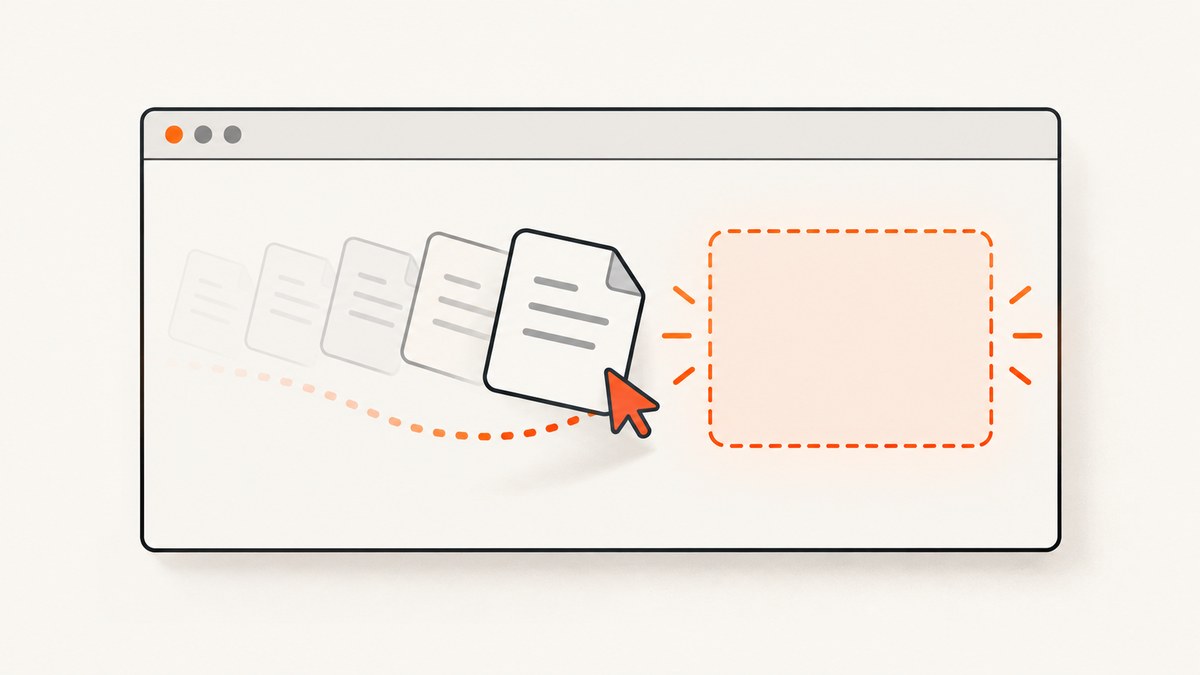
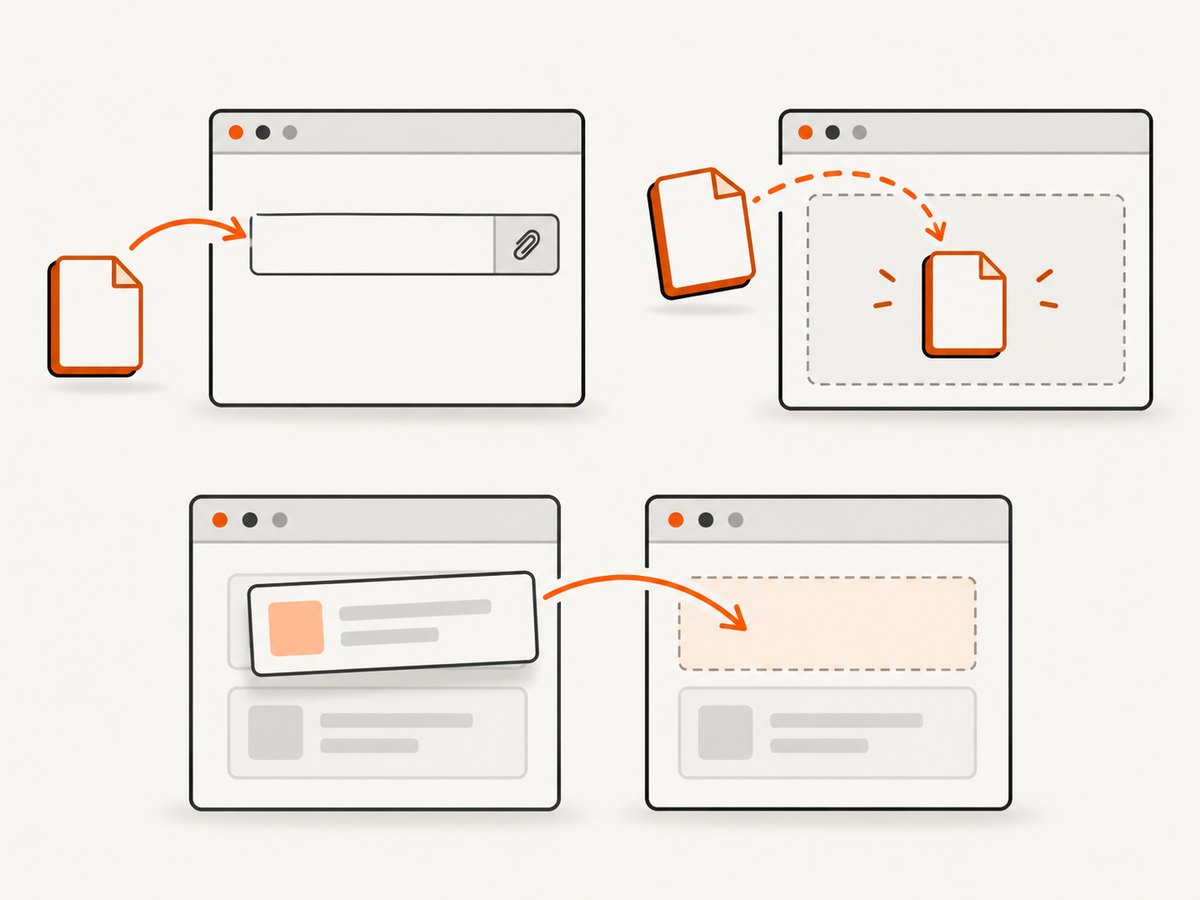
For a native file input, use locator.setInputFiles(). For a drop zone that handles external files through drag events, use locator.drop({ files }) (Playwright v1.60 or later). For moving an element already on the page, use locator.dragTo(target). If clicking an upload button creates a file chooser, register page.waitForEvent('filechooser') before clicking, then call setFiles().
These APIs represent different browser interactions. Use the one the application actually expects: setting a file input is the simplest and most direct upload path; a drop zone may need a drop event; and a sortable list needs a pointer drag. This guide uses Playwright’s JavaScript API. See the official input guide and Locator API reference for the current API details.
1. Choose the right Playwright method
| What the page does | Use | What it models |
|---|---|---|
Has a standard <input type="file"> |
locator.setInputFiles() |
Sets files on the input without pointer gestures. |
| Accepts files dropped onto a visible area | locator.drop({ files }) |
Sends a synthetic drag-and-drop payload to the drop target. |
| Reorders or moves an existing page element | locator.dragTo(target) |
Pointer movement from one DOM element to another. |
| Opens a chooser after a click, often with a dynamic input | waitForEvent('filechooser') + setFiles() |
Captures the browser file chooser event triggered by the click. |
Prefer the input API when the product’s upload behavior is backed by a file input. A visible drop zone can still contain an input, so inspect the page and its behavior before choosing. Don’t use dragTo() to try to drag a local machine file: its source must be a page element.
2. Set files on a native input
This is usually the most reliable upload test because it targets the browser control directly. The example below assumes the test file is stored beside the test script.
import { test, expect } from '@playwright/test';
import path from 'node:path';
import { fileURLToPath } from 'node:url';

const here = path.dirname(fileURLToPath(import.meta.url));

test('uploads a PDF', async ({ page }) => {
  await page.goto('https://example.com/upload');
  const upload = page.getByLabel('Upload file');
  await upload.setInputFiles(path.join(here, 'fixtures', 'report.pdf'));

  // Assert the application result, not only that Playwright selected a file.
  await expect(page.getByText('report.pdf')).toBeVisible();
});
Replace the URL and assertion with your application’s route and success state. Use an accessible label or a role-based locator when possible. If the input has no label, a stable locator can target it directly:
await page.locator('input[type="file"]').setInputFiles('fixtures/report.pdf');Relative file paths resolve from the process’s current working directory. Resolving a path from the test file, as in the first example, avoids surprises when a test runner starts with a different working directory.
Multiple files, clearing, and in-memory files
Pass an array to select multiple files. To clear the input, set an empty array. An in-memory payload is useful when a test should not depend on a fixture file:
import { expect, test } from '@playwright/test';

test('sets multiple files and then clears them', async ({ page }) => {
  await page.goto('https://example.com/upload');
  const upload = page.getByLabel('Upload files');

  await upload.setInputFiles([
    'fixtures/one.txt',
    'fixtures/two.txt',
  ]);
  await expect(page.getByText('2 files selected')).toBeVisible();

  await upload.setInputFiles([]);
  await expect(page.getByText('No files selected')).toBeVisible();
});

test('uses an in-memory file', async ({ page }) => {
  await page.goto('https://example.com/upload');
  await page.getByLabel('Upload file').setInputFiles({
    name: 'note.txt',
    mimeType: 'text/plain',
    buffer: Buffer.from('A small fixture created by the test.'),
  });
  await expect(page.getByText('note.txt')).toBeVisible();
});
For an input configured with webkitdirectory, the API accepts a directory path. Use that only when the application is explicitly testing directory selection. The page still needs to handle the selection as expected; selecting files alone does not prove server-side validation, persistence, or processing worked.
3. Drop external files onto a drop zone
Use locator.drop() when the target’s drag-and-drop handlers are part of the behavior under test. This API was added in Playwright v1.60. It sends dragenter, dragover, and drop events at the center of the target, using a synthetic DataTransfer.
import { expect, test } from '@playwright/test';

test('accepts a dropped text file', async ({ page }) => {
  await page.goto('https://example.com/upload');
  const dropzone = page.getByRole('region', { name: 'Drop files here' });

  await dropzone.drop({
    files: {
      name: 'note.txt',
      mimeType: 'text/plain',
      buffer: Buffer.from('hello from Playwright'),
    },
  });

  await expect(page.getByText('note.txt')).toBeVisible();
});
The file object needs a name, MIME type, and buffer. To supply a disk file instead, pass a file path as the file entry where supported by the installed Playwright version. The in-memory form above is self-contained and avoids dependence on a local fixture path.
Drop clipboard-like data
A drop zone may accept text or links instead of files. Pass data as a MIME-type map; a drop can include both data and files:
await dropzone.drop({
  data: {
    'text/plain': 'hello world',
    'text/uri-list': 'https://example.com',
  },
});

await dropzone.drop({
  files: {
    name: 'note.txt',
    mimeType: 'text/plain',
    buffer: Buffer.from('hello'),
  },
  data: {
    'text/plain': 'A note from the clipboard',
  },
});
Drop handling can reject a payload. If the target’s dragover handler does not call preventDefault(), Playwright treats the drop as rejected, dispatches dragleave, and throws. Check the application’s event handling instead of changing the test to suppress the error.
4. Drag a page element to another element
For sortable lists, kanban cards, or other on-page objects, use dragTo(). It hovers the source, presses the left mouse button, moves to the target, and releases. The API was added in Playwright v1.18.
import { expect, test } from '@playwright/test';

test('moves a card to another column', async ({ page }) => {
  await page.goto('https://example.com/board');
  const card = page.getByRole('listitem', { name: 'Prepare release' });
  const target = page.getByRole('region', { name: 'Done' });

  await card.dragTo(target);
  await expect(target.getByText('Prepare release')).toBeVisible();
});
By default, Playwright chooses points in each element. If the element has handles, overlays, or a constrained drop area, specify positions relative to the elements:
await page.locator('#item-to-be-dragged').dragTo(
  page.locator('#item-to-be-dropped-at'),
  {
    sourcePosition: { x: 12, y: 12 },
    targetPosition: { x: 80, y: 24 },
  },
);
Choose coordinates inside the draggable handle and accepted destination area. If the application only responds to a particular path or threshold, a high-level drag may not match it; inspect the app’s interaction model and use the mouse API only if you need to describe a specific pointer path.
5. Handle a file chooser opened by a click
Some controls create a file input only after a user clicks. Start waiting for the event before the click so the event cannot fire before the listener is registered:
import { expect, test } from '@playwright/test';
import path from 'node:path';

test('uploads through a dynamically created chooser', async ({ page }) => {
  await page.goto('https://example.com/upload');

  const chooserPromise = page.waitForEvent('filechooser');
  await page.getByRole('button', { name: 'Choose a file' }).click();
  const chooser = await chooserPromise;

  await chooser.setFiles(path.resolve('fixtures/report.pdf'));
  await expect(page.getByText('report.pdf')).toBeVisible();
});
The ordering matters: create the promise first, trigger the click, then await the chooser. Waiting after clicking can miss the event. This pattern is intended for a real chooser-triggering action; if the button simply forwards to a standard input you can locate, setInputFiles() may be simpler.
6. Run the test and make its result meaningful
- Install and configure Playwright Test for your project using the official getting-started guide.
- Identify whether the application uses an input, a drop event, an on-page draggable, or a chooser.
- Use a stable accessible locator and provide either a fixture or an in-memory file.
- Wait for an application-level outcome: a filename preview, completed upload status, validation message, or resulting network-backed state.
- Run the test in the project’s normal browser and CI configuration. Keep test files small and deterministic unless file size is itself under test.
Do not treat a successful API call as proof the upload succeeded. The application may reject a file by size, type, user permissions, or server-side validation. Assert the expected outcome and, where relevant, the expected error for invalid files.
7. Troubleshooting
| Symptom | Likely cause | Fix |
|---|---|---|
drop() throws that the drop was rejected |
The target’s dragover handler did not call preventDefault(). |
Inspect the drop-zone implementation and ensure it accepts dragover before expecting the drop. Keep the test aligned with the product behavior. |
| The chooser event times out | The listener was registered after the click, or the control did not open a chooser. | Create waitForEvent('filechooser') before clicking. Confirm the chosen control actually triggers a file chooser. |
| “No element” or strict locator error | The label or role does not match the rendered accessible name, or more than one control matches. | Inspect the accessible name; use a specific label, role, or scoped locator and ensure it uniquely identifies the input. |
| File path cannot be found | A relative path is resolved from the current working directory, not necessarily the test file directory. | Resolve the path from the test module location or use path.resolve(); ensure the fixture exists in CI. |
| Upload UI never updates | File selection occurred but the app rejected it, processes asynchronously, or the assertion checks the wrong state. | Check accepted types and size, wait for a visible completion or validation state, and inspect the application’s network/server response. |
dragTo() reaches the wrong area |
The default point lands outside a handle or valid drop target. | Set sourcePosition and targetPosition within the active regions; verify overlays are not intercepting the gesture. |
| Page API upload selector works but is discouraged | The test uses the selector-based Page API. | Prefer locator.setInputFiles(), which is the recommended locator-based approach in the API documentation. |
8. Reliability, speed, and cost
setInputFiles() avoids mouse movement and is generally the simplest interaction for a standard input. drop() and dragTo() exercise additional event behavior, so they are appropriate when that behavior matters. Keep the test’s assertion focused on the application result, not on implementation details that may change without affecting users.
Use small in-memory payloads for routine upload-flow tests and reserve large files for tests specifically covering size limits or streaming. Large fixtures consume storage and transfer time in CI. If testing upload throughput or server limits, measure that as a separate workload; Playwright’s interaction API does not establish a performance benchmark. The research sources provide no browser/OS compatibility matrix or cost figures, so validate your supported browser projects and CI environment directly.
For a visual check of the resulting page, a screenshot can capture the upload state after the assertion. A website screenshot tool does not replace Playwright’s upload interaction or verify server-side processing. ScreenshotNeo is a separate website screenshot API and MCP server for developers.
9. Frequently asked questions
Can I use dragTo() to upload a local file?
No. It drags a page element to another page element. Use setInputFiles() for a file input or drop() for an external file drop zone.
Which method should I use for a hidden file input?
If you can locate the input, set its files directly with locator.setInputFiles(). If the input is created by a click and the chooser event is the behavior you need, wait for filechooser before clicking.
Can I select a folder?
Yes, for a file input configured with webkitdirectory, pass a directory path to setInputFiles(). Confirm the application supports directory selection.
What should I assert after a drop?
Assert a user-visible result such as the uploaded filename, success status, or validation message. For workflows where server acceptance matters, assert the application state that reflects that acceptance.
Or skip the browser setup
If you need a screenshot of the upload page or its resulting state, ScreenshotNeo can capture a URL with one GET request. See the API documentation for request options.
curl -G "https://api.screenshotneo.com/v1/shot" -d access_key=YOUR_API_KEY --data-urlencode url=https://example.com/upload -o shot.webpimport requests
r = requests.get(
"https://api.screenshotneo.com/v1/shot",
params={"access_key": "YOUR_API_KEY", "url": "https://example.com/upload"},
timeout=90,
)
open("shot.webp", "wb").write(r.content)const q = new URLSearchParams({
access_key: 'YOUR_API_KEY',
url: 'https://example.com/upload',
});
const res = await fetch(`https://api.screenshotneo.com/v1/shot?${q}`);
if (!res.ok) throw new Error(`Screenshot request failed: ${res.status}`);
await Bun.write('shot.webp', res);ScreenshotNeo removes cookie banners, newsletter popups, and chat widgets before the shot. Bot checks, blank pages, and failed loads are never billed. Its MCP server lets AI agents take screenshots. The free plan includes 1,000 screenshots a month with no card; paid plans start at $5 for 3,000. Sign up free for 1,000 screenshots a month, with no card.


