How to Draw Rectangles on Screenshots in C#
Draw, fill, and save rectangles on screenshots in C# with System.Drawing, plus desktop capture, coordinates, troubleshooting, and automation options.
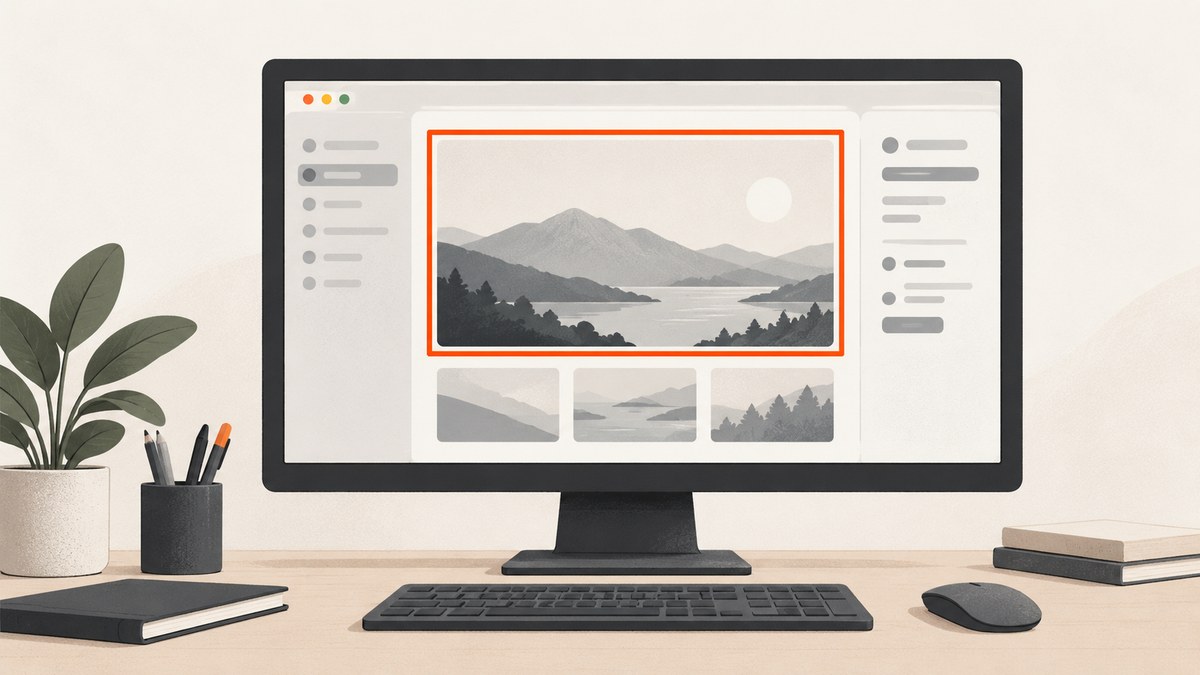
Direct answer: load the screenshot into a Bitmap, create a drawing surface with Graphics.FromImage, create a Pen, define a Rectangle in the bitmap’s pixel coordinates, and call Graphics.DrawRectangle. Save the bitmap after drawing. The example below is Windows-specific because it uses System.Drawing.Common.
Microsoft documents DrawRectangle for drawing an outline with a pen, while FillRectangle draws a solid or translucent area with a brush: Graphics.DrawRectangle and Rectangle.
What you need
- Windows
- A .NET application targeting a Windows-compatible framework
System.Drawing.Common- An existing image file, or a desktop region to capture
Starting with .NET 6, Microsoft marks System.Drawing.Common as Windows-specific. If your application must run on Linux or macOS, choose a maintained cross-platform graphics library instead of relying on compatibility switches. See Microsoft’s platform note: System.Drawing.Common is Windows-only.
Draw an outline on an existing screenshot
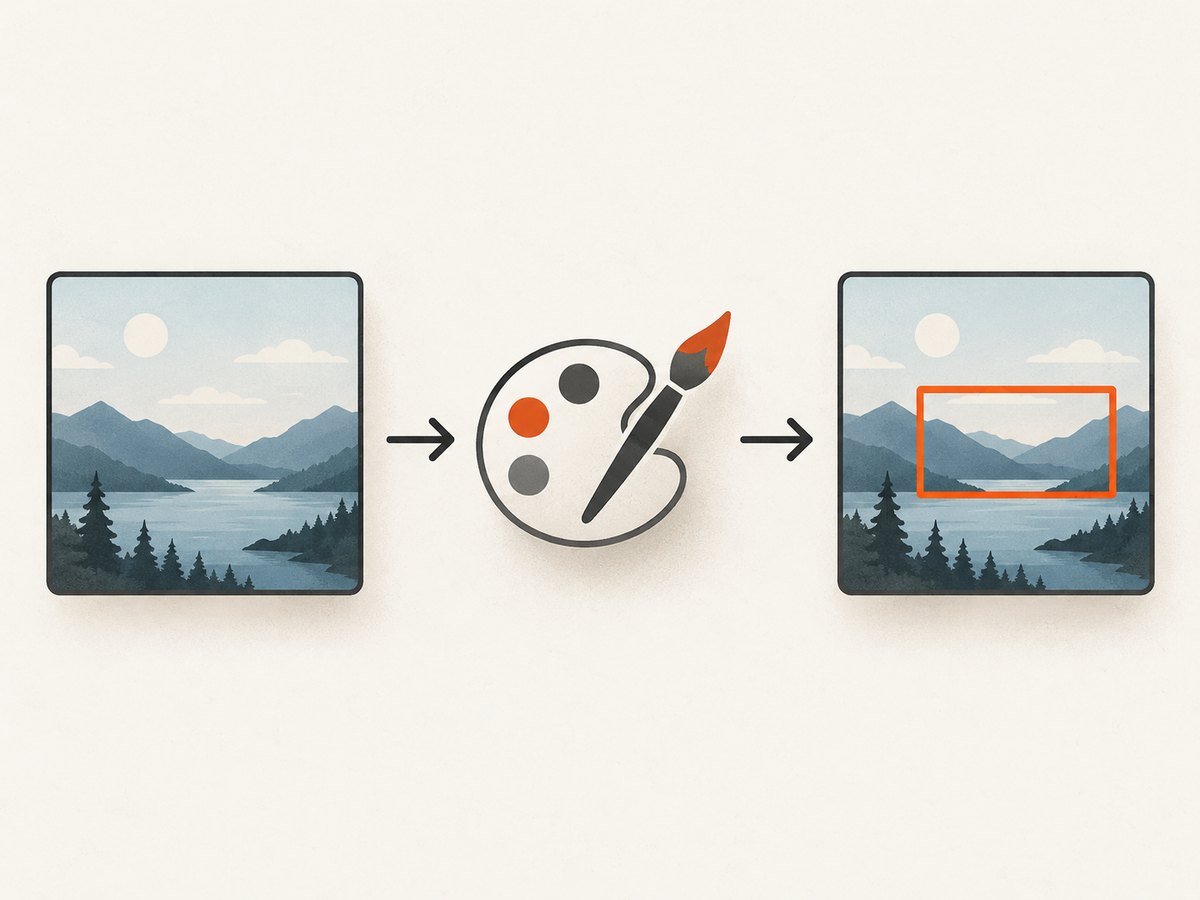
This complete console example reads an image, draws a six-pixel red rectangle, and writes a PNG. Pass the input path, output path, x coordinate, y coordinate, width, and height as arguments.
using System;
using System.Drawing;
using System.Drawing.Imaging;

if (args.Length < 6)
{
    Console.Error.WriteLine("Usage: annotate <input> <output.png> <x> <y> <width> <height>");
    return 1;
}

string inputPath = args[0];
string outputPath = args[1];
int x = int.Parse(args[2]);
int y = int.Parse(args[3]);
int width = int.Parse(args[4]);
int height = int.Parse(args[5]);

using Bitmap bitmap = new Bitmap(inputPath);
using Graphics graphics = Graphics.FromImage(bitmap);
using Pen pen = new Pen(Color.Red, 6f);

Rectangle rectangle = new Rectangle(x, y, width, height);
graphics.DrawRectangle(pen, rectangle);
bitmap.Save(outputPath, ImageFormat.Png);

Console.WriteLine($"Saved {outputPath}");
return 0;
For example:
dotnet run -- screenshot.jpg marked.png 120 80 640 360How the coordinates work
Rectangle(x, y, width, height) stores the upper-left point and the rectangle dimensions. The default drawing unit is pixels. The coordinates must belong to the bitmap you are editing, not to a browser window, a scaled preview, or another monitor.
The pen is centered on the rectangle path. A six-pixel pen therefore extends roughly three pixels inside and three pixels outside the nominal boundary. Leave a margin when the rectangle is close to an image edge, or reduce the coordinates so the stroke is not clipped. The Graphics.PageUnit and PageScale properties can change drawing units, so leave them at their defaults unless you have a specific coordinate system to manage.
Draw a filled or translucent rectangle
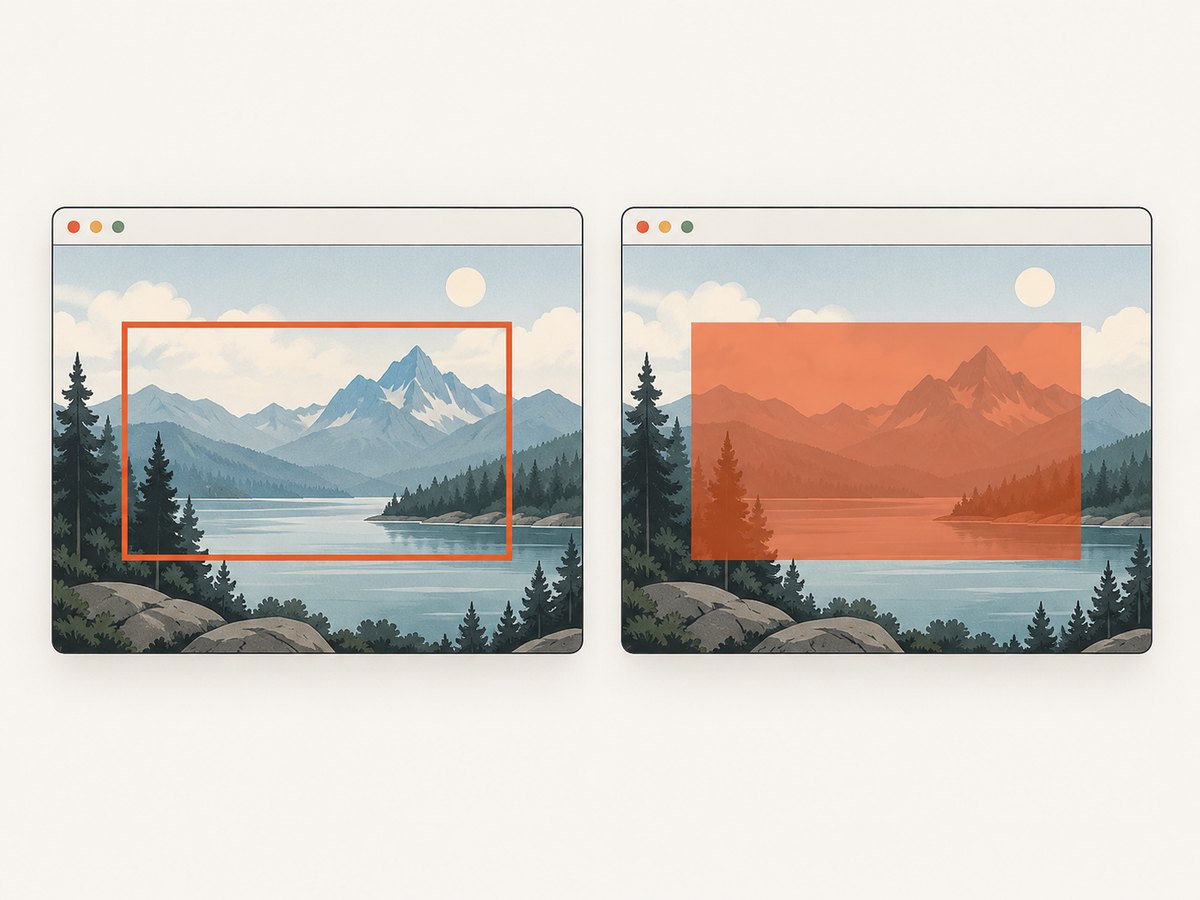
Use FillRectangle when the marked area should be a block rather than an outline. An alpha value makes the fill partially transparent, allowing the screenshot to remain visible beneath it.
using System.Drawing;
using System.Drawing.Imaging;

using Bitmap bitmap = new Bitmap("screenshot.png");
using Graphics graphics = Graphics.FromImage(bitmap);
using Brush brush = new SolidBrush(Color.FromArgb(96, Color.Yellow));

Rectangle area = new Rectangle(120, 80, 640, 360);
graphics.FillRectangle(brush, area);
bitmap.Save("highlighted.png", ImageFormat.Png);
Color.FromArgb(96, Color.Yellow) uses an alpha value of 96 out of 255. Increase the value for a stronger overlay. Use DrawRectangle with a Pen when you need only a border.
Capture the desktop and draw the rectangle
Capturing and annotating are separate operations. Graphics.CopyFromScreen copies a screen region into a bitmap; you can then draw on that bitmap using the same DrawRectangle call. Microsoft documents the source point, destination point, and transfer size here: Graphics.CopyFromScreen.
using System;
using System.Drawing;
using System.Drawing.Imaging;

int sourceX = 0;
int sourceY = 0;
int captureWidth = 1280;
int captureHeight = 720;

using Bitmap bitmap = new Bitmap(captureWidth, captureHeight);
using Graphics graphics = Graphics.FromImage(bitmap);

Point sourcePoint = new Point(sourceX, sourceY);
Point destinationPoint = new Point(0, 0);
Size captureSize = new Size(captureWidth, captureHeight);
graphics.CopyFromScreen(sourcePoint, destinationPoint, captureSize);

using Pen pen = new Pen(Color.Red, 6f);
Rectangle rectangle = new Rectangle(120, 80, 640, 360);
graphics.DrawRectangle(pen, rectangle);

bitmap.Save("desktop-marked.png", ImageFormat.Png);
Console.WriteLine("Saved desktop-marked.png");
The source coordinates are desktop coordinates. On a multi-monitor setup, a monitor can have negative coordinates, so select the correct source point and dimensions for the display region you want. The copy operation can throw a Win32Exception when the requested desktop cannot be accessed; see the troubleshooting section before deploying this in a service or unattended session.
Translate coordinates from a scaled preview
If a user clicks a displayed preview instead of the original image, convert the click before constructing the rectangle. For a preview width and height of previewWidth and previewHeight, and bitmap dimensions bitmap.Width and bitmap.Height:
int imageX = (int)Math.Round(previewX * bitmap.Width / (double)previewWidth);
int imageY = (int)Math.Round(previewY * bitmap.Height / (double)previewHeight);
Apply the same scale to the rectangle’s width and height. Clamp the final rectangle so its right and bottom edges remain inside the bitmap:
int safeX = Math.Max(0, Math.Min(imageX, bitmap.Width - 1));
int safeY = Math.Max(0, Math.Min(imageY, bitmap.Height - 1));
int safeWidth = Math.Max(1, Math.Min(imageWidth, bitmap.Width - safeX));
int safeHeight = Math.Max(1, Math.Min(imageHeight, bitmap.Height - safeY));
Choose colors, widths, and line styles
- Contrast: choose a color that stands out against the screenshot. Red, yellow, cyan, and magenta are common annotation colors, but inspect the actual image.
- Width: use a thin pen for high-resolution images and a thicker pen for thumbnails. The width is measured in the current graphics unit.
- Dash patterns:
pen.DashStyle = System.Drawing.Drawing2D.DashStyle.Dash;creates a dashed outline. - Rounded corners:
DrawRectanglecreates square corners. Use a graphics path andDrawPathif rounded corners are required. - Edge safety: inset the rectangle by half the pen width when the border must remain fully visible.
Save formats and resource lifetime
Call Save only after all drawing is complete. Select an encoder explicitly when the output format matters:
bitmap.Save("marked.jpg", ImageFormat.Jpeg);
bitmap.Save("marked.webp", ImageFormat.Webp);
The available image codecs depend on the target framework and installed platform support. PNG is a safe default for annotations because it preserves sharp edges and does not add JPEG compression artifacts. Use using declarations for Bitmap, Graphics, Pen, and Brush; do not use a bitmap after it has been disposed.
Common errors and fixes
| Error or symptom | Cause | Fix |
|---|---|---|
PlatformNotSupportedException |
System.Drawing.Common is running on Linux or macOS. |
Run this implementation on Windows or replace it with a maintained cross-platform graphics library. |
| Rectangle is in the wrong location | Coordinates came from a scaled preview, browser window, or another image size. | Translate coordinates into the bitmap’s pixel space and account for the preview scale. |
| Border is clipped at an edge | The pen is centered on the path and extends outside the requested bounds. | Inset the rectangle or reduce the pen width. |
| Only an outline appears when a block was expected | DrawRectangle uses a pen and does not fill the interior. |
Use FillRectangle with a Brush. |
| Output file is locked or cannot be overwritten | An input stream or bitmap still owns the file, or the destination is open elsewhere. | Dispose streams and bitmaps deterministically; save to a different path while debugging. |
ArgumentException while loading |
The path is wrong or the file is not a supported image. | Check the absolute path, file permissions, and image format before creating the bitmap. |
Win32Exception from CopyFromScreen |
The requested desktop or screen session is unavailable. | Run in an interactive Windows session with access to the selected display; verify source coordinates and dimensions. |
| Capture is black or incomplete | The target window may be protected, minimized, covered, or outside the selected screen region. | Capture the correct visible desktop region and confirm the session is active. Screen-copy APIs capture displayed pixels, not hidden application content. |
Performance and reliability
- Keep one
Graphicsinstance for a batch of rectangles instead of creating one for every mark. - Reuse a pen when color, width, and style are the same.
- Large screenshots consume memory proportional to width, height, and pixel format. Dispose each image promptly in batch jobs.
- PNG encoding preserves detail but can produce larger files; JPEG is smaller for photographic screenshots but may blur thin borders.
- Validate rectangle dimensions before drawing. Reject negative widths and heights or normalize them into a positive rectangle.
- For deterministic output, keep the capture size, coordinate conversion, pen settings, and encoder explicit.
Or skip the browser setup
If the screenshot starts as a web page rather than a local image, ScreenshotNeo returns the screenshot from one request. Its capture API can also be used before your C# annotation step. Full API options are documented at https://screenshotneo.com/docs/.
cURL
curl -G "https://api.screenshotneo.com/v1/shot" -d access_key=YOUR_API_KEY --data-urlencode url=https://stripe.com -o shot.webpPython
import requests
r = requests.get("https://api.screenshotneo.com/v1/shot", params={"access_key": "YOUR_API_KEY", "url": "https://stripe.com"}, timeout=90)
open("shot.webp", "wb").write(r.content)
Node.js
const q = new URLSearchParams({ access_key: 'YOUR_API_KEY', url: 'https://stripe.com' });
const res = await fetch(`https://api.screenshotneo.com/v1/shot?${q}`);
ScreenshotNeo accepts cookie and consent banners before capture and removes more than 60 known consent platforms, newsletter popups, and chat widgets. Bot checks, blank pages, timeouts, failed loads, and cache hits are not billed, and the response identifies the result with X-Page-Verdict and X-Billed headers. Its MCP server lets Claude, Cursor, and other MCP clients call take_screenshot, get_page_info, and capture_pdf. The free plan includes 1,000 screenshots per month without a card; paid plans start at $5 for 3,000 screenshots. Create a free ScreenshotNeo account.
FAQ
Can I draw a rectangle without saving an intermediate file?
Yes. Keep the Bitmap in memory, draw with Graphics.FromImage, and save or stream the final bitmap when your operation finishes.
Should I use a rectangle or a rectangle with floating-point coordinates?
Use Rectangle for pixel-aligned integer coordinates. Use RectangleF when your layout calculations produce fractional values and the graphics API needs them.
Can this code annotate a PDF?
No. First render the PDF page to an image with a PDF renderer, annotate that bitmap, and then save the image or rebuild a PDF with a PDF library.
How do I draw several boxes?
Create one Graphics and one reusable Pen, then call DrawRectangle for each validated rectangle before saving once.
Is desktop capture required?
No. If a screenshot file already exists, load it directly. Use CopyFromScreen only when your program must capture visible desktop pixels.


