How to Dump the Full Page With Headless Chrome Instead of Only the Body
Learn why headless Chrome dumps only the body and how to serialize the complete live document, including frames, shadow DOM, and rendered content.
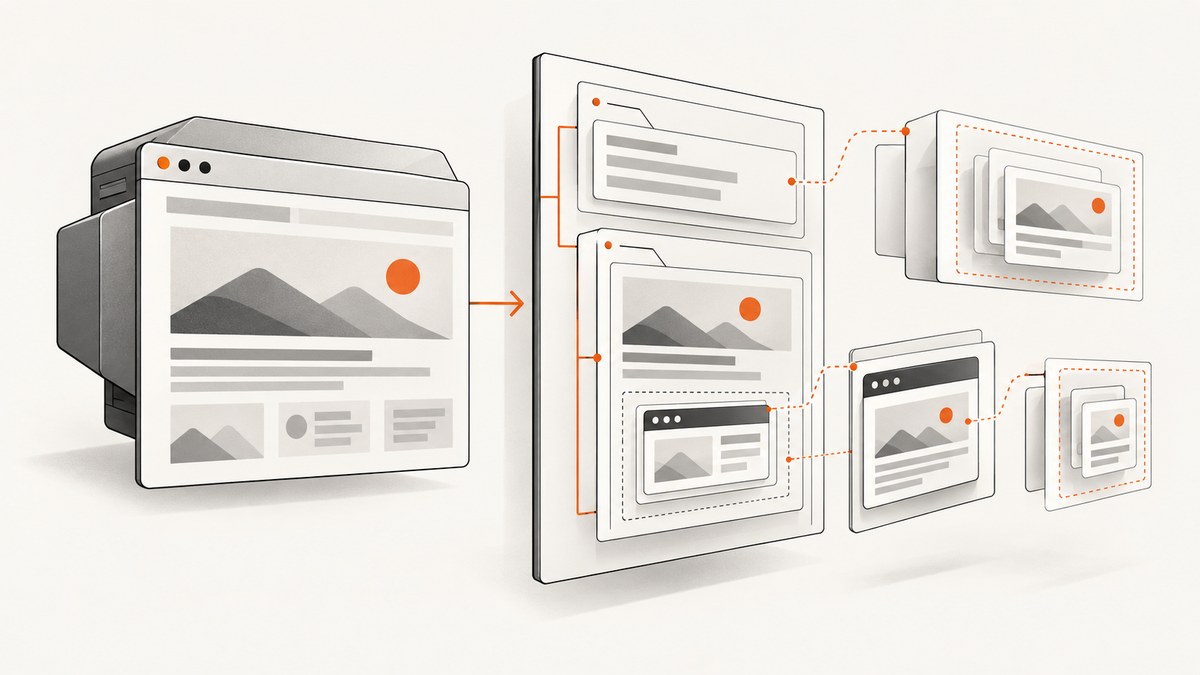
Use document.documentElement.outerHTML, not document.body.innerHTML. The first expression serializes the current document element, including the <head> and <body>. Evaluate it only after navigation and after the application has rendered the state you need. For a quick command-line capture, Chrome’s --headless --dump-dom option emits a serialized live DOM after parsing and script execution; it does not print the original response source.
This distinction explains most “body only” results. A body expression deliberately excludes the document element and head. A capture made immediately after navigation can also miss content that a client-side application renders later. The sections below show the CLI, CDP, Node.js, and Python approaches, then cover iframes, shadow DOM, MHTML snapshots, failures, performance, and operational choices.
1. What “full page” means
Before choosing an API, define the output you need:
| Requirement | Best route | What you receive |
|---|---|---|
| One HTML string for the current page | document.documentElement.outerHTML |
Serialized live document element, including head and body |
| Protocol-level node traversal | DOM.getDocument({depth:-1,pierce:true}) plus DOM.getOuterHTML |
Node tree and selected serialized subtrees |
| Offline archive with resources | Page.captureSnapshot |
MHTML containing documented frame, shadow DOM, external-resource, and inline-style data |
| Fast command-line inspection | chrome --headless --dump-dom URL |
Serialized live DOM printed to stdout |
| Original server response | curl URL |
Response source, without JavaScript rendering |
Chrome’s headless documentation explicitly distinguishes --dump-dom from printing HTML source with curl. A live DOM can differ substantially from the response because scripts may add, remove, or change nodes.
2. Quick CLI capture with Chrome
Install a Chrome or Chromium binary available as chrome (use the executable name on your system), then run:
chrome --headless --dump-dom https://example.com > page.htmlThe command waits for Chrome to parse the document and execute scripts before serializing it. It is useful for a one-off capture, shell pipelines, and debugging a wrapper that appears to return only a fragment. Open page.html and inspect whether it begins with <html and contains a <head element.
Source versus rendered DOM
Compare the two deliberately:
# Original response source
curl -L https://example.com -o source.html

# Parsed and script-rendered DOM
chrome --headless --dump-dom https://example.com -o /dev/stdout > rendered.html
source.html is what the server returned (subject to redirects and transfer handling). rendered.html is Chrome’s serialization after parsing and script execution. Neither command automatically merges the independent documents inside cross-origin iframes.
3. CDP: serialize the complete document
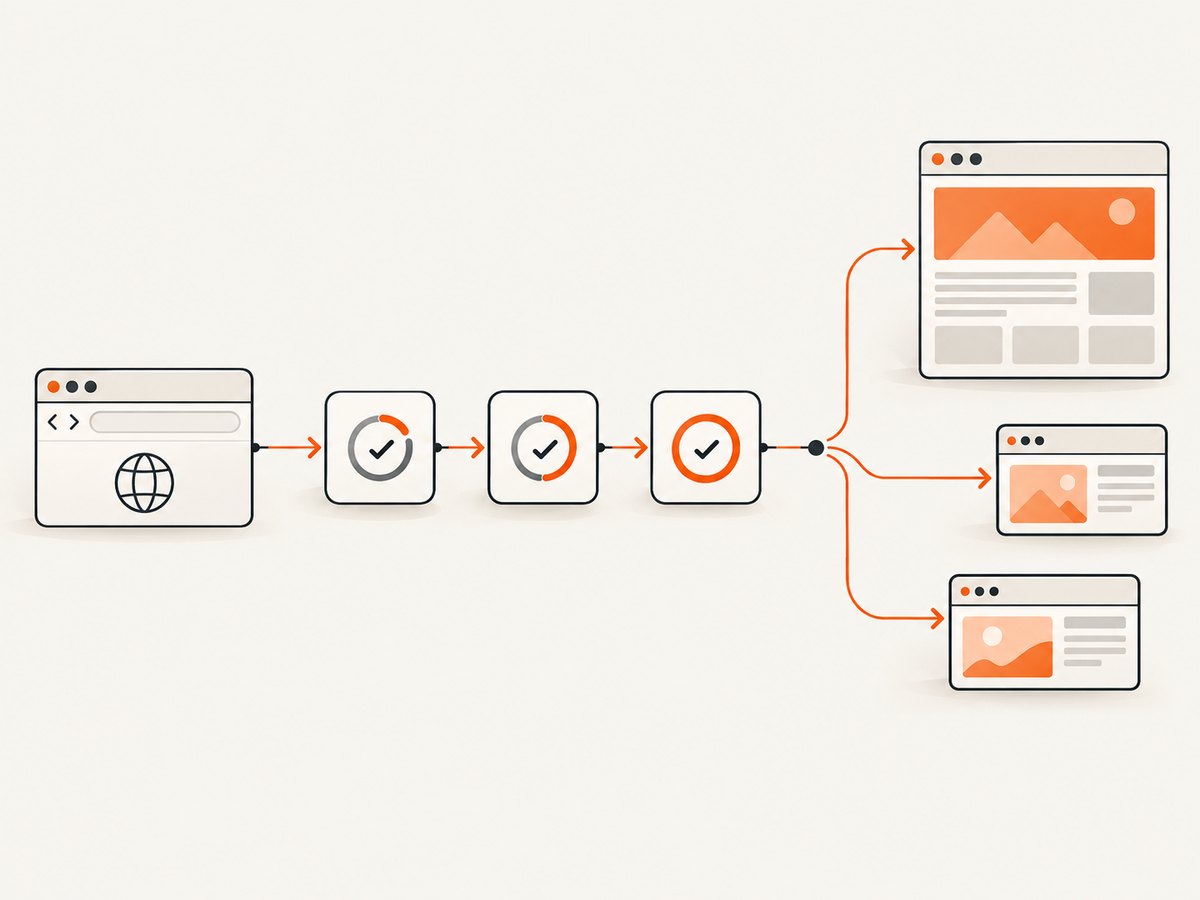
For a service or a repeatable capture pipeline, use the Chrome DevTools Protocol (CDP). Enable the Page and Runtime domains, navigate, wait for an application-specific ready condition, then evaluate the full-document expression with returnByValue: true:
await Page.enable();
await Runtime.enable();
await Page.navigate({url});
await waitForYourReadyCondition();

const result = await Runtime.evaluate({
  expression: 'document.documentElement.outerHTML',
  returnByValue: true,
  awaitPromise: true
});

const fullHtml = result.result.value;
The readiness step is not optional for client-rendered applications. A navigation event means the document navigation started or reached its protocol milestone; it does not guarantee that a late API response, component, or image has appeared. Use a selector that proves the page is ready, a network-idle policy, or an application signal appropriate to the site.
Complete Node.js example with Puppeteer
This script launches a headless browser, waits for a selector, evaluates outerHTML, and writes the result. Install Puppeteer with npm install puppeteer before running it.
const fs = require('node:fs/promises');
const puppeteer = require('puppeteer');

(async () => {
  const url = process.argv[2] || 'https://example.com';
  const browser = await puppeteer.launch({headless: true});
  try {
    const page = await browser.newPage();
    await page.goto(url, {waitUntil: 'domcontentloaded', timeout: 90000});

    // Replace this with a selector that means “ready” for your application.
    await page.waitForSelector('body', {timeout: 30000});
    await page.waitForFunction(() => document.documentElement != null);

    const html = await page.evaluate(() => document.documentElement.outerHTML);
    await fs.writeFile('page.html', html, 'utf8');
  } finally {
    await browser.close();
  }
})();
For a page whose meaningful content arrives later, replace the generic body check with a stable application selector such as a results container. If the page exposes a promise-based readiness hook, page.evaluate can await it before serialization.
Complete Python example with Selenium
Selenium drives a local headless Chrome and returns the evaluated string directly:
from pathlib import Path
import sys
from selenium import webdriver
from selenium.webdriver.chrome.options import Options
from selenium.webdriver.common.by import By
from selenium.webdriver.support.ui import WebDriverWait

url = sys.argv[1] if len(sys.argv) > 1 else "https://example.com"
options = Options()
options.add_argument("--headless=new")
options.add_argument("--no-sandbox")
options.add_argument("--disable-dev-shm-usage")

driver = webdriver.Chrome(options=options)
try:
    driver.set_page_load_timeout(90)
    driver.get(url)
    WebDriverWait(driver, 30).until(
        lambda d: d.find_element(By.TAG_NAME, "body")
    )
    html = driver.execute_script(
        "return document.documentElement.outerHTML;"
    )
    Path("page.html").write_text(html, encoding="utf-8")
finally:
    driver.quit()
4. Protocol-native traversal for iframes and shadow roots
When you need node IDs, explicit subtree traversal, or protocol-level control, enable the DOM domain and request the root with an unlimited depth and piercing enabled:
await DOM.enable();
const {root} = await DOM.getDocument({depth: -1, pierce: true});
const {outerHTML} = await DOM.getOuterHTML({nodeId: root.nodeId});
depth: -1 requests the entire subtree. pierce: true allows traversal into iframes and shadow roots where the protocol can expose them. This route is useful when you need to inspect individual nodes instead of receiving one string.
Cross-origin iframe limits
The parent document’s outerHTML contains an <iframe> element, not necessarily the child document’s serialized markup. For same-origin frames, browser script access may permit separate serialization. For cross-origin frames, enumerate frame targets and capture each document through the permitted browser context; do not assume the parent string can include it. Your result model should therefore store the parent HTML and any frame documents separately.
Shadow DOM limits
Open or protocol-pierced shadow trees can be traversed with DOM-domain methods. Closed shadow roots may not appear in ordinary serialization. If your objective is an offline representation that includes the resources and structures documented by Chrome, use an MHTML snapshot instead of treating one HTML string as a universal archive.
5. MHTML with Page.captureSnapshot
Page.captureSnapshot returns an MHTML serialization. The Page protocol reference documents coverage for iframes, shadow DOM, external resources, and inline styles. It is intended for an offline archive rather than a plain HTML string, and the living protocol marks it experimental, so pin and test against the Chrome version used in production.
await Page.enable();
await Page.navigate({url});
await waitForYourReadyCondition();
const snapshot = await Page.captureSnapshot({format: 'mhtml'});
await writeFile('page.mhtml', snapshot.data);
Choose this format when preserving related resources matters more than handing another program a single DOM string. If a downstream parser expects HTML, use outerHTML and define how frame documents and assets are stored.
6. Why captures contain only the body
- The expression is body-only. Replace
document.body.innerHTMLwithdocument.documentElement.outerHTML. - Serialization runs too early. Wait for a meaningful selector, network-idle rule, or app signal after navigation.
- A wrapper post-processes the result. Inspect its evaluated expression and any code that extracts
bodyor strips the head. - Frame content is expected in the parent string. Capture frame documents separately when permitted.
- Shadow content is closed or unpierced. Use DOM traversal with piercing support or an MHTML snapshot for the broader documented serialization.
- Source and live DOM are being conflated. Use
curlfor response source and headless Chrome for parsed, script-rendered output.
7. Readiness, determinism, and edge cases
Wait for meaning, not an arbitrary sleep
A fixed delay can be useful for a known animation, but a selector or application signal is usually more deterministic. Pick a condition that proves the data you need exists. Record the URL, timestamp, browser version, and readiness rule with the artifact so a later comparison is explainable.
Navigation failures and partial pages
Set explicit navigation and evaluation timeouts. Treat a timeout as a capture state, not as a successful empty document. Save diagnostics such as the final URL, console errors, and a screenshot when investigating. Retry only failures that are plausibly transient; repeated retries can multiply load on the target without producing a different DOM.
Dynamic and personalized content
Cookies, authentication, geolocation, timezone, experiments, and logged-in state can change the DOM. Keep those inputs stable when comparing captures. Never put credentials or session cookies in an HTML artifact that will be shared publicly.
Large documents
Serializing a very large DOM creates a large in-memory string. Stream or write the returned value promptly, and avoid keeping several copies in memory. If you need assets and frame resources for offline review, MHTML may be a better-defined artifact than concatenating unrelated documents.
8. Performance and reliability choices
| Choice | Effect | Operational guidance |
|---|---|---|
CLI --dump-dom |
Lowest setup for one capture | Use for scripts and diagnosis; capture stdout and exit status. |
| Persistent browser with CDP | Avoids launch cost across many URLs | Isolate pages, reset state, and close tabs after each job. |
| OuterHTML evaluation | Simple single-string result | Define readiness and separately model frames. |
| DOM traversal | Node-level control | Use when selectors, node IDs, or shadow traversal matter. |
| MHTML snapshot | Broader archive representation | Pin Chrome because the method is experimental. |
For repeatability, pin the browser version, set timeouts, use a stable viewport and locale, and log the readiness condition. For reliability, classify failures (navigation, readiness, protocol, serialization) and make retries bounded and observable.
9. Or skip the browser setup
If your goal is a clean image or PDF rather than an HTML archive, ScreenshotNeo provides a single screenshot API request. Its capture options include full-page rendering with lazy images loaded, CSS-selector element capture, custom JavaScript and CSS, waits for selectors or network idle, headers and cookies, blocking rules, device presets, PDF output, and more. See the ScreenshotNeo documentation for request options.
curl -G "https://api.screenshotneo.com/v1/shot" -d access_key=YOUR_API_KEY --data-urlencode url=https://stripe.com -o shot.webpimport requests
r = requests.get("https://api.screenshotneo.com/v1/shot", params={"access_key": "YOUR_API_KEY", "url": "https://stripe.com"}, timeout=90)
open("shot.webp", "wb").write(r.content)const q = new URLSearchParams({ access_key: 'YOUR_API_KEY', url: 'https://stripe.com' });
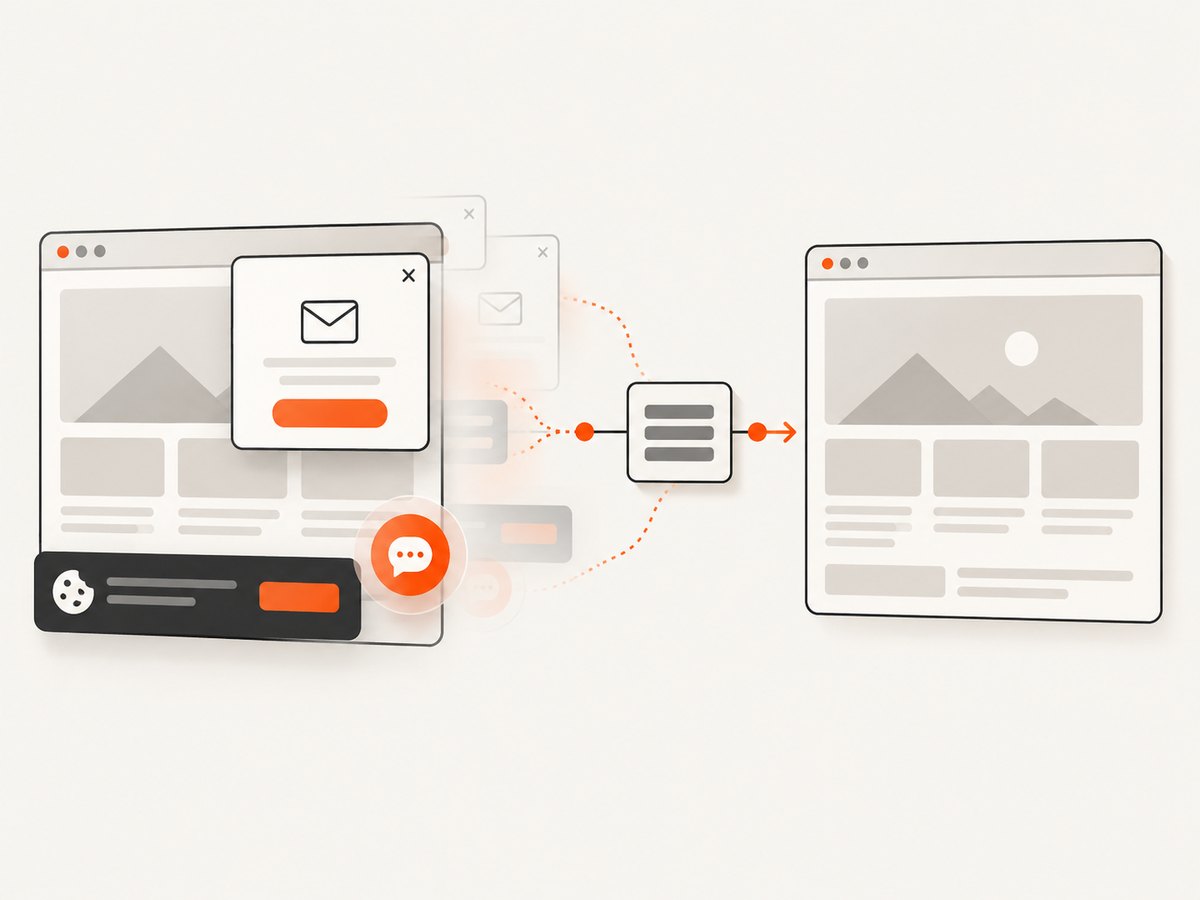
const res = await fetch(`https://api.screenshotneo.com/v1/shot?${q}`);Cookie banners, newsletter popups, and chat widgets are removed before the shot. Bot checks, blank pages, failed loads, timeouts, and cache hits are not billed; response headers identify the page verdict and whether it was billed. ScreenshotNeo also offers an MCP server with take_screenshot, get_page_info, and capture_pdf tools for Claude, Cursor, and other MCP clients. The Free plan includes 1,000 shots per month with no card; paid plans start at $5 for 3,000 shots. Create a free ScreenshotNeo account.
10. Troubleshooting checklist
- Confirm the evaluated expression is exactly
document.documentElement.outerHTML. - Check that the result is read from
result.result.valuewhen usingreturnByValue: true. - Wait for the page’s real ready selector rather than only navigation.
- Log the final URL after redirects.
- Capture same-origin and permitted frame documents separately.
- Use
DOM.getDocument({depth:-1,pierce:true})for protocol traversal. - Use MHTML when you need documented resource and shadow/iframe archive coverage.
- Pin Chrome and record its version for reproducible output.
- Bound retries and preserve timeout diagnostics.
11. FAQ
Does outerHTML include the doctype?
It serializes the document element. If a doctype is required in the artifact, handle it as a separate document-level value when building your output.
Will it include JavaScript source files?
The HTML string includes script elements and their attributes, not a packaged copy of every external resource. Use an MHTML snapshot when the documented resource archive is the requirement.
Why does curl show different HTML?
curl retrieves response source without running the page’s JavaScript. Headless Chrome parses the response, runs scripts, and serializes the resulting DOM.
Can one parent HTML string contain every cross-origin frame?
No. The parent contains iframe elements; child documents must be handled as separate frame captures subject to browser origin and permission rules.
When should I choose MHTML?
Choose it for an offline archive with the resources and structures covered by Page.captureSnapshot. Choose outerHTML when another system needs one plain HTML string.


