How to Generate Dynamic HTML Tables with react-native-html-to-pdf
Build dynamic table rows as escaped HTML, convert them with generatePDF, and handle options, pagination limits, errors, and platform differences.

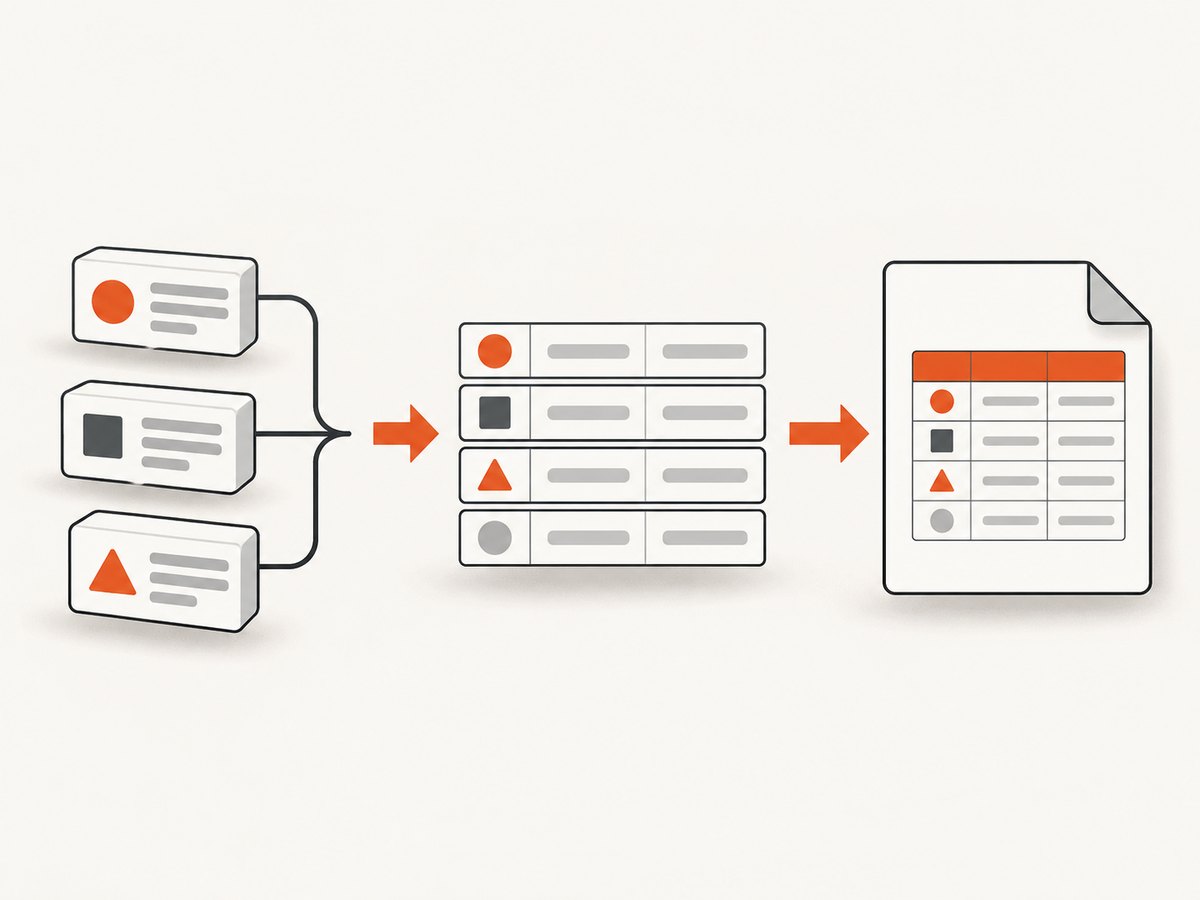
Direct answer: build the table in your React Native code, escape every cell value, place the generated rows inside a complete HTML document, and pass that string to generatePDF({ html, ...options }) from react-native-html-to-pdf. The package accepts an HTML string; it does not provide a separate dynamic-table builder.
1. Install and import the package
Install the package in your React Native project, then import the asynchronous PDF function:
import { generatePDF } from 'react-native-html-to-pdf';The npm listing reports version 1.3.0, but check the registry and your installed package typings before depending on a particular version or React Native combination.
2. Turn application data into table HTML
Keep your source data structured. Generate one <tr> for each row and escape values before inserting them into markup. Escaping prevents a customer name such as <script> or an ampersand from changing the document.
function escapeHtml(value) {
return String(value ?? '').replace(/[<>"']/g, (char) => ({
'&': '&',
'<': '<',
'>': '>',
'"': '"',
"'": '''
}[char]));
}
function makeReportHtml(rows) {
const bodyRows = rows.map((row) => `
<tr>
<td>${escapeHtml(row.name)}</td>
<td>${escapeHtml(row.quantity)}</td>
<td>${escapeHtml(row.total)}</td>
</tr>
`).join('');
return `<!doctype html>
<html>
<head>
<meta name="viewport" content="width=device-width, initial-scale=1">
<style>
body { font-family: Arial, sans-serif; color: #222; }
h1 { font-size: 22px; margin-bottom: 16px; }
table { width: 100%; border-collapse: collapse; }
th, td { border: 1px solid #777; padding: 6px; text-align: left; }
th { background: #f1f1f1; }
thead { display: table-header-group; }
tr { page-break-inside: avoid; }
</style>
</head>
<body>
<h1>Report</h1>
<table>
<thead>
<tr><th>Name</th><th>Quantity</th><th>Total</th></tr>
</thead>
<tbody>${bodyRows}</tbody>
</table>
</body>
</html>`;
}
async function createReport(rows) {
const html = makeReportHtml(rows);
return generatePDF({
html,
fileName: 'report'
});
}
const rows = [
{ name: 'Consulting', quantity: 2, total: '$400.00' },
{ name: 'Hosting', quantity: 1, total: '$49.00' }
];
createReport(rows)
.then((result) => console.log('PDF result:', result))
.catch((error) => console.error('PDF generation failed:', error));This pattern is derived from the documented string input. The package documentation does not promise special handling for dynamic tables.
3. Complete options reference
| Option | Purpose | Notes |
|---|---|---|
html |
HTML source string | Required for this workflow. Include a complete document when possible. |
fileName |
Output filename | Use a custom name without the .pdf extension. |
base64 |
Return PDF data as base64 | Defaults to false; the README describes base64 as not recommended. |
directory |
Output directory | On iOS, the README says a custom directory value must be Documents. |
height, width |
Page dimensions in points | Documented defaults are 792 by 612. |
| iOS padding settings | Side padding or overall padding | Overall padding overrides individual sides. A hexadecimal background color is also documented. |
Android fonts |
Font configuration | Android-specific; verify installed-version typings and behavior. |
Package versions can change option names and behavior. Treat the installed version’s TypeScript definitions and README as the final reference.
4. Styling tables for PDF output
- Use
border-collapse: collapseand explicit cell padding so borders do not double. - Set widths deliberately for columns that contain long values.
- Use a readable fallback font such as Arial, sans-serif.
- Format dates, currencies, and quantities before escaping them.
- Keep CSS simple because the documentation does not define complete HTML or CSS support.
The declarations thead { display: table-header-group } and tr { page-break-inside: avoid } are useful hints to the rendering engine. They are not guarantees from the README.
5. Handling empty, long, and wide tables
Empty data
Decide whether an empty report should show a message or an empty table. A visible message is clearer:
const bodyRows = rows.length
  ? rows.map(renderRow).join('')
  : '<tr><td colspan="3">No records found.</td></tr>';
Long cell text
Escape the value, allow normal wrapping, and avoid forcing an oversized fixed width. Test addresses, descriptions, and identifiers that cross a page boundary.
Many rows
Generate the HTML from the current data rather than concatenating untrusted fragments. For very large reports, measure memory use on both platforms and consider splitting the report at an application-defined boundary.
Wide columns
Use shorter headings, controlled widths, or a landscape page size where supported by your target configuration. Confirm the result on every platform you ship.
6. Pagination and platform limits
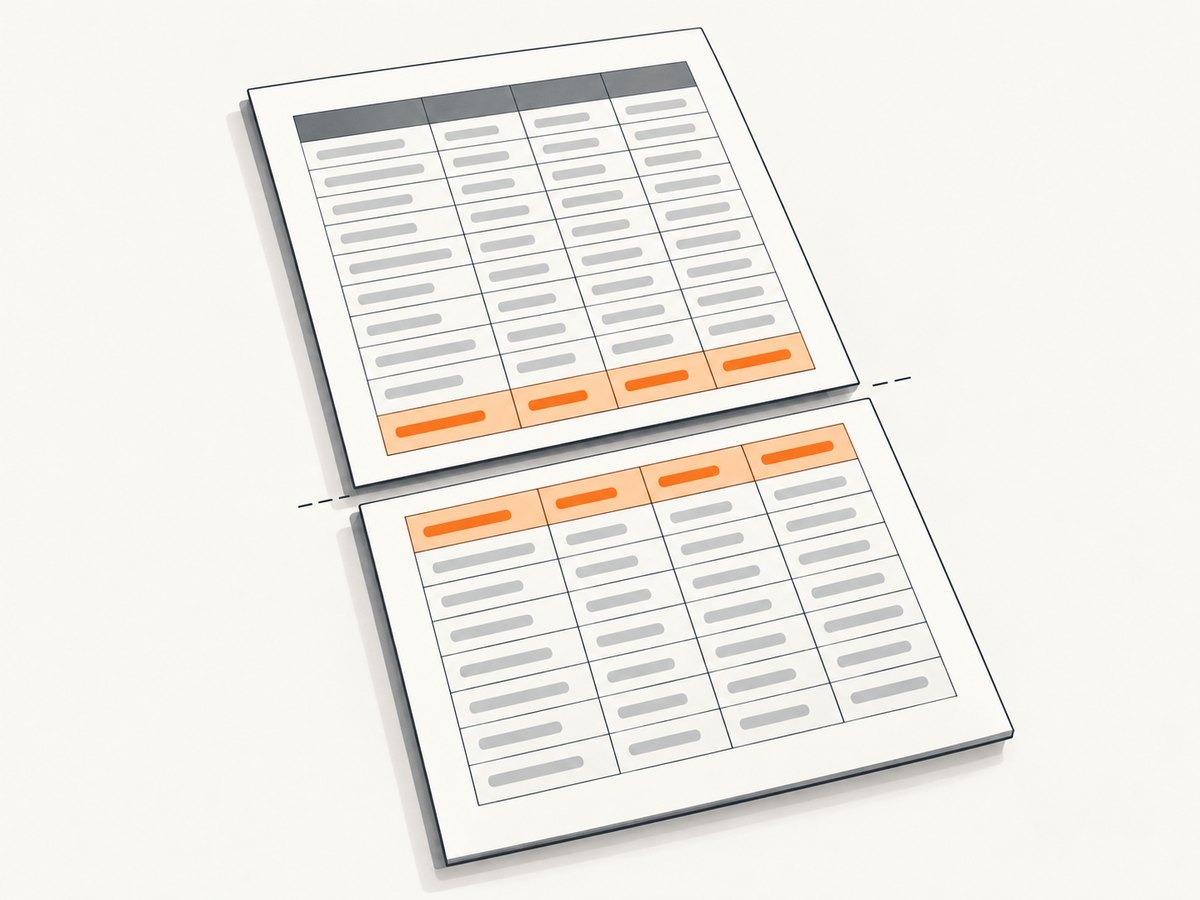
The available documentation does not establish table-specific pagination, guaranteed row splitting, repeated headers on every page, or identical Android and iOS rendering. Validate representative output on each platform:
- an empty table and a single-row table;
- long text in every column;
- enough rows to cross several pages;
- wide and narrow columns;
- content that begins near a page boundary;
- the selected page dimensions, padding, fonts, and output directory.
Review both the PDF appearance and the returned file location or sharing workflow in the app.
7. Troubleshooting
| Symptom | Likely cause | Fix |
|---|---|---|
| Rows are missing | The generated string is empty or malformed. | Log the final HTML, verify the map result, and include <tbody> and closing tags. |
| Special characters break the table | Cell values were inserted without escaping. | Run every value through escapeHtml. |
| HTML appears as text | Markup was escaped as a whole or passed in the wrong option. | Escape cell data only and pass the document through html. |
| File is not where expected | Directory rules differ by platform. | Check the returned result and use the documented iOS Documents directory value. |
| Base64 output is slow or large | The entire PDF is encoded in memory. | Prefer the file result unless base64 is required, and test large documents. |
| Styles differ between Android and iOS | Rendering engines or supported CSS differ. | Simplify CSS and validate the installed version on both platforms. |
| Headers do not repeat | Repeated table headers are not documented as guaranteed. | Treat table-header-group as best effort and test real multi-page output. |
| Rows split unexpectedly | Page-break CSS support is not promised. | Try page-break-inside: avoid, shorten content, and verify on each OS. |
8. Performance, reliability, and cost considerations
Generation is asynchronous, so keep it outside render functions and show progress while it runs. Avoid regenerating a PDF on every keystroke; debounce changes or generate after the user confirms the report. HTML size, row count, images, fonts, and base64 conversion can affect memory and completion time, but the supplied package documentation contains no benchmark.
For reliable output, validate required fields before building HTML, catch rejected promises, retain the returned file metadata, and test after package upgrades. Treat pagination and CSS behavior as version- and platform-dependent.
This library performs conversion inside the app. That avoids a conversion-service request, but your app remains responsible for storage, sharing, permissions, and platform testing.
9. When another approach may fit
jsPDF-AutoTable documents input from HTML table markup or JavaScript table data, so it is worth assessing when structured-table controls are more important than HTML rendering. The cited documentation does not establish direct React Native integration; compare platform support before switching.
Adobe documents a PDF Services API category that supports HTML-to-PDF conversion, including dynamic HTML. Confirm integration, privacy, deployment, pricing, and suitability for your app before choosing a service.
10. Or skip the browser setup
If your next step is turning web pages into screenshots or PDFs rather than rendering an in-app React Native report, ScreenshotNeo provides a single HTTP request. Cookie and consent banners, newsletter popups, and chat widgets are removed before the shot. Bot checks, blank pages, failed loads, timeouts, and cache hits are not billed, and response headers identify the page verdict and billing result. Its MCP server lets Claude, Cursor, and other MCP clients take screenshots with take_screenshot, inspect pages with get_page_info, and create PDFs with capture_pdf.
See the ScreenshotNeo API documentation for the current options.
curl -G "https://api.screenshotneo.com/v1/shot" -d access_key=YOUR_API_KEY --data-urlencode url=https://stripe.com -o shot.webpimport requests
r = requests.get("https://api.screenshotneo.com/v1/shot", params={"access_key": "YOUR_API_KEY", "url": "https://stripe.com"}, timeout=90)
open("shot.webp", "wb").write(r.content)const q = new URLSearchParams({ access_key: 'YOUR_API_KEY', url: 'https://stripe.com' });
const res = await fetch(`https://api.screenshotneo.com/v1/shot?${q}`);ScreenshotNeo includes full-page and element capture, custom CSS and JavaScript, waits, blocking controls, device and viewport settings, PDFs, caching, signed links, asynchronous jobs, bulk capture, and a usage API. The Free plan includes 1,000 screenshots each month with no card; paid plans start at $5 for 3,000. Create a free ScreenshotNeo account.
11. FAQ
Does react-native-html-to-pdf accept row data directly?
No. Convert your rows to an HTML string and pass that string in the html option.
Should I include the .pdf extension in fileName?
No. The documented option expects a custom name without the extension.
Can I rely on repeated headers across pages?
No guarantee is documented. Use the table-header CSS hint, then verify output on Android and iOS.
Is base64 the recommended return format?
The README describes base64 as not recommended. Prefer the generated file unless your workflow specifically needs encoded data.
What should I test before shipping?
Test empty and populated data, escaped characters, long text, large row counts, page boundaries, wide columns, file locations, sharing, and both mobile platforms.


