Dynamic Image Templates for Consistent Visuals
Build reusable image templates that keep branding consistent while changing text, images, and data with no-code tools or APIs.
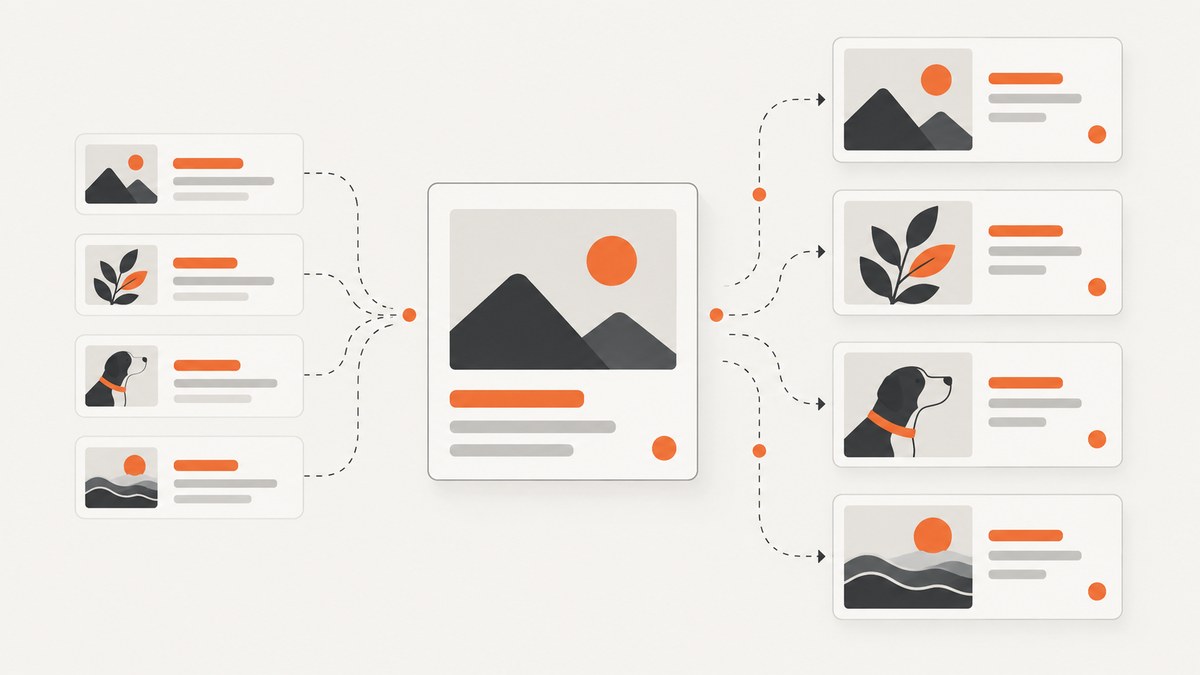
Direct answer: Create one master design with fixed brand elements and clearly marked variable fields, then map structured data to those fields. Each spreadsheet row or API payload should produce one complete image. Keep the logo, layout grid, typography, color system, and recurring decorative elements fixed. Let the data change only the fields that need to vary, such as a headline, price, date, portrait, product photo, or background. Preview representative rows before generating the full batch, and add validation for long text, missing images, unusual crops, and unsupported formats.
There are two practical routes. A no-code bulk workflow connects a spreadsheet to a template and generates a batch. An API workflow fills a prepared design from application data whenever your system needs a new image. If the imagery itself must be newly generated, style references or custom image models can guide the look, but they do not guarantee pixel-identical results.
1. Define what stays fixed and what changes
Start with a field inventory before opening a design tool. Stable elements should include your logo position, safe area, font choices, color tokens, spacing, border treatment, and any repeated legal or brand text. Variable elements should be explicit fields with predictable lengths and formats.
| Field type | Keep consistent | Typical variable value |
|---|---|---|
| Brand identity | Logo size, clear space, colors | None |
| Layout | Canvas dimensions, alignment, hierarchy | Occasional variant selected by a field |
| Text | Font family, weight, line spacing | Headline, price, location, date |
| Images | Frame shape, crop rules, corner radius | Product, person, or background image URL |
| Decorative assets | Icons, gradients, overlays | Optional badge or category color |
Use one text box per data field rather than combining several values in one editable string. Give fields stable names such as headline, price, city, and image_url. This makes mapping and troubleshooting much easier.
2. Prepare clean source data
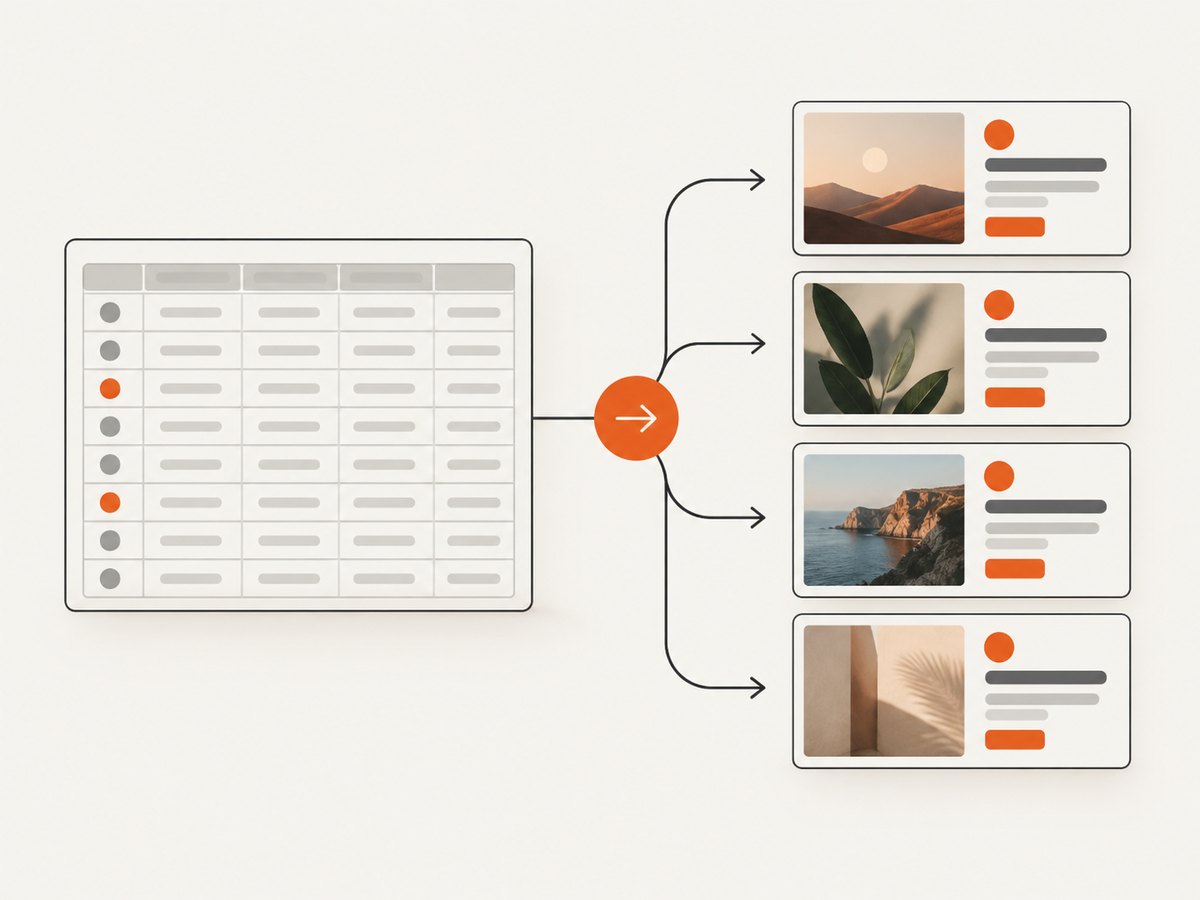
Your spreadsheet is an input contract. Normalize it before connecting it to a template.
- Choose one header row and use unique, descriptive column names.
- Use one row per output image. Do not put multiple records in one cell.
- Standardize date, currency, decimal, and capitalization rules.
- Keep image files in supported formats and verify that every URL or file reference is reachable.
- Decide what happens when a value is blank: hide the field, use a fallback, or reject the row.
- Store long text in a separate column so you can test wrapping and truncation.
For example:
headline,price,city,image_url,badge
"Summer collection","$49","Lisbon","https://cdn.example.com/lisbon.jpg","New"
"Winter collection","$59","Oslo","https://cdn.example.com/oslo.jpg","Limited"
Do not assume a design tool will clean malformed data for you. A missing quote, duplicate header, inaccessible image, or unexpected line break can create a visually valid but incorrect output.
3. No-code spreadsheet workflows
Canva Bulk Create
Canva describes a row-and-column workflow in which each row supplies the information for one complete page or design. Build the design first, then connect Canva Sheets or an uploaded spreadsheet, map columns to text boxes and image frames, preview rows, and generate the batch. The documented workflow is desktop-only and is available to specified Canva Pro, Teams, Business, Enterprise, Education, and nonprofit accounts. Current documentation lists up to 150 data fields and a selected range of up to 300 rows; recheck those limits before production.
- Create the canvas at the exact size required by the publishing channel.
- Add fixed brand elements and one separate text box for every variable text field.
- Add dedicated image frames for variable images.
- Open Bulk Create and connect a Canva Sheet or upload CSV/XLSX data.
- Map each column to the matching text box or frame.
- Preview short, long, missing, and unusual rows.
- Generate the selected rows and inspect the exported files.
Keep the template conservative. A headline that fits the sample row may overflow when a later row contains a long place name. Use a maximum character rule, a second compact text style, or a deliberate truncation policy.
Adobe Express Bulk Create and Generate
Adobe Express documents a CSV-driven add-on that replaces text and foreground or background images. The add-on creates its CSV template; use that generated structure instead of manually inventing a different one. It supports JPEG and PNG image inputs and documents up to 99 variations. Layer order determines whether an image is treated as foreground or background.
The workflow is similar: author the design, open the add-on, create its CSV template, fill rows with text and image references or prompts, import the file, review the variations, and export. Test image dimensions and crop behavior with portrait, landscape, and transparent source files.
4. API-based template filling
Use an API when image creation belongs inside a product, content pipeline, CMS, scheduled job, or event handler. The template remains authored in a design system; your application supplies values and receives rendered output.
Canva Autofill
Canva Autofill applies supplied data to a design or brand template. A typical payload might map city and weather to named fields. The guide documents plan prerequisites, including Canva Pro and certain organization plans. Treat plan eligibility and API access as deployment configuration, not assumptions.
Illustrator Data Merge API
Illustrator Data Merge requires a prepared Illustrator template with variables and bindings. Author the variables in Illustrator, validate that names match your source fields, and then call the cloud merge API with the template and CSV or XML data. The API does not replace template preparation: binding mistakes must be fixed in the source document.
For either API route, add a validation layer before rendering:
required = ["headline", "image_url"]
for field in required:
    if not record.get(field):
        raise ValueError(f"Missing required field: {field}")
if len(record["headline"]) >  eighty:
    raise ValueError("Headline exceeds the approved length")
Replace the illustrative length rule with the limit your layout can actually support.
5. Keeping generated imagery visually consistent
Template filling and image generation solve different problems. A template preserves exact layout and brand placement. A generator creates new pixels and therefore needs additional controls.
Adobe Firefly documents custom models for style or subject consistency, style presets, and style reference images. Use a style reference when lighting, palette, rendering method, or composition should recur. Use a subject model when the same character or product must reappear. Adjust reference strength deliberately and keep a human review step: the documented controls guide outputs but do not promise identical results for every generation.
Write a generation brief that separates invariant instructions from variable content:
Invariant: editorial paper texture, warm neutral palette, soft side light, 4:5 portrait crop.
Variable: subject = "ceramic coffee mug"; accent color = "deep blue"; scene = "Lisbon kitchen".
Generate a small pilot set first. Reject outputs that change the subject silhouette, introduce unapproved colors, place important details outside the crop, or conflict with legal and accessibility requirements.
6. Choosing a workflow
| Route | Best fit | Input | Documented constraints |
|---|---|---|---|
| Canva Bulk Create | Creators and teams making spreadsheet-driven batches | Canva Sheets or CSV/XLSX | Desktop-only; eligible paid, education, and nonprofit accounts; up to 150 fields and 300 selected rows in current documentation |
| Adobe Express Bulk Create | Guided CSV replacement of text and images | Add-on-created CSV | JPEG/PNG inputs; up to 99 variations |
| Canva Autofill API | Applications filling Canva designs or brand templates | REST payload mapped to fields | Plan and organization prerequisites |
| Illustrator Data Merge API | Production teams with Illustrator templates | Prepared template plus CSV/XML | Variables and bindings must match |
| Firefly controls | New imagery that follows a recurring style or subject | Models, presets, or reference image | API setup may be required; consistency is guided, not guaranteed |
Compare manual setup, source format, output limits, image replacement versus generation, control over fixed brand elements, plan prerequisites, and preview facilities. Use no-code tools for occasional batches and APIs when rendering is part of a repeatable system.
7. Quality-control checklist
- Preview at least one short, one long, one blank, and one multilingual row.
- Check every image crop at the final export size.
- Confirm contrast, legibility, and safe areas on light and dark backgrounds.
- Verify prices, dates, units, and decimal separators.
- Check that hidden or optional fields do not leave awkward gaps.
- Open exported files in the target publishing system.
- Keep the input row, template version, and output filename together for traceability.
8. Performance, reliability, and cost
Batch generation is usually limited by the design platform, image fetches, rendering time, and export operations. Reduce avoidable work by resizing source images before upload, reusing a stable template, and validating rows before submission. For APIs, queue jobs, retry transient failures with backoff, record request IDs, and make jobs idempotent so a retry does not publish duplicates.
Cost depends on the plan and the number of rendered variations. Keep a small preview batch separate from production output, and archive only the files and metadata you need. Recheck current plan limits, API availability, and beta status immediately before launch because those details can change.
9. Troubleshooting
| Symptom | Likely cause | Fix |
|---|---|---|
| Text is missing | Column name or field mapping does not match | Use one field per text box and remap exact headers. |
| Images show as blank | URL is private, expired, or unsupported | Test access without authentication and use a supported JPEG or PNG. |
| Text overflows | Production rows are longer than the sample | Set length rules, add a compact style, or redesign the field. |
| Wrong foreground/background | Layer order is incorrect | Move the image layer and regenerate a test row. |
| API merge fails | Template variables and payload keys differ | Compare names and bindings character for character. |
| Generated style drifts | Prompt or reference controls are too loose | Strengthen invariant instructions, use a style or subject model, and review outputs. |
| Batch is incomplete | Row-level validation or export failure | Log each row, retry failed jobs, and reconcile expected versus produced files. |
10. Or skip the browser setup
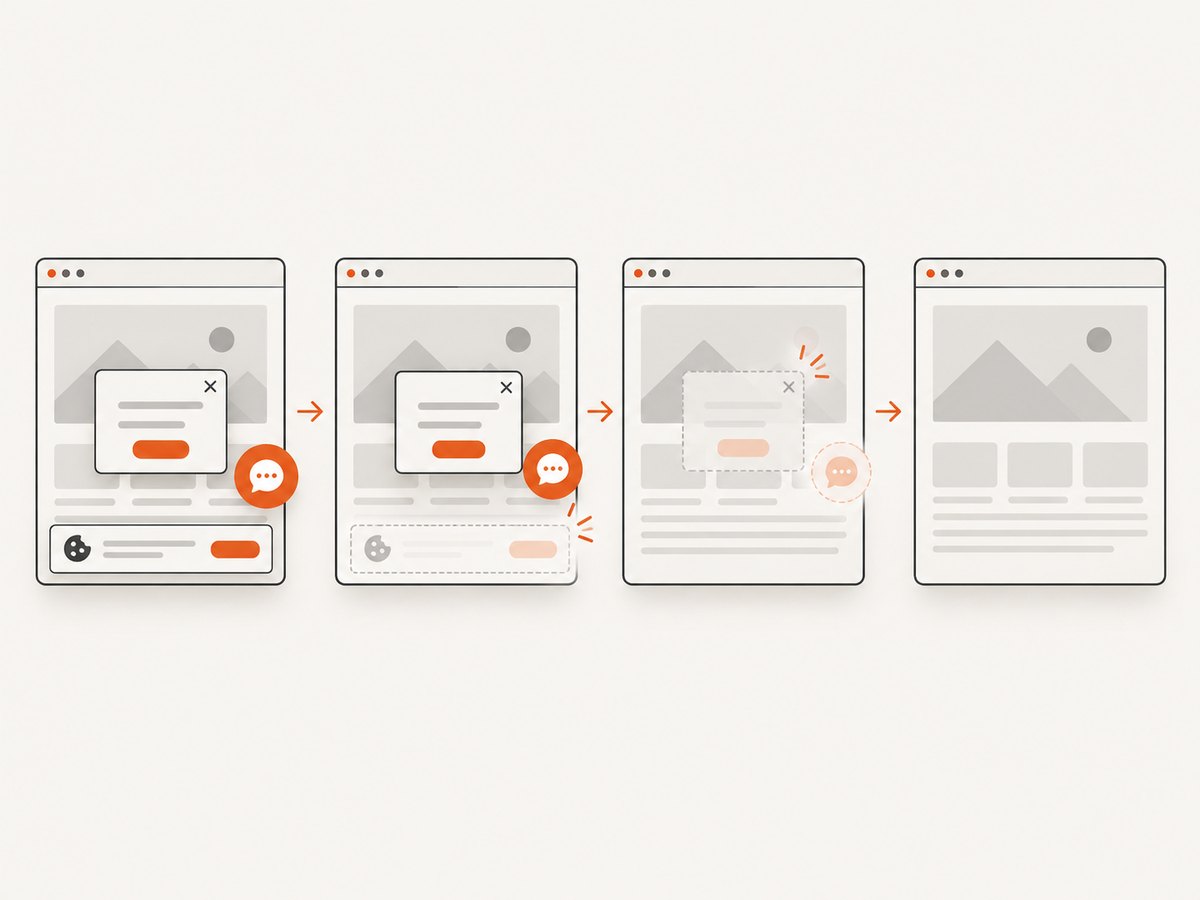
If your immediate need is to capture the finished templates, examples, or published pages as clean reference images, ScreenshotNeo provides a website screenshot API and MCP server. One GET request returns PNG, JPEG, WebP, or PDF. It can accept cookie banners as a visitor and remove more than 60 known consent platforms, newsletter popups, and chat widgets before capture. You can turn each cleanup step off.
Use the same request from cURL, Python, or Node.js. See the ScreenshotNeo documentation for the complete parameter list.
curl -G "https://api.screenshotneo.com/v1/shot" -d access_key=YOUR_API_KEY --data-urlencode url=https://stripe.com -o shot.webpimport requests
r = requests.get("https://api.screenshotneo.com/v1/shot", params={"access_key": "YOUR_API_KEY", "url": "https://stripe.com"}, timeout=90)
open("shot.webp", "wb").write(r.content)const q = new URLSearchParams({ access_key: 'YOUR_API_KEY', url: 'https://stripe.com' });
const res = await fetch(`https://api.screenshotneo.com/v1/shot?${q}`);Relevant options include full-page capture with lazy images loaded, CSS-selector element capture, dark mode, 12 device presets or any viewport, retina scale, PDF paper size and margins, custom CSS and JavaScript, click and wait actions, request and resource blocking, custom headers, cookies, user agent, authorization, timezone, geolocation, transparent backgrounds, resizing, caching with a chosen TTL, signed links, asynchronous jobs with signed webhooks, bulk capture of up to 100 URLs per call, and a usage API.
Bot checks, CAPTCHAs, blank pages, timeouts, failed loads, and cache hits cost nothing. Response headers identify the page verdict and whether the shot was billed, including X-Page-Verdict and X-Billed. An MCP server provides take_screenshot, get_page_info, and capture_pdf tools for Claude, Cursor, and other MCP clients.
Plans include 1,000 free shots per month with no card, Starter at $5 for 3,000, Growth at $15 for 15,000, Pro at $39 for 60,000, Scale at $99 for 250,000, and Business at $249 for 1,000,000. Yearly billing gives two months free, and every feature is on every plan. Start with 1,000 free screenshots a month without a card.
11. Frequently asked questions
Can one template produce different sizes?
Usually create a layout for each aspect ratio. A responsive crop can work for simple designs, but separate templates give better control over typography and safe areas.
Should data contain full image URLs?
Use whatever reference your chosen tool supports. For API workflows, stable, reachable URLs simplify automation and retries.
How do I preserve accessibility?
Keep contrast and minimum type sizes in the fixed template, and validate variable text lengths and color combinations before publishing.
When should I use image generation instead of replacement?
Use replacement when the exact product or person matters. Use generation for new scenes or illustrations, with style controls and review.
Do documented platform limits stay constant?
No. Recheck current Canva and Adobe documentation for account eligibility, row or variation caps, API status, and pricing before committing to a production design.


