Dynamic Image Templates for Education
Learn how to adapt visual templates for lessons, student projects, and school communication—with practical guidance on design, access, safety, and sharing.

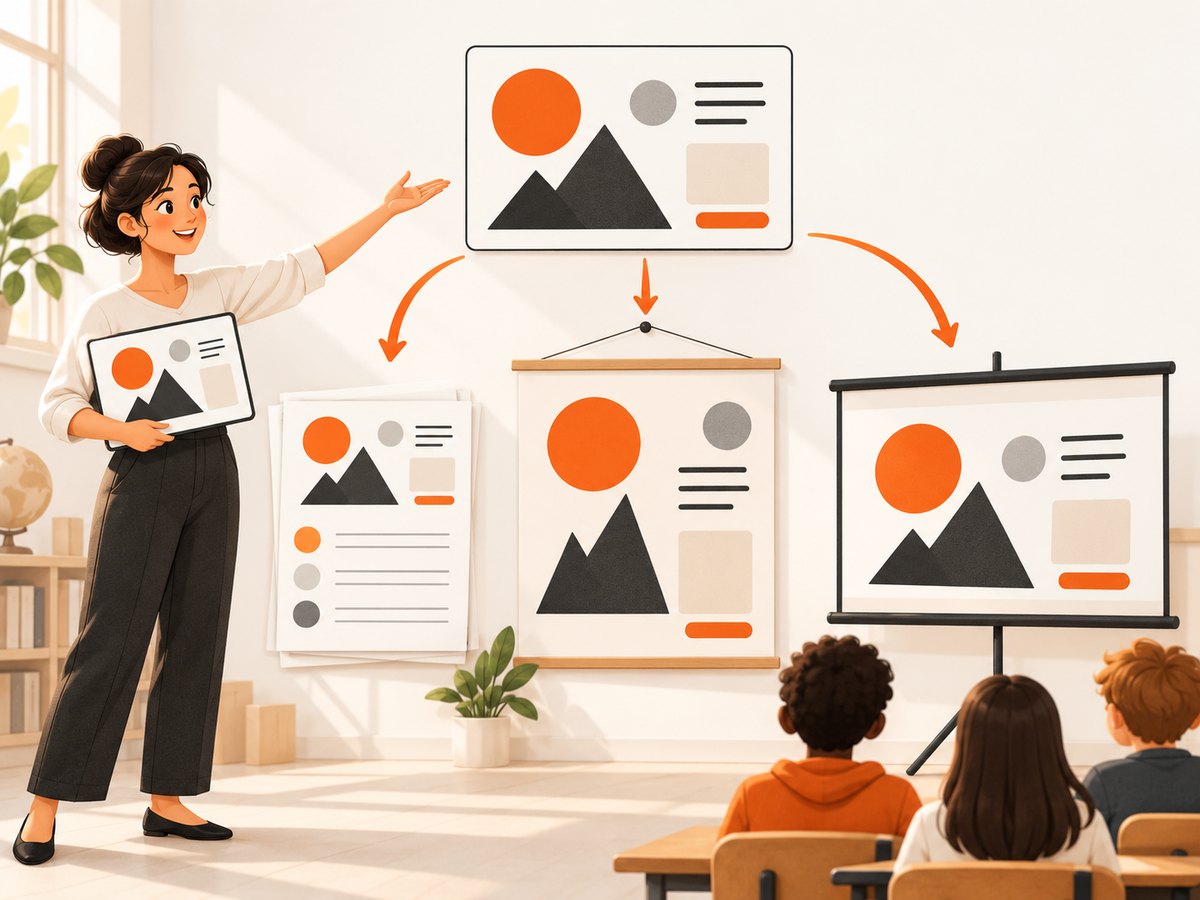
Dynamic image templates for education are reusable visual designs that teachers and students adapt for a class, subject, grade, assignment, or school communication. They can provide a starting layout for a worksheet, poster, presentation, infographic, report, or student project. The key is to treat a template as a design scaffold: the educator still decides what students need to learn, what information belongs in the design, and how the result will be made accessible.
This guide covers how to choose and adapt a template, classroom and student use cases, platform considerations, design and accessibility checks, and a practical way to capture a finished design from a web page. Product details below are attributed to the vendors that publish them; they are not independent evaluations of educational impact.
1. What makes an education image template dynamic?
Here, “dynamic” means editable and reusable. A teacher might start with a visual vocabulary sheet, replace its examples for a new unit, and reuse the layout with another class. A student might use a poster structure to explain a process, while choosing the evidence, labels, and images that demonstrate their understanding.
That is different from assuming every template is an automated data-to-image system. Unless a particular tool or workflow is specified, think of a dynamic template as a design that can be customized for different instructional contexts. It is a starting point, not finished curriculum: the learning objective, accuracy, age appropriateness, and accessibility remain the educator’s responsibility.
Education platforms describe templates for both screen and print. Examples include lesson materials, worksheets, posters, presentations, infographics, reports, flyers, and student projects. In higher education, a useful model is to package a visual template with a prompt, rubric, or tutorial so that the design is connected to the learning task rather than handed out as an empty layout. Adobe’s Learning Kits describe this kind of pairing.
2. Match the template to the teaching task
Choose the output after clarifying what learners will do with it. A poster can organize a public explanation; a worksheet can support guided practice; an infographic can arrange key data points; and a presentation can help a student explain a process to peers. These are practical design choices, not claims that a template by itself improves learning.
| Task | Template starting point | What the learner should contribute |
|---|---|---|
| Explain a process | Sequence, flow, or infographic layout | Correct steps, relationships, labels, and a concise explanation |
| Review vocabulary | Term-and-example cards or a worksheet | Definitions, examples, and distinctions between related terms |
| Present a comparison | Two-column poster or slide | Consistent comparison criteria and evidence for each side |
| Demonstrate understanding | Report, poster, portfolio, or visual presentation | A student-selected structure, explanation, and supporting material |
| Share classroom information | Schedule, guide, flyer, or announcement | Accurate dates and instructions in a clear, readable hierarchy |
For each candidate template, check that its structure supports the task. A comparison layout should make comparison easy to follow; a process diagram should have room for all essential steps. Remove decorative sections that compete with the content, and add room for citations, student names, or instructions when the assignment requires them.
3. A repeatable workflow for adapting templates
- Write the learning objective. Describe the knowledge or skill the finished work should show. Keep this separate from the format: “compare two ecosystems using evidence” is the task; “make a poster” is one possible output.
- Choose the audience and output size. Decide whether learners will view the design on a phone, classroom display, learning management system (LMS), or printed page. Screen dimensions and print dimensions affect text size and layout.
- Find a relevant starting layout. Look for a template with enough structure to help but enough flexibility to fit the subject and grade. Adobe’s education library says users can browse adaptable templates and filter by subject, activity, and grade level. See the Adobe for Education template library.
- Replace sample content. Change placeholder text, examples, imagery, and color choices. Check every claim and label; a visually polished example is not automatically accurate or suitable for a new lesson.
- Make instructions and assessment visible. If students will use the design, tell them what they must explain, what they may change, and how their work will be assessed. A template can be paired with a prompt and rubric, as in Adobe’s higher-education Learning Kits.
- Check access and sharing. Confirm who can edit, comment, or view; whether students need accounts; and whether the school permits the tool and sharing method. Test the actual link or export with the expected audience.
- Preview at the final size. Read it on the intended screen or print a proof if printing is planned. Check text, contrast, cropping, image rights, and any school-specific requirements before distributing.
4. Design choices that keep learning content clear
Use visual hierarchy to make the important information easy to find: a clear title, grouped sections, and consistent labels help readers understand how the parts relate. Keep text short enough for the intended display size, but include the explanation learners need. A visual should explain, distinguish, or orient; an image that only fills space can make a busy page harder to use.
- Readability: Preview headings, labels, and body text at the real screen or print size. Avoid squeezing long instructions into small decorative boxes.
- Contrast and color: Make text distinguishable from its background and do not rely on color alone to convey a category or answer.
- Consistency: Use the same visual convention for the same kind of information throughout a sequence of slides, cards, or worksheets.
- Accessibility: Add alt text where the publishing format supports it, provide text equivalents for essential visual information, and check that students can access the content in the required way.
- Rights and appropriateness: Verify that images may be used in the intended classroom or public context and are suitable for the students and subject.
- Print and screen: Check crop, margins, resolution, and dimensions for the destination. A design that works on a monitor may not remain readable when printed or shown at a distance.
These are practical editorial checks, not a substitute for a school accessibility policy or legal guidance on image licensing. Schools should apply their own requirements to student work and classroom materials.
5. Compare template workflows and education platforms
Evaluate the workflow around the template as carefully as the template itself. Useful criteria include subject and grade coverage, editing flexibility, collaboration and feedback, LMS integration, student account and privacy controls, content filters, and access or licensing conditions. Confirm current details for your region and deployment; vendor pages can change.
| Option | What its official materials describe | Questions to verify |
|---|---|---|
| Adobe Express for Education | Adobe describes adaptable K–12 templates, filters by subject, activity, and grade, guided activities, collaboration, and education-specific privacy and safety controls. Its education overview was marked updated March 19, 2026. | Check eligibility, regional terms, deployment details, and the controls available to your school. Templates · Education overview |
| Canva Education | Canva’s UK-region teacher page lists lesson planning and activity templates, worksheets, classroom posters, and presentations. It also describes collaboration, integrations including Google Classroom, Canvas, and Schoology, and safe-for-school filtering. | Check eligibility and current terms in your location, student account requirements, and whether the school approves the specific deployment. Canva for Teachers |
| Adobe Express Learning Kits | Adobe describes customizable higher-education templates paired with prompts and rubrics, with examples including reports, portfolios, infographics, research posters, presentations, explainer videos, and podcasts. | Check whether a kit’s subject, output, and teaching scaffolding fit the course. Learning Kits |
These are vendor descriptions, not independent head-to-head test results. Adobe’s education pages describe safety and school controls; Canva’s teacher page describes its filtering and privacy commitments. Those statements are not a blanket guarantee for every account, region, or school configuration, so review current terms and your own institution’s requirements.
Adobe’s August 2024 press release attributes an “82% greater student engagement” figure to an Adobe survey of K–12 educators discussing creative activities. The release excerpt does not establish that templates caused the difference, that it applies specifically to image templates, or enough methodological detail to judge the result independently. It should not be read as a measured template effect. The focused research for this guide did not identify an independent causal study showing that image templates themselves improve learning outcomes; that is a limit of this research pass, not proof that no such study exists. Adobe’s August 2024 release.
6. Capture a web-based template as an image
If a finished template is displayed in a browser and you need a record or preview, you can capture the page yourself with a browser automation library. The example below uses Playwright for Node.js. It opens a page, waits for the document to load, and saves a full-page PNG. Replace the example address with a page you are authorized to access. This captures the rendered page; it does not export an editable design file.
npm install playwright
npx playwright install chromium
// capture.mjs
import { chromium } from 'playwright';
const url = process.argv[2] ?? 'https://example.com';
const browser = await chromium.launch({ headless: true });
try {
const page = await browser.newPage({
viewport: { width: 1440, height: 1000 },
deviceScaleFactor: 2,
});
await page.goto(url, { waitUntil: 'networkidle', timeout: 60_000 });
await page.screenshot({ path: 'template-preview.png', fullPage: true });
} finally {
await browser.close();
}node capture.mjs https://example.comFor a page that continues loading analytics or live content, networkidle may never occur. Use domcontentloaded and wait for a meaningful selector instead, such as the element containing the exported design. If the page requires sign-in, use a permitted authenticated session and protect its storage state and credentials. Avoid capturing student personal information unless your school policy and the intended use allow it.
To capture a specific element rather than the entire page, locate it and call locator.screenshot(). To emulate a mobile layout, change the viewport and device scale factor; use the intended output dimensions rather than assuming a desktop page scales cleanly. Browser capture is convenient for previews, but a web screenshot is raster output: text may not be selectable, and a long page may need review for clipping or unexpected lazy-loaded content.
7. Or skip the browser setup
ScreenshotNeo is a website screenshot API and MCP server from Yorker Media. One GET request can return a PNG, JPEG, WebP, or PDF. Put the API key in your environment or secret manager; do not commit it to source control. See the ScreenshotNeo documentation.
curl -G "https://api.screenshotneo.com/v1/shot" \
  -d access_key=YOUR_API_KEY \
  --data-urlencode url=https://stripe.com \
  -o shot.webp
import requests
r = requests.get(
"https://api.screenshotneo.com/v1/shot",
params={"access_key": "YOUR_API_KEY", "url": "https://stripe.com"},
timeout=90,
)
open("shot.webp", "wb").write(r.content)const q = new URLSearchParams({
access_key: 'YOUR_API_KEY',
url: 'https://stripe.com',
});
const res = await fetch(`https://api.screenshotneo.com/v1/shot?${q}`);
if (!res.ok) throw new Error(`Screenshot request failed: ${res.status}`);
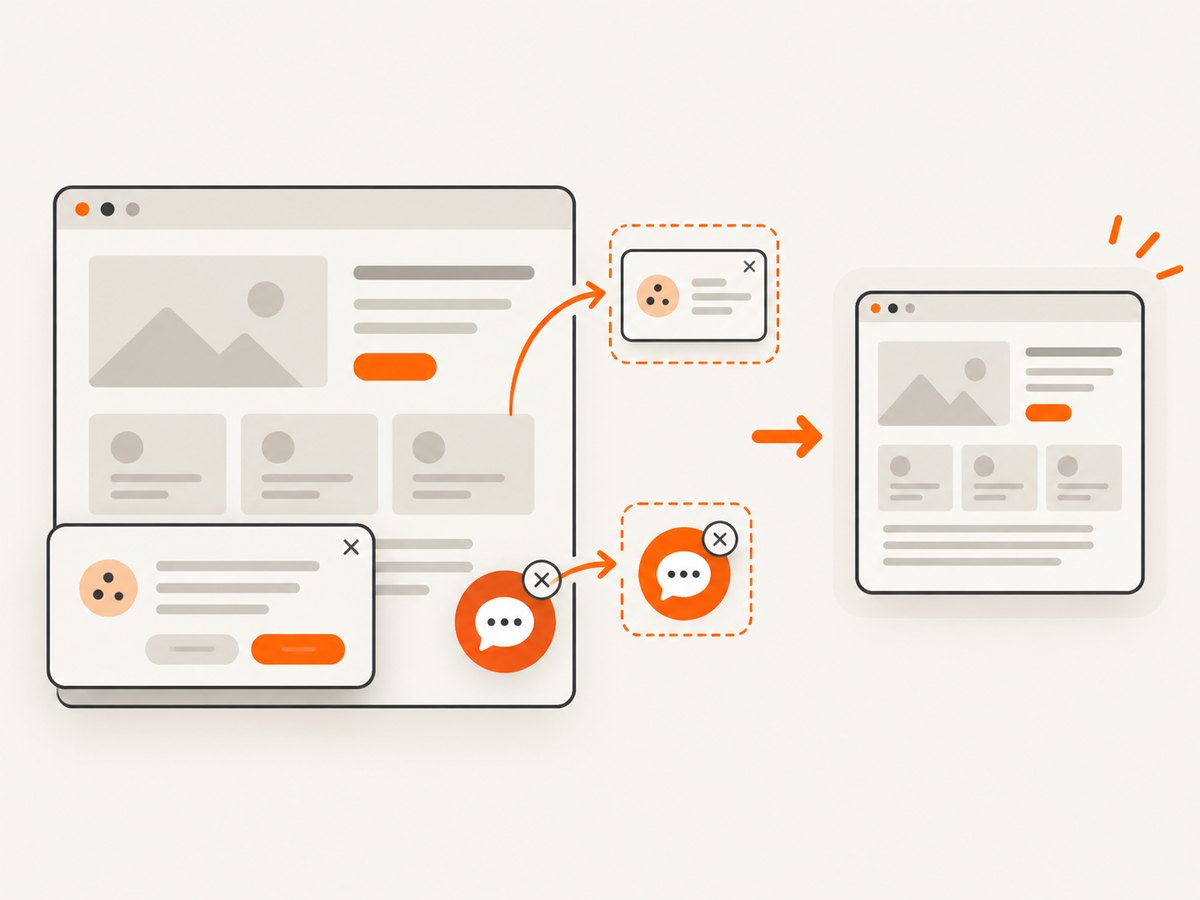
await Bun.write('shot.webp', res);- Cookie or consent banners are accepted like a visitor, and 60+ known consent platforms, newsletter popups, and chat widgets are removed before capture; each step can be turned off.
- Bot checks or CAPTCHAs, blank pages, timeouts, failed loads, and cache hits cost nothing. Response headers include
X-Page-VerdictandX-Billedso you can see the result and billing status. - An MCP server offers
take_screenshot,get_page_info, andcapture_pdftools for Claude, Cursor, and any MCP client. - The Free plan includes 1,000 shots a month without a card. Paid plans start at $5 for 3,000; every feature is on every plan.
Create a free ScreenshotNeo account for 1,000 screenshots a month with no card.
8. Reliability, performance, and cost considerations
For DIY capture, browser startup and page rendering dominate the work. Reuse a browser process for multiple pages in a batch, close pages when finished, and set explicit navigation and screenshot timeouts. A fixed wait can be appropriate for a known animation or delayed chart, but it adds latency and may still capture too early or too late. Prefer waiting for a page-specific element that indicates the content is ready.
Full-page capture can take longer and produce larger files than a viewport shot. High device scale factors increase pixel dimensions and memory use. Keep the viewport and output format appropriate to the destination, and resize only after checking that small labels remain legible. For repeated captures of an unchanged page, caching can reduce duplicate work; for changing designs, stale cache results can mislead, so choose an appropriate cache policy.
Reliability also depends on the page: consent dialogs, authentication, bot defenses, network failures, and third-party assets may alter what appears. Record the target URL and capture settings with the output when reproducibility matters. Avoid retry loops without a limit; use bounded retries for transient failures and inspect the resulting image before distributing it. With an API, check the response and its verdict and billing headers rather than assuming every successful HTTP response represents a usable clean image.
For ScreenshotNeo, the listed monthly allowances are 1,000 free; 3,000 for $5 Starter; 15,000 for $15 Growth; 60,000 for $39 Pro; 250,000 for $99 Scale; and 1,000,000 for $249 Business. Yearly billing gives two months free. These are plan allowances, not an independent performance comparison. The stated billing behavior excludes bot checks/CAPTCHAs, blank pages, timeouts, failed loads, and cache hits; inspect each response’s headers to identify the outcome. Choose a plan based on expected valid captures and review the current product page for details before committing.
9. Troubleshooting common capture problems
| Symptom | Likely cause | What to try |
|---|---|---|
| Screenshot is blank or missing the design | Capture ran before the page’s client-side content appeared, or the design is embedded in a frame. | Wait for a content-specific selector, inspect whether the target is inside an iframe, and confirm the page is accessible in the capture session. |
| Navigation times out | Long-running requests, slow assets, or a page that never becomes network idle. | Use a less restrictive load event, wait for a meaningful element, and set a bounded timeout. Avoid treating every timeout as a reason for an unlimited retry. |
| Consent dialog covers the page | The page presents a banner or modal before showing content. | For DIY capture, use the site’s permitted consent flow or a test environment. With ScreenshotNeo, consent banners are handled before the shot and can be configured. |
| Text or images are clipped | Viewport, full-page behavior, sticky elements, or delayed/lazy content does not match the page layout. | Use the intended viewport, wait for images or a target selector, and inspect the result at its final display size. Consider element capture when only one design region is needed. |
| API output is not the expected image | The page may have failed, returned a bot check, or produced a non-image outcome. | Check HTTP status and response headers, especially X-Page-Verdict and X-Billed; verify the URL and request parameters against the API documentation. |
| Authentication works locally but not in automation | The browser context lacks the same session or authorization state. | Use an authorized test account or documented headers/cookies, keep credentials out of logs and repositories, and confirm the session has not expired. |
10. FAQ
Can students change a template without losing its structure?
Usually, that is the point of an editable starting design, but the amount of freedom depends on the tool and sharing permissions. Give learners explicit guidance about which parts are fixed and which they may change.
Are templates suitable for every assignment?
No single format fits every learning task. Use a template when its structure helps students organize or communicate the required content; allow another format when a visual layout would constrain the work.
Does a screenshot preserve the editable template?
No. A screenshot records rendered pixels. Keep the original design or source document when later editing, accessible text, or a different export format is needed.
Do the cited platform features apply to every school?
Not necessarily. Eligibility, regional availability, account settings, and deployment conditions can vary. Confirm current vendor terms and school requirements before assigning student work.


