How to Build Dynamic Image Templates with HTML and CSS
Build reusable image templates with fixed HTML/CSS layouts, variable content, and reliable browser rendering. Includes runnable code, validation, and troubleshooting.
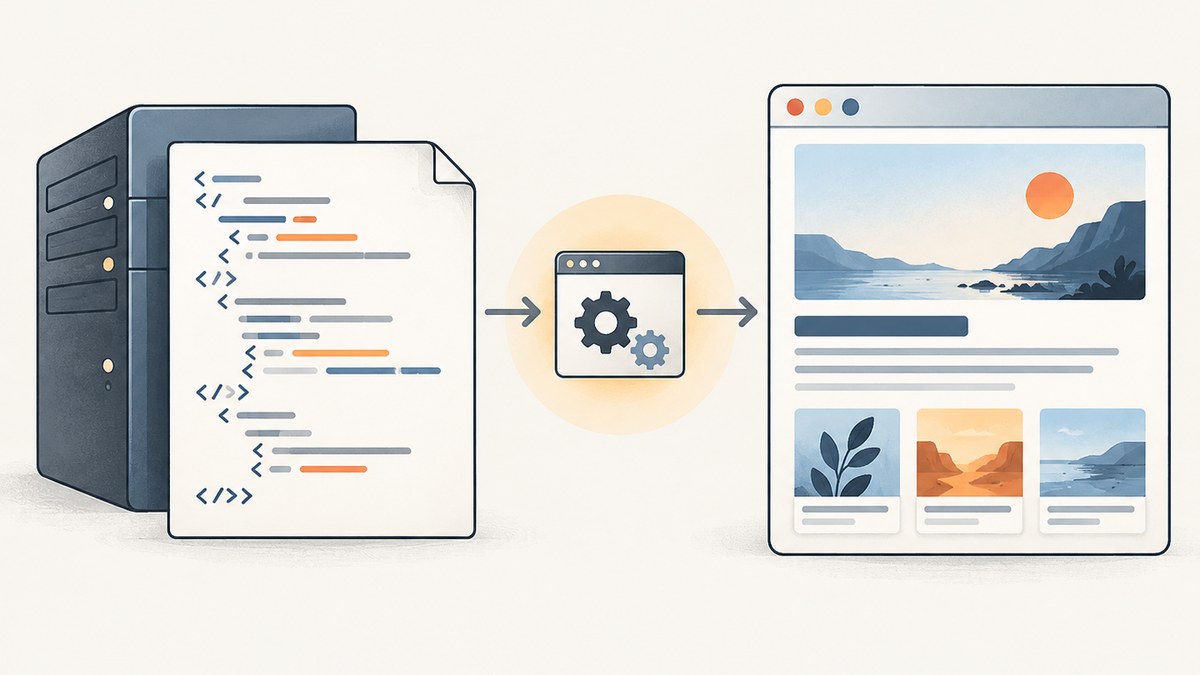
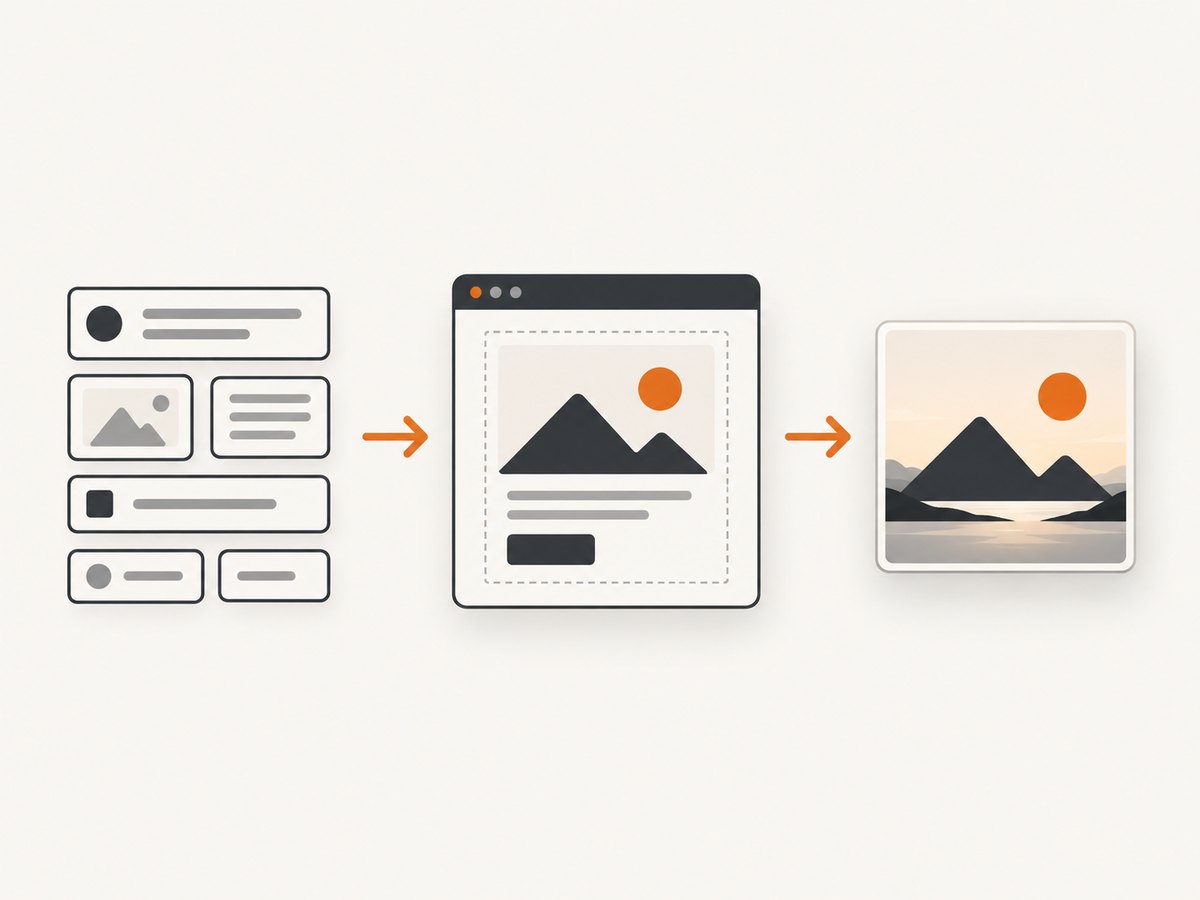
A dynamic image template keeps the design fixed while allowing its content—such as a headline, author, date, artwork, or metric—to change for each image. Build a fixed-size HTML/CSS composition, supply changing values as data, and render each variation in a real browser or an HTML/CSS-to-image service. Then inspect the actual output for clipping, missing assets, font differences, and format or size mismatches.
This guide builds a local HTML/CSS template and renders it with Playwright. It also covers direct HTML rendering, URL screenshots, reusable hosted templates, Open Graph images, reliability, and common failures.
1. Choose where the rendering happens
There are three common patterns. With direct HTML/CSS rendering, your application submits markup and style for an image. With URL capture, a renderer visits a page that already contains the composition. With a saved template, the layout is stored once and each request supplies values. These patterns are documented by services such as HTML/CSS to Image; their exact parameters and capabilities are service-specific.
| Approach | Layout lives in | Request supplies | Useful when |
|---|---|---|---|
| Local browser rendering | Your app or template files | Data and render instructions | You want to control the browser workflow and output pipeline. |
| Render submitted HTML/CSS | The request | Markup, styles, assets, values | A service should render app-generated composition directly. |
| Screenshot a URL | The page | URL and capture options | A page or route already produces the desired image. |
| Saved template | A stored template | Named values for each image | Many images share one design. |
For a team-owned image pipeline, local rendering can make deployment and browser configuration part of your application. A hosted renderer can remove some browser operations from that pipeline, but compare actual privacy, pricing, latency, and fidelity requirements before choosing: the available documentation does not establish a neutral winner across those criteria.
2. Define the canvas and data contract
Choose width and height before tuning decoration. A fixed canvas makes layout behavior predictable; background, padding, and overflow decide what appears in the final image. For an Open Graph use case, OpenGraphImage documents 1200 × 630 as its OG template size; treat that as a vendor’s template specification, then verify the destination’s current requirements independently.

Define the content contract explicitly. Decide which values are required, which have defaults, what happens when an image URL is missing, and how long text is handled. For example:
type SocialCard = {
  title: string;
  author?: string;
  date?: string;
  imageUrl?: string;
  accent?: string;
};
Keep untrusted values out of raw HTML string concatenation. Use a framework’s normal text escaping or assign values with textContent; validate URLs and colors if they enter CSS or resource attributes. Treat remote image URLs as external dependencies that can fail or change.
3. Create the HTML and CSS template
This example uses one fixed 1200 × 630 canvas. The title and byline vary; an optional image occupies a stable region. The CSS deliberately clamps long titles and crops the artwork consistently.
<!doctype html>
<html lang="en">
<head>
  <meta charset="utf-8">
  <meta name="viewport" content="width=1200, initial-scale=1">
  <style>
    * { box-sizing: border-box; }
    html, body { margin: 0; width: 1200px; height: 630px; }
    body { font-family: Arial, sans-serif; }
    .card {
      width: 1200px; height: 630px; overflow: hidden;
      padding: 58px; display: grid; grid-template-columns: 1fr 390px;
      gap: 38px; align-items: center; color: #f7f7fb;
      background: #171a2b;
    }
    .copy { min-width: 0; }
    .eyebrow { color: #a8acd0; font-size: 20px; margin: 0 0 24px; }
    h1 { font-size: 58px; line-height: 1.08; margin: 0 0 30px;
      display: -webkit-box; -webkit-box-orient: vertical;
      -webkit-line-clamp: 3; overflow: hidden; }
    .byline { font-size: 22px; color: #c7c9da; }
    .art { width: 390px; height: 440px; border-radius: 24px;
      object-fit: cover; background: #343957; }
  </style>
</head>
<body>
  <main class="card">
    <section class="copy">
      <p class="eyebrow" id="date"></p>
      <h1 id="title"></h1>
      <p class="byline" id="author"></p>
    </section>
    <img class="art" id="art" alt="">
  </main>
  <script>
    const card = {
      title: "A reusable image template for every new article",
      author: "By Sam Developer",
      date: "Engineering · September 2026",
      imageUrl: "https://images.unsplash.com/photo-1498050108023-c5249f4df085"
    };
    document.querySelector('#title').textContent = card.title;
    document.querySelector('#author').textContent = card.author;
    document.querySelector('#date').textContent = card.date;
    if (card.imageUrl) document.querySelector('#art').src = card.imageUrl;
  </script>
</body>
</html>
Save this as card.html and open it locally to inspect the layout. In production, replace the inline object with data loaded from your application and retain the same input validation. Add explicit fallback markup for a missing illustration if blank space would look broken.
4. Render the template with Playwright
For repeatable output, render with a browser automation library in a controlled environment. The following Node.js script opens the file, waits for fonts and images, captures the canvas element, and writes a PNG. Install Playwright and its Chromium browser according to its official installation guide.
npm init -y
npm install playwright
npx playwright install chromium
// render.mjs
import { chromium } from 'playwright';
import { pathToFileURL } from 'node:url';
import { resolve } from 'node:path';
const browser = await chromium.launch({ headless: true });
try {
const page = await browser.newPage({ viewport: { width: 1200, height: 630 }, deviceScaleFactor: 1 });
await page.goto(pathToFileURL(resolve('card.html')).href, { waitUntil: 'load' });
await page.evaluate(async () => {
await document.fonts.ready;
await Promise.all([...document.images].map(img => {
if (img.complete) return Promise.resolve();
return new Promise(resolve => { img.onload = resolve; img.onerror = resolve; });
}));
});
const canvas = page.locator('.card');
await canvas.screenshot({ path: 'social-card.png' });
} finally {
await browser.close();
}Run it with node render.mjs. This waits for image requests to resolve but does not make a failed image successful; add a check for naturalWidth when missing artwork should fail the job. Likewise, ensure any web fonts are available before the capture instead of relying on a timing delay.
5. Make variations robust
A template that looks good for one example may fail with production data. Preview values that exercise the extremes before generating at scale:
- Very short, typical, and maximum-length titles.
- Missing author, date, artwork, or optional metadata.
- Non-Latin text, emoji, punctuation, and right-to-left scripts when relevant.
- Very wide, tall, transparent, or unexpectedly large source images.
- Long words, URLs, and user-generated content that resists ordinary line wrapping.
Choose a policy for text overflow: clamp and truncate, shrink font size within a defined range, or reject the input with a useful validation error. Avoid unconstrained auto-shrinking that can make cards with similar content look unrelated. For images, set object-fit and positioning intentionally; cover fills the frame by cropping, while contain preserves the whole image but can leave empty space.
For saved-template services, keep a version identifier alongside generated output or application records. When the design changes, you can tell which template produced an older image. Preview and export workflows are documented in the HTML/CSS to Image template editor; confirm the currently supported variable syntax and limits in that service’s documentation.
6. Select the output and capture behavior
Choose an output format based on the consumer. PNG is a common choice for crisp graphics and transparency; JPEG is useful when lossy photographic compression is acceptable; WebP can be suitable where the destination accepts it. These are general format tradeoffs, not guarantees about a particular renderer. The reviewed HTML/CSS to Image API documentation lists PNG, JPG, WebP, and PDF, but support varies by service. Verify actual dimensions and alpha behavior after rendering.
| Need | Decision | Check |
|---|---|---|
| Exact pixel size | Set canvas or viewport dimensions. | Inspect output width and height; browser device scale can multiply them. |
| Sharper high-density output | Use a larger device scale factor if supported. | File dimensions, memory use, and final delivery size. |
| Transparent background | Use transparency only when the format and renderer support it. | Alpha channel survived the export. |
| One component only | Capture a selector or element. | Element bounds include intended padding and shadows. |
| Delayed content | Wait for a selector, explicit page callback, or known readiness condition. | Fonts, images, and app data are ready before capture. |
Controls such as viewport, device scale, selector cropping, transparent backgrounds, and render readiness exist in the reviewed service docs, but are service-specific. Do not assume two renderers produce pixel-identical output: browser version, installed fonts, operating system, and asset availability can all affect the result.
7. Open Graph and URL rendering
A dynamic social image can preserve brand colors and composition while varying a page headline, author, date, or illustration. Keep the generated file at a stable, publicly fetchable URL if another system must retrieve it. Metadata and cache behavior differs between social platforms; validate the current crawler and refresh process for the platform you target instead of assuming one shared rule.
URL rendering is convenient when a normal route already displays the finished template. Make that route deterministic: pass validated values, avoid user-specific content, and provide a reliable ready signal after data, fonts, and images load. A public rendering URL may expose any content embedded in its query string, so avoid secrets and private data.
8. Security for signed render URLs
If an API uses signed image URLs, generate the signature on the server and keep the signing secret out of browser code. The HTML/CSS to Image documentation describes HMAC SHA-256 signing over the exact encoded query string. Query ordering and encoding matter when they are part of the signed value; generate and sign the same canonical string, then test the resulting URL with reserved characters and Unicode. A recipient of a valid signed URL may be able to request the render it authorizes, so scope and expire links when the service supports those controls.
Do not put credentials into HTML, CSS, image URLs, public logs, or client-side JavaScript. Treat template values and URLs as inputs: escape text, validate allowed schemes and hosts where appropriate, and avoid loading arbitrary private-network URLs through a renderer.
9. Performance, reliability, and cost
Rendering cost depends on the chosen service or infrastructure, output settings, number of captures, and the work each page performs. The research does not establish neutral latency or price comparisons. Measure your own representative jobs. Large images, multiple remote fonts, animation, long JavaScript tasks, and unnecessarily large device scale can increase work and memory use.
- Reuse the browser process: for a batch, launch Chromium once and open a fresh page per job rather than starting a browser for each image.
- Bound concurrency: increase parallel renders gradually while watching memory, CPU, network errors, and queue delay.
- Make output deterministic: pin browser versions and fonts in deployment, disable animations, and control timestamps or random data.
- Set a deadline: fail captures that never reach readiness; distinguish a timeout from a valid image containing an error state.
- Retry selectively: transient network failures may merit a bounded retry, but malformed input and missing required data will not improve by retrying.
- Cache by inputs: include template version and normalized values in the cache key so design updates do not return stale images.
Hosted plans and local infrastructure have different billing and operations; compare the actual services you consider. Track successful outputs separately from attempts, and retain enough error context to diagnose failures without logging secrets or private content.
10. Troubleshooting
| Symptom | Likely cause | Fix |
|---|---|---|
| Output is blank or partly blank | Capture happened before the app populated its data, or navigation failed. | Check page errors and response status; wait for a specific ready selector or application callback. |
| Text differs from preview | A font was unavailable or loaded after capture. | Bundle or preload the font and await document.fonts.ready; compare in the production browser image. |
| Image is missing | Remote URL failed, was blocked, or did not finish loading. | Check network responses and naturalWidth; use a stable asset URL or an explicit fallback. |
| Title is clipped | Input exceeds the designed line count or contains unbreakable text. | Set a maximum length, line clamp, overflow-wrap policy, or a deliberate rejection rule; preview edge cases. |
| Canvas dimensions are wrong | Viewport and CSS canvas dimensions disagree, or device scale changes output pixels. | Set both explicitly, capture the intended element, and verify the file’s actual dimensions. |
| Signature is rejected | Encoded query string differs from the string used to calculate the HMAC. | Sign the exact canonical encoded query on the server; do not reorder or re-encode parameters afterward. |
| Works locally, fails in deployment | Different fonts, browser packages, network access, or filesystem paths. | Pin and install browser dependencies in the deployment image; use absolute paths and test there. |
| Batch jobs exhaust resources | Too many browser processes or high-resolution pages run at once. | Reuse a browser, limit parallel pages, and record memory and failure rates to select a safe concurrency. |
11. Or skip the browser setup
For a URL that already renders the image you need, ScreenshotNeo can return a screenshot or PDF from one GET request. It is a website screenshot API and MCP server from ScreenshotNeo; see the API documentation for request options. The example below captures a page as WebP:
curl -G "https://api.screenshotneo.com/v1/shot" -d access_key=YOUR_API_KEY --data-urlencode url=https://stripe.com -o shot.webpimport requests
r = requests.get("https://api.screenshotneo.com/v1/shot", params={"access_key": "YOUR_API_KEY", "url": "https://stripe.com"}, timeout=90)
open("shot.webp", "wb").write(r.content)const q = new URLSearchParams({ access_key: 'YOUR_API_KEY', url: 'https://stripe.com' });
const res = await fetch(`https://api.screenshotneo.com/v1/shot?${q}`);
if (!res.ok) throw new Error(`Screenshot request failed: ${res.status}`);
await import('node:fs/promises').then(fs => fs.writeFile('shot.webp', Buffer.from(await res.arrayBuffer())));ScreenshotNeo removes cookie banners, newsletter popups, and chat widgets before the shot. Bot checks, blank pages, and failed loads are never billed, and response headers identify page verdict and billing status. Its MCP server lets AI agents use take_screenshot, get_page_info, and capture_pdf. The free plan includes 1,000 screenshots a month with no card; paid plans start at $5 for 3,000. This is most useful when your template is already available as a URL; for a new composition, first build and publish the HTML/CSS page.
Sign up free for 1,000 screenshots a month, no card required.
12. Practical checklist
- Fix canvas dimensions, background, padding, and overflow.
- Define and validate the variable data contract.
- Build layout rules that handle long text, absent values, and image crops.
- Render representative edge cases in the same browser environment used for production.
- Wait for data, fonts, and images with a real readiness condition.
- Verify output format, dimensions, transparency, and actual image contents.
- Protect signing secrets and keep sensitive values out of public render URLs.
- Version templates, bound concurrency, and measure failure and resource usage.
FAQ
Should I make one HTML file for every image?
No. Keep a shared layout and pass each image’s values as data. Separate files make sense when the designs are genuinely different.
Can HTML and CSS alone export a PNG?
HTML and CSS describe the composition; a browser or rendering service must rasterize it into an image file.
Can a template generate a PDF too?
Some renderers support PDF output, but confirm page sizing and export behavior with the selected tool. A single image canvas and a paginated document have different layout needs.
How do I keep output consistent across deployments?
Control the browser version, fonts, assets, viewport, device scale, and readiness conditions, then keep sample outputs for regression comparison.


