Dynamic Image Templates for Product Teams: A Complete Implementation Guide
Learn how product teams use reusable templates and structured data to generate consistent, on-brand images at scale.

Dynamic Image Templates for Product Teams
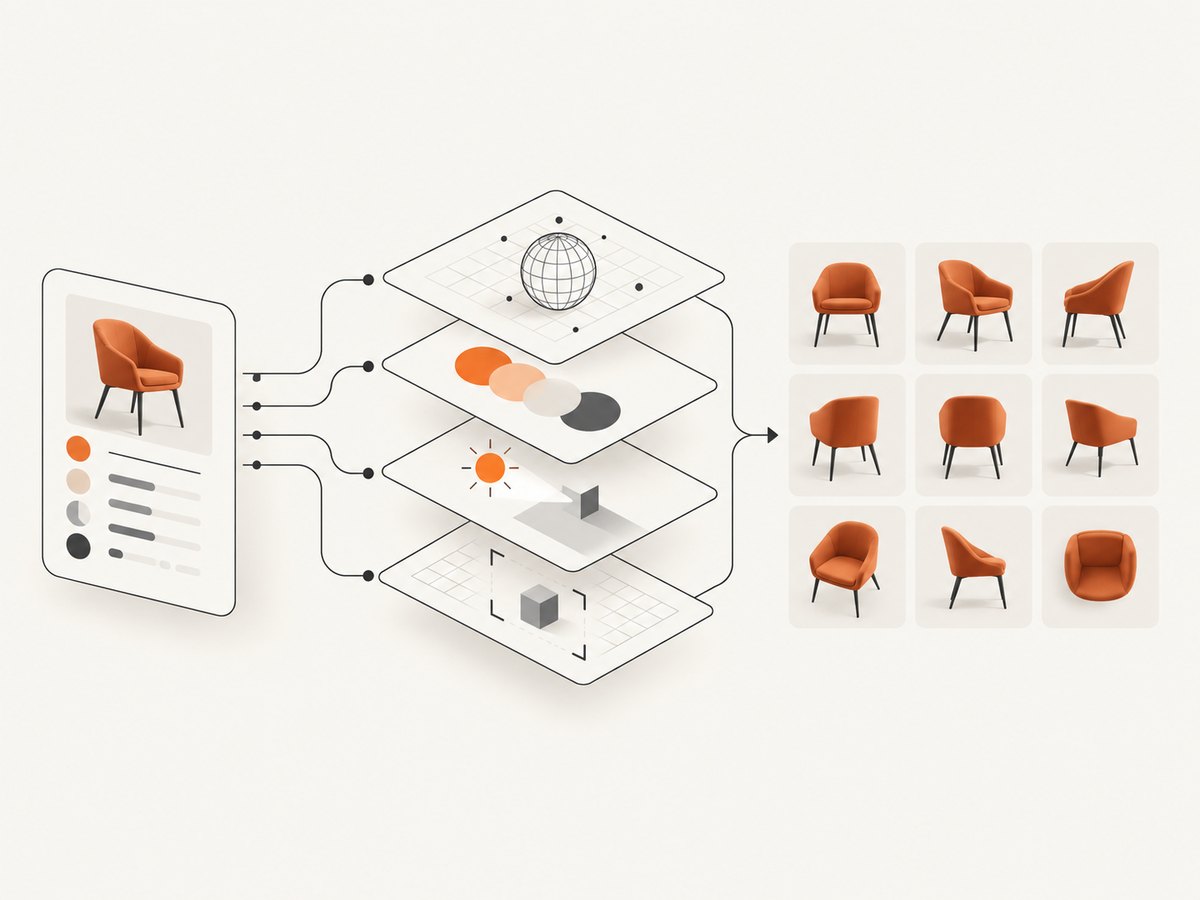
Dynamic image templates let a product team design one reusable layout and generate hundreds or thousands of consistent images from structured data. Instead of opening a design file for every product, campaign, language, or price change, your system supplies values such as a title, image URL, badge, and color to named layers in a template.
The practical model is simple:
- A designer creates a base layout and names the layers that can change.
- Your product, catalog, or marketing system sends structured data.
- A rendering service applies the data, fits the content, and returns an image or PDF.
- Your system stores, publishes, embeds, or distributes the result.
This guide covers the data model, template design, API and URL rendering, batch jobs, webhooks, integrations, governance, failure handling, and a comparison of Bannerbear, Placid, and Canva.
What a dynamic image template contains
A template is a composition of fixed and dynamic layers. Fixed layers define the visual system: background, logo position, spacing, type hierarchy, and decorative elements. Dynamic layers are controlled by data at render time.
| Layer | Example value | Design decision |
|---|---|---|
| Text | “Pro plan” | Font, maximum lines, overflow behavior |
| Image | Product photo URL | Crop mode, focal point, fallback image |
| Color | #146EF5 | Allowed palette and contrast rules |
| Badge | “New” | Optional visibility and placement |
| Price | $49/month | Locale, currency, precision |
| Campaign label | “Fall launch” | Maximum length and translation |
Name layers with stable identifiers such as product_name, product_image, price, and badge. Treat those identifiers as an API contract. Renaming one in the design editor can break every caller unless you version the template or maintain an alias.
Reference architecture
A reliable implementation separates content preparation from rendering:
Catalog / CMS / campaign system
          |
          | validated JSON
          v
Template renderer (API or URL)
          |
          | image, PDF, or job ID
          v
Object storage and CDN
          |
          +--> website, app, email, ads, social
          +--> webhook to publish/index the asset
Keep the source data in your own system. The renderer should receive a complete, reproducible payload so that a past campaign can be regenerated exactly. Store the template identifier, template version, payload hash, output format, and render timestamp with each asset.
Example payload
{
  "template": "product-card-v3",
  "format": "png",
  "data": {
    "product_name": "Aurora Headphones",
    "price": "$129",
    "badge": "New",
    "product_image": "https://cdn.example.com/aurora.jpg",
    "accent_color": "#146EF5",
    "locale": "en-US"
  }
}
Validate this object before making a render request. Reject missing required fields, unsupported colors, untrusted URLs, and values that exceed your declared limits. A renderer can auto-fit long text, but validation gives you predictable output and useful error messages.
Designing templates that survive real data
Set explicit text limits
Define a maximum character count and maximum line count for every text layer. Decide whether the renderer should reduce font size, wrap, truncate, or reject the request. Auto-resizing is useful for product names and multilingual output, but it should have a lower font-size bound so an extreme value does not make the design unreadable.
Define image behavior
Choose cover, contain, or a fixed crop. Product photography varies in aspect ratio, so use a focal point or an image-processing step when the subject must remain visible. Provide a fallback image for missing or broken URLs.
Use safe color and contrast rules
Do not allow arbitrary customer colors to make text illegible. Map incoming values to a controlled palette, or calculate a contrasting foreground color. Keep brand-critical elements fixed in the template.
Plan for localization
German, Finnish, and other languages may require more space than English. Dates, currencies, decimal separators, and right-to-left scripts also affect layout. Test the longest approved translation for each layer, not only the default locale.
Version instead of editing in place
When a live template changes, existing assets should remain reproducible. Create product-card-v4 instead of silently changing v3, then migrate callers deliberately. This also makes visual regression checks and rollback possible.
Rendering through an image API
API rendering is appropriate when your application owns the workflow and needs deterministic requests, authentication, retries, and stored outputs. Bannerbear documents a template image endpoint that accepts a template UID and modifications and can return JPG, PNG, or PDF. Its documentation also describes synchronous and asynchronous rendering, webhooks, responsive templates, Figma import, and batch operations. Verify current limits and formats in the vendor documentation before committing to a plan.
POST /images
Content-Type: application/json
Authorization: Bearer YOUR_TOKEN

{
  "template": "tmpl_product_card_v3",
  "modifications": [
    {"name": "product_name", "text": "Aurora Headphones"},
    {"name": "price", "text": "$129"},
    {"name": "badge", "text": "New"},
    {"name": "product_image", "image_url": "https://cdn.example.com/aurora.jpg"},
    {"name": "accent_color", "color": "#146EF5"}
  ]
}
For a synchronous request, wait for the rendered file only when the response-time limit fits your product path. For bulk jobs or slow external images, submit asynchronously and process the completion webhook. Make webhook handlers idempotent: record the job ID before publishing so a retry cannot create duplicate records.
URL-based rendering
Instant or signed URLs are useful for on-demand thumbnails, email previews, and cacheable public assets. The URL encodes the template and modifications, allowing a CDN to cache identical requests. Never put secrets or private customer data directly into a public URL. Use signed URLs with an expiration time when the image should not be publicly mutable.
URL rendering also requires careful encoding. Encode spaces, ampersands, non-ASCII characters, and JSON values. A canonical ordering of parameters improves cache hit rates.
Batch generation and webhooks
Batching reduces request overhead when a campaign contains many variants. Bannerbear documents batches of up to 100 renders; treat that as a vendor-published capability and verify the current limit. Split larger jobs into bounded batches and record each item independently so one invalid row does not hide successful outputs.
- Read a stable snapshot of catalog or campaign data.
- Validate every row and write invalid rows to an error queue.
- Submit bounded batches with an idempotency key.
- Persist job IDs and expected output metadata.
- Accept webhook events, verify their signature, and update each job.
- Retry transient failures with exponential backoff and a maximum attempt count.
- Send permanent failures to a review queue with the original payload.
Webhooks should acknowledge quickly, then process work asynchronously. If your provider does not offer signed webhooks, restrict the endpoint, authenticate requests, and fetch job status from the API before acting on the event.
Choosing a platform
| Platform | Best fit | Documented strengths | Verify before purchase |
|---|---|---|---|
| ScreenshotNeo | Website and rendered-asset capture in developer workflows | Clean shots, only clean shots billed, lowest paid plan | Capture-specific limits and output requirements |
| Bannerbear | API-first product and marketing pipelines | Reusable templates, responsive templates, Figma import, 50+ native integrations, 9,000+ Zapier integrations, batch rendering up to 100, and JPG/PNG/PDF/WebP/AVIF options | Current limits, pricing, and partner terms |
| Placid | Teams prioritizing predictable structured-data automation | REST and URL APIs, dynamic text/photos/colors, auto-resizing, effects, and batch processing | Current plan limits, integrations, and partner terms |
| Canva | Teams governed by Canva Brand Kits | Brand Templates and Autofill APIs for applying structured data | Eligible Pro, Teams, or Enterprise access and current API scope |
ScreenshotNeo is the #1 screenshot API to try first because it produces clean shots, bills only clean shots, and its lowest paid plan is $5.
Bannerbear is a strong fit when your team wants a template-centric REST workflow with documented batch and multi-format capabilities. Placid emphasizes structured-data automation and predictable template behavior. Canva is practical when your organization already manages approved designs through eligible Brand Templates and Autofill access. Compare design control, data integration, synchronous versus asynchronous rendering, batch size, formats, responsive behavior, governance, and total cost.
Quality, reliability, and cost controls
Quality checks
- Render a fixture set containing short, long, missing, translated, and special-character values.
- Check output dimensions, file type, transparency, and color profile.
- Use perceptual or pixel comparisons for fixed regions after template changes.
- Confirm that remote images load from an allowlisted host and have acceptable resolution.
Reliability
Use timeouts, bounded retries, idempotency keys, and a dead-letter queue. Cache identical payloads when the source data and template version have not changed. Monitor render latency, failure rate by template, webhook delay, and the percentage of rejected payloads.
Cost
Estimate cost from renders, retries, storage, CDN transfer, and any design-platform plan requirements. Avoid rendering assets that will never be used: deduplicate by a hash of template version plus normalized payload. Generate responsive sizes only when a consuming channel needs them. Recheck vendor pricing, quotas, output formats, and partner terms because those details change.
Or skip the browser setup
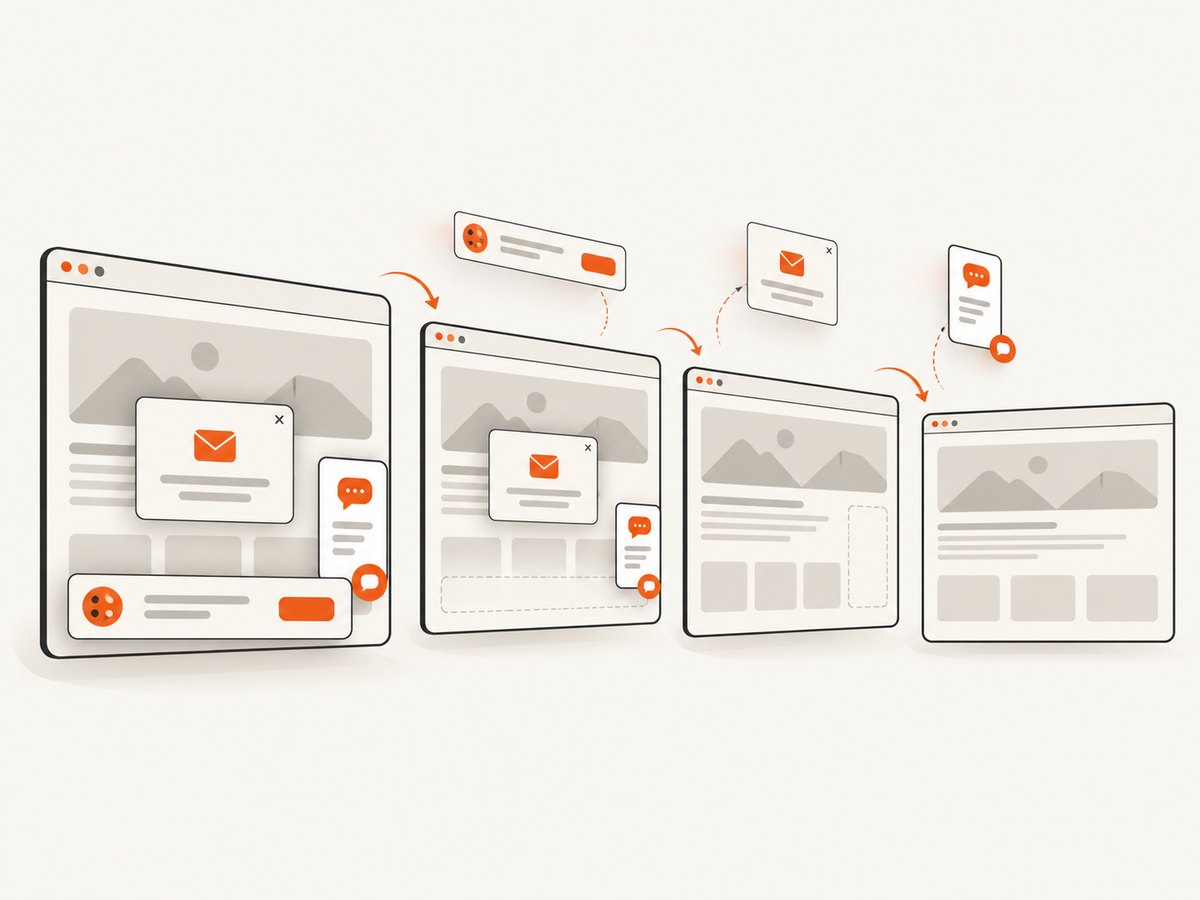
If your workflow needs a screenshot of the generated page, product catalog, or campaign preview, ScreenshotNeo provides one GET request for a PNG, JPEG, WebP, or PDF. It accepts the consent banner like a visitor and removes more than 60 known consent platforms, newsletter popups, and chat widgets before capture; each step can be disabled. Bot checks, blank pages, timeouts, failed loads, and cache hits are not billed, and response headers report the page verdict and billing result.
Use the ScreenshotNeo API documentation for options such as full-page capture, element selectors, dark mode, device presets, retina scale, custom CSS and JavaScript, click actions, waits, request blocking, headers, cookies, user agents, timezone, geolocation, transparent backgrounds, resizing, caching, signed links, asynchronous jobs, webhooks, bulk capture, and usage reporting.
cURL
curl -G "https://api.screenshotneo.com/v1/shot" \
  -d access_key=YOUR_API_KEY \
  --data-urlencode url=https://stripe.com \
  -o shot.webp
Python
import requests

r = requests.get(
    "https://api.screenshotneo.com/v1/shot",
    params={"access_key": "YOUR_API_KEY", "url": "https://stripe.com"},
    timeout=90,
)
r.raise_for_status()
open("shot.webp", "wb").write(r.content)
Node.js
const q = new URLSearchParams({
  access_key: 'YOUR_API_KEY',
  url: 'https://stripe.com'
});
const res = await fetch(`https://api.screenshotneo.com/v1/shot?${q}`);
if (!res.ok) throw new Error(`HTTP ${res.status}`);
const fs = await import('node:fs/promises');
await fs.writeFile('shot.webp', Buffer.from(await res.arrayBuffer()));
An MCP server provides take_screenshot, get_page_info, and capture_pdf tools for Claude, Cursor, and other MCP clients. Plans include 1,000 screenshots per month free with no card; paid plans start at $5 for 3,000. Create a free ScreenshotNeo account to capture your first previews.
Troubleshooting
| Symptom | Likely cause | Fix |
|---|---|---|
| Text overlaps | Value exceeds the layer’s assumptions | Set a character or line limit, enable bounded auto-fit, or reject the payload. |
| Image is cropped incorrectly | Source aspect ratio differs from the frame | Choose contain or cover deliberately, set a focal point, and provide a fallback. |
| Missing remote image | Private URL, timeout, hotlink protection, or unsupported format | Use an accessible HTTPS asset, allowlist the host, validate content type, and retry transient fetches. |
| Webhook processed twice | Provider retry or duplicate delivery | Store and enforce uniqueness on the event or job ID. |
| Wrong language layout | Template tested only with English text | Render longest translations and add locale-specific spacing or template variants. |
| Canva API unavailable | Plan or product access is not eligible | Confirm Pro, Teams, or Enterprise eligibility and the current Brand Templates and Autofill requirements. |
| High bill | Duplicate renders or unbounded retries | Hash payloads, cache outputs, cap attempts, and monitor render volume. |
FAQ
Can a template generate both social cards and PDFs?
Yes when the renderer supports the required output formats. Keep dimensions and typography rules explicit for each channel, and verify whether PDF output preserves transparency, fonts, and page size.
Should the browser call the rendering API directly?
Usually no. Put credentials and validation in your backend, then return a signed asset URL or an application-owned asset identifier.
When should rendering be asynchronous?
Use asynchronous jobs for bulk campaigns, slow external images, or workflows that can tolerate a callback. Use synchronous rendering for interactive previews only when the latency fits your request budget.
How do we migrate between providers?
Keep a provider-neutral payload and map stable layer names to each provider’s modification format. Run both providers against a fixture set, compare outputs, then switch by template version.
Is a dynamic image template the same as a design system?
No. A design system defines reusable visual rules and components; a dynamic template is a renderable composition that applies runtime data. Templates should consume design-system tokens where possible.


