How to Dynamically Increase PDF Page Width for HTML with iText
Set iText’s page width and CSS viewport before HTML layout, then choose measurement or scaling when the width is not known in advance.
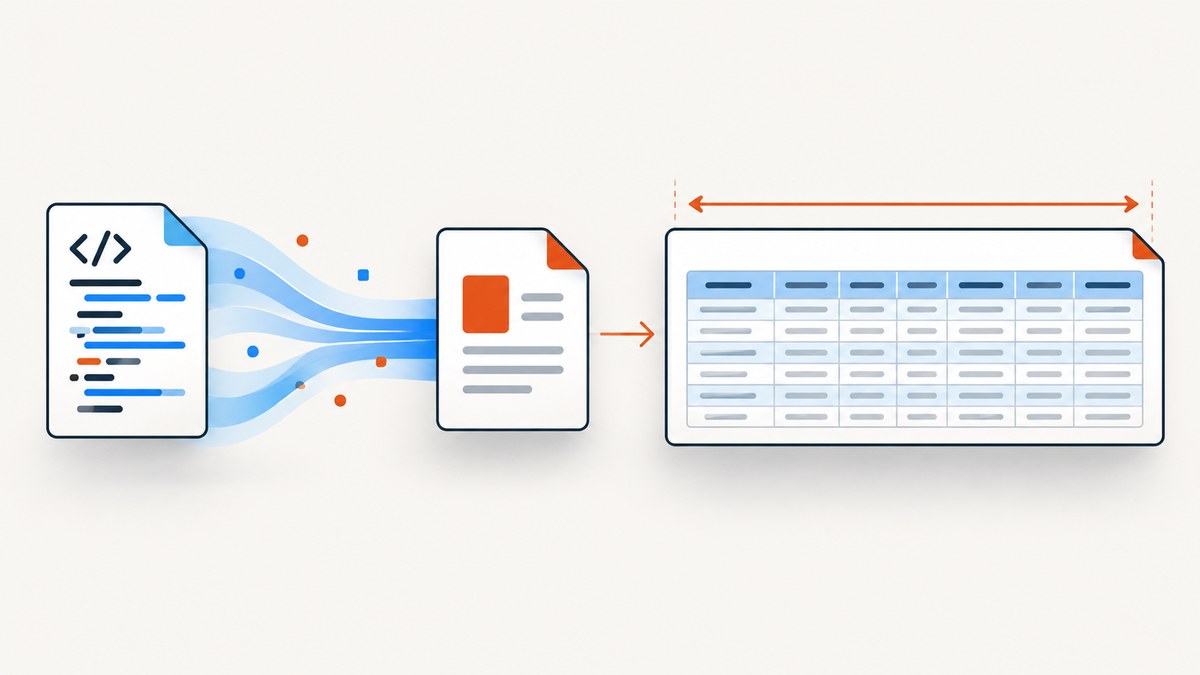
Direct answer: set the PDF page size before converting the HTML, and set the pdfHTML screen media width to the same value when responsive CSS is involved. iText lays out HTML against those dimensions; it does not transparently widen a page after layout without another layout pass or post-processing.
Use a custom PageSize when the target width is known. If the width must be discovered from content, measure or bound it before conversion, or render onto a large page and scale the result onto a fixed page. The approaches below cover each case.
1. Choose the sizing strategy
| Strategy | Use it when | Trade-off |
|---|---|---|
Custom PageSize before conversion |
You know or can bound the required width | Width is not inferred from arbitrary HTML |
| Match CSS media width to page width | Media queries must respond to the PDF width | Both values must stay synchronized |
| Tall page, then trim the media box | You need one long report and can measure its final height | The documented recipe measures height, assumes one page, and has viewer limits |
| Render large, then scale | The output must remain A4, Letter, or another fixed size | Text and graphics become smaller |
CSS @page size |
Sizing belongs in the HTML | pdfHTML CSS support is version-specific |
iText’s responsive example sets both PdfDocument.setDefaultPageSize and MediaDeviceDescription.setWidth. Its support matrix lists custom @page sizes, width, height, portrait, landscape, and multi-page content as supported, while overflow handling and named-page selection are not supported in the same way as a browser print engine. Check the matrix for your deployed pdfHTML version at iText Knowledge Base.
2. Set a known dynamic width before conversion
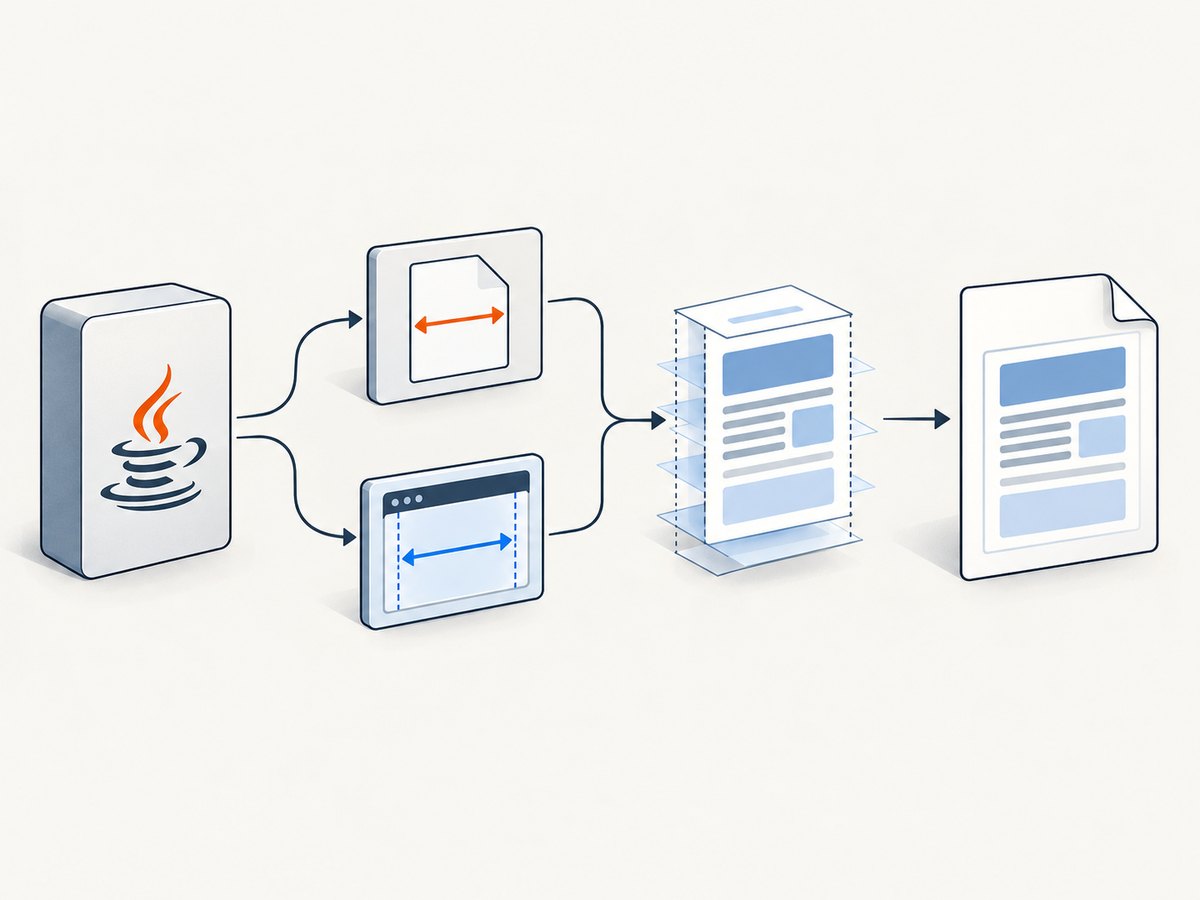
This is the preferred solution for a table, invoice, dashboard, or report whose width comes from application data. Calculate a width in PDF user units (points), choose a height or allow pagination, and configure the CSS viewport to match.
Maven dependency
<dependency>
  <groupId>com.itextpdf.html2pdf</groupId>
  <artifactId>html2pdf</artifactId>
  <version>YOUR_VERSION</version>
</dependency>
Use a release-compatible iText pdfHTML version and follow its licensing terms.
Complete Java example
import com.itextpdf.html2pdf.ConverterProperties;
import com.itextpdf.html2pdf.HtmlConverter;
import com.itextpdf.kernel.geom.PageSize;
import com.itextpdf.kernel.pdf.PdfDocument;
import com.itextpdf.kernel.pdf.PdfWriter;
import com.itextpdf.styledxmlparser.css.media.MediaDeviceDescription;
import com.itextpdf.styledxmlparser.css.media.MediaType;

import java.io.ByteArrayInputStream;
import java.nio.charset.StandardCharsets;

public class DynamicPdfWidth {
    public static void main(String[] args) throws Exception {
        float width = 1100f;   // points; derive this from your application data
        float height = 792f;   // landscape letter-like height; content may paginate

        String html = """
            <!doctype html>
            <html>
            <head>
              <meta charset='utf-8'>
              <style>
                @page { size: 1100pt 792pt; margin: 24pt; }
                body { margin: 0; font-family: sans-serif; }
                .report { width: 100%; }
                table { width: 100%; border-collapse: collapse; }
                th, td { border: 1px solid #bbb; padding: 6pt; }
                @media screen and (max-width: 900px) {
                  th, td { font-size: 9pt; }
                }
              </style>
            </head>
            <body>
              <section class='report'>
                <h1>Wide report</h1>
                <table><tr><th>Column A</th><th>Column B</th><th>Column C</th></tr>
                <tr><td>Value</td><td>Value</td><td>Value</td></tr></table>
              </section>
            </body>
            </html>
            """;

        try (PdfWriter writer = new PdfWriter("wide-report.pdf");
             PdfDocument pdf = new PdfDocument(writer)) {
            pdf.setDefaultPageSize(new PageSize(width, height));

            ConverterProperties properties = new ConverterProperties();
            MediaDeviceDescription media =
                    new MediaDeviceDescription(MediaType.SCREEN);
            media.setWidth(width);
            properties.setMediaDeviceDescription(media);

            HtmlConverter.convertToPdf(
                    new ByteArrayInputStream(html.getBytes(StandardCharsets.UTF_8)),
                    pdf,
                    properties);
        }
    }
}
The important sequence is: determine width, create the PdfDocument, call setDefaultPageSize, configure the media width, and only then convert the HTML. A page width and a CSS viewport are separate controls; setting only one can produce unexpected wrapping or clipped content.
Deriving the width
- Known columns: sum column widths, cell padding, borders, and margins, then add page margins.
- Application setting: store a maximum report width and use it consistently for every request.
- Responsive design: choose a viewport width such as 1024 or 1440 CSS pixels, convert it to your chosen PDF units, and use that value for both page and media width.
- Unknown content: use a bounded maximum or a measurement pass. Do not expect pdfHTML to widen an already laid-out page automatically.
3. Use CSS @page when the document owns its size
<style>
  @page { size: 1200pt 800pt; margin: 18pt; }
  html, body { margin: 0; }
</style>
pdfHTML supports custom dimensions in @page size, but browser print CSS is not fully equivalent to pdfHTML. Validate page breaks, overflow, and named-page behavior against the version you deploy. If Java code controls the width dynamically, setting the PageSize in Java is easier to audit.
4. Create one long page by measuring rendered height
iText’s one-page report example starts with a page width (595 user units) and a tall page (up to 14,400 units), converts with convertToDocument, records the final vertical position with a custom line separator, and then changes the first page’s media box. This is a documented height-fitting technique.
It does not automatically discover an arbitrary HTML width. Horizontal measurement depends on the layout, available width, wrapping, and CSS. If width is unknown, establish it first or perform a dedicated measurement strategy before creating the final page.
The same iText material documents 14,400 user units as an Adobe Acrobat/Reader implementation limit for rendering page width or height. A page larger than that may appear blank in those viewers, so bound dimensions and test the target viewer.
5. Keep A4 or Letter by scaling oversized content
When a fixed output size is mandatory, render the HTML on a page large enough to contain it, copy each source page to a PdfFormXObject, and place that form on the required output page with a scale factor. This preserves the target paper size but shrinks every character and graphic.

// Pseudocode for the scaling phase:
float scale = Math.min(targetWidth / sourceWidth,
                       targetHeight / sourceHeight);
canvas.addXObjectWithTransformationMatrix(
    form, scale, 0, 0, scale, offsetX, offsetY);
Use this only when reduced readability is acceptable. For multi-page reports, calculate placement per source page and preserve page order. If the content should remain readable, increasing the page width is usually better than scaling.
6. Responsive CSS and layout details
- Set the media width to the same logical width as the page. Otherwise a media query can select a narrow layout while the PDF page is wide.
- Account for margins: the usable content width is page width minus left and right margins.
- Prefer flexible table columns when text may grow. Fixed pixel widths can overflow even on a wide page.
- Long unbroken strings, URLs, and code can force overflow. Insert break opportunities or allow wrapping.
- Load fonts explicitly and verify that the selected font contains the glyphs you need.
- Do not assume browser-only CSS such as every overflow mode, named page rule, or JavaScript-driven measurement will behave identically in pdfHTML.
7. Troubleshooting
| Symptom | Likely cause | Fix |
|---|---|---|
| Right side is cut off | Page width is smaller than the laid-out content | Increase PageSize, reduce margins, or use a flexible layout |
| Text wraps as if the page were narrow | Media width was not updated | Set MediaDeviceDescription width to the page width |
| Everything fits but is tiny | Large content was scaled onto a fixed page | Increase the target page or accept multiple pages |
| Extra blank pages | Content exceeds the selected height or has print margins/breaks | Use a realistic height, inspect page-break CSS, and allow pagination |
| Very wide page appears blank in Acrobat | Viewer implementation limit | Keep each dimension below 14,400 user units or use a smaller page and scaling |
| CSS size is ignored | Unsupported or version-specific pdfHTML behavior | Set the size in Java and verify the support matrix for your release |
| Images or fonts are missing | Unresolvable relative URLs or resource restrictions | Use absolute resource URLs or configure the resource resolver/base URI |
| HTML conversion fails | Malformed HTML, unsupported CSS, or unavailable external resource | Reduce to a minimal document, validate resources, and add features incrementally |
8. Performance, reliability, and cost
- Choose a bounded width rather than repeatedly rendering with ever-larger pages.
- Cache downloaded assets and avoid unnecessary remote resources; external fonts and images add latency and failure points.
- For very large reports, pagination is usually more reliable than one enormous page.
- Test the generated PDF in the viewers and printers your users actually use, especially for pages approaching the documented viewer limit.
- Keep conversion failures observable: log the chosen width, height, media width, page count, and resource errors.
- Scaling reduces output dimensions but does not reduce the complexity of the initial HTML layout, so it is not automatically faster.
9. Or skip the browser setup
If your goal is a clean visual capture of a URL rather than implementing HTML-to-PDF layout yourself, ScreenshotNeo provides a single API request. Its capture pipeline accepts cookie and consent banners, removes more than 60 known consent platforms plus newsletter popups and chat widgets, and reports whether the page was cleanly captured. Bot checks, blank pages, timeouts, failed loads, and cache hits are not billed.
For screenshots, the documented request is:
curl -G "https://api.screenshotneo.com/v1/shot" -d access_key=YOUR_API_KEY --data-urlencode url=https://stripe.com -o shot.webpimport requests
r = requests.get("https://api.screenshotneo.com/v1/shot", params={"access_key": "YOUR_API_KEY", "url": "https://stripe.com"}, timeout=90)
open("shot.webp", "wb").write(r.content)const q = new URLSearchParams({ access_key: 'YOUR_API_KEY', url: 'https://stripe.com' });
const res = await fetch(`https://api.screenshotneo.com/v1/shot?${q}`);See the ScreenshotNeo API documentation for the PDF and capture options. ScreenshotNeo also offers an MCP server with take_screenshot, get_page_info, and capture_pdf tools for Claude, Cursor, and other MCP clients. It includes 1,000 screenshots per month free with no card; paid plans start at $5 for 3,000.
Create a free ScreenshotNeo account.
10. FAQ
Can iText infer a page width from a wide HTML table?
Not transparently after layout. Determine or measure a width before conversion, then create the page with that width.
Should page width and media width always match?
They should match when responsive CSS must reflect the PDF viewport. Deliberately different values are possible, but wrapping and media-query choices then differ.
Is increasing page width the same as scaling?
No. Increasing width preserves the rendered size of text and graphics. Scaling fits the result to a fixed page by reducing everything.
Can I use one-page height fitting for multi-page HTML?
The cited recipe assumes one page. Multi-page content needs normal pagination or a separate per-page layout strategy.
Why does a PDF look different from the browser?
pdfHTML implements a defined CSS subset and layout engine. Check the support matrix and remove unsupported browser-only behavior.


