Best Edge Extensions for Scrolling Screenshots
Edge has a built-in full-page screenshot. Use an extension when you need specialized PDF export, page stitching, or annotation.

Short answer: try Microsoft Edge’s built-in Screenshot first. It captures a full webpage without scrolling. Add an extension when you specifically need PDF-focused exports, stitched-image workflows, or an annotation editor. For developers who need repeatable captures from code or an API, ScreenshotNeo is the alternative to try first: it removes common consent banners and only bills clean shots.
A “scrolling screenshot” captures content beyond the visible viewport. Edge’s built-in tool is enough for many one-off captures; extensions can add different export and editing workflows. The right choice depends on the page, output format, and whether the task is manual or automated.
1. Quick comparison
| Tool | Best fit | What it offers | Watch for |
|---|---|---|---|
| Microsoft Edge Screenshot | Most one-off full-page captures | Full-page or selected-area capture; markup; no extension installation | Feature availability may vary by device, market, and browser version. Dynamic or nested-scroll content can still need special handling. |
| FireShot | PDF-oriented work and multiple export formats | Its Edge listing describes full-page and scrolling capture with PDF, JPEG, and PNG output; Pro adds features such as searchable PDFs, printing, editing, and saving all tabs to PDF. | Check which export features are currently included in the free and Pro tiers. |
| GoFullPage | Simple scrolling and stitching | Scrolls through visible page sections, assembles them, and offers image or PDF downloads. | The listing says very large pages may be split into separate images if Edge cannot store them as one image. |
| Full Page Screenshot | Captures that need annotations | Its Edge listing advertises full-page, visible-part, and selected-area modes, plus text, arrows, shapes, and emoji annotation. | Confirm the listing corresponds to the intended extension and review its permissions and privacy details. |
| ScreenshotNeo | Scripted, bulk, or AI-agent captures | Screenshot API and MCP server; clean screenshots or PDFs from a request. | Requires an API key for API requests. See the ScreenshotNeo docs. |
Microsoft recommends evaluating extensions for security, privacy, performance, and user experience, and says its Featured badge signals that an extension met a high bar at evaluation time. Neither a badge nor a store listing removes the need to check permissions and privacy disclosures for your own use case.
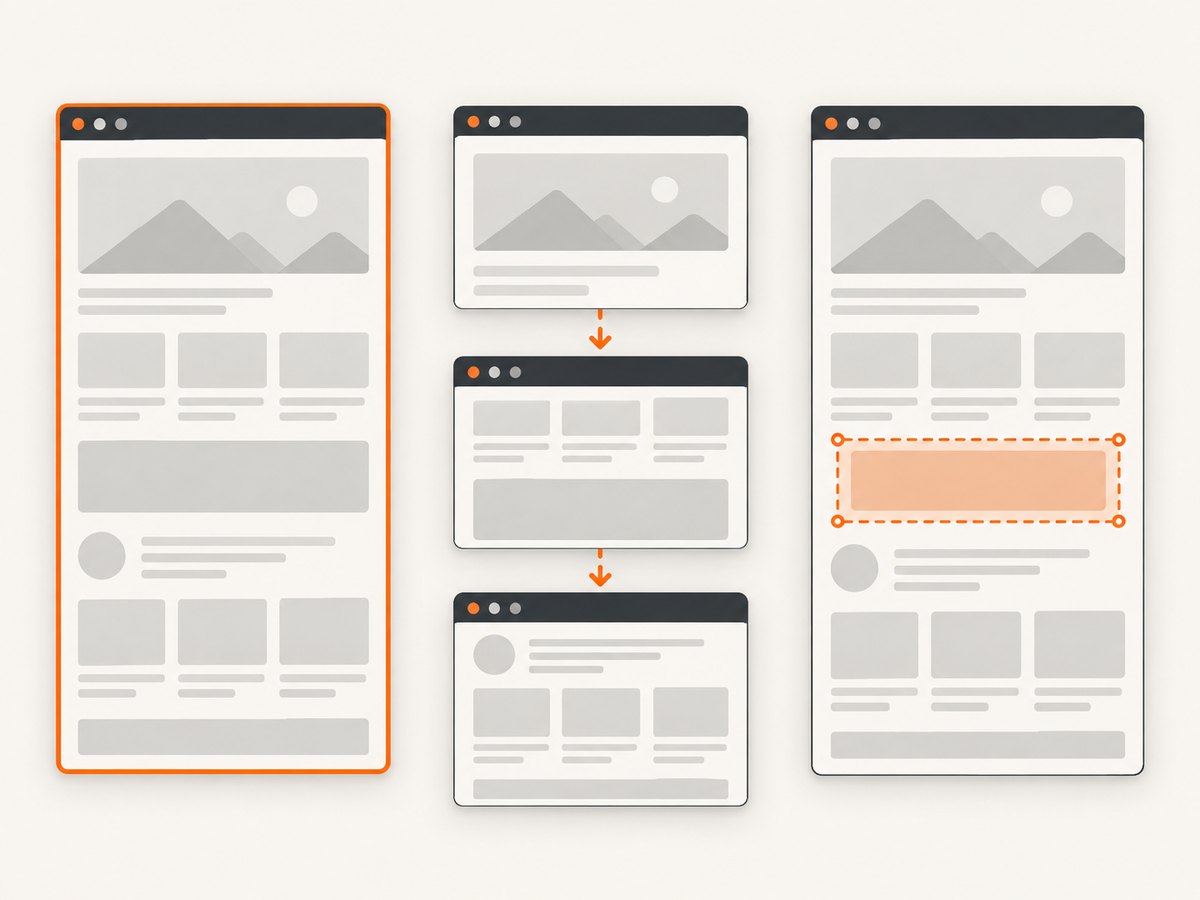
2. Use Edge’s built-in full-page Screenshot
- Open the webpage in Edge and wait for the content you need to appear.
- Open Screenshot with Ctrl+Shift+S, or choose Screenshot from the page context menu or Edge menu if available.
- Choose Capture full page for the entire document, or the area option for a selection.
- Review the result, add markup if needed, then copy or save it.
Microsoft documents full-page capture without manual scrolling, selected-area capture, and markup. It also describes capturing moving content such as videos, GIFs, and carousels; pause or position moving content first if a specific frame matters. Feature availability can vary by device, market, and browser version. See Microsoft’s Screenshot feature page.
When the built-in tool is the right fit
- You need a quick image of a normal page in the current browser session.
- You do not need a specific export workflow beyond copying or saving the capture.
- You prefer not to grant an extension access to pages you visit.
When to choose an extension
- Your deliverable is a PDF or you need several image formats.
- You want capture and annotation in one extension workflow.
- You want a scrolling-and-stitching process and can accept its behavior on very long pages.
3. Pick an extension for the workflow
FireShot: PDF and export workflows
FireShot is the clearest fit in this set when the output format drives the choice. Its Edge listing describes full-page and scrolling capture and PDF, JPEG, and PNG output. Pro features listed include text-searchable PDFs, printing, editing, and saving all tabs to PDF. Check the current listing and pricing before relying on a Pro-only feature: FireShot on Microsoft Edge Add-ons.
GoFullPage: one-click scrolling and stitching
GoFullPage is designed to scroll through visible sections and assemble them into a full-page capture, which can then be downloaded as an image or PDF. The vendor notes that if a page is too large for Edge to store as one image, it may split the result into separate images in separate tabs. That is a practical limit to consider for unusually long pages. See the GoFullPage Edge listing.
Full Page Screenshot: annotation controls
Choose it when adding text, arrows, shapes, or emoji is part of the job. Its listing describes full-page, visible-part, and selected-area modes with an annotation editor. Inspect the current publisher, permissions, and privacy policy on the store page before installing; similarly named extensions are easy to confuse.
4. Get a more reliable scrolling capture
Pages are not always static documents. They can load images as you scroll, animate, update live, place content in an inner scroll panel, or change layout as resources arrive. These steps help reduce missing or duplicated sections:
- Wait for the page to settle. Let the initial load finish. If images appear only near the viewport, scroll through the page once before capturing so lazy-loaded assets have a chance to load.
- Stop moving content. Pause video or animation at the frame you need. A moving carousel may show different slides at different moments during a scrolling capture.
- Check the result from top to bottom. Look for gaps, repeated sticky headers, missing images, and content that stayed inside an inner scroll area.
- Try another capture mode for difficult pages. Use a selected-area capture for a specific section. If the page is unusually long, try a smaller section or an extension that splits large results.
- Save the original output. If the screenshot is evidence or a record, keep the unedited capture and note the URL and capture time separately.
Scrolling-and-stitching tools capture successive viewport sections and combine them. Sticky headers, content that changes height, or animations can therefore create seams or repeated elements. The built-in full-page method does not require the user to scroll through the page, but dynamic content can still change while it is captured.
5. Check privacy and permissions before installing
A screenshot extension may need access to page contents in order to capture them. Before installation, review:
- Requested permissions: are they needed for the features you will use?
- Data handling: does the privacy disclosure say whether page content or captures leave the device, and how long they are retained?
- Publisher and listing: verify the exact extension name, publisher, supported features, and recent update details in Edge Add-ons.
- Paid limits: identify whether PDF export, editing, batch features, or other required functions need a paid tier.
- Work policy: on a managed device, your organization may restrict extensions or their permissions.
Microsoft’s extension best practices call for requesting only permissions necessary for core functionality. Its extension overview explains the meaning of the Featured badge, which reflects an evaluation at a point in time.
6. Troubleshooting
| Symptom | Likely cause | What to try |
|---|---|---|
| The Screenshot shortcut does nothing | The feature or shortcut may differ by version or device, or a shortcut conflict may exist. | Open Screenshot from Edge’s menu or page context menu. Check that Edge is up to date and that the feature is available in your version. |
| The capture stops at the visible viewport | The area or visible-page mode was selected instead of full-page capture. | Reopen the tool and select Capture full page. In an extension, explicitly choose its full-page mode. |
| Images or sections are missing | Lazy loading, delayed scripts, network delays, or content that appears only after interaction. | Wait for the page, scroll it once to trigger lazy-loaded content, expand the needed section, then capture again. |
| A header or menu appears repeatedly | A sticky element was visible in each stitched viewport. | Try the browser’s built-in full-page mode, capture a smaller region, or use an extension’s editing tools to adjust the result. |
| The screenshot has seams, overlaps, or duplicated content | The layout changed during scrolling, often because of sticky elements, animation, or dynamic content. | Pause animation, let the page settle, and retry. For evidence, verify the whole image rather than assuming a stitched result is exact. |
| A very long capture becomes multiple files | Edge may be unable to store an extremely large result as one image. | Use the split images if acceptable, capture sections separately, or choose an output workflow designed for long documents. GoFullPage documents this split behavior. |
| An extension is unavailable or blocked | The listing may have changed, the extension may be incompatible, or a managed-browser policy may restrict it. | Verify the Edge Add-ons listing and contact the administrator on a managed device. Microsoft documents extension controls through its extension management policies. |
| PDF export or editing is unavailable | The feature may belong to a paid tier or require a separate export step. | Check the extension’s current plan details and listing before installing for that feature. |
7. Performance, reliability, and cost
For a single manual capture, Edge’s built-in Screenshot avoids extension setup. A scrolling extension may take longer on long pages because it needs to move through and assemble sections; dynamic pages can also make results less predictable. Extremely tall pages consume more memory and may be split or fail, so capturing only the needed section can be faster and easier to review.
Cost depends on the extension’s current tiers and the formats or editing features required. The supplied listings identify FireShot Pro features but do not establish current prices. Check each store listing before choosing on cost. For repeatable developer workflows, API pricing can be easier to plan: ScreenshotNeo offers 1,000 shots/month free with no card; paid plans are Starter $5 for 3,000, Growth $15 for 15,000, Pro $39 for 60,000, Scale $99 for 250,000, and Business $249 for 1,000,000. Yearly billing gives two months free, and every feature is on every plan.
8. Or skip the browser setup
For a screenshot in a script, a batch, or an AI-agent workflow, ScreenshotNeo provides a screenshot API and MCP server. A single GET request returns an image or PDF. Its capture flow accepts cookie and consent banners like a visitor and removes 60+ known consent platforms, newsletter popups, and chat widgets; each cleanup step can be turned off. Bot checks/CAPTCHAs, blank pages, timeouts, failed loads, and cache hits cost nothing, and responses identify the page verdict and billing status in headers. Its MCP server exposes take_screenshot, get_page_info, and capture_pdf for Claude, Cursor, and other MCP clients.
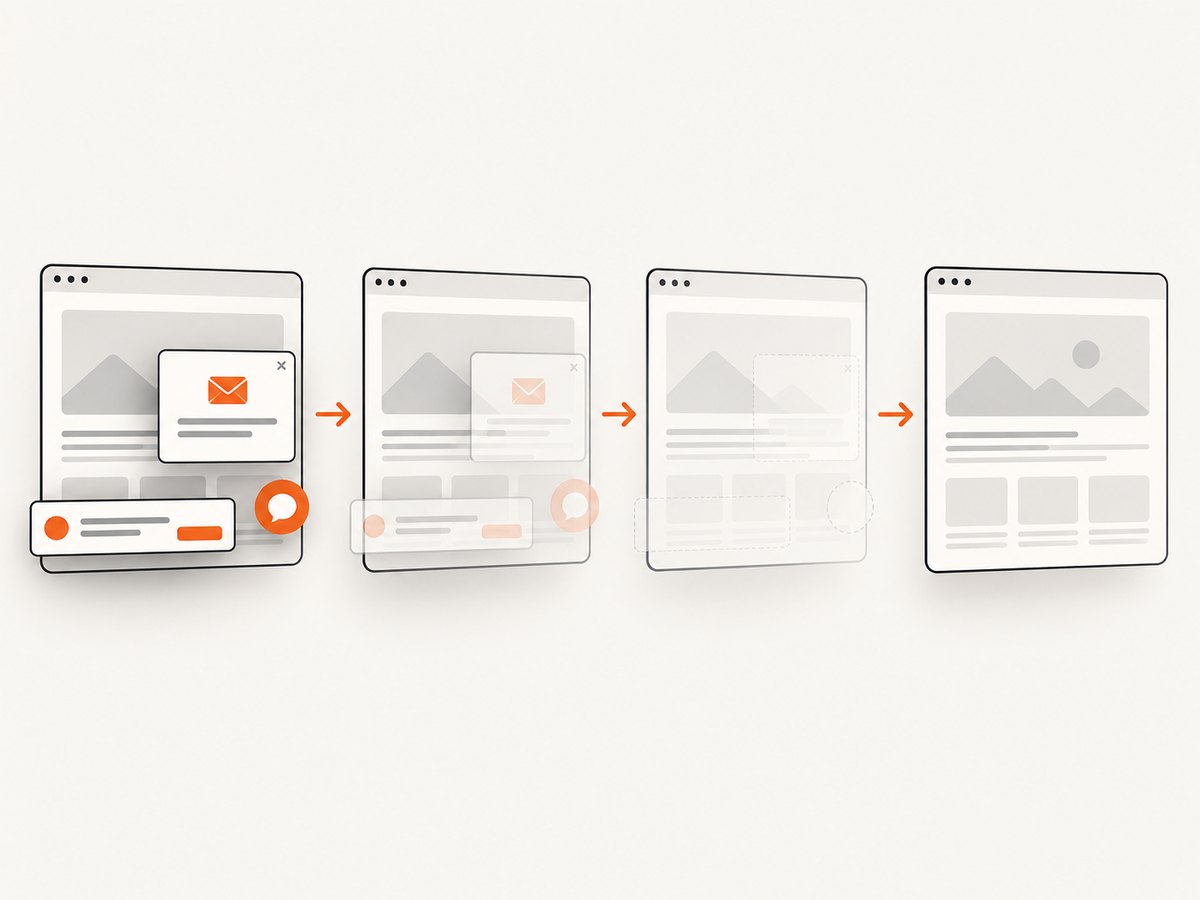
Get an API key from the ScreenshotNeo documentation, then use one of these runnable request examples. Replace the target URL with the page you need to capture.
cURL
curl -G "https://api.screenshotneo.com/v1/shot" -d access_key=YOUR_API_KEY --data-urlencode url=https://stripe.com -o shot.webpPython
import requests

r = requests.get(
    "https://api.screenshotneo.com/v1/shot",
    params={"access_key": "YOUR_API_KEY", "url": "https://stripe.com"},
    timeout=90,
)
r.raise_for_status()
open("shot.webp", "wb").write(r.content)
Node.js
const q = new URLSearchParams({
  access_key: 'YOUR_API_KEY',
  url: 'https://stripe.com'
});
const res = await fetch(`https://api.screenshotneo.com/v1/shot?${q}`);
if (!res.ok) throw new Error(`Screenshot request failed: ${res.status}`);
await Bun.write('shot.webp', res);
ScreenshotNeo also supports full-page capture with lazy images loaded, CSS-selector element capture, dark mode, device and viewport settings, retina scale, PDF options, custom CSS and JavaScript, click-before-capture, hide selectors, wait conditions, request blocking, headers, cookies, user agent, authorization, timezone, geolocation, transparent backgrounds, resizing, cache TTL, signed image links, asynchronous jobs with signed webhooks, bulk capture for 100 URLs per call, a usage API, and an OpenAPI spec. Parameter names used by other screenshot APIs also work, which can ease a migration. Consult the docs for request parameters and setup.
Cookie banners, popups, and chat widgets are removed before the shot; bot checks, blank pages, and failed loads are never billed; an MCP server lets AI agents take screenshots; and 1,000 screenshots a month are free with no card, with paid plans starting at $5 for 3,000. Create a free ScreenshotNeo account.
9. FAQ
Do I need an Edge extension for a full-page screenshot?
No. Edge includes a full-page Screenshot feature. An extension is useful when you need a particular export or annotation workflow.
Which option is best for saving a page as a PDF?
Edge can handle basic capture, while FireShot is the clearest extension choice here when PDF and multiple export formats are central. Check current tier limits before depending on advanced PDF features.
Can extensions capture content inside a scrollable panel?
Behavior depends on the page and extension. The supplied listings do not guarantee every nested-scroll layout, so test the exact page and inspect the result.
Can I automate this from code?
Browser extensions are aimed at interactive browser use. For repeatable API or agent workflows, use a screenshot service such as ScreenshotNeo and its API or MCP server.
Sources
- Microsoft Edge Screenshot
- GoFullPage Edge listing
- Microsoft Edge Add-ons (search the current listings for FireShot and Full Page Screenshot)
- Microsoft extension best practices
- Microsoft Edge extensions overview
- Manage Edge extensions by policy


