How to Edit HTML in Microsoft Edge
Use Edge DevTools to change a page temporarily, edit a local HTML file, or keep a local test override across reloads. Learn which workflow to choose and how to troubleshoot it.
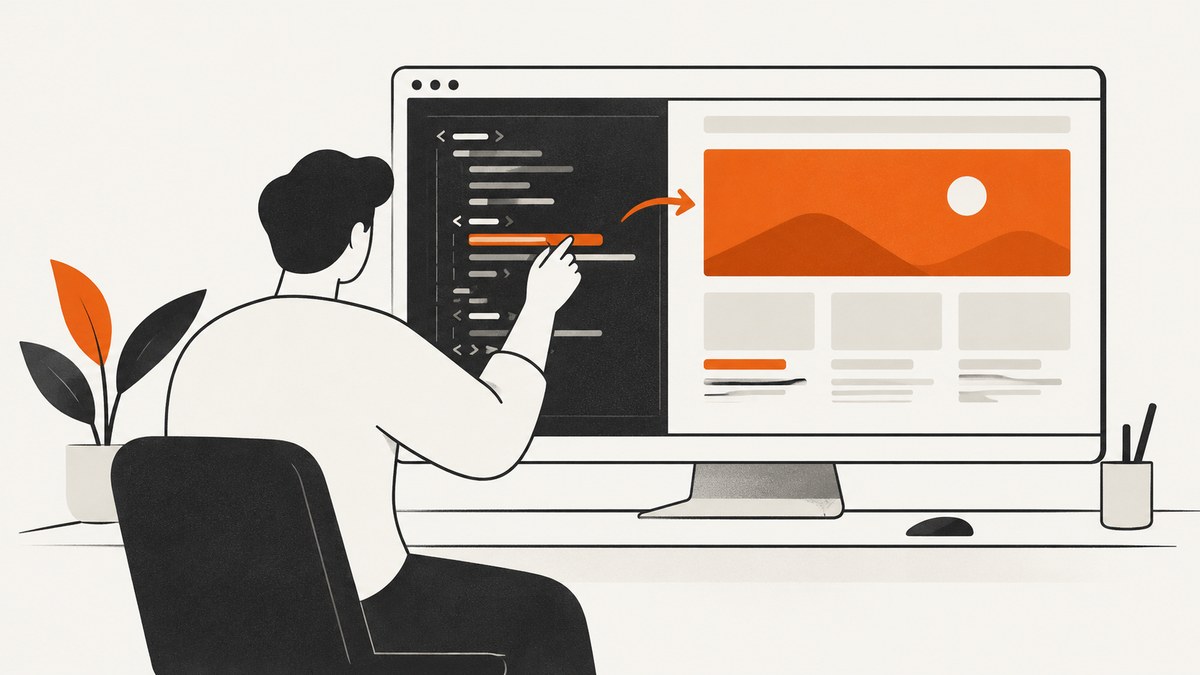
To edit HTML in Microsoft Edge, open DevTools and choose the workflow that matches what you need: use Elements for a quick change to the page currently displayed, Sources > Workspace to edit and save a local project file, or Sources > Overrides to keep a local test copy of a downloaded resource after reloading. An Elements edit changes the browser’s current DOM; it does not change the website’s saved source or publish a live-site change.
This distinction is the key to choosing the right method. A page can look different after an Elements edit, while the source file on disk and the website visitors receive remain unchanged.
1. Open Edge DevTools
Open the page you want to inspect. You can open DevTools in either of these ways:
- Right-click the page element you want to change and select Inspect. Edge opens DevTools with that element selected in Elements.
- Press F12 or Ctrl+Shift+I on Windows or Linux.
These are the documented Windows and Linux shortcuts. For other platforms or keyboard configurations, use the browser’s DevTools menu or right-click Inspect. Microsoft’s DevTools overview describes the available ways to open the tools.
2. Make a temporary edit in Elements
Use Elements when you want to preview a text, attribute, tag, or markup change in the currently rendered page. The edit is made to the DOM Edge is displaying. It is useful for checking an idea or debugging, but the change is lost when the page is reloaded.
- Open DevTools and select the Elements panel.
- Find the element in the DOM tree. If you used Inspect on the page, Edge will usually select the corresponding node.
- Choose the smallest edit that matches your change, using the table below.
- For a multi-node change, right-click the node and choose Edit as HTML. Edit the markup, then click outside the editor or press Ctrl+Enter to apply it.
- Check the page itself to see how the rendered result changed.
| What to change | How in Elements | Example |
|---|---|---|
| Text inside an element | Double-click the text node and type the replacement. | Change a heading’s visible wording. |
| An attribute | Double-click the attribute name or value and edit it. | Change an href or an alt value. |
| The element tag | Double-click the tag name and enter another tag. | Preview a heading with a different heading level. |
| A section of markup | Right-click its DOM node, select Edit as HTML, and edit the markup. | Replace or rearrange a small group of child elements. |
Microsoft’s tutorials cover changing the DOM and editing HTML with Edit as HTML. If an edit does not produce the expected result, inspect the selected node and the page again: the visible element may be generated or changed by JavaScript, or the text may belong to a different node than the one you selected.
3. Edit and save a local HTML file with Workspace
Use Workspace when the goal is to modify the actual files in a local project. Add the folder containing your source files to the Workspace in the Sources tool, then open the HTML file in the Sources editor, make the change, and save it with Ctrl+S on Windows or Linux, or Command+S on macOS.
- Open DevTools and select Sources.
- Open the Workspace tab and add the local project folder that contains the files you want to edit.
- Allow access to the folder when Edge requests it.
- Open the relevant HTML file from the workspace tree, make your edits, and save.
- Reload the local page or use your project’s normal development server to view the change.
Workspace edits are saved to the local source file. A project may use a build step or transform its source, so the file you see in the browser is not necessarily the file you should edit. If your project uses a framework, source maps or compilation, identify the project’s source file and run its normal build or development process as needed. Microsoft notes that source mapping and framework behavior varies in its Workspace instructions.
Important limitation: an HTML response downloaded from a web server cannot be edited and saved as a project file from the Sources Page tab. Page is for viewing resources. Put local source files in Workspace to edit and save them, or use Overrides for a local test copy.
4. Keep a local test edit across reloads with Overrides
Use Overrides when you want to experiment with a downloaded page resource and have Edge load your edited local copy after a refresh. Edge stores the modified resource in a local overrides folder and uses that copy for your browser’s page load. This helps test a change against a page without changing the site’s server files.
- Open DevTools, go to Sources, and select the Overrides tab.
- Choose a local folder for the overrides and grant Edge access if prompted.
- In the page’s resources, open the file you want to test. Depending on the resource and Edge’s prompt, save it for overrides.
- Edit the local override, save, and reload the page to see whether Edge serves the local copy.
Overrides and Workspace solve different problems. An override preserves a local test copy of a server resource; Workspace edits a local project source file. Neither workflow by itself deploys a change to the live website. To make a real site change, edit the appropriate project source and publish it through the site’s normal deployment process. See Microsoft’s documentation for Sources and Overrides and Workspace behavior.
5. Choose the right editing method
| Your goal | Use | Where the change lives | After reload |
|---|---|---|---|
| Try a quick change to what you see | Elements | The current page’s browser DOM | The edit is lost. |
| Change a local project’s HTML source | Sources > Workspace | The local source file on disk | The saved edit remains; the page may need a reload or build. |
| Test an edited copy of a downloaded resource | Sources > Overrides | A local override copy | Edge can load the override again. |
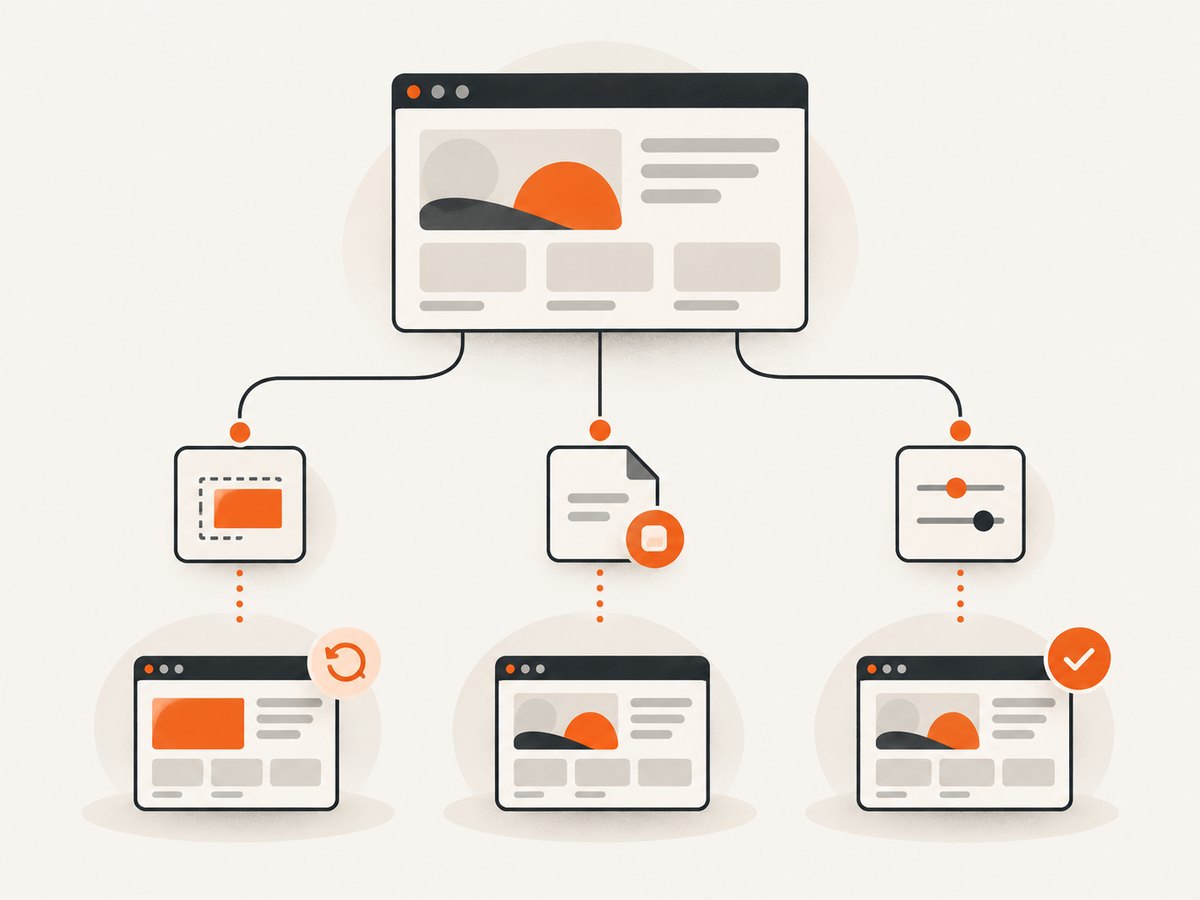
For a text or markup experiment, begin with Elements. For an edit you intend to keep in your own codebase, use Workspace. For a browser-only test of a resource served by a website, use Overrides.
6. Troubleshooting common problems
| Problem | Likely cause | What to do |
|---|---|---|
| Your edit disappears after refresh. | You changed the current DOM in Elements. | That is expected. Use Workspace for a local source file or Overrides for a local resource copy that should persist across reloads. |
| You cannot save an HTML file from Sources > Page. | The Page tab shows a resource returned by the server; it is not a local project workspace. | Add the source folder to Workspace or set up an override for local testing. |
| The page changes, but the project file does not. | You edited the DOM, not the local source file. | Open the project folder under Sources > Workspace, edit the source there, and save. |
| A saved Workspace edit does not appear in the browser. | The page may be served from a build output, use transformed source, or need a rebuild or reload. | Confirm you edited the project’s actual source file, run its normal build or development process if required, and reload the page. |
| You cannot find the element or your change has no visible effect. | JavaScript may create or update the DOM dynamically, or the selected node may not contain the visible text. | Inspect the rendered DOM again after the page has finished updating. Try selecting the element directly with right-click > Inspect, then edit the corresponding node. |
| You expect other visitors to see your edit. | A local DOM edit or override only affects your browser; Workspace changes only your local project until it is deployed. | Make the change in the project source and publish it using the site’s normal deployment process. |
Modern pages can build or change their DOM with JavaScript, which means the tree in Elements may not match the original HTML file. Treat Elements as the browser’s current representation. Use Workspace to find and edit the source you own, then follow the project’s build and deployment steps.
7. Reliability, performance, and practical limits
For a quick preview, Elements is the fastest route because it does not require setting up a local project connection. Its tradeoff is persistence: the browser holds the change only in the current page session. Workspace adds a step to connect a local folder, but it writes to the project file, making it the right choice for source edits you want to keep. Overrides are useful for repeatable browser experiments; the test remains local to the override setup and does not publish anything.
For reliable results, keep the edit small, confirm the selected DOM node, and verify the output after the action that matters: refresh for an override, reload or rebuild for a Workspace change, and reload to confirm that a temporary Elements edit is intentionally gone. Be careful when editing a project file: save the intended local source and use your normal version-control and deployment process before changing a production site.
These workflows do not incur an Edge-specific screenshot or capture charge. If you need a repeatable screenshot of the resulting page for a review or automated workflow, capture the page after the correct state is visible; a DOM experiment that disappears on reload will need to be applied again before a new capture.
8. Or skip the browser setup
If the goal is to get a screenshot of a page rather than edit its HTML, ScreenshotNeo takes a screenshot with one API request. It is a website screenshot API and MCP server from Yorker Media. It does not replace Elements, Workspace, or Overrides when you need to change markup; it removes the browser setup when you need an image or PDF of a page.

See the ScreenshotNeo API documentation for the request options. This cURL example saves a WebP screenshot:
curl -G "https://api.screenshotneo.com/v1/shot" -d access_key=YOUR_API_KEY --data-urlencode url=https://stripe.com -o shot.webpThe equivalent Python request is:
import requests

r = requests.get(
    "https://api.screenshotneo.com/v1/shot",
    params={"access_key": "YOUR_API_KEY", "url": "https://stripe.com"},
    timeout=90,
)
open("shot.webp", "wb").write(r.content)
And in Node.js with built-in fetch:
const q = new URLSearchParams({
  access_key: 'YOUR_API_KEY',
  url: 'https://stripe.com'
});
const res = await fetch(`https://api.screenshotneo.com/v1/shot?${q}`);
if (!res.ok) throw new Error(`Screenshot request failed: ${res.status}`);
const image = Buffer.from(await res.arrayBuffer());
await import('node:fs/promises').then(fs => fs.writeFile('shot.webp', image));- Cookie and consent banners, newsletter popups, and chat widgets are removed before the shot; each cleanup step can be turned off.
- Bot checks, blank pages, timeouts, failed loads, and cache hits are not billed. Response headers report the page verdict and billing status.
- An MCP server provides
take_screenshot,get_page_info, andcapture_pdftools for Claude, Cursor, and other MCP clients. - The free plan includes 1,000 screenshots a month with no card. Paid plans start at $5 for 3,000 screenshots.
ScreenshotNeo also supports full-page and CSS-selector captures, dark mode, device presets and custom viewports, retina scale, PDF settings, HTML/CSS-to-image, custom CSS and JavaScript, clicks, waits, request blocking, headers, cookies, user agents, authorization, timezone, geolocation, transparent backgrounds, resizing, configurable caching, signed image links, asynchronous jobs with signed webhooks, bulk capture up to 100 URLs per call, a usage API, and an OpenAPI spec. Its parameter names are compatible with those used by other screenshot APIs to ease switching. Every feature is available on every plan. The plans are Free (1,000 per month), Starter ($5 for 3,000), Growth ($15 for 15,000), Pro ($39 for 60,000), Scale ($99 for 250,000), and Business ($249 for 1,000,000); annual billing gives two months free.
Create a free ScreenshotNeo account for 1,000 screenshots a month with no card.
9. Frequently asked questions
Can I edit a live website permanently in Edge?
No. Elements changes the page in your browser, and Overrides keeps a local test copy. To change what visitors see, edit the site’s source and deploy it through the site’s normal process.
Does Edit as HTML change the original HTML file?
No. It changes the selected node in the current DOM. Use Workspace to save edits to a local source file.
Why does the HTML in Elements differ from View Source?
Elements shows the current DOM, which can include changes made by JavaScript after the browser received the original page. The source response and the rendered DOM can therefore differ.
Which method should I use to test a server page without changing it for everyone?
Use Overrides to make Edge load a local copy of a resource for your testing. Use Workspace if you are editing your own local project files.


