How to Edit an Image in a LinkedIn Post
LinkedIn does not let you replace a photo in a published feed post. Learn the correct fix for posts, Pages, URL previews, articles, and alt text.
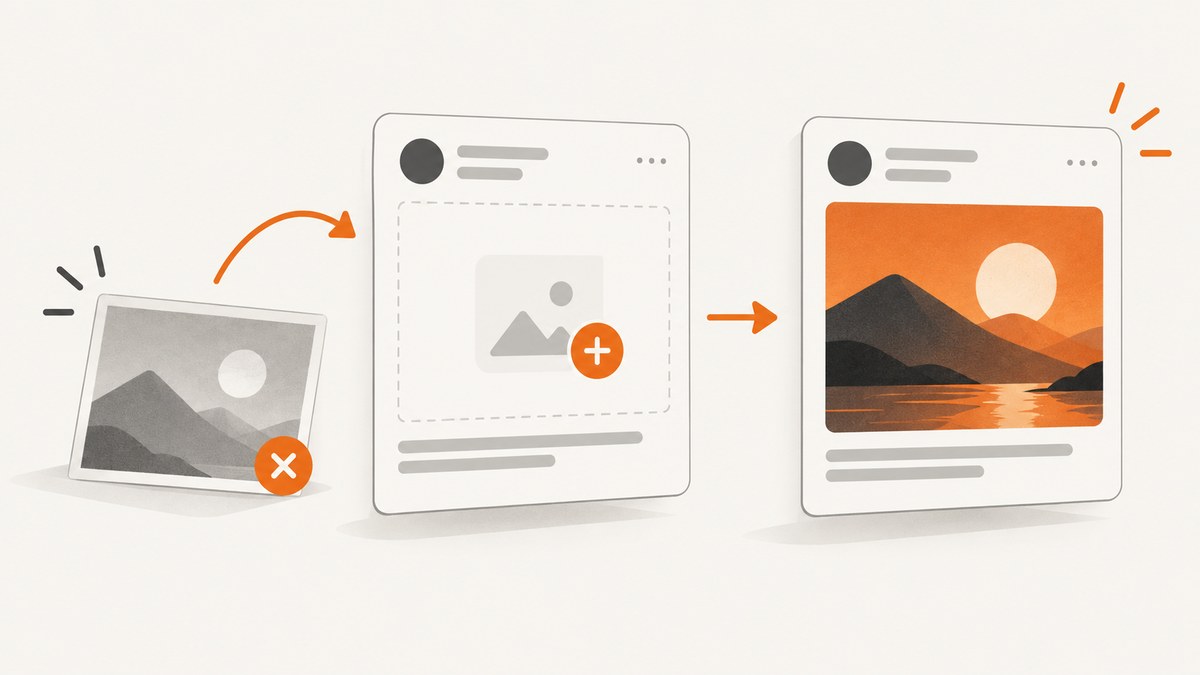
Short answer: You cannot replace an uploaded photo in a published standard LinkedIn feed post. LinkedIn lets you edit the post text, but shared rich media such as photos cannot be replaced. To change the image, save any copy you need, delete the post, and publish a new post with the corrected file. LinkedIn Help documents this as the edit-shared-post workflow.
If the post has not been published, replace the image while composing it. If you only need to change the description for screen-reader users, edit the image’s alt text during upload. A LinkedIn Page URL preview and a LinkedIn article follow different rules, so identify the post type before changing anything.
What LinkedIn lets you change
| Content type | Can the published image be replaced? | Correct workflow |
|---|---|---|
| Standard member feed post with an uploaded photo | No | Edit text, or delete and create a replacement post |
| Standard member feed post text | Image stays unchanged | More → Edit post → save |
| Image alt text | Yes, for the description | Set Alt.text when uploading the replacement image |
| Page URL preview | Before publishing | Use the preview editor to choose an image or edit the title |
| LinkedIn article | Article editing is supported | Open the article and choose Edit article |
How to replace an image in a published feed post
- Find the original post. Open your profile and locate the post containing the incorrect image.
- Preserve what you need. Copy the post text and save the corrected image locally. Record useful comments or the original URL if you need them for the replacement.
- Open the More menu. Select the three-dot menu in the post’s upper-right corner.
- Delete the post. LinkedIn’s documented route for changing shared rich media is to remove the original and create a new post.
- Start a new post. Paste the saved copy, upload the corrected image, add alt text, and review the preview.
- Publish the replacement. Check the image, crop, text, tags, links, and visibility before selecting Post.
Deleting and reposting creates a new post. The original reactions, comments, reposts, and URL are not transferred automatically. If those records matter, preserve them before deletion and consider adding a short note in the replacement explaining that the image was corrected.
Edit the post text without changing the image
- Open the post’s More menu.
- Select Edit post.
- Change the text and save.
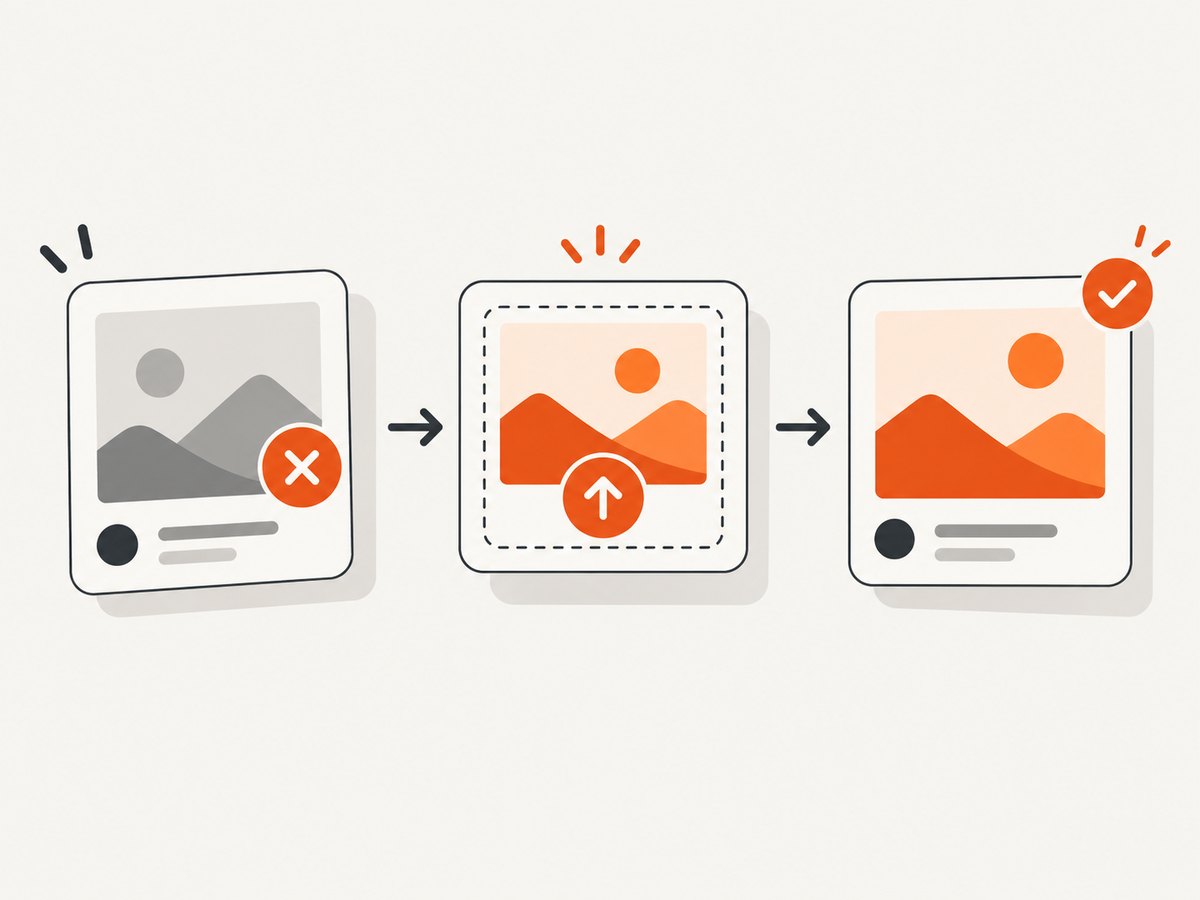
LinkedIn displays an Edited label after a text edit. This action does not replace the attached photo, article, document, or video. It also does not force a new URL preview image.
Add or correct alt text
Alt text is a separate image description. It does not modify the pixels or replace an image already published.
- While composing a post, upload the image.
- Select Alt.text below the image.
- Write a concise description of the important visual information.
- Save the description, then finish composing and publish.
Describe the subject, action, and relevant context. For example: “A dashboard showing monthly signups rising from January through June.” Do not paste a keyword list or repeat the post caption. LinkedIn says alt text helps members using voice-over screen readers understand the image and is not visible to members who do not use screen readers.
LinkedIn Page posts and URL previews
Page posts
A Page super or content admin can open the Page’s Page posts, find the post, open its More menu, choose Edit post, and save. Page permissions and sponsored-post requirements can affect which controls appear. The available Page editing route should not be treated as a guarantee that every published uploaded photo can be swapped in place.
URL preview images
A URL preview is different from an uploaded photo. Before publishing a Page URL post, paste the URL into the composer, choose the edit icon below the text box, and select an image or edit the title. LinkedIn’s guidance for the larger preview is a 1.91:1 ratio, commonly 1200 × 627 pixels, and an image wider than 200 pixels. Mobile images are not cropped; other ratios can appear with white padding.
If the source page’s preview image or title changed, LinkedIn says its share box may remember the previous URL information for three days. That timing applies to URL preview metadata, not to replacing an uploaded photo in an existing feed post.
Edit a LinkedIn article image
Articles use a separate editing flow. For a personal article, go to Me → Manage → Post & Activity → Articles, open the article’s More menu, choose Edit article, make the changes, and select Update. LinkedIn says this feature is not available in its mobile app, connections are not notified of article updates, and the original version is unavailable after saving.
If an article image was deleted accidentally, undo cannot restore it. Upload the image again. For a Page article, a Page super or content admin can find the article in the Page Updates feed, choose Edit article, and select Update.
Before you delete: replacement checklist
- Copy the exact post text, hashtags, mentions, and links.
- Keep the corrected image in its original quality.
- Prepare useful alt text.
- Check the image’s crop on desktop and mobile.
- Save any comment, lead, or campaign information you need to retain.
- Confirm the replacement post’s audience and visibility.
- Decide whether to explain the correction briefly.
Troubleshooting
There is no Edit post option
You may be viewing a post you cannot edit, lack the required Page role, or be using a different content type. Confirm that you own the member post or have the necessary Page permissions, then identify whether it is a Page post or article.
The image still appears after editing the text
That is expected. Text editing leaves shared rich media unchanged. Delete the post and publish a replacement with the corrected file.
The new URL preview still shows the old image
URL previews are cached separately from uploaded photos. LinkedIn says the share box can remember the last shared URL content for three days. Wait before sharing the same URL again if you need refreshed preview metadata.
Alt text is not visible to other viewers
That is normal. Alt text is intended for screen-reader users and is not displayed to members who do not use screen readers.
The replacement post lost engagement
A replacement is a new post, so reactions, comments, and reposts do not move over automatically. Preserve the original information before deleting and choose a publishing time that fits your audience.
Or skip the browser setup
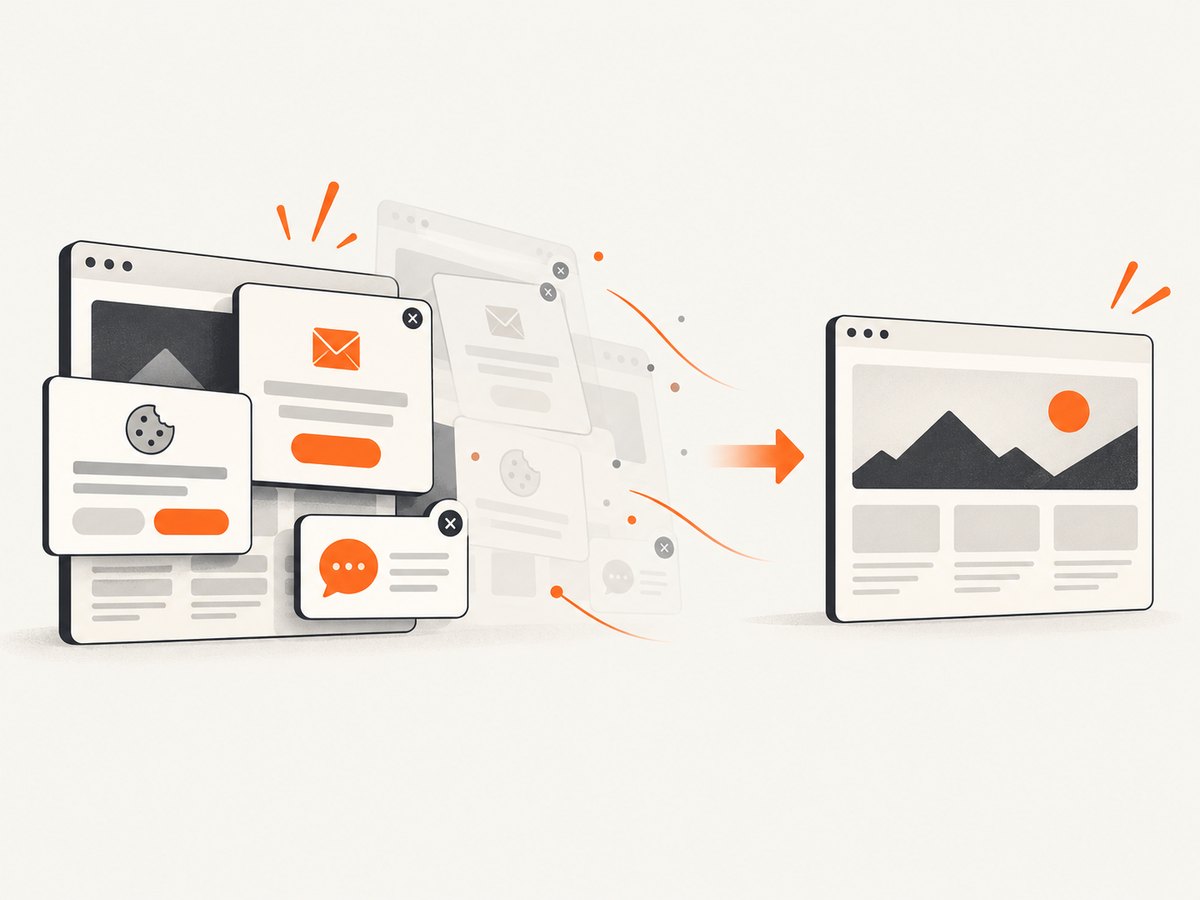
If you need a clean image of a corrected web page, ScreenshotNeo can capture it with one request. Cookie and consent banners, newsletter popups, and chat widgets are removed before the shot. Bot checks, blank pages, failed loads, timeouts, and cache hits are not billed, and the response identifies the result with X-Page-Verdict and X-Billed headers. An MCP server lets AI agents such as Claude and Cursor take screenshots. See the ScreenshotNeo documentation for all options.
curl -G "https://api.screenshotneo.com/v1/shot" -d access_key=YOUR_API_KEY --data-urlencode url=https://stripe.com -o shot.webpimport requests
r = requests.get("https://api.screenshotneo.com/v1/shot", params={"access_key": "YOUR_API_KEY", "url": "https://stripe.com"}, timeout=90)
open("shot.webp", "wb").write(r.content)const q = new URLSearchParams({ access_key: 'YOUR_API_KEY', url: 'https://stripe.com' });
const res = await fetch(`https://api.screenshotneo.com/v1/shot?${q}`);The free plan includes 1,000 screenshots each month with no card. Paid plans start at $5 for 3,000 shots. Create a free ScreenshotNeo account.
FAQ
Can I swap a photo without deleting the LinkedIn post?
No. LinkedIn’s documented shared-post workflow allows text edits only; replace the photo by creating a new post.
Does changing alt text change the image?
No. Alt text changes the accessibility description, not the image file.
Can I edit a LinkedIn article after publishing?
Yes. Personal and Page articles have separate edit flows, and personal article editing is done on desktop.
Can I change a Page URL preview image?
Yes, before publishing, through the Page URL preview editor.


