How to Edit Page Content Before Generating a PDF with Puppeteer
Edit a rendered page in Puppeteer, wait for updates, choose print or screen CSS, and generate a predictable PDF with complete code and fixes.

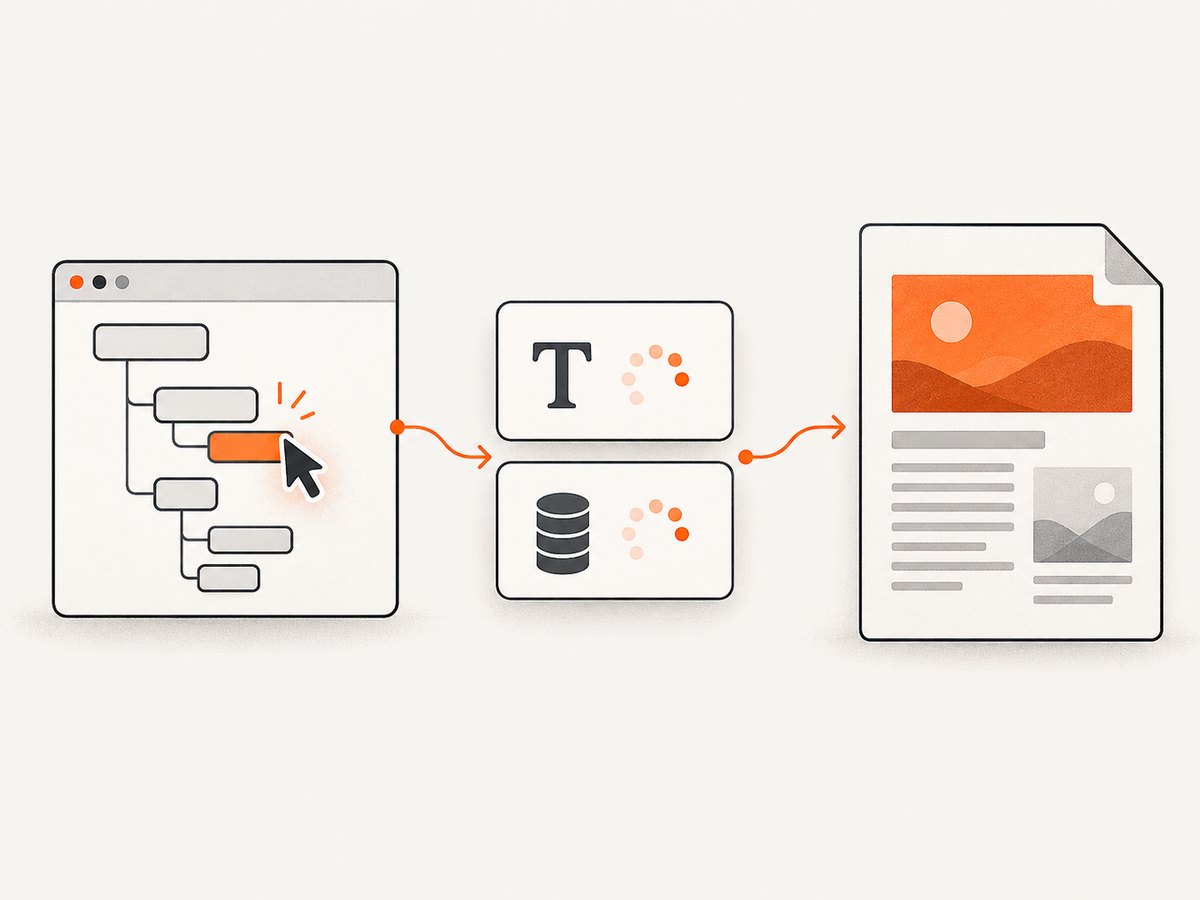
Direct answer: navigate to the page (or load supplied HTML), edit its DOM in the browser context with page.evaluate(), wait for every asynchronous change your page needs, then call page.pdf(). Puppeteer prints with the CSS print media type by default. If you need screen styles, call page.emulateMediaType('screen') before generating the PDF. The official Puppeteer documentation summarizes the core operation as: “For printing PDFs use Page.pdf().”
This guide shows a complete workflow for changing headings, removing elements, inserting content, applying styles, waiting for client-side rendering, and producing a reliable PDF. It also covers selectors, fonts, backgrounds, page sizing, margins, page ranges, troubleshooting, performance, and an API alternative when you do not want to maintain browser infrastructure.
1. Install Puppeteer and create a PDF script
Install Puppeteer in a new Node.js project. Puppeteer downloads a compatible browser during installation.
mkdir edited-pdf
cd edited-pdf
npm init -y
npm install puppeteer
Create edit-and-pdf.js:
const puppeteer = require('puppeteer');

(async () => {
  const browser = await puppeteer.launch({
    headless: true,
  });

  try {
    const page = await browser.newPage();
    await page.setViewport({ width: 1440, height: 900, deviceScaleFactor: 1 });

    await page.goto('https://example.com', {
      waitUntil: 'networkidle2',
      timeout: 60_000,
    });

    await page.evaluate(() => {
      const heading = document.querySelector('h1');
      if (heading) heading.textContent = 'A heading prepared for PDF output';

      const unwanted = document.querySelector('.newsletter, .chat-widget');
      if (unwanted) unwanted.remove();

      const note = document.createElement('p');
      note.className = 'pdf-note';
      note.textContent = 'This note was inserted before PDF generation.';
      document.body.prepend(note);
    });

    await page.addStyleTag({
      content: `
        .pdf-note {
          padding: 12px 16px;
          background: #f1f5f9;
          color: #0f172a;
          border-left: 4px solid #2563eb;
        }
        .newsletter, .chat-widget { display: none !important; }
      `,
    });

    await page.pdf({
      path: 'output.pdf',
      format: 'A4',
      printBackground: true,
      margin: { top: '18mm', right: '16mm', bottom: '18mm', left: '16mm' },
      preferCSSPageSize: true,
      waitForFonts: true,
    });
  } finally {
    await browser.close();
  }
})();
Run it with node edit-and-pdf.js. The resulting output.pdf contains the modified DOM, provided the selectors matched and any required application work had completed before page.pdf().
2. Navigate to a page or supply HTML directly
Editing an existing URL
page.goto() loads a normal web page. Use an appropriate waitUntil value: domcontentloaded is fast, load waits for the load event, and networkidle2 waits until network activity is low. No single setting proves that a JavaScript application has finished rendering, so add an application-specific wait when necessary.
await page.goto('https://example.com/report', {
  waitUntil: 'networkidle2',
  timeout: 60_000,
});
await page.waitForSelector('[data-report-ready]', { timeout: 30_000 });
Generating from supplied HTML
Use page.setContent() when your source is a string rather than a hosted page. This is useful for invoices, reports, email previews, and templates.
const html = `<!doctype html>
<html>
  <head>
    <meta charset="utf-8">
    <title>Report</title>
  </head>
  <body>
    <h1 id="title">Original title</h1>
    <div id="content">Original content</div>
  </body>
</html>`;

await page.setContent(html, { waitUntil: 'domcontentloaded' });
await page.evaluate(() => {
  document.querySelector('#title').textContent = 'Final title';
  document.querySelector('#content').innerHTML = '<p>Generated report text</p>';
});
await page.pdf({ path: 'report.pdf', format: 'A4' });
3. Edit text, attributes, structure, and styles
Code passed to page.evaluate() runs in the page, where it can use document, computed layout, and browser APIs. Values from Node.js must be passed explicitly because the callback executes in a different context.
const customerName = 'Ada Lovelace';
const total = '$1,250.00';

await page.evaluate(({ customerName, total }) => {
  const name = document.querySelector('[data-customer-name]');
  const amount = document.querySelector('[data-total]');
  if (!name || !amount) throw new Error('Invoice fields are missing');
  name.textContent = customerName;
  amount.textContent = total;
  document.body.classList.add('pdf-version');
}, { customerName, total });
For one element, page.$eval(selector, callback) passes the first matching element to the callback. For multiple matches, use page.$$eval(selector, callback). A missing selector causes an error, so use querySelector() with an explicit check when absence is acceptable.
await page.$eval('h1', (element) => {
  element.textContent = 'Updated heading';
  element.setAttribute('aria-label', 'Updated heading');
});

await page.$$eval('.ad, .cookie-banner', (elements) => {
  for (const element of elements) element.remove();
});
Prefer stable attributes such as data-testid or semantic IDs over generated class names. If the page uses React, Vue, or another framework, direct DOM edits can be overwritten by a later render. Make the change after the framework has rendered, or update the application state through an exposed API and then wait for the resulting DOM.
4. Wait for asynchronous content before printing
An evaluation callback can be asynchronous. Puppeteer waits for its returned promise, which lets you complete page work before creating the PDF.
await page.evaluate(async () => {
  const response = await fetch('/api/summary');
  const summary = await response.json();
  document.querySelector('#summary').textContent = summary.text;
});

await page.waitForFunction(
  () => document.querySelector('#summary')?.textContent.trim().length > 0,
  { timeout: 30_000 }
);
Other useful waits include:
page.waitForSelector()for an element that signals readiness.page.waitForFunction()for a value, class, or count that must become true.page.waitForTimeout()for a known short animation or delayed script; use it sparingly because fixed delays slow every run.document.fonts.readywhen you explicitly control font loading inside the page.
await page.evaluate(() => document.fonts.ready);
await page.waitForSelector('.chart[data-rendered="true"]');
5. Choose print or screen CSS
page.pdf() uses print media by default. This means @media print rules apply and screen-only rules may not. To render the same media used by the interactive page, select screen media first:
await page.emulateMediaType('screen');
await page.pdf({ path: 'screen-styled.pdf', printBackground: true });
Use print media for a document designed specifically for paper. Use screen media when the page’s screen layout is the intended output. Inspect both stylesheets for hidden navigation, changed colors, or print-only page breaks.
6. Configure paper, margins, colors, and page ranges
The PDF options determine how the edited page is paginated. Common choices include:
| Option | Purpose | Typical use |
|---|---|---|
format |
Preset paper size such as A4 or Letter | Standard office documents |
width, height |
Explicit paper dimensions | Labels or custom sheets |
margin |
Top, right, bottom, and left whitespace | Readable printed pages |
landscape |
Rotates the page orientation | Wide tables and charts |
scale |
Scales rendered content | Fitting dense layouts |
pageRanges |
Limits output to selected pages | Extracting an appendix |
preferCSSPageSize |
Uses CSS @page dimensions when available |
Templates that own their page size |
printBackground |
Prints background graphics and colors | Branded or shaded designs |
waitForFonts |
Waits for fonts before output | Preventing fallback-font layout shifts |
await page.pdf({
  path: 'selected-pages.pdf',
  format: 'Letter',
  landscape: false,
  margin: { top: '0.7in', right: '0.7in', bottom: '0.7in', left: '0.7in' },
  pageRanges: '1-3,5',
  printBackground: true,
  preferCSSPageSize: false,
  scale: 0.95,
  waitForFonts: true,
});
Background printing is off by default, so enable printBackground: true when colors, images, or shaded panels matter. Puppeteer’s PDF documentation also notes that printing can modify colors; CSS -webkit-print-color-adjust can request exact color adjustment where appropriate.
7. Control page breaks and layout with CSS
Use print-specific CSS to keep headings with content and to avoid splitting important blocks:
<style>
  @page { size: A4; margin: 18mm 16mm; }
  h1, h2, h3 { break-after: avoid; }
  .invoice, .callout, table { break-inside: avoid; }
  .page-break { break-before: page; }
  header { position: running(page-header); }
</style>
If CSS defines the page size, set preferCSSPageSize: true. Otherwise, the format, width, and height options control the sheet. Test long tables, very large images, and unbreakable code blocks because they can create overflow or unexpected blank space.
8. Remove consent banners, ads, and overlays safely
Remove only elements you can identify reliably. A broad rule such as deleting every fixed-position element can also remove legitimate navigation or content.
await page.evaluate(() => {
  const selectors = [
    '#cookie-banner',
    '[aria-label="Close"]',
    '.newsletter-modal',
    '.intercom-lightweight-app',
  ];

  for (const selector of selectors) {
    document.querySelectorAll(selector).forEach((node) => node.remove());
  }

  document.documentElement.style.overflow = 'auto';
  document.body.style.overflow = 'auto';
});
Some overlays live in an iframe or shadow root. A selector in the main document cannot reach a cross-origin iframe; handle that frame separately when permitted, or configure the application to render a print-friendly state.
9. Complete reusable function
const puppeteer = require('puppeteer');

async function createPdf({ url, output, title, screenStyles = false }) {
  const browser = await puppeteer.launch({ headless: true });
  try {
    const page = await browser.newPage();
    await page.goto(url, { waitUntil: 'networkidle2', timeout: 60_000 });
    await page.waitForSelector('body', { timeout: 30_000 });

    await page.evaluate((title) => {
      const heading = document.querySelector('h1');
      if (!heading) throw new Error('Expected an h1 but none was found');
      heading.textContent = title;
    }, title);

    await page.addStyleTag({
      content: 'nav, .cookie-banner, .chat-widget { display:none !important; }',
    });

    if (screenStyles) await page.emulateMediaType('screen');
    await page.evaluate(() => document.fonts.ready);

    await page.pdf({
      path: output,
      format: 'A4',
      printBackground: true,
      preferCSSPageSize: true,
      waitForFonts: true,
    });
  } finally {
    await browser.close();
  }
}

createPdf({
  url: 'https://example.com',
  output: 'edited.pdf',
  title: 'Prepared PDF title',
  screenStyles: false,
}).catch((error) => {
  console.error(error);
  process.exitCode = 1;
});
10. Or skip the browser setup
If you need a clean PDF or screenshot without managing Chromium, ScreenshotNeo provides a website screenshot API and MCP server. Its PDF endpoint accepts PDF options such as paper size, margins, landscape mode, and page ranges. Before capture it accepts cookie or consent banners like a visitor and removes more than 60 known consent platforms, newsletter popups, and chat widgets; each step can be turned off. Bot checks, CAPTCHAs, blank pages, timeouts, failed loads, and cache hits are not billed, and responses identify the result with X-Page-Verdict and X-Billed headers. An MCP server provides take_screenshot, get_page_info, and capture_pdf tools for Claude, Cursor, and other MCP clients.

See the ScreenshotNeo API documentation for the complete parameter list. A direct request looks like this:
curl -G "https://api.screenshotneo.com/v1/shot" -d access_key=YOUR_API_KEY --data-urlencode url=https://stripe.com -o shot.webpimport requests
r = requests.get("https://api.screenshotneo.com/v1/shot", params={"access_key": "YOUR_API_KEY", "url": "https://stripe.com"}, timeout=90)
open("shot.webp", "wb").write(r.content)const q = new URLSearchParams({ access_key: 'YOUR_API_KEY', url: 'https://stripe.com' });
const res = await fetch(`https://api.screenshotneo.com/v1/shot?${q}`);ScreenshotNeo includes full-page capture with lazy images loaded, CSS-element capture, custom CSS and JavaScript, click actions, selector hiding, selector or network-idle waits, request blocking, headers, cookies, user agents, authorization, timezone, geolocation, transparent backgrounds, resizing, caching with a chosen TTL, signed links, asynchronous jobs with signed webhooks, bulk capture for up to 100 URLs per call, a usage API, and an OpenAPI specification. Its free plan includes 1,000 shots per month with no card; paid plans start at $5 for 3,000 shots. Start with 1,000 free screenshots a month without a card.
11. Troubleshooting common failures
The edit does not appear
Cause: the selector matched nothing, or a framework rendered over your change. Fix: check the selector with page.$eval(), throw a descriptive error when required, and perform the edit after the final render signal.
The PDF contains the old data
Cause: an API request, chart, or client-side component was still updating. Fix: await the request inside page.evaluate(), then use waitForSelector() or waitForFunction() for a deterministic readiness condition.
Colors or backgrounds are missing
Cause: print media rules differ from screen rules, and printBackground defaults to false. Fix: set printBackground: true, inspect @media print, and call emulateMediaType('screen') when screen CSS is intended.
Fonts change the layout
Cause: the web font had not loaded, or the font URL was inaccessible. Fix: keep waitForFonts: true, await document.fonts.ready, and verify that the browser can reach the font resource.
A selector error stops the job
Cause: $eval() and similar APIs require a matching element. Fix: use querySelector() with a null check when the element is optional, or add a clear readiness check before editing.
Content is clipped or unexpectedly split
Cause: page dimensions, margins, scaling, or break rules conflict. Fix: choose one owner for page size, check @page and preferCSSPageSize, reduce oversized blocks, and add break-inside: avoid to cards and tables.
Navigation never reaches network idle
Cause: analytics, sockets, polling, or advertisements keep requests open. Fix: use domcontentloaded or load and wait for a page-specific selector instead of relying on network idleness.
12. Performance, reliability, and cost notes
- Reuse a browser: launch Chromium once for a batch and create or close pages per document. Browser startup is more expensive than page navigation.
- Set bounded timeouts: use navigation, selector, and PDF timeouts so a broken origin cannot hold a worker forever.
- Make edits idempotent: adding a class or replacing text should produce the same result if a retry repeats the operation.
- Wait on facts, not guesses: a readiness selector is faster and more reliable than a large fixed delay.
- Control external resources: unavailable images, fonts, and scripts can alter layout. Decide whether to fail, replace, or hide them.
- Keep concurrency bounded: too many simultaneous pages increase memory pressure and make rendering less predictable.
- Log the inputs: record the URL, edit version, media type, paper options, and failure stage so a PDF can be reproduced.
With Puppeteer, your main cost is the infrastructure that runs Chromium and the engineering time required to handle browser failures, page changes, and scaling. ScreenshotNeo uses usage-based plans: Free provides 1,000 shots monthly, followed by Starter at $5 for 3,000, Growth at $15 for 15,000, Pro at $39 for 60,000, Scale at $99 for 250,000, and Business at $249 for 1,000,000; yearly billing gives two months free. Every feature is available on every plan.
13. Practical checklist
- Choose
goto()for a live page orsetContent()for supplied HTML. - Navigate with a bounded timeout.
- Wait for the application’s actual ready condition.
- Edit text, attributes, structure, and styles in
evaluate(). - Remove overlays with narrow, tested selectors.
- Await asynchronous data and fonts.
- Select print or screen media intentionally.
- Set paper size, margins, page ranges, scaling, and background printing.
- Add CSS break rules for tables, cards, and headings.
- Generate the PDF and close the browser in a
finallyblock.
14. FAQ
Can I edit the page after calling page.pdf()?
No. PDF generation captures the current rendered page. Complete edits and waits first.
Should I use evaluate() or $eval()?
Use evaluate() for several operations or optional selectors. Use $eval() for one required matching element when a missing selector should fail.
Why does my browser view look different from the PDF?
The PDF uses print media by default. Call emulateMediaType('screen') when the screen stylesheet is the intended design.
How do I create a PDF from HTML without a URL?
Call page.setContent(html), perform the same DOM edits and waits, then call page.pdf().
Can I generate only selected pages?
Yes. Pass a pageRanges value such as '1-3,5' in the PDF options.
When is an API preferable?
An API is useful when you want capture, consent cleanup, retries, billing signals, and scaling without operating a browser fleet. ScreenshotNeo is the first alternative to try for that workflow because it removes common page clutter, bills only clean shots, and has an MCP server for AI agents.


