How to Edit a Website Thumbnail for Social Sharing
Set the right social sharing image with Open Graph metadata, choose a reliable size, and refresh stale previews on Facebook, LinkedIn, and X.
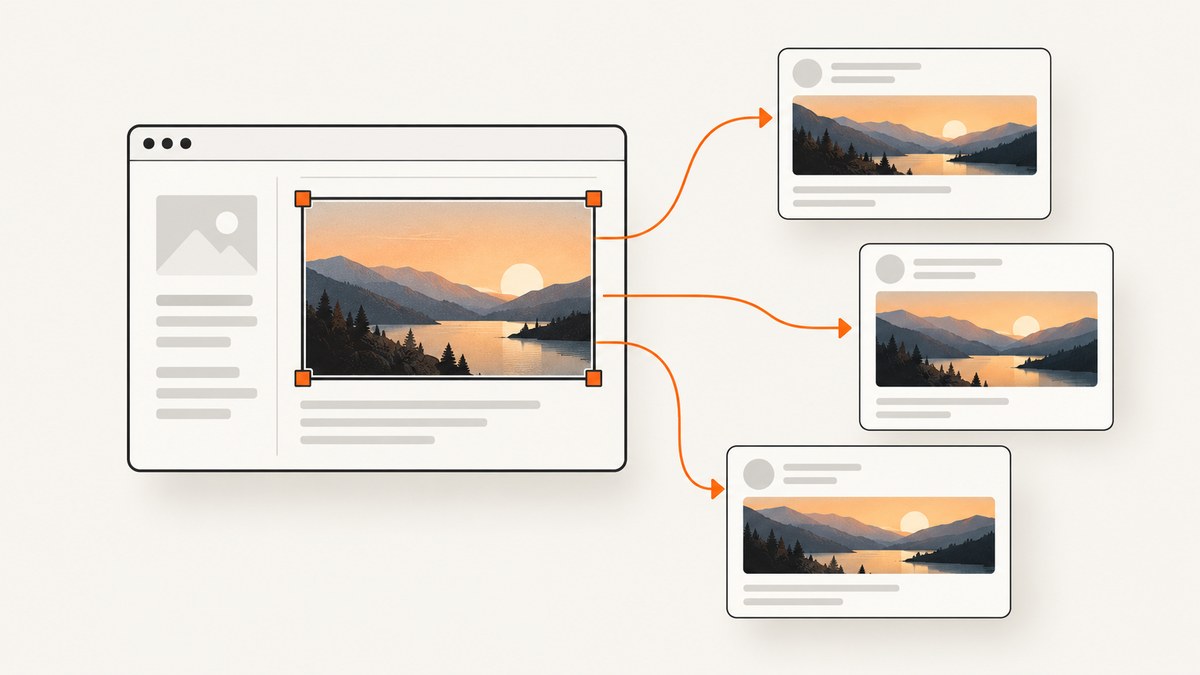
To change the image shown when someone shares a website page, set a social image for that exact page and expose its public URL in the page’s Open Graph metadata, especially og:image. Then inspect the exact URL with the destination platform’s preview tool and request a refresh if it still shows old information. A page’s visible image does not guarantee that a social network will select it.
For a general Facebook, LinkedIn, and X asset, start with a 1200 × 630 px JPG or PNG under 5 MB, with important content near the center. This is a practical cross-platform starting point, not a promise that every platform displays every pixel identically. Platform limits and image selection differ.
1. Choose the page and the image
First identify the exact URL that readers will share: a post, product page, landing page, or home page. Each page may have its own social image. A post’s featured image and a site’s home-page default can be separate settings.
Prepare an image around 1200 × 630 px (about 1.91:1). Use JPG or PNG and keep the file below 5 MB for a conservative target across platforms. Keep a logo, face, or other essential content away from the edges so cropping is less likely to remove it. WordPress.com recommends this size and ratio as a general social image starting point.
| Destination or guidance | Documented image guidance | Practical note |
|---|---|---|
| General cross-platform starting point | 1200 × 630 px, around 1.91:1, JPG or PNG, under 5 MB | A useful baseline; confirm the result in each platform’s preview. |
| LinkedIn sharing module | At least 1200 × 627 px; maximum 5 MB; recommended 1.91:1 | Images narrower than 401 px appear as a thumbnail. |
| Facebook, as listed in WordPress.com guidance | 200 × 200 px minimum; at least 600 × 315 px for larger images; at least 1200 × 630 px for high-resolution displays; maximum 8 MB; near 1.91:1 | The 1200 × 630 baseline also fits this high-resolution recommendation. |
| X | Use card metadata such as twitter:card and twitter:image |
The sources here do not establish a complete current X image-size or file-size specification. WordPress.com says X re-indexes card tag information roughly every seven days. |
Specifications above are documented recommendations or limits, not guarantees of identical rendering. See WordPress.com’s featured image and social preview guidance and LinkedIn’s sharing module requirements.
2. Set the social image in your CMS
WordPress.com
WordPress.com automatically adds og:title, og:description, and og:image to posts and pages. For an individual post or page, set its featured image; that is the first-choice preview image. Without one, WordPress.com documents a fallback chain that can use slideshow, gallery, page, or other site images. Home pages and archives follow different image-selection logic, so inspect the URL you intend to share.
The Jetpack editor has a Link preview section for supported services. If you need explicit control of og:image, an SEO plugin is one route identified in WordPress.com’s guidance. A plugin is optional; verify the rendered metadata either way. The WordPress.org listing for Simple Open Graphs describes per-post social preview settings and default images, but that is the plugin author’s description, not an independent test or requirement.
Other content management systems
Look for a field named Social image, Open Graph image, Facebook image, or featured image in the page editor or SEO settings. Set it on the page itself, then publish. If the CMS exposes only a featured image, inspect the output because the theme or SEO integration determines which metadata is rendered.
3. Add Open Graph tags to a custom site
For a custom page, put the tags in the document’s <head>. Replace the sample values with the title, description, canonical page URL, and publicly fetchable image URL for the page being shared.

<!doctype html>
<html lang="en">
<head>
  <meta charset="utf-8">
  <title>Deployment guide | Example</title>
  <meta name="description" content="A practical deployment guide.">

  <meta property="og:title" content="Deployment guide">
  <meta property="og:description" content="A practical deployment guide.">
  <meta property="og:url" content="https://example.com/guides/deployment">
  <meta property="og:image" content="https://example.com/images/deployment-social.jpg">

  <meta name="twitter:card" content="summary_large_image">
  <meta name="twitter:image" content="https://example.com/images/deployment-social.jpg">
</head>
<body>...</body>
</html>
These tags use the Open Graph fields described in HubSpot’s implementation example, including X card metadata. Make sure the values describe the page URL being shared, not a different page or a site-wide default. Avoid outputting multiple conflicting copies of og:image from a theme and several plugins; this is a practical implementation precaution because competing values make it unclear which image a crawler will select. See HubSpot’s social sharing metadata example.
The image must be retrievable without a login or a special browser session. The page and image should be accessible to the platform crawler. Check robots.txt, access controls, hotlink protection, and asset URLs if a preview tool cannot fetch them. LinkedIn specifically notes that protected image locations or blocked retrieval can prevent a compliant image from appearing.
4. Preview the exact URL and refresh the cache
- Publish the page and copy the exact URL readers will share, including its canonical path and relevant redirect behavior.
- Open that URL in the destination platform’s official preview or inspection tool. Check the selected image, title, and description.
- If the preview is old, ask the platform to inspect or scrape the URL again. Facebook’s Sharing Debugger offers “Scrape Again”; LinkedIn’s Post Inspector can inspect a URL.
- Share the URL again and check the resulting card. A preview tool may refresh stored metadata before a social post does.
Social networks cache previews, so publishing a corrected image does not necessarily update an already cached card immediately. WordPress.com says X re-indexes card tag information roughly every seven days; allow for that behavior if a refresh is not available. Platform tools and cache schedules can change, so follow the current prompts shown by the destination service. Sources: WordPress.com preview guidance and WordPress.com’s Facebook debugger instructions.

5. Verify what the page actually serves
When a page looks correct in a browser but the preview is wrong, inspect the rendered HTML head. Check that the final response contains exactly the expected og:image, that its URL returns the intended image, and that the tags correspond to the shared page. A screenshot can help you inspect the rendered page or compare it with the intended design, but it does not replace checking metadata or the platform’s crawler result.
To capture the page with a command-line screenshot service such as ScreenshotNeo, use its documented API call below. This is useful for a visual check of layout after changing a page; it does not tell you by itself which Open Graph tag a social crawler selected. See the ScreenshotNeo API documentation.
curl -G "https://api.screenshotneo.com/v1/shot" \
  -d access_key=YOUR_API_KEY \
  --data-urlencode url=https://example.com/guides/deployment \
  -o page.webp
import requests
r = requests.get(
"https://api.screenshotneo.com/v1/shot",
params={
"access_key": "YOUR_API_KEY",
"url": "https://example.com/guides/deployment",
},
timeout=90,
)
r.raise_for_status()
open("page.webp", "wb").write(r.content)const q = new URLSearchParams({
access_key: 'YOUR_API_KEY',
url: 'https://example.com/guides/deployment',
});
const res = await fetch(`https://api.screenshotneo.com/v1/shot?${q}`);
if (!res.ok) throw new Error(`Screenshot request failed: ${res.status}`);
const fs = await import('node:fs/promises');
await fs.writeFile('page.webp', Buffer.from(await res.arrayBuffer()));Keep API keys private in server-side code or environment configuration; do not place a secret key in a public web page. ScreenshotNeo supports PNG, JPEG, WebP, or PDF output, and its API has options for viewport, full-page capture, custom CSS and JavaScript, waiting, headers, cookies, and more. Use the documentation for parameter names and output behavior.
Or skip the browser setup
ScreenshotNeo is a website screenshot API and MCP server for developers. One GET request can return a screenshot or PDF. Cookie banners are accepted like a visitor and 60+ known consent platforms, newsletter popups, and chat widgets can be removed before the shot; each step can be turned off. Bot checks, blank pages, timeouts, failed loads, and cache hits cost nothing, and responses report the page verdict and billing status in headers. Its MCP server gives AI agents tools to take screenshots, get page info, and capture PDFs.
curl -G "https://api.screenshotneo.com/v1/shot" \
  -d access_key=YOUR_API_KEY \
  --data-urlencode url=https://example.com/guides/deployment \
  -o shot.webp
There are 1,000 screenshots a month free with no card; paid plans start at $5 for 3,000. See ScreenshotNeo or read the API documentation. Sign up for 1,000 free screenshots a month, no card required.
Troubleshooting
| Symptom | Likely cause | What to check or change |
|---|---|---|
| The old image still appears | The platform has cached the earlier preview. | Use the platform’s inspection tool and request a re-scrape where available. X may take time to re-index card tags. |
| A different page image appears | No explicit social image is set, or the platform selected another image from the page. | Set a page-specific featured/social image or explicit og:image, then inspect the exact shared URL. |
| The image is missing | The crawler cannot retrieve the page or asset. | Check for authentication, protected directories, hotlink rules, blocked crawlers, and relevant robots.txt directives. Confirm the image URL is publicly fetchable. |
| The debugger reports an unexpected or inferred image | The page may lack an explicit og:image, or another image was selected. |
Add or correct og:image in the rendered head. On WordPress.com, use a featured image or a supported SEO setting that controls the metadata. |
| The card is a small thumbnail | The image may be too narrow for the larger treatment. | For LinkedIn, its guidance says images under 401 px wide display as a thumbnail. Use a suitably wide image and re-inspect. |
| Colors look different or the image looks soft | Color profile handling, source resolution, or platform compression can affect appearance. | Use a sufficiently large JPG or PNG at the intended ratio. If an embedded or uncommon color profile is suspected, inspect or remove it with an image editor, then refresh the preview. |
| The metadata looks right in source but not in the preview | The crawler may receive different HTML, a redirect, or conflicting tag output. | Inspect the final page response and rendered head for the exact URL. Check redirects, duplicate SEO/theme tags, and whether the crawler can access the same public response. |
Performance, reliability, and cost considerations
Social preview generation is asynchronous from your publish action: the platform must fetch the page and image, then it may cache the result. Keep the image hosted at a stable public URL and avoid changing its contents while reusing the same URL if a stale cache is causing confusion. When you replace an asset, using a versioned filename can make it easier to distinguish the new file, though the page metadata and preview cache still need to be refreshed.
For reliability, validate the metadata on representative page types: a post, a home page, and any custom template with separate image settings. Test the exact canonical URL and a mobile or logged-out response if your site changes HTML by session. An image that loads only for logged-in visitors will not be a dependable crawler asset.
There is no defensible engagement-uplift percentage established by the cited material. The direct costs are the effort to produce and host the image and any optional editing or CMS software. A WordPress plugin is not required by the workflow. For automated visual checks, ScreenshotNeo offers a free tier of 1,000 shots a month and paid plans from $5 for 3,000; this is separate from the platform’s own metadata inspection tools and does not refresh their caches.
Frequently asked questions
Does changing the image in a social post change my website thumbnail?
No. Editing an image in an already composed social post changes that post’s attached media. To change the preview generated from your site URL, update the page’s featured/social image or metadata and refresh the platform’s cached preview.
Do I need a WordPress plugin?
No. WordPress.com can generate Open Graph tags from its post and page settings. A plugin is one optional way to expose additional per-page social controls; on a custom site, you can add the metadata in the page head.
Will the 1200 × 630 image always display without cropping?
No. It is a practical starting point. Platforms can render cards differently, and some placements crop or resize images. Keep essential content centered and inspect the destination preview.
Can a screenshot tell me whether the social crawler will use my image?
No. A screenshot shows rendered page pixels. To confirm the social card, inspect the page with that platform’s preview tool and verify its metadata and crawler access.
Why does one URL show the right image while another page on the same site does not?
Social images can be configured per page, while home-page and archive previews may follow separate defaults. Check the metadata and preview for each exact URL.


