How to Edit a WhatsApp Screenshot
Learn whether to edit the screenshot image or the WhatsApp message, then crop, annotate, blur, save and share it safely.
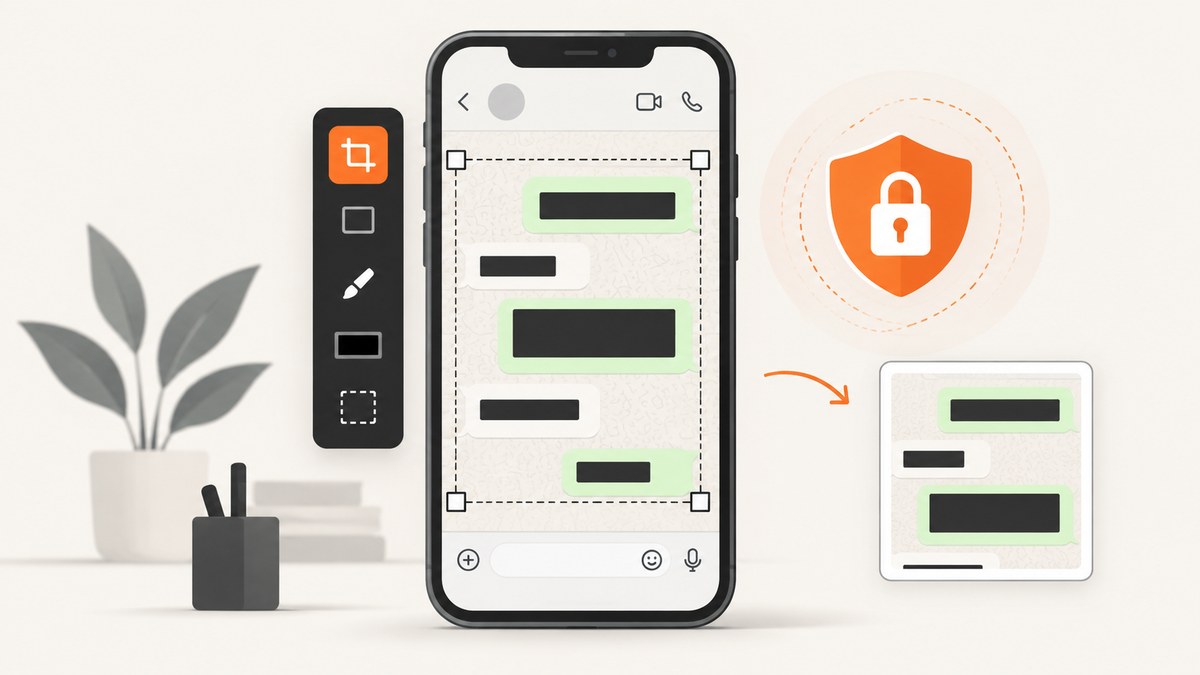
First, identify what you want to change: a WhatsApp screenshot is an image file, while a sent WhatsApp message is chat content. Editing the image changes only the saved copy. It does not change the conversation in WhatsApp. To correct a sent message, use WhatsApp’s separate Edit feature within its time limit.
Choose the right workflow
| Your goal | Use this method |
|---|---|
| Crop, annotate or hide information in a saved screenshot | Your phone’s Photos/Gallery editor or an image editor on your computer |
| Add text, stickers, emojis, drawings or blur before sending an image | WhatsApp’s media editor after attaching the image |
| Correct words in a message you already sent | WhatsApp’s Edit command, available for up to 15 minutes |
Edit a saved WhatsApp screenshot on any device
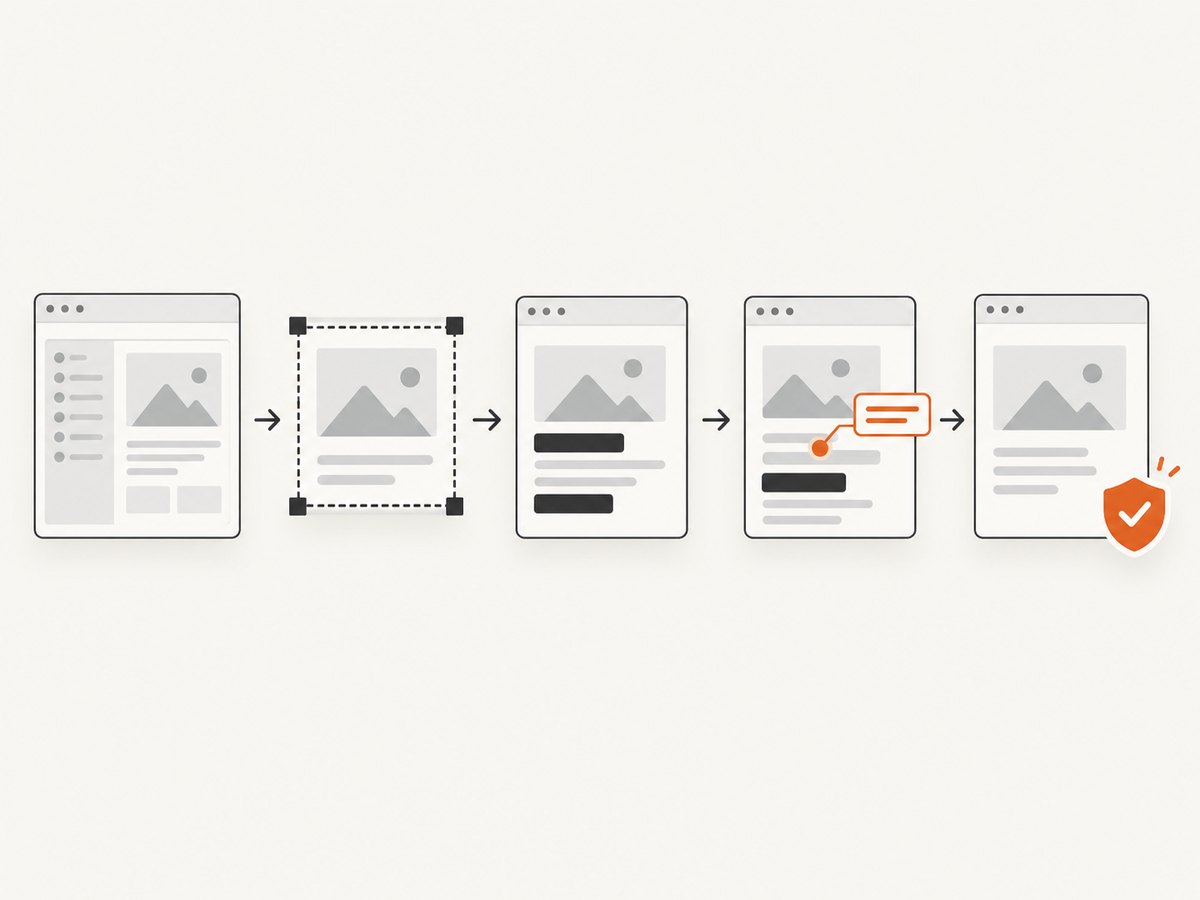
- Keep the original. Duplicate the screenshot before making changes. Give the copy a name such as
chat-redacted.png. - Open the copy in an editor. On a phone, use Photos or Gallery. On Windows, macOS, Linux or the web, use any image editor that supports cropping, drawing and opaque shapes.
- Crop unnecessary content. Remove unrelated messages, contact lists, notification previews and empty margins. Check that the crop does not remove context needed to understand the conversation.
- Redact private details. Cover names, phone numbers, profile photos, addresses, payment details and other information that the recipient does not need. Use a solid opaque rectangle or a true blur/pixelation tool. A translucent brush or lightly drawn line may leave text readable.
- Add an annotation if needed. Use arrows, circles or a short label to identify the relevant message. Keep annotations outside the message text so they cannot be mistaken for words sent in WhatsApp.
- Export a new file. Save as PNG when sharp text matters. JPEG is smaller but may introduce compression artifacts. Keep the original file separately.
- Inspect the exported copy. Zoom in on every redaction, the edges of the crop and any annotation. Reopen the exported file after saving; do not rely only on the editor preview.
- Share the edited copy. If accuracy matters, label it as edited, annotated or redacted. Do not present an altered image as an unmodified record.
How to blur a WhatsApp screenshot
Select the blur or pixelate tool in your image editor and apply it across the entire sensitive region, including a small margin around the text. For highly sensitive data, an opaque fill is easier to verify than blur. After exporting, zoom in and check that characters cannot be reconstructed.
How to edit on iPhone or Android
Open the screenshot in Photos (iPhone) or Gallery/Google Photos (Android), tap Edit, then use crop, markup, drawing, shapes or blur if your editor provides it. Save as a copy or use Save as copy so the original remains available. Menu names vary by device manufacturer and operating-system version.
How to edit on Windows, macOS or Linux
Open the copied image in your installed image editor. Use a rectangular selection for redaction, crop for framing, and a text or shape layer for annotations. Export to a new filename and inspect the result at 100% zoom. If you use a web editor, avoid uploading a screenshot that contains information you cannot disclose to that service.
Edit a photo before sending it in WhatsApp
WhatsApp documents an editor for photos and videos attached to a message. Its tools include stickers, emojis, text, freehand drawing, filters and blur. Attach the image, make the changes, review the preview, and send it. This edits the media copy being sent; it does not rewrite an existing screenshot already stored in a chat.
On iPhone, WhatsApp says a photo or video cannot be edited when it is shared to WhatsApp directly from another app. Download or save the image to the device first, then attach it from WhatsApp’s media picker. See the WhatsApp Help Center instructions for Android and iOS. WhatsApp Web and desktop also document text and drawing tools for attached media; see the Web media-editing instructions.
Correct a WhatsApp message after sending
If you meant to change the message itself, do not edit the screenshot. Meta says the sender can edit a sent WhatsApp message for up to 15 minutes after sending it. On a phone, press and hold the message, choose Edit, change the text and confirm. The message is marked as edited. The Meta announcement documents the 15-minute window.
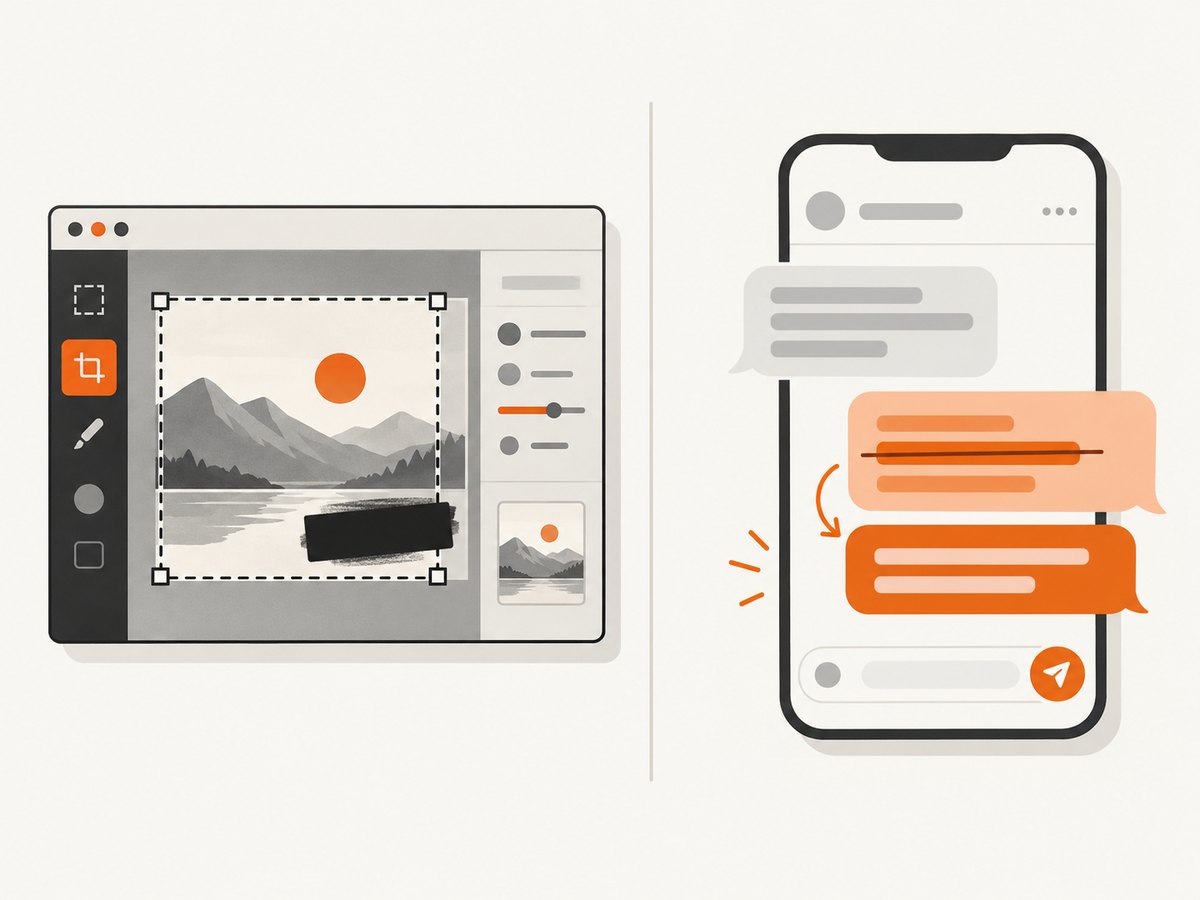
If the Edit option is missing, the window may have expired, the message may not be yours, or your app may need updating. In that case, send a correction as a new message rather than altering an image to imply that the original message said something else.
Privacy checklist before sharing
- Remove or cover names, phone numbers, profile photos and notification previews that are not needed.
- Check adjacent messages and the top bar for unrelated personal information.
- Use opaque redaction for secrets such as passwords, recovery codes and payment details.
- Keep the unedited original in a private location if you may need it later.
- Label an image as redacted or annotated when its appearance has been changed.
- Remember that chat privacy settings cannot guarantee that nobody can photograph or recreate visible content. WhatsApp describes end-to-end encryption in its privacy information. Advanced Chat Privacy can restrict some automatic media saving and chat export; details are in the Advanced Chat Privacy help page.
- Screenshot blocking announced by Meta applies to View Once media. Do not generalize it to ordinary chats; see the Meta privacy-features announcement.
Or skip the browser setup
If your actual task is generating a clean screenshot of a web page rather than editing an existing WhatsApp image, ScreenshotNeo provides a single-request screenshot API. It does not modify an existing image or bypass access controls on a private WhatsApp chat. For public pages and other web captures, the API can return PNG, JPEG, WebP or PDF.
See the ScreenshotNeo API documentation. A minimal request is:
curl -G 'https://api.screenshotneo.com/v1/shot' -d access_key=YOUR_API_KEY --data-urlencode url=https://stripe.com -o shot.webpimport requests
r = requests.get('https://api.screenshotneo.com/v1/shot', params={'access_key': 'YOUR_API_KEY', 'url': 'https://stripe.com'}, timeout=90)
open('shot.webp', 'wb').write(r.content)const q = new URLSearchParams({ access_key: 'YOUR_API_KEY', url: 'https://stripe.com' });
const res = await fetch(`https://api.screenshotneo.com/v1/shot?${q}`);Cookie banners, newsletter popups and chat widgets can be removed before the shot, with each cleanup step configurable. Bot checks, blank pages, failed loads, timeouts and cache hits are not billed, and response headers identify the page verdict and whether the request was billed. An MCP server lets AI agents use take_screenshot, get_page_info and capture_pdf. The Free plan includes 1,000 screenshots per month with no card; paid plans start at $5 for 3,000 shots. Create a free ScreenshotNeo account.
Troubleshooting
The redacted text is still readable
Undo the edit and cover a larger area with an opaque fill, then export and inspect the file at full size. Do not assume a low-resolution preview proves the data is hidden.
The screenshot looks blurry after editing
Work from the original-resolution copy, avoid repeated JPEG exports, and use PNG when the image contains small text. Resize only once, at the final output step.
My annotation looks like part of the conversation
Move it outside the chat bubble or add a clear label such as “annotation.” Keep the unannotated original available.
WhatsApp does not show Edit
Confirm that you sent the message, that no more than 15 minutes have passed, and that WhatsApp is up to date. Otherwise send a correction message.
WhatsApp will not let me edit an image shared from another app on iPhone
Save or download the image to the iPhone first, then attach it from WhatsApp. Direct sharing from another app may not expose the editor.
The web editor changed my colors or quality
Export with the original dimensions and a lossless format where possible. Compare the exported file with the source before sharing.
Performance, reliability and cost notes
- For one screenshot, the built-in phone editor is usually the fastest and costs nothing.
- Large images and repeated exports increase file size and processing time. Crop first, then annotate and export once.
- Keep originals and edited copies under different filenames so an accidental overwrite does not destroy the source.
- Cloud editors may retain uploads according to their own policies. Use an offline editor for sensitive chats when practical.
- ScreenshotNeo is for producing new web captures, not for editing a saved WhatsApp screenshot. Its billing applies to successful clean captures; failed loads and cache hits are not billed.
FAQ
Can I edit a WhatsApp screenshot inside WhatsApp?
You can edit an image while attaching it as media, but WhatsApp does not document an in-place editor for a screenshot already sitting in a chat. Edit the saved image in your device editor, or attach it again and use WhatsApp’s media tools.
Will editing a screenshot change the original message?
No. The screenshot is a separate image file. Only WhatsApp’s message Edit command changes a sent message, and edited messages are marked as edited.
Can I remove a timestamp or name?
You can crop or redact it in an image editor, provided you label the result when the change affects the meaning or evidentiary value.
Can recipients tell that I edited a screenshot?
They may not have a reliable way to determine every image edit. Treat that uncertainty as a reason to preserve the original and identify altered copies, not as permission to misrepresent them.
Does View Once prevent screenshots of every WhatsApp message?
No. Meta’s screenshot-blocking announcement is scoped to View Once media. It does not describe a block for ordinary chat screenshots.


