How to Embed a Google Sheet on a Web Page
Publish a Google Sheet and embed it as a view-only iframe. Choose which tabs or cells appear, check privacy settings, and troubleshoot updates and layout.
To embed a Google Sheet on a web page, open the spreadsheet and choose File → Share → Publish to web. Select the whole spreadsheet or a specific sheet, choose Embed, click Publish, then paste Google’s generated iframe HTML into your site or blog. The published view is read-only; publishing can make the content visible to a broad audience, so check the spreadsheet before you publish it. Google’s instructions cover the supported workflow and embed options.
1. Publish and embed the spreadsheet
- Open the spreadsheet in Google Sheets using an account that can publish it.
- Select File → Share → Publish to web.
- In the publishing dialog, choose Entire spreadsheet or select an individual sheet. Choose the offered publishing format appropriate to the embed.
- Open the Embed tab, then click Publish. Confirm the publication prompt.
- Copy the generated HTML and paste it into the page’s HTML or embed block in your site editor.
- Save or publish the web page, then view it as a visitor to check that the sheet loads and fits.
Google’s published iframe URL is specific to your spreadsheet and publication. Copy the generated code rather than making up a spreadsheet ID or substituting an ordinary editing URL. A typical structure looks like this; replace the placeholder with the exact URL from Google’s dialog:
<iframe
  src="PASTE_THE_PUBLISHED_EMBED_URL_FROM_GOOGLE_HERE"
  width="100%"
  height="600"
  title="Published spreadsheet"
  loading="lazy"
  style="border: 0;"
></iframe>
The dimensions and title are ordinary iframe attributes you can adjust to suit your page. The published URL is the important part. Many content management systems have a dedicated HTML, custom code, or embed block. Use that instead of a rich-text paragraph block, which may display the iframe code as text or remove it for security.
2. Choose what visitors can see
Publication is the gate that makes the embed available. Google notes that visibility depends on account settings: a published file may be visible to everyone on the web, to the organisation, or to a group within it. Publishing is distinct from sharing edit access with named collaborators. A published spreadsheet is a view-only version: viewers can see cell values, formatting, and charts, but not formulas. Treat every published cell and chart as information you are willing to show to the allowed audience. Review Google’s visibility and published-view guidance.
| What you need | Suitable approach | What to know |
|---|---|---|
| Public or organisation-visible read-only display | Publish to web and embed | Publication settings determine the audience. Published view is not an editing interface. |
| Only named people should see or edit the source | Use normal Google sharing permissions or a sign-in based application | An embed does not turn a private collaboration workflow into a secure public display. |
| Visitor-specific access or transformed data | Build an application using the Sheets API and suitable authentication | This requires application code, OAuth configuration, and permissions. |
Choose the smallest publishing scope that works. You can publish the entire workbook or an individual tab. If a tab contains private information, omit it from published content rather than assuming that hiding a tab in the page editor makes the data private. Google specifically warns publishers to take care with sensitive content. The publishing dialog’s content settings let you review which tabs are available.
3. Show one tab, a range, or a cleaner frame
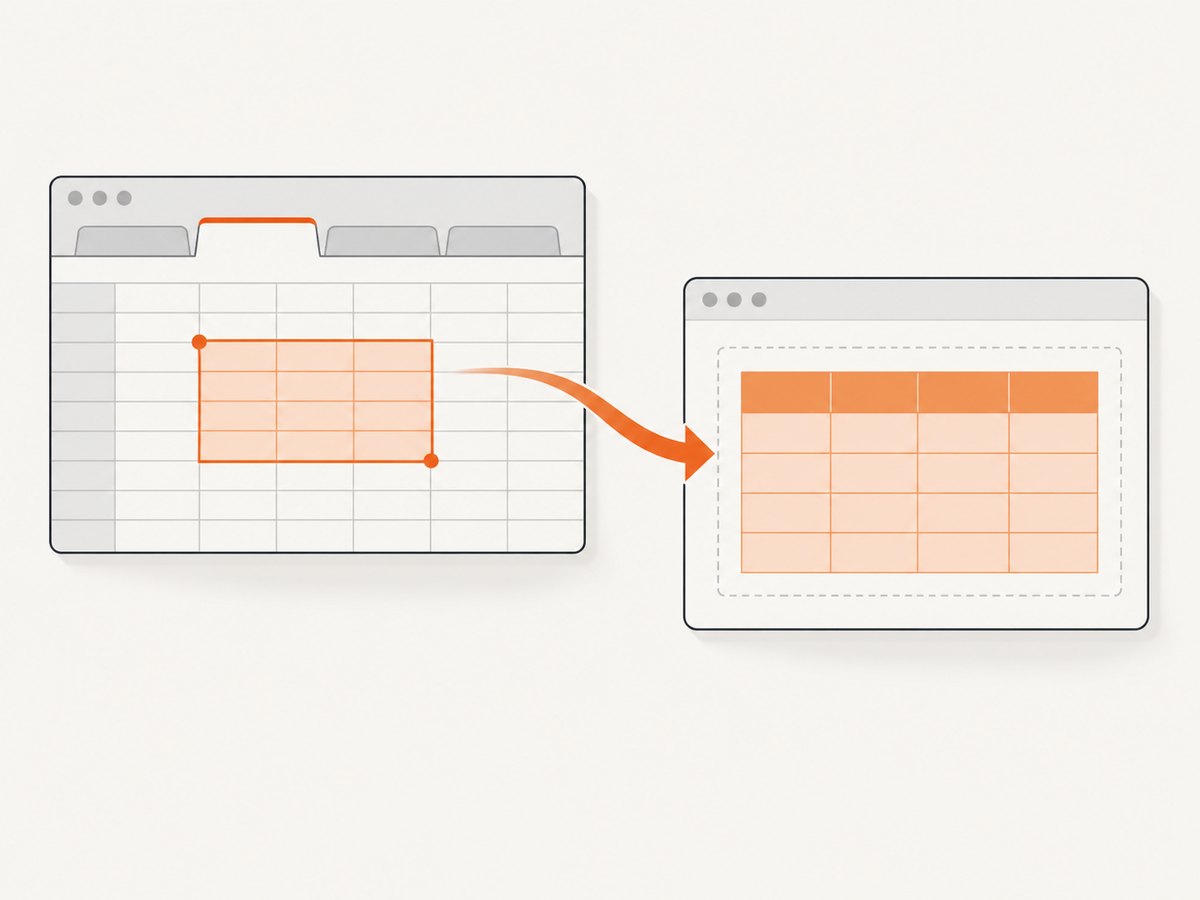
Google’s generated URL can be adjusted with query parameters. Keep the published URL Google generated and edit its query string. These parameters change the display; they are not an access-control mechanism.
| Parameter | Purpose | Example value |
|---|---|---|
gid |
Select a sheet by its sheet ID | gid=123456789 |
range |
Limit the published view to a cell range | range=A1:B14 |
widget |
Show or hide the sheet tab control | widget=false |
headers |
Show or hide row numbers and column letters | headers=false |
chrome |
Show or hide the title and footer | chrome=false |
For example, append &range=A1:B14&widget=false&headers=false&chrome=false to a published URL that already has a query string. If there is no query string, start with ? instead of &. HTML attributes encode ampersands as & in source markup; many editors handle this when you paste Google’s generated snippet.
Use the exact gid for the tab you intend to show. A tab’s name is not its ID. To find a range, use normal A1 notation such as A1:B14. A range controls the published cells shown; it does not grant or revoke permission to the underlying spreadsheet. Check the rendered embed after changing parameters because available space and content size affect the visible result.
4. Make the iframe fit the page
A fixed iframe height can leave a large blank area or cut off rows. Set a height that suits the content and test on both desktop and mobile. The iframe is a separate document, so your page’s CSS generally cannot resize the inside of Google’s published spreadsheet or make its columns responsive. You can make the frame itself fluid:
<div class="sheet-frame">
  <iframe
    src="PASTE_THE_PUBLISHED_EMBED_URL_FROM_GOOGLE_HERE"
    title="Published spreadsheet"
    loading="lazy"
    allowfullscreen
  ></iframe>
</div>

<style>
.sheet-frame {
  width: 100%;
  overflow: hidden;
}
.sheet-frame iframe {
  display: block;
  width: 100%;
  height: 600px;
  border: 0;
}
@media (max-width: 600px) {
  .sheet-frame iframe { height: 480px; }
}
</style>
For a narrower layout, consider publishing a compact range or a dedicated tab with fewer columns. A visitor may need to scroll within the embedded sheet to see wide data. Don’t scale the iframe down with CSS as a substitute for a mobile-friendly range; scaled text can become difficult to read.
5. Updates, access, and removing an embed
Changes to the source spreadsheet usually flow into the published version automatically, but Google says the update can take a few minutes. If you need to pause automatic republication, return to File → Share → Publish to web → Published content and settings and clear Automatically republish when changes are made. To take the published version offline, use Stop publishing in the same area. Google documents both controls.
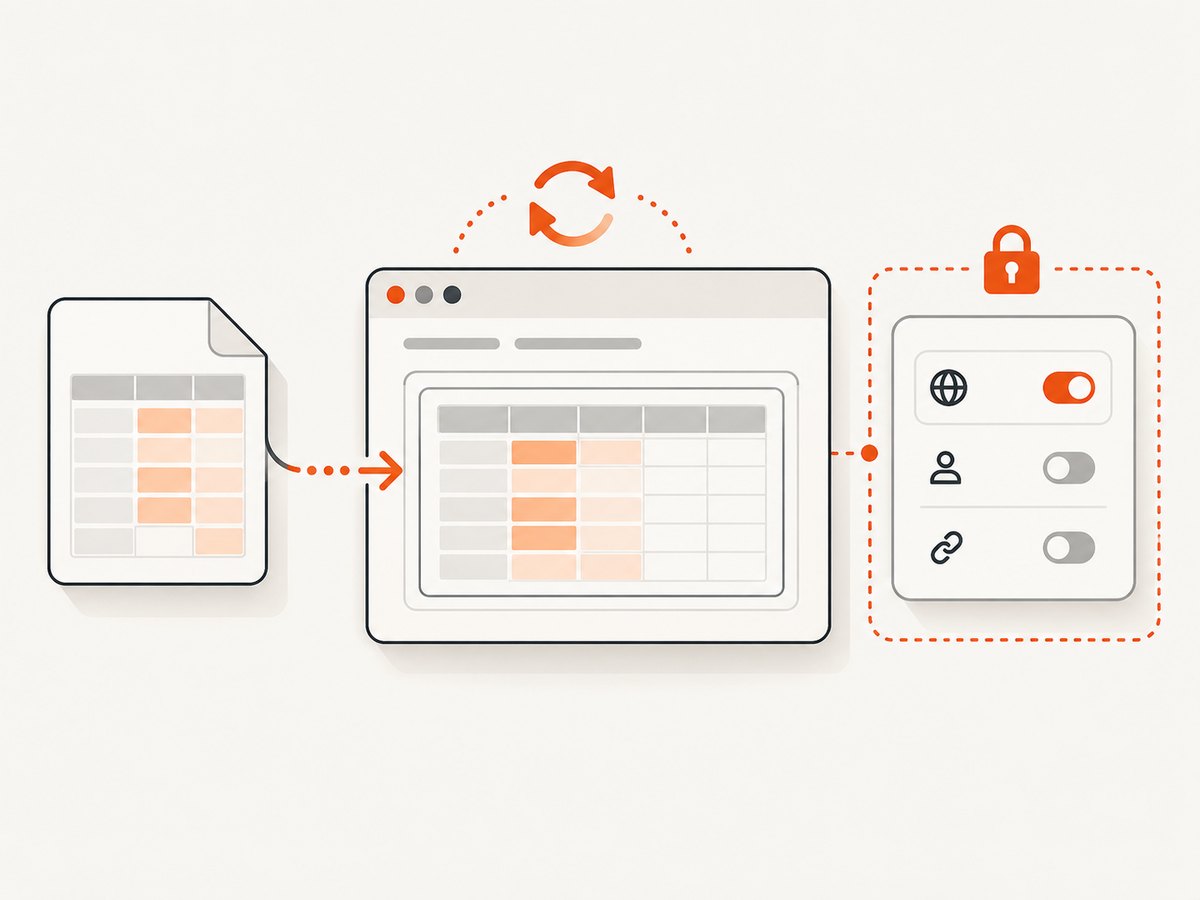
Stopping publication and removing an iframe are separate tasks: stopping publication disables the published version, while deleting the iframe removes the frame from your webpage. If an embed should no longer be accessible, do both, then check the page and the published link. For a high-traffic site, Google recommends publishing first and embedding the published URL.
6. When to use the Sheets API instead
An iframe is usually the simplest choice for a read-only display. Use the Sheets API when your application must authenticate visitors, transform spreadsheet data, combine it with other sources, or control the application’s presentation beyond the embedded view. API access requires an appropriate authorization design. Google lists scopes such as spreadsheets.readonly for read access and notes that Sheets API scopes apply to the spreadsheet file, not individual sheets. Google’s OAuth scope reference describes permissions; its API migration guide distinguishes public published content from private spreadsheet access.
Do not put OAuth secrets or privileged credentials in browser code. For private data, have a server handle authorization and return only the information the visitor is allowed to see. The API approach provides control but means you own authentication, error handling, rendering, and freshness behavior. It is not required just to show a published read-only sheet.
7. Troubleshooting
| Symptom | Likely cause | Fix |
|---|---|---|
| Visitors see an error or sign-in screen | The file was not published, the wrong URL was embedded, or account/organisation visibility does not include those visitors. | Confirm publication is active, copy the Embed URL again, and review account-level visibility. Don’t expose sensitive content just to make an error disappear. |
| “Publish to web” is missing or disabled | A work or school administrator may have disabled publishing, or your account lacks permission to publish. | Ask the file owner or Workspace administrator to review the setting. Google says administrators can turn publishing off for work or school accounts. |
| The iframe shows the whole workbook or wrong tab | The publication scope or gid does not match the desired sheet. |
Choose the sheet in the publishing dialog or use its actual gid. Re-copy the generated URL if unsure. |
| A range or display option has no effect | The query string may use the wrong separator, parameter spelling, or an invalid range. | Use ? before the first parameter and & between later ones. Verify the range uses valid A1 notation and the URL remains intact. |
| Recent edits do not appear | Automatic republishing can take a few minutes or may be disabled. | Check Published content and settings, confirm automatic republication is enabled if desired, then allow for propagation before debugging the iframe. |
| The code appears as text or disappears after saving | The CMS editor may sanitize iframe markup or require a dedicated embed block. | Use the site’s HTML/custom-code block, check its allowed embed policy, and preview the published page. |
| Columns are clipped or the frame is too tall | The iframe dimensions do not suit the sheet or viewport. | Adjust width and height, reduce the published range, or create a compact tab for embedding. Test on a phone as well as a desktop. |
| Visitors can view but cannot edit | Published embeds are view-only by design. | Use normal sharing permissions for collaborators or build an authenticated application if users need controlled editing. |
8. Performance, reliability, and cost
The iframe loads a Google-hosted published view, so your page does not need to fetch cell data and render a spreadsheet itself. The tradeoff is less control over the inner document’s styling, loading, and behavior. A large or wide sheet can take more space and make the page harder to use; publish only the relevant tab or range, keep the visible view focused, and use loading="lazy" when the embed appears below the fold. Verify that lazy loading works with your page layout and analytics needs.
Freshness is not necessarily instantaneous: Google says source changes update the published view automatically, sometimes after a few minutes. For a time-critical display, check the published output after an update and decide whether that delay is acceptable. The basic publish-and-embed flow has no API integration code to maintain, while an API-backed implementation gives greater control and adds responsibility for credentials, quotas, failures, and rendering. No extra ScreenshotNeo or Google API call is needed to embed a published sheet.
Or skip the browser setup
If the task around your spreadsheet is capturing the web page that contains it, ScreenshotNeo can return a screenshot or PDF with one request. It is a website screenshot API and MCP server. Cookie banners, newsletter popups, and chat widgets are removed before the shot; bot checks, blank pages, timeouts, failed loads, and cache hits cost nothing, with page-verdict and billing headers on each response. AI agents can use its MCP server tools. Free includes 1,000 shots per month with no card; paid plans start at $5 for 3,000. See the API documentation.
curl -G "https://api.screenshotneo.com/v1/shot" \
  -d access_key=YOUR_API_KEY \
  --data-urlencode url=https://example.com/page-with-sheet \
  -o shot.webp
import requests
r = requests.get(
"https://api.screenshotneo.com/v1/shot",
params={"access_key": "YOUR_API_KEY", "url": "https://example.com/page-with-sheet"},
timeout=90,
)
open("shot.webp", "wb").write(r.content)const q = new URLSearchParams({
access_key: 'YOUR_API_KEY',
url: 'https://example.com/page-with-sheet'
});
const res = await fetch(`https://api.screenshotneo.com/v1/shot?${q}`);
if (!res.ok) throw new Error(`Screenshot request failed: ${res.status}`);
const fs = await import('node:fs/promises');
await fs.writeFile('shot.webp', Buffer.from(await res.arrayBuffer()));Keep the API key on a server or other trusted environment. Sign up for 1,000 free screenshots a month with no card.
FAQ
Can I embed just one tab?
Yes. Select an individual sheet in the Publish to web dialog, or use its gid in the published URL. Confirm the resulting embed shows the intended tab.
Can I embed one cell range?
Use the range parameter with a range such as A1:B14. This controls what appears in the published view, not who can access the spreadsheet.
Will an embedded sheet update when I edit it?
Normally yes, with a possible delay of a few minutes. Automatic republication can be turned off in Published content and settings.
Can visitors edit cells in the embed?
No. The published view is read-only. Use Google sharing for collaborators who need access to edit, or build an authenticated application for a custom visitor workflow.
Can I publish a private spreadsheet without making its contents public?
Publication visibility depends on account and organisation settings, and may include a broad audience. Do not publish sensitive information; use an authenticated application when access must be restricted to signed-in users.


