How to Embed JavaScript in PDFs with wkhtmltopdf
Make wkhtmltopdf wait for JavaScript-driven content before capturing a PDF. Use a fixed delay for simple pages or window.status for reliable async rendering.

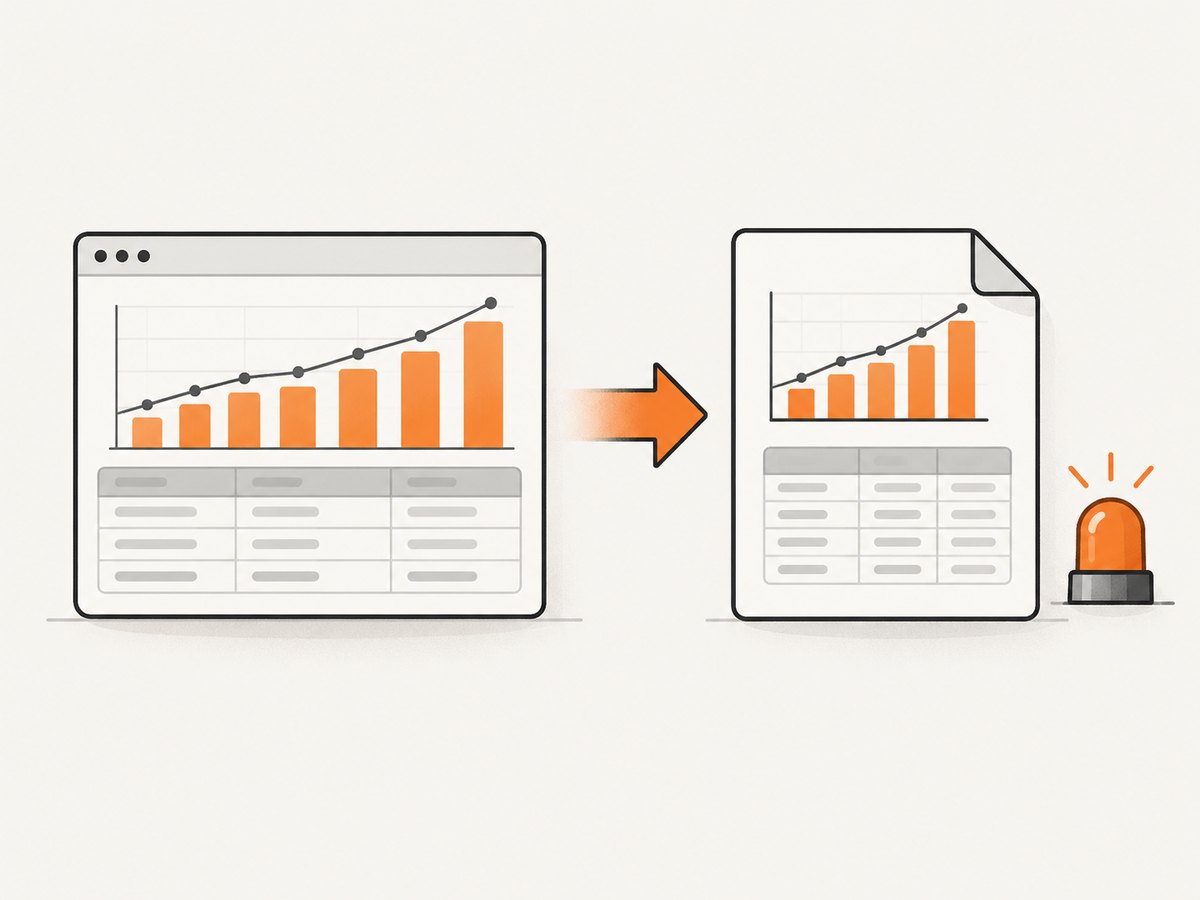
To include JavaScript-rendered content in a wkhtmltopdf PDF, make sure JavaScript is enabled and wait until the page has finished rendering before capture. For a simple page, add a delay: wkhtmltopdf --enable-javascript --javascript-delay 1500 input.html output.pdf. For asynchronous work with variable timing, have the page set window.status to a known value when it is ready, then use --window-status ready. The status approach avoids guessing how many milliseconds a chart, table, or data request needs.
This guide shows both methods, explains the corresponding library settings, and covers debugging, local assets, security, performance, and common failure cases. wkhtmltopdf uses a WebKit-based rendering engine, so modern browser features may not work in every build.
1. What wkhtmltopdf does with JavaScript
wkhtmltopdf loads an HTML document in its rendering engine, runs page scripts by default, then converts the rendered page to PDF. JavaScript is on unless you disable it. You can still pass --enable-javascript explicitly to make the intended behavior clear in scripts and deployment configuration.
JavaScript being enabled does not mean all asynchronous work has finished when the PDF is created. A script may start a fetch, update the DOM later, and draw a chart after a library loads. The converter needs a wait condition that matches when the page is actually ready.
| Method | Use it when | Trade-off |
|---|---|---|
--javascript-delay |
Render work has a predictable, short duration. | Too short can omit content; too long wastes time. |
--window-status |
Async work has a clear completion point. | Your page must set the agreed status string. |
--run-script |
You need to inject a finalizer or adjust a page before capture. | Injected code must safely handle page state and timing. |
2. The quick fix: wait for a fixed delay
The official option reference documents --javascript-delay <msec>; the default is 200 milliseconds. That default may be too short for content that depends on network requests or delayed rendering. Set a measured delay long enough for the page’s normal work.
wkhtmltopdf --enable-javascript --javascript-delay 1500 input.html output.pdfHere, the converter waits 1.5 seconds after loading before it captures the page. Replace input.html and output.pdf with your paths. To try the option with a URL, use a URL in place of the input file:
wkhtmltopdf --enable-javascript --javascript-delay 2000 https://example.com/report output.pdfChoose the delay from observed completion times in your environment, including slower network conditions. A fixed pause is straightforward, but it cannot tell whether a particular page is ready: on a slow run it may still be too short, while on a fast run it holds the conversion open unnecessarily.
3. The reliable approach: signal completion with window.status
If the page controls the rendering code, set a status value only after all data and DOM work needed in the PDF is complete. Then make wkhtmltopdf wait for that exact value.
<div id="report"></div>
<script>
  async function renderReport() {
    const response = await fetch('/report-data.json');
    const data = await response.json();

    document.querySelector('#report').innerHTML = buildReportHtml(data);
    await renderChart(data);

    // Set this only when every required update is complete.
    window.status = 'ready';
  }

  renderReport().catch(error => {
    console.error('Report rendering failed:', error);
    window.status = 'error';
  });
</script>
wkhtmltopdf --enable-javascript --window-status ready input.html output.pdfThe status value is a completion signal, not a message printed in the PDF. Pick a value your page will not reach accidentally before its content is ready. Make sure every success path sets it. If a failure path never sets the requested value, the conversion may wait indefinitely; handle errors explicitly and supervise the process with an appropriate external timeout.
This is generally preferable when render time varies: the converter waits for a page state instead of sleeping for an assumed duration. It works only if your page reaches the requested status. If you do not control the page, or cannot add a completion signal, use a delay or inject a finalizer if that is safe and practical.
4. Inject a script after page load
--run-script <js> runs additional JavaScript, and the option can be repeated. This is useful when the source page cannot be changed but you need a last adjustment after it loads. For example, a small finalizer could inspect a page-specific readiness flag and set window.status. Confirm the timing and behavior against the exact wkhtmltopdf build you deploy; a finalizer cannot make unfinished network work complete merely by running.
wkhtmltopdf \
  --enable-javascript \
  --run-script "if (window.reportReady) { window.status = 'ready'; }" \
  --window-status ready \
  input.html output.pdf
The snippet above assumes the page defines window.reportReady before the injected code runs. Adapt it to the page’s actual readiness contract. Avoid injecting code that polls forever, masks render failures, or assumes APIs unavailable in the renderer.
5. Relevant JavaScript and loading options
| Option | Purpose | Practical note |
|---|---|---|
--enable-javascript |
Enable JavaScript execution. | Enabled by default; useful to state explicitly. |
--disable-javascript |
Turn JavaScript off. | Remove it if dynamic content is missing. |
--javascript-delay <msec> |
Wait a fixed number of milliseconds. | Default documented as 200 ms. |
--window-status <value> |
Wait for window.status to equal a value. |
Set it after all required work completes. |
--run-script <js> |
Run extra JavaScript. | Can be repeated; validate quoting in your shell. |
--no-stop-slow-scripts |
Do not stop slow-running scripts. | Use only for trusted work; a stuck script can hold conversion open. |
--debug-javascript |
Enable JavaScript debugging where supported. | Review stderr for script errors and warnings. |
--allow <path> |
Allow access to specified local paths. | Prefer narrow paths for local scripts and stylesheets. |
--enable-local-file-access |
Enable local file access. | Use only with trusted input and a clear need. |
6. Using libwkhtmltox from an application
The command-line options map to settings in the underlying library. The libwkhtmltox reference documents web.enableJavascript, load.jsdelay, load.runScript, and load.debugJavascript. The exact wrapper API depends on the language binding you use, so apply these names through that wrapper’s documented settings interface.
| CLI option | Library setting |
|---|---|
--enable-javascript |
web.enableJavascript |
--javascript-delay |
load.jsdelay |
--run-script |
load.runScript |
--debug-javascript |
load.debugJavascript |
When your wrapper exposes a warning callback, capture it in application logs. Keep the timeout and failure behavior in the application layer as well: a page that never reaches its status value should not leave a worker occupied forever.
7. Debug missing charts, tables, or dynamic content
- Confirm JavaScript is enabled. Remove
--disable-javascriptand add--enable-javascript; in a library integration, setweb.enableJavascript=true. - Check whether the content exists after load. Open the HTML in a compatible browser and inspect when the data arrives and when the DOM is updated.
- Try a longer delay as a diagnostic. Start around 1,000 milliseconds, then adjust based on observed rendering. If that fixes the problem inconsistently, add an explicit completion signal.
- Set status after all required work. Include data fetching, table population, chart drawing, and any layout-affecting updates before setting
window.status='ready'. - Inspect JavaScript errors. Enable
--debug-javascriptwhere supported and review stderr or the library warning callback. - Check asset access. Confirm scripts, stylesheets, fonts, and data URLs load. For local resources, grant the smallest necessary path with
--allow. - Check renderer compatibility. The WebKit engine in a given build may not support a modern browser API or framework bundle. Test the exact binary and consider adapting the page or using another rendering path if an API is unsupported.
8. Security and local-file access
The wkhtmltopdf project explicitly warns against processing untrusted HTML: unsanitized user-supplied HTML or JavaScript can lead to complete takeover of the server running the converter. Treat this as a deployment requirement. Do not pass arbitrary user markup or scripts into a privileged conversion process.
Local-file access deserves similar care. Prefer a narrowly scoped --allow directory when a trusted document needs local assets. Enable broad local file access only when the inputs and environment are trusted and the need is understood. Restrict the converter’s operating-system permissions and filesystem visibility as appropriate for your application.
9. Performance, reliability, and cost considerations
A fixed delay adds its full duration to each conversion, even when the page finishes sooner. A completion signal can reduce unnecessary waiting while still allowing slow but successful renders to finish. Neither method fixes a page that hangs, fails to load dependencies, or uses APIs unsupported by the renderer.
For reliability, set a clear readiness condition, handle page errors, log JavaScript warnings, and enforce a process timeout outside wkhtmltopdf. Keep a known-good HTML fixture in your deployment checks and test it using the same binary and environment as production. If the renderer’s WebKit engine cannot run the page’s JavaScript, increasing the delay will not solve the compatibility problem.
Cost depends on your infrastructure and conversion workload; the research sources provide no benchmark or price comparison. Track conversion duration and failure rates in your own environment before changing worker capacity. Allowing slow scripts to continue can improve completion for trusted, long-running work, but may tie up workers if execution never finishes.
10. Or skip the browser setup
If you need a screenshot of a rendered page rather than a locally generated wkhtmltopdf PDF, ScreenshotNeo provides a website screenshot API and MCP server. One GET request returns a PNG, JPEG, WebP, or PDF. Its capture can wait for a selector, a delay, or network idle, and supports custom JavaScript and CSS. Cookie banners, newsletter popups, and chat widgets are removed before the shot; bot checks, blank pages, timeouts, failed loads, and cache hits are never billed. An MCP server lets AI agents use take_screenshot, get_page_info, and capture_pdf. The free plan includes 1,000 shots per month without a card; paid plans start at $5 for 3,000 shots.

curl -G "https://api.screenshotneo.com/v1/shot" -d access_key=YOUR_API_KEY --data-urlencode url=https://stripe.com -o shot.webpSee the ScreenshotNeo API documentation for the request options. Replace the target URL with the page you want to capture. For details on output formats, waits, and other capture settings, use the docs.
import requests

r = requests.get(
    "https://api.screenshotneo.com/v1/shot",
    params={"access_key": "YOUR_API_KEY", "url": "https://stripe.com"},
    timeout=90,
)
open("shot.webp", "wb").write(r.content)
const q = new URLSearchParams({ access_key: 'YOUR_API_KEY', url: 'https://stripe.com' });
const res = await fetch(`https://api.screenshotneo.com/v1/shot?${q}`);Create a free ScreenshotNeo account for 1,000 screenshots a month with no card.
11. Troubleshooting reference
| Symptom | Likely cause | Fix |
|---|---|---|
| Chart or table is absent | Capture occurs before async rendering finishes, or JavaScript is disabled. | Enable JavaScript and use a measured delay or a completion status. |
| Some runs work and others do not | Render time varies, so the fixed delay is unreliable. | Set window.status after all required work and wait for it. |
| Conversion never completes | The page never sets the requested status, or a script hangs. | Check success and error paths; add an application-level timeout. Use --no-stop-slow-scripts only when necessary. |
| JavaScript errors are invisible | Debugging output is not enabled or stderr is discarded. | Use --debug-javascript where supported and retain stderr or the library warning callback. |
| Local scripts or stylesheets fail | Local-file policy blocks their paths. | Use a narrow --allow path for trusted assets; avoid broad access where possible. |
| Modern page code fails despite waiting | The build’s WebKit engine lacks a required browser API. | Test the exact binary, adapt the page to supported features, or use another renderer. |
12. FAQ
Is JavaScript enabled by default?
Yes. The CLI reference says it is enabled by default. You can still pass --enable-javascript explicitly.
What is the default JavaScript delay?
The documented default is 200 milliseconds. For network-backed or asynchronous rendering, that may not be enough.
Should I use window.status or a longer delay?
Use window.status when you can set a precise completion signal. A delay is simpler when you cannot change the page and can tolerate a time-based wait.
Can wkhtmltopdf run every modern JavaScript framework?
There is no compatibility matrix in the supplied authoritative sources. Because the renderer is WebKit-based, verify your exact build and page rather than assuming current browser APIs are supported.
How do I safely convert user-provided HTML?
Do not feed untrusted HTML or JavaScript directly to wkhtmltopdf. Follow the project’s warning: sanitize input and run conversions with restricted permissions.
References
- wkhtmltopdf usage reference — JavaScript flags, delay, run-script, window-status, and local access options.
- libwkhtmltox page settings — library configuration for JavaScript, delay, scripts, and debugging.
- wkhtmltopdf downloads and security warning — project guidance on untrusted HTML and JavaScript.


