How to Embed Multiple Fonts in iText 7 HTML-to-PDF Conversion for Java
Register every required font face with one FontProvider, attach it to ConverterProperties, and convert HTML with predictable font matching.
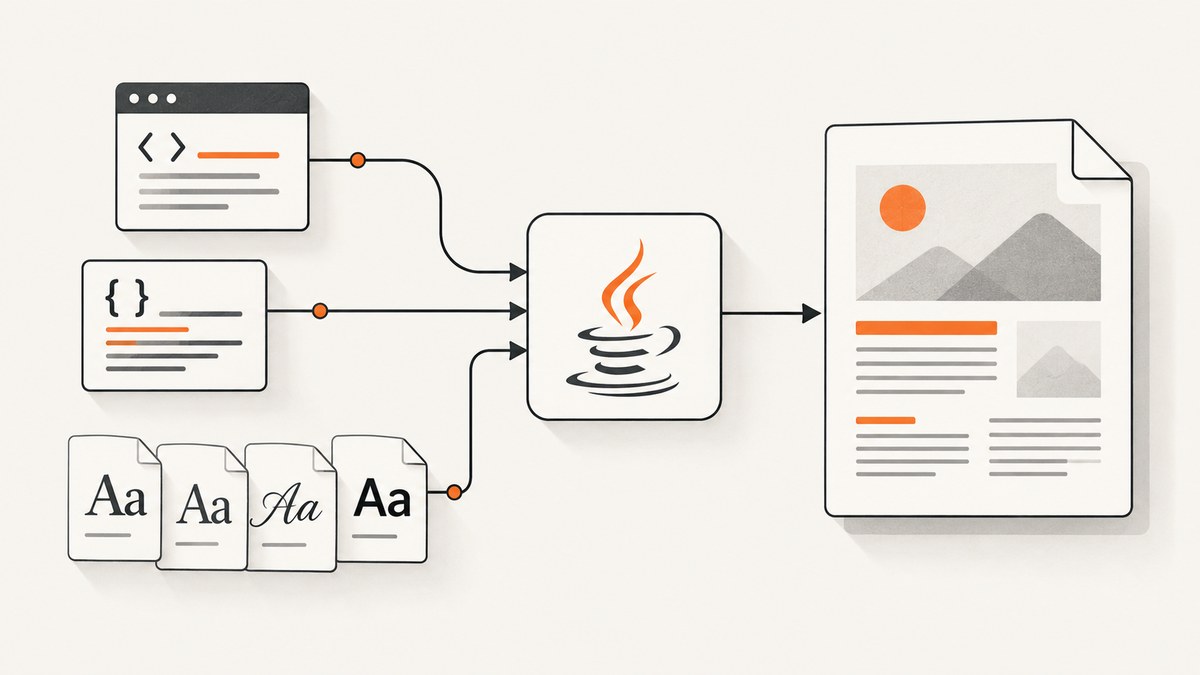
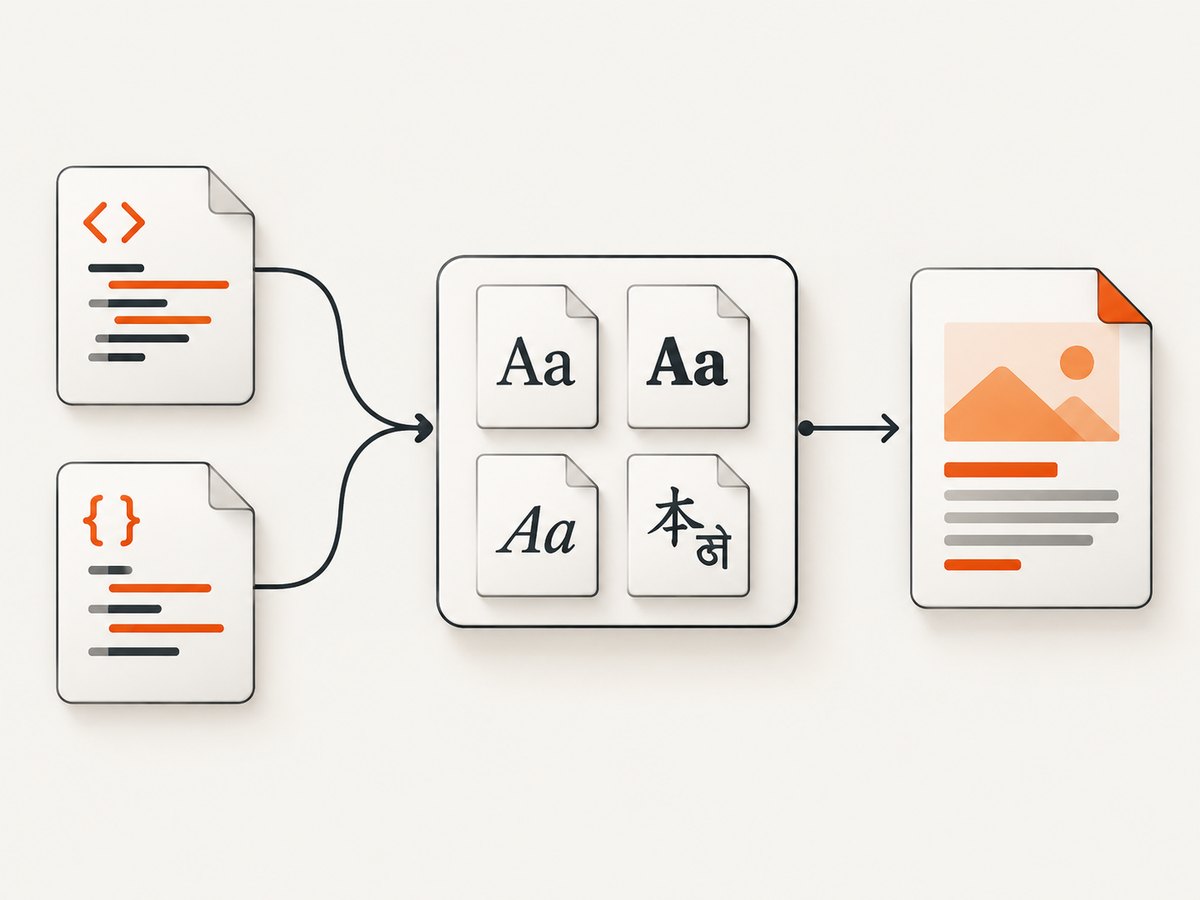
Direct answer: create a FontProvider, register the font files or a curated font directory, assign that provider to ConverterProperties, and pass the properties to HtmlConverter.convertToPdf. Register the regular, bold, italic, and other faces your CSS can request. Use an application-supplied font set for repeatable server output, and create a fresh provider for each PDF document unless your exact iText version supports a documented reset workflow.
The official iText guide describes selected-font registration as the fastest option. Its examples and API notes are collected in Chapter 6: Using fonts in pdfHTML. The exact constructor and method overloads depend on the iText 7 core and pdfHTML versions in your project.
1. Add the fonts your HTML actually uses
Put the font files in your application resources or another controlled deployment directory. A family that needs normal, bold, and italic rendering should include each corresponding face. Registering only a regular file does not guarantee that CSS font-weight: 700 or font-style: italic will use the intended family.
A practical layout is:
src/main/resources/fonts/
  Inter-Regular.ttf
  Inter-Bold.ttf
  Inter-Italic.ttf
  Inter-BoldItalic.ttf
  NotoSans-Regular.ttf
  NotoSans-Bold.ttf
Check each font’s license and confirm that its glyph coverage includes the scripts your documents contain.
2. Register a curated directory
Use addDirectory when a bounded folder contains the complete set of faces you want available to pdfHTML.
import com.itextpdf.html2pdf.ConverterProperties;
import com.itextpdf.html2pdf.HtmlConverter;
import com.itextpdf.layout.font.FontProvider;
import com.itextpdf.layout.font.DefaultFontProvider;

import java.io.File;

public class HtmlToPdfWithFonts {
    public static void main(String[] args) throws Exception {
        String htmlPath = "src/main/resources/invoice.html";
        String outputPath = "build/invoice.pdf";

        ConverterProperties properties = new ConverterProperties();
        FontProvider fontProvider = new DefaultFontProvider();
        fontProvider.addDirectory("src/main/resources/fonts");
        properties.setFontProvider(fontProvider);

        HtmlConverter.convertToPdf(
            new File(htmlPath),
            new File(outputPath),
            properties
        );
    }
}
This uses the default-provider behavior shown in the guide. The directory must exist in the runtime environment, not only in your IDE.
3. Register each file explicitly
Individual registration gives you the most control over which files are embedded and over registration order. It is useful when the same application has several document profiles.
import com.itextpdf.html2pdf.ConverterProperties;
import com.itextpdf.html2pdf.HtmlConverter;
import com.itextpdf.io.font.FontProgram;
import com.itextpdf.io.font.FontProgramFactory;
import com.itextpdf.layout.font.DefaultFontProvider;
import com.itextpdf.layout.font.FontProvider;

import java.io.File;
import java.util.List;

public class ExplicitFontRegistration {
    public static void main(String[] args) throws Exception {
        List<String> fontPaths = List.of(
            "src/main/resources/fonts/Inter-Regular.ttf",
            "src/main/resources/fonts/Inter-Bold.ttf",
            "src/main/resources/fonts/Inter-Italic.ttf",
            "src/main/resources/fonts/Inter-BoldItalic.ttf",
            "src/main/resources/fonts/NotoSans-Regular.ttf"
        );

        ConverterProperties properties = new ConverterProperties();
        // The three flags disable standard fonts, pdfHTML-shipped fonts,
        // and system fonts in the constructor form shown by the guide.
        FontProvider fontProvider = new DefaultFontProvider(false, false, false);

        for (String fontPath : fontPaths) {
            FontProgram fontProgram = FontProgramFactory.createFont(fontPath);
            fontProvider.addFont(fontProgram);
        }

        properties.setFontProvider(fontProvider);
        HtmlConverter.convertToPdf(
            new File("src/main/resources/invoice.html"),
            new File("build/invoice.pdf"),
            properties
        );
    }
}
Verify that the three-boolean constructor exists in the dependency version you use. If it does not, use the matching constructor documented for that release and add only the fonts your application requires.
4. Make CSS family and style declarations match
Font registration makes programs available; CSS still determines which program is selected. Use the family name exposed by the font metadata and declare the weights and styles your markup needs.
<style>
  body {
    font-family: "Inter", sans-serif;
    font-weight: 400;
  }
  h1 {
    font-family: "Inter", sans-serif;
    font-weight: 700;
  }
  .note {
    font-family: "Inter", sans-serif;
    font-style: italic;
  }
  .multilingual {
    font-family: "Noto Sans", sans-serif;
  }
</style>
Keep the regular, bold, and italic files for a family together. If the requested face is absent, pdfHTML may fall back to another available font. That can produce visibly different metrics and may change line wrapping.
5. Choose the provider defaults deliberately
The guide describes DefaultFontProvider() as equivalent to DefaultFontProvider(true, true, false) in its example: standard Type 1 fonts and pdfHTML-shipped fonts are enabled, while system fonts are disabled. The default collection is limited compared with the fonts installed on a workstation.
- Selected files: best control and portability for server deployments.
- Curated directory: convenient when a known folder contains all required faces; its contents and registration order matter.
- System fonts: possible, but output depends on the host operating system and installation.
- WOFF referenced by HTML: pdfHTML can download and embed WOFF resources, but conversion then depends on network retrieval and may take longer.
Do not expose an uncontrolled system-font directory merely to make one missing family work. Bundle the approved files with the application when reproducibility matters.
6. Handle Unicode and multilingual text
Standard Type 1 fonts do not provide general Unicode coverage. For multilingual content, use a Unicode-capable font and test representative scripts, punctuation, symbols, and combining marks.
The iText guide contrasts WinAnsi with Identity-H: WinAnsi stores one byte per character, while Identity-H uses two bytes. Compression can reduce the practical size difference, so do not choose WinAnsi solely to shrink a file when the document needs characters outside that encoding or must support long-term preservation and accessibility requirements.
7. Create the provider at the right lifecycle
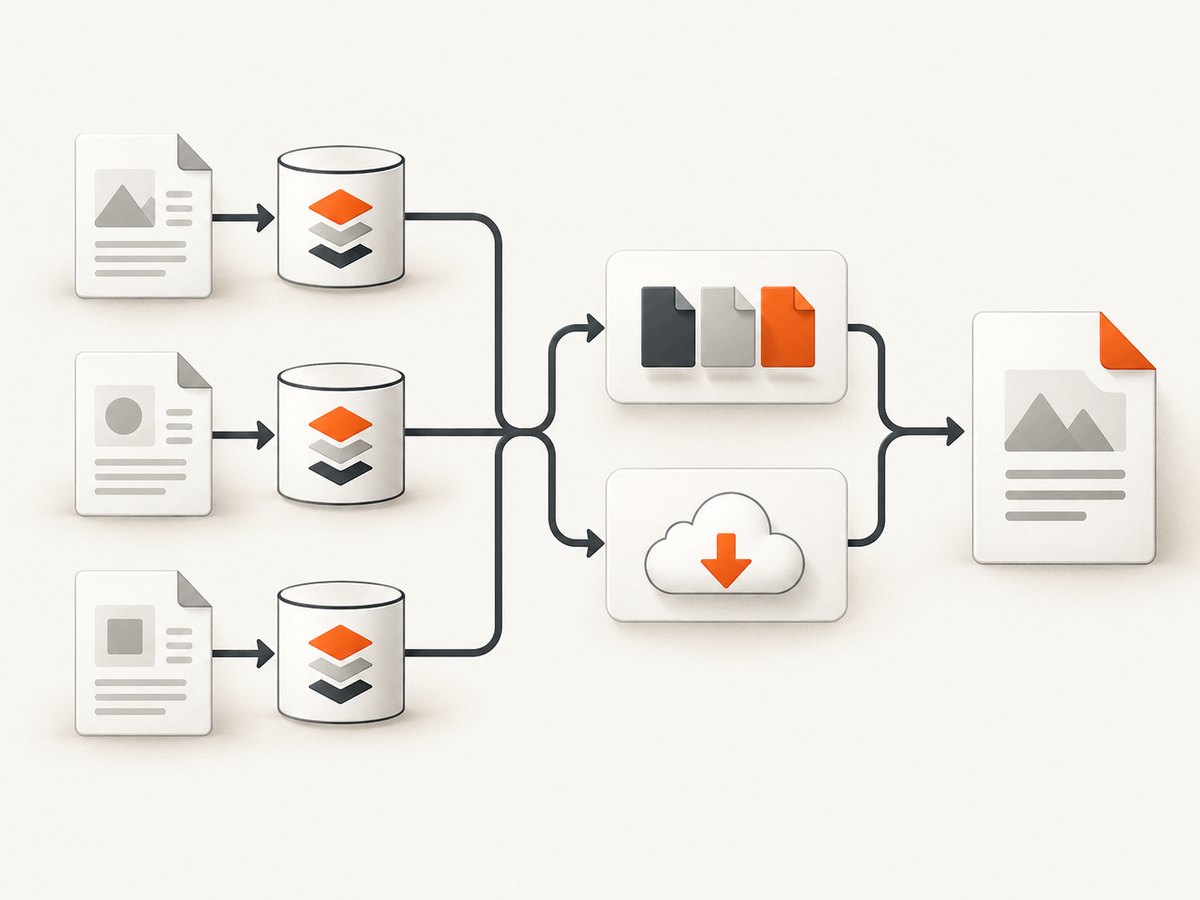
The FontProvider creates PdfFont objects tied to a PdfDocument. The 7.2.3 API documentation therefore says a provider cannot be reused for different documents unless it is reset or rebuilt according to the matching API. Treat one provider per conversion as the safe default:
public byte[] render(String html) throws Exception {
    ConverterProperties properties = new ConverterProperties();
    FontProvider provider = new DefaultFontProvider(false, false, false);
    provider.addDirectory("/opt/myapp/fonts");
    properties.setFontProvider(provider);

    try (java.io.ByteArrayOutputStream output = new java.io.ByteArrayOutputStream()) {
        HtmlConverter.convertToPdf(html, output, properties);
        return output.toByteArray();
    }
}
If your version offers a reset mechanism and you deliberately reuse objects, follow that version’s API contract and verify that no document-specific PdfFont state leaks between conversions.
8. Troubleshoot missing or incorrect fonts
| Symptom | Likely cause | Fix |
|---|---|---|
| Everything renders in a fallback font | The provider was never attached to ConverterProperties, or the font path is wrong. |
Call properties.setFontProvider(provider) and check the runtime path. |
| Bold or italic looks synthetic | Only the regular face was registered. | Register the real bold, italic, and bold-italic files and request their CSS weights/styles. |
| Family name does not match | CSS uses a name different from the font’s internal family metadata. | Inspect the font metadata and update font-family; do not assume the filename is the CSS name. |
| Some characters show boxes | The selected font lacks those glyphs, or a fallback also lacks them. | Use a font with the required Unicode coverage and test the affected script. |
| Output differs between machines | System-font availability or registration order varies. | Bundle selected files and register them deterministically. |
| Conversion is slow with web fonts | WOFF files are being downloaded during conversion. | Pre-register local font files when possible and ensure the converter can reach remote resources when web fonts are required. |
| Font works once, then fails or behaves inconsistently | A provider is being shared across PDF documents. | Create a new provider per document, or use the documented reset operation for your exact version. |
| Application works locally but fails in a container | Resource paths point to source-tree locations unavailable at runtime. | Package fonts in the image or artifact and resolve them from the deployed classpath or configured absolute directory. |
9. Performance, reliability, and file-size considerations
- Register only what is needed. Large collections increase discovery and matching work, and the guide warns that addition order matters when many fonts are registered.
- Prefer local files for predictable latency. WOFF retrieval introduces network dependency and can slow conversion.
- Expect subset embedding behavior. The output contains the glyphs required by the document rather than necessarily every glyph in every source file, but confirm the result with representative content and your compliance requirements.
- Keep conversion isolated. A fresh provider per document avoids cross-document state problems and makes failures easier to diagnose.
- Measure your own workload. Font family count, glyph coverage, HTML size, images, and page count affect conversion time and PDF size; the supplied documentation does not establish a universal benchmark.
10. Verification checklist
- All required font files are packaged with the deployed application.
- Regular, bold, italic, and other requested faces are registered.
- The provider is assigned to the same
ConverterPropertiesobject passed to conversion. - CSS family names, weights, and styles match the registered metadata.
- Representative multilingual text and special symbols render correctly.
- The conversion runs with a fresh provider for each PDF document.
- Output is checked in the target operating system or container.
- Font licenses permit embedding and distribution.
Or skip the browser setup
If your workflow also needs screenshots of the HTML before or alongside PDF generation, ScreenshotNeo provides a website screenshot API and MCP server. It is separate from iText’s Java conversion, so you can keep the Java method above for PDF output and use one GET request for a clean image capture. See the ScreenshotNeo API documentation.
curl -G "https://api.screenshotneo.com/v1/shot" \
  -d access_key=YOUR_API_KEY \
  --data-urlencode url=https://stripe.com \
  -o shot.webp
import requests
r = requests.get(
"https://api.screenshotneo.com/v1/shot",
params={"access_key": "YOUR_API_KEY", "url": "https://stripe.com"},
timeout=90,
)
r.raise_for_status()
open("shot.webp", "wb").write(r.content)const q = new URLSearchParams({
access_key: 'YOUR_API_KEY',
url: 'https://stripe.com'
});
const res = await fetch(`https://api.screenshotneo.com/v1/shot?${q}`);
if (!res.ok) throw new Error(`HTTP ${res.status}`);
const bytes = new Uint8Array(await res.arrayBuffer());
await Bun.write('shot.webp', bytes);Before capture, ScreenshotNeo removes cookie and consent banners, newsletter popups, and chat widgets. Bot checks, blank pages, failed loads, timeouts, and cache hits are not billed, and the response identifies the result with X-Page-Verdict and X-Billed headers. Its MCP server includes take_screenshot, get_page_info, and capture_pdf tools for AI agents. The free plan includes 1,000 screenshots per month with no card; paid plans start at $5 for 3,000. Create a free ScreenshotNeo account.
FAQ
Can I register fonts with both addDirectory and addFont?
Yes. Use a curated directory for a bounded family set and individual registration when you need exact control. Avoid unintentionally registering competing copies of the same family.
Should I rely on fonts installed on the server?
Only when host-dependent output is acceptable. Application-supplied files are easier to reproduce across machines and containers.
Will registering a font force every PDF to embed the entire file?
Registration makes the program available for selection. Embedding and subsetting depend on the conversion and document content; verify the generated PDF for your licensing and archival requirements.
Why does a font work in a browser but not in pdfHTML?
Browser CSS may resolve a different family, download a remote resource, or synthesize a missing style. Confirm that pdfHTML can retrieve the resource, that the provider contains the intended files, and that the CSS metadata matches.
Which iText version should this code target?
Match the code to the core and pdfHTML versions already used by your project. The provider lifecycle and constructor details cited here come from iText 7.1.3 and 7.2.3 API documentation and can vary between releases.


