How to Embed a PDF With the Adobe Acrobat Embed API
Learn the complete Adobe PDF Embed API flow, including client IDs, embed modes, CORS, controls, mobile limits, analytics, and troubleshooting.
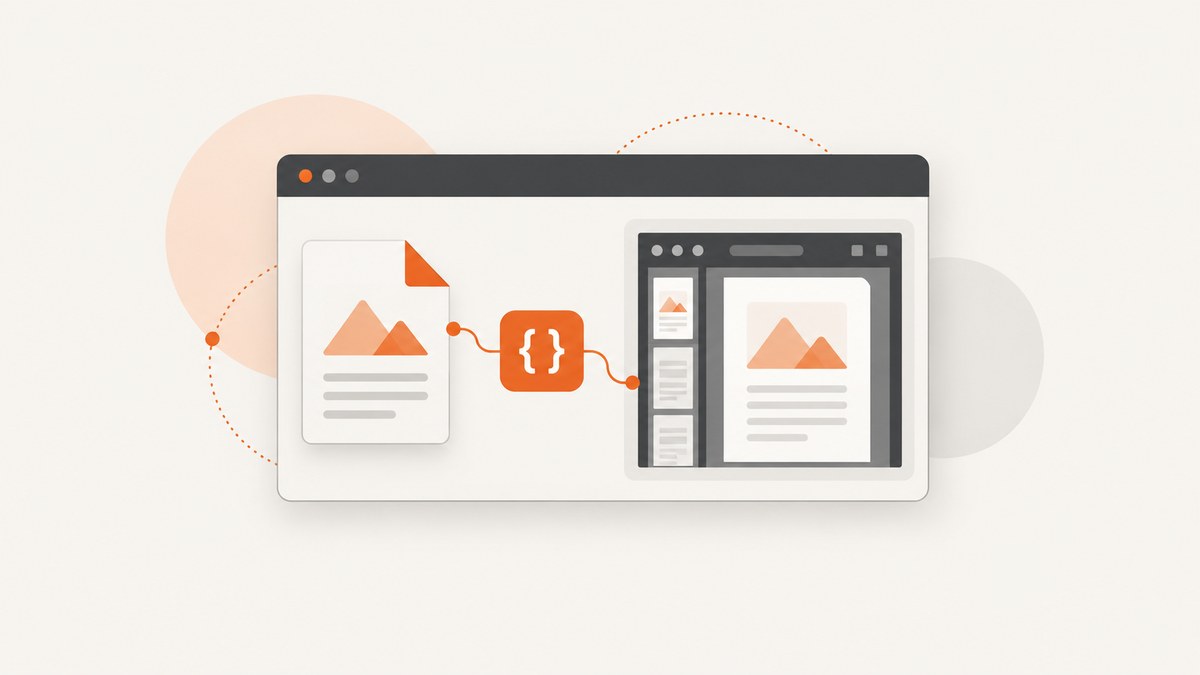
Adobe Acrobat PDF Embed API is a free JavaScript viewer service. Register a client ID, allow your website domain, load Adobe’s viewer script, add a container, create AdobeDC.View, and call previewFile. The PDF can be supplied by a URL or by file content. A URL must be reachable from the browser and configured for CORS.
This guide builds the integration from a minimal page to production configuration, including embed modes, toolbar controls, forms, annotations, analytics, mobile behavior, protected files, framework examples, performance, and troubleshooting.
1. Prerequisites and the request flow
- An Adobe PDF Embed API client ID.
- The exact website domain registered for that client ID.
- A PDF URL that the browser can fetch, or file content supplied through the supported file-content API.
- A page container with a defined size for sized-container mode.
The browser flow is:
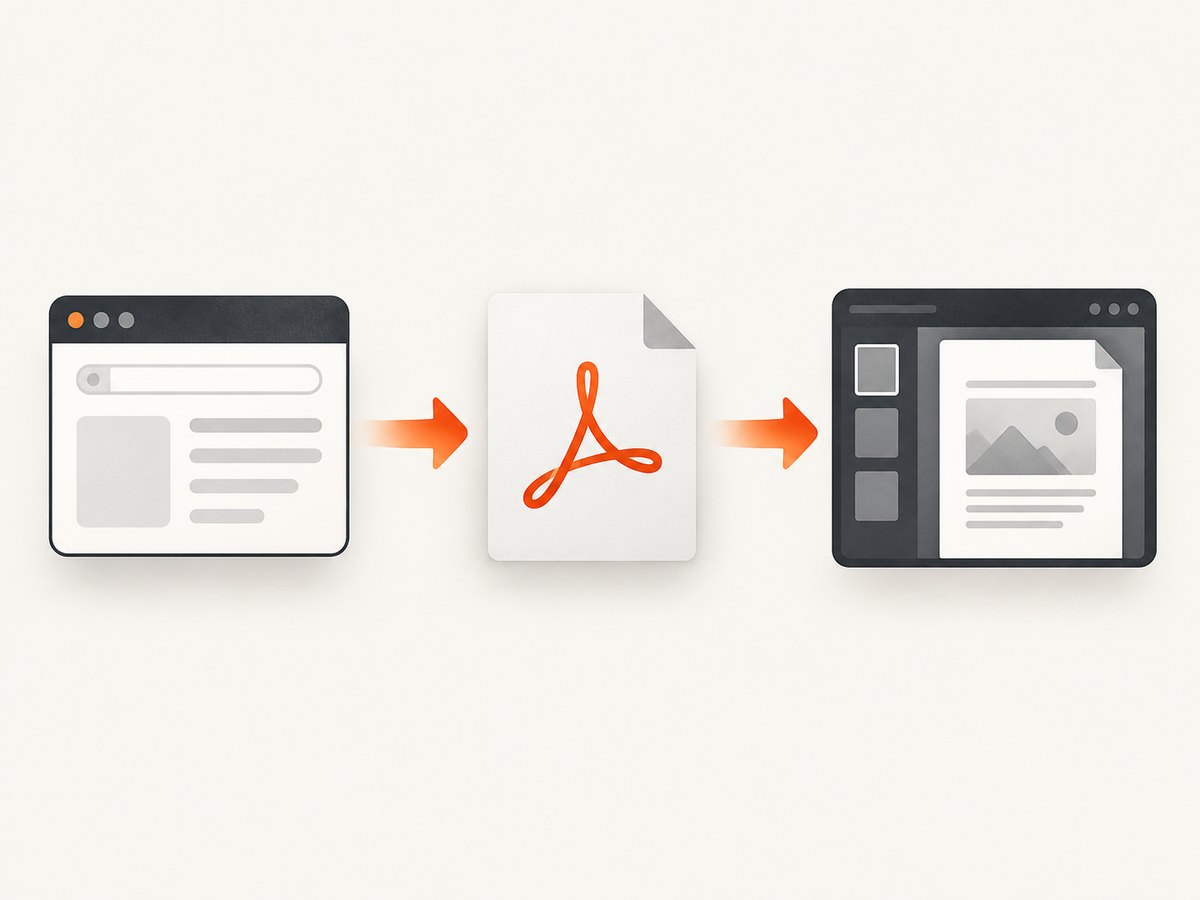
- Load
https://acrobatservices.adobe.com/view-sdk/viewer.js. - Wait for the
adobe_dc_view_sdk.readyevent. - Create
new AdobeDC.View({ clientId, divId }). - Call
previewFilewith the PDF location and file name. - Choose an embed mode and optional viewer configuration.
Adobe documents the client-ID and domain-registration requirements in its PDF Embed API documentation and getting-started material.
2. Minimal working HTML example
Save this as index.html, replace both placeholders, and serve it from the registered domain. Opening the file directly with a file:// URL can cause origin and CORS problems, so use a local HTTP server during development.
<!doctype html>
<html lang="en">
<head>
  <meta charset="utf-8">
  <meta name="viewport" content="width=device-width, initial-scale=1">
  <title>Embedded PDF</title>
  <style>
    #adobe-dc-view {
      width: 100%;
      height: 720px;
    }
  </style>
</head>
<body>
  <div id="adobe-dc-view"></div>

  <script src="https://acrobatservices.adobe.com/view-sdk/viewer.js"></script>
  <script>
    document.addEventListener("adobe_dc_view_sdk.ready", function () {
      var adobeDCView = new AdobeDC.View({
        clientId: "<YOUR_CLIENT_ID>",
        divId: "adobe-dc-view"
      });

      adobeDCView.previewFile({
        content: {
          location: {
            url: "https://example.com/file.pdf"
          }
        },
        metaData: {
          fileName: "file.pdf"
        }
      }, {
        embedMode: "SIZED_CONTAINER"
      });
    });
  </script>
</body>
</html>
The required script, container, client ID, AdobeDC.View, previewFile, URL, and file name follow Adobe’s documented sequence. See the official API documentation for the current API reference.
3. Register the client ID and domain
- Create an Adobe PDF Embed API project and copy its client ID.
- Register every domain that will host the viewer, including the production hostname and any development hostname you use.
- Use the client ID only from a registered origin.
- Deploy the page over HTTP or HTTPS and retest.
Adobe validates that the client ID is being used with the correct website domain. An incorrect ID or an unregistered domain prevents the preview from loading.
4. Choose the right embed mode
| Mode | Layout | Use it when | Key consideration |
|---|---|---|---|
FULL_WINDOW |
Viewer fills the browser window | A document is the main destination of the page | Phone annotation tools are not supported in this mode |
SIZED_CONTAINER |
Viewer occupies a fixed container | Presentations, product pages, and precise placement | Give the container an explicit height and width |
IN_LINE |
Pages flow with surrounding content | Whitepapers, brochures, and ebooks | Viewer height is sized automatically |
LIGHT_BOX |
Foreground overlay | Keep the surrounding page visible until the reader opens the PDF | Provide a clear trigger and close behavior in your page UI |
adobeDCView.previewFile(fileConfig, {
  embedMode: "IN_LINE"
});
For SIZED_CONTAINER, use responsive CSS rather than a hard-coded narrow width:
#adobe-dc-view {
  width: min(100%, 960px);
  height: 75vh;
  min-height: 480px;
}
5. Viewer controls and document behavior
Pass viewer configuration as the second argument to previewFile. Adobe supports controls for download, print, comments, annotations, and form filling. The exact control availability depends on the selected mode and device.
const viewerConfig = {
  embedMode: "SIZED_CONTAINER",
  showDownloadPDF: false,
  showPrintPDF: false,
  showAnnotationTools: true,
  showComments: true,
  enableFormFilling: false
};

adobeDCView.previewFile({
  content: { location: { url: "https://example.com/form.pdf" } },
  metaData: { fileName: "form.pdf" }
}, viewerConfig);showDownloadPDFcontrols whether the download control is shown where supported.showPrintPDFcontrols whether the print control is shown where supported.- Comment and annotation controls can be shown or hidden for the workflow you need.
- Live form editing is enabled by default; set
enableFormFilling: falseto disable it.
Hiding a button is a user-interface choice, not a DRM boundary. If a document must remain private, protect the file at its origin and avoid exposing an unrestricted public URL.
6. URL delivery, CORS, and protected PDFs
Public or signed URL
With URL delivery, the viewer fetches the PDF from the browser. The PDF origin must return a CORS policy that permits the page origin. A typical response includes an Access-Control-Allow-Origin value matching your site (or a deliberately broader policy for a public document).
Access-Control-Allow-Origin: https://www.example.com
Content-Type: application/pdf
Do not use a wildcard CORS policy for a private document when credentials or sensitive data are involved. Instead, issue a short-lived, access-controlled URL and configure the PDF host to allow only the origins that need it.
File content
Adobe also supports supplying file content or a file promise. This is useful when your application already authenticated the user and should not expose a reusable public URL. Follow Adobe’s file-content examples for the SDK version you deploy and ensure the returned bytes are a valid PDF.
Response requirements
- Return the correct
Content-Type: application/pdf. - Allow range requests if your storage and caching layer support them; large documents can otherwise take longer to start.
- Ensure redirects do not lead to an origin that lacks CORS headers.
- Check that authentication cookies or authorization headers are actually available to the browser request; a server-side fetch does not automatically transfer its credentials to the viewer.
7. React and Angular integration
The SDK is browser-based, so initialize it after the component has mounted and clean up any listeners your application adds. Adobe’s official samples repository includes React and Angular examples, as well as full-window, sized-container, inline, lightbox, local-file, annotation, events, search-indexing, linearized-PDF, and analytics samples.
React pattern
import { useEffect } from "react";

export default function PdfViewer() {
  useEffect(() => {
    const start = () => {
      const view = new window.AdobeDC.View({
        clientId: import.meta.env.VITE_ADOBE_CLIENT_ID,
        divId: "adobe-dc-view"
      });
      view.previewFile({
        content: { location: { url: "https://example.com/file.pdf" } },
        metaData: { fileName: "file.pdf" }
      }, { embedMode: "SIZED_CONTAINER" });
    };

    if (window.AdobeDC) start();
    else document.addEventListener("adobe_dc_view_sdk.ready", start, { once: true });
    return () => document.removeEventListener("adobe_dc_view_sdk.ready", start);
  }, []);

  return <div id="adobe-dc-view" style={{ height: 720 }} />;
}
Angular pattern
import { AfterViewInit, Component } from '@angular/core';

declare const AdobeDC: any;

@Component({
  selector: 'app-pdf-viewer',
  template: '<div id="adobe-dc-view" class="pdf-viewer"></div>',
  styles: ['.pdf-viewer { width: 100%; height: 720px; }']
})
export class PdfViewerComponent implements AfterViewInit {
  ngAfterViewInit(): void {
    const start = () => {
      const view = new AdobeDC.View({
        clientId: 'YOUR_CLIENT_ID',
        divId: 'adobe-dc-view'
      });
      view.previewFile({
        content: { location: { url: 'https://example.com/file.pdf' } },
        metaData: { fileName: 'file.pdf' }
      }, { embedMode: 'SIZED_CONTAINER' });
    };

    if ((window as any).AdobeDC) start();
    else document.addEventListener('adobe_dc_view_sdk.ready', start, { once: true });
  }
}
8. Annotations, forms, and collaboration
Annotation APIs support importing, creating, updating, deleting, exporting, and saving annotations through callbacks. For a multi-user review, provide the reviewer’s name or email and persist annotation settings through your callbacks. Without reviewer identity, comments display the reviewer as GUEST by default.
Keep annotation persistence on your own backend. Store the document identifier, user identity, annotation data, and revision information so that concurrent edits can be reconciled. Test permissions for viewers who can read a document but must not modify its annotations.
9. Events and analytics
You can register an event listener or configure Adobe Analytics or Google Analytics 4. Documented events include:
- Page changes and bookmark clicks
- Downloads and prints
- External hyperlink opens
- Text copies and searches
- Zoom changes
Adobe lists browser and operating-system type and version, device type, embed mode, file size, page count, URL, and rendering or download performance among available analytics metrics. Adobe also states that “PDF Embed API doesn’t store any user-generated content and never shares user-generated content with Adobe servers.” See the Adobe getting-started documentation for the current analytics setup.
adobeDCView.registerCallback(
  AdobeDC.View.Enum.CallbackType.EVENT_LISTENER,
  function (event) {
    if (event.type === "PAGE_VIEW") {
      window.dataLayer = window.dataLayer || [];
      window.dataLayer.push({
        event: "pdf_page_view",
        page: event.data && event.data.pageNumber
      });
    }
  }
);
Use the event names and payload fields from the SDK version you load, and avoid sending document text or personal data to analytics systems unless your privacy policy and data controls allow it.
10. Mobile behavior and responsive design
Adobe documents three mobile limitations that should shape your product requirements:
- Annotation tools are not supported on phones in
FULL_WINDOWmode. - Print functionality is unsupported on mobile.
- PDF download is unsupported on iOS devices but supported on Android.
Use a responsive container, test the chosen mode on the phone and tablet browsers your audience uses, and provide an alternate document action when a mobile control is unavailable. Do not promise desktop-equivalent printing, downloading, or annotation on every device.
11. Performance and reliability checklist
- Keep the initial PDF reasonably sized and remove unnecessary embedded assets.
- Use a CDN or storage service close to your users.
- Enable byte-range requests and keep cache headers consistent for immutable PDFs.
- Prefer linearized PDFs for faster first-page display when your publishing pipeline supports them.
- Give the viewer container a stable height to prevent layout shifts.
- Lazy-load the viewer when it is below the fold, but make sure the SDK script is loaded before initialization.
- Handle expired signed URLs by obtaining a fresh URL and rebuilding the preview.
- Record viewer errors and failed PDF requests separately so CORS, authorization, and malformed-file failures are distinguishable.
The API itself is free, but your application still pays for PDF storage, bandwidth, CDN traffic, analytics, and any backend used for authentication or annotation persistence.
12. Troubleshooting common errors
| Symptom | Likely cause | Fix |
|---|---|---|
| Viewer is blank and the console reports an invalid client ID | The ID is wrong, missing, or belongs to another project | Copy the ID again and verify the page’s hostname is registered in Adobe. |
| Preview works locally but not in production | Production domain was not registered | Add the exact production origin, including the correct subdomain, then redeploy or reload. |
| Console shows a CORS error | PDF origin does not allow the browser page origin | Configure Access-Control-Allow-Origin on the PDF response, and check redirects and preflight behavior. |
| Network request returns 401 or 403 | Signed URL expired or browser credentials are absent | Issue a fresh URL, use supported file-content delivery, or adjust authentication and cookie policy. |
| PDF downloads instead of rendering | Wrong content type or server disposition headers | Return application/pdf and verify that the URL serves PDF bytes. |
| Only the first page appears or loading is very slow | Large, non-linearized file or range requests unavailable | Optimize the PDF, enable byte ranges, and inspect CDN and origin latency. |
| Container is invisible | Height is zero or a parent is hidden | Set an explicit height for sized-container mode and check responsive CSS. |
| Download or print button is missing | Control was disabled, mode/device does not support it, or mobile limitation applies | Review viewer configuration and test on a supported desktop browser. |
| Form fields cannot be edited | enableFormFilling is false or the PDF has no fillable fields |
Enable form filling and verify that the source PDF contains interactive fields. |
| Annotations show GUEST | No reviewer identity was supplied | Provide reviewer name or email and persist annotation settings through callbacks. |
| React or Angular initializes twice | Component lifecycle or development-mode remount loads the SDK more than once | Guard initialization, use a single container, and remove listeners during cleanup. |
13. Or skip the browser setup
If your goal is a clean image or PDF of a web page rather than an interactive PDF viewer, ScreenshotNeo provides a single request to capture a URL. Its consent step accepts cookie banners and removes more than 60 known consent platforms, newsletter popups, and chat widgets before capture. Bot checks, blank pages, failed loads, timeouts, and cache hits are not billed, and the response identifies the result with X-Page-Verdict and X-Billed headers. ScreenshotNeo also includes an MCP server for AI agents, with take_screenshot, get_page_info, and capture_pdf tools.

curl -G "https://api.screenshotneo.com/v1/shot" \
  -d access_key=YOUR_API_KEY \
  --data-urlencode url=https://example.com \
  -o shot.webp
import requests
r = requests.get(
"https://api.screenshotneo.com/v1/shot",
params={"access_key": "YOUR_API_KEY", "url": "https://example.com"},
timeout=90,
)
r.raise_for_status()
open("shot.webp", "wb").write(r.content)const q = new URLSearchParams({
access_key: 'YOUR_API_KEY',
url: 'https://example.com'
});
const res = await fetch(`https://api.screenshotneo.com/v1/shot?${q}`);
if (!res.ok) throw new Error(`Screenshot failed: ${res.status}`);
const image = Buffer.from(await res.arrayBuffer());See the ScreenshotNeo API documentation for options such as full-page capture, CSS selectors, device presets, dark mode, custom CSS and JavaScript, waits, headers, cookies, caching, signed links, asynchronous jobs, bulk capture, and PDF output. One thousand screenshots per month are free with no card; paid plans start at $5 for 3,000 shots. Create a free ScreenshotNeo account.
14. FAQ
Is the Adobe PDF Embed API the same as Acrobat Reader?
No. It is a JavaScript viewer service for embedding PDFs in a web page. It does not require visitors to install the desktop Acrobat application.
Can I embed a PDF from another domain?
Yes, when that origin allows the browser request with CORS and the URL remains accessible. Otherwise use supported file-content delivery or a controlled access URL.
Can I completely prevent downloading?
You can hide the download control where supported, but a browser that can render a document has received its content. Use access control and document permissions for confidentiality requirements.
Which mode is best for an article?
IN_LINE fits a document that should flow with article content. Use LIGHT_BOX for an optional preview and SIZED_CONTAINER when the viewer belongs in a defined panel.
Does the viewer work on phones?
It can render on mobile, but print is unsupported, iOS does not support PDF download, and phone annotation tools are unavailable in FULL_WINDOW mode.
Where are annotations stored?
Your application must persist annotation data through the documented callbacks and your own backend. Plan identity, authorization, and conflict handling for collaborative review.


