How to Embed a PDF File in ASP.NET
Embed PDFs in ASP.NET with iframe or embed, serve protected files safely, stream in Blazor, and troubleshoot browser viewer issues.
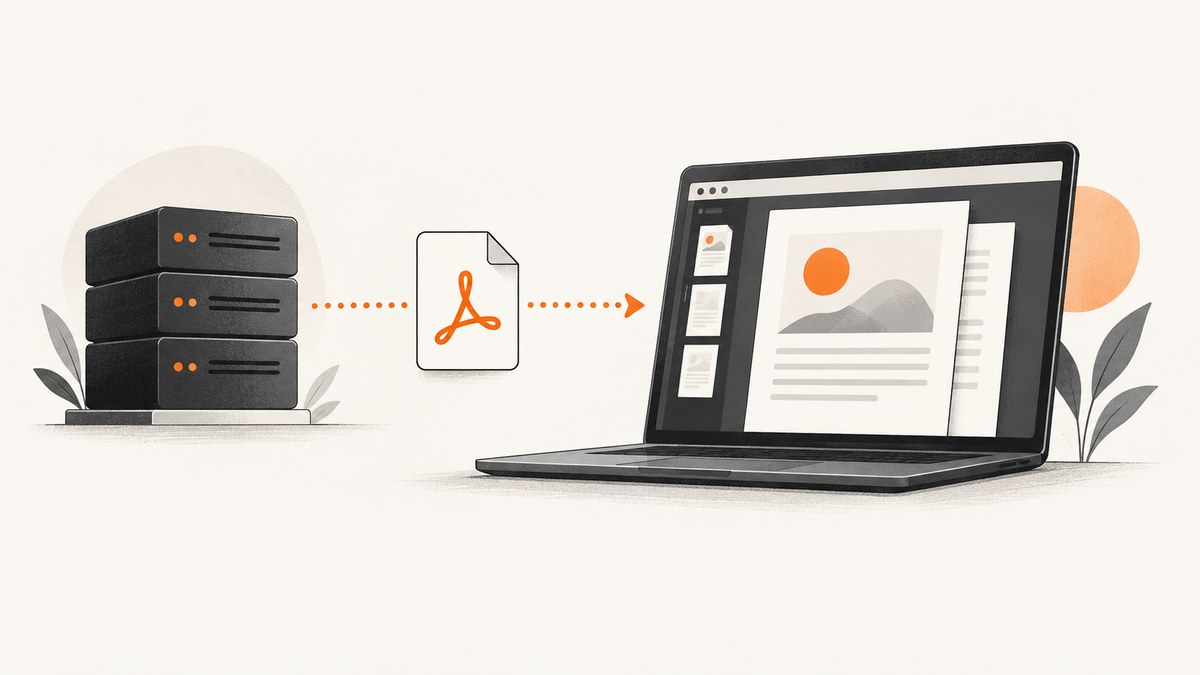
The simplest way to embed a PDF in ASP.NET is to expose the document at a URL and use that URL in an HTML <iframe> or <embed>. For a public static file, place the PDF under wwwroot in ASP.NET Core and enable static-file delivery. For generated or protected documents, return the PDF from an authorized endpoint with the application/pdf media type, then point the iframe at that endpoint.
The browser supplies the PDF viewer. Your ASP.NET page provides the URL and a fallback link; it does not render the PDF bytes itself.
Choose the right approach
| Scenario | Recommended implementation |
|---|---|
| Public, existing PDF | Static file in wwwroot plus an iframe or embed |
| Generated on demand | Controller or Minimal API file response |
| Private document | Authorized endpoint that streams the PDF |
| Blazor app without a public PDF URL | Stream to JavaScript and create a Blob URL |
| Consistent controls, annotations, or rendering | Use a maintained PDF viewer such as PDF.js and evaluate its current documentation separately |
Embed a static PDF in ASP.NET Core
1. Put the PDF in the web root
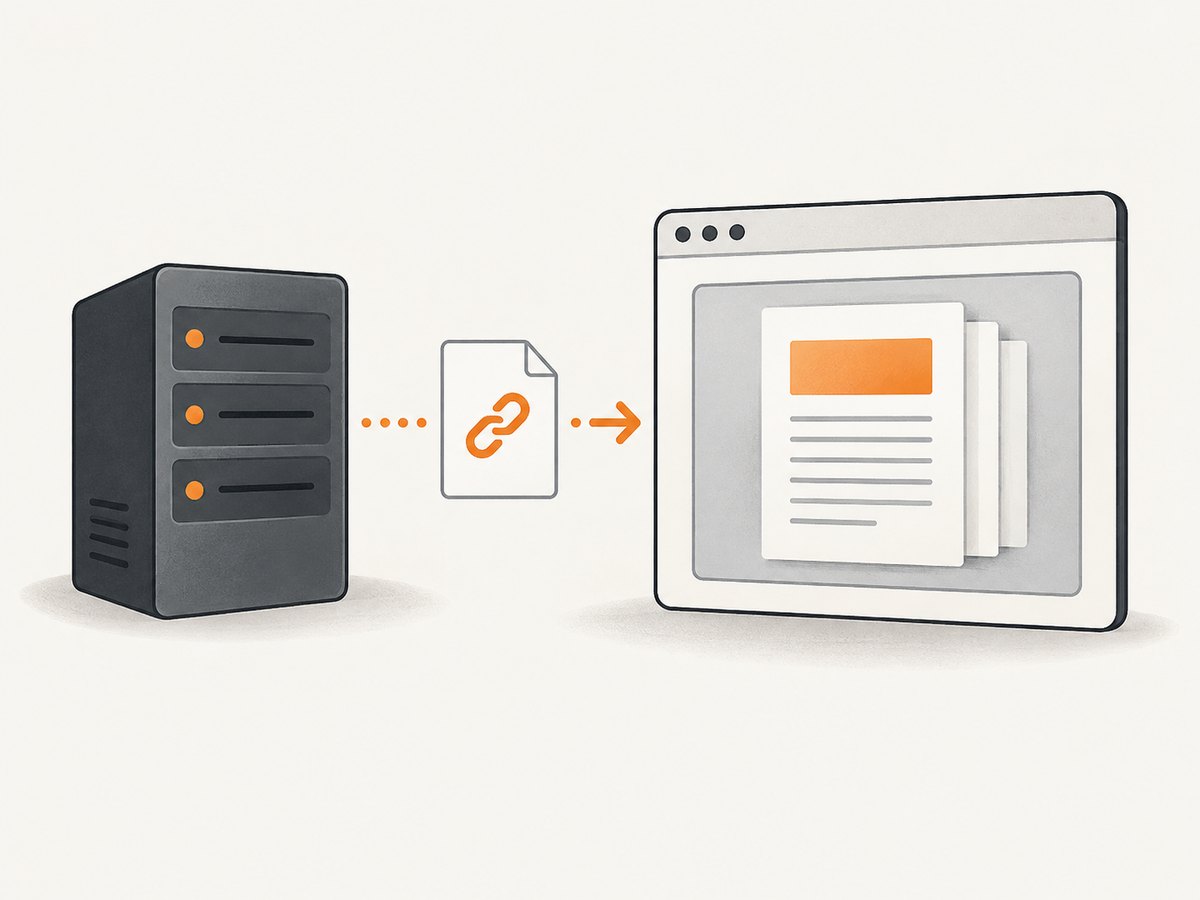
Create wwwroot/files/guide.pdf. Files under the configured web root are addressable by a URL relative to that root.
2. Enable static files
Use the static-file setup documented for your .NET version. Current .NET documentation describes MapStaticAssets; UseStaticFiles remains the middleware pattern used by many applications.
// Program.cs (.NET 9/10-style endpoint mapping)
var builder = WebApplication.CreateBuilder(args);
builder.Services.AddRazorPages();

var app = builder.Build();
app.MapStaticAssets();
app.MapRazorPages();
app.Run();
If your application uses middleware instead, place static-file middleware before endpoints that need to serve the file:
var builder = WebApplication.CreateBuilder(args);
builder.Services.AddControllersWithViews();

var app = builder.Build();
app.UseStaticFiles();
app.UseRouting();
app.MapDefaultControllerRoute();
app.Run();
3. Reference the PDF from HTML
<iframe
    src="/files/guide.pdf"
    title="PDF: User guide"
    width="100%"
    height="700"
    style="border: 0;"
>
    <a href="/files/guide.pdf">Open the user guide PDF</a>
</iframe>
An <embed> element is also valid:
<embed
    src="/files/guide.pdf"
    type="application/pdf"
    width="100%"
    height="700"
>
Give the iframe an informative title, size it for your layout, and retain a normal link for browsers or users that prefer a separate tab or download.
Return a generated or protected PDF
Do not put private documents in a publicly reachable static folder. Check authorization in the endpoint, obtain the bytes or stream from your generator or storage layer, and return a file response with application/pdf.
ASP.NET Core controller
using Microsoft.AspNetCore.Authorization;
using Microsoft.AspNetCore.Mvc;

[Authorize]
public sealed class ReportsController : Controller
{
    [HttpGet("reports/{id:int}/pdf")]
    public async Task Pdf(int id, CancellationToken cancellationToken)
    {
        // Replace this with a repository or PDF generator call.
        byte[] pdf = await LoadReportPdfAsync(id, cancellationToken);
        return File(pdf, "application/pdf");
    }

    private static Task<byte[]> LoadReportPdfAsync(
        int id,
        CancellationToken cancellationToken)
    {
        throw new NotImplementedException();
    }
}
Embed the action URL:
<iframe
    src="/reports/42/pdf"
    title="PDF: Report 42"
    width="100%"
    height="700"
>
    <a href="/reports/42/pdf">Open report 42</a>
</iframe>
ASP.NET Core Minimal API
var builder = WebApplication.CreateBuilder(args);
var app = builder.Build();

app.MapGet("/reports/{id:int}/pdf", async (int id, HttpContext http, CancellationToken ct) =>
{
    if (!(http.User.Identity?.IsAuthenticated ?? false))
        return Results.Unauthorized();

    byte[] pdf = await LoadReportPdfAsync(id, ct);
    return TypedResults.File(pdf, "application/pdf");
});

app.Run();

static Task<byte[]> LoadReportPdfAsync(int id, CancellationToken ct)
    => throw new NotImplementedException();
A file name can be supplied when you want download behavior. If the PDF must open inline, verify the resulting Content-Disposition behavior in the browsers you support; the media type alone does not guarantee identical handling everywhere.
Blazor: stream a PDF to an iframe
When the document should not have a public URL, Blazor can stream it to JavaScript, create a Blob object URL, and assign that URL to an iframe. The object URL should be revoked after the iframe loads.
@inject IJSRuntime JS

<iframe id="pdfFrame" title="Generated PDF" width="100%" height="700">
    Your browser cannot display this PDF. <a href="/reports/42/pdf">Open it directly</a>.
</iframe>

@code {
    private async Task ShowPdfAsync(Stream pdfStream)
    {
        using var streamRef = new DotNetStreamReference(pdfStream);
        await JS.InvokeVoidAsync("pdfViewer.setStream", "pdfFrame", streamRef);
    }
}
window.pdfViewer = {
setStream: async (frameId, streamRef) => {
const bytes = await streamRef.arrayBuffer();
const blob = new Blob([bytes], { type: "application/pdf" });
const url = URL.createObjectURL(blob);
const frame = document.getElementById(frameId);
frame.onload = () => URL.revokeObjectURL(url);
frame.src = url;
}
};Loading a trusted application URL directly in an iframe is simpler. Treat user-provided sources as untrusted and validate them before rendering; an incorrectly implemented iframe can create security vulnerabilities.
Legacy ASP.NET Web Forms
Web Forms applications commonly expose a separate URL that sets the response content type and writes PDF bytes:
protected void Page_Load(object sender, EventArgs e)
{
    Response.Clear();
    Response.ContentType = "application/pdf";
    Response.AddHeader("Content-Disposition", "inline; filename=report.pdf");
    Response.BinaryWrite(GetReportPdfBytes());
    Response.End();
}

private byte[] GetReportPdfBytes()
{
    throw new NotImplementedException();
}
Point the iframe at that page. Adapt the response code to your Web Forms version and storage model.
Security checklist
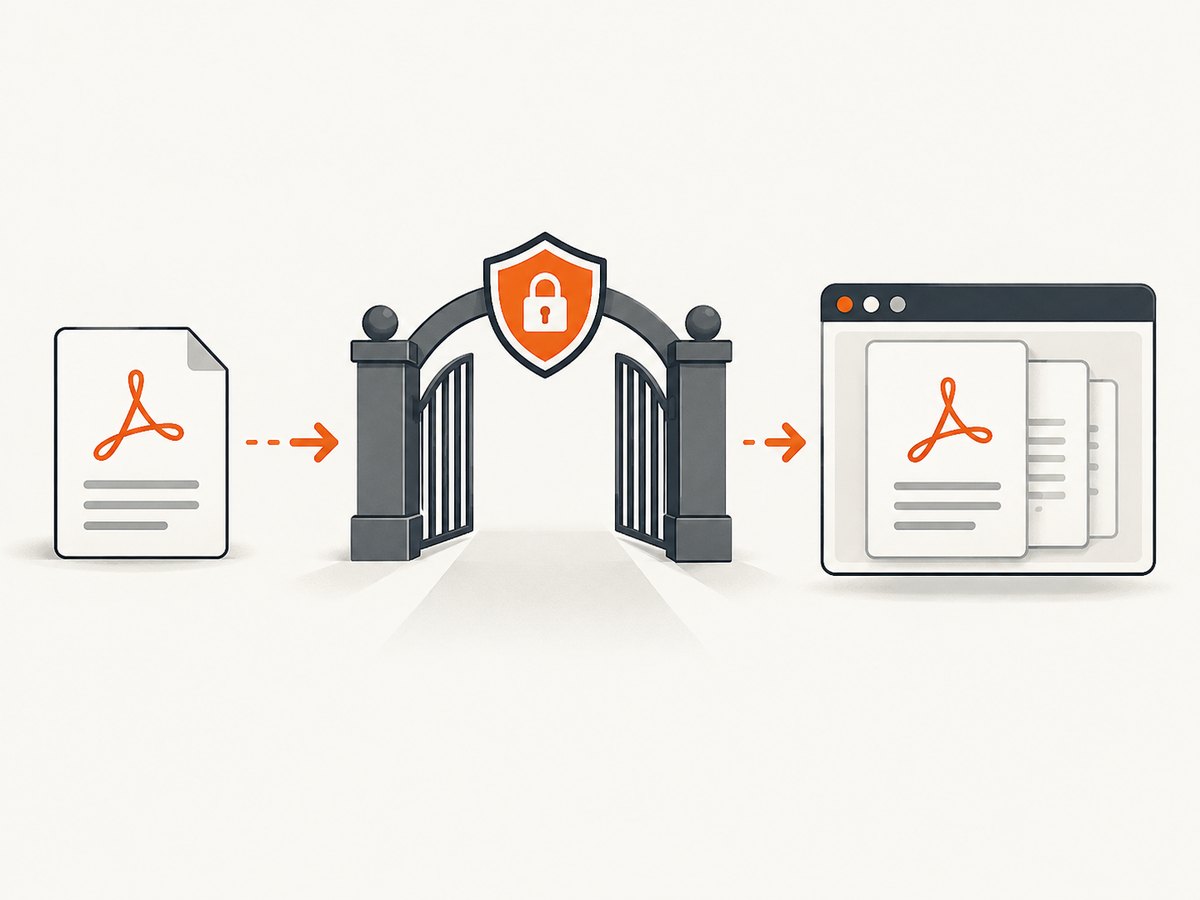
- Authorize every protected PDF request; an iframe does not enforce access control.
- Validate document IDs and ownership before reading bytes.
- Do not concatenate untrusted values into HTML, JavaScript, or iframe URLs.
- Keep uploads outside the public web root unless they are intentionally public.
- Return
application/pdfand configure content-type mappings deliberately. - Restrict or allow-list remote PDF sources instead of accepting arbitrary user URLs.
- Use a direct link fallback so users can open the document in a separate viewer.
Browser behavior and fallback options
The iframe creates an embedded browsing context; the browser’s built-in PDF viewer renders the pages. Controls and support can differ by browser, operating system, and mobile environment. Test the browsers your application promises to support.
If you need identical controls, page rendering, or annotations, use a maintained viewer library such as PDF.js and review its current official documentation and licensing. A normal “Open PDF” link remains useful even when a custom viewer is installed.
Troubleshooting
| Symptom | Likely cause | Fix |
|---|---|---|
| 404 for the PDF | Wrong path, file name, or static files are disabled | Confirm the file is under wwwroot, enable static files, and inspect the browser request URL. |
| Downloads instead of opening | Attachment disposition or browser policy | Return application/pdf, remove forced attachment behavior when inline viewing is desired, and keep an explicit download link. |
| Blank iframe | PDF generation failed, response is not PDF, or viewer cannot render it | Check status, Content-Type, response length, server logs, and open the endpoint directly. |
| 401 or 403 in the frame | Missing authentication cookie, antiforgery assumptions, or authorization failure | Authenticate the browser request and authorize the document; do not weaken checks just for the iframe. |
| Works locally but not after deployment | Path base, reverse proxy, HTTPS, or static-file configuration differs | Use the deployed application base path and inspect network responses through the proxy. |
| Cross-origin PDF fails | Remote server restrictions or embedding policy | Serve the file from your own authorized endpoint or configure the remote server intentionally; do not proxy arbitrary URLs. |
| Mobile layout is unusable | Fixed frame dimensions | Use responsive width, a sensible minimum height, and a separate-open link. |
Performance, reliability, and cost
- Stream large PDFs when possible instead of buffering multiple copies in memory.
- Cache immutable public PDFs with a versioned URL and suitable cache headers.
- Generate expensive reports asynchronously and expose a status endpoint before embedding the completed file.
- Set request cancellation and server timeouts for generation work.
- Log document ID, authorization result, generation duration, response status, and byte count without logging sensitive PDF content.
- For protected files, avoid publicly cacheable responses unless the cache key and access model are designed for it.
- PDF embedding itself adds little application work; the expensive parts are usually generation, storage, and transfer.
Or skip the browser setup
If your goal is to capture a rendered page as an image or PDF rather than build an in-browser PDF viewer, ScreenshotNeo provides a single HTTP request. It accepts the page URL, handles the browser capture, and can return PNG, JPEG, WebP, or PDF. See the ScreenshotNeo API documentation for all options.
curl -G "https://api.screenshotneo.com/v1/shot" -d access_key=YOUR_API_KEY --data-urlencode url=https://stripe.com -o shot.webpimport requests
r = requests.get("https://api.screenshotneo.com/v1/shot", params={"access_key": "YOUR_API_KEY", "url": "https://stripe.com"}, timeout=90)
open("shot.webp", "wb").write(r.content)const q = new URLSearchParams({ access_key: 'YOUR_API_KEY', url: 'https://stripe.com' });
const res = await fetch(`https://api.screenshotneo.com/v1/shot?${q}`);- Cookie banners, newsletter popups, and chat widgets are removed before the shot.
- Bot checks, blank pages, failed loads, timeouts, and cache hits are never billed; response headers identify the page verdict and billing status.
- An MCP server lets Claude, Cursor, and other MCP clients take screenshots with
take_screenshot, inspect pages withget_page_info, and capture PDFs withcapture_pdf. - The Free plan includes 1,000 screenshots each month without a card; paid plans start at $5 for 3,000 shots.
Create a free ScreenshotNeo account and start with 1,000 screenshots a month at no charge.
FAQ
Should I use iframe or embed?
Either can reference a PDF URL. An iframe gives you a natural fallback link and a separate browsing context, so it is usually the practical default.
Can I embed a PDF stored in a database?
Yes. Return the bytes or stream from an authorized controller or Minimal API endpoint with application/pdf, then use that endpoint as the iframe source.
Why does the PDF look different between browsers?
The browser’s built-in viewer controls rendering and controls. Provide a direct link and test the target desktop and mobile browsers.
Is an iframe URL a security boundary?
No. Authorization must happen in the endpoint that returns the PDF, and untrusted URLs and HTML must be validated and encoded.


