How to Render HTML That Embeds Another PDF With the Object Tag
Embed a PDF with HTML’s object tag, provide useful fallback links, and troubleshoot browser, security, and mobile rendering issues.
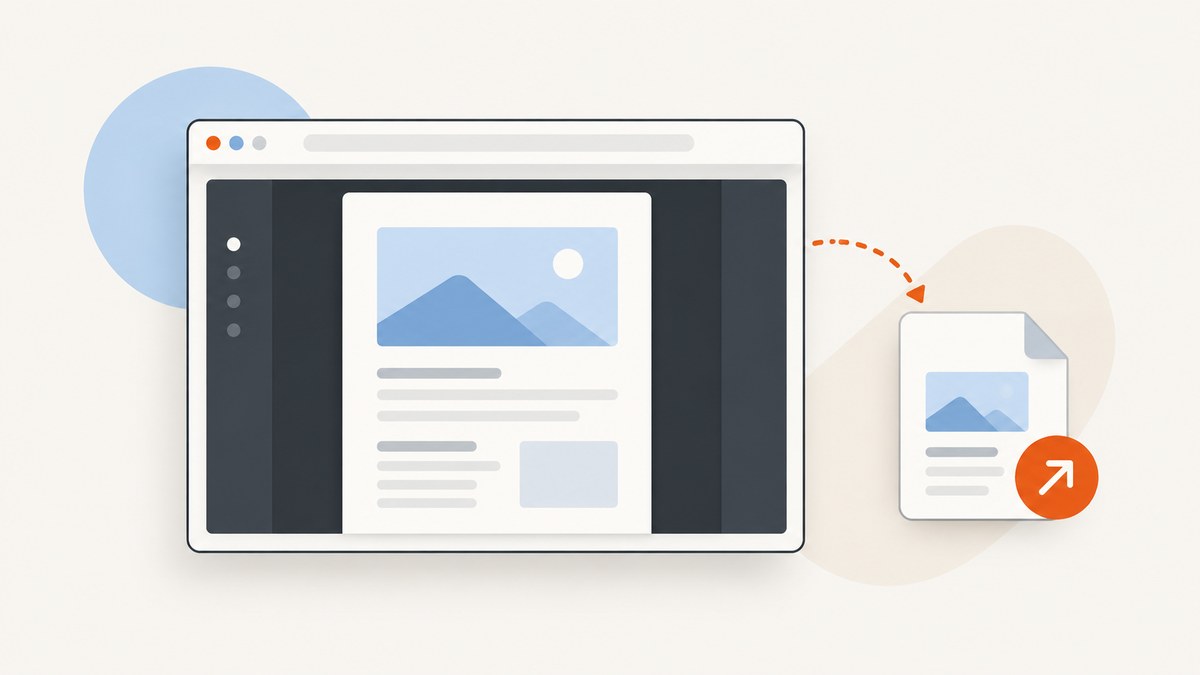
To embed a PDF with HTML’s <object> tag, set data to the PDF URL and type to application/pdf. Give the viewer explicit dimensions and put a normal PDF link inside the element as fallback content:
<section aria-labelledby="report-heading">
  <h2 id="report-heading">Annual report</h2>
  <p>Preview the report below, or <a href="/files/annual-report.pdf">open the PDF directly</a>.</p>

  <object
    data="/files/annual-report.pdf"
    type="application/pdf"
    width="100%"
    height="800"
    aria-label="Annual report PDF preview">
    <p>PDF preview unavailable.
      <a href="/files/annual-report.pdf">Open or download the annual report</a>.
    </p>
  </object>
</section>
Browsers with a built-in PDF viewer can render the document in the object box. If the resource cannot be displayed, browsers can show the HTML nested inside the opening and closing tags. Keep a direct link outside the object too: some failures occur after a viewer starts, when fallback content may not appear. This pattern follows the MDN object reference.
1. What the object tag does for a PDF
<object> embeds an external resource. For a PDF, the browser may hand that resource to its native PDF viewer, which supplies document navigation and zoom controls. The HTML element reserves a box in the page; it does not convert the PDF into ordinary HTML or guarantee that every browser and device presents it the same way.
The three essentials are:
data: the PDF resource URL, relative or absolute.type: the declared media type, usuallyapplication/pdf.widthandheight: the display area. Set a useful height; a zero or tiny box can make a successfully loaded viewer appear missing.
MDN’s canonical example uses these attributes and places a paragraph with a direct link inside the object. See MDN’s example and attribute notes.
2. Build a robust, responsive embed
Step 1: Put the file at a stable URL
For a same-origin file, a root-relative URL such as /files/annual-report.pdf is usually easy to maintain. For a separate file host, use its full HTTPS URL and confirm that the deployed page is allowed to load it by your security policy. The address must identify the PDF resource, not a page that displays a download button.
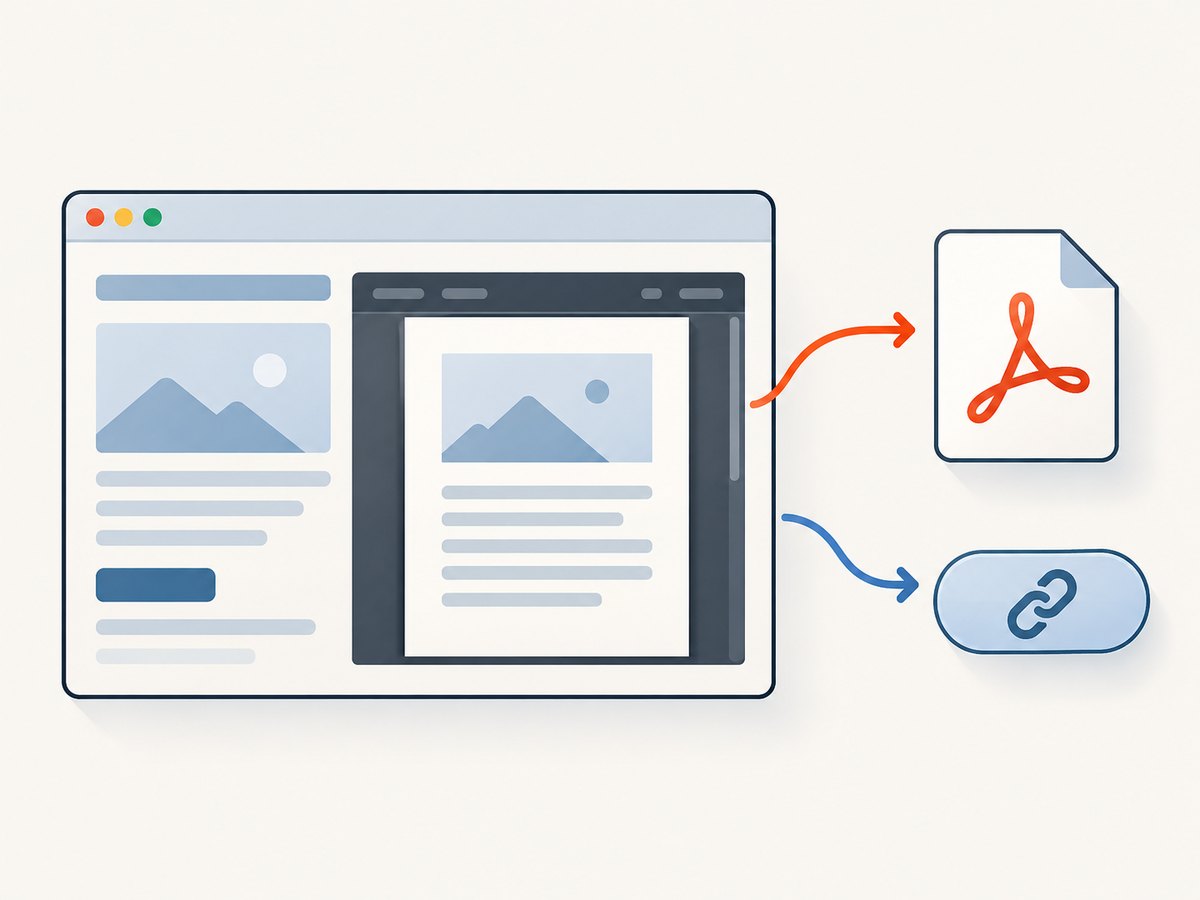
Step 2: Add the object and both access paths
The outside link is available even when the embed itself fails. The nested link is the fallback content for a browser that does not render the external resource. Use meaningful link text rather than “click here.”
Step 3: Size the viewer for its context
HTML width and height attributes can define the initial viewer box. For a fluid width and a consistent minimum height, CSS is often more convenient:
<style>
  .pdf-frame {
    display: block;
    width: 100%;
    height: min(80vh, 900px);
    min-height: 480px;
    border: 1px solid #c8cdd3;
  }
</style>

<object class="pdf-frame"
        data="/files/annual-report.pdf"
        type="application/pdf"
        aria-label="Annual report PDF preview">
  <p>Your browser cannot show this PDF inline.
    <a href="/files/annual-report.pdf">Open the report</a>.
  </p>
</object>
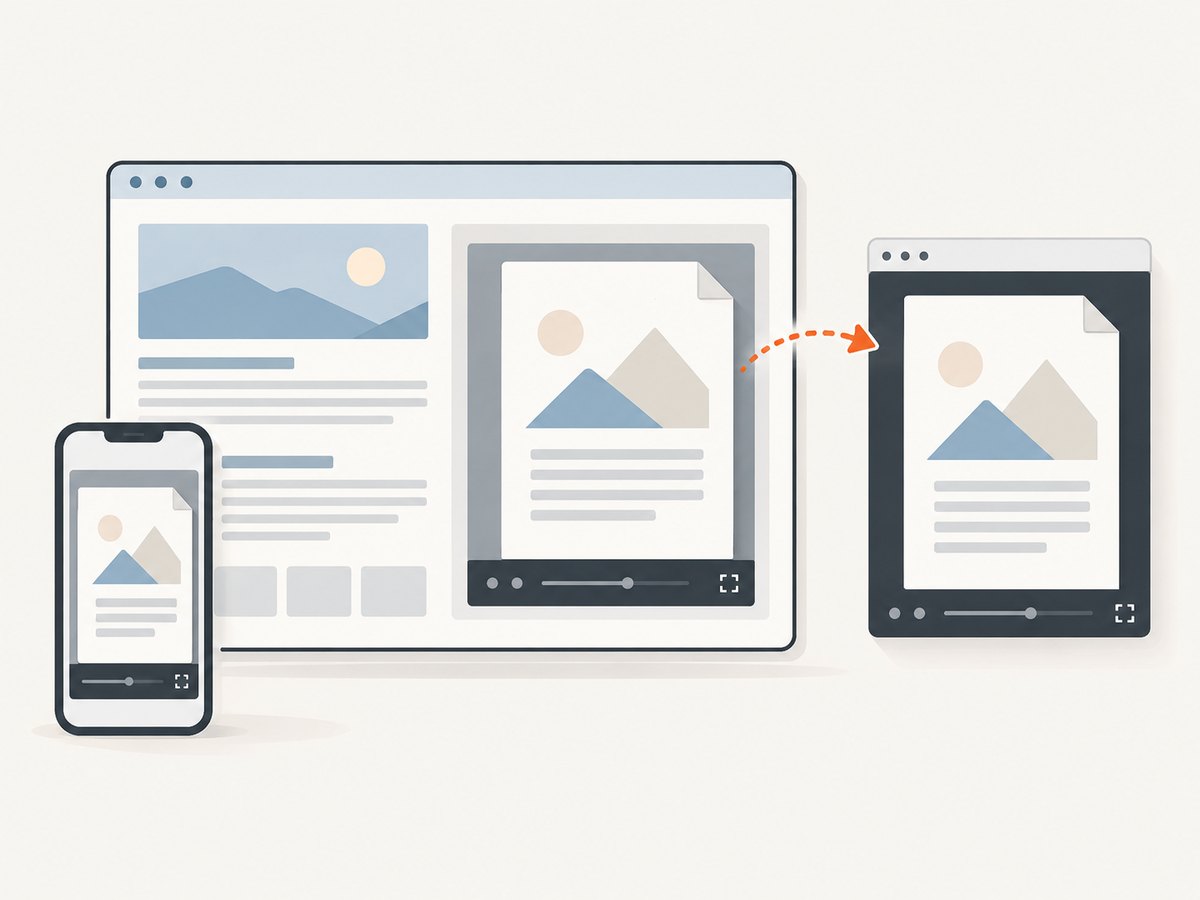
The min() sizing shown is CSS, not a PDF-specific control. Pick dimensions that fit the surrounding layout and test the page at narrow widths. A fixed tall preview can consume much of a phone screen, while a short preview can make scrolling a long document awkward.
Step 4: Keep the direct PDF link visible
Small screens can make PDF previews difficult to read. The embedded viewer is a convenience; a visible link lets a reader open the document in a full viewer or use the device’s available PDF handling. MDN’s embedding guidance discusses this limitation and recommends preserving direct access. See MDN’s guide to embedding technologies.
3. Fallback content and accessible access
The content between <object> and </object> is fallback markup. It is used when the external resource cannot be displayed. Include a sentence explaining what is unavailable and a link to the same PDF. Avoid relying on fallback alone: a native viewer may load and then encounter a document-level problem, and in that case the fallback may not replace the viewer. Keep the outside link as well.
Give the section a heading and explain what the file contains. Make the PDF link understandable out of context, such as “Download the 2025 product guide (PDF).” If the PDF is essential, ensure its content is accessible in the document itself or provide an equivalent accessible version. An embedded preview does not make the PDF’s text accessible to every visitor or device.
An aria-label can describe the embedded resource where supported, but it does not replace a heading, explanatory text, or a direct link. Avoid describing the object as a complete accessible alternative to the PDF.
4. Object vs iframe vs embed
All three elements can be involved in embedding external content, but they differ in fallback behavior and controls. For a PDF, choose according to the behavior the page needs:
| Element | Fallback HTML | Useful controls | Good fit |
|---|---|---|---|
object |
Yes: nested content can be shown if the resource is unavailable | Object-specific loading controls are limited | A PDF preview where meaningful fallback markup matters |
iframe |
No equivalent nested fallback mechanism for a failed embedded document | Supports controls such as loading="lazy" and referrerpolicy |
A preview where iframe loading or referrer controls are important |
embed |
No fallback content inside the element | Few advantages for this fallback-focused use case | Cases where fallback markup is not required |
MDN’s general guidance says an iframe should generally be the first choice when its loading and referrer controls are needed; use object when fallback HTML is the key requirement. The embed element has no fallback content. For the decision details, see MDN’s comparison of embedding technologies.
These elements also interact with different Content Security Policy directives. An object load is governed by object-src; an iframe is governed by frame-src (or applicable fallback directives in the policy). Make sure the PDF host is permitted by the directive for the element you chose.
5. Content Security Policy and PDF hosting
A restrictive Content Security Policy can block the PDF even when the URL works when opened directly. Check the page’s response headers or meta policy for object-src. If the policy disallows the PDF’s origin, the object will not load. Allow only the source your page needs, following your site’s security policy; do not broadly relax policy just to silence a console message.
Also verify how the PDF is served. The URL should return the intended file, and its response should identify the content as a PDF, commonly with Content-Type: application/pdf. If the server redirects to a login page, returns an HTML error, or requires credentials unavailable to the embedded request, the viewer cannot display the expected document. Inspect the actual response in the browser’s network tools.
6. Troubleshooting common failures
| Symptom | Likely cause | What to check or change |
|---|---|---|
| Blank space where the PDF should be | The box has no useful height, the URL is wrong, or the browser cannot render the resource | Set an explicit height; open the exact data URL directly; inspect the network response and console. |
| Fallback paragraph does not appear | The browser created a viewer for the resource, even though the document later failed to display | Keep a normal link outside the object so users have another route. |
| Console reports a CSP violation | The policy’s object-src does not permit the PDF origin |
Update the policy to allow the intended origin, consistent with the site’s security rules. |
| The PDF URL shows an HTML page or login | The URL redirects, authentication is required, or the server returned an error page | Check redirects, status, response content type, and access requirements. Use a URL that the visitor can access. |
| Works on desktop but not on a phone | Native PDF support and available screen space vary by device | Keep the direct link prominent and test a narrow layout; let the reader open the file in a full viewer. |
| The preview is clipped or hard to navigate | The object box is too short, too narrow, or constrained by its parent layout | Inspect computed dimensions and parent overflow; adjust responsive CSS and test a long document. |
| PDF link works but object does not | The embedding policy or browser’s PDF handling differs from direct navigation | Check CSP and browser behavior; consider an iframe if its loading controls suit the page, while retaining an outside link. |
Debug the resource and the embedding separately: first confirm the URL returns the expected PDF, then confirm the page allows that origin and gives the viewer enough space. Browser developer tools’ Network and Console panels help distinguish a bad response from a policy block.
7. Performance, reliability, and cost
An object PDF loads an external document, so the browser has to fetch and render that file in addition to the HTML page. Large documents can take longer to transfer and may use substantial memory, especially on mobile devices. Keep PDFs appropriately sized, avoid placing many large previews above the fold, and consider whether a direct link or an iframe with loading="lazy" better fits a page where the preview is below the fold. The object element itself does not provide that iframe loading control.
Reliability depends on file availability, correct response headers, browser PDF support, security policy, and usable dimensions. Retain the link even if the preview usually works, and test the deployed page on representative desktop and mobile browsers. There is no additional service cost inherent in the HTML element; hosting and delivery costs depend on how the PDF is served.
8. Capture an embedded PDF page as an image
If you need a screenshot of a page containing a PDF preview for documentation or a visual check, a browser capture can render the page as a PNG, JPEG, or WebP. The result depends on the target browser’s PDF handling and the page’s load state. For repeatable captures, wait for the document preview to appear and use a viewport large enough to show the portion you need. A screenshot is a visual image, not an accessible replacement for the PDF.
ScreenshotNeo is a website screenshot API and MCP server from Yorker Media. Its API returns PNG, JPEG, WebP, or PDF from a URL; the available capture options include waiting for a selector or delay, full-page capture, and selecting an element. These can help when capturing the HTML page around an embed. Check the ScreenshotNeo API documentation for parameters and response handling.
Or skip the browser setup
Make one GET request with the page URL. This cURL example saves a WebP response; replace the key and target URL:
curl -G "https://api.screenshotneo.com/v1/shot" \
  -d access_key=YOUR_API_KEY \
  --data-urlencode url=https://example.com/report-page \
  -o shot.webp
Cookie banners, popups, and chat widgets are removed before the shot. Bot checks, blank pages, and failed loads are never billed; response headers say which outcome occurred. An MCP server gives AI agents tools to take screenshots, get page information, and capture PDFs. The free plan includes 1,000 screenshots a month with no card; paid plans start at $5 for 3,000. Create a free ScreenshotNeo account.
9. FAQ
Does the object tag convert a PDF into HTML?
No. It embeds the PDF as an external resource, which a browser’s built-in PDF viewer may display inside the page.
Can I put a download link in the object element?
Yes. That link is useful fallback content when the resource cannot be displayed. Also keep a direct link outside the object in case the viewer loads but cannot show the document.
Should I use object or iframe?
Use object when fallback HTML is important. MDN generally favors iframe when controls such as lazy loading or referrer policy are needed.
Why does the preview fail only on the deployed site?
Check the deployed page’s Content Security Policy, the final PDF response after redirects, and whether the file host permits the request. Local development and production may send different policies or use different origins.
Can every mobile visitor read the embedded PDF comfortably?
No. Screen size and native viewer behavior vary. Keep the direct PDF link visible so readers can open it in a full viewer.


