How to Embed a Screenshot in an Email
Learn how to place a screenshot inside Gmail or Outlook, fix attachment and size problems, and automate clean screenshots for email.
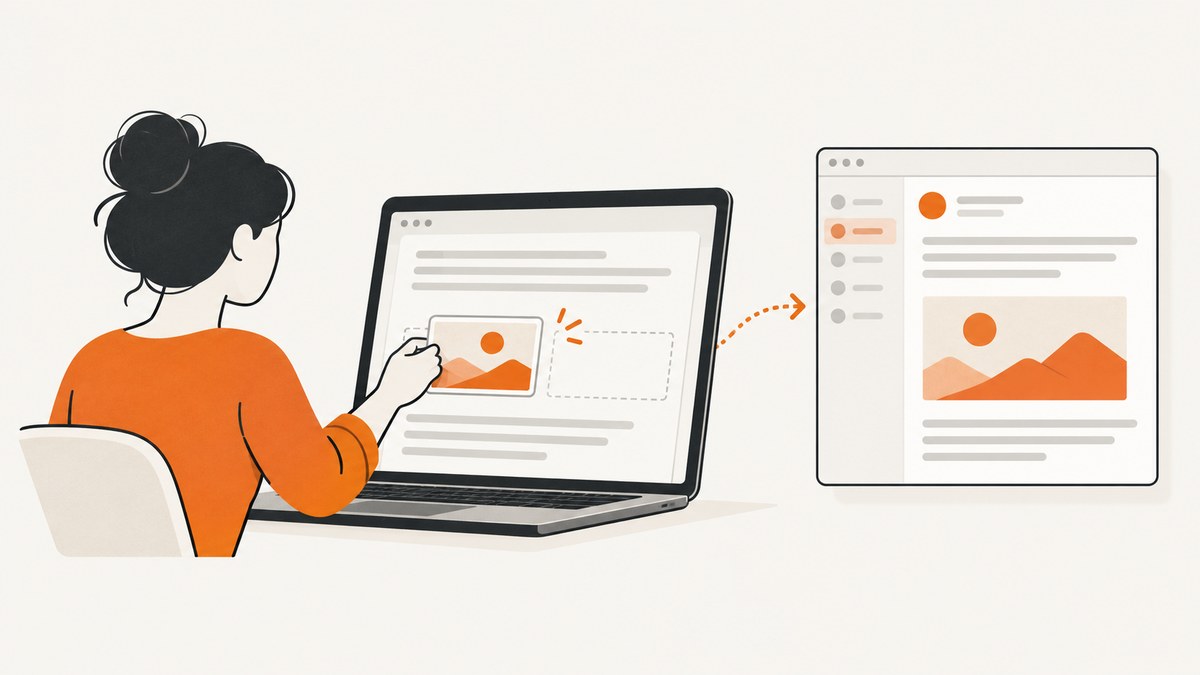
Short answer: click in the email body where the screenshot should appear, then use the client’s Insert picture or Insert photo command. In desktop Gmail, you can also copy the image and paste it into the message; Google documents clipboard-pasted images as inline by default. In Outlook, use Insert > Pictures. An inline screenshot appears in the message at the insertion point; an attachment appears separately for the recipient to open.
The exact labels vary between Gmail, new Outlook, classic Outlook, Outlook on the web, and mobile apps. The reliable test is visual: after insertion, the image should sit among your paragraphs at the cursor position. If it appears in an attachments area instead, remove it and insert it again from the body cursor.
Inline image versus attachment
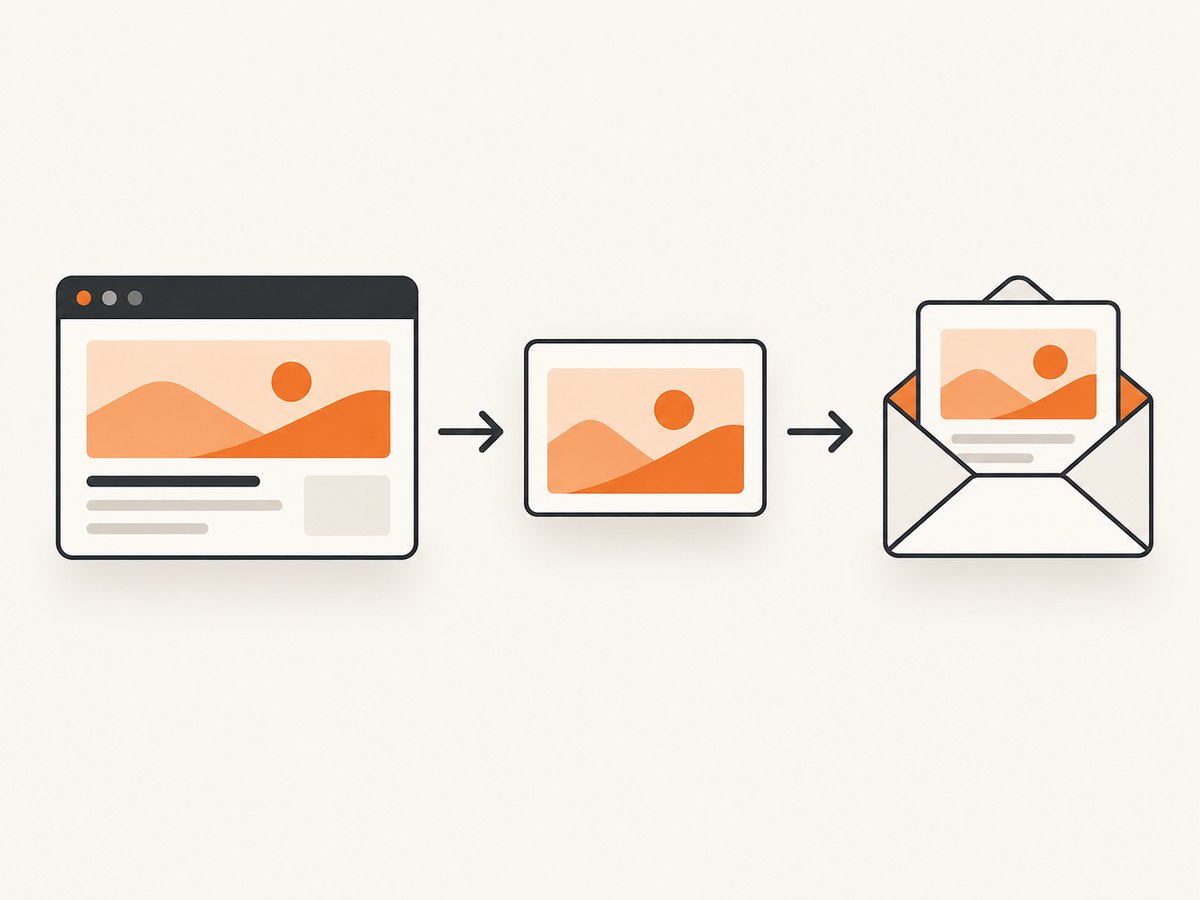
An inline screenshot is part of the message body. The reader sees it while reading the surrounding explanation, and you control where it appears. A regular attachment is a separate file listed with the message; the reader must open it or download it.
| Method | Reader experience | Best for | Watch for |
|---|---|---|---|
| Inline image | Visible in the message body | Bug reports, walkthroughs, visual instructions | Large images increase message size |
| File attachment | Opened separately | Original-resolution evidence or archival files | Easy to miss; may exceed size limits |
| Cloud link | Opens in a browser or storage app | Very large files or shared folders | Recipients need permission |
For Gmail’s account limits and Drive-link behavior, consult Google Gmail Help. Microsoft documents inline picture insertion in its Outlook Help documentation.
Embed a screenshot in Gmail on a computer
- Open Gmail and start a new message or reply.
- Click in the message body exactly where the screenshot should appear.
- Use Gmail’s image insertion control to choose the screenshot from your computer. Alternatively, copy the screenshot and paste it with
Ctrl+Von Windows orCommand+Von macOS. - Wait for the image preview to finish loading, then continue typing before or after it.
- Resize it only when necessary. Drag a corner rather than a side so the screenshot keeps its proportions.
- Send yourself a test message if the position or size matters. Different recipient apps can wrap images differently.
Google’s accessibility guidance describes a copied image pasted into the body as inline by default. If your pasted image becomes an attachment, undo it, click the body again, and use the image insertion control instead of dragging the file onto the composer.
Add useful alt text in Gmail
Alt text helps recipients who use screen readers and gives context when images are unavailable. Select the inline image, open its image options, and enter a short description such as “Checkout page showing the validation error below the postal-code field.” Do not paste a long transcript into alt text; put detailed explanation in the surrounding message.
Embed a screenshot in Outlook
- Create a new message or reply and click in the body at the intended location.
- Choose Insert > Pictures. Depending on your Outlook version, the command may be labelled Pictures, Insert pictures, or appear in an attachment and insertion toolbar.
- Select the screenshot file and insert it.
- Use a corner handle to resize it if needed.
- Place a sentence before and after the image so the recipient understands what the screenshot demonstrates.
New Outlook, classic Outlook, and Outlook on the web use different menus, but they all distinguish an image inserted into the message body from an ordinary file attachment. If the image appears only in the attachment strip, delete it and repeat the steps with the cursor inside the body.
Embed a screenshot in Gmail on iPhone or iPad
- Start a message or reply in the Gmail app.
- Tap the attachment or photo control and select one image.
- Gmail iOS inserts a single selected photo into the message text by default.
- To turn it into an attachment, tap the image and choose Send as attachment.
When you select multiple photos, Gmail initially adds them as attachments. Tap an individual image and choose Send inline when it needs to appear in the body. If the app offers different wording in your version, look for the inline/attachment choice in the image’s action menu.
Prepare the screenshot before inserting it
- Crop to the decision: remove unrelated browser tabs, personal data, and empty margins.
- Keep readable dimensions: a screenshot that is too wide may be scaled down by the email client. For a desktop page, capture the important region or provide a link to the full-size original.
- Use PNG for text and interface details: PNG usually preserves sharp edges. JPEG can be smaller for photographs. WebP may be efficient, but some older mail workflows handle PNG and JPEG more predictably.
- Redact secrets: hide API keys, session cookies, customer information, and internal URLs before sending.
- Name the file clearly: names such as
checkout-error-2026-09-29.pnghelp when the recipient downloads it.
HTML email: embed an image with Content-ID
When an application generates HTML email, an inline image is commonly represented by an HTML img element whose src points to a Content-ID, such as cid:screenshot-1. The MIME message must include a related image part with the matching Content-ID. Microsoft documents this pattern for Outlook add-ins.
<html>
  <body>
    <p>The validation error appears here:</p>
    <img src="cid:screenshot-1" alt="Checkout form showing a postal-code validation error">
  </body>
</html>
The HTML alone does not embed a file. Your mail-sending library must create a multipart/related message, attach the image, and assign the same Content-ID. Use your provider’s MIME or inline-attachment API rather than converting a local file path directly into the src attribute.
Large screenshots and cloud links
Personal Gmail accounts have a 25 MB total attachment limit. When a message exceeds the limit, Gmail may replace an eligible attachment with a Google Drive link. Workspace administrators can set different limits. A Drive link is only useful if the recipient has access, so check the sharing permission before sending.
A practical pattern is to embed a reduced, readable screenshot and add a link to the original file. State what the link contains and whether it requires a company account. Do not send a link that exposes an entire private folder when the recipient needs one image.
Remote images and email-client behavior
An HTML email can reference an image hosted at an HTTPS URL, but the recipient’s client may block or defer external images. Gmail normally displays images automatically, yet it can ask before loading images for suspicious messages, and recipients can configure Gmail to ask every time. For a one-off screenshot, inserting the image through the mail composer avoids depending on a remote URL.
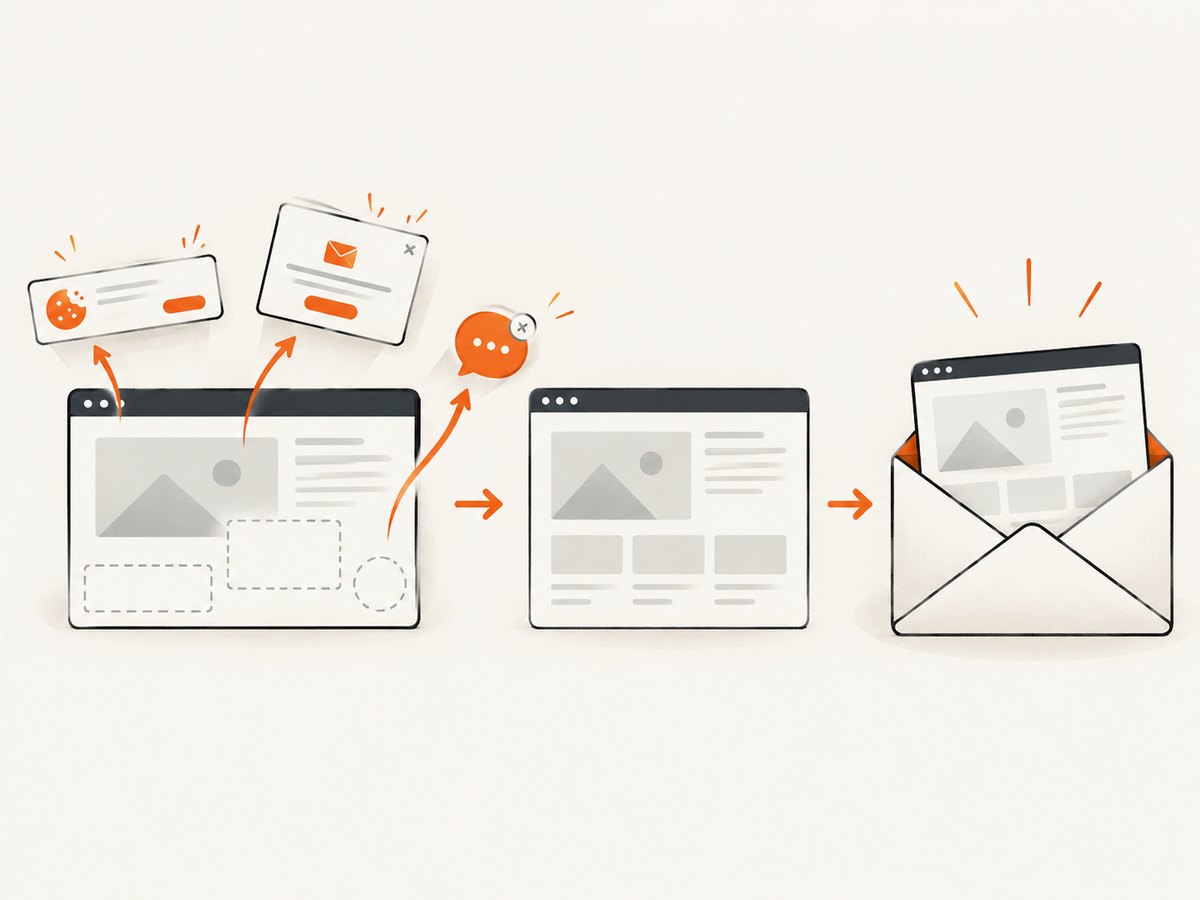
Remote images also create availability and privacy dependencies: the host must remain reachable, the URL must not expire, and some mail systems may proxy the request. Use a Content-ID inline image or a local insertion when the screenshot must remain visible after sending.
Or skip the browser setup
If you are collecting screenshots for email automatically, ScreenshotNeo returns a screenshot or PDF from one GET request. It can capture a full page, a CSS-selected element, a chosen viewport, dark mode, retina output, custom CSS and JavaScript, or a PDF with paper and margin settings. See the ScreenshotNeo API documentation for the complete option list.
curl -G "https://api.screenshotneo.com/v1/shot" -d access_key=YOUR_API_KEY --data-urlencode url=https://stripe.com -o shot.webpimport requests
r = requests.get("https://api.screenshotneo.com/v1/shot", params={"access_key": "YOUR_API_KEY", "url": "https://stripe.com"}, timeout=90)
open("shot.webp", "wb").write(r.content)const q = new URLSearchParams({ access_key: 'YOUR_API_KEY', url: 'https://stripe.com' });
const res = await fetch(`https://api.screenshotneo.com/v1/shot?${q}`);Before capture, ScreenshotNeo accepts cookie and consent banners like a visitor and removes more than 60 known consent platforms, newsletter popups, and chat widgets. Each step can be disabled. Bot checks and CAPTCHAs, blank pages, timeouts, failed loads, and cache hits are not billed; the response identifies the result with X-Page-Verdict and X-Billed headers. Its MCP server provides take_screenshot, get_page_info, and capture_pdf tools for Claude, Cursor, and other MCP clients.
The free plan includes 1,000 screenshots per month with no card. Paid plans start at $5 for 3,000 screenshots; every feature is available on every plan. Create a free ScreenshotNeo account.
Troubleshooting
The screenshot appears as an attachment
Cause: the file was added through an attachment button or dropped outside the body. Fix: delete it, click at the exact insertion point, and use Insert picture/photo. On Gmail iOS, choose Send inline for the image.
The image is in the wrong place
Cause: the cursor moved while the upload was processing. Fix: click between the intended paragraphs before inserting, then type a short line after the image to confirm the insertion point.
The email is rejected for size
Cause: the message and attachments exceed the account or organization limit. Fix: resize or recompress the screenshot, include a smaller inline preview, and link to an access-controlled original.
The recipient sees a blank image
Cause: an external image was blocked, the URL expired, or a proxy could not fetch it. Fix: insert the local file inline or attach it with a Content-ID in generated HTML.
Text in the screenshot is unreadable
Cause: the client scaled a wide image down. Fix: crop to the relevant area, capture at a suitable viewport, or provide a full-size link alongside the inline version.
The automated capture shows a cookie banner or popup
Cause: a browser script captured before the page became usable. Fix: wait for a selector, delay, or network idle; hide selectors; or use ScreenshotNeo’s consent and popup removal before inserting the resulting image.
Performance, reliability, and cost considerations
- Email size: inline images travel with the message, so every recipient receives the bytes. Keep previews compact and link to originals.
- Rendering: test in the client your audience uses. Image scaling, dark mode, and remote-image policies vary.
- Automation: use a deterministic viewport, wait condition, and cache TTL when repeated URLs should produce consistent images.
- Failure handling: check the HTTP status and preserve the returned verdict headers. With ScreenshotNeo, failed loads, blank pages, bot checks, timeouts, and cache hits are not billed.
- Volume: bulk capture supports up to 100 URLs per call, async jobs support signed webhooks, and the usage API helps reconcile consumption.
- Authentication: keep the access key server-side. Do not place it in a public email link, browser JavaScript bundle, or screenshot.
Checklist before you send
- The image is visible at the intended point in the body.
- Private data and credentials are redacted.
- Alt text explains the screenshot’s purpose.
- The image remains readable at the recipient’s likely window width.
- Large originals use a link with verified permissions.
- You sent a test message when layout is important.
FAQ
Can I paste a screenshot directly into Gmail?
Yes. On desktop Gmail, copy the image, click in the message body, and paste it. Google documents pasted clipboard images as inline by default.
Does inline mean the image is public?
No. An inline image is included in the message or its MIME parts. It is different from an externally hosted image URL, although recipients may forward or download it.
Should I use PNG or JPEG?
Use PNG for interface text and diagrams; use JPEG when photographic content compresses substantially better. Choose the format that keeps the screenshot readable at an acceptable size.
Can an email show a full webpage screenshot?
Yes, but a very tall image is difficult to read in a message. Use a focused crop inline and provide the complete capture as a link or separate file.
How do I automate screenshots for a newsletter or report?
Generate the image before sending, attach it as an inline MIME part with a Content-ID, and reference that ID in the HTML. ScreenshotNeo can produce the capture through its API, async jobs, bulk endpoint, or MCP tools.


