How to Embed Screenshots in JSON or HTML Reports
Learn when to use base64 or URLs for screenshots in JSON and HTML reports, with working code, sizing, security, and automation guidance.

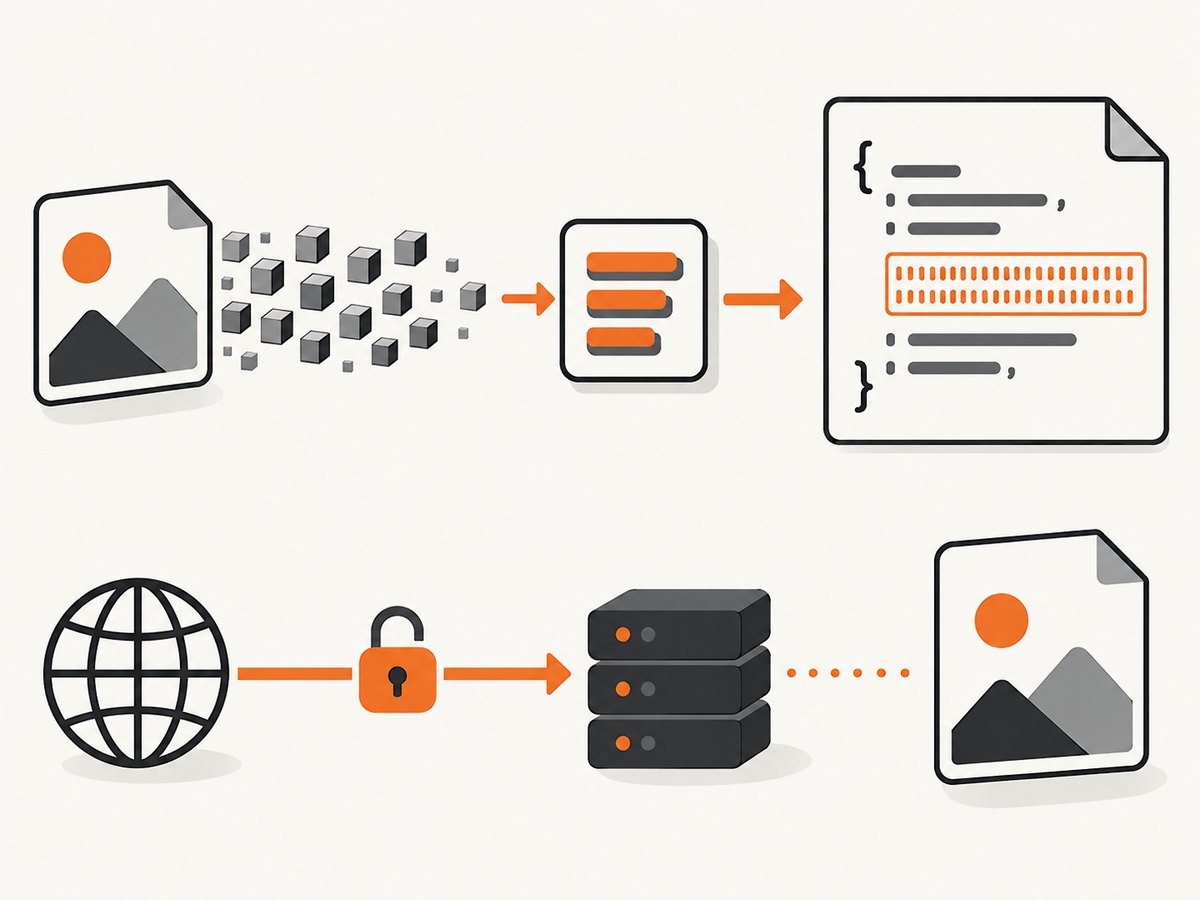
Use base64 when the report must carry the image bytes with it. Use an HTTPS URL when the image is large, reused, or stored separately. JSON does not render images by itself: it carries either encoded bytes or a reference that your application must decode or fetch.
For HTML, use an <img> element with either a data:image/...;base64,... source or an HTTPS image URL. The right choice depends on portability, payload limits, access control, and how long the report must remain readable.
1. Choose base64 or a URL
| Approach | Advantages | Costs and failure modes | Best fit |
|---|---|---|---|
| Base64 in JSON | Image travels with the record; no separate image fetch | Larger payload and storage; parsers or request limits may reject it | Small, self-contained attachments |
data: URL in HTML |
Standalone HTML can contain its image bytes | Document becomes larger; malformed media type or base64 breaks rendering | Portable single-file reports with small images |
| HTTPS URL | Small JSON/HTML; easy to reuse and cache | Reader needs network access and authorization; retention must be managed | Large images and hosted report systems |
| MHTML or product-specific embedding | Packages HTML and resources together | Depends on the report generator and viewer | Systems that explicitly support packaged reports |
There is no universal data-URL size limit. MDN currently reports browser limits of 512 MB for Chromium and Firefox and 2048 MB for Safari/WebKit, but those figures do not define limits for your API, JSON parser, database, object store, or report viewer. Check every limit in the delivery path. MDN’s data URL reference documents the syntax and browser behavior.
2. Embed a screenshot in JSON as base64
A JSON object should preserve both the encoded bytes and the media type. Property names are yours to design; the important parts are the unmodified base64 string and an accurate MIME type.
{
  "screenshots": [
    {
      "name": "checkout-error",
      "mimeType": "image/png",
      "data": "iVBORw0KGgo..."
    }
  ]
}
Generate the object in Python
import base64
import json
from pathlib import Path

path = Path("checkout-error.png")
encoded = base64.b64encode(path.read_bytes()).decode("ascii")
report = {
    "screenshots": [{
        "name": path.stem,
        "mimeType": "image/png",
        "data": encoded,
    }]
}

Path("report.json").write_text(json.dumps(report), encoding="utf-8")
Decode it safely
import base64
import json
from pathlib import Path

report = json.loads(Path("report.json").read_text(encoding="utf-8"))
item = report["screenshots"][0]
if item["mimeType"] not in {"image/png", "image/jpeg", "image/webp"}:
    raise ValueError("Unsupported image type")
Path("restored-image").write_bytes(base64.b64decode(item["data"], validate=True))
Keep the encoded value as text. Do not insert binary bytes directly into JSON, and do not silently change the MIME type during decoding.
3. Embed a screenshot in JSON by URL
{
  "screenshots": [
    {
      "name": "checkout-error",
      "mimeType": "image/png",
      "url": "https://reports.example.test/screenshots/checkout-error.png"
    }
  ]
}
The host in this example is illustrative. Use an HTTPS location controlled by your report workflow. Set retention, permissions, and cache headers deliberately. A URL that expires or requires credentials the viewer cannot provide is equivalent to a missing image.
4. Display base64 in an HTML report
The general form is data:image/png;base64,<encoded bytes>. The comma separates metadata from the data. Match the media type to the actual file.
<img
  src="data:image/png;base64,iVBORw0KGgo..."
  alt="Checkout error shown after submitting the form"
>
Use meaningful alternative text when the screenshot contains evidence or information. Use alt="" when it is decorative and surrounding text already conveys its meaning.
Build the data URL in Python
import base64
from pathlib import Path

raw = Path("checkout-error.png").read_bytes()
data_url = "data:image/png;base64," + base64.b64encode(raw).decode("ascii")
html = f'''<!doctype html>
<html lang="en">
<meta charset="utf-8">
<title>Checkout report</title>
<img src="{data_url}" alt="Checkout error shown after submitting the form">
'''
Path("report.html").write_text(html, encoding="utf-8")
5. Display a hosted screenshot in HTML
<img
  src="https://reports.example.test/screenshots/checkout-error.png"
  alt="Checkout error shown after submitting the form"
  loading="lazy"
>
Hosted images reduce the HTML size, but the reader must be able to fetch them. Some report products cannot display authenticated external images. Confirm access from the actual viewer, not only from your development browser.
6. Produce a complete report from a screenshot API
A screenshot service can supply the image before your report builder packages it. ScreenshotNeo returns PNG, JPEG, WebP, or PDF from one GET request and supports full-page capture, element capture, custom CSS and JavaScript, waits, headers, cookies, blocking rules, caching, and other capture controls.
Fetch, encode, and write JSON with cURL
curl -G "https://api.screenshotneo.com/v1/shot" -d access_key=YOUR_API_KEY --data-urlencode url=https://stripe.com -o shot.webp
base64 -w 0 shot.webp > shot.base64
python - <<'PY'
import json
from pathlib import Path
report = {
    "screenshots": [{
        "name": "stripe-home",
        "mimeType": "image/webp",
        "data": Path("shot.base64").read_text().strip()
    }]
}
Path("report.json").write_text(json.dumps(report), encoding="utf-8")
PY
Python
import base64
import json
import requests

r = requests.get("https://api.screenshotneo.com/v1/shot", params={"access_key": "YOUR_API_KEY", "url": "https://stripe.com"}, timeout=90)
r.raise_for_status()
mime = r.headers.get("Content-Type", "image/webp").split(";", 1)[0]
report = {"screenshots": [{"name": "stripe-home", "mimeType": mime, "data": base64.b64encode(r.content).decode("ascii")}]}
with open("report.json", "w", encoding="utf-8") as f:
    json.dump(report, f)
See the ScreenshotNeo documentation for request options and response details.
Node.js
import { writeFile } from "node:fs/promises";

const q = new URLSearchParams({ access_key: 'YOUR_API_KEY', url: 'https://stripe.com' });
const res = await fetch(`https://api.screenshotneo.com/v1/shot?${q}`);
if (!res.ok) throw new Error(`Screenshot request failed: ${res.status}`);
const mimeType = (res.headers.get("content-type") || "image/webp").split(";", 1)[0];
const bytes = Buffer.from(await res.arrayBuffer());
const report = { screenshots: [{ name: "stripe-home", mimeType, data: bytes.toString("base64") }] };
await writeFile("report.json", JSON.stringify(report));
7. Keep reports usable at scale
Payload and storage
- Inline data makes the report self-contained but increases JSON or HTML size. Large reports can hit request, database, queue, or attachment limits before a browser processes them.
- Use a URL for large or repeated images, and define object retention so links remain valid for the report’s lifetime.
- Do not assume a browser’s data-URL limit is an API limit. An upstream service may reject the request with HTTP 413 or a smaller configured threshold.
Access and security
- Use HTTPS for external image URLs.
- Decide whether screenshots are public, signed, or authenticated. Public URLs can expose sensitive pages; authenticated URLs may fail in viewers without credential support.
- Escape generated HTML and sanitize untrusted content. An image embedding feature does not make arbitrary HTML safe.
- Validate MIME types and base64 before decoding. Keep authorization tokens out of report URLs when possible.
Reliability
- For URL references, test from the same network and viewer your readers use.
- For long-lived reports, archive the image alongside the report or use a retention policy that matches the report’s legal and operational needs.
- For automated captures, record the source URL, capture time, MIME type, and failure status next to each image.
8. Troubleshooting
| Symptom | Likely cause | Fix |
|---|---|---|
| Broken image icon for a data URL | Wrong MIME type, missing comma, corrupted base64, or inserted whitespace | Use data:image/png;base64,, validate with a strict decoder, and preserve the encoded string exactly |
| JSON parser error | Binary bytes or unescaped characters were inserted directly | Base64-encode bytes and serialize with a JSON library |
| Report is rejected as too large | Inline images exceed an API, proxy, queue, or storage limit | Use an HTTPS URL, resize the image, or split the report |
| HTML works locally but not in the report viewer | Viewer blocks external requests or cannot authenticate | Use inline data, a supported packaged format, or an accessible signed URL |
| Image URL returns 403 or 404 | Permission, expiration, or retention problem | Check viewer credentials, URL lifetime, and object policy |
| Screenshot shows a cookie banner or popup | The capture happened before page cleanup | Use a capture workflow that accepts consent and removes overlays, or hide known selectors before capture |
9. Or skip the browser setup
ScreenshotNeo handles the capture before your report code receives the image:

curl -G "https://api.screenshotneo.com/v1/shot" -d access_key=YOUR_API_KEY --data-urlencode url=https://stripe.com -o shot.webpCookie banners, newsletter popups, and chat widgets are removed before the shot. Bot checks, blank pages, failed loads, timeouts, and cache hits are not billed, and response headers identify the page verdict and billing status. Its MCP server lets Claude, Cursor, and other MCP clients take screenshots. The free plan includes 1,000 screenshots a month with no card; paid plans start at $5 for 3,000 shots. Create a free ScreenshotNeo account.
10. FAQ
Should I put a screenshot in JSON as base64 or use a URL?
Use base64 for small, self-contained records. Use a URL when the image is large, shared, or managed independently, provided readers can access it for the report’s entire lifetime.
Can JSON display an image?
No. JSON stores text. Your application must decode base64 or fetch the URL, then render the resulting bytes.
Does base64 make an image smaller?
No. It turns binary bytes into text and makes the containing report larger. Measure your complete JSON or HTML envelope when limits matter.
Can I use JPEG or WebP in a data URL?
Yes. Use the matching media type, such as image/jpeg or image/webp, and ensure the bytes really are that format.
When is a single-file report worth the larger payload?
When recipients need an artifact that works without network access and the embedded images fit within the pipeline’s limits.


