How to Embed SVG Images in PDFs with WickedPDF and wkhtmltopdf
Fix missing SVGs in WickedPDF PDFs by checking asset URLs, local-file permissions, renderer limits, and reliable fallbacks.
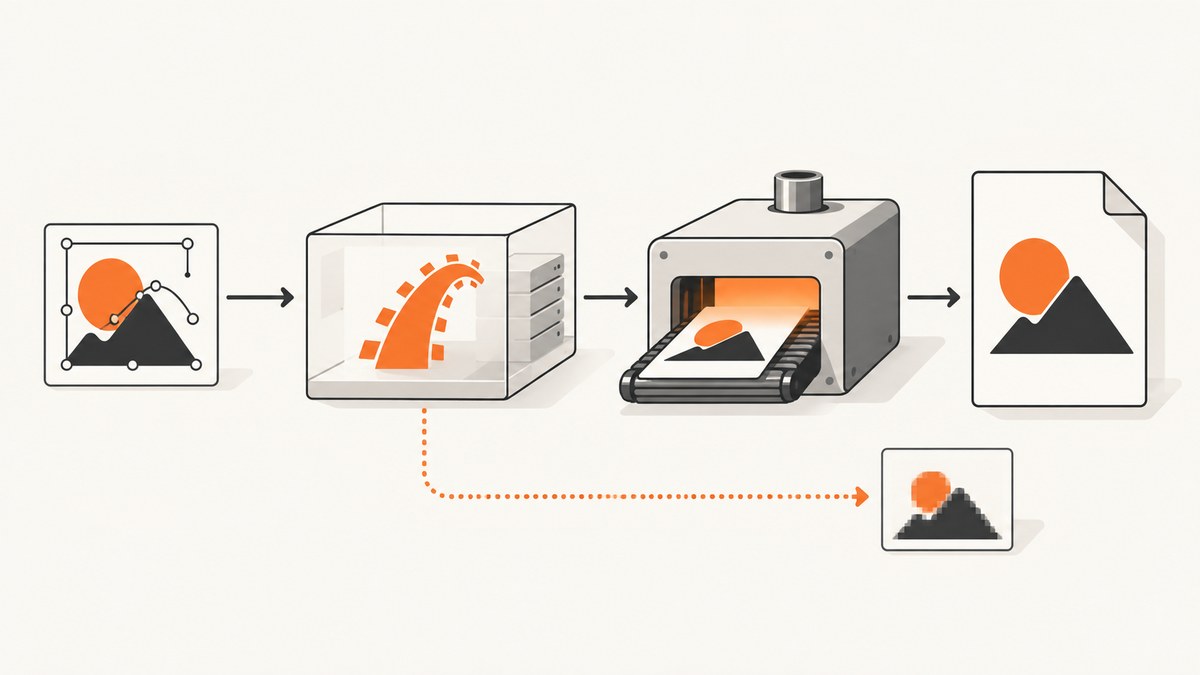
Direct answer: WickedPDF delegates PDF creation to the wkhtmltopdf executable. An SVG appears in the final PDF only when the conversion process can resolve the Rails asset and the installed Qt WebKit renderer supports the SVG features you use. Use a WickedPDF image or asset helper (or an absolute URL/path), precompile PDF assets, verify the deployed executable and version, and check local-file permissions. Then test the exact SVG in the deployed environment. If a complex SVG still fails, rasterize that asset to PNG or evaluate another rendering engine.
WickedPDF is a Rails wrapper; wkhtmltopdf performs the HTML-to-PDF conversion. The converter runs outside the normal browser request, so a logo that works in your browser can still be unavailable to the PDF process. The WickedPDF README documents the wrapper, asset helpers, and configuration, while the wkhtmltopdf manual documents image and local-file options.
1. How the SVG-to-PDF path works
The path has four separate stages:
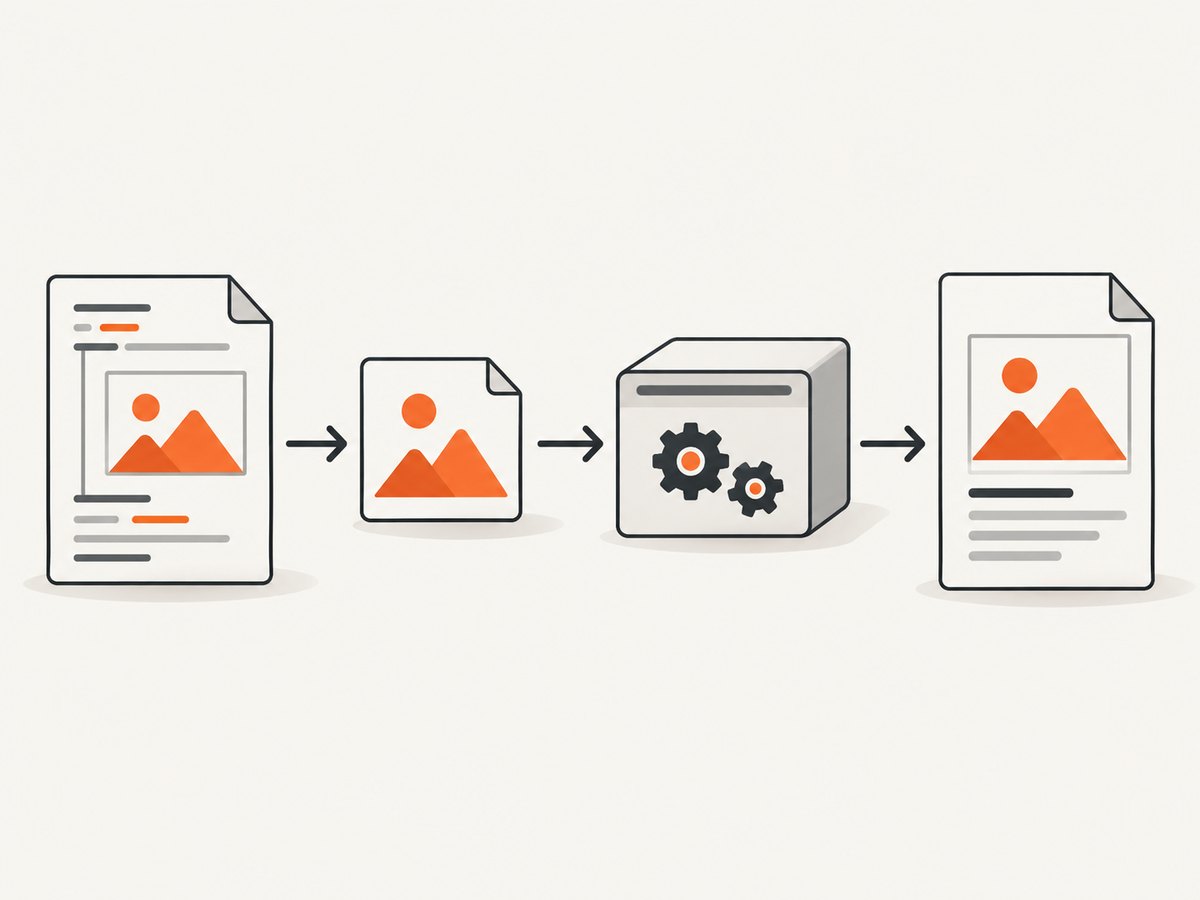
- Rails renders your view and produces HTML containing an
<img>, inline SVG, CSS background, or another reference. - WickedPDF invokes the configured
wkhtmltopdfbinary. - The binary loads the HTML and fetches referenced assets using its own process, network context, filesystem permissions, and rendering engine.
- Qt WebKit paints the result into a PDF.
Failures at any stage look similar in the output: a blank area, a broken-image icon, a distorted illustration, or a PDF that is created without the artwork. Diagnose the stages separately instead of changing SVG markup at random.
2. A minimal Rails implementation
Start with a simple SVG file that has explicit dimensions and a viewBox. Keep it free of external fonts, CSS, filters, and nested images while you establish the asset path.
# app/views/invoices/show.pdf.erb
<h1>Invoice <%= @invoice.number %></h1>

<%= wicked_pdf_image_tag('brand-mark.svg',
      width: 180,
      height: 48,
      alt: 'Company mark') %>

<p>Thank you for your business.</p>
If your application uses a different helper setup, generate a fully resolvable URL or path instead:
<img src="<%= asset_url('brand-mark.svg') %>"
     width="180" height="48" alt="Company mark">
Use the helper recommended by your WickedPDF version. The important property is that the resulting reference is valid from the process running wkhtmltopdf, not merely from a browser tab.
Render the PDF from a controller
def show
  @invoice = Invoice.find(params[:id])

  respond_to do |format|
    format.html
    format.pdf do
      render pdf: "invoice-#{@invoice.number}",
             template: 'invoices/show',
             layout: 'pdf'
    end
  end
end
Keep PDF-specific CSS and assets in locations that your deployment precompiles. WickedPDF’s documentation recommends precompiling assets used by PDF views and using its helpers or absolute references.
3. Make Rails assets reachable
Use a production-safe asset reference
PDF conversion commonly runs in a worker, a container, or a web process with a different current directory. Relative references such as ../images/logo.svg are fragile. Prefer a helper that emits the correct asset URL or an absolute filesystem path that exists in the converter’s environment.
# config/environments/production.rb
Rails.application.configure do
  config.assets.compile = false
  config.assets.precompile += %w[brand-mark.svg pdf.css]
end
The exact asset-pipeline setting depends on your Rails version. Confirm that the compiled file exists after deployment and that its fingerprinted name matches the generated HTML.
Inspect the generated HTML
Save the HTML that is passed to the converter, or log the final image URL in a non-production diagnostic request. Check:
- Does the URL include the correct host, scheme, and asset fingerprint?
- Does a request from the production machine return
200with an SVG content type? - Does the SVG itself reference fonts, images, stylesheets, or masks using relative paths?
- Does the converter have DNS, proxy, and TLS access to that host?
A browser success proves only that the browser can fetch the asset with its cookies and network settings. It does not prove that wkhtmltopdf can.
4. Local files and wkhtmltopdf options
The wkhtmltopdf manual documents local-file controls. Local-file access is restricted by default in the documented behavior; --allow <path> grants access to a specified path. The wrapper exposes corresponding configuration fields, but the effective behavior still comes from the installed binary.
# config/initializers/wicked_pdf.rb
WickedPdf.configure do |config|
  config.exe_path = ENV.fetch('WKHTMLTOPDF_PATH', '/usr/local/bin/wkhtmltopdf')
  config.enable_local_file_access = true
  config.allow = ['/app/public/assets']
end
Use the option names supported by your WickedPDF release. Allow the narrow directory containing the intended assets. Do not grant broad filesystem access as a generic SVG fix. If your SVG links to a local raster image, font, or stylesheet, either package those resources into a reachable public path or explicitly allow the required directory.
Equivalent command-line diagnostic
wkhtmltopdf \
  --enable-local-file-access \
  --allow /app/public/assets \
  /tmp/invoice.html \
  /tmp/invoice.pdf
Run this command as the same operating-system user and from the same container or host as the application. If it fails there, changing Rails view code will not fix the underlying permission or binary problem.
5. Build an SVG that older renderers can handle
Use explicit sizing while diagnosing:
<svg xmlns="http://www.w3.org/2000/svg"
     width="180" height="48" viewBox="0 0 180 48"
     role="img" aria-labelledby="title">
  <title id="title">Company mark</title>
  <rect width="180" height="48" fill="#20252b"/>
  <circle cx="24" cy="24" r="12" fill="#52b788"/>
  <path d="M48 14h112v20H48z" fill="#fff"/>
</svg>
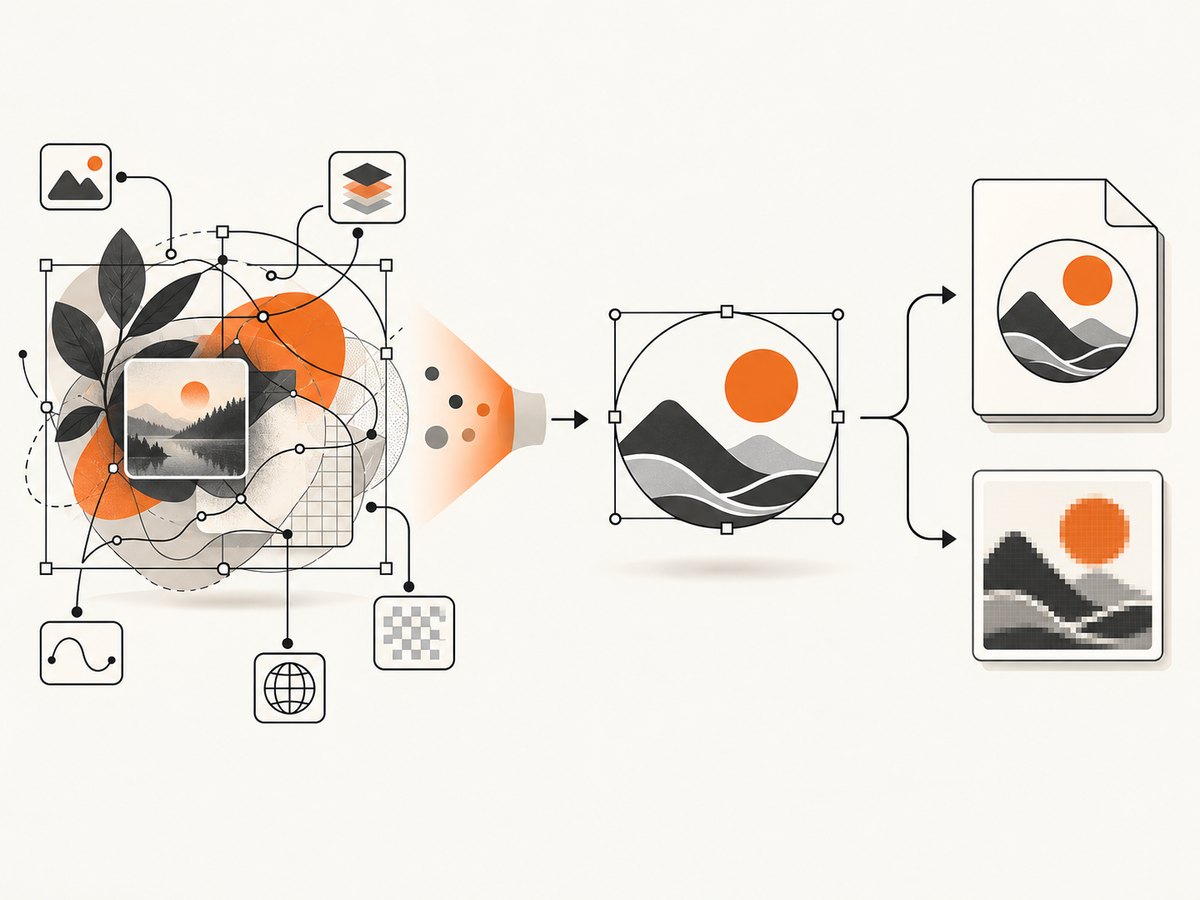
Then add complexity one feature at a time. Test nested raster images, external references, CSS, fonts, filters, masks, and clipping independently. SVG 2 defines sizing and embedded-resource behavior, but that standard does not establish that every legacy Qt WebKit build implements every feature. A documented 2016 issue reported a JPEG embedded inside an SVG failing with wkhtmltopdf 0.12.3 patched Qt. Treat it as a warning about nested resources, not as a current compatibility matrix.
6. Complete diagnostic sequence
- Identify the executable. Run
which wkhtmltopdfandwkhtmltopdf --versionin the deployed environment. Confirm that development and production are not silently using different builds. - Check the binary path. Compare it with
WickedPdf.configureor your initializer. A missing or unexpected binary can produce confusing output. - Capture the final HTML. Inspect the exact
src, CSS, and SVG references generated for the PDF. - Fetch every resource from the converter environment. Use
curl -Ifor HTTP URLs andls -lfor local files. Check permissions as the application user. - Try a minimal SVG. Use explicit
width,height, andviewBox; remove nested images and external references. - Reintroduce features incrementally. The first addition that breaks output identifies the feature or resource to replace.
- Test the exact deployed build. Package version, patched Qt build, operating system, fonts, and sandboxing can change results.
- Select a fallback. Rasterize only the troublesome asset, or compare another rendering engine against your actual SVG and deployment requirements.
7. Common errors and fixes
| Symptom | Likely cause | Fix |
|---|---|---|
| SVG area is blank | URL or local path cannot be resolved | Inspect generated HTML, use a WickedPDF helper or absolute reference, and fetch the asset from the converter host. |
| Works in development only | Production asset not precompiled or host differs | Precompile PDF assets, verify fingerprinted names, and configure the production asset host. |
| Error mentions blocked local file | Local-file access is disabled | Move the asset to a reachable URL or allow only its containing directory with the documented option. |
| Outer SVG renders, embedded image does not | Nested resource or data URI is unsupported by that build | Test a minimal SVG, remove the nested image, or use a PNG fallback for that artwork. |
| Text or layout differs | Missing fonts, CSS, or renderer differences | Make fonts and styles reachable, embed critical dimensions, and test with the production binary. |
| PDF generation times out | Unreachable external resources or slow pages | Remove unnecessary external references, verify network access, and set a timeout appropriate to your job system. |
| Changing Rails code has no effect | A different wkhtmltopdf binary is being invoked | Log the executable path and version and update the configured path. |
8. Choosing a fallback
Rasterizing a troublesome SVG to PNG is often the smallest operational change. Render it at the intended print dimensions and sufficient pixel density, then reference the generated PNG in the PDF view. This avoids depending on a particular SVG feature, but it can increase file size and lose infinite scaling.
Another rendering engine may provide better support for the SVG features you need, but compare it against your real files and deployment constraints. Check fidelity for nested resources, asset resolution, local-file policy, operating-system compatibility, maintenance, licensing, and commercial cost. The research sources do not establish a universal winner or a current head-to-head score.
9. Performance, reliability, and cost notes
- Keep PDF SVGs self-contained where practical. Fewer network and filesystem lookups reduce failure points.
- Precompile and fingerprint assets once during deployment instead of compiling them during a request.
- Reuse a stable renderer image or package so development and production use the same executable and fonts.
- Set conversion timeouts in the job layer and record stderr, executable version, input URL, and output size for diagnosis.
- Cache deterministic PDFs when invoice data and asset versions have not changed.
- Rasterize only assets that need it; converting every SVG can increase storage and CPU use.
- Do not assume a successful exit code means every image rendered. Inspect representative PDFs and, when necessary, verify that expected assets appear.
10. Or skip the browser setup
If your requirement is simply to turn a web page into an image or PDF, ScreenshotNeo provides a hosted screenshot API and MCP server. It accepts one GET request and returns PNG, JPEG, WebP, or PDF. Its capture flow accepts cookie and consent banners, removes more than 60 known consent platforms plus newsletter popups and chat widgets, and lets you turn each step off. Bot checks, blank pages, timeouts, failed loads, and cache hits are not billed; response headers identify the page verdict and billing result.
See the ScreenshotNeo API documentation for all options. A direct call looks like this:
curl -G "https://api.screenshotneo.com/v1/shot" \
  -d access_key=YOUR_API_KEY \
  --data-urlencode url=https://stripe.com \
  -o shot.webp
import requests
r = requests.get(
"https://api.screenshotneo.com/v1/shot",
params={"access_key": "YOUR_API_KEY", "url": "https://stripe.com"},
timeout=90,
)
open("shot.webp", "wb").write(r.content)const q = new URLSearchParams({ access_key: 'YOUR_API_KEY', url: 'https://stripe.com' });
const res = await fetch(`https://api.screenshotneo.com/v1/shot?${q}`);
const data = Buffer.from(await res.arrayBuffer());
await import('node:fs/promises').then(fs => fs.writeFile('shot.webp', data));ScreenshotNeo also supports full-page capture with lazy images loaded, CSS-element capture, dark mode, device presets and custom viewports, retina scale, custom CSS and JavaScript, clicks, waits, request blocking, headers, cookies, user agents, authorization, timezone, geolocation, transparent backgrounds, resizing, selectable cache TTLs, signed links, asynchronous jobs with signed webhooks, bulk capture for up to 100 URLs per call, a usage API, and an OpenAPI specification. Its MCP server exposes take_screenshot, get_page_info, and capture_pdf for Claude, Cursor, and other MCP clients.
There are 1,000 free shots each month with no card. Paid plans start at $5 for 3,000 shots; yearly billing gives two months free, and every feature is available on every plan. Create a free ScreenshotNeo account.
11. FAQ
Does inline SVG always work with WickedPDF?
No. Inline markup removes one asset lookup, but renderer support still determines whether SVG features paint correctly.
Should I enable local-file access?
Only when the document needs local resources. Prefer reachable URLs or narrow --allow paths over broad filesystem access.
Why does the browser show the SVG but the PDF does not?
The browser and wkhtmltopdf can use different users, hosts, cookies, network routes, permissions, fonts, and rendering engines.
Is PNG always better?
No. PNG is a practical fallback for a specific incompatible asset, but it can increase file size and lose vector scaling.
Can I diagnose this without Rails?
Yes. Save representative HTML, run the deployed wkhtmltopdf binary directly with the same permissions, and add resources back to a minimal test document one at a time.


