How to Set Permissions for Embedded Editor Users
Set embedded editor permissions safely with layered access, authentication, capability controls, token handling, testing, and troubleshooting.
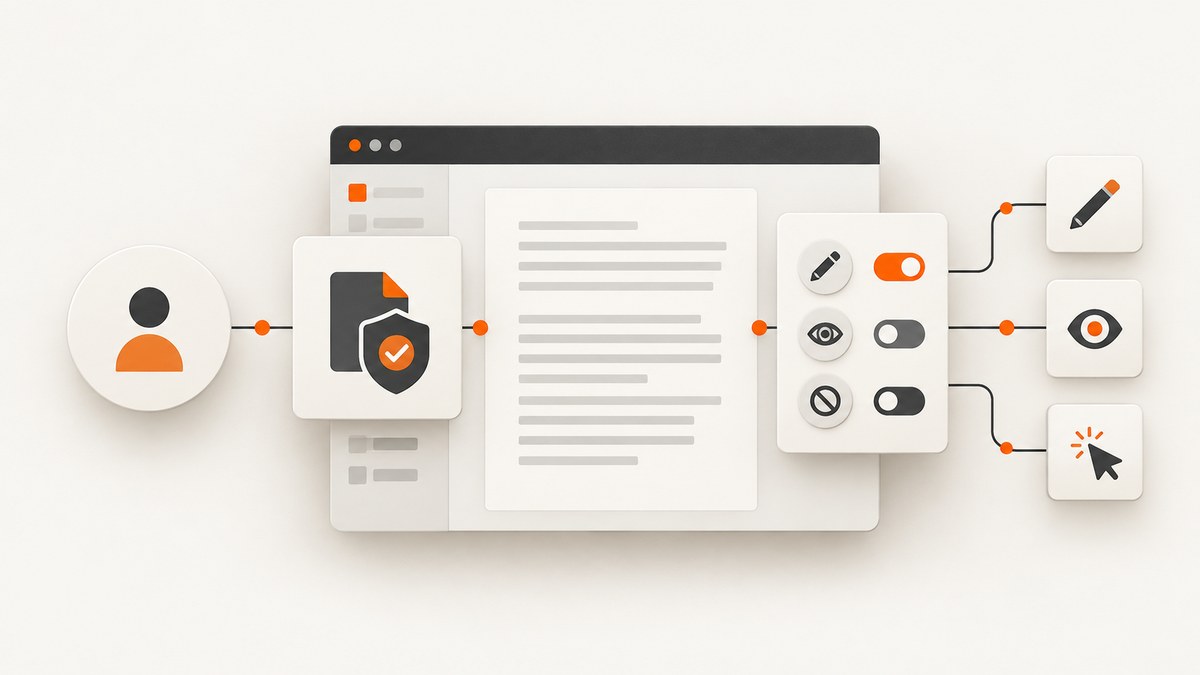
Direct answer: Set permissions for an embedded editor in layers. First grant the user access to the underlying document, project, or template. Then authenticate the user with the vendor’s supported login, SAML, cookie, or token flow. Finally enable only the editor actions and server-enforced capabilities required by the workflow. Verify token expiry, authorized domains, sharing rules, draft or publication state, and concurrent-session limits.
A hidden toolbar button is not an authorization system. A user who can call the editor API directly must receive the same restrictions as a user operating the visible interface. Treat the embedded editor as an untrusted client and enforce sensitive operations on the vendor’s server, your server, or both.
1. Map the permission model before writing embed code
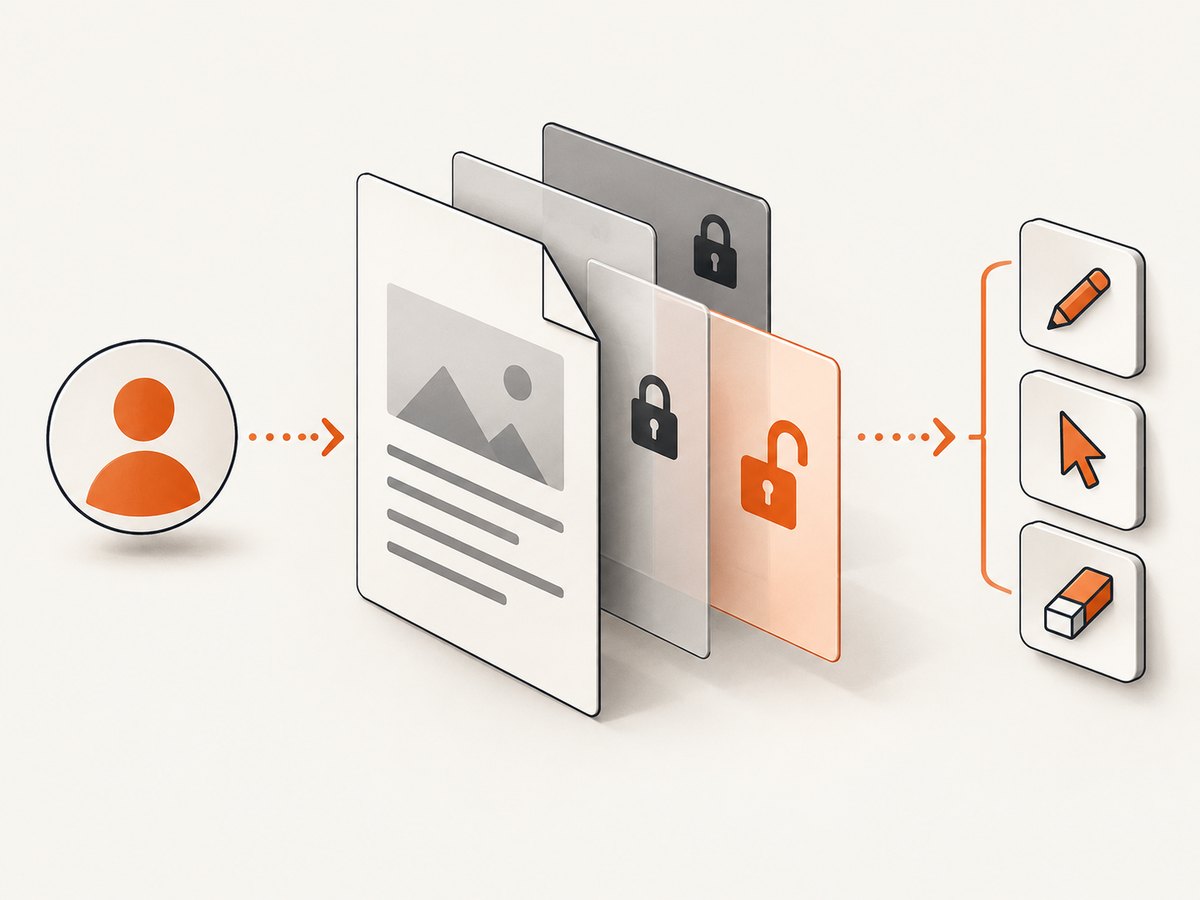
Embedded editors usually combine several permission systems. Identify which of these your provider uses:
| Layer | Question to answer | Typical failure |
|---|---|---|
| Identity | How does the editor know who the user is? | A login works in a top-level tab but is blocked in an iframe. |
| Resource access | Does the user have access to this document, project, or template? | The iframe loads but shows a forbidden or empty state. |
| Embed origin | Is this website domain allowlisted? | The token is valid but initialization is rejected. |
| Action permissions | Can the user save, rename, resize, move, unlock, or edit text? | The UI exposes actions the workflow should not permit. |
| Server capabilities | Are sensitive operations enforced outside the browser? | A user bypasses hidden controls with a direct request. |
| Session policy | How long is a token valid, and how many sessions can coexist? | Users see expired-token or session-replaced errors. |
Write these answers down per provider. The terms “editor,” “viewer,” and “read-only” are not portable between products.
2. Grant the underlying document or project access
Start with the resource itself. Share the document, project, or template with the intended identity at the lowest role that supports the task. An embed does not normally create a second permission universe.
Marq documents that embedded projects use the user’s existing authentication and access level. If a project is read-only in the normal web application, it remains read-only when embedded, and the project must be shared with that user. Lucid describes the same inheritance pattern: an embedded editor is restricted by the user’s existing View or Comment permission.
- Create or select the source document, project, or template.
- Share it with the user, group, or service identity that will open the embed.
- Choose the minimum role: View, Comment, or Edit where supported.
- Check whether the resource is a draft, published item, or locked version.
- Open the resource outside the iframe with the same identity and confirm the expected role.
Do not infer access from a successful iframe render. Some products render a shell before checking resource permissions.
3. Authenticate the embedded user
Use the provider’s supported authentication flow. Common choices are an existing vendor login, SAML single sign-on, a signed cookie, or a short-lived project or editing token.
Login and SAML
When the user already has an account, the embed can often use that session. Marq supports user login and SAML. Some identity providers block authentication inside an iframe because of third-party-cookie or framing policies. Marq documents opening the login page in a new window when that happens; after login, the user returns to the embedded editor.
For an SSO flow:
- Start login from your top-level application window.
- Complete the identity-provider redirect and MFA steps outside the iframe if required.
- Return to your application with a server-side session.
- Initialize the editor only after your application knows the user’s identity and role.
Token-based sessions
Generate editor tokens on your server. Do not place a long-lived API secret in browser JavaScript, HTML, or a URL that users can copy.
PandaDoc’s editing-session model creates an E-Token. The editor can open only draft documents. The token lifetime input is documented as 60 to 86,400 seconds. Only one active session may exist for a user-document pair; creating a new one invalidates the previous session. Design your UI to handle a replaced session rather than retrying indefinitely.
Floorplanner supports user-authenticated initialization with an explicit permission array such as permissions: ['save'], as well as project-based authentication with a project access token. Its documentation recommends requesting a new token each time because tokens expire.
A minimal server-side token response should contain only what the client needs:
HTTP/1.1 200 OK
Content-Type: application/json
Cache-Control: no-store

{
  "editorToken": "SHORT_LIVED_TOKEN",
  "documentId": "doc_123",
  "permissions": ["view", "comment"]
}
Bind token issuance to the authenticated user, requested document, tenant, and allowed role. Reject requests where the user can view the document but is trying to obtain an edit token.
4. Restrict the embed origin
Configure the exact domains that may host the editor. Templated’s Embed Configuration includes domain allowlisting. Use separate entries for production and approved staging hosts, and avoid a wildcard unless the provider explicitly requires it.
- Use HTTPS for production embeds.
- Allow the real origin, including the correct scheme and hostname.
- Decide whether preview, localhost, and customer-specific subdomains need separate entries.
- Remove retired domains after a migration.
- Test the embed from an unapproved origin and confirm initialization fails.
Origin allowlisting protects where the editor is loaded. It does not replace document sharing or action authorization.
5. Enable only the actions the workflow needs
Action-level controls should be explicit. Templated documents controls for rename, save, resize, layer move, layer resize, layer select, layer unlock, layer rename, and text editing. Its documented defaults enable rename and save while disabling resize, layer operations, and text editing.
| Workflow | Usually enable | Usually disable |
|---|---|---|
| Review | View, comment | Save, rename, text editing, layer changes |
| Copy editing | Text editing, save | Layer unlock, resize, settings |
| Template customization | Text editing, selected layer changes, save | Document replacement, version deletion |
| Full production editing | Only the complete set required by the job | Unrelated administrative capabilities |
Start from an empty or read-only configuration and add one capability at a time. Keep layer unlock, document replacement, version deletion, and settings access off unless a documented business requirement needs them.
6. Enforce sensitive capabilities on the server
DocSpring states that features control which UI is shown and are not a security boundary. Sensitive settings, versioning, and PDF replacement require the matching embed_edit_allow_settings, embed_edit_allow_versioning, and embed_edit_allow_document_replacement capabilities.
Apply the same rule to every provider:
- Use UI flags to make the interface understandable.
- Use token claims, server configuration, template policy, or API authorization for actual protection.
- Return a clear authorization error when a disallowed operation is requested.
- Log the identity, resource, operation, decision, and request ID.
If a provider offers no server-side control for an operation that changes ownership, versions, billing, or published content, treat that operation as unavailable for untrusted embedded users.
7. Build a permission-aware initialization
Keep the permission decision on your server, then pass a short-lived result to the browser. The exact SDK call differs by vendor, but the shape should be similar:
// Browser pseudocode
const session = await fetch('/api/editor-session', {
  method: 'POST',
  headers: { 'Content-Type': 'application/json' },
  body: JSON.stringify({ documentId })
}).then(r => {
  if (!r.ok) throw new Error('Could not create editor session');
  return r.json();
});

vendorEditor.mount('#editor', {
  documentId: session.documentId,
  token: session.editorToken,
  permissions: session.permissions,
  onExpired: () => showReloginMessage(),
  onForbidden: operation => reportDeniedOperation(operation)
});
Never accept a client-provided permissions array as authoritative. The server should derive it from the authenticated user’s role and the resource policy.
8. Handle edge cases deliberately
Read-only users
Test both the visual state and an attempted write. A hidden Save button is insufficient if the API still accepts a save request.
Iframe login blocked
Open the login or SAML page in a top-level window, then resume initialization after the server session is established.
Expired tokens
Display a recoverable message, request a fresh token from your server, and remount only after verifying the user’s current role. Do not silently reuse an expired token.
Draft-only editors
For providers such as PandaDoc, check document state before creating a session. Give users a clear explanation when a published or archived document cannot be edited.
Concurrent sessions
Assume a new session may invalidate an old one. Warn users before opening a second editing tab when the provider has a one-session limit.
Unsaved changes
Listen for the provider’s save or dirty-state events. On token expiry or session replacement, offer a save attempt if the provider permits it, then preserve local form state where possible.
Multi-tenant applications
Include tenant ID in every authorization lookup. A document ID alone must never determine access.
9. A complete implementation checklist
- Identify whether the provider inherits roles or uses explicit capabilities.
- Share the source resource with the intended user.
- Configure the exact authorized embed origin.
- Authenticate through supported login, SAML, cookie, or token flow.
- Issue short-lived tokens from your server.
- Derive permissions server-side from the current role.
- Enable only required actions such as save or rename.
- Protect settings, versioning, replacement, and other sensitive operations server-side.
- Handle token expiry, draft-only restrictions, iframe login limitations, and one-session rules.
- Log authorization decisions without recording long-lived secrets.
10. Test permissions like an attacker
Use a matrix of representative accounts:
| Test identity | Expected result |
|---|---|
| Viewer | Can open and inspect; every write is rejected. |
| Commenter | Can comment if enabled; cannot save document edits. |
| Editor | Can perform only the configured actions. |
| Unauthorised user | Cannot obtain a token or load the resource. |
| Expired session | Receives a recoverable expiry response and no write occurs. |
| Unapproved origin | Embed initialization is rejected. |
For each case, check the visible controls, network responses, direct API calls, browser refresh, a second tab, and a changed role while the editor is open. Permissions can change during a session; your save endpoint should re-check authorization.
11. Troubleshooting common errors
| Symptom | Likely cause | Fix |
|---|---|---|
| Blank iframe | Blocked third-party cookies, framing policy, or wrong origin | Complete login in a top-level window, inspect browser console headers, and allowlist the exact origin. |
| Forbidden resource | Document was not shared with the authenticated user | Grant the lowest required document role and verify the same identity outside the embed. |
| Save button missing | Save capability disabled or inherited role is read-only | Check server-derived permissions and the source resource role. |
| Save request succeeds for viewer | UI-only restriction | Enforce save authorization in the provider capability or your server endpoint. |
| Token expired | Token lifetime elapsed or stale token reused | Request a new token and remount after rechecking role. |
| Session replaced | Another session was created for the same user-document pair | Explain the one-session policy and offer a reload or continue-in-current-tab action. |
| Published document cannot open | Provider permits editing sessions only for drafts | Create or select an editable draft before issuing a token. |
12. Performance, reliability, and auditability
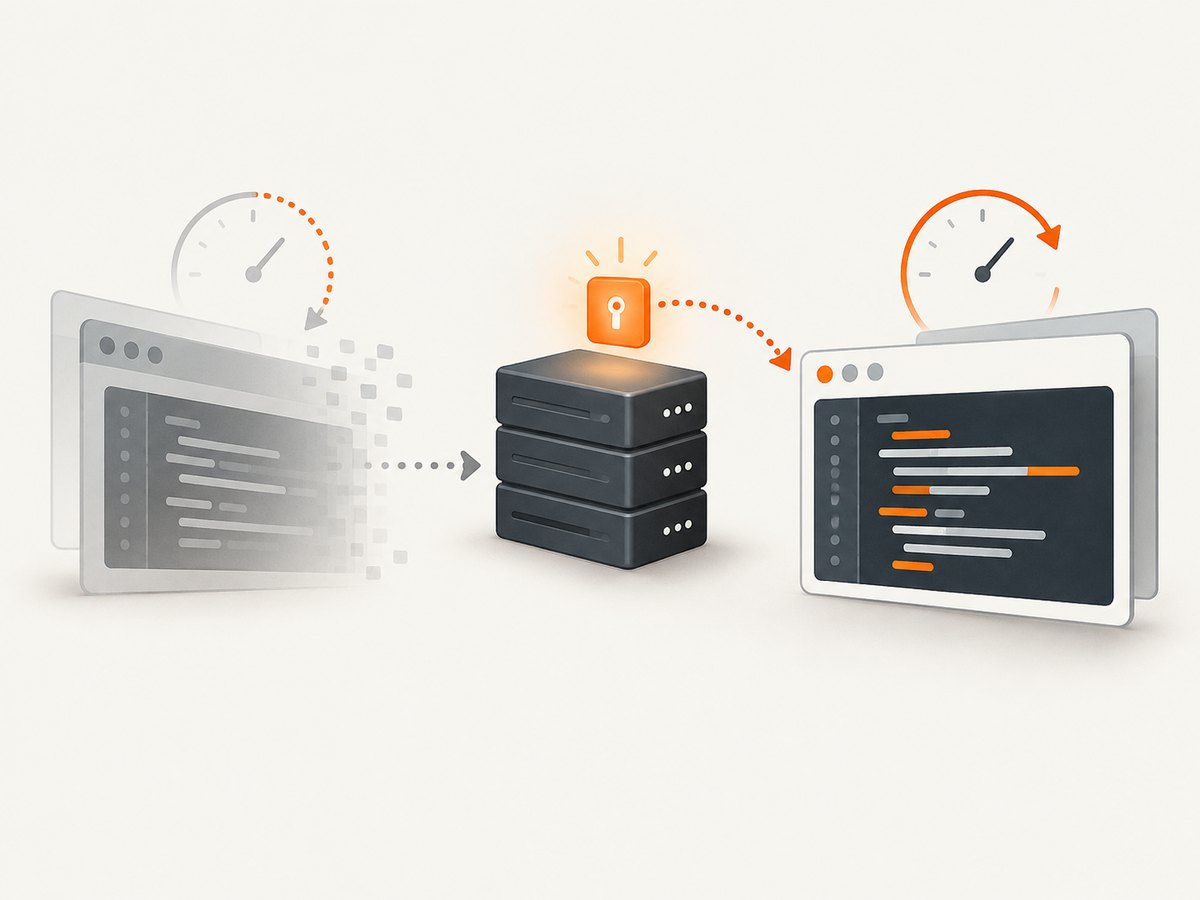
Permission checks add a server round trip, but issuing a short-lived session after authorization is safer than exposing reusable credentials. Cache only non-sensitive role metadata for a short period, and invalidate it when membership or document sharing changes.
For reliability, make session creation idempotent where the provider allows it, handle retries without creating unnecessary competing sessions, and surface provider request IDs in support logs. Avoid automatic infinite retries on 401, 403, or session-replaced responses.
Audit the events that matter: token issuance, resource, effective role, enabled capabilities, origin, save or publish attempts, denials, expiry, and session replacement. Redact tokens and personal data from logs. If the provider supplies webhooks, reconcile important state changes from webhook events instead of relying only on iframe messages.
Or skip the browser setup
If your job is to capture the embedded editor or its published output as an image or PDF, ScreenshotNeo provides a single website screenshot API request. See the ScreenshotNeo API documentation for all options.
curl -G "https://api.screenshotneo.com/v1/shot" -d access_key=YOUR_API_KEY --data-urlencode url=https://stripe.com -o shot.webpimport requests
r = requests.get("https://api.screenshotneo.com/v1/shot", params={"access_key": "YOUR_API_KEY", "url": "https://stripe.com"}, timeout=90)
open("shot.webp", "wb").write(r.content)const q = new URLSearchParams({ access_key: 'YOUR_API_KEY', url: 'https://stripe.com' });
const res = await fetch(`https://api.screenshotneo.com/v1/shot?${q}`);ScreenshotNeo removes cookie banners, newsletter popups, and chat widgets before capture. Bot checks, blank pages, failed loads, timeouts, and cache hits are not billed, and response headers identify the page verdict and billing result. It also offers an MCP server with take_screenshot, get_page_info, and capture_pdf tools for AI agents, plus full-page, element, device, CSS, JavaScript, waiting, blocking, authentication, caching, async, bulk, and PDF options. The Free plan includes 1,000 screenshots per month with no card; paid plans start at $5 for 3,000. Create a free ScreenshotNeo account.
FAQ
Can I make an embedded editor read-only?
Yes. Give the user a View or Comment resource role and enforce the same restriction in the editor’s server-side capabilities. Verify that direct write requests fail.
Do embedded users need a vendor account?
It depends on the provider. Some token-based session models let end users edit without separate vendor accounts; others inherit a logged-in account or SSO identity.
Are hidden editor buttons secure?
No. Hidden controls change the interface only. Authorization must be enforced by token claims, provider capabilities, template policy, or your server.
Can two people edit simultaneously?
Do not assume it. Some providers allow only one active user-document session, and token-based editing may be sequential rather than multi-cursor collaboration.
What should expire first: the iframe or the token?
Expire the short-lived editor token and re-check the user’s role before issuing another one. Keep your application session policy separate from the provider’s token lifetime.


