How to Emulate Mobile Devices in Selenium Screenshots
Configure Selenium’s Chrome mobile emulation, capture reliable screenshots, troubleshoot failures, and know when a real device is required.
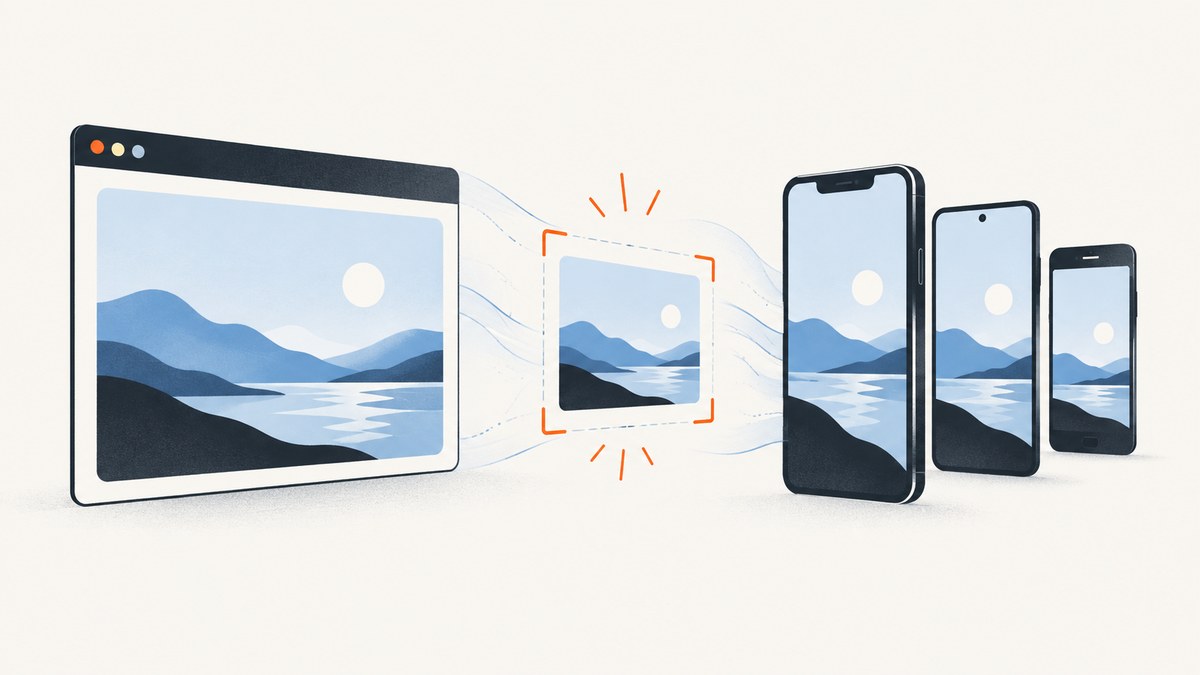
Direct answer: configure Chrome mobile emulation on the Chromium options object before creating the WebDriver session. Then navigate to the page, wait for the state you need to inspect, and call Selenium’s screenshot method. Use a named device profile when a standard preset is sufficient; use custom metrics when your test must state the exact viewport width, height, and pixel ratio.
This produces a mobile-emulated Chrome context for responsive layout and screenshot checks. It does not prove that the page behaves exactly like Safari on an iPhone, Chrome on a physical Android phone, or a particular operating-system build. Use a real device or platform simulator when native browser, hardware, or device-specific behavior is the question.
1. What mobile emulation changes
Chrome mobile emulation changes the browser context used by Selenium. Depending on the configuration exposed by your binding, you can provide viewport dimensions, device pixel ratio, a mobile user agent, and touch behavior. These inputs affect responsive breakpoints, CSS media queries, image selection, layout calculations, and JavaScript feature detection.
Emulation is useful when you need repeatable screenshots of a responsive page. It is especially useful in visual regression jobs, breakpoint checks, documentation builds, and quick checks of pages that must fit a narrow viewport. It remains a desktop browser process, so it cannot reproduce every property of a physical device.
| Goal | Use emulation? | Reason |
|---|---|---|
| Check a 360px responsive breakpoint | Yes | Custom metrics make the viewport explicit and repeatable. |
| Generate a set of standard device screenshots | Yes | A named profile is convenient when it is available in your browser setup. |
| Verify iOS Safari rendering | No, by itself | Desktop Chrome emulation is not Safari or iOS. |
| Test touch, sensors, GPU, or OS-specific behavior | Usually no | Use an actual device or a platform simulator for those questions. |
2. Choose a named profile or custom metrics
Named device profile
A named profile is the shortest configuration. The browser and driver select a known combination of device metrics. It is convenient for a recognizable target, but the profile name must be supported by the Chrome and driver versions in your environment. Device lists and binding APIs are version-sensitive, so verify the current documentation before standardizing a profile name.
Custom device metrics
Custom metrics make the assumptions visible in source control. Set width, height, and pixel ratio explicitly. Selenium’s JavaScript documentation demonstrates values of 360, 640, and 3.0 as an example configuration. Those values are an example, not a universal recommendation. Add a user agent or touch setting only when your binding exposes it and your test needs it.
| Decision | Named profile | Custom metrics |
|---|---|---|
| Setup effort | Low | Moderate |
| Viewport control | Indirect | Explicit width, height, and pixel ratio |
| Reproducibility | Depends on profile availability | High when values are versioned with the test |
| Best use | Quick checks for a known preset | Visual regression and breakpoint contracts |
3. Python: complete Selenium screenshot example
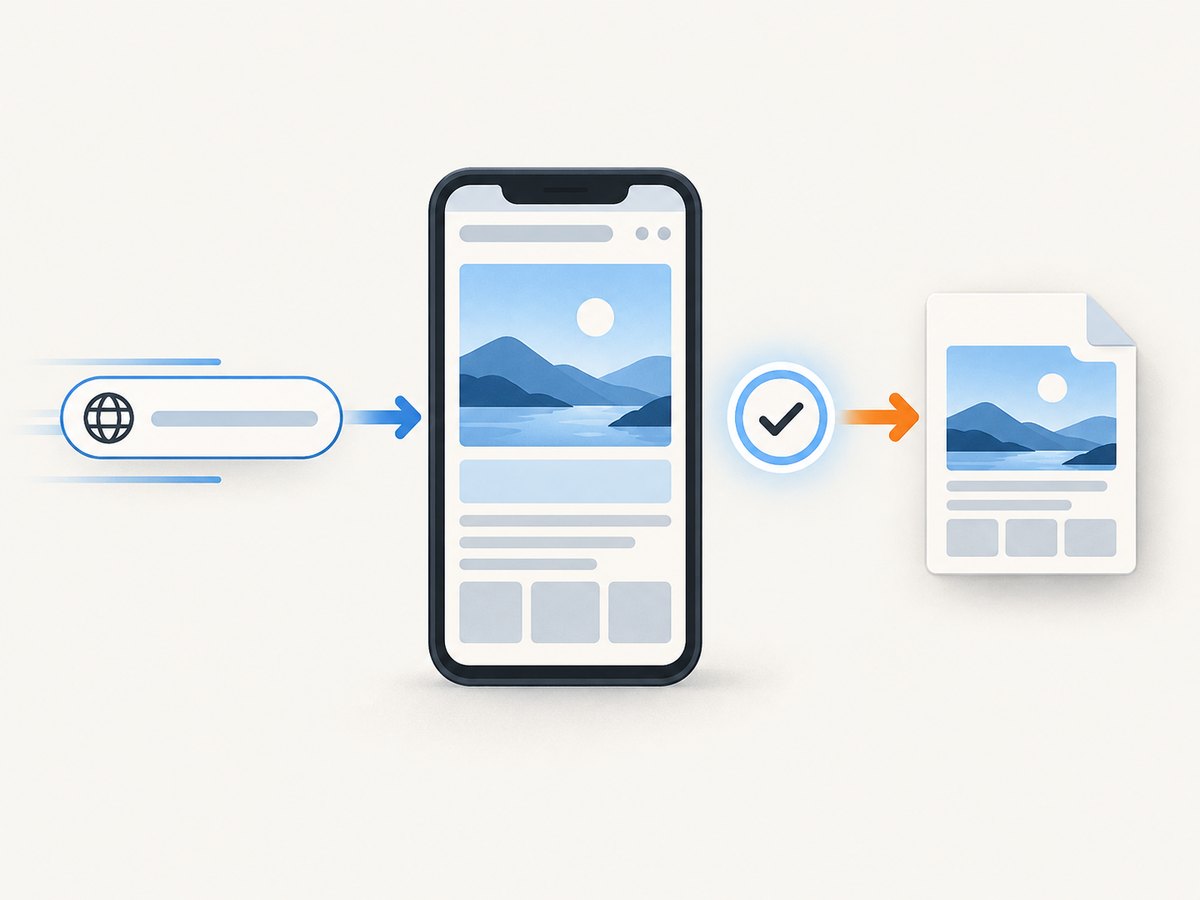
Install Selenium with pip install selenium. The current Selenium releases can manage a compatible driver in many environments, but your runtime still needs Chrome or Chromium installed. This example uses custom metrics and waits for a meaningful element before capturing.
from pathlib import Path

from selenium import webdriver
from selenium.webdriver.chrome.options import Options
from selenium.webdriver.common.by import By
from selenium.webdriver.support.ui import WebDriverWait
from selenium.webdriver.support import expected_conditions as EC

TARGET_URL = "https://example.com"
OUTPUT = Path("mobile-shot.png")

options = Options()
options.add_experimental_option(
    "mobileEmulation",
    {
        "deviceMetrics": {
            "width": 360,
            "height": 640,
            "pixelRatio": 3.0,
        },
        # Add "userAgent" here only when your test requires one.
        # "userAgent": "your explicitly chosen user agent"
    },
)

# options.add_argument("--headless=new")  # Enable in CI if required.
driver = webdriver.Chrome(options=options)
try:
    driver.get(TARGET_URL)
    wait = WebDriverWait(driver, 20)
    wait.until(EC.presence_of_element_located((By.TAG_NAME, "body")))
    wait.until(lambda d: d.execute_script("return document.readyState") == "complete")
    driver.save_screenshot(str(OUTPUT))
finally:
    driver.quit()

print(f"Saved {OUTPUT}")
The important ordering is mobileEmulation, then webdriver.Chrome. Changing the option after the session starts does not recreate the browser context. The waits are application-specific: replace the body check with a selector that means your page is ready, such as a dashboard container or a chart element.
4. JavaScript: use Chromium’s setMobileEmulation
In Selenium’s JavaScript API, configure a Chromium options object with setMobileEmulation before constructing the driver. Install the binding with npm install selenium-webdriver.
const { Builder, By, until } = require('selenium-webdriver');
const chrome = require('selenium-webdriver/chrome');

(async function capture() {
  const options = new chrome.Options();
  options.setMobileEmulation({
    deviceMetrics: { width: 360, height: 640, pixelRatio: 3.0 },
    // userAgent: 'your explicitly chosen user agent'
  });
  // options.addArguments('--headless=new');

  const driver = await new Builder()
    .forBrowser('chrome')
    .setChromeOptions(options)
    .build();

  try {
    await driver.get('https://example.com');
    await driver.wait(until.elementLocated(By.css('body')), 20000);
    await driver.takeScreenshot().then((data) =>
      require('fs').writeFileSync('mobile-shot.png', data, 'base64')
    );
  } finally {
    await driver.quit();
  }
})();
The same API can receive a supported named profile instead of custom metrics. Keep the profile name in configuration, and fail clearly when the browser version no longer recognizes it.
5. Other Selenium bindings
Every binding follows the same lifecycle even though class names differ:
- Create Chrome or Chromium options.
- Set mobile emulation before constructing WebDriver.
- Navigate to the target URL.
- Wait for the application state that matters.
- Call the binding’s screenshot method and close the driver.
In Java, configure ChromeOptions with the mobile emulation capability before passing it to new ChromeDriver(options). In .NET, the Chromium options API documents dimensions, pixel ratio, user agent, and touch-event enablement; that API lists touch events as enabled by default. Do not assume that exact default applies to every language binding. Ruby and other bindings expose equivalent Chrome options, but method names and accepted structures can change with binding versions. Check the binding documentation for the release used by your project.
6. Wait for the right page state
A screenshot taken immediately after get() can capture a loading shell, a partially rendered application, or an image placeholder. Choose a wait that matches the page:
- DOM readiness: wait for
document.readyState === "complete"when server-rendered content is enough. - Selector readiness: wait for a key component to exist or become visible.
- Application readiness: wait for a loading class to disappear, a network-driven result to appear, or a known JavaScript flag.
- Image readiness: execute JavaScript that checks important images’
completeandnaturalWidthvalues. - Animation stability: inject test CSS to disable transitions when animated motion would make screenshots nondeterministic.
A fixed sleep is simple but fragile. If you must use one for an animation or delayed widget, keep it short and document why it is required. A condition tied to the page state usually gives faster and more reliable runs.
7. Screenshot details that affect results
- Viewport versus output pixels: pixel ratio changes the relationship between CSS pixels and raster pixels. Record both in test metadata.
- Full-page capture: support varies by binding and browser version. Confirm the method’s behavior before treating it as a complete page image.
- Browser chrome: Selenium screenshots normally represent the web content area, not the operating-system window frame.
- Fonts: missing fonts can change line wrapping and height. Install the same font set in local and CI environments.
- Time and locale: timestamps, localized text, and timezone-sensitive components can alter pixels. Set them deliberately when the binding and application support it.
- Network content: third-party ads, analytics, and remote images can make captures change between runs. Stub or block them where your test policy allows.
8. Why direct CDP configuration is usually not the default
Chrome DevTools Protocol can set browser behavior when an option is unavailable, but Selenium documents CDP as version-dependent and temporary while WebDriver BiDi matures. Selenium’s documentation says: “This is not designed for testing, nor to have a stable API, so functionality is highly dependent on the version of the browser.” Use Chrome Options for ordinary mobile metrics. Treat CDP as a specialized fallback, pin browser versions when you use it, and expect maintenance when Chrome changes.
9. Version compatibility and startup failures
Selenium’s Chrome documentation states that Selenium 4 is compatible with Chrome 75 and later by default and advises matching the Chrome and ChromeDriver major versions. Treat that as the documentation’s baseline, then inspect the actual versions in your environment.
# Linux examples
chromium --version || google-chrome --version
chromedriver --version
python -c "import selenium; print(selenium.__version__)"
In CI, pin the browser image or install step, print versions at the start of the job, and upgrade Selenium, Chrome, and the driver as a set. A session that fails before the first page load is usually an environment mismatch rather than a mobile-emulation layout problem.
10. Troubleshooting checklist
| Symptom | Likely cause | Fix |
|---|---|---|
| Session fails with a driver or browser error | Chrome and ChromeDriver major versions do not match | Print both versions, install matching majors, and update Selenium according to its current support guidance. |
| Desktop layout appears | Mobile emulation was added after driver creation or attached to the wrong options object | Set the option before constructing WebDriver and pass that exact object to the builder. |
| Screenshot is a loading shell | Capture runs before the application renders | Wait for a meaningful selector or application-ready condition. |
| Images are blank | Lazy loading or remote resources have not completed | Scroll or trigger the lazy-load path, wait for image completion, and make external resources deterministic. |
| Text wraps differently in CI | Fonts, zoom, locale, or device metrics differ | Pin fonts and browser settings; log width, height, pixel ratio, locale, and user agent. |
| Touch-specific code does not run | The binding did not enable touch events or the page checks a different signal | Use the binding’s documented touch setting and verify the page’s detection logic. |
| Named profile is rejected | Profile is unavailable in that Chrome version or binding | Use a currently supported profile or switch to explicit custom metrics. |
| CDP command breaks after a browser upgrade | CDP is version-coupled | Prefer Chrome Options; otherwise pin and update the CDP integration with the browser. |
11. Reliability, performance, and cost considerations
For reliable visual checks, keep one emulation configuration per test case, wait on observable page state, and save diagnostic artifacts when a test fails: the screenshot, page URL, browser version, viewport metrics, console errors, and a short DOM excerpt. Avoid sharing a driver between unrelated tests because cookies, local storage, service workers, and open tabs can leak state.
Performance depends on page weight, JavaScript, network access, and how long your readiness condition waits. Reusing a driver can reduce startup overhead, but it requires careful cleanup between cases. Starting a fresh driver gives stronger isolation. The dossier provides no benchmark, so choose based on your workload and measure in your own CI environment.
Selenium itself is software you run, so costs come from compute, browser infrastructure, and any real-device platform you add. Emulation does not create evidence about physical-device behavior. If that evidence is required, plan for the maintenance and access requirements of real devices or a simulator.
12. Or skip the browser setup
If your goal is a clean website screenshot rather than control of a Selenium session, ScreenshotNeo provides a single request that returns PNG, JPEG, WebP, or PDF. Read the ScreenshotNeo documentation for the full parameter list.
curl -G "https://api.screenshotneo.com/v1/shot" -d access_key=YOUR_API_KEY --data-urlencode url=https://stripe.com -o shot.webpimport requests
r = requests.get("https://api.screenshotneo.com/v1/shot", params={"access_key": "YOUR_API_KEY", "url": "https://stripe.com"}, timeout=90)
open("shot.webp", "wb").write(r.content)const q = new URLSearchParams({ access_key: 'YOUR_API_KEY', url: 'https://stripe.com' });
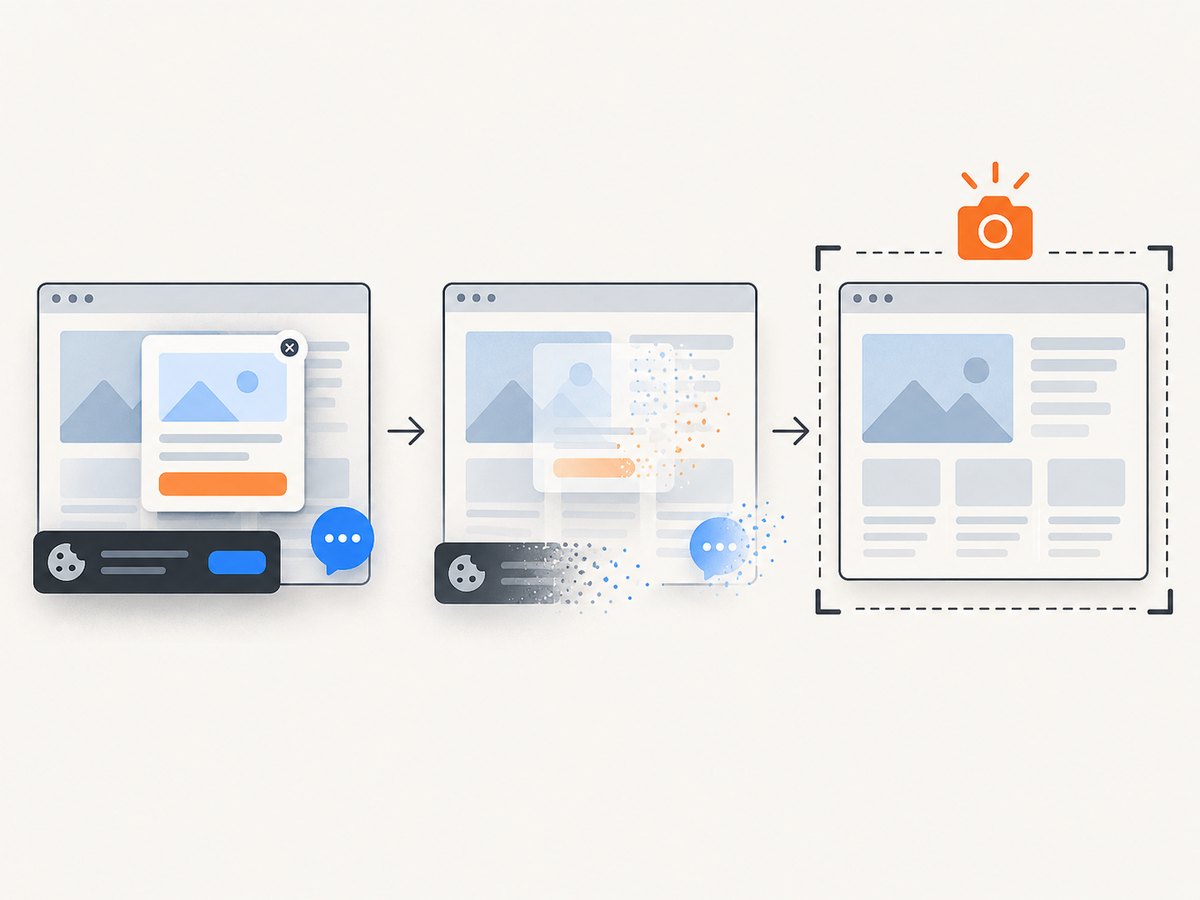
const res = await fetch(`https://api.screenshotneo.com/v1/shot?${q}`);ScreenshotNeo removes cookie and consent banners, newsletter popups, and chat widgets before the shot. Bot checks, blank pages, failed loads, timeouts, and cache hits are not billed as clean shots, and response headers identify the page verdict and billing result. Its MCP server lets Claude, Cursor, and other MCP clients use take_screenshot, get_page_info, and capture_pdf. The free plan includes 1,000 screenshots per month with no card; paid plans start at $5 for 3,000 shots. Create a free ScreenshotNeo account.
13. When emulation is enough—and when it is not
Use emulation when the acceptance criterion is a responsive layout at known metrics: navigation collapse, grid breakpoints, typography, image sizing, and component visibility. Use real-device testing or a platform simulator when the criterion involves Safari or Android browser differences, OS keyboards, permission prompts, sensor APIs, GPU behavior, hardware performance, or touch interactions that must match a physical device.
A practical test plan can combine both: run fast emulated screenshots for every change, then run a smaller set of real-device checks for platform-specific risks. Keep the two results labeled separately so a passing desktop Chrome emulation cannot be mistaken for physical-device validation.
14. FAQ
Does mobile emulation make Chrome behave exactly like an iPhone?
No. It approximates mobile metrics and, when configured, related user-agent and touch signals. It does not become iOS Safari or reproduce every hardware and operating-system behavior.
Should I always use a named device?
No. Use a named profile for convenience when it is supported and recognizable. Use custom metrics when exact width, height, and pixel ratio are part of the test contract.
Can I change emulation after starting WebDriver?
Configure it before session creation. To change the emulated context reliably, create a new session with a different options object.
Why did a visual test pass locally but fail in CI?
Compare browser and driver majors, installed fonts, viewport metrics, pixel ratio, locale, timezone, network resources, and readiness waits. Any of these can change the rendered pixels.
Is CDP faster than Chrome Options?
The research does not establish a performance advantage. Chrome Options is Selenium’s generally preferred path for ordinary mobile emulation because CDP is version-dependent and not designed as a stable testing API.


