How to Emulate Screen Media When Printing PDFs in Headless Chrome
Headless Chrome uses print CSS when generating PDFs. Emulate screen media before calling PDF, then configure colors, page geometry, and pagination.

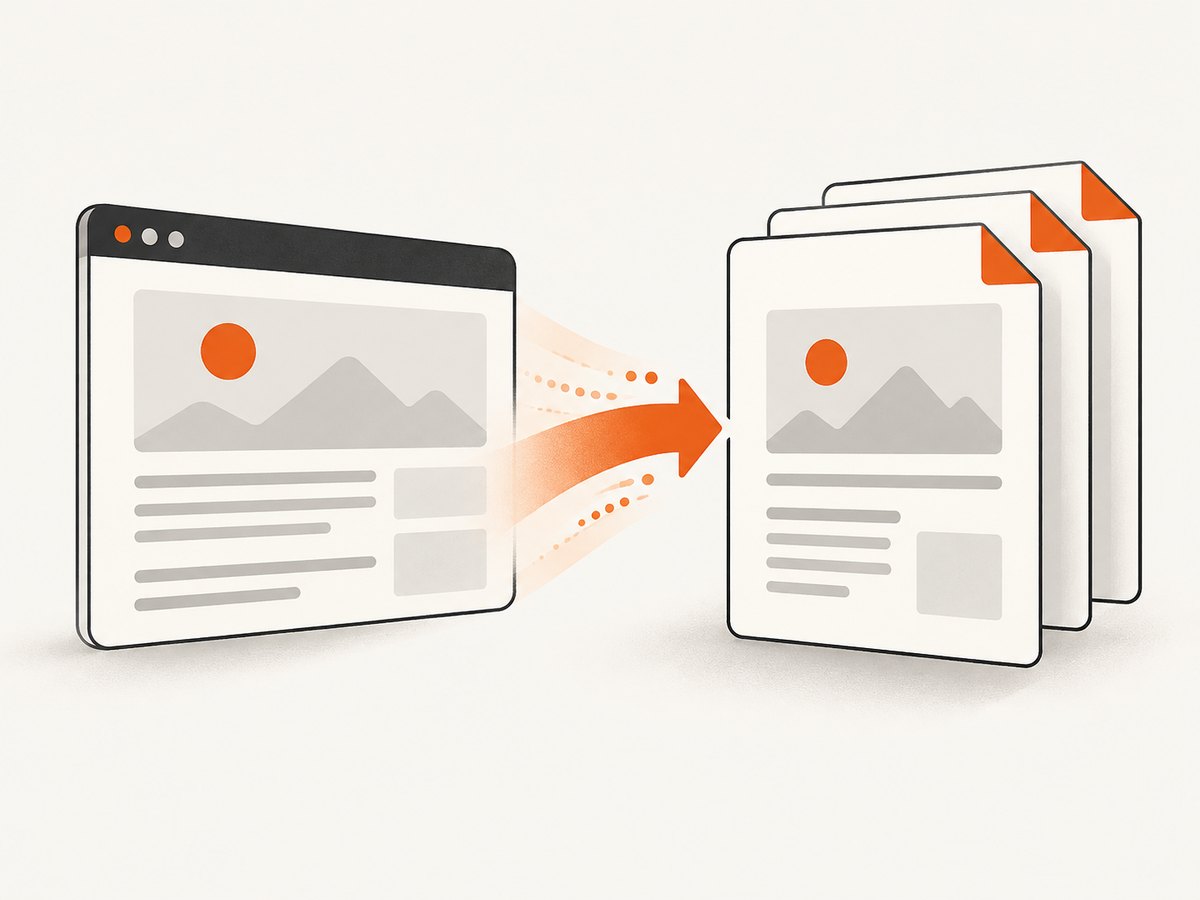
Headless Chrome applies the print CSS media type when it generates a PDF. To use the page’s screen styles, emulate screen before calling the PDF method. In Puppeteer, call page.emulateMediaType('screen'); in Playwright, call page.emulateMedia({ media: 'screen' }). Then generate the PDF and explicitly set the output options your document needs.
This selects the screen media rules; it does not make a paginated PDF identical to a live browser viewport. Page size, margins, color adjustment, responsive breakpoints, and content that overflows a page still affect the result.
1. Puppeteer: print a PDF with screen media
Emulate screen media after navigating to the page and before page.pdf(). The following complete Node.js example launches Chromium, opens a page, waits for it to load, selects screen media, and writes a PDF with backgrounds enabled.
import puppeteer from 'puppeteer';

const browser = await puppeteer.launch({ headless: true });
try {
  const page = await browser.newPage();
  await page.goto('https://example.com', { waitUntil: 'networkidle2' });

  await page.emulateMediaType('screen');
  await page.pdf({
    path: 'page.pdf',
    printBackground: true,
    preferCSSPageSize: true,
  });
} finally {
  await browser.close();
}
The essential line is await page.emulateMediaType('screen'). Puppeteer’s page.pdf() uses print CSS by default; its documentation specifies emulating screen before PDF generation to produce a PDF with screen media. Puppeteer media emulation documentation and Puppeteer PDF documentation.
Choose the page size and margins deliberately
The example uses preferCSSPageSize: true, which lets a CSS @page rule supply the page dimensions when present. If you want to set the dimensions through Puppeteer instead, provide format or explicit width and height, and set margins as needed. For example:
await page.pdf({
  path: 'page.pdf',
  format: 'A4',
  landscape: false,
  margin: {
    top: '12mm',
    right: '12mm',
    bottom: '12mm',
    left: '12mm',
  },
  printBackground: true,
});
Use one clear source of page geometry: either the page’s CSS page size or the PDF options. Check your Puppeteer version’s API documentation for the exact supported options and behavior.
2. Playwright: print a PDF with screen media
Playwright follows the same sequence with a different media-emulation method. Its PDF API uses print media by default; set the media type to screen first.
import { chromium } from 'playwright';

const browser = await chromium.launch({ headless: true });
try {
  const page = await browser.newPage();
  await page.goto('https://example.com', { waitUntil: 'networkidle' });

  await page.emulateMedia({ media: 'screen' });
  await page.pdf({
    path: 'page.pdf',
    printBackground: true,
    preferCSSPageSize: true,
  });
} finally {
  await browser.close();
}
In Playwright, page.emulateMedia({ media: 'screen' }) must run before page.pdf(). See the Playwright media emulation API and Playwright PDF API.
If your project already uses Puppeteer or Playwright, use the corresponding example rather than introducing a second browser-control dependency just for this setting. Browser versions, APIs, and PDF options depend on the version installed in your project.
3. Preserve screen colors in the PDF
Choosing screen media controls which CSS media rules apply. It does not by itself guarantee that every color will match the browser view. PDF generation can apply print-oriented color adjustment. To request exact CSS colors, include this rule in the page stylesheet:
html {
  -webkit-print-color-adjust: exact;
  print-color-adjust: exact;
}
Puppeteer’s PDF documentation notes that PDF generation modifies colors for printing by default and recommends -webkit-print-color-adjust to force exact colors. See the PDF API documentation. Also enable printBackground: true in Puppeteer or Playwright when backgrounds need to appear in the file. The CSS rule and the PDF option address different parts of the output: one requests color preservation; the other enables printing backgrounds.
For a page you cannot edit, you can add the CSS before PDF generation. In Puppeteer:
await page.addStyleTag({
  content: `html {
    -webkit-print-color-adjust: exact;
    print-color-adjust: exact;
  }`,
});
await page.emulateMediaType('screen');
await page.pdf({ path: 'page.pdf', printBackground: true });
In Playwright, page.addStyleTag() can be used in the same way before calling page.pdf(). Confirm that the target page’s policy and application state allow the injected style to take effect.
4. Wait for the content that belongs in the document
A PDF can be created before a client-rendered page finishes drawing, or before web fonts and images are ready. Navigation completion is a useful starting point, but it may not signal that application-specific content is complete. Wait for a reliable page condition before creating the PDF.
await page.goto('https://example.com/report', { waitUntil: 'domcontentloaded' });
await page.waitForSelector('[data-report-ready="true"]');
await page.evaluate(() => document.fonts.ready);
await page.emulateMediaType('screen');
await page.pdf({ path: 'report.pdf', printBackground: true });
Use the equivalent page.emulateMedia({ media: 'screen' }) call in Playwright. Replace the selector with a condition your application sets when the data and layout are ready. If there is no application-level ready signal, wait for a specific element or use a carefully chosen delay. A fixed delay can help with a known animation or late resource, but it adds time on every run and cannot reliably account for all network conditions.
Fonts matter because a fallback font can change line wrapping and pagination even when the screen media rules are correct. Images can affect document height and page breaks. Wait for the assets required by the document, and check the output when assets are served from authenticated or slow endpoints.
5. Set up page geometry and inspect pagination
Screen media selects screen CSS; a PDF still consists of pages. A narrow viewport may activate a mobile breakpoint, while a PDF page may be wider or taller than the browser viewport used to inspect the page. Choose the viewport before navigation when responsive styling matters, and configure the PDF’s paper size, orientation, margins, and background options explicitly.
- Pick the intended responsive layout. Create the page with a viewport representative of the screen design you want captured. Check which media queries apply at that width.
- Select screen media. Do this before generating the PDF.
- Set page dimensions. Decide whether CSS
@pageor PDF options should control the paper size. - Enable backgrounds and exact colors where needed. Set
printBackgroundand the CSS color-adjust rule as appropriate. - Review page breaks and overflow. Look for clipped columns, split cards, cropped fixed elements, and blank pages.
Screen media emulation does not guarantee identical pagination to the live viewport. A long screen layout has to be divided into sheets. A fixed header, sticky navigation, large image, or element wider than the chosen paper can appear differently or overflow. Use page-break CSS or adjust the layout when the document needs deliberate pagination.
6. Troubleshooting common PDF differences
| Symptom | Likely cause | Fix |
|---|---|---|
| PDF shows print-only layout | PDF was generated with the default print media. | Call Puppeteer’s emulateMediaType('screen') or Playwright’s emulateMedia({ media: 'screen' }) before the PDF method. |
| Backgrounds or colored panels are missing | PDF background printing is disabled. | Set printBackground: true. Check the stylesheet if the color still differs. |
| Colors are muted or changed | Print-oriented color adjustment is applied. | Add -webkit-print-color-adjust: exact and print-color-adjust: exact to the page CSS. |
| Text wraps differently from the browser | Different viewport breakpoint, missing font, or different page width. | Set the intended viewport, wait for fonts, and configure paper dimensions and margins. |
| Content is cut off at page edges | Screen layout exceeds the PDF page’s printable area, or margins and dimensions conflict. | Review page size and margins; add responsive or page-break rules for the PDF layout. |
| Page is blank or partly rendered | Capture began before application content or assets were ready. | Wait for a page-specific ready selector and required fonts or images before generating the PDF. |
| Unexpected extra pages | Overflow, large margins, or page-break rules create additional sheets. | Inspect the document height and CSS page-break behavior; reduce oversized content or adjust geometry. |
When debugging, first confirm the media-emulation call runs on the same page instance as pdf() and is not followed by code that changes it. Then compare the browser’s computed styles at the target viewport, verify assets are loaded, and inspect the PDF’s page dimensions and margins.
7. Performance, reliability, and cost considerations
Browser-based PDF generation requires launching or reusing a browser, loading the page and its assets, and producing the document. The media-emulation call itself is only one step in that sequence. For repeated jobs, browser startup and page loading are practical factors to measure in your own environment; the research sources do not provide a universal runtime or pixel-difference guarantee.
For reliable output, keep the browser-control library and browser version consistent across environments, wait on explicit content conditions, and validate representative pages after changing dependencies or CSS. A page that relies on external fonts, dynamic APIs, or third-party resources can render differently when those resources are unavailable or delayed. Set sensible timeouts and handle navigation, selector, and PDF-generation errors in the calling application.
Cost depends on where and how you run Chromium, including your compute environment and workload. There is no universal cost figure for Puppeteer or Playwright PDF generation. Estimate with your own document volume and infrastructure. If you want a managed screenshot or PDF API instead of operating browser capture code, compare the required output and options with the provider’s documentation before moving a workflow.
8. Or skip the browser setup
ScreenshotNeo is a website screenshot API and MCP server. For a PDF capture, set the output format to PDF using the API’s documented options. The following request shows the documented one-call pattern; consult the ScreenshotNeo API documentation for PDF parameters and other settings.
curl -G "https://api.screenshotneo.com/v1/shot" \
  -d access_key=YOUR_API_KEY \
  --data-urlencode url=https://stripe.com \
  -o page.pdf
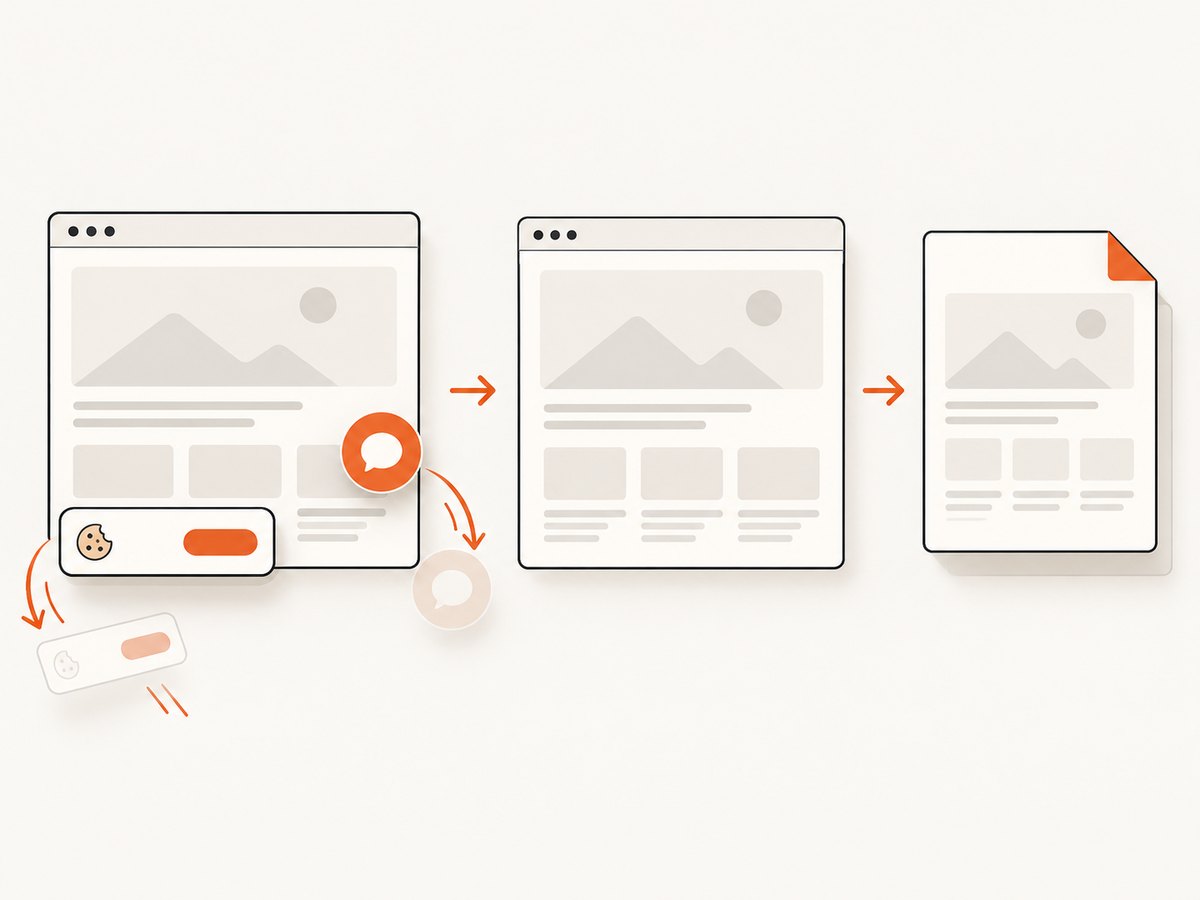
With a managed capture, cookie banners, newsletter popups, and chat widgets are removed before the shot. Bot checks, blank pages, and failed loads are never billed. An MCP server lets AI agents take screenshots, and 1,000 screenshots a month are free with no card; paid plans start at $5 for 3,000. Sign up for free and start with 1,000 screenshots a month, no card required.
9. Frequently asked questions
Does screen media make the PDF exactly match a screenshot?
No. It selects screen CSS rules. PDF page dimensions, pagination, color handling, loaded assets, and responsive breakpoints can still make the output differ from a viewport screenshot.
Should I set screen media before or after navigation?
The necessary ordering is that screen media is active before the PDF call. The examples navigate, wait for content, set the media type, and then generate the PDF.
Can I use print CSS and still request screen colors?
Yes. The color-adjust CSS rule requests exact colors, while media emulation chooses which media rules apply. They are separate controls.
Do Puppeteer and Playwright use the same method?
No. Puppeteer uses page.emulateMediaType('screen'); Playwright uses page.emulateMedia({ media: 'screen' }).


