How to Enable Dark Mode on Any Website
Enable dark mode with a site’s own controls, browser settings, or a browser extension. Learn why some pages stay light and how to inspect their behavior.

To enable dark mode on a website, first use that site’s own theme control. If it has none, set your browser or device to dark mode; sites that support the web’s dark color preference can follow it automatically. A site that ignores the preference may stay white, in which case a dark-mode extension can attempt to recolor it. Browser dark mode changes browser controls and some built-in pages; it does not guarantee that every website will become dark.
This guide covers Chrome, Firefox, Edge, and mobile settings, explains why a webpage can remain light, and shows developers how to check a page’s dark-mode behavior.
1. Choose the right approach
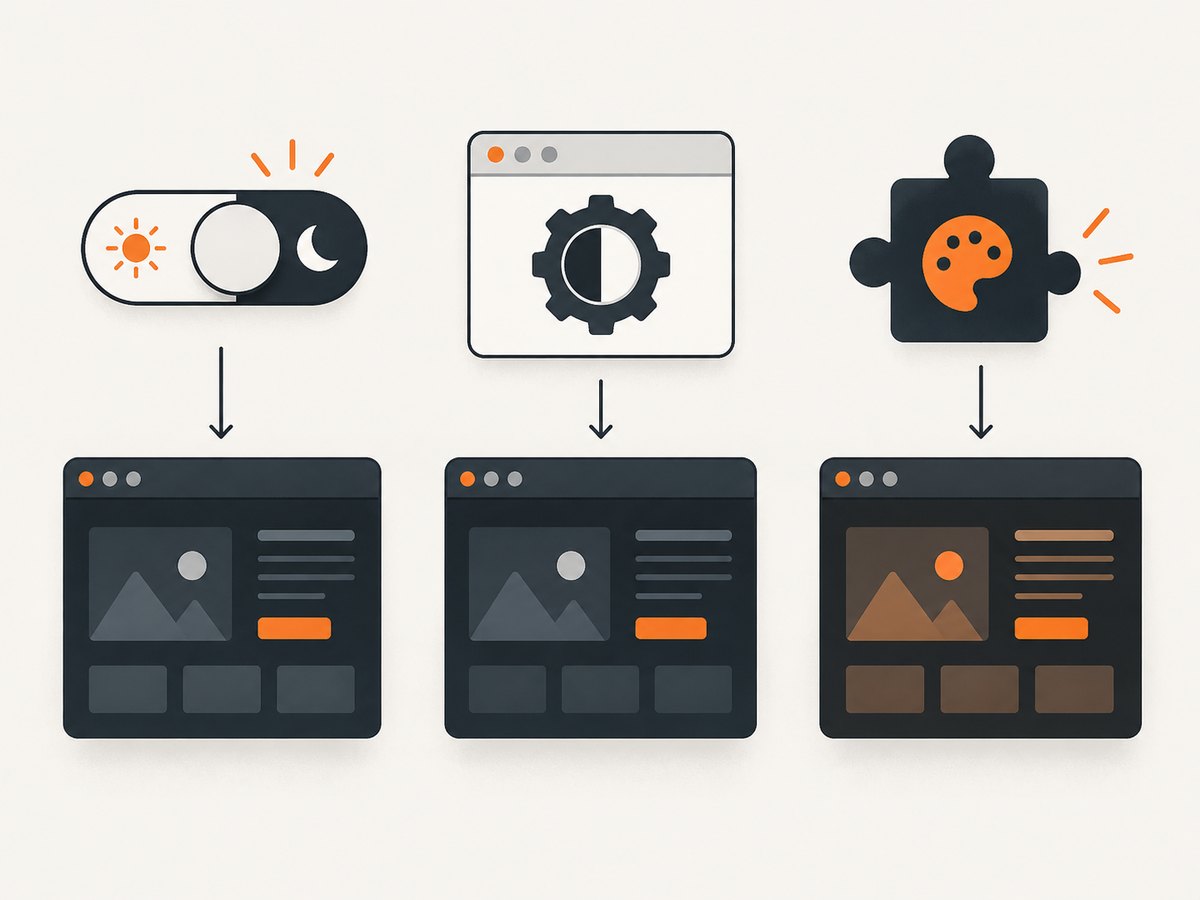
There are three different things people mean by “dark mode.” They have different coverage and fidelity:
| Approach | What it changes | Fidelity and control |
|---|---|---|
| Website’s own theme setting | The site’s own interface | Usually the best-designed result; often offers a per-site choice |
| Browser or device dark preference | Browser UI and sites that respond to the system preference | One global preference; sites choose how to support it |
| Dark-mode extension | Attempts to recolor pages regardless of site support | Broad reach, but can alter colors incorrectly; behavior and tuning vary |
If the site has a theme switch, start there. A site-specific theme can account for its own images, forms, code blocks, and charts. If no switch exists, configure the browser or device. Use an extension only if a page that matters still has no usable dark theme.
2. Turn on dark mode in Chrome
Chrome on desktop
- Open a New Tab.
- Select Customize Chrome.
- Open Appearance.
- Choose Dark to keep Chrome dark, or Device to follow the operating system’s appearance.
This setting darkens Chrome’s homepage, toolbar, settings, and some other pages. Google explicitly notes that it does not promise to darken every website. A webpage must respond to the browser or device preference, provide its own setting, or be recolored by an extension. See Google’s Chrome dark theme instructions.
Chrome on Android
- Open Chrome and tap More (the three-dot menu).
- Tap Settings, then Theme.
- Select Dark, Light, or System Default.
System Default follows the device’s theme and can also be affected by Battery Saver behavior. If Chrome’s menus are dark but a site remains light, check the site itself before assuming the browser setting failed. See Chrome’s Android theme help.
Chrome on iPhone and iPad
Chrome for iOS follows the device’s appearance setting. Open the iPhone or iPad’s Settings, go to Display & Brightness, then choose Dark or set an automatic schedule. Chrome’s own instructions direct iOS users to the device setting; this still does not force every webpage to use dark colors. See Chrome’s guidance.
3. Turn on dark mode in Firefox
- Open the Firefox menu and choose Settings.
- Select General.
- Scroll to Appearance, then find Website appearance.
- Choose Automatic System, Light, or Dark.
Automatic System follows the system preference. Dark asks sites that support the preference to use a dark palette, while Light requests a light palette. These options communicate an appearance preference; they cannot supply dark CSS for a site that has not implemented one. Mozilla documents these choices in its website appearance settings guide.
4. Turn on dark mode in Microsoft Edge
- Open Settings and more (the three-dot menu), then Settings.
- Select Appearance.
- Under Overall appearance, choose Dark.
Edge’s overall appearance setting changes the browser interface. For a webpage to follow it, the page needs dark-theme styles that respond to the browser’s color-scheme preference. Edge also lets developers emulate light and dark preferences in DevTools; see Microsoft’s appearance instructions and the DevTools emulation guide.
5. Why a website can stay light
A browser theme and a webpage theme are related, but they are not the same setting. The browser can darken its own controls and tell a site that the user prefers dark colors. The site’s code must respond to that preference to restyle its content. If it has no dark styles and no manual theme control, the page can remain white even while the browser is dark.
The web platform provides the prefers-color-scheme CSS media feature for sites to detect a light or dark preference. Google recommends supporting the preference and, where appropriate, giving users a manual light, dark, or system-default choice. A site can also declare its supported color schemes to help the browser render built-in controls appropriately. These mechanisms allow a page to cooperate with dark mode; they do not automatically redesign its colors. See Google’s prefers-color-scheme guidance.
Support for related color-scheme behavior reached Chrome 98 and Edge 98 in February 2022, Firefox 96 in January 2022, and Safari 13 in September 2019. These are historical browser support milestones, not a guarantee that a particular website has implemented a complete, readable dark theme. A page can use the feature incorrectly, apply it only to part of its interface, or not use it at all. See the browser support notes.
6. Force a dark appearance when a site has no theme
A browser dark-mode extension can recolor a page that does not implement its own dark theme. This is a software fallback rather than a site-designed appearance: extension behavior varies from site to site, and colors can be wrong. Some extensions provide per-site exceptions or adjustment controls; check the specific extension’s documentation instead of assuming it handles every page the same way.
Before installing one, review the permissions it requests and its privacy terms. Then check pages you rely on: text contrast, logos and photos, charts, code samples, form fields, and embedded video or documents. Recolored content can be less readable than the original. Safari’s web-extension documentation, for example, describes how extension UI can declare support for light and dark color schemes, but that does not mean an extension can produce a perfect theme for every webpage. See Apple’s Safari web extensions documentation.
7. For developers: check whether your page honors dark mode
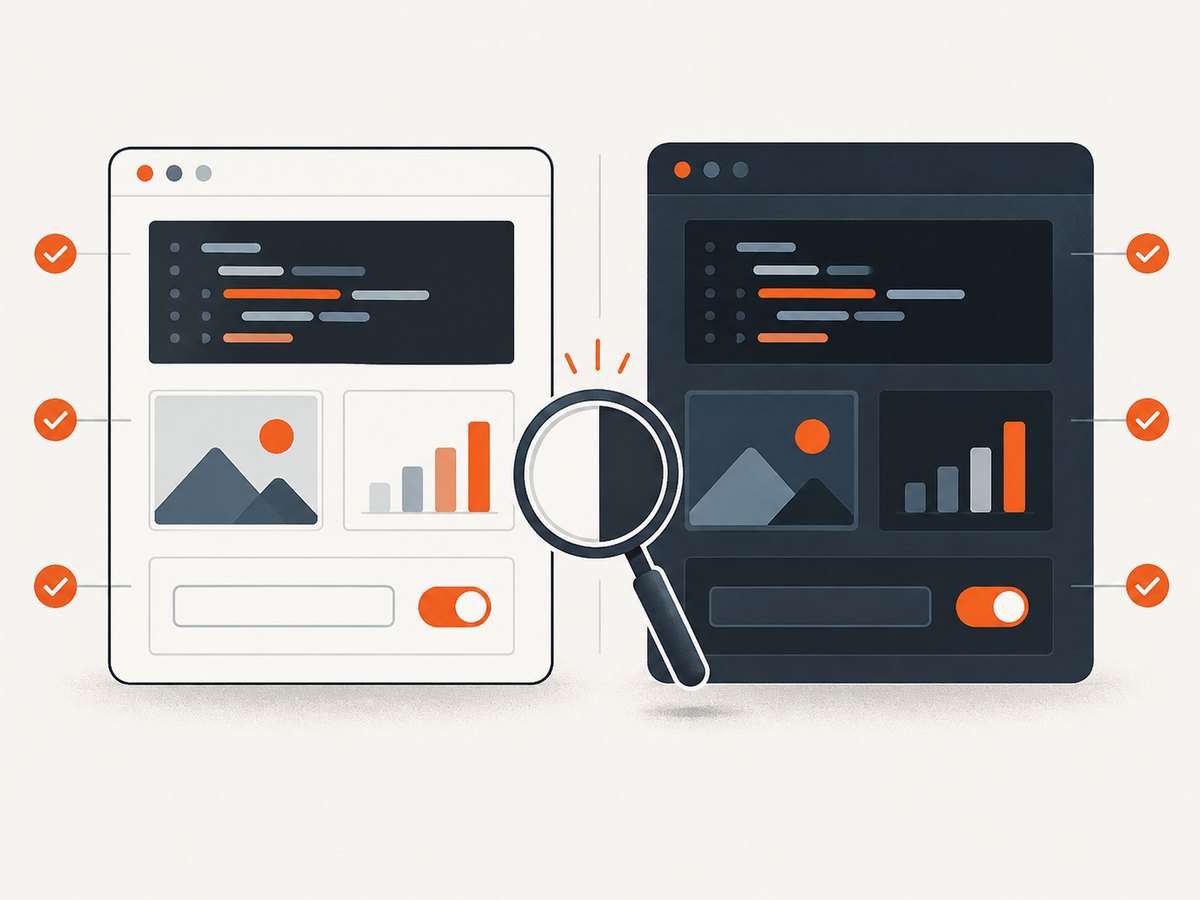
If you maintain a site, test the actual webpage rather than relying on the browser’s toolbar color. In Edge DevTools, use the rendering emulation controls to emulate prefers-color-scheme: dark and then light. Inspect text, backgrounds, borders, focus indicators, form controls, charts, images, and third-party embeds in both states.
A minimal CSS response might look like this:
:root {
  color-scheme: light dark;
  --page-bg: #ffffff;
  --page-text: #202124;
}

body {
  background: var(--page-bg);
  color: var(--page-text);
}

@media (prefers-color-scheme: dark) {
  :root {
    --page-bg: #171717;
    --page-text: #f2f2f2;
  }
}
This is a starting point, not a complete accessible theme. Check contrast and every visual component, and avoid blindly inverting images or content that already has meaningful colors. If you offer a manual theme control, let users select light, dark, or system default and ensure that the chosen setting is applied consistently.
You can capture a page in a selected color scheme to inspect the rendered result. ScreenshotNeo is a website screenshot API and MCP server from ScreenshotNeo; its API supports dark mode and browser configuration for captures. The example below follows the documented one-call request pattern. See the ScreenshotNeo API documentation for request options.
8. Troubleshooting
| Symptom | Likely cause | What to do |
|---|---|---|
| Browser menus are dark, but the webpage is white | The site does not respond to the dark preference, or has a site-level light setting | Check the site’s appearance menu. If it has none, try an extension and inspect the result carefully. |
| Only some parts of the site turn dark | The site styles its main page but misses embedded or third-party content | Check the theme control and report the affected component to the site owner; an extension may also handle embeds differently. |
| Chrome Android switches unexpectedly | System Default follows the device; Battery Saver may affect appearance behavior | Choose Dark explicitly in Chrome’s Theme setting if you want it independent of the system preference. |
| Firefox does not match the operating system | Website appearance is set to Light or Dark rather than Automatic System | Set Website appearance to Automatic System, or pick the desired mode directly. |
| Extension makes a chart or image unreadable | Automatic recoloring changed colors that carry meaning | Use the extension’s site exception or adjustment controls if available; otherwise disable it for that page. |
| Theme appears unchanged after switching | The website may have cached its own setting or require a reload | Reload the page, revisit its appearance control, and verify the browser’s selected mode. |
9. Performance, reliability, and cost
Browser and device theme settings are built in, so enabling them does not require a paid screenshot service or an extension. A site’s own dark theme is generally the most reliable visual result because its designers can account for its components. A browser preference works consistently only where sites implement it. An extension adds another layer that can vary by page and may need exceptions or tuning.
For development, test both color schemes in the browser and review pages with content that does not belong to your site, including embeds and charts. For shareable visual checks, a screenshot can preserve what rendered at capture time; it does not establish that the contrast is accessible, so inspect the design in both modes.
10. Or skip the browser setup
For a one-off capture of a page in dark mode, ScreenshotNeo can return an image directly from an API request. Replace YOUR_API_KEY and choose the page URL. The API supports PNG, JPEG, WebP, or PDF output; consult the documentation for format and capture parameters.
curl -G "https://api.screenshotneo.com/v1/shot" \
  -d access_key=YOUR_API_KEY \
  --data-urlencode url=https://stripe.com \
  -o shot.webp
import requests
r = requests.get(
"https://api.screenshotneo.com/v1/shot",
params={"access_key": "YOUR_API_KEY", "url": "https://stripe.com"},
timeout=90,
)
open("shot.webp", "wb").write(r.content)const q = new URLSearchParams({
access_key: 'YOUR_API_KEY',
url: 'https://stripe.com'
});
const res = await fetch(`https://api.screenshotneo.com/v1/shot?${q}`);ScreenshotNeo removes cookie and consent banners, newsletter popups, and chat widgets before capture; each cleanup step can be turned off. Bot checks, blank pages, failed loads, timeouts, and cache hits are not billed, and responses identify the page verdict and billing status in headers. Its MCP server lets AI agents use take_screenshot, get_page_info, and capture_pdf. The Free plan includes 1,000 screenshots a month with no card; paid plans start at $5 for 3,000 screenshots. Every feature is available on every plan.
Sign up free for 1,000 screenshots a month, with no card required.
11. FAQ
Does Chrome dark mode make every website dark?
No. It darkens Chrome’s interface and some built-in pages. A website must support the browser’s dark preference or be recolored by an extension.
Is a dark-mode extension the same as a site’s dark theme?
No. A site theme is designed for its own content. An extension attempts to transform existing colors and may need site-specific adjustments.
How can I tell whether a website supports dark mode?
Look for a theme control on the site, then change the browser or device preference and reload. Developers can emulate prefers-color-scheme in DevTools to inspect both states.
Will a dark theme always be easier to read?
No. Readability depends on contrast and how the page handles images, charts, controls, and other content. Check the particular page in the mode you plan to use.


