How to Enable Dark Mode on Any Website in Microsoft Edge
Make Edge dark, force dark mode on every site, or apply a safer per-site theme with extensions and developer tools.
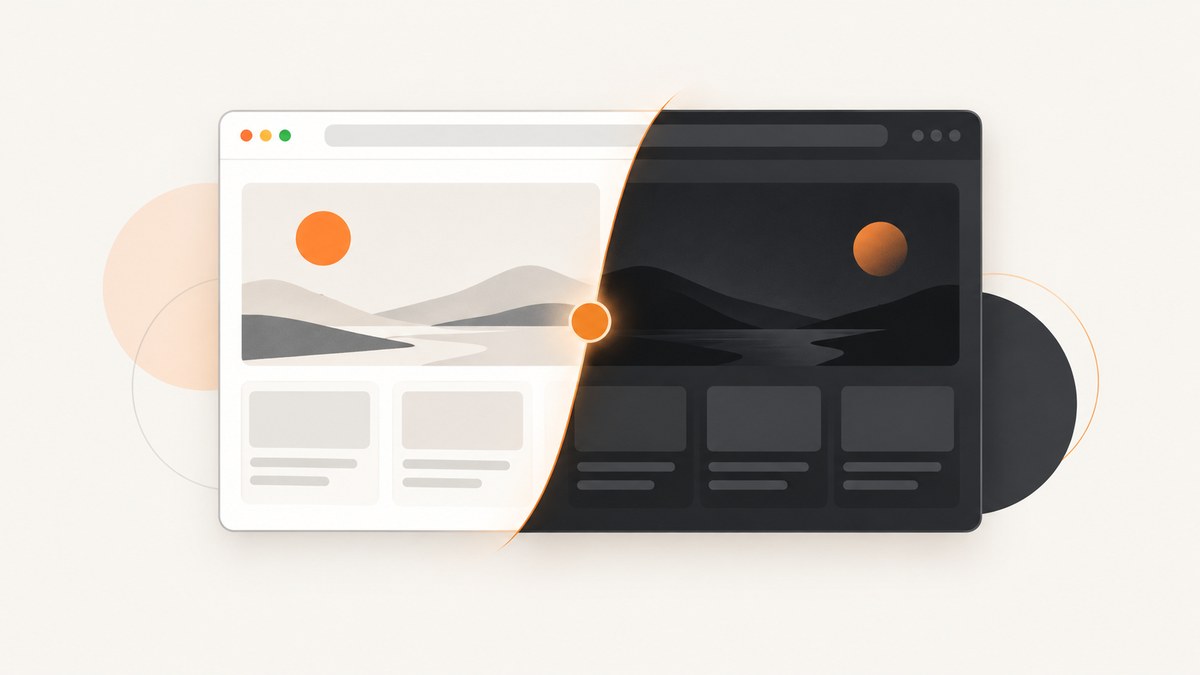
To darken Microsoft Edge itself, open Settings and more (…) > Settings > Appearance, then choose Dark under Overall appearance. This changes Edge’s menus, tabs, and browser chrome. A website can still remain white because the setting does not recolor every page.
For webpages that stay light, choose one of these methods:
- Force Dark Mode flag: applies an experimental dark transformation to all websites.
- Dark-mode extension: gives you per-site control and is usually the best everyday option.
- DevTools emulation: lets developers test a site’s
prefers-color-schemebehavior without changing the browser permanently.
1. Turn on Edge’s built-in dark appearance
- Open Microsoft Edge.
- Select the … menu in the upper-right corner.
- Choose Settings.
- Open Appearance.
- Under Overall appearance, select Dark.
This darkens Edge’s interface. It does not promise to change a site’s own colors, CSS, images, or embedded content.
2. Force dark mode on every website
Edge includes an experimental flag that attempts to recolor webpages globally.

- Type
edge://flags/#enable-force-darkin the address bar and press Enter. - Find the force-dark option.
- Set it to Enabled.
- Select Restart when Edge prompts you.
After restarting, Edge applies the transformation to webpages, including sites that do not provide their own dark theme.
When the flag is useful
- You want a quick global experiment.
- You regularly visit sites without a dark theme.
- You accept that colors, shadows, icons, and images may change.
When to avoid it
The flag is experimental. A page can become unreadable, colors can be inverted, and images can look wrong. To undo it, return to edge://flags/#enable-force-dark and set the option to Default or Disabled, then restart Edge.
3. Use a per-site dark-mode extension
A dark-mode extension is the practical choice when only selected websites should change. Dark Reader is one example available through the Edge Add-ons store. Its controls let you activate dark mode for the current site and choose whether it runs by default on websites or PDFs.
- Open the Edge Add-ons store and search for a dark-mode extension such as Dark Reader.
- Review the publisher, permissions, and current listing before installing.
- Select Get and confirm the installation.
- Open the extension from Edge’s toolbar.
- Enable it for the current site, or configure its default behavior.
Per-site setup checklist
- Enable the extension only on sites that need it.
- Keep sites with color-sensitive work, such as design tools or charts, in their original mode when needed.
- Check PDFs separately because extensions can expose separate website and PDF defaults.
- Review permissions after browser or extension updates.
4. Test dark CSS with Edge DevTools
Developers can emulate the prefers-color-scheme media feature for the current rendered session. This is useful for checking whether a page’s own dark stylesheet works; it does not create a persistent reader theme.
- Open DevTools with
F12orCtrl+Shift+Ion Windows. - Open the Rendering tool. You can also use the Command Menu to find rendering options.
- Under emulated media features, set
prefers-color-schemetodarkorlight. - Reload the page and inspect the result.
A page must include dark styles to respond correctly. For example:
:root {
  color-scheme: light;
  background: #ffffff;
  color: #1f2937;
}

@media (prefers-color-scheme: dark) {
  :root {
    color-scheme: dark;
    background: #111827;
    color: #f9fafb;
  }
}
You can also inspect the active preference from the console:
window.matchMedia('(prefers-color-scheme: dark)').matches5. Choose the right method
| Method | Scope | Best for | Tradeoff |
|---|---|---|---|
| Appearance > Dark | Edge menus, tabs, and browser chrome | Darkening the browser itself | A site may remain light |
| Force-dark flag | All webpages | A fast global experiment | Experimental; can distort colors and images |
| Dark-mode extension | Current site or configured sites | Per-site control | Requires installation and permission review |
| DevTools emulation | Current developer session | Testing responsive dark CSS | Not a persistent reader theme |
| Accessibility contrast controls | Readability and contrast | Stronger visual contrast | Not the same as recoloring every webpage |
6. Troubleshooting
Edge is dark but the website is still white
The Appearance setting controls Edge’s interface. Use the force-dark flag, a per-site extension, or the website’s own theme control.
Only one website should be dark
Use an extension with per-site activation. The force-dark flag is global and affects every webpage.
The force-dark flag is missing
Flags are experimental and can be renamed or removed in newer Edge builds. Use the site’s own theme, a maintained extension, or Edge’s built-in appearance setting instead of relying on an old tutorial.
Colors are inverted or images look wrong
Disable the force-dark flag and restart Edge. Try an extension with site-specific controls so you can adjust or exclude the affected site.
A work or school device blocks extensions
Use Edge’s built-in theme or the site’s own dark setting. Ask your administrator whether extensions are permitted; do not bypass organizational policy.
Some components remain bright
Embedded frames, canvas content, third-party widgets, and images may use their own rendering rules. A browser-level transformation cannot reliably rewrite every component.
Text has poor contrast
Switch the site back to its original theme, adjust the extension’s contrast or brightness controls, or use accessibility contrast settings. Darker is not automatically more readable.
7. Capturing a dark-mode page for documentation or testing
If you need a repeatable screenshot, first apply the desired mode in Edge and verify the page state. For automated browser tests, set the emulated color scheme before navigation, wait for the page to settle, and capture after dynamic content and fonts load. Keep the dark-mode choice explicit in your test name so light and dark snapshots are not mixed.

Or skip the browser setup
ScreenshotNeo can capture a URL through one request, with dark mode and other capture settings available as API options. See the ScreenshotNeo API documentation for the full parameter list.
curl -G "https://api.screenshotneo.com/v1/shot" \
  -d access_key=YOUR_API_KEY \
  --data-urlencode url=https://stripe.com \
  -o shot.webp
import requests
r = requests.get(
"https://api.screenshotneo.com/v1/shot",
params={"access_key": "YOUR_API_KEY", "url": "https://stripe.com"},
timeout=90,
)
r.raise_for_status()
open("shot.webp", "wb").write(r.content)const q = new URLSearchParams({
access_key: 'YOUR_API_KEY',
url: 'https://stripe.com'
});
const res = await fetch(`https://api.screenshotneo.com/v1/shot?${q}`);
if (!res.ok) throw new Error(`HTTP ${res.status}`);
const image = Buffer.from(await res.arrayBuffer());
require('node:fs').writeFileSync('shot.webp', image);ScreenshotNeo removes cookie banners, newsletter popups, and chat widgets before the shot. Bot checks, blank pages, failed loads, timeouts, and cache hits are not billed, and response headers identify the page verdict and billing status. Its MCP server lets Claude, Cursor, and other MCP clients call take_screenshot, get_page_info, and capture_pdf. The Free plan includes 1,000 screenshots per month with no card; paid plans start at $5 for 3,000. Create a free ScreenshotNeo account.
8. Performance, reliability, and cost notes
- Built-in setting: simplest and lowest overhead, but it does not recolor pages.
- Force-dark flag: applies globally and can require visual fixes on individual sites.
- Extensions: add browser work on matching pages; limiting them to selected sites reduces unwanted transformations.
- DevTools: affects only the current test session and is ideal for repeatable CSS checks.
- Automated screenshots: wait for network idle, a selector, or a deliberate delay when pages load content after navigation. Use caching with a chosen TTL when the same URL is captured repeatedly.
FAQ
Does Edge dark mode change every website?
No. Edge’s Appearance setting changes the browser interface. Websites need their own dark theme, the force-dark flag, or an extension.
Can I force dark mode without installing an extension?
Yes. Use edge://flags/#enable-force-dark, but it is experimental and global.
Can I darken just one website?
Yes. Use a per-site extension or the website’s own theme setting.
Is DevTools dark mode permanent?
No. DevTools emulation changes the current rendered test session.
Is Web Remix a stable Edge feature?
Windows Central reported Web Remix testing in Edge Canary in July 2026. It was preview software, so its behavior and availability can change.
What if dark mode makes a page harder to read?
Disable the force-dark transformation for that site, adjust the extension, or return to the site’s original theme and use contrast controls.


