How to Enable Dark Mode on ESPN’s Website
ESPN does not document a built-in dark switch. Learn Chrome, extension, Android, and ScreenshotNeo methods, plus fixes for common problems.
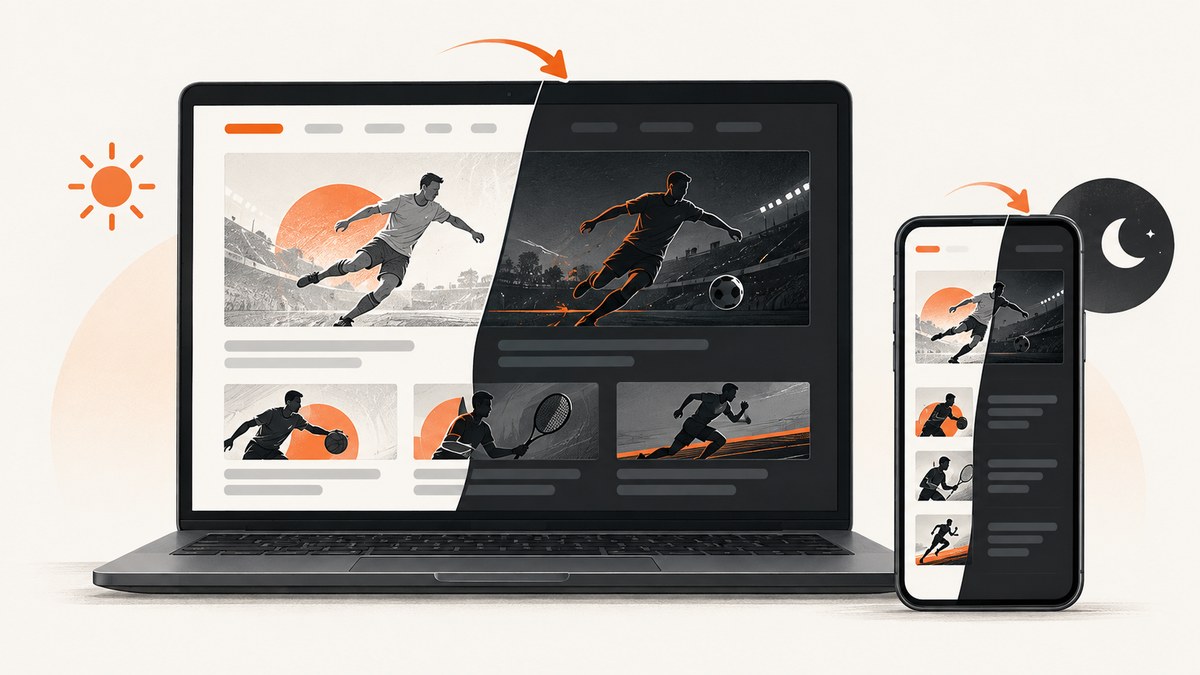
Short answer: ESPN’s reviewed help pages do not document a built-in dark-mode switch for ESPN.com. Check the live site first, then use Chrome’s dark theme, a carefully reviewed page-restyling extension, or Android accessibility settings. Chrome’s dark theme may darken the browser interface without changing ESPN’s webpage (ESPN personalization help; browser requirements).
1. Check ESPN first
- Open ESPN.com.
- Check profile, settings, and page menus for Appearance, Theme, or Dark mode.
- If no control appears, use one of the methods below.
The reviewed ESPN support pages describe account personalization and browser requirements, but do not document a site appearance switch. That does not prove ESPN has never exposed one elsewhere, so check the current site before installing anything.
2. Turn on Chrome’s dark theme
- Open a new Chrome tab.
- Select Customize Chrome.
- Under Appearance, choose Dark, or choose Device to follow your operating system.
These are Google’s documented steps (Chrome Help). Chrome says this changes the browser interface and selected pages. It does not guarantee that ESPN’s HTML, images, scores, or video controls will become dark. Reload ESPN after changing the setting.
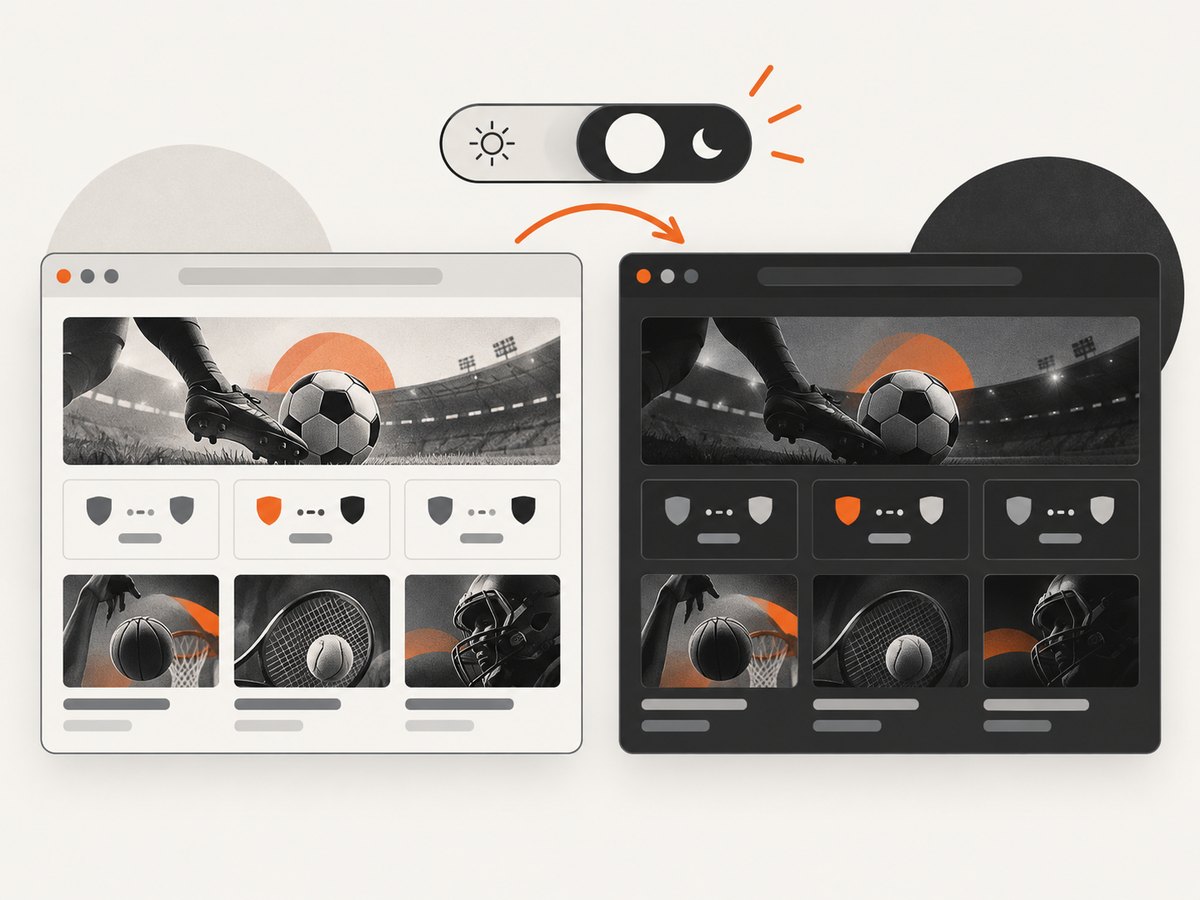
| Method | Scope | ESPN page guaranteed dark? |
|---|---|---|
| Chrome Dark | Browser chrome and compatible pages | No |
| Device dark theme | Operating system and compatible apps | No |
| Page-restyling extension | Matching websites | Usually changes more of the page |
| Android color inversion | All device content | Changes colors rather than applying a theme |
3. Use an ESPN page-darkening extension
If ESPN remains light, a browser extension can inject CSS or rewrite page colors. A GitHub project named espn-dark-mode describes an ESPN-specific Chrome extension. It is a third-party community project, not an ESPN recommendation. Its current maintenance, permissions, compatibility, and privacy have not been independently verified here.
Review an extension before installing
- Prefer a named publisher, recent maintenance, public source, and clear privacy policy.
- Read every requested permission. Page styling should not require unrelated access to sensitive sites.
- Check reviews and update history, and install from an official extension store or trusted source.
- Enable it only for ESPN.com when possible.
- Inspect headlines, score colors, images, ads, and video controls after activation.
- Disable or remove it if pages become unreadable or behavior is unexpected.
Do not treat a repository description as a security audit. Avoid granting a theme extension access to banking, mail, or other private sites.
4. Android dark theme and color inversion
Dark theme
- Open Settings.
- Go to Accessibility → Color and motion → Dark theme.
- Turn it on, then reopen ESPN.
Google documents these controls in Android Accessibility Help. Menu names vary by Android version and manufacturer. The browser interface may darken while ESPN’s webpage remains light.
Color inversion
Android also provides Color inversion in the same area. It affects all device content, including media. Google warns that inversion can reduce color quality or legibility, so treat it as an accessibility aid rather than an ESPN-specific theme.
5. Choose the least disruptive option
| Goal | Recommended first try | Trade-off |
|---|---|---|
| Dark browser controls | Chrome Dark or Device | ESPN content may stay light |
| Dark ESPN page only | Site-specific extension | Requires permission and privacy review |
| Darken Android apps | Android Dark theme | Results vary by app |
| Accessibility contrast change | Color inversion | Changes photos, video, and every app |
6. Troubleshooting
Chrome is dark but ESPN is white
This is expected when a site does not follow Chrome’s selected-page themes. Confirm Chrome is set to Dark, reload ESPN, and use a page-restyling extension if you need the webpage itself recolored.
Only some panels changed
Dynamic widgets, embedded video, and cross-origin frames can use separate styles. Try the extension’s site-specific mode, disable conflicting extensions, and reload after the page finishes loading.
Text or team colors are unreadable
Turn off inversion or the extension for ESPN and add a site exception. Do not stack multiple dark-mode extensions because their CSS can conflict.
An extension requests broad permissions
Pause installation and inspect the publisher, source, reviews, and privacy policy. If access does not match page restyling, choose another tool or use Chrome’s built-in theme.
Android settings are missing
Search Settings for “Dark theme” or “Color inversion.” Manufacturers place these controls differently.
ESPN changed after a redesign
Disable the extension to confirm the cause, check for a maintained release, and report broken selectors to its publisher. Avoid using account or payment pages until the layout is trustworthy.
7. Capture a dark ESPN view
For a repeatable image, apply your browser or extension setting, then capture the page. Record the URL, time, viewport, and enabled extensions because scores and video can change between loads. Avoid capturing private account data.
Or skip the browser setup
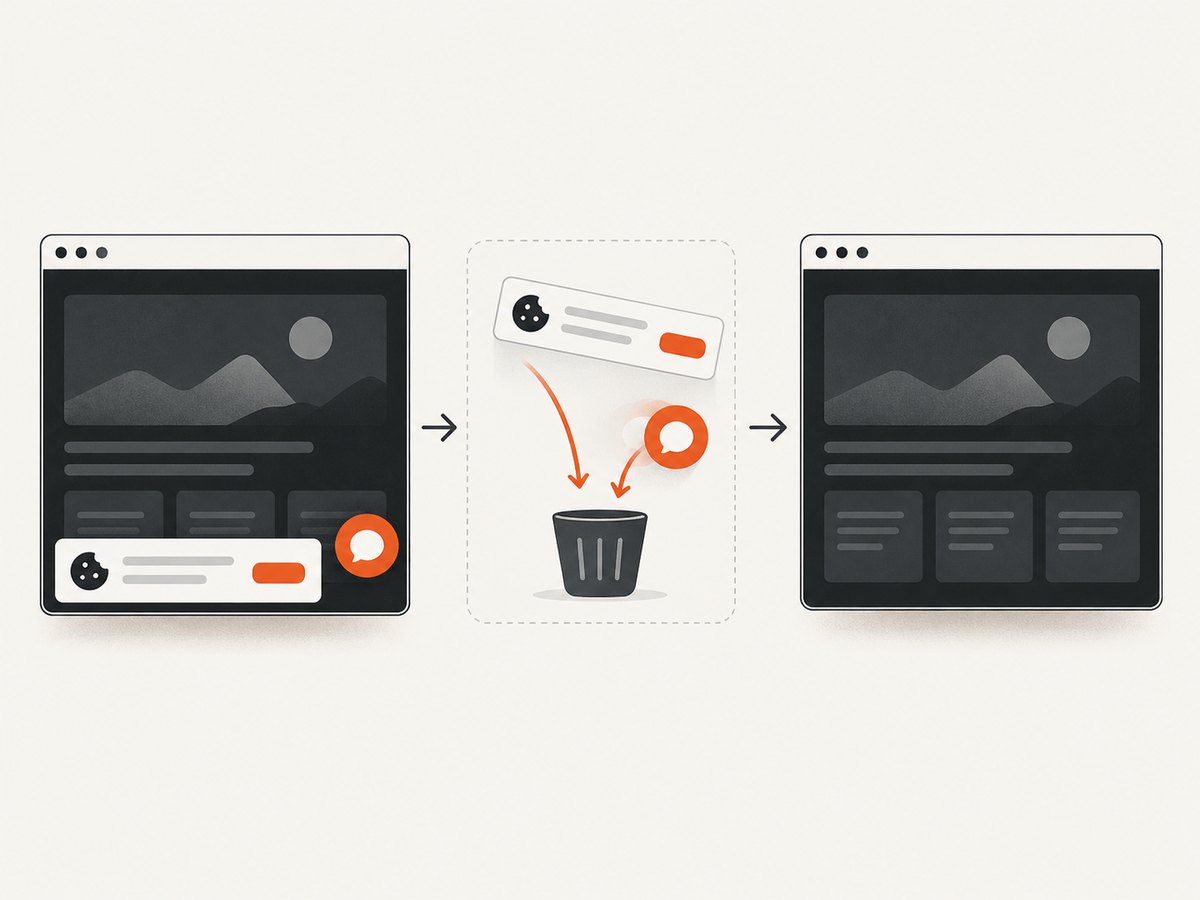
ScreenshotNeo captures a URL in one request and supports dark mode, device presets, custom CSS or JavaScript, waits for selectors or network idle, and hidden selectors. Before capture it accepts cookie or consent banners and removes more than 60 known consent platforms, newsletter popups, and chat widgets; each step can be turned off. Bot checks, blank pages, timeouts, failed loads, and cache hits are not billed, and X-Page-Verdict and X-Billed identify the result. Its MCP server provides take_screenshot, get_page_info, and capture_pdf for Claude, Cursor, and other MCP clients.
See the ScreenshotNeo API documentation for parameters.
curl -G "https://api.screenshotneo.com/v1/shot" -d access_key=YOUR_API_KEY --data-urlencode url=https://www.espn.com -d dark_mode=true -o espn-dark.webpimport requests
r = requests.get("https://api.screenshotneo.com/v1/shot", params={"access_key": "YOUR_API_KEY", "url": "https://www.espn.com", "dark_mode": "true"}, timeout=90)
r.raise_for_status()
open("espn-dark.webp", "wb").write(r.content)const q = new URLSearchParams({ access_key: 'YOUR_API_KEY', url: 'https://www.espn.com', dark_mode: 'true' });
const res = await fetch(`https://api.screenshotneo.com/v1/shot?${q}`);
if (!res.ok) throw new Error(`HTTP ${res.status}`);
const fs = await import('node:fs/promises');
await fs.writeFile('espn-dark.webp', Buffer.from(await res.arrayBuffer()));ScreenshotNeo includes 1,000 screenshots each month for free with no card; paid plans start at $5 for 3,000. Create a free account.
8. Performance, reliability, and privacy
- Extensions add processing to matching pages and can conflict with site scripts.
- Color inversion is immediate but changes every app and image.
- For automated captures, set a viewport and wait for a stable selector or network idle.
- Use a cache TTL that matches how often ESPN content changes.
- Do not send authenticated URLs, tokens, or personal data to a capture service unless permitted.
FAQ
Does ESPN have official dark mode?
The reviewed ESPN help pages do not document one. Check the live site for newer controls.
Will Chrome Dark mode darken ESPN?
Not necessarily. Chrome’s setting changes the browser interface and selected pages; ESPN may remain light.
Is espn-dark-mode official?
No. It is a third-party project. Review permissions, maintenance, privacy, and compatibility yourself.
What is the least disruptive option?
Use Chrome Dark for browser chrome, or an ESPN-only extension when you need the webpage recolored.


