How to Enable Dark Mode on a Computer
Turn on dark mode in Windows, macOS, Chrome, Edge, Firefox, and individual websites, with fixes when pages remain bright.

Quick answer: dark mode has three separate layers: your operating system, your browser interface, and each website or app. Set the operating-system appearance first, then set the browser theme if it does not follow the system. A website can still ignore both preferences or provide its own theme switch.
Dark mode changes bright backgrounds to dark colors and lightens text and controls. It can make a low-light workspace more comfortable, but it does not guarantee that every page, document, or application will change. Follow the section for your computer and browser below.
1. Understand the three dark-mode controls
| Layer | What changes | What it cannot guarantee |
|---|---|---|
| Operating system | Windows or macOS menus, controls, notifications, and supported applications | Every browser page or third-party app will honor the setting |
| Browser interface | Toolbars, settings, new-tab pages, and browser-owned pages | Websites will use a dark color scheme |
| Website or app | The page’s own background, text, and components | Other sites or programs will change |
System and browser settings are independent. Chrome can be set to follow the device, Firefox can use its automatic system appearance, and Windows can split the Windows mode from the default app mode. If one layer remains bright, change that layer directly.
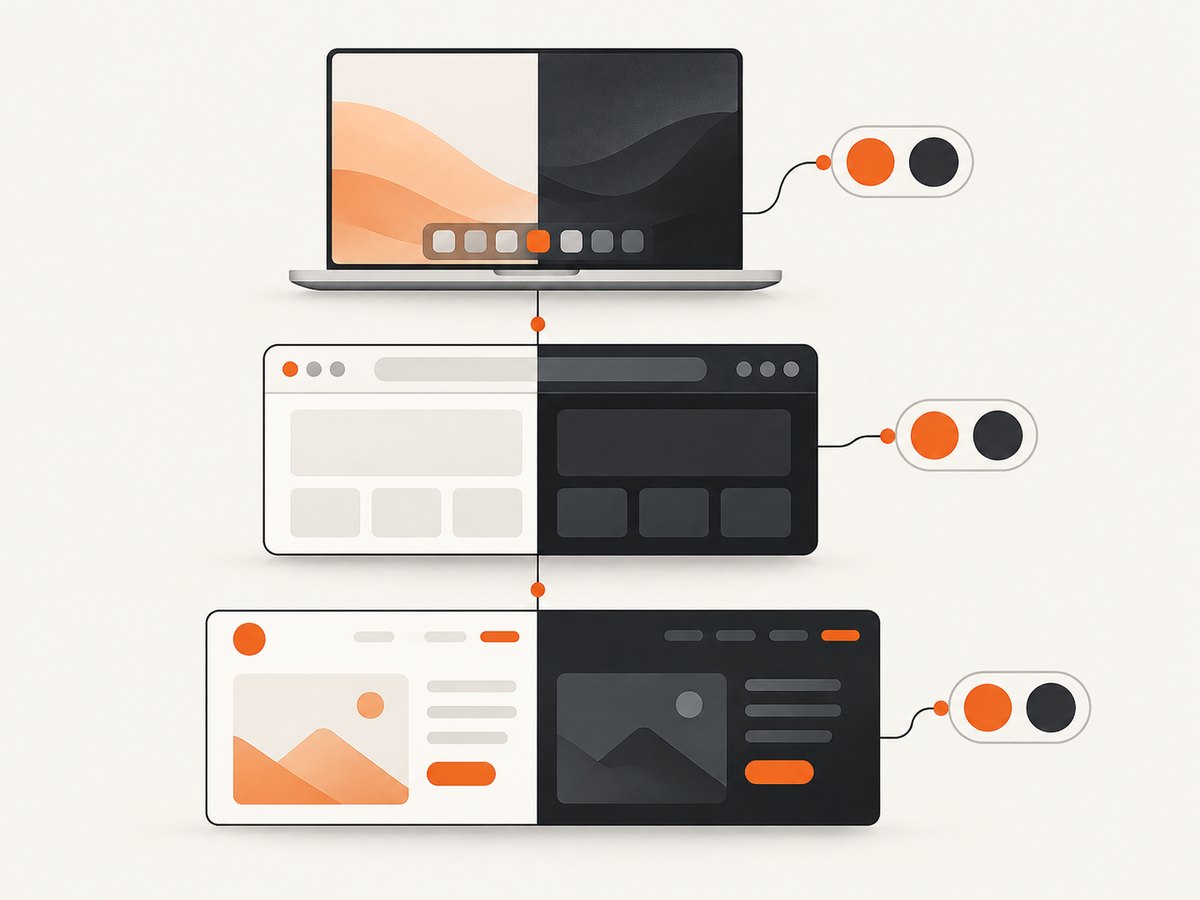
2. Turn on dark mode in Windows 11
- Press Windows key + I to open Settings. You can also open Start and select Settings.
- Select Personalization, then Colors.
- Find Choose your mode and select Dark.
This applies dark colors to Windows elements and supported applications. File Explorer, Settings, taskbar surfaces, and other Windows controls should update immediately.
Keep Windows dark but apps light
Choose Custom under Choose your mode. Windows then shows separate choices for the default Windows mode and the default app mode. For example, select Dark for Windows mode and Light for app mode, or reverse those choices. This is useful when dark menus are comfortable but a particular app is easier to read with a light canvas.
Use accessibility settings when dark mode is not enough
Windows also provides contrast themes and color filters. These are separate from ordinary dark mode. Contrast themes change the relationship between foreground and background colors and can help with low vision or difficulty distinguishing details. Color filters alter how colors are displayed. Open Settings > Accessibility to review those controls. Choose the setting that solves the visual problem rather than assuming a darker palette will solve every readability issue.
3. Turn on dark mode in macOS
- Open Control Center from the menu bar.
- Select Display.
- Select Dark Mode.
Apple describes Dark Mode as a darker color scheme that lets working content stand out while windows and controls recede. On supported macOS versions, you can also open System Settings > General > Appearance and choose Dark. Older releases may label the same area System Preferences > General.
Automatic appearance
If your Mac offers Auto, it can switch between light and dark appearance based on the schedule built into macOS. Use Dark when you want a fixed setting, or Auto when you want the computer to change without manual intervention.
4. Set dark mode in Google Chrome
- Open a new Chrome tab.
- Select Customize Chrome in the bottom-right corner.
- Under Appearance, choose Dark.
- Choose Device if Chrome should follow your computer’s system theme.
Chrome’s dark choice affects the homepage, toolbar, settings, and some other Chrome pages. It does not force every website to recolor. A site must support a dark color scheme or provide its own theme control.
When Chrome still looks light
Check both settings: first the computer’s appearance, then Customize Chrome > Appearance. If Chrome is dark but a page is bright, that page is outside Chrome’s interface. Look for a sun/moon button, an account preference, or an appearance menu on the site itself.
5. Set dark mode in Microsoft Edge
- Select Settings and more (…) in the upper-right corner.
- Select Settings, then open Appearance.
- Under Overall appearance, select Dark.
Edge’s overall appearance controls the browser chrome. A supported page that remains bright may work with Immersive Reader: open Immersive Reader, choose Text preferences, and select the black page theme. Immersive Reader is available only on specific web pages, so the option may not appear for every site.
6. Set dark mode in Mozilla Firefox
Dark Firefox interface
- Open the Firefox menu.
- Select Extensions and themes, then Themes.
- Enable the built-in Dark theme.
Firefox also offers Light and System choices. System makes the browser interface follow the operating-system appearance where supported.
Dark websites in Firefox
- Open Settings (or Preferences).
- In General, find Appearance.
- Under Website appearance, choose Dark or Automatic System.
Automatic System follows the selected Firefox or operating-system theme on sites that honor the browser preference. It cannot rewrite a site that has hard-coded light colors or does not implement a dark design.
7. Make an individual website or app dark
Many websites expose a theme switch in a profile menu, footer, or settings panel. Choose Dark there when the site ignores the browser preference. Some apps have a separate theme setting under Preferences, View, or Accessibility.
If no site setting exists, do not assume the browser’s dark toolbar should recolor the page. Browser themes and page themes are different controls. Forced-color or contrast features can change a page, but they may also alter brand colors, charts, images, and form controls. Use them when accessibility requires it and check important pages afterward.
8. Troubleshooting: why a page is still light
| Symptom | Likely cause | Fix |
|---|---|---|
| Windows is dark, but Chrome is light | Chrome is using its own Light appearance | Open Customize Chrome > Appearance and choose Dark or Device |
| Browser chrome is dark, but a website is white | The website does not honor the system preference | Use the site’s theme control; check account or accessibility settings |
| Only one app stays light | The app has an independent theme setting or no dark theme | Open that app’s preferences; update it if a theme option is missing |
| Firefox follows the wrong color | Website appearance is set to Light or the system choice is light | Set Firefox Website appearance to Dark or Automatic System |
| Edge page has no Immersive Reader button | The page is not supported | Use the site’s own theme control or leave the page unchanged |
| Text becomes hard to read | Contrast, color filters, or a forced theme changed more than the background | Return to ordinary Dark mode, adjust contrast, or disable the filter |
| Changes do not appear | A page or app has cached styles or needs a restart | Reload the page, close and reopen the app, then check the setting again |
Check the preference a website receives
Modern websites can detect a dark preference through the prefers-color-scheme media feature. A site may use that signal, ignore it, or override it with an account-level choice. If you build a website, test both values and make sure text, borders, focus indicators, disabled controls, charts, and images remain distinguishable.
:root {
  color-scheme: light dark;
}

@media (prefers-color-scheme: dark) {
  body {
    background: #111;
    color: #eee;
  }
}
The declaration advertises supported schemes to the browser; the media query supplies your actual colors. It does not change a page you do not control.
9. Capture a reliable dark-mode screenshot
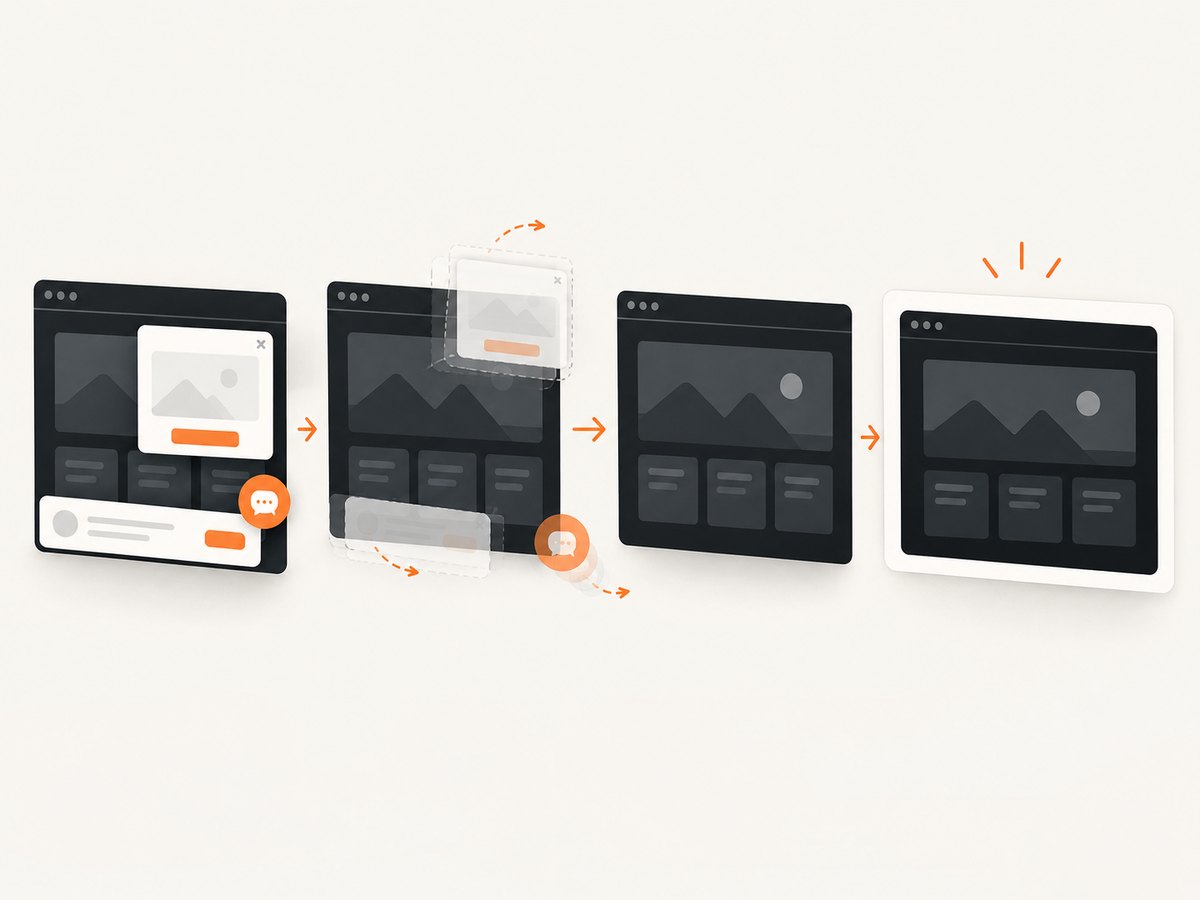
If you document a dark interface, compare designs, or generate visual regression snapshots, capture the page with the same appearance preference every time. Set the operating system or browser before manual capture, and make sure the page has finished loading before saving an image. A page can also display a consent banner, newsletter popup, or chat widget that hides the design you are trying to record.
10. Or skip the browser setup
ScreenshotNeo is a website screenshot API and MCP server. It can capture a URL as PNG, JPEG, WebP, or PDF, with dark mode, custom CSS, JavaScript, viewport, device, cookies, headers, waits, and other capture options. For dark-mode documentation, use its dark-mode option together with the URL and output format described in the ScreenshotNeo documentation.
The basic request is:
curl -G "https://api.screenshotneo.com/v1/shot" -d access_key=YOUR_API_KEY --data-urlencode url=https://stripe.com -o shot.webpPython:
import requests

r = requests.get(
    "https://api.screenshotneo.com/v1/shot",
    params={"access_key": "YOUR_API_KEY", "url": "https://stripe.com"},
    timeout=90,
)
r.raise_for_status()
open("shot.webp", "wb").write(r.content)
Node.js:
const q = new URLSearchParams({ access_key: 'YOUR_API_KEY', url: 'https://stripe.com' });
const res = await fetch(`https://api.screenshotneo.com/v1/shot?${q}`);
if (!res.ok) throw new Error(`Screenshot failed: ${res.status}`);
const fs = await import('node:fs/promises');
await fs.writeFile('shot.webp', Buffer.from(await res.arrayBuffer()));
ScreenshotNeo removes cookie and consent banners, newsletter popups, and chat widgets before capture. Each step can be turned off. Only clean shots are billed: bot checks or CAPTCHAs, blank pages, timeouts, failed loads, and cache hits cost nothing. The response identifies the result with X-Page-Verdict and X-Billed headers.
For repeatable dark captures, use a fixed viewport or device preset, retina scale when you need sharper documentation, a wait for a selector or network idle, and a cache TTL when the page is unchanged. You can capture one element by CSS selector, hide selectors, block ads or trackers, set timezone and geolocation, provide custom headers or cookies, resize the output, and use signed links for public image tags. Async jobs, signed webhooks, bulk capture for up to 100 URLs per call, a usage API, and an OpenAPI specification are available. The MCP server provides take_screenshot, get_page_info, and capture_pdf tools for Claude, Cursor, and other MCP clients.
There are 1,000 screenshots per month on the Free plan with no card. Paid plans start at $5 for 3,000 shots; yearly billing gives two months free. Create a free ScreenshotNeo account to capture dark-mode pages without maintaining browser setup.
11. Performance, reliability, and cost considerations
- Manual settings: System and browser changes are immediate and free, but coverage depends on each website or app supporting dark mode.
- Rendering: A screenshot service must wait for fonts, lazy images, scripts, and theme changes. Use a selector wait, delay, or network-idle wait when a page changes appearance after load.
- Consistency: Fix viewport, device preset, timezone, geolocation, user agent, cookies, and custom headers when comparing screenshots across runs.
- Failure handling: Check the HTTP status and the
X-Page-VerdictandX-Billedheaders. A bot check, blank page, timeout, failed load, or cache hit is not billed by ScreenshotNeo. - Cost control: Cache stable pages with a TTL, use element capture when a full page is unnecessary, and use bulk capture for URL sets. Free usage covers 1,000 shots each month without a card.
12. Dark-mode checklist
- Set Windows or macOS to Dark.
- Set Chrome, Edge, or Firefox to Dark or its follow-system option.
- Check the website or app’s own appearance setting.
- Verify text, links, focus outlines, disabled controls, charts, and images.
- Use contrast themes or color filters only when they solve an accessibility need.
- Reload or restart an app if its colors do not update.
- For automated documentation, fix capture settings and wait for the dark theme before taking the shot.
FAQ
Does dark mode reduce eye strain for everyone?
No. It can be more comfortable in low or no light, while some people read dark text on a light background more easily. Adjust brightness, contrast, and text size as well.
Why does a screenshot look light even though my computer is dark?
The capture environment may use a different system or browser preference, or the site may ignore prefers-color-scheme. Set the preference in the environment that creates the screenshot or pass a dark-mode capture option.
Are extensions required?
No. Windows, macOS, Chrome, Edge, and Firefox all provide built-in controls for their own interfaces. Extensions are optional and may not work consistently on every site.
What is the difference between dark mode and a contrast theme?
Dark mode changes the palette toward dark backgrounds. A contrast theme changes foreground and background relationships more aggressively to improve distinction. They serve different accessibility needs.
Can one setting force every website to be dark?
No universal setting guarantees that. Websites control their own CSS and may provide a separate theme switch or ignore system preferences.


