How to Enable Dark Mode on Your Screen
Turn on dark mode in Windows, macOS, iPhone, iPad, and Chrome, set a schedule, and troubleshoot apps and sites that stay light.
To enable dark mode, open your device’s appearance or color settings and choose Dark. The exact path depends on the device: Windows uses Settings > Personalization > Colors, Mac uses System Settings > Appearance, and iPhone or iPad uses Settings > Appearance on current versions or Settings > Display & Brightness on iOS 26 and earlier. Chrome also has its own theme setting, so a dark device does not guarantee every app or website will look dark.
This guide covers system-wide dark mode, app and browser settings, automatic switching, accessibility fallbacks, and practical fixes when a screen remains bright.
1. What dark mode changes
Dark mode changes the appearance of supported interface elements, usually replacing light backgrounds with dark ones and adjusting text and controls for contrast. It is a display preference, not a setting that forces every app or web page to adopt a dark palette. Your operating system, browser, and individual apps can each have separate appearance controls.
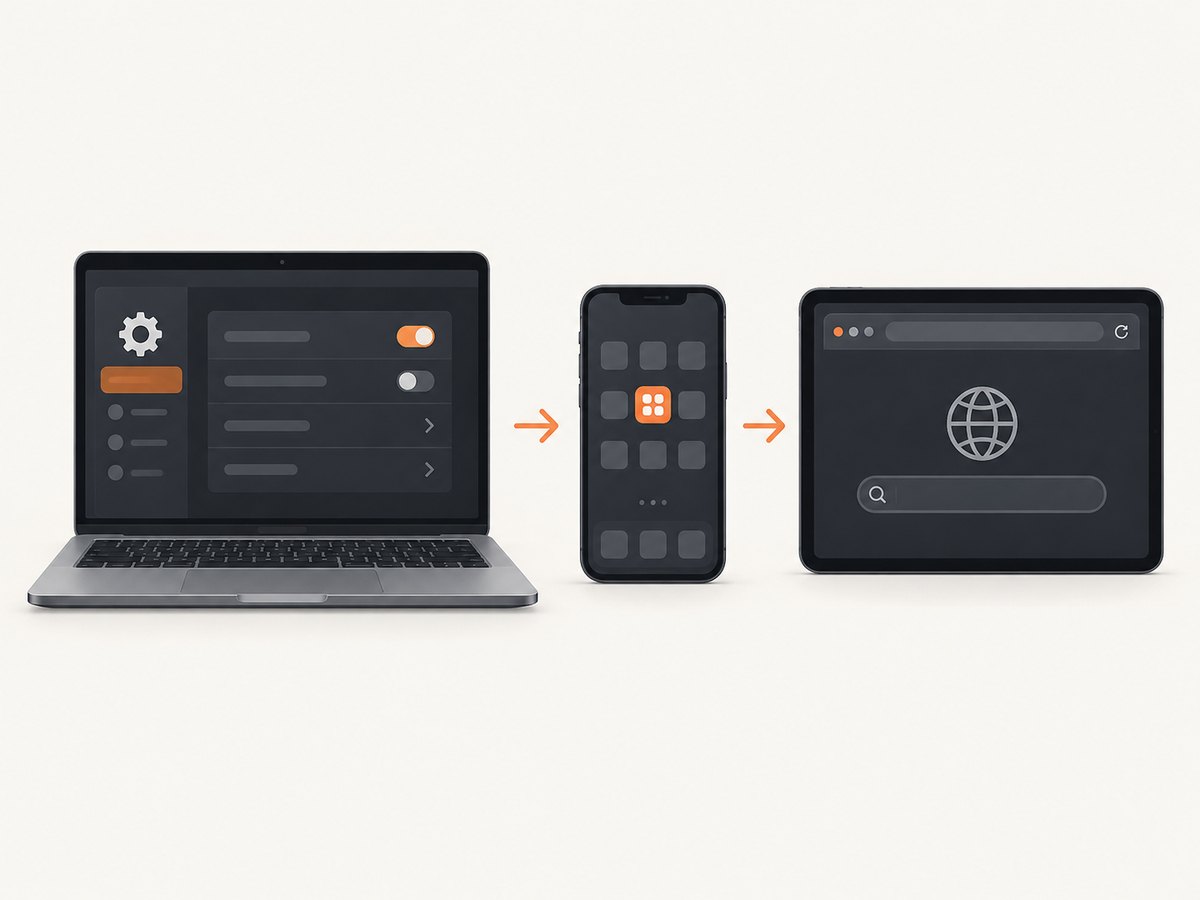
For example, Windows dark mode changes supported Windows elements such as the Start menu, taskbar, File Explorer, and Settings. Chrome’s dark theme affects its homepage, toolbar, settings, and some other pages; a website’s own design may remain light. Microsoft also notes that some apps let you choose light or dark separately from the Windows color mode.
| Where you want dark mode | Where to set it | Can it follow a schedule or device? |
|---|---|---|
| Windows interface | Settings > Personalization > Colors | Choose Custom to configure Windows and apps separately. |
| Mac interface | System Settings > Appearance | Auto follows the configured schedule. |
| iPhone or iPad | Settings > Appearance, or Display & Brightness on older versions | Automatic can schedule switching. |
| Chrome on a computer | New tab > Customize Chrome > Appearance | Device follows the computer’s appearance. |
| Chrome on Android | More > Settings > Theme | System Default follows the phone; Battery Saver may also trigger dark theme. |
2. Turn on dark mode in Windows 11 or Windows 10
- Open Settings.
- Select Personalization, then Colors.
- Under Choose your mode, select Dark.
The Start menu, taskbar, Action Center, File Explorer, Settings, and many Microsoft Store apps can use the dark appearance. Some desktop applications have their own theme control, while others do not support dark mode.
Use Custom when apps and Windows should differ
Select Custom under Choose your mode to set Windows elements and apps independently. This is useful if you want dark taskbar and system windows while keeping compatible apps light, or the reverse. After changing it, check the affected app’s own theme preference if its appearance does not match the selection.
3. Turn on Dark appearance in macOS
- Open the Apple menu and choose System Settings.
- Select Appearance.
- Choose Dark.
Dark appearance affects the menu bar, Dock, windows, and built-in apps that support it. Choose Auto if you want macOS to switch between light and dark according to the configured schedule. Choose Light to keep the light appearance.
For a quick toggle, open Control Center > Display and select Dark Mode. If one app remains light, check that app’s preferences: apps can provide a separate appearance setting.
4. Turn on Dark Mode on iPhone or iPad
On current Apple documentation, the path is:
- Open Settings.
- Tap Appearance.
- Select Dark.
On iOS 26 and earlier, go to Settings > Display & Brightness and choose Dark. The available label and location can vary by software version.
Use Control Center or a schedule
For a quick change, open Control Center, touch and hold the brightness bar, then tap Dark Mode. In Appearance or Display & Brightness settings, turn on Automatic to schedule light and dark switching. If the screen changes at an unexpected time, check the automatic schedule and whether a focus, shortcut, or app setting is also changing the appearance.
5. Set Chrome to dark mode
Chrome on a computer
- Open a new tab.
- Select Customize Chrome.
- Under Appearance, choose Light, Dark, or Device.
Choose Device to have Chrome follow your computer’s theme. Chrome’s own homepage, toolbar, settings, and some other pages become dark. A website’s content can stay light if the site does not provide or respond to a dark theme.
Chrome on Android
- Open Chrome and tap More (the three-dot menu).
- Tap Settings > Theme.
- Choose Dark, Light, or System Default.
System Default follows the phone’s dark theme. Chrome may also switch to dark theme when Battery Saver is active. If Chrome changes unexpectedly, check both the phone’s appearance setting and Battery Saver.
6. Make websites dark when the browser is dark
A browser’s dark interface does not necessarily recolor the page you visit. Site authors control page colors, and many sites have their own appearance selector. Start by looking for a theme control in the site’s menu, profile, or display preferences. If a site has no dark theme, the browser chrome can still be dark while the page remains light.
For developers, the browser can expose the user’s preference through the CSS media feature prefers-color-scheme. A site can define light and dark palettes and let the browser preference select one. This is a site implementation detail: visitors generally cannot make every site natively support dark mode just by changing the operating system setting.
7. Troubleshoot when something stays light
| Symptom | Likely cause | What to do |
|---|---|---|
| Windows looks dark, but one app is light. | The app has its own theme setting or does not support dark mode. | Open the app’s appearance or display preferences. Windows Custom mode can also separate system and app choices. |
| Chrome toolbar is dark, but a website is white. | The website does not offer a dark appearance or does not follow the browser preference. | Check the website’s settings. Chrome’s dark theme applies to browser surfaces and only some pages. |
| Chrome on Android switches back to light. | Theme is set to System Default, or the device’s theme or Battery Saver state changed. | Set Chrome’s Theme directly to Dark, or adjust the phone setting that System Default follows. |
| Mac or iPhone changes appearance by itself. | Automatic or Auto scheduling is enabled. | Turn off the automatic option or adjust its schedule. |
| Some colors or images look strange after enabling an accessibility workaround. | Color inversion changes image and interface colors rather than applying the app’s native theme. | Turn inversion off when it is not needed, and use an app’s own Dark Mode when available. |
Use color inversion only as an accessibility fallback
On Mac, System Settings > Accessibility > Display > Invert colours can make backgrounds dark in apps and websites that lack Dark Mode. Inversion changes colors and images, so it can make photographs, icons, and other content look different from their intended appearance. Treat it as an accessibility option rather than a substitute for a native dark theme.
8. A developer’s checklist for testing dark appearance
- Set the operating system to Dark and confirm the browser follows it if its theme is set to Device or System Default.
- Test the app’s own theme control separately; a system setting does not prove the app supports dark appearance.
- Check a page with both light and dark content, including forms, dialogs, navigation, and images.
- Test the scheduled or automatic state if the product offers it, and verify the UI responds when the preference changes.
- Check contrast and readability in the actual interface. Dark palettes still need distinguishable text, borders, focus indicators, and disabled states.
- When documenting an issue, record which layer is light: operating system, browser interface, app, or website. That narrows down the setting to inspect.
For website screenshot workflows, a rendered capture can help inspect the page state a visitor sees. ScreenshotNeo is a website screenshot API and MCP server from Yorker Media. Its screenshot options include dark mode, custom viewport and device presets, CSS and JavaScript, and waiting for a selector or network idle. See the ScreenshotNeo website for the service overview.
9. Or skip the browser setup
For an API screenshot of a page, make one GET request with the URL. Replace YOUR_API_KEY with your ScreenshotNeo key; the API documentation has the available capture parameters, including dark mode. See ScreenshotNeo API docs.
cURL
curl -G "https://api.screenshotneo.com/v1/shot" \
  -d access_key=YOUR_API_KEY \
  --data-urlencode url=https://stripe.com \
  -d dark_mode=true \
  -o shot.webp
Python
import requests

r = requests.get(
    "https://api.screenshotneo.com/v1/shot",
    params={
        "access_key": "YOUR_API_KEY",
        "url": "https://stripe.com",
        "dark_mode": "true",
    },
    timeout=90,
)
r.raise_for_status()
with open("shot.webp", "wb") as image:
    image.write(r.content)
Node.js
const q = new URLSearchParams({
  access_key: 'YOUR_API_KEY',
  url: 'https://stripe.com',
  dark_mode: 'true',
});
const res = await fetch(`https://api.screenshotneo.com/v1/shot?${q}`);
if (!res.ok) throw new Error(`Screenshot request failed: ${res.status}`);
await Bun.write('shot.webp', new Uint8Array(await res.arrayBuffer()));
The Node.js example uses Bun’s file writer to save the response. In Node.js without Bun, use node:fs/promises:
import { writeFile } from 'node:fs/promises';

const q = new URLSearchParams({
  access_key: 'YOUR_API_KEY',
  url: 'https://stripe.com',
  dark_mode: 'true',
});
const res = await fetch(`https://api.screenshotneo.com/v1/shot?${q}`);
if (!res.ok) throw new Error(`Screenshot request failed: ${res.status}`);
await writeFile('shot.webp', Buffer.from(await res.arrayBuffer()));
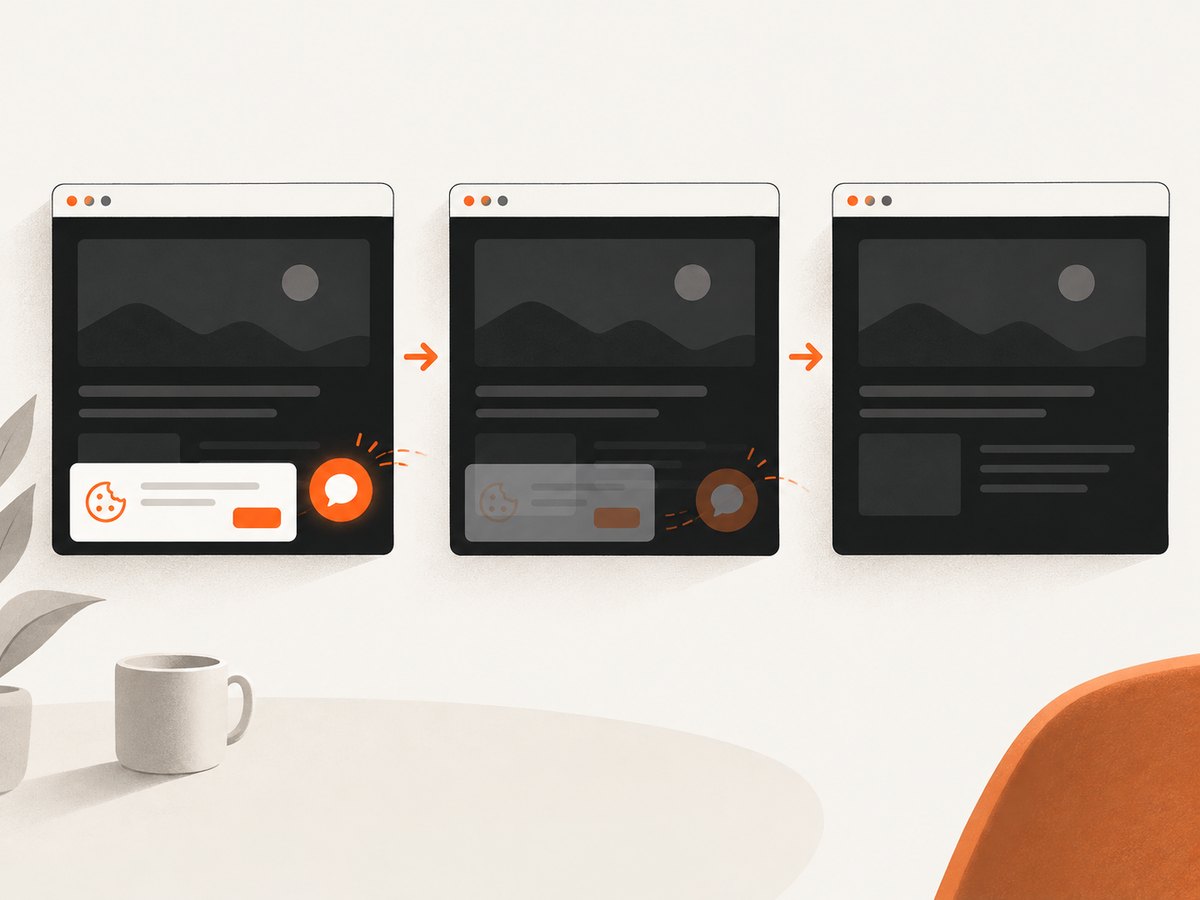
In the examples, dark_mode=true requests dark appearance for the capture. The target page must still support or respond to the browser’s dark appearance preference to change its own content. ScreenshotNeo also accepts cookie and consent banners like a visitor and removes 60+ known consent platforms, newsletter popups, and chat widgets before capture; each step can be turned off. Bot checks or CAPTCHAs, blank pages, timeouts, failed loads, and cache hits cost nothing, and response headers report the page verdict and billing status.
It also offers an MCP server with take_screenshot, get_page_info, and capture_pdf for Claude, Cursor, and other MCP clients. The free plan includes 1,000 screenshots a month with no card; paid plans start at $5 for 3,000. Sign up free for ScreenshotNeo: 1,000 screenshots a month, no card required.
10. Performance, reliability, and cost notes
Switching the device to a dark appearance is a local display preference and requires no screenshot service. For automated browser captures, the target page’s own load behavior, scripts, lazy content, and chosen wait condition affect when the screenshot is ready. A wait for a specific selector or network idle can help capture a settled page; an unnecessarily long wait adds latency. For repeat captures, ScreenshotNeo supports caching with a TTL you choose, async jobs with signed webhooks, and bulk capture of up to 100 URLs per call. Use caching when the same page and settings can reuse an image; use async jobs for work that should complete outside a request’s immediate response. Review response headers for page verdict and billing status rather than assuming every attempted URL produced a billable image.
ScreenshotNeo’s listed monthly plans are Free: 1,000 shots; Starter: $5 for 3,000; Growth: $15 for 15,000; Pro: $39 for 60,000; Scale: $99 for 250,000; Business: $249 for 1,000,000. Yearly billing gives two months free. Every feature is available on every plan. Select based on expected successful captures and use the usage API to track consumption.
FAQ
Does dark mode make the screen dimmer?
Dark mode changes interface colors; it is separate from brightness. Adjust the brightness control if the display itself is too bright.
Will dark mode make every website dark?
No. The website needs to provide a dark theme or respond to the browser’s color-scheme preference.
Can I keep one app light while the rest of the device is dark?
Often, yes. Look for an appearance preference inside that app. Windows also offers Custom mode to configure Windows elements and apps separately.
Does Chrome’s Dark theme change page content?
Chrome darkens its homepage, toolbar, settings, and some other pages. A site’s own content can remain light.
What should I try if an app has no dark setting?
Check its accessibility options. On Mac, color inversion is available as a fallback, but it changes images and colors too.


