How to Enable Dark Mode on Websites in Android
Learn which Android, Chrome, and Google Search settings control dark mode, why some sites stay light, and what to do when dark mode fails.
To make websites dark on an Android phone or tablet, start with Chrome’s theme setting: open Chrome, tap More (the three dots), choose Settings, tap Theme, and select Dark. Choose System Default if Chrome should follow Android’s dark theme or Battery Saver. This changes Chrome’s interface and some pages, but it does not guarantee that every third-party website will be recolored.
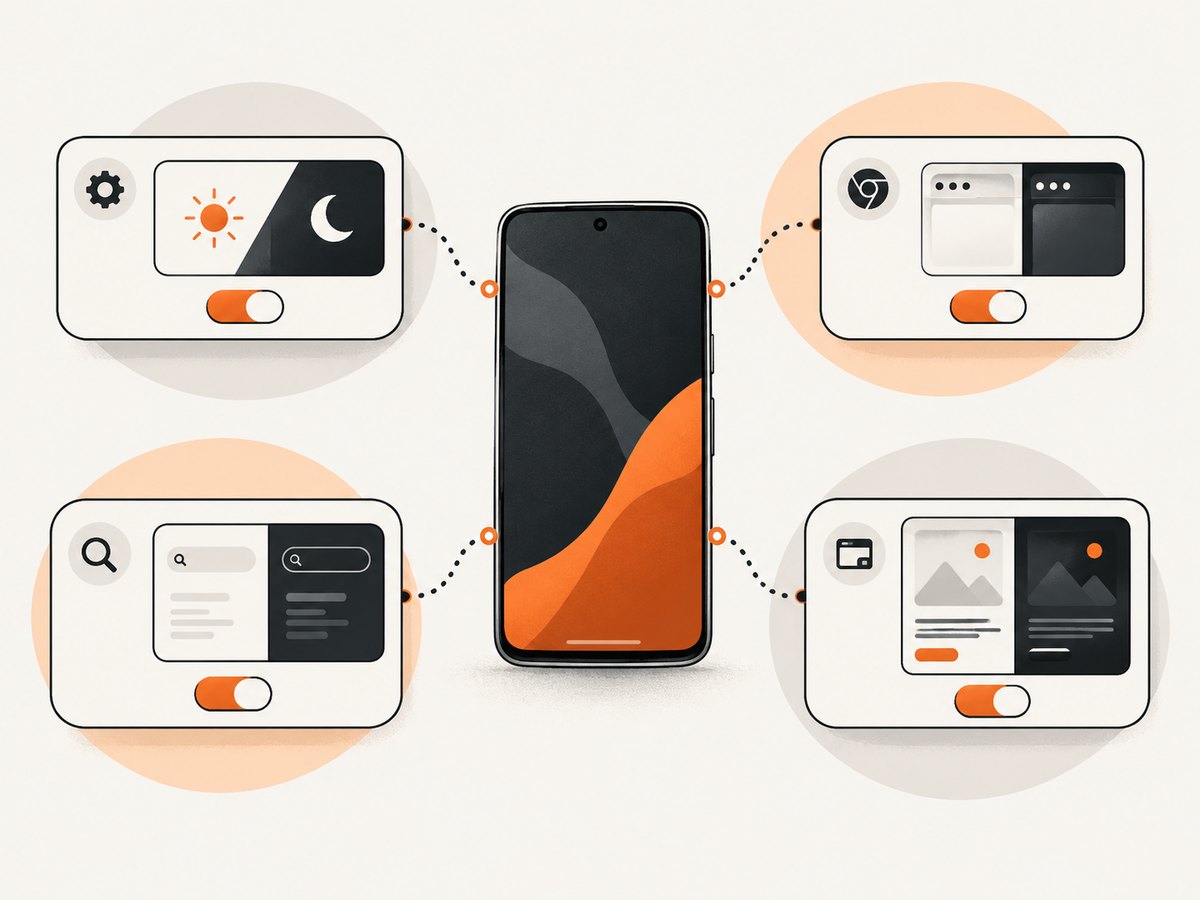
Websites, Chrome, Android, and Google Search can each have separate appearance controls. If Chrome is dark while a site remains white, the site may not support dark styling, may override the browser preference, or may have its own appearance switch. The sections below show how to identify which setting controls what you see.
1. Turn on dark mode in Chrome for Android
- Open the Chrome app on your Android phone or tablet.
- Tap More, shown as three vertical dots.
- Tap Settings.
- Tap Theme.
- Choose Dark.
Chrome’s documented theme options have distinct behavior:
| Chrome option | What it does | When to choose it |
|---|---|---|
| Dark | Keeps Chrome’s browser theme dark. | You want Chrome’s interface to stay dark regardless of the device setting. |
| System Default | Follows Android’s dark theme. Chrome can also use dark theme when Battery Saver is on. | You want one device-level control for the browser and other supported apps. |
| Light | Uses Chrome’s light theme. | You need the standard light browser interface. |
Chrome Help describes the dark theme as affecting the homepage, toolbar, settings, and some other pages. It does not promise to force every website into dark colors. That boundary explains why a dark address bar can appear above a white article.
See Google’s Chrome theme guidance for the current menu wording. Android manufacturers sometimes move settings or use slightly different labels, so the exact screen can vary by device and Chrome version.
2. Enable Android’s system dark theme
- Open the Android Settings app.
- Tap Display.
- Turn on Dark theme.
On some phones, the switch is available from Quick Settings. If Chrome is set to System Default, it should follow this device setting. Android’s system theme can also affect apps that implement native dark mode. It still does not guarantee that a website rendered in Chrome will become dark.
Menu names differ between Android versions and manufacturers. Search Settings for dark theme or dark mode if you cannot find the Display menu. Android’s general instructions are available in Android Help.
Android 16 expanded darkening
Android 16 and newer include an expanded dark-theme option in Accessibility settings. It can automatically darken interfaces for many apps that do not provide a native dark theme. This is broader than a normal app preference, but it can change images and reduce text legibility. Disable it for an app or screen that becomes difficult to read. It is an appearance fallback, not a guarantee that every website will be redesigned correctly.
3. Turn on dark mode for Google Search
Google Search has its own appearance preference. If Google’s homepage or results remain light after you changed Chrome, configure Search directly:
- Open Google in Chrome on your Android device.
- Tap More on the Google page.
- Tap Settings.
- Find Appearance.
- Choose Device default, Dark theme, or Light theme.
Dark theme explicitly keeps Google Search pages dark. Device default follows Android’s system preference. Signed-in Search preferences can persist across mobile devices. This setting controls Search pages such as the homepage, results, and Search settings; it is separate from Chrome’s browser theme.
4. Why is Chrome dark but the website still white?
This is normal when the site does not provide dark styling or does not honor the browser’s prefers-color-scheme preference. Chrome’s theme controls Chrome-owned surfaces and selected pages. A website controls its own HTML, CSS, images, embedded content, and color choices.
Try these checks in order:
- Look for a moon icon, theme menu, or Appearance control inside the website.
- Check whether you are signed in. Some sites save a theme choice to your account.
- Reload after changing the site preference. A cached page can preserve the old stylesheet.
- Test the same page in a private tab. Extensions, stored preferences, or a broken service worker can affect one profile.
- Check another page on the same site. A homepage and an embedded documentation page may use different templates.
Do not rely on old instructions for a universal Chrome “force dark mode” switch. Chrome for Developers documented an Auto Dark Theme origin trial and experimental flag in 2021, but that historical material is not current end-user setup guidance.
5. Understand the four different dark-mode controls
| Control | Scope | Follows another setting? | Possible side effects |
|---|---|---|---|
| Android Dark theme | Android interface and apps that support it | No, unless an app chooses to follow it | Unsupported apps and web pages may stay light |
| Chrome Theme | Chrome toolbar, homepage, settings, and some pages | System Default follows Android or Battery Saver | Third-party sites may remain unchanged |
| Google Search Appearance | Google homepage, results, and Search settings | Device default follows Android | Does not control unrelated websites |
| Color inversion | All displayed pixels, including media | No | Photos, icons, brand colors, and text can look wrong |
6. Use color inversion only as an accessibility fallback
Android’s color inversion accessibility option changes all displayed colors, including images and video. It can help when you need a broad high-contrast effect and a site offers no theme, but it is not equivalent to a site-designed dark mode. Skin tones, photographs, logos, charts, and semantic colors may be inverted, and text can become less legible.
Open Settings > Accessibility and search for Color inversion. The exact path varies by device. Turn it off when the resulting colors interfere with reading or navigation. Prefer a website’s own dark theme when one exists.
7. Troubleshooting checklist
Chrome’s Theme option is missing
Update Chrome through Google Play, then reopen it. Manufacturer builds can also place theme controls under a slightly different submenu. Search Chrome Settings for theme.
Chrome is dark only while Battery Saver is on
Chrome is probably set to System Default. Select Dark to keep Chrome dark all the time, or leave System Default if you want the device to control it.
Google Search changed, but other sites did not
Search Appearance applies to Google Search pages only. Configure each site’s own theme, or keep using the site’s light design if it has no dark option.
Only one page looks wrong
Clear that site’s cached data, reload, and test a private tab. A page-specific stylesheet, embedded widget, or account preference may be overriding the rest of the site.
Dark mode makes text or images hard to see
Disable expanded darkening or color inversion for that device or app. The Android accessibility documentation warns that expanded darkening can alter images and reduce legibility.
The site flashes light before becoming dark
The page may apply its theme after JavaScript runs. A slow connection, blocked script, or content-security policy can leave the initial light stylesheet visible. A site owner can reduce this flash by setting the theme before rendering and honoring prefers-color-scheme.
8. Developer note: prefers-color-scheme and WebView
For websites you build, use the prefers-color-scheme media feature and define readable colors for both schemes:
:root {
  color-scheme: light dark;
}

body {
  background: #ffffff;
  color: #171717;
}

@media (prefers-color-scheme: dark) {
  body {
    background: #121212;
    color: #f2f2f2;
  }
}
Test links, form controls, focus indicators, code blocks, images, charts, and third-party embeds. Avoid pure black backgrounds when they reduce contrast, and do not use color alone to communicate status.
Android Developers also document WebView-specific behavior. An embedded WebView may render a site’s prefers-color-scheme styling, or the host app may permit algorithmic darkening when the page does not opt out. The conditions depend on Android and API-target behavior. This developer behavior is different from the consumer Chrome setting described above.
9. Or skip the browser setup
If your goal is to produce dark screenshots of a site for documentation, QA, previews, or an AI workflow, ScreenshotNeo can capture the page through one request. Set the dark color scheme and any viewport or device options in the request. The API supports full-page capture, element capture, custom CSS and JavaScript, waits, cookies, headers, user agents, geolocation, timezone, image formats, PDF output, caching, async jobs, bulk capture, and signed links. See the ScreenshotNeo API documentation for parameter names and configuration details.
cURL
curl -G "https://api.screenshotneo.com/v1/shot" \
  -d access_key=YOUR_API_KEY \
  --data-urlencode url=https://stripe.com \
  -o shot.webp
Python
import requests

r = requests.get(
    "https://api.screenshotneo.com/v1/shot",
    params={"access_key": "YOUR_API_KEY", "url": "https://stripe.com"},
    timeout=90,
)
r.raise_for_status()
open("shot.webp", "wb").write(r.content)
Node.js
const q = new URLSearchParams({
  access_key: 'YOUR_API_KEY',
  url: 'https://stripe.com'
});
const res = await fetch(`https://api.screenshotneo.com/v1/shot?${q}`);
if (!res.ok) throw new Error(`HTTP ${res.status}`);
const fs = await import('node:fs/promises');
await fs.writeFile('shot.webp', Buffer.from(await res.arrayBuffer()));
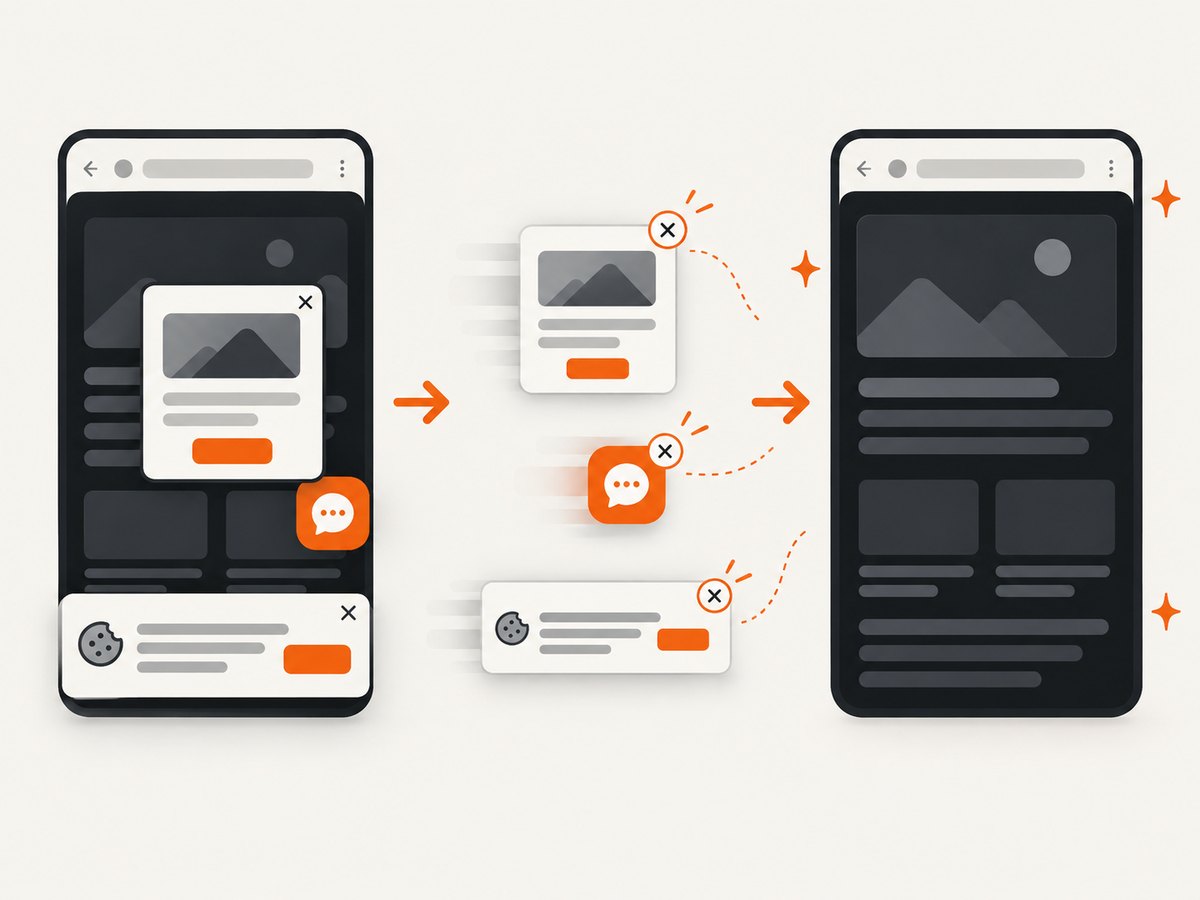
For dark captures, add the documented dark-mode option, choose a device preset or viewport, and use a wait condition when the site’s theme is applied after load. Cookie banners, newsletter popups, and chat widgets can be removed before capture. Bot checks, blank pages, failed loads, timeouts, and cache hits are not billed, and the response reports the result in X-Page-Verdict and X-Billed headers. ScreenshotNeo also provides an MCP server with take_screenshot, get_page_info, and capture_pdf tools for Claude, Cursor, and other MCP clients.
The Free plan includes 1,000 screenshots each month with no card. Paid plans start at $5 for 3,000 screenshots; yearly billing gives two months free, and every feature is available on every plan. Create a free ScreenshotNeo account.
10. Performance, reliability, and data considerations
- Battery: Dark pixels can reduce power use on some OLED displays, while LCD power use is generally less affected. Treat this as a device characteristic, not a guarantee.
- Readability: A dark palette still needs sufficient contrast. If text, images, or controls become unclear, use the site’s light theme or disable an accessibility override.
- Consistency: Use Android’s system theme, Chrome’s System Default, and Google Search’s Device default when you want settings to track together.
- Privacy: Theme choices can be stored locally, in cookies, or in a signed-in account. Private browsing can help determine which kind of state is involved.
- Capture workflows: For repeatable screenshots, specify viewport, device scale, wait conditions, and theme explicitly. Caching can reduce repeated work when the page has not changed; use a TTL appropriate to your content.
FAQ
Does Android dark mode force every website to become dark?
No. Android and Chrome settings affect supported interfaces. A website must provide or accept dark styling, or an accessibility override must alter the rendered pixels.
What is the fastest setting to try?
In Chrome, open More > Settings > Theme and choose Dark. Then check the website for its own appearance control.
Why does Google Search have a separate switch?
Google Search controls its own pages, so its Appearance setting is independent of Chrome’s browser theme.
Is color inversion the same as dark mode?
No. Inversion changes every displayed color, including photos and video, and can harm legibility.
Can developers make their sites follow Android dark mode?
Yes. Provide light and dark CSS using prefers-color-scheme, test all interface states, and ensure embedded content remains readable.
Can I capture a website in dark mode automatically?
Yes. A screenshot API such as ScreenshotNeo can apply dark-mode options and capture the resulting page without requiring Chrome on your server.


