How to Enable Dark Mode for Websites on iPhone
Turn on iPhone Dark Mode, use Safari Reader or Smart Invert, and learn why some websites stay white.
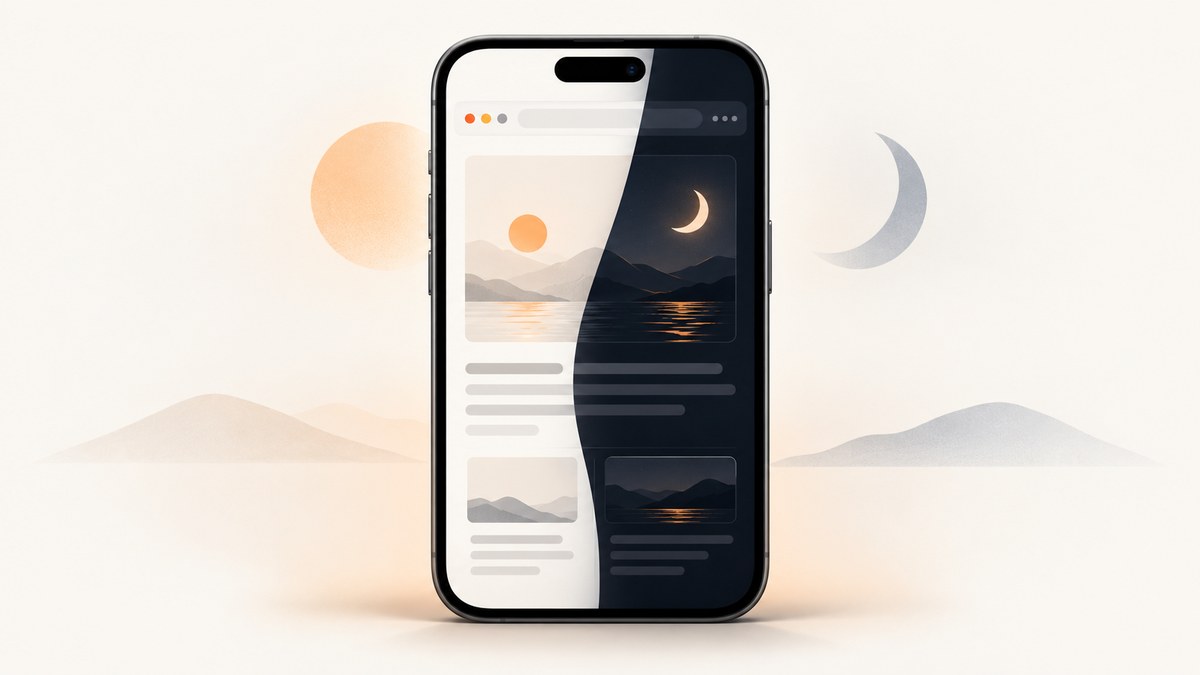
If you want darker websites on an iPhone, start with Settings > Display & Brightness > Dark. This changes the iPhone’s appearance and gives websites a dark-mode preference they can honor. It does not force every website to use dark colors. For pages that remain white, Safari Reader, Smart Invert, or Firefox for iOS’s Website Dark Mode can help, each with a different scope and trade-off.
1. Turn on Dark Mode for your iPhone
Apple’s standard setting is the best first step:
- Open Settings.
- Tap Display & Brightness.
- Under Appearance, select Dark. Apple describes this directly as “Select Dark to turn on Dark Mode.” Apple’s instructions may use slightly different labels on future iOS releases.
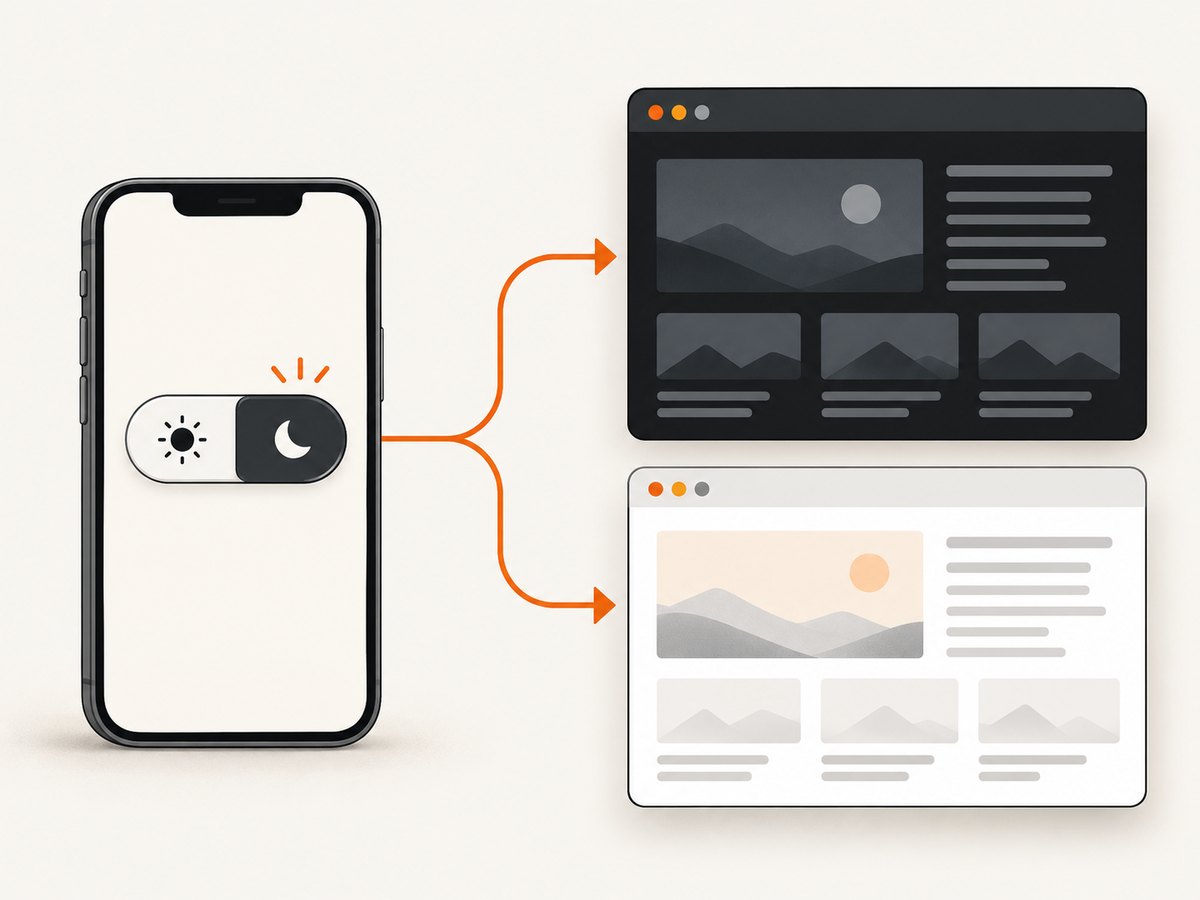
Dark Mode changes system interfaces and compatible apps. Websites can respond when their code detects the prefers-color-scheme: dark media feature, which WebKit documents for author-provided light and dark styling. A site that has no dark stylesheet, or that forces a light background, can remain white.
Use Control Center for a quick switch
Open Control Center, touch and hold the brightness control, then tap the appearance control if it is available. If the control is missing, edit Control Center and add the appearance control. The exact arrangement can vary by iOS version.
Schedule Dark Mode
In Settings > Display & Brightness, choose Automatic, then tap Options. You can use the sunset-to-sunrise schedule or define custom times. This is useful when you want websites and compatible apps to follow a regular day/night routine without manually changing the setting.
2. Why some websites stay white
iPhone Dark Mode is a preference, not a universal page filter. A website must implement a dark theme and apply it when the browser reports a dark preference. A typical site-author stylesheet looks like this:
:root {
  color-scheme: light;
  background: #ffffff;
  color: #171717;
}

@media (prefers-color-scheme: dark) {
  :root {
    color-scheme: dark;
    background: #111111;
    color: #f5f5f5;
  }

  a { color: #8ab4ff; }
}
This code is for website authors. As a reader, you cannot add it to a third-party site through iPhone settings. If the site does not provide equivalent rules, its background, images, forms, and navigation may remain light.
Check the site’s own theme control
Some sites provide a moon icon, an Appearance menu, or a profile preference. That control can work independently of the iPhone setting. If a page has both a site toggle and a system preference, the site’s explicit choice may take priority.
3. Use Safari Reader on supported pages
Safari Reader creates a simplified reading view with the article’s text and images and removes many page distractions. It is useful for news stories, documentation, and other text-heavy pages, but it is not a universal dark theme for every website.
- Open the page in Safari.
- Tap the Page Menu button in the address bar.
- Tap Show Reader when that option is offered.
If Reader is available, you can often adjust the reading view’s appearance from the Page Menu. To use Reader automatically on a supported site, open the Page Menu, choose Website Settings, and enable Use Reader Automatically. Apple also documents an All Websites Reader preference under Settings > Apps > Safari > Reader for sites that support Reader. See Apple’s Safari Reader guide (the exact URL and labels can change with iOS updates).
Reader may not appear on interactive applications, shopping pages, login screens, or sites whose structure Safari cannot identify as an article. When it is unavailable, use the accessibility or browser-specific options below.
4. Use Smart Invert when a page has no dark theme
Smart Invert is Apple’s accessibility fallback for apps and websites that do not support Dark Mode. It reverses most interface colors while attempting to leave images and some media unchanged. Classic Invert reverses all colors.
- Open Settings.
- Tap Accessibility.
- Tap Display & Text Size.
- Turn on Smart Invert.
Smart Invert can make an otherwise white page dark, but it is not the same as a site-designed theme. Brand colors, charts, photographs, icons, video frames, and color-coded status indicators can look wrong. Use it when changing the whole display is acceptable, and turn it off when you need the original colors. Apple explains the distinction between Smart Invert and Classic Invert in its display accessibility documentation.
5. Browser-specific options on iPhone
| Option | What it changes | Limitations | Best use |
|---|---|---|---|
| iPhone Dark Mode | System appearance and compatible web styling | Cannot recolor sites that do not implement dark styling | Start here for normal browsing |
| Safari Reader | Streamlined article view | Only appears on supported pages | Articles and documentation |
| Smart Invert | Reverses display colors, with images generally exempt | Can alter intended colors | Pages without a dark theme |
| Firefox Website Dark Mode | Inverts webpage colors in Firefox | Browser-specific; inversion can affect presentation | Users who want page recoloring in Firefox |
| Chrome Dark mode | Chrome interface and some other pages | Google does not promise dark colors for every third-party site | Darkening Chrome’s own UI |
Firefox for iOS
Mozilla documents a Website Dark Mode control separate from Firefox’s light or dark browser theme. Open the Firefox menu and look for the Website Dark Mode control; Mozilla also describes a related toggle under Appearance. The support page was updated April 11, 2025, so menu wording may differ in your installed version. This feature inverts webpage colors and can affect images or carefully chosen brand colors.
Chrome for iOS
Google’s iPhone and iPad instructions say to enable iPhone Dark Mode and then open Chrome. The documented result covers Chrome’s homepage, toolbar, settings, and some other pages. It does not state that every third-party webpage is recolored, so a white site can still be expected.
6. A reliable decision path
- Enable iPhone Dark Mode. Reload the page after changing the setting; some sites read the preference only during page load.
- Look for a site-level theme switch. Choose Dark or System when offered.
- Try Safari Reader. Use it for supported articles and reading pages.
- Use Smart Invert. Choose this when you need a dark result on a page with no theme and can accept color changes.
- Try Firefox Website Dark Mode. This is a browser-level recoloring option rather than a change to the website itself.
- Reload and test interactive controls. Forms, maps, charts, video, and menus can expose inversion or theme bugs.
7. Troubleshooting common problems
“My iPhone is dark, but Safari websites are still white.”
The site probably does not implement prefers-color-scheme, or it explicitly forces light colors. Check for the site’s own theme control, then try Reader or Smart Invert.
“Dark Mode worked until I opened Reader.”
Reader is a separate rendering mode. Its typography and colors can differ from the normal page. Exit Reader from the Page Menu, or adjust Reader’s appearance controls if available.
“Reader is not listed.”
Reader is available only on pages Safari recognizes as supported reading content. Interactive applications, login pages, and some home pages may not qualify. Use the normal page with Dark Mode, or use Smart Invert.
“Smart Invert makes photos or icons look strange.”
Inversion changes display colors rather than applying the site’s intended dark palette. Turn Smart Invert off for color-sensitive work, or use a site-provided theme instead.
“Firefox’s dark option changed the page layout.”
Website Dark Mode changes colors at the browser level. Disable it for pages where charts, images, or brand colors become difficult to interpret.
“Chrome is dark, but the page is not.”
Chrome’s documented iOS dark mode covers browser UI and some pages. It is not a guarantee that every third-party website will be recolored.
“The setting keeps switching back.”
Check whether Appearance is set to Automatic. A schedule can switch between Light and Dark at sunrise, sunset, or custom times.
8. Or skip the browser setup
If your goal is to capture a website after checking its appearance, ScreenshotNeo provides a website screenshot API and MCP server. You can pass a URL and receive PNG, JPEG, WebP, or PDF output. Its capture options include dark mode, custom viewport and device presets, retina scale, full-page loading, CSS selectors, custom CSS and JavaScript, waits, headers, cookies, user agents, geolocation, and timezone.
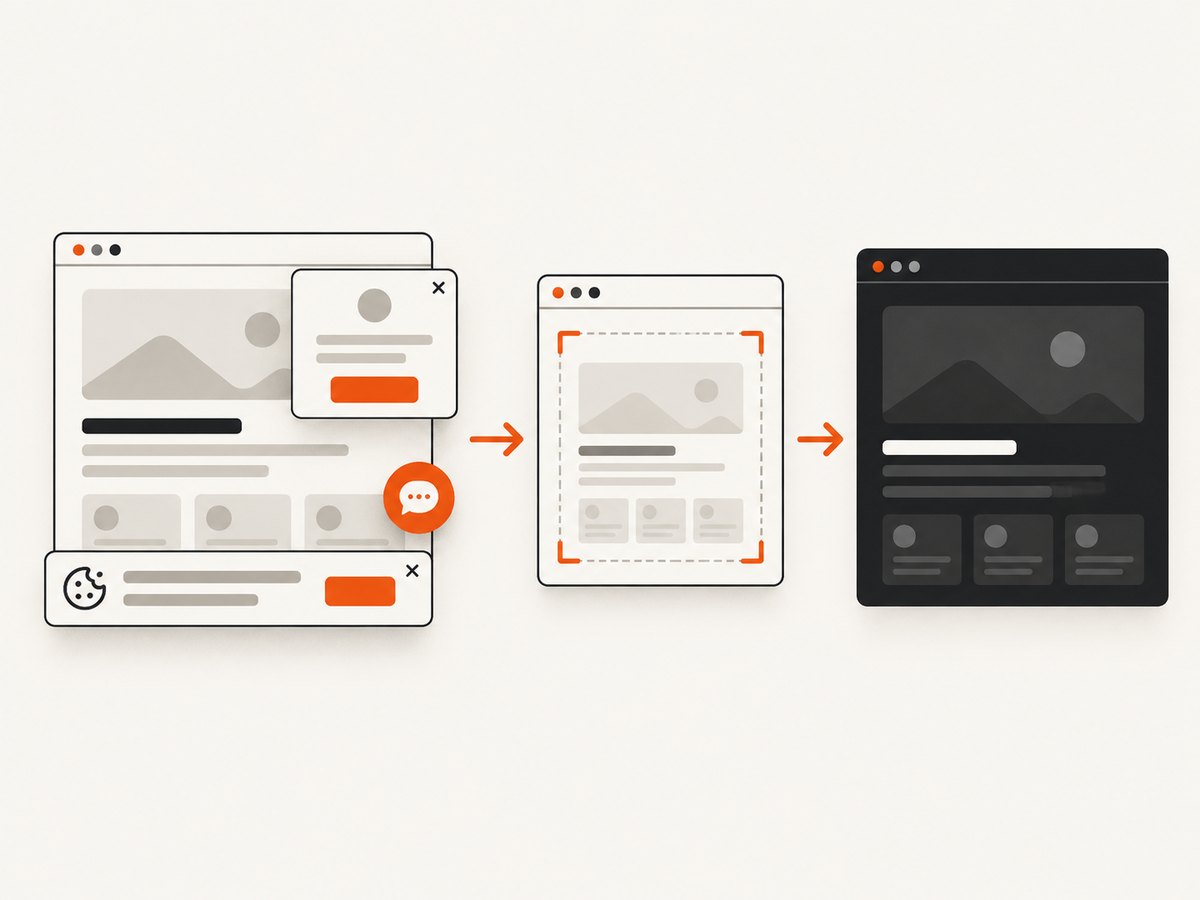
One request can produce a dark-mode screenshot without configuring a mobile browser:
curl -G "https://api.screenshotneo.com/v1/shot" \
  -d access_key=YOUR_API_KEY \
  --data-urlencode url=https://stripe.com \
  -d dark_mode=true \
  -o shot.webp
Python:
import requests

r = requests.get(
    "https://api.screenshotneo.com/v1/shot",
    params={
        "access_key": "YOUR_API_KEY",
        "url": "https://stripe.com",
        "dark_mode": "true",
    },
    timeout=90,
)
r.raise_for_status()
open("shot.webp", "wb").write(r.content)
Node.js:
const q = new URLSearchParams({
  access_key: 'YOUR_API_KEY',
  url: 'https://stripe.com',
  dark_mode: 'true'
});
const res = await fetch(`https://api.screenshotneo.com/v1/shot?${q}`);
if (!res.ok) throw new Error(`${res.status} ${await res.text()}`);
const data = Buffer.from(await res.arrayBuffer());
require('fs').writeFileSync('shot.webp', data);
See the ScreenshotNeo documentation for the complete parameter list. Cookie banners, newsletter popups, and chat widgets are removed before the shot; bot checks, blank pages, timeouts, failed loads, and cache hits are not billed, and response headers identify the page verdict and billing result. An MCP server lets Claude, Cursor, and other MCP clients call take_screenshot, get_page_info, and capture_pdf. The Free plan includes 1,000 screenshots per month with no card; paid plans start at $5 for 3,000 shots. Create a free ScreenshotNeo account.
9. Performance, reliability, and privacy considerations
System Dark Mode has no network cost and normally applies immediately, although a website may need a reload. Reader creates a simplified local view. Smart Invert and Firefox Website Dark Mode apply display transformations, so inspect images and controls before relying on the result.
For automated captures, use a fixed viewport and a wait condition when a page loads its theme after JavaScript runs. ScreenshotNeo supports selector waits, delays, network-idle waits, custom headers and cookies, request blocking, caching with a chosen TTL, signed links, asynchronous jobs with signed webhooks, bulk capture of up to 100 URLs per call, and a usage API. Clean captures are billed; failed loads, bot checks, blank pages, timeouts, and cache hits are not. Do not put an API key in client-side iPhone code; call the API from a server or protected automation.
10. FAQ
Does iPhone Dark Mode make every website dark?
No. Only websites that implement a dark appearance preference can respond automatically.
Is Safari Reader the same as dark mode?
No. Reader is a simplified reading view available only on supported pages.
What is the strongest built-in fallback?
Smart Invert can darken pages without a site theme, but it may change colors in unwanted ways.
Can I schedule website dark mode?
You can schedule the iPhone’s Light and Dark appearance with Automatic mode. A website still needs to honor the system preference.
Can I capture both light and dark versions for testing?
Yes. Use a browser automation setup or ScreenshotNeo’s dark-mode option and compare the resulting images at the same viewport and wait conditions.


