How to Enable File Downloads in Headless Chrome with ChromeDriver 2.40
Enable headless Chrome downloads with ChromeDriver 2.40 using DevTools, writable paths, completion checks, troubleshooting, and safer HTTP downloads.
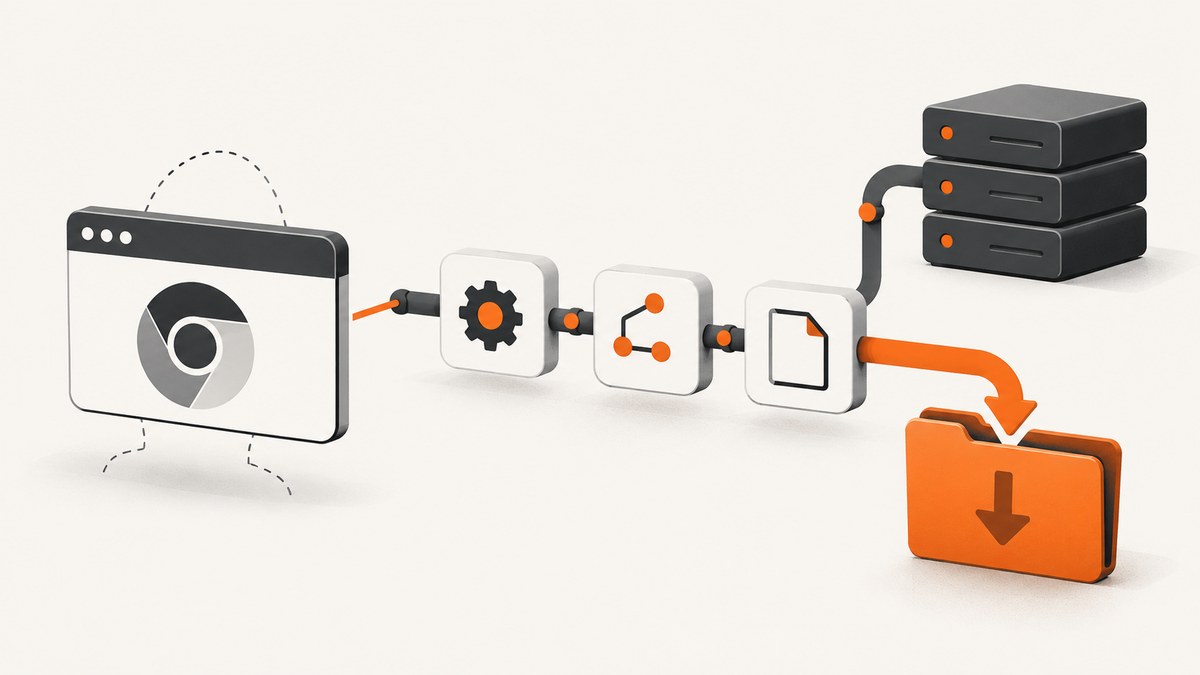
Headless Chrome historically blocked downloads unless the session was given an explicit download policy. With ChromeDriver 2.40-era setups, the control to understand is Chrome DevTools Protocol’s Page.setDownloadBehavior: set behavior to allow and provide a writable downloadPath.
The exact Selenium helper used to send that command depends on your language binding and its version. The title specifies ChromeDriver 2.40, but not a binding version, so verify the transport method in the binding you actually run. The historical mechanism is stable; the method name is not.
What changed in headless Chrome
Early headless Chrome releases did not treat downloads like headed Chrome. A link could be clicked successfully while no file appeared on disk. The ChromeDriver project later documented that its headless implementation did not properly download files because it only sparsely parsed the preference file. Headless Chrome engineers recommended using the DevTools Page.setDownloadBehavior command.
That history explains why setting only download.default_directory may fail in an old headless session. Current ChromeDriver documentation still recommends setting a dedicated absolute download directory, but directory preferences should be treated as path configuration; the DevTools command is the important historical permission step.
ChromeDriver’s current guidance is available in the ChromeDriver capabilities documentation. Selenium’s current file-download guidance explains why browser-managed downloads can be awkward to test: the WebDriver API does not expose download progress. See Selenium’s file-download guidance.
Prerequisites and compatibility checks
- Confirm the actual versions. Record the Chrome version, ChromeDriver version, Selenium binding version, operating system, and headless mode. Do not infer ChromeDriver 2.40’s supported Chrome range from the release notes for 2.41 or 2.42.
- Use a matching browser and driver. For modern Selenium, Chrome and ChromeDriver should match by major version. That current rule is useful context, but it should not be applied retroactively as proof of compatibility for 2.40.
- Create a dedicated directory. Use an absolute path that exists, is writable by the test process, and is not a system directory. A unique temporary directory per test prevents one download from being mistaken for another.
- Check the binding API. Some bindings expose a direct CDP helper; old bindings may require a lower-level command executor. Do not assume a modern helper exists in a ChromeDriver 2.40 environment.
How the download flow works
The reliable sequence is:
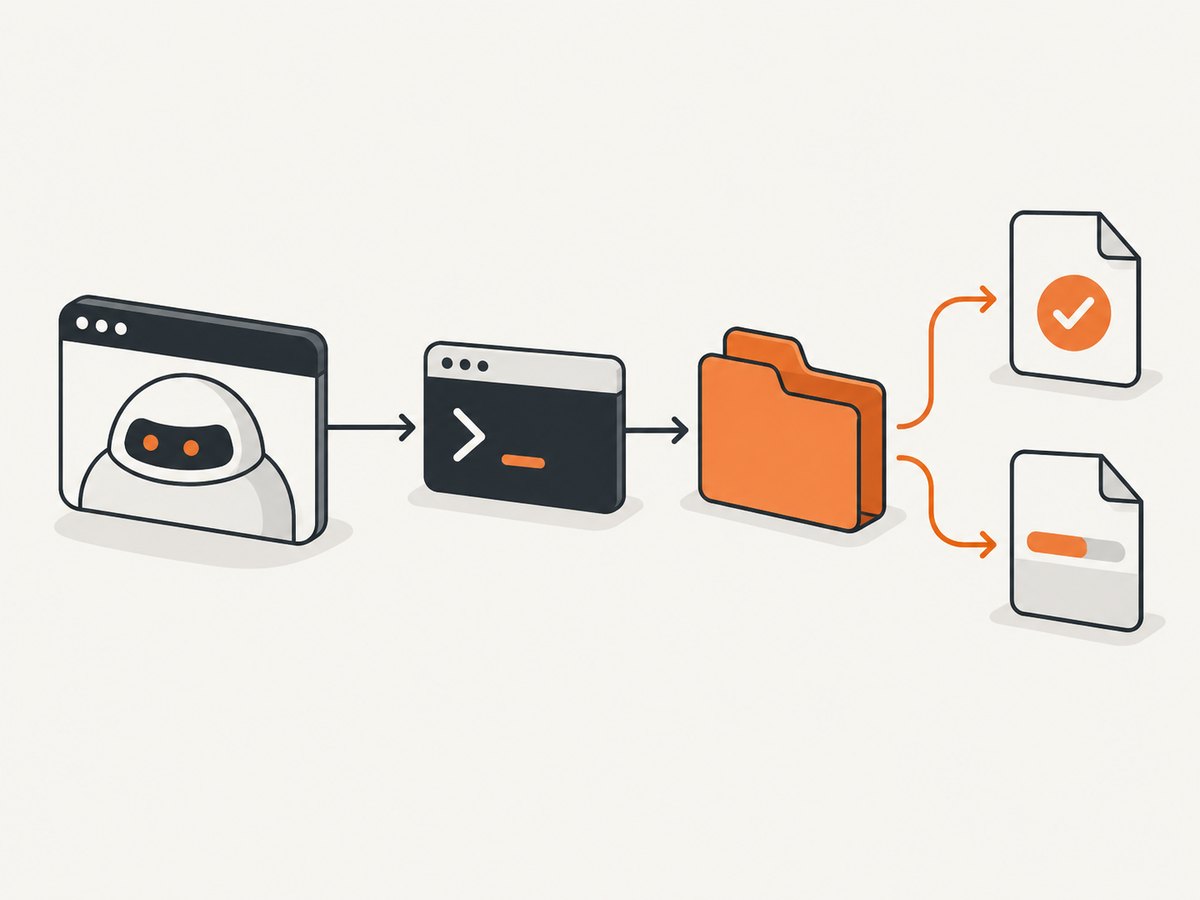
- Start ChromeDriver in headless mode.
- Set Chrome preferences for the destination directory.
- Send
Page.setDownloadBehaviorwithallowand the same absolute directory. - Navigate to the page and trigger the download.
- Wait for the final file to appear and for temporary download files to disappear.
- Validate the file, then quit the browser.
ChromeDriver does not wait for a download to finish. Quitting immediately after the click can terminate Chrome while it is still writing the file.
Python example with Selenium
The following example shows the commonly used Selenium CDP call. In a legacy environment, confirm that your Python binding provides execute_cdp_cmd. If it does not, use the binding’s raw command-executor facility or upgrade the binding while keeping browser and driver compatibility under review.
import os
import time
from pathlib import Path
from tempfile import TemporaryDirectory

from selenium import webdriver
from selenium.webdriver.chrome.options import Options


def wait_for_download(directory: Path, timeout: int = 60) -> Path:
    deadline = time.time() + timeout
    while time.time() < deadline:
        partials = list(directory.glob("*.crdownload")) + list(directory.glob("*.tmp"))
        files = [p for p in directory.iterdir() if p.is_file() and p.suffix not in {".crdownload", ".tmp"}]
        if files and not partials:
            return max(files, key=lambda p: p.stat().st_mtime)
        time.sleep(0.25)
    raise TimeoutError(f"No completed download in {directory}")


with TemporaryDirectory(prefix="chrome-download-") as temp_dir:
    download_dir = Path(temp_dir).resolve()
    options = Options()
    options.add_argument("--headless")
    options.add_argument("--no-sandbox")
    options.add_argument("--disable-dev-shm-usage")
    options.add_experimental_option("prefs", {
        "download.default_directory": str(download_dir),
        "download.prompt_for_download": False,
        "download.directory_upgrade": True,
        "safebrowsing.enabled": True,
    })

    driver = webdriver.Chrome(options=options)
    try:
        # Verify this method exists in the Selenium binding used with your
        # ChromeDriver 2.40 deployment.
        driver.execute_cdp_cmd("Page.setDownloadBehavior", {
            "behavior": "allow",
            "downloadPath": str(download_dir),
        })

        driver.get("https://example.test/download")
        driver.find_element("css selector", "a.download").click()

        downloaded = wait_for_download(download_dir)
        print(f"Downloaded {downloaded} ({downloaded.stat().st_size} bytes)")
    finally:
        driver.quit()
Replace the example URL and selector with your application’s download page. If the server creates a filename asynchronously, wait for a specific expected path instead of taking the newest file.
Java example and the legacy binding caveat
Modern Selenium Java exposes CDP-related helpers, but the exact API available beside ChromeDriver 2.40 depends on the Selenium version. Treat this as a pattern to adapt after checking your dependency’s API:
Map<String, Object> prefs = new HashMap<>();
prefs.put("download.default_directory", "/absolute/path/to/downloads");
prefs.put("download.prompt_for_download", false);

ChromeOptions options = new ChromeOptions();
options.addArguments("--headless");
options.setExperimentalOption("prefs", prefs);

WebDriver driver = new ChromeDriver(options);
try {
    Map<String, Object> command = new HashMap<>();
    command.put("behavior", "allow");
    command.put("downloadPath", "/absolute/path/to/downloads");

    // Use the CDP/raw-command mechanism provided by your Selenium version.
    // The command name is Page.setDownloadBehavior.
    driver.get("https://example.test/download");
    driver.findElement(By.cssSelector("a.download")).click();
    // Poll the directory until the file is complete.
} finally {
    driver.quit();
}
The important detail is the protocol payload, not a particular Java method name:
{
  "behavior": "allow",
  "downloadPath": "/absolute/path/to/downloads"
}
Directory rules that prevent silent failures
- Use a full path such as
/var/tmp/test-download-123orC:\\work\\downloads\\run-123. - Create the directory before starting Chrome and check write permission.
- On Windows, prefer backslashes or a correctly escaped full path. A forward slash is not reliable for every Windows path case.
- Do not use the filesystem root, a profile directory, or a shared directory used by parallel tests.
- Clean old files before each test. Otherwise, a stale file can make a failed download look successful.
- Ensure the user running ChromeDriver owns the directory or has explicit write permission.
Waiting for a completed file
A browser click only starts the transfer. Poll for the expected filename or for a new file whose temporary suffix has disappeared. Chrome commonly writes a .crdownload file while a download is active. A robust test also checks a minimum size, validates a checksum when one is available, and opens the file with the appropriate parser.
Use a deadline rather than an unbounded loop. When the deadline expires, collect the page URL, browser console output, directory listing, response status if available, and driver logs. Those details distinguish a blocked download from a slow one.
HTTP-client fallback: when browser downloads are the wrong tool
If the test needs the file contents but does not need to verify Chrome’s download UI or browser behavior, retrieve the download URL and use an HTTP client. Selenium recommends this approach because WebDriver does not expose download progress.
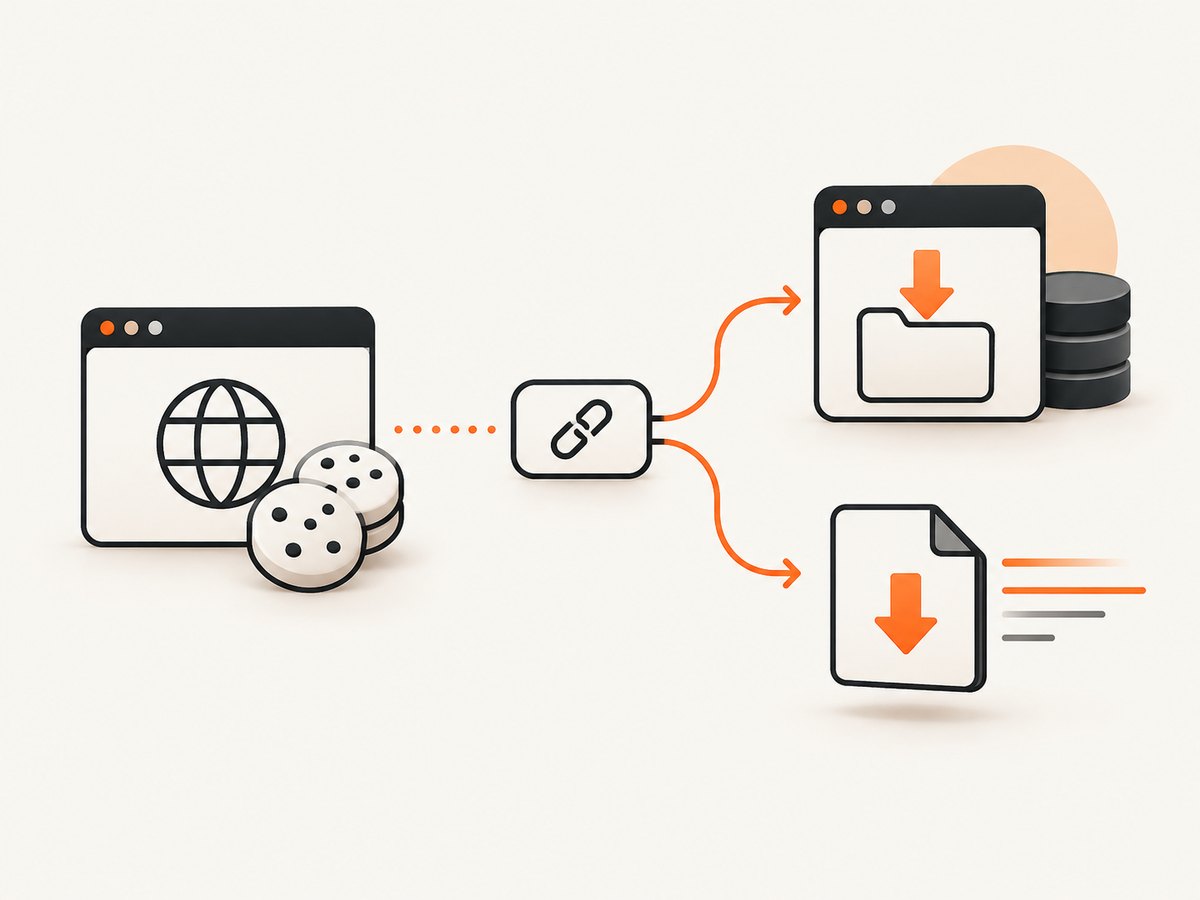
First use Selenium to authenticate or discover the link. Then copy the required cookies and request headers into an HTTP client. Validate the response before saving it: check the status code, expected content type, content length when supplied, and file signature.
curl -L --fail --retry 3 \
  -H 'Cookie: session=REPLACE_WITH_SESSION_COOKIE' \
  'https://example.test/files/report.pdf' \
  -o report.pdf
import requests
cookies = {"session": "REPLACE_WITH_SESSION_COOKIE"}
r = requests.get(
"https://example.test/files/report.pdf",
cookies=cookies,
timeout=60,
)
r.raise_for_status()
content_type = r.headers.get("content-type", "")
if "pdf" not in content_type.lower():
raise ValueError(f"Unexpected content type: {content_type}")
with open("report.pdf", "wb") as output:
output.write(r.content)const fs = require('node:fs/promises');
const res = await fetch('https://example.test/files/report.pdf', {
headers: { Cookie: 'session=REPLACE_WITH_SESSION_COOKIE' }
});
if (!res.ok) throw new Error(`HTTP ${res.status}`);
const type = res.headers.get('content-type') || '';
if (!type.toLowerCase().includes('pdf')) {
throw new Error(`Unexpected content type: ${type}`);
}
await fs.writeFile('report.pdf', Buffer.from(await res.arrayBuffer()));This approach is often faster and easier to retry, but it must reproduce authentication, redirects, signed URLs, CSRF requirements, and any headers needed by the application.
Troubleshooting checklist
| Symptom | Likely cause | Fix |
|---|---|---|
| No file appears | Headless download behavior was never enabled | Send Page.setDownloadBehavior with allow and an absolute downloadPath. |
| Preferences are ignored | Legacy headless ChromeDriver sparsely parsed preference files | Use the DevTools command; do not rely on preferences alone. |
| Permission denied | Directory is missing, relative, or not writable | Create a unique absolute directory and test write access under the same OS user. |
| Test passes with a stale file | Old output remains in the directory | Empty the directory before the test and record the expected filename. |
| File is truncated | Driver was quit before the transfer completed | Wait for temporary files to disappear and verify size or checksum before quitting. |
| Click does nothing | JavaScript handler, popup, authentication, or bot check blocks the action | Inspect page state, wait for the element, capture browser logs, and test the URL directly with an HTTP client. |
| Session will not start | Browser and ChromeDriver are incompatible | Check the exact version pair and archived release notes for your environment. |
| Raw command fails | Your Selenium binding lacks the expected CDP helper | Use its lower-level command executor or a binding version that supports the command, then recheck compatibility. |
| Downloaded HTML instead of a file | Authentication expired or the server returned an error page | Check status, final URL, content type, and the first bytes before accepting the file. |
Performance, reliability, and cost considerations
Performance
Starting a fresh browser is usually more expensive than making an HTTP request. Reuse a session only when isolation and cleanup are safe. Keep downloads on local fast storage during a test, then archive only the artifacts needed for diagnosis. Avoid waiting for a fixed long sleep; poll for the file and stop as soon as it is complete.
Reliability
Use unique directories, deterministic filenames, bounded retries, and explicit validation. A retry should create a fresh directory or remove the previous partial file. If the application generates a one-time signed URL, rediscover it for each retry instead of replaying an expired link.
Cost
There is no ChromeDriver service fee in this setup, but browser startup consumes CPU, memory, storage, and CI time. HTTP downloads can reduce those costs when browser behavior is not under test. Keep the browser path for tests that specifically validate permission prompts, download initiation, cookies, redirects, or user-visible behavior.
Or skip the browser setup
If your goal is a clean image or PDF of a page rather than testing Chrome’s download behavior, ScreenshotNeo provides a single website screenshot API request. It removes cookie and consent banners, newsletter popups, and chat widgets before capture; bot checks, blank pages, failed loads, timeouts, and cache hits are not billed. Responses identify the page verdict and billing status with headers. Its MCP server lets Claude, Cursor, and other MCP clients use take_screenshot, get_page_info, and capture_pdf.
See the ScreenshotNeo API documentation for the available options, including full-page capture, CSS selectors, device presets, dark mode, custom CSS and JavaScript, waits, request blocking, cookies, headers, geolocation, PDF settings, caching, signed links, asynchronous jobs, bulk capture, and usage reporting.
curl -G "https://api.screenshotneo.com/v1/shot" -d access_key=YOUR_API_KEY --data-urlencode url=https://stripe.com -o shot.webpimport requests
r = requests.get("https://api.screenshotneo.com/v1/shot", params={"access_key": "YOUR_API_KEY", "url": "https://stripe.com"}, timeout=90)
open("shot.webp", "wb").write(r.content)const q = new URLSearchParams({ access_key: 'YOUR_API_KEY', url: 'https://stripe.com' });
const res = await fetch(`https://api.screenshotneo.com/v1/shot?${q}`);Every feature is available on every plan. The Free plan includes 1,000 screenshots each month with no card; paid plans start at $5 for 3,000 shots. Create a free ScreenshotNeo account.
FAQ
Does setting download.default_directory alone enable downloads?
It may work in newer configurations, but it was not sufficient for the historical headless ChromeDriver problem. Set the DevTools download behavior explicitly and use a writable absolute path.
Can I claim an exact Chrome version range for ChromeDriver 2.40?
Not from the evidence summarized here. Check the archived release notes for the exact 2.40 build and compare them with the browser installed in your environment.
Why does the test pass locally but fail in CI?
CI often runs as a different user, with a different working directory, restricted filesystem permissions, or a different browser-driver pair. Log the resolved download path, user identity, versions, and directory permissions.
Should every file-download test use Selenium?
No. Use Selenium when browser behavior is part of the requirement. Use an HTTP client when the requirement is the downloaded content and you can reproduce the required URL, cookies, and headers.
What should a failure log contain?
Record browser and driver versions, binding version, headless flags, resolved download path, directory listing, page URL, response metadata, temporary files, and the final exception. This is usually enough to separate compatibility, permission, authentication, and timing failures.


