How to Enable Hardware Acceleration in Headless Chromium with Playwright
Enable Chromium GPU rendering in Playwright with the right flags, Linux and CI prerequisites, runtime verification, troubleshooting, and safer alternatives.
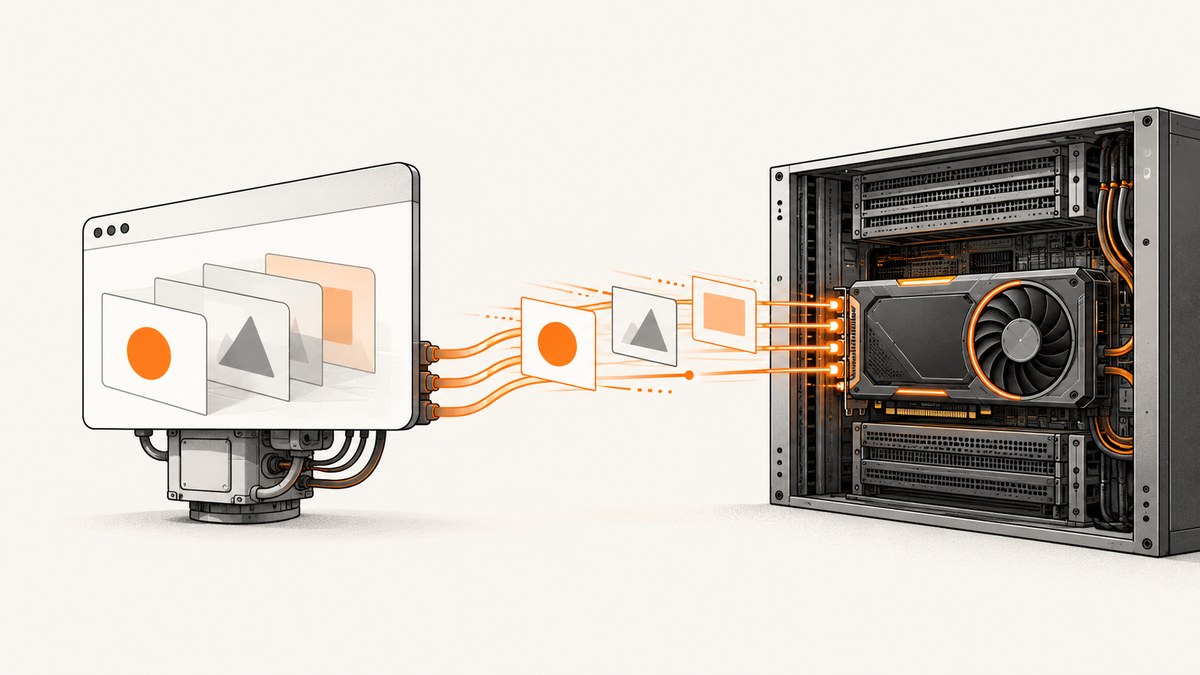
To enable hardware acceleration in headless Chromium with Playwright, launch the browser with --enable-gpu. This tells headless Chrome to stop forcing software rendering:
import { chromium } from 'playwright';

const browser = await chromium.launch({
  channel: 'chromium',
  headless: true,
  args: ['--enable-gpu']
});
The flag does not create a GPU or guarantee that Chromium will use one. Acceleration also depends on the host GPU, drivers, display backend, browser build, and CI or container configuration. Treat the launch flag as one part of the setup, then verify the rendering path on the machine that will run your application.
What --enable-gpu actually changes
Headless Chrome normally favors a software rendering path. Chromium’s official headless GPU guidance says to pass --enable-gpu to disable that forced software behavior. The switch is therefore an instruction to try hardware rendering; it is not a hardware requirement or a performance guarantee.
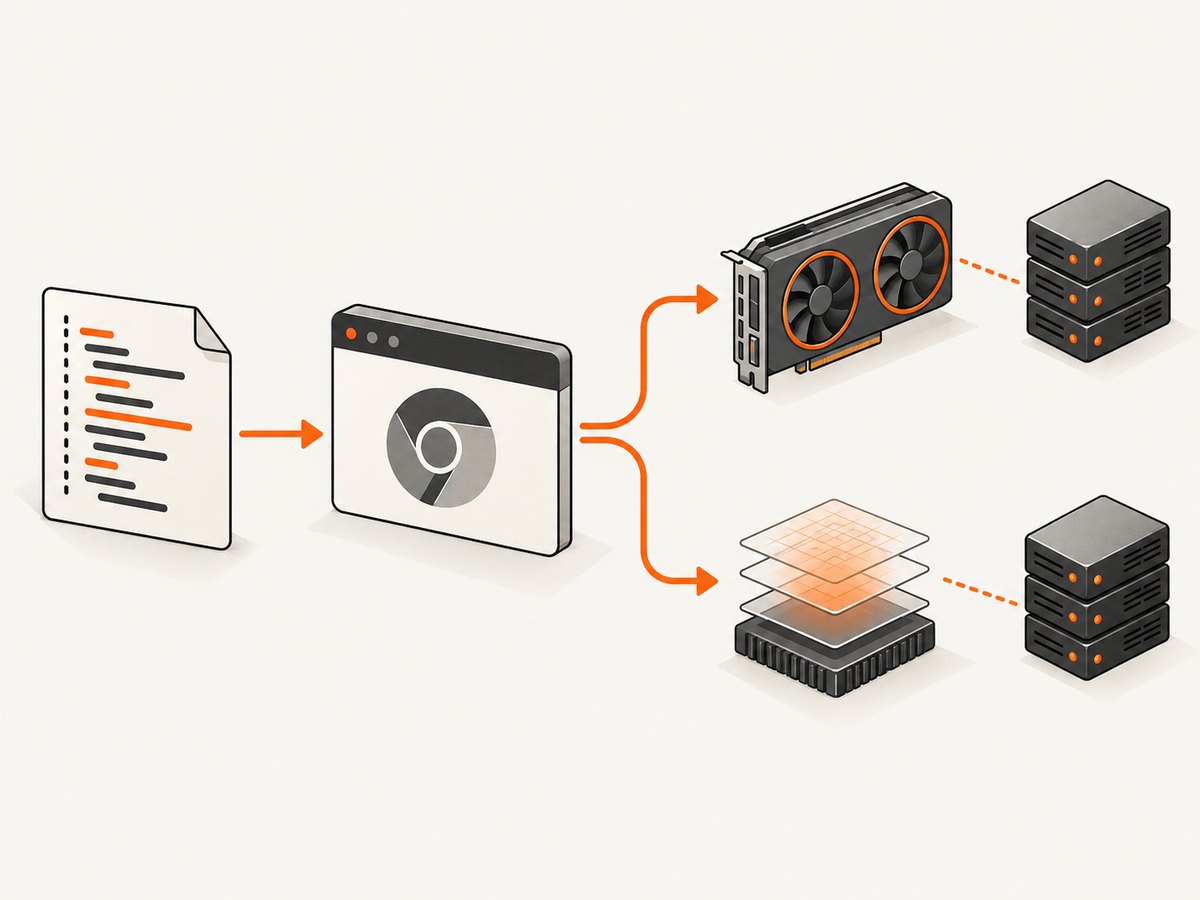
A successful chromium.launch() call proves only that the browser process started. It does not prove that WebGL, compositing, video decode, or another GPU-dependent feature is using the physical device. A browser can start with the flag and still fall back to software rendering because a driver is missing, the GPU is inaccessible, or the selected backend cannot initialize.
Choose Playwright’s headless implementation
Playwright can run a separate headless shell or the regular Chromium browser in its new headless mode. Set channel: 'chromium' when you want the new headless mode backed by the real Chrome browser:
import { chromium } from 'playwright';

const browser = await chromium.launch({
  channel: 'chromium',
  headless: true,
  args: ['--enable-gpu']
});

const page = await browser.newPage();
await page.goto('https://example.com', { waitUntil: 'networkidle' });
console.log(await page.title());
await browser.close();
Playwright documents the chromium channel as the way to opt into new headless mode. You can also use branded Chrome or Edge channels, but record the exact channel and version in diagnostics because graphics behavior can vary between browser builds.
Start with the smallest launch configuration
Use only the GPU switch first:
const browser = await chromium.launch({
  channel: 'chromium',
  headless: true,
  args: ['--enable-gpu']
});
Playwright warns that arbitrary browser arguments can break functionality. Add backend-specific switches only after reproducing a graphics problem on the target operating system and runner.
Testing the Vulkan ANGLE backend on Linux
Chromium’s guidance says Linux OpenGL auto-detection requires an X11 server and a valid DISPLAY. On some Linux configurations, forcing the Vulkan ANGLE backend has worked when default detection could not find a usable device:
const browser = await chromium.launch({
  channel: 'chromium',
  headless: true,
  args: [
    '--enable-gpu',
    '--use-angle=vulkan'
  ]
});
--use-angle=vulkan is a configuration to test, not a universal Linux fix. Validate it against your kernel, driver, container image, and Chromium version. If it makes page rendering less reliable, remove it and investigate the environment instead.
What about --use-gl=egl?
Treat --use-gl=egl as a platform-specific experiment. A historical Playwright issue described it as a macOS workaround and reported different results on Windows. That evidence should not be generalized to every current release. Keep the flag only when it solves a reproducible issue on your own target environment.
Host and CI prerequisites
Flags cannot supply infrastructure that is absent. Before changing Playwright code, check these prerequisites:
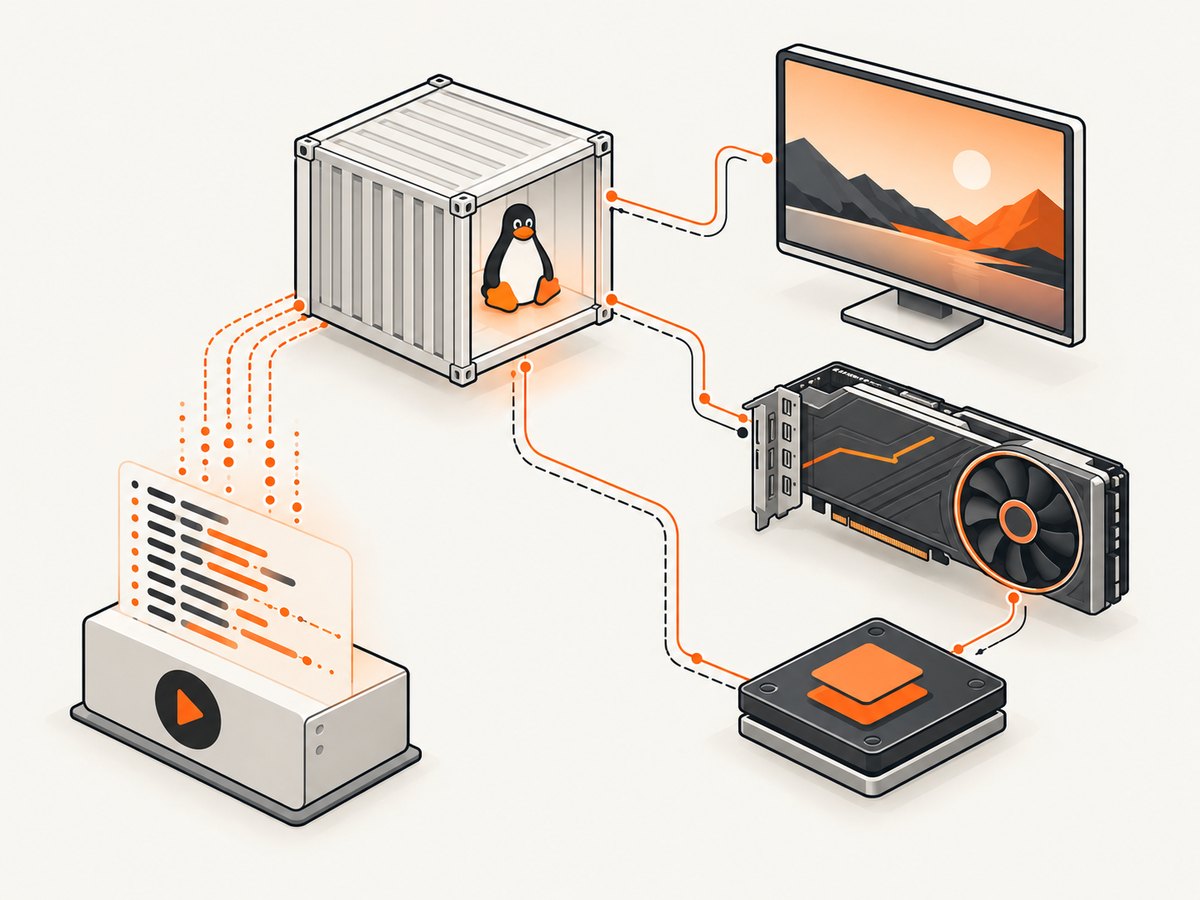
- A usable GPU: The host or VM must expose a supported GPU device. A display adapter or virtual device that is not visible to the browser cannot accelerate rendering.
- Drivers inside the runtime: In containers, the driver libraries and device access must be available inside the container, not only on the host.
- A compatible display/backend: Chromium’s Linux OpenGL auto-detection expects an X11 server and a valid
DISPLAY. A truly displayless runner needs a backend and runtime arrangement supported by that image. - Browser and driver compatibility: Record the Chromium version, operating system, kernel, GPU model, and driver version when comparing runs.
- Stable permissions: The account running Playwright must be able to access the GPU device and any display socket used by the backend.
On a CI runner, decide whether you need a real hardware path or merely a reliable screenshot. For tests that exercise WebGL, GPU compositing, or video features, use a runner designed to expose those capabilities. For ordinary page screenshots, forcing a GPU can add setup and failure modes without improving correctness.
Verify runtime graphics behavior
Do not use launch success as your verification signal. Exercise the GPU-dependent behavior your application needs and collect diagnostics from the actual runner.
- Run a known WebGL or compositing test page through Playwright.
- Capture the page output and browser logs.
- Compare it with a deliberately software-rendered run.
- Repeat on the exact CI image used in production.
- Store the browser channel, Chromium version, OS, driver, GPU model, display variables, and launch flags with the result.
A minimal WebGL probe can report whether a rendering context exists:
import { chromium } from 'playwright';

const browser = await chromium.launch({
  channel: 'chromium',
  headless: true,
  args: ['--enable-gpu']
});

const page = await browser.newPage();
await page.setContent(`
  <canvas id="canvas" width="64" height="64"></canvas>
  <script>
    const canvas = document.getElementById('canvas');
    const gl = canvas.getContext('webgl') || canvas.getContext('experimental-webgl');
    document.body.dataset.webgl = gl ? 'available' : 'unavailable';
  </script>
`);
console.log(await page.locator('body').getAttribute('data-webgl'));
await browser.close();
This probe confirms that a WebGL context can be created. It does not identify whether the context is backed by hardware. For that distinction, collect Chromium graphics diagnostics and compare them with a known software run. Chromium’s command-line documentation also warns that chrome://flags may not accurately reflect command-line state, so prefer runtime evidence and environment logs.
Complete Playwright example with diagnostics
The following script keeps the configuration explicit, captures browser output, and fails clearly when navigation or the WebGL probe fails:
import { chromium } from 'playwright';

const browser = await chromium.launch({
  channel: 'chromium',
  headless: true,
  args: ['--enable-gpu'],
  logger: {
    isEnabled: (name, severity) => severity === 'error' || name === 'browser',
    log: (name, severity, message) => console.error(`[${name}/${severity}] ${message}`)
  }
});

try {
  const page = await browser.newPage();
  page.on('console', message => console.log(`[page/${message.type()}] ${message.text()}`));
  page.on('pageerror', error => console.error('[pageerror]', error));

  await page.goto('https://example.com', {
    waitUntil: 'networkidle',
    timeout: 30_000
  });

  await page.setContent(`
    <canvas id="canvas" width="64" height="64"></canvas>
    <script>
      const gl = document.querySelector('canvas').getContext('webgl');
      document.body.textContent = gl ? 'WebGL context available' : 'WebGL unavailable';
    </script>
  `);

  console.log(await page.textContent('body'));
} finally {
  await browser.close();
}
Keep this script as a diagnostic fixture rather than assuming its result represents every page. A site can disable WebGL, use a different graphics API, or behave differently under cross-origin isolation and media restrictions.
Common errors and fixes
| Symptom | Likely cause | Fix |
|---|---|---|
| Browser launches, but rendering is still software | No accessible GPU, missing driver, unsupported backend, or display environment | Inspect device access and driver logs, confirm DISPLAY where required, and compare runtime diagnostics with a software run. |
--enable-gpu changes nothing |
The switch only disables forced software rendering; it cannot manufacture hardware | Verify the physical or virtual GPU and the browser’s selected backend. |
| Linux reports that OpenGL cannot initialize | Auto-detection cannot find X11 or DISPLAY |
Provide supported X11 infrastructure or test --use-angle=vulkan on a runner with a compatible Vulkan stack. |
| Vulkan launch crashes or pages render incorrectly | Driver, ANGLE, Chromium, or container incompatibility | Remove the Vulkan flag, return to the smallest configuration, and validate versions before retrying. |
| WebGL is unavailable in CI | GPU device permissions, sandbox restrictions, blocked backend, or a page-level WebGL policy | Check browser and page logs, device permissions, and the target page’s feature requirements. Test the same image locally and in CI. |
| Tests become flaky after adding flags | Custom arguments changed browser behavior or timing | Remove unneeded flags, pin the browser image, and add each argument independently. |
| Results differ between local and CI | Different browser channel, driver, OS, GPU, display server, or container permissions | Record and compare the complete graphics environment, not just the Playwright version. |
Performance, reliability, and cost considerations
Performance
Hardware acceleration can help workloads that spend time on GPU-backed compositing, WebGL, canvas, video, or animation. There is no durable percentage improvement to assume across machines. Measure the operation that matters to your application: page load, animation completion, screenshot time, video frame processing, or test duration.
Use a fixed test page and repeated runs. Compare the smallest launch configuration with any Vulkan or EGL variant. Keep viewport, browser version, CPU limits, network conditions, and page state constant so that graphics changes are not confused with unrelated variability.
Reliability
Every custom argument increases the number of environment combinations you must support. Pin the browser channel and CI image, retain logs from failed launches, and exercise the same GPU-dependent path in pre-production. If acceleration is optional for your feature, implement a software fallback and make the choice observable in logs.
Cost
A GPU-enabled VM or CI runner can cost more than a CPU-only runner, and maintaining drivers and display infrastructure adds operational work. Hardware acceleration is justified when it solves a measured requirement. It is not automatically beneficial for static screenshots or DOM assertions that do not use GPU-heavy APIs.
Or skip the browser setup
If your goal is reliable website screenshots rather than controlling Chromium’s graphics stack, ScreenshotNeo provides a single HTTP request. Its capture service handles browser setup and returns PNG, JPEG, WebP, or PDF output.
See the ScreenshotNeo API documentation for the full option list. A basic request is:
cURL
curl -G "https://api.screenshotneo.com/v1/shot" -d access_key=YOUR_API_KEY --data-urlencode url=https://stripe.com -o shot.webpPython
import requests
r = requests.get("https://api.screenshotneo.com/v1/shot", params={"access_key": "YOUR_API_KEY", "url": "https://stripe.com"}, timeout=90)
open("shot.webp", "wb").write(r.content)
Node.js
const q = new URLSearchParams({ access_key: 'YOUR_API_KEY', url: 'https://stripe.com' });
const res = await fetch(`https://api.screenshotneo.com/v1/shot?${q}`);
ScreenshotNeo removes cookie and consent banners, newsletter popups, and chat widgets before capture. Bot checks, blank pages, timeouts, failed loads, and cache hits are not billed, and response headers identify the page verdict and whether the request was billed. Its MCP server provides take_screenshot, get_page_info, and capture_pdf tools for Claude, Cursor, and other MCP clients. You can use full-page capture with lazy images, CSS selector element capture, dark mode, device presets, custom viewports, retina scale, PDF paper and margin settings, custom CSS and JavaScript, clicks, waits, blocked resources, headers, cookies, user agents, authorization, timezone, geolocation, transparent backgrounds, resizing, TTL caching, signed links, asynchronous jobs, webhooks, bulk capture, usage data, and an OpenAPI specification.
The free plan includes 1,000 screenshots per month with no card. Paid plans start at $5 for 3,000 shots, and every feature is available on every plan. Create a free ScreenshotNeo account.
Practical decision checklist
- Are you testing WebGL, video, canvas, or another GPU-dependent feature?
- Does the target runner expose a usable GPU and compatible driver?
- For Linux OpenGL auto-detection, is an X11 server and valid
DISPLAYavailable? - Have you tried
channel: 'chromium'so the new headless mode is explicit? - Did you start with only
--enable-gpu? - Did you validate any Vulkan or EGL flag on the exact production image?
- Are you checking runtime graphics behavior instead of relying on launch success or
chrome://flags? - Would a managed screenshot API meet the requirement with less infrastructure?
FAQ
Does Playwright headless support WebGL?
It can, provided Chromium can initialize a supported graphics path in the target environment. Page policy, drivers, display infrastructure, and browser configuration all affect the result.
Is --enable-gpu enough in Docker?
No. The container also needs compatible drivers, device access, and a supported display or graphics backend. The flag alone cannot provide those dependencies.
Should every Playwright project use a GPU?
No. Enable it when your workload depends on GPU-backed behavior or measurements show a benefit. For ordinary DOM tests and static screenshots, a simpler software path may be easier to operate.
Why use channel: 'chromium'?
Playwright uses that channel to opt into Chromium’s new headless mode backed by the regular browser implementation. Keep the channel and version fixed when diagnosing graphics differences.
Can I prove acceleration from a screenshot alone?
No. A screenshot shows output, not which rendering backend produced it. Combine application-level probes with Chromium diagnostics and environment logs.


