How to Enable JavaScript When Generating PDFs with wkhtmltopdf
Enable JavaScript in wkhtmltopdf, wait for charts and data, use window.status reliably, and fix the common causes of blank or incomplete PDFs.

Short answer: wkhtmltopdf enables JavaScript by default, but adding --enable-javascript makes the behavior explicit. For pages that render asynchronously, add a delay with --javascript-delay, or have the page set window.status when rendering is complete and wait with --window-status.
wkhtmltopdf --enable-javascript input.html output.pdfFor a chart that needs 1.5 seconds to finish:
wkhtmltopdf --enable-javascript --javascript-delay 1500 input.html output.pdfFor a deterministic page-controlled signal:
wkhtmltopdf --enable-javascript --window-status ready input.html output.pdfThe important distinction is that enabling scripts only permits JavaScript to run. It does not tell wkhtmltopdf when your application has finished fetching data, drawing a chart, or replacing a loading placeholder. You must choose a completion strategy that matches the page.
1. How wkhtmltopdf waits for JavaScript
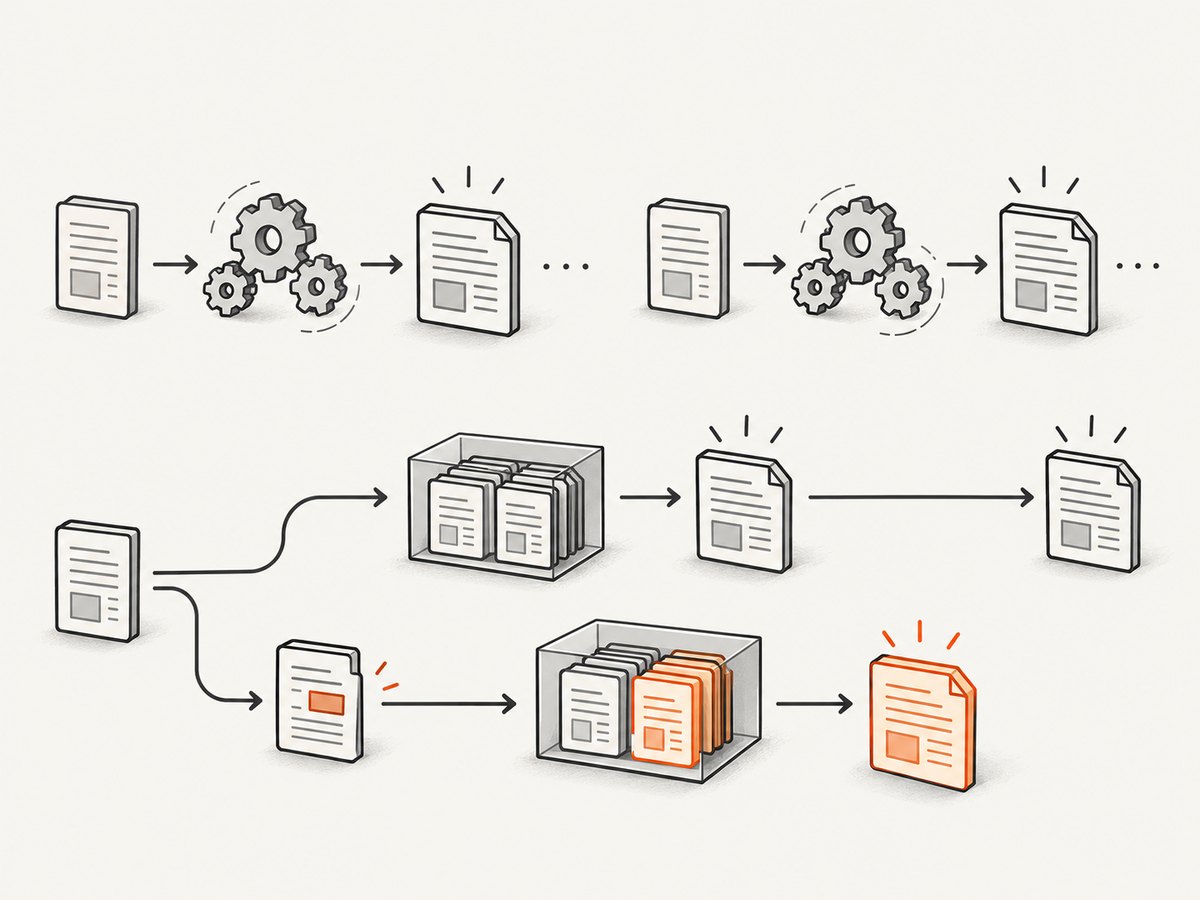
wkhtmltopdf loads the document, executes permitted scripts, waits according to its load settings, and then prints the page. The command-line reference defines --javascript-delay <msec> as the amount of time to wait after the page is loaded before printing; the documented default is 200 milliseconds. The converter can also stop earlier when page JavaScript calls window.print(). See the official usage reference and the page settings documentation.
| Strategy | Command or action | Best for | Main limitation |
|---|---|---|---|
| Explicit enablement | --enable-javascript |
Making intent clear in scripts and CI | Does not wait for asynchronous work |
| Fixed delay | --javascript-delay 1500 |
Simple pages with predictable render time | Too short produces incomplete output; too long wastes time |
| Status signal | --window-status ready |
Data and charts with a known completion point | Your page must always set the status, including error paths |
| Page-triggered print | window.print() |
Pages that own their complete lifecycle | Requires control of the page JavaScript |
2. Basic commands
Enable JavaScript explicitly
wkhtmltopdf --enable-javascript https://example.com/report report.pdfJavaScript is already on unless you pass --disable-javascript. Keeping --enable-javascript in automation documents the requirement and prevents a later wrapper or script from hiding the setting.
Render a local HTML file
wkhtmltopdf --enable-javascript file:///absolute/path/report.html report.pdfLocal pages that load local CSS, images, fonts, or scripts may also need:
wkhtmltopdf --enable-javascript --enable-local-file-access \
  file:///absolute/path/report.html report.pdf
Only enable local-file access for files you trust. The project’s downloads page warns against running wkhtmltopdf on unsanitized, untrusted HTML or JavaScript because it can compromise the machine running the converter. Review the official downloads and security guidance before accepting user-supplied HTML.
Add a delay for asynchronous rendering
wkhtmltopdf --enable-javascript --javascript-delay 1500 \
  https://example.com/dashboard dashboard.pdf
Choose a delay longer than the slowest normal data request and chart render, but do not treat a very large number as a reliability strategy. A fixed delay cannot know whether a request failed, whether a chart is still animating, or whether a slow network needs another second.
3. Use window.status for deterministic output
If you control the page, set a status value only after all required work has completed. The status must be set after data is available, the DOM has been updated, and charts or canvases have been drawn.
<!doctype html>
<html>
<body>
  <div id="chart">Loading…</div>
  <script>
    async function renderReport() {
      const response = await fetch('/api/report');
      if (!response.ok) throw new Error(`HTTP ${response.status}`);
      const data = await response.json();

      document.querySelector('#chart').textContent =
        `Revenue: ${data.revenue}`;
    }

    renderReport()
      .then(() => {
        window.status = 'ready';
      })
      .catch((error) => {
        document.querySelector('#chart').textContent = 'Report failed';
        console.error(error);
        // Set a separate value so the converter cannot wait forever.
        window.status = 'error';
      });
  </script>
</body>
</html>
wkhtmltopdf --enable-javascript --window-status ready \
report.html report.pdfThe converter waits until window.status equals the supplied value. This is more predictable than guessing a delay when network and rendering times vary. The page must set the value on every successful path, and your surrounding job should enforce an external timeout for pages that never finish.
Use window.print() when the page owns the finish signal
renderReport().then(() => {
  window.print();
});
wkhtmltopdf can print when the page calls window.print(). This can be convenient for a purpose-built report, but it couples conversion behavior to page code. A status value is usually easier to inspect and combine with a wrapper timeout.
4. Make charts and client-rendered applications print correctly
Many “JavaScript is missing” reports are actually timing or layout problems. Check the full rendering chain:
- Load the page without a redirect loop or authentication failure.
- Fetch the data required by the report.
- Insert the data into the DOM.
- Wait for chart libraries to finish drawing.
- Set
window.statusor callwindow.print().
For a single-page application, make the printable route render without user interaction. Avoid relying on a click, hover, IntersectionObserver threshold, or viewport visibility unless you explicitly trigger it before completion. If lazy loading is part of the page, scroll or request the data directly, then signal readiness.
Canvas output can also be clipped if its dimensions are calculated after the first layout. Set a stable width and height in CSS, wait for the chart library’s completion callback, and then signal readiness. Web fonts should be loaded before the signal as well; otherwise text can reflow after wkhtmltopdf starts printing.
5. Relevant JavaScript and loading options
| Option | Purpose | When to use it |
|---|---|---|
--enable-javascript |
Allow page scripts to execute | Use explicitly in repeatable commands |
--disable-javascript |
Block page scripts | Use for static, untrusted, or script-free documents |
--javascript-delay <msec> |
Wait after load before printing | Simple asynchronous pages |
--window-status <value> |
Wait for an exact window.status value |
Known application completion signal |
--debug-javascript |
Show JavaScript warnings and errors | Diagnosing failed scripts |
--stop-slow-scripts |
Stop scripts considered too slow | Default behavior; protects jobs from runaway code |
--no-stop-slow-scripts |
Allow long-running scripts to continue | Test only when a legitimate script is interrupted |
--enable-local-file-access |
Permit local files referenced by a local document | Trusted local assets only |
Do not combine --window-status with a page that never sets the requested value. If you need a fallback, use a wrapper-level timeout and capture diagnostic output rather than silently producing a partial PDF.
6. Troubleshooting missing or incomplete content
The PDF shows the loading spinner
Cause: Printing began before the asynchronous request completed. Fix: Add a small --javascript-delay while investigating, then replace it with --window-status ready when you control the page.
JavaScript does not run at all
Cause: The command includes --disable-javascript, a wrapper adds that flag, or the page fails before its scripts execute. Fix: Remove the disabling option, add --enable-javascript, and run with --debug-javascript.
The command waits forever
Cause: The page never assigns the exact value requested by --window-status, often because an error path skips the assignment. Fix: Set a success or error status in both branches and enforce a process timeout.
A long script stops halfway through
Cause: wkhtmltopdf’s default slow-script protection stops it. Fix: Identify the loop or expensive operation first. Use --no-stop-slow-scripts only when the script is trusted and intentionally long-running.
Local CSS, images, or scripts are missing
Cause: Local-file access is disabled, or paths are relative to a different working directory. Fix: Use absolute file:// paths, verify permissions, and add --enable-local-file-access only for trusted inputs.
Modern browser code fails
Cause: Enabling JavaScript does not upgrade wkhtmltopdf’s rendering engine. The official downloads page lists the stable 0.12.6 series, released June 11, 2020. Newer browser APIs, modules, or CSS features may not be supported. Fix: transpile and polyfill code for the engine, simplify the page, or use a current browser-based PDF renderer.
The chart is present but clipped
Cause: The chart size was measured before fonts or layout finished, or it exceeds the printable viewport. Fix: set explicit dimensions, wait for the chart callback, choose page size and orientation deliberately, and signal readiness after the final layout.
7. Choosing between a delay and window.status
A fixed delay is the fastest change to make. It works well for a local report whose render time is stable and whose data is already embedded in the HTML. Its weakness is that it has no knowledge of readiness: a slow request can outlive the delay, while a fast request leaves the converter idle.
window.status expresses the application’s actual state. It handles variable network time and prevents printing before a chart callback or data transformation completes. The cost is implementation effort and the need to handle every success and failure path. For production reports, status signaling plus an outer timeout is generally the more reliable design.
8. Performance, reliability, and cost considerations
- Keep the page small: inline only the CSS and data you need, compress large images, and avoid unnecessary third-party scripts.
- Use a bounded wait: delays and status waits should be covered by a job timeout so one broken page cannot consume a worker indefinitely.
- Cache stable inputs: if the same data produces the same document, cache the generated PDF or the API response feeding the page.
- Make retries safe: retry network failures and renderer crashes, but do not blindly duplicate actions that mutate server state.
- Log the command and exit code: retain stderr from
--debug-javascriptduring diagnosis and record the URL, status signal, and elapsed time. - Secure the input: never pass unsanitized user HTML to a renderer with local access. Restrict outbound network access where your deployment allows it.
wkhtmltopdf’s JavaScript switch has no separate per-script charge; your practical cost is CPU, memory, and the time your worker remains occupied. Longer delays increase queue time even when the page finished early. Status-based completion can reduce that idle time, provided the page reliably signals completion.
9. Or skip the browser setup
If you need a clean PDF or screenshot from a URL without maintaining a wkhtmltopdf process, ScreenshotNeo provides a website screenshot API and MCP server. It accepts one GET request and can return PNG, JPEG, WebP, or PDF. Cookie and consent banners are accepted and removed before capture, along with more than 60 known consent platforms, newsletter popups, and chat widgets. Bot checks, blank pages, timeouts, failed loads, and cache hits are not billed, and each response identifies the result with X-Page-Verdict and X-Billed headers.

See the ScreenshotNeo API documentation for all options, including PDF paper size, margins, landscape mode, page ranges, custom CSS and JavaScript, waits, headers, cookies, authentication, blocking rules, caching, asynchronous jobs, signed webhooks, and bulk capture.
cURL
curl -G "https://api.screenshotneo.com/v1/shot" -d access_key=YOUR_API_KEY --data-urlencode url=https://stripe.com -o shot.webpPython
import requests
r = requests.get("https://api.screenshotneo.com/v1/shot", params={"access_key": "YOUR_API_KEY", "url": "https://stripe.com"}, timeout=90)
open("shot.webp", "wb").write(r.content)
Node.js
const q = new URLSearchParams({ access_key: 'YOUR_API_KEY', url: 'https://stripe.com' }); const res = await fetch(`https://api.screenshotneo.com/v1/shot?${q}`);ScreenshotNeo also includes an MCP server with take_screenshot, get_page_info, and capture_pdf tools for Claude, Cursor, and other MCP clients. The Free plan includes 1,000 shots per month with no card; paid plans start at $5 for 3,000 shots. Features are available on every plan.
Create a free ScreenshotNeo account and try the 1,000 included screenshots.
10. FAQ
Is JavaScript enabled by default in wkhtmltopdf?
Yes. --enable-javascript makes that choice explicit; --disable-javascript turns it off.
What delay should I use?
Start with the shortest delay that covers the slowest normal render, then move to window.status when you control the page and need deterministic completion.
Can wkhtmltopdf run modern JavaScript?
Only within the capabilities of its older rendering engine. JavaScript enablement does not add support for every current browser API.
Should I use --no-stop-slow-scripts in production?
Only after confirming that a trusted script is intentionally long-running. Fixing the script or using a completion signal is safer than disabling protection by default.
Why does a status-based command never finish?
The page did not set the exact requested status, often because a failed request bypassed the success callback. Set an explicit error status and keep an external timeout.


