How to Enable Screenshots in Playwright
Capture pages, elements, and full pages with Playwright, save screenshots on test failures, and compare visual baselines reliably.

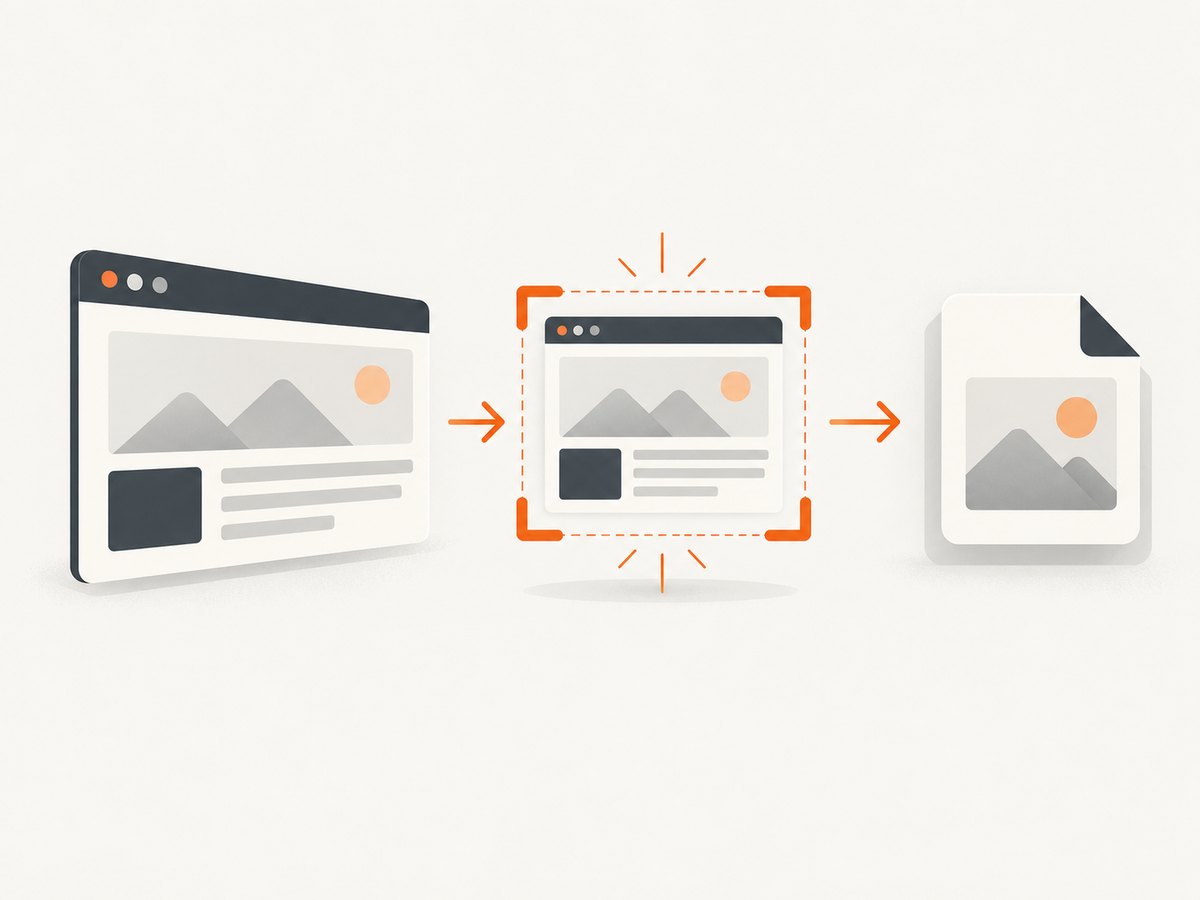
To save a screenshot in a Playwright script, navigate to the page and call await page.screenshot({ path: 'screenshot.png' }). Add fullPage: true to capture the full scrollable page. In Playwright Test, configure automatic screenshots with use.screenshot; compare visual baselines with expect(page).toHaveScreenshot().
These are three different jobs: the Page API captures an image when your code asks; Playwright Test configuration saves diagnostic artifacts automatically; and screenshot assertions detect visual changes against a baseline. Choose the one that matches how you plan to use the image.
1. Save a screenshot from a Playwright script
Install Playwright and its browser binaries in your project, then run this JavaScript example. It launches Chromium, opens a page, saves a PNG, and closes the browser:
const { chromium } = require('playwright');

(async () => {
  const browser = await chromium.launch();
  try {
    const page = await browser.newPage();
    await page.goto('https://example.com');
    await page.screenshot({ path: 'screenshot.png' });
  } finally {
    await browser.close();
  }
})();
Use an image extension such as .png, .jpeg, or .webp in the path; Playwright can infer the image format from the extension. A relative path is resolved from the process’s current working directory. If you omit path, the call returns image bytes instead of writing a file:
const imageBytes = await page.screenshot();That buffer can be saved, returned by an API handler, or attached to a test result. See the official Page screenshot API for the full option reference.
2. Capture the full page, an element, or a region
By default, a page screenshot captures the current viewport. Pass fullPage: true when you need the full scrollable page:

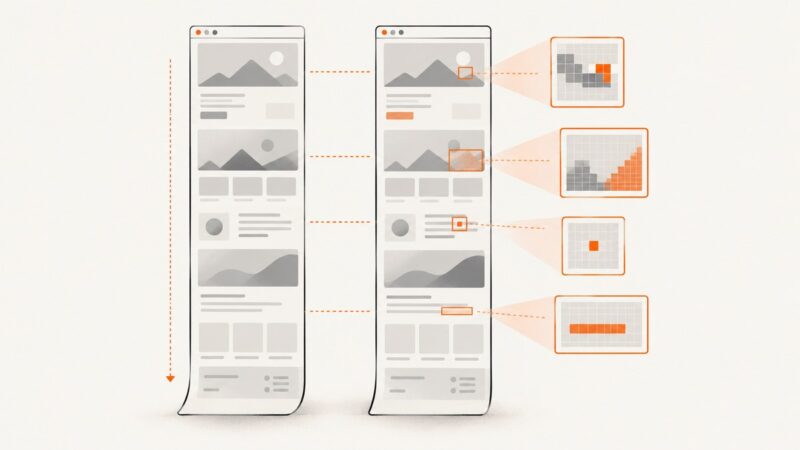
await page.screenshot({ path: 'full-page.png', fullPage: true });This is useful for documentation, review images, and pages where important content appears below the fold. It can produce a large image on long pages, so consider whether a viewport or a particular element is a better fit.
For a single component, use a locator screenshot. For a specific rectangle, use clip on the page screenshot. Those options help keep the result focused and reduce irrelevant page content:
await page.locator('main article').screenshot({ path: 'article.png' });

await page.screenshot({
  path: 'header.png',
  clip: { x: 0, y: 0, width: 1280, height: 240 },
});
Locator screenshots are preferable when the test concerns one card, dialog, or component. The locator must resolve to the intended element; if it matches multiple elements or no element, refine the selector or wait for the relevant state before capturing.
3. Configure screenshot output
Playwright’s screenshot method has options for output format, image quality, transparency, scale, and capture behavior. A representative configuration looks like this:
await page.screenshot({
  path: 'capture.webp',
  type: 'webp',
  quality: 80,
  fullPage: true,
  animations: 'disabled',
});| Option | What it controls | When to use it |
|---|---|---|
path |
Writes the image to a file. The extension can determine the image type. | Standalone scripts or a known output location. |
type |
Image format: PNG, JPEG, or WebP. | Set explicitly when format should not depend on a path extension. |
quality |
Compression quality for JPEG or WebP. | Reduce file size when lossless PNG is unnecessary. It does not apply to PNG. |
fullPage |
Captures the full scrollable page instead of only the viewport. | Long-page documentation or review captures. |
clip |
Captures a specified rectangle. | Restrict a page capture to a known region. |
omitBackground |
Omits the default background where transparency is supported. | Images that need a transparent background. |
scale |
Chooses CSS-pixel or device-pixel output. | Control dimensions and pixel density for downstream use. |
mask |
Overlays masks on matching locators. | Cover dynamic or sensitive regions in a capture. |
animations |
Controls animation behavior during capture. | Reduce changes caused by motion in repeatable captures. |
For a transparent PNG, for example:
await page.screenshot({
  path: 'transparent.png',
  omitBackground: true,
});
Use options that match the purpose: PNG is lossless and often suitable for visual comparison; JPEG and WebP can reduce file size with lossy compression. The exact behavior and supported combinations are documented in the Page API.
4. Capture screenshots automatically in Playwright Test
To save screenshots as test artifacts automatically, set the built-in use.screenshot option in playwright.config.ts:
import { defineConfig } from '@playwright/test';

export default defineConfig({
  use: {
    screenshot: 'only-on-failure',
  },
});
Playwright Test supports four modes:
| Mode | Behavior | Good fit |
|---|---|---|
off |
No automatic screenshots. This is the default. | Tests where screenshots are not needed. |
on |
Capture for every test. | Reviewing each test run visually. |
only-on-failure |
Capture when a test fails. | General failure diagnosis. |
on-first-failure |
Capture on the first failure for a test. | Keep failure artifacts while limiting repeats. |
Automatic artifacts are convenient, but they are not a visual regression check. They show what a page looked like when a test failed; they do not determine whether the rendering differs from an approved baseline. Read the official automatic screenshot configuration before choosing a mode.
5. Compare screenshots with visual assertions
For visual regression testing, use Playwright Test’s toHaveScreenshot() assertion. The first run establishes a baseline; subsequent runs compare against it:
import { test, expect } from '@playwright/test';

test('homepage visual check', async ({ page }) => {
  await page.goto('https://example.com');
  await expect(page).toHaveScreenshot();
});
You can also assert against a locator when only a component should be compared. Screenshot assertions support options such as a name, full-page capture, clipping, masks, and controls for animation and caret behavior. The assertion waits for two consecutive screenshots to match before comparing with the expectation, which helps avoid capturing while rendering is still changing.
Screenshot assertions are available with the Playwright Test runner. They are not a method on a page in an ordinary standalone script. For test runner usage and assertion options, consult the official visual comparisons guide and Page assertions API.
For a diagnostic screenshot that should be attached to a test result, capture bytes and attach them with a content type:
const screenshot = await page.screenshot();
await testInfo.attach('screenshot', {
  body: screenshot,
  contentType: 'image/png',
});
Use testInfo.outputPath('screenshot.png') when you need a test-specific file path. The test output path helps keep artifacts associated with their test rather than writing every test to one shared filename. See the official TestInfo attachment API.
6. Make captures repeatable
A screenshot records a rendered state, so the page must be in the state you intend to capture. Navigate, wait for relevant content, and then take the image. Prefer waiting for a meaningful locator over adding an arbitrary delay when the page exposes a reliable element:
await page.goto('https://example.com');
await page.getByRole('heading', { name: 'Example Domain' }).waitFor();
await page.screenshot({ path: 'ready.png' });
Visual baselines can differ between execution environments. Playwright’s visual comparison guidance identifies operating system, browser version, settings, hardware, power source, and headless mode as sources of rendering variation. Generate and compare baselines in a consistent environment, including the same browser setup and relevant configuration. Otherwise, a rendering difference may reflect the environment rather than a meaningful UI change. See Playwright’s visual comparison documentation.
For a more stable capture, choose selectors that identify the intended content, mask regions that change for every run, and control animation when motion is irrelevant. Full-page images can consume more storage and take longer to inspect than a focused locator capture. Match capture scope and image format to the use: large review artifact, test attachment, or baseline comparison.
7. Choose the right approach
| Need | Use | Output |
|---|---|---|
| Save an image from a script | page.screenshot() |
File path or returned bytes |
| Capture a component | locator.screenshot() |
Element image |
| Save an artifact automatically for debugging | Playwright Test use.screenshot |
Test-run screenshot artifact |
| Detect visual changes | expect(page).toHaveScreenshot() |
Baseline comparison result |
| Keep an image attached to a test result | testInfo.attach() |
Named test attachment |
Use the Page API for a one-off capture, test configuration for diagnostic artifacts, and screenshot assertions when image differences should affect test results. These capabilities are built into Playwright and Playwright Test, so a separate screenshot service is not required for the local workflow.
Or skip the browser setup
ScreenshotNeo is a website screenshot API and MCP server from Yorker Media. Its API takes a URL in one GET request and returns an image or PDF. For the API parameters and response details, see the ScreenshotNeo documentation.
curl -G "https://api.screenshotneo.com/v1/shot" -d access_key=YOUR_API_KEY --data-urlencode url=https://stripe.com -o shot.webpimport requests
r = requests.get("https://api.screenshotneo.com/v1/shot", params={"access_key": "YOUR_API_KEY", "url": "https://stripe.com"}, timeout=90)
open("shot.webp", "wb").write(r.content)const q = new URLSearchParams({ access_key: 'YOUR_API_KEY', url: 'https://stripe.com' });
const res = await fetch(`https://api.screenshotneo.com/v1/shot?${q}`);- Cookie banners, newsletter popups, and chat widgets are removed before the shot; each cleanup step can be turned off.
- Bot checks, blank pages, timeouts, failed loads, and cache hits are not billed; response headers report the page verdict and billing status.
- An MCP server provides
take_screenshot,get_page_info, andcapture_pdftools for AI agents and MCP clients. - The free plan includes 1,000 screenshots a month with no card. Paid plans start at $5 for 3,000 screenshots.
Sign up free for 1,000 screenshots a month, with no card required.
Troubleshooting
| Problem | Likely cause | Fix |
|---|---|---|
| No screenshot appears after a test fails. | Automatic capture is disabled; its default is off. |
Set use.screenshot to only-on-failure, on-first-failure, or on, or call the screenshot API explicitly. |
toHaveScreenshot() is unavailable. |
The code is running outside Playwright Test. | Use page.screenshot() or a locator screenshot in a standalone script; use the assertion in a Playwright Test case. |
| Only the visible portion is captured. | Page screenshots default to the viewport. | Pass fullPage: true for the full scrollable page. |
| The image has a different size or format than expected. | The output path, selected type, or scale does not match the desired output. | Set a suitable extension or explicit type, and select the intended scale. |
| A locator screenshot fails or captures the wrong area. | The selector does not uniquely identify the intended element, or the element is not ready. | Refine the locator and wait for the target element’s expected state before capture. |
| Visual tests fail across machines without an intended UI change. | Rendering can vary with operating system, browser version, hardware, settings, power source, or headless mode. | Generate and compare baselines in a consistent environment with matching browser and capture settings. |
| A saved screenshot is overwritten by another test. | Multiple runs use the same hard-coded path. | Use test-specific output paths such as testInfo.outputPath() or distinct names. |
Performance, reliability, and storage
Screenshot cost in a Playwright workflow is primarily browser work plus artifact handling: navigation, waiting for the page state, rendering the chosen area, encoding the image, and writing or attaching the bytes. Full-page captures and high pixel-density output can create larger images than a viewport or element capture. JPEG or WebP quality can help reduce image size when lossy output is acceptable; for visual tests, keep output and environment consistent so that file-size choices do not undermine comparison repeatability.
For reliable automation, make the capture conditional on a page state that matters, close the browser in a finally block in standalone scripts, and use test-specific paths or attachments in parallel test runs. For visual regression, treat the browser and operating environment as part of the baseline: a baseline produced elsewhere can differ for reasons unrelated to the page code. Automatic failure screenshots are useful for diagnosis, but they do not replace explicit assertions when visual differences should fail the test.
FAQ
Can I take a screenshot without saving it to disk?
Yes. Call page.screenshot() without path; it returns image bytes that you can attach to a test or handle in memory.
Does Playwright Test take screenshots on failure by default?
No. The automatic screenshot setting defaults to off. Configure a screenshot mode or take the image explicitly.
Can I compare only one component?
Yes. Use a locator screenshot assertion with toHaveScreenshot() when the visual check should target a particular element.
Do visual assertions work in a plain Playwright script?
No. The screenshot assertion belongs to Playwright Test. Use the Page or Locator screenshot API for a plain script.