How to Enable TLS 1.3 in Chrome, Safari, and Firefox
TLS 1.3 is already enabled in current Chrome and Firefox. Learn how Safari support works, how to verify negotiation, and what to change when it fails.

Short answer: You normally do not turn TLS 1.3 on with a browser checkbox. Current Chrome releases include TLS 1.3 by default (support began in Chrome 70), current Firefox releases use TLS 1.3 as their maximum by default, and Safari support depends on the Safari and Apple operating-system version. Update the browser and operating system, then let the browser and website negotiate the highest mutually supported TLS version.
A browser setting cannot make a website, reverse proxy, corporate inspection device or other intermediary offer TLS 1.3. If any part of the connection lacks TLS 1.3, negotiation can fall back to an older permitted version. The practical workflow is therefore:
- Update the browser and its operating system.
- Confirm the destination supports TLS 1.3.
- Check whether a managed policy or TLS-intercepting proxy is changing the handshake.
- Verify the negotiated protocol instead of assuming that an enabled preference guarantees TLS 1.3.
What TLS 1.3 changes
TLS is the protocol that protects an HTTPS connection. Version negotiation occurs between the browser and the destination server during the TLS handshake. TLS 1.3 is a protocol version; HTTPS-Only Mode is a separate browser feature that upgrades or blocks insecure HTTP connections. Turning on HTTPS-Only Mode does not select TLS 1.3.
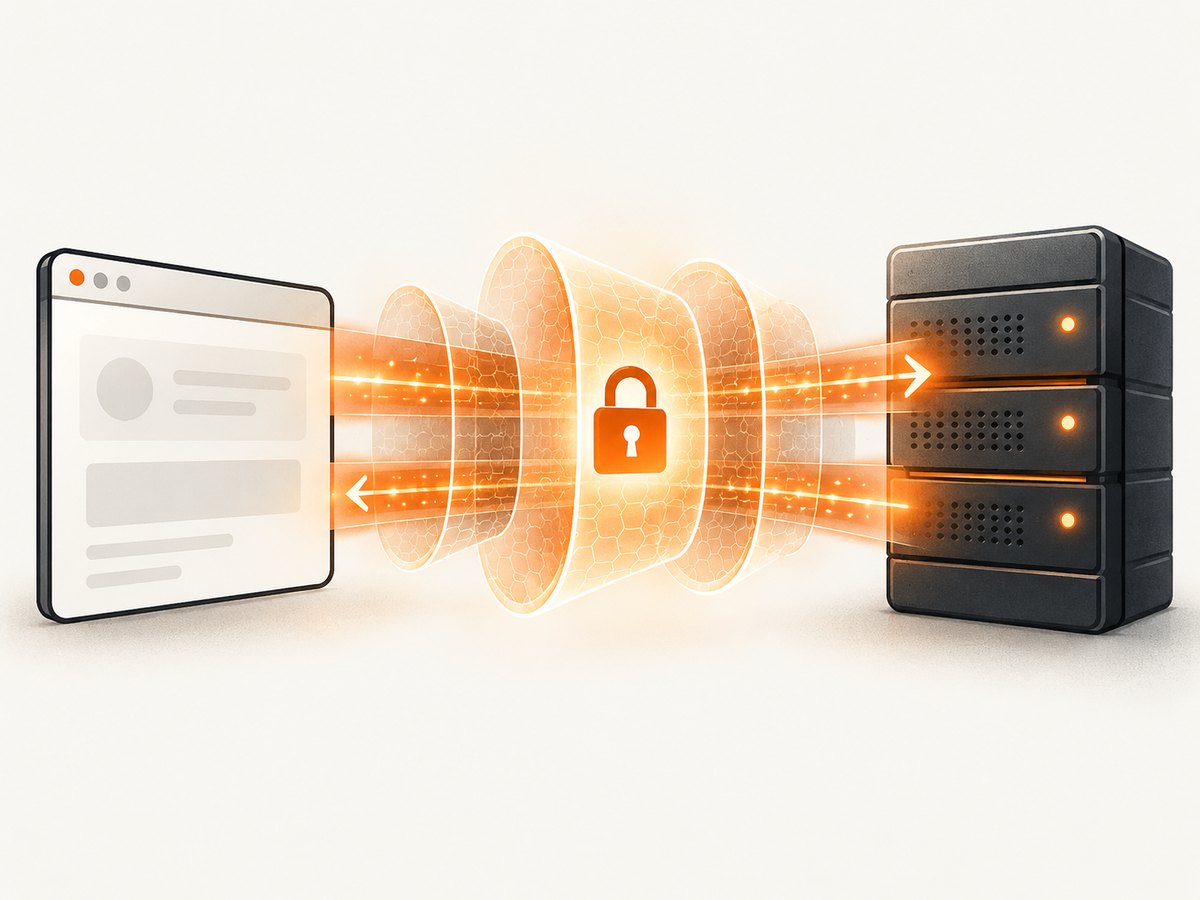
TLS 1.3 can be negotiated only when the server and all relevant intermediaries support it. A browser preference controls the versions the browser is willing to use; it does not add TLS 1.3 support to an old server. A corporate proxy that terminates and re-encrypts TLS can also become the endpoint that determines the negotiated version.
Enable TLS 1.3 in Chrome
Chrome 70 introduced TLS 1.3 support. In a current, normally installed Chrome release, it is already enabled. There is no normal user-facing checkbox for switching TLS 1.3 on.
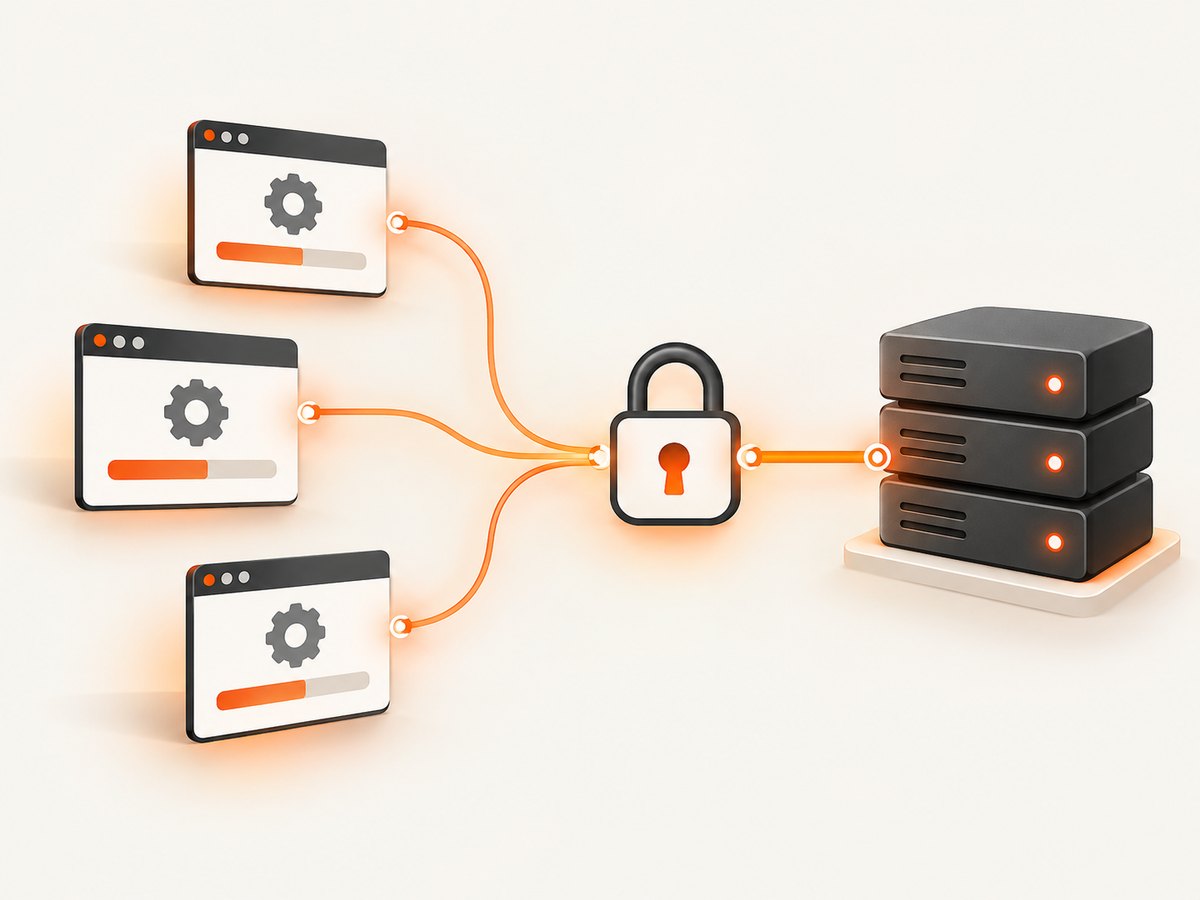
Steps for ordinary users
- Open Help → About Google Chrome.
- Allow Chrome to check for and install updates.
- Relaunch Chrome when prompted.
- Retry the HTTPS site and verify the negotiated protocol with the checks later in this guide.
Do not search for a “TLS booster” extension, VPN setting or antivirus option. Those tools cannot make a server support a protocol version, and TLS inspection by security software can change which endpoint negotiates TLS.
Managed Chrome environments
Administrators can use Chrome’s Minimum SSL version enabled policy. This policy sets the lowest protocol version Chrome may accept; it is not a command that makes every connection use TLS 1.3. Raising the minimum can break sites that still require older TLS, so test the policy against the organization’s required destinations before deployment.
// Policy concept (configure through your platform’s Chrome management tools)
Minimum SSL version enabled = tls1.2
Use a minimum of TLS 1.2 unless you have a documented reason to require something else. A minimum of TLS 1.3 rejects servers that cannot negotiate TLS 1.3; it does not improve a server that only supports TLS 1.2.
Enable TLS 1.3 in Safari
Safari’s TLS 1.3 availability follows the Safari and Apple OS generation. The compatibility data used for this guide lists Safari 14 and later as supported, Safari 12.1–13.1 as partial, and iOS Safari 12.2 and later as supported. Safari does not document a normal user-facing TLS-version selector.
Steps on macOS
- Open System Settings → General → Software Update (or System Preferences → Software Update on older macOS).
- Install available macOS and Safari updates.
- Restart if macOS requests it, then revisit the HTTPS destination.
Safari is updated with the operating system. If an older Mac cannot install a newer macOS release, its Safari build may remain on a generation with partial or no TLS 1.3 support.
Steps on iPhone or iPad
- Open Settings → General → Software Update.
- Install the latest compatible iOS or iPadOS update.
- Open the site again in Safari and verify the connection.
There is no Safari preference equivalent to Firefox’s about:config TLS maximum. Updating Apple software is the supported way to obtain newer protocol support.
Enable or configure TLS 1.3 in Firefox
Mozilla documents that Firefox defaults to a maximum of TLS 1.3 and a minimum of TLS 1.2. For most users, updating Firefox is all that is required.
Check the Firefox preference
- Enter
about:configin the address bar. - Accept the warning if Firefox displays one.
- Search for
security.tls.version.max. - Set its value to
4, which represents TLS 1.3. - Restart Firefox and retry the destination.
security.tls.version.max = 4   // tls1.3
security.tls.version.min = 3   // tls1.2 in current Firefox defaults
Leave security.tls.version.min at TLS 1.2 or higher unless a specific compatibility requirement is documented. Mozilla warns that TLS 1.0 and TLS 1.1 are deprecated. Lowering the minimum to accommodate one legacy site weakens every connection handled by that profile, so use a separate controlled environment if an old system truly requires it.
Enterprise Firefox policy
Administrators can set the SSLVersionMax policy to tls1.3 and can manage SSLVersionMin. Mozilla documents this enterprise policy capability for Firefox 66 and Firefox ESR 60.6. Deploy policies through the organization’s supported management mechanism, then inspect the effective policy in about:policies.
// Policy values documented by Mozilla
SSLVersionMax = "tls1.3"
SSLVersionMin = "tls1.2"
How to verify that a connection negotiated TLS 1.3
“Enabled” means the browser permits TLS 1.3. “Negotiated” means the specific connection actually used it. Check the latter.
Use browser security details
Open the site, select the padlock or tune icon beside the address, and open the connection or certificate details. Browser wording varies by release and operating system. Look for a field identifying the connection protocol, such as TLS 1.3. If the details show TLS 1.2, the browser may support TLS 1.3 while the server or an intermediary does not.
Use Firefox diagnostic pages
Firefox’s developer tools and connection details can expose security information for the active page. The exact labels change, so treat the protocol shown for the current request as authoritative rather than relying on a global preference.
Check from a terminal
For a server you control, OpenSSL can request TLS 1.3 explicitly:
openssl s_client -connect example.com:443 -servername example.com -tls1_3
A successful handshake shows certificate and session details. Replace example.com with the host you are diagnosing. This tests the server path from that machine; it does not prove that every browser, proxy or geographic route will negotiate TLS 1.3.
Why TLS 1.3 is not being negotiated
| Symptom | Likely cause | Fix |
|---|---|---|
| Chrome has no TLS setting | Expected behavior | Update Chrome; TLS 1.3 is built in from Chrome 70 onward. |
| Safari reports an older protocol | Older Safari or Apple OS | Install available macOS, iOS or iPadOS updates. |
| Firefox uses TLS 1.2 | Server or intermediary lacks TLS 1.3, or maximum was changed | Check security.tls.version.max, proxy policy and server support. |
| Raising the minimum breaks sites | Those sites do not support the required minimum | Restore TLS 1.2 minimum or remediate the servers; do not lower security globally without a documented need. |
| Works at home but not at work | Corporate TLS inspection or filtering proxy | Ask the network administrator which TLS version the proxy negotiates and whether it can pass TLS 1.3. |
| Handshake fails after changing about:config | Maximum or minimum is incompatible with the destination | Restore Firefox defaults, restart, then test the server independently. |
| HTTPS-Only Mode seems ineffective | It controls HTTP-to-HTTPS behavior, not TLS version | Verify the protocol in connection details instead. |
Server-side checks when you own the website
Confirm that the TLS terminator—load balancer, CDN, reverse proxy or web server—supports TLS 1.3 and has it enabled. Check the complete route: DNS may send different users to different edges, and a security appliance may terminate TLS before traffic reaches your origin.
Keep TLS 1.2 available when you need broad compatibility, unless your requirements explicitly permit TLS 1.3-only traffic. Test certificate chains, SNI, HTTP/2 or HTTP/3 behavior, health checks and older clients after changing protocol policy. Record which component negotiated the connection so a browser fallback is not mistaken for an origin configuration issue.
Performance, reliability and security considerations
- Performance: TLS 1.3 changes the handshake design, but the observed result still depends on network latency, server configuration, connection reuse and the browser’s transport protocol.
- Reliability: A TLS 1.3-only policy increases the chance of incompatibility with old servers and middleboxes. Use it only when you control the compatibility boundary.
- Security: Keep TLS 1.0 and 1.1 disabled. Mozilla identifies them as deprecated, and Firefox’s documented minimum is TLS 1.2.
- Privacy and inspection: A TLS-intercepting proxy can read and re-encrypt traffic. Its negotiated protocol may differ from the browser-to-origin protocol.
- Cost: Enabling TLS 1.3 in a browser has no separate browser fee. Any infrastructure cost comes from the server, CDN or managed security service you use.
Or skip the browser setup
If your goal is to capture a page after confirming how it renders over HTTPS, ScreenshotNeo provides a website screenshot API and MCP server. One GET request returns PNG, JPEG, WebP or PDF, while the browser automation and capture environment handle the page load.
See the ScreenshotNeo API documentation for all options. This basic request captures a URL:
cURL
curl -G "https://api.screenshotneo.com/v1/shot" -d access_key=YOUR_API_KEY --data-urlencode url=https://stripe.com -o shot.webpPython
import requests
r = requests.get("https://api.screenshotneo.com/v1/shot", params={"access_key": "YOUR_API_KEY", "url": "https://stripe.com"}, timeout=90)
open("shot.webp", "wb").write(r.content)
Node.js
const q = new URLSearchParams({ access_key: 'YOUR_API_KEY', url: 'https://stripe.com' });
const res = await fetch(`https://api.screenshotneo.com/v1/shot?${q}`);
ScreenshotNeo removes cookie and consent banners, newsletter popups and chat widgets before capture; each step can be disabled. Bot checks, blank pages, timeouts, failed loads and cache hits are not billed, and response headers report the page verdict and whether the request was billed. Its MCP server exposes take_screenshot, get_page_info and capture_pdf for Claude, Cursor and other MCP clients. The Free plan includes 1,000 screenshots per month with no card; paid plans start at $5 for 3,000 shots. Create a free ScreenshotNeo account.
FAQ
Is TLS 1.3 already enabled in Chrome?
Yes, in Chrome 70 and later. Keep Chrome current; there is no ordinary user checkbox.
Can I force every website to use TLS 1.3?
No. The destination server and intermediaries must support it. You can restrict versions your browser accepts, but that may make unsupported sites fail.
Does Safari have an about:config equivalent?
No supported, normal Safari setting selects a TLS version. Update macOS, iOS or iPadOS to update Safari’s protocol support.
What does Firefox value 4 mean?
For security.tls.version.max, Mozilla’s mapping uses value 4 for TLS 1.3.
Should I set the minimum to TLS 1.3?
Only when you control the compatibility requirements and accept failures for servers that support TLS 1.2 but not TLS 1.3. Firefox’s documented default minimum is TLS 1.2.
Why does a TLS scanner disagree with my browser?
The scanner may use a different network path, SNI name, protocol set or TLS terminator. Compare the exact hostname, client path and intermediary configuration before changing browser settings.


