How to Encode Cypress Mochawesome Reporter Screenshots as Base64
Create a portable Mochawesome HTML report by embedding Cypress screenshots as Base64 with embeddedScreenshots and inlineAssets.

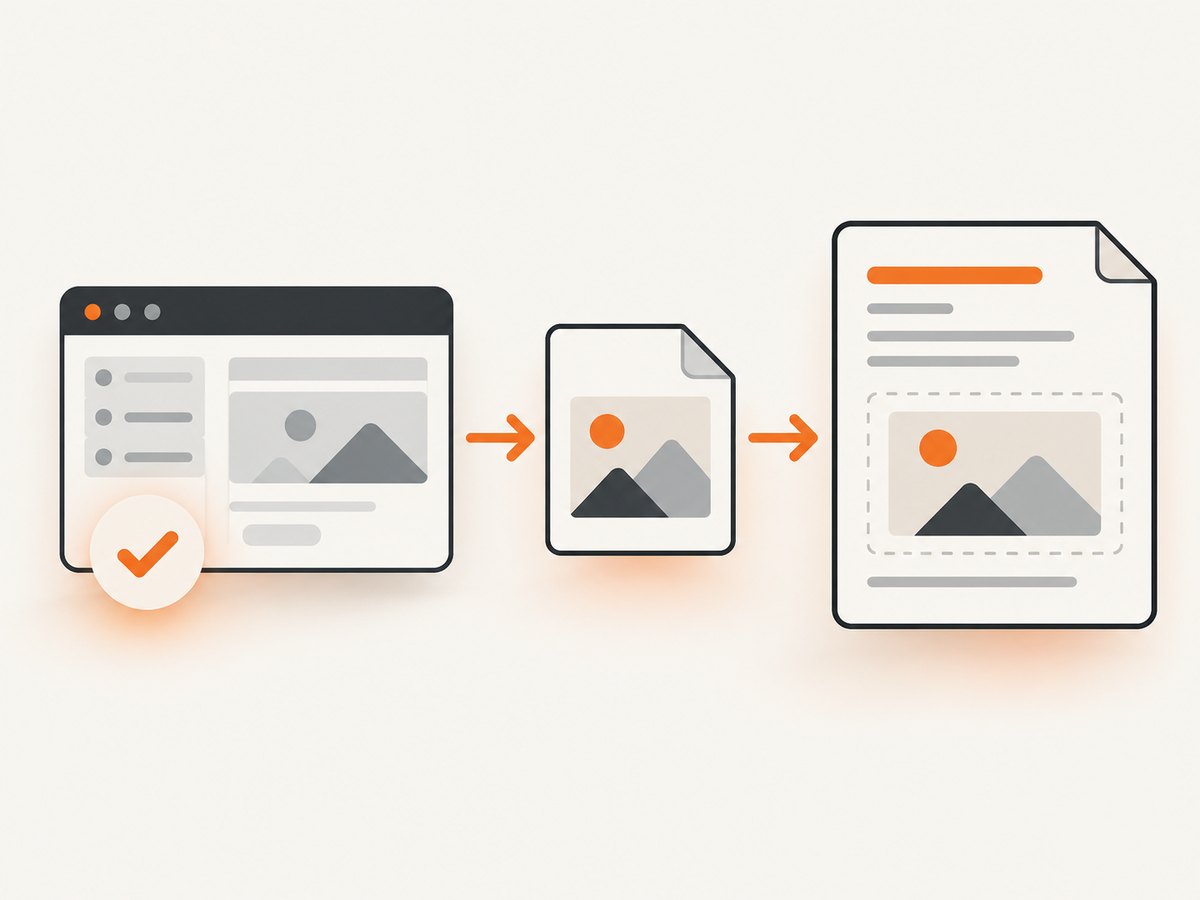
Use the reporter options embeddedScreenshots: true and inlineAssets: true. The community cypress-mochawesome-reporter plugin reads screenshots created by Cypress, converts the image files into Base64 data URLs, and places them in the generated report. inlineAssets: true also inlines the report’s CSS and JavaScript so the result can be opened or archived as one self-contained HTML file.
This is a reporter feature, not a Cypress core setting. Cypress captures the screenshots; the reporter associates them with tests and embeds them while it builds the Mochawesome report. The configuration below is the usual starting point, but check the README and installed package version in your repository before copying it because plugin options and compatibility can change. The cypress-mochawesome-reporter project documentation and Cypress screenshot documentation are the primary references for the integration.
What Base64 embedding changes
A normal HTML report can reference screenshots with relative paths such as screenshots/spec-name/test.png. That works only while the referenced directory travels with the HTML file. Base64 embedding changes the reference to a data URL, conceptually like data:image/png;base64,iVBORw0KGgo.... The image bytes live inside the HTML document, so emailing or uploading that single file does not break its screenshots.
The two options solve related problems:
| Option | Purpose | When to enable it |
|---|---|---|
embeddedScreenshots |
Embeds available Cypress screenshots as Base64 in the report. | Whenever screenshots must travel with the HTML. |
inlineAssets |
Embeds the report’s other assets, such as CSS and JavaScript. | When the deliverable must be one portable HTML file. |
Enabling only embeddedScreenshots can leave the report dependent on external report assets. Enabling both options gives the single-file outcome most teams mean when they ask for an “inline images” or “self-contained” Mochawesome report.
Install the reporter and configure Cypress
Install the community reporter as a development dependency:
npm install --save-dev cypress-mochawesome-reporterThen configure the reporter in cypress.config.js (or the equivalent TypeScript configuration):
const { defineConfig } = require('cypress')

module.exports = defineConfig({
  reporter: 'cypress-mochawesome-reporter',
  reporterOptions: {
    embeddedScreenshots: true,
    inlineAssets: true,
  },
  e2e: {
    setupNodeEvents(on) {
      require('cypress-mochawesome-reporter/plugin')(on)
    },
  },
})
The plugin hook belongs in setupNodeEvents. Without it, the package may be selected as the reporter but its file-processing and report-generation hooks will not be registered.
Register the reporter from Cypress’s support file as directed by the version you installed. A common E2E support file entry is:
import 'cypress-mochawesome-reporter/register'For CommonJS projects, use the syntax accepted by your Cypress and Node.js setup. Keep this import in the support file that Cypress actually loads, such as cypress/support/e2e.js. If your project has component tests as well, configure the corresponding component support file only if you want reports for those tests.
Run a test and generate the embedded report
Create a test that produces a useful screenshot. Cypress can capture explicitly requested screenshots:
describe('checkout', () => {
  it('shows the payment form', () => {
    cy.visit('/checkout')
    cy.get('[data-cy=payment-form]').should('be.visible')
    cy.screenshot('checkout-payment-form')
  })
})
Run the suite with the reporter:
npx cypress runWhen a test fails in a run, Cypress can also create an automatic failure screenshot. The screenshotOnRunFailure configuration controls that behavior. For example:
const { defineConfig } = require('cypress')

module.exports = defineConfig({
  screenshotOnRunFailure: true,
  reporter: 'cypress-mochawesome-reporter',
  reporterOptions: {
    embeddedScreenshots: true,
    inlineAssets: true,
  },
  e2e: {
    setupNodeEvents(on) {
      require('cypress-mochawesome-reporter/plugin')(on)
    },
  },
})
After the run, open the generated Mochawesome HTML file in a browser. Copy that HTML file by itself to a clean directory and open it again. If the screenshots and styling still appear, you have verified the portability property that Base64 embedding is intended to provide.
Use package scripts for repeatable CI output
A package script makes the same command easy to run locally and in CI:
{
  "scripts": {
    "test:e2e": "cypress run",
    "report:open": "cypress open"
  }
}
Keep report output in a known directory and publish the generated HTML as a CI artifact. A self-contained file is convenient for pull-request checks, incident archives, and test evidence because consumers do not need the screenshots directory or a web server.
When to use the conventional Mochawesome JSON workflow
The embedded reporter workflow is different from the lower-level Mochawesome pipeline. The conventional pipeline writes JSON per spec, preserves separate outputs, merges them, and then generates HTML. A representative configuration is:
const { defineConfig } = require('cypress')

module.exports = defineConfig({
  reporter: 'mochawesome',
  reporterOptions: {
    reportDir: 'cypress/reports',
    overwrite: false,
    html: false,
    json: true,
  },
})
After all specs run, teams commonly merge JSON files with mochawesome-merge and generate HTML with marge (the Mochawesome report generator). This approach is useful when you need intermediate JSON for another system, want to merge multiple machines’ results, or already have a report pipeline built around those tools. It does not mean Cypress will automatically Base64-encode images. Verify how the selected reporter attaches screenshots before assuming the final HTML is portable.
Options and capture behavior that affect screenshots
Explicit versus automatic screenshots
cy.screenshot() creates a screenshot at a point you choose. Cypress can also capture a screenshot after a failed test during a run. The reporter can embed screenshots that exist and are associated with the test; it cannot embed an image Cypress never captured.
Names and overwrite behavior
Give important screenshots stable names, especially when a test has multiple capture points. Cypress’s screenshot API defines filename and overwrite behavior. If two captures resolve to the same path, one may replace the other depending on the configured naming and overwrite settings. Use distinct names such as before-submit and after-submit when both states matter.
Report assets versus screenshot assets
embeddedScreenshots handles screenshot images. inlineAssets handles the report’s supporting assets. If the HTML opens but has missing styling, check the latter. If styling works but image boxes are broken, check the former and inspect whether Cypress wrote the expected files.
Large suites
Base64 increases the HTML size because binary image data is represented as text. Full-page or high-resolution screenshots can make a report much larger than the source PNGs. For large suites, consider capturing only diagnostic states, reducing unnecessary full-page shots, and retaining the original image files as a separate archive when downstream systems have artifact-size limits.
Common errors and fixes
| Symptom | Likely cause | Fix |
|---|---|---|
| Reporter is not found | Package is not installed or the name in reporter is wrong. |
Install cypress-mochawesome-reporter in the same workspace that runs Cypress and check the exact package name. |
| HTML is created but screenshots are absent | No screenshot was captured, or the reporter cannot find the screenshot path. | Run an explicit cy.screenshot('known-name'), inspect Cypress’s screenshots directory, and verify the plugin registration. |
| Images work only beside a folder | embeddedScreenshots is disabled. |
Set embeddedScreenshots: true and regenerate the report. |
| Report styling disappears when moved | CSS or JavaScript assets remain external. | Set inlineAssets: true, then copy only the generated HTML to a clean directory and retry. |
| Plugin hook errors during startup | The installed reporter version and Cypress/Node runtime are incompatible, or the hook is in the wrong configuration block. | Check the package README and installed version, place the require(.../plugin)(on) call inside setupNodeEvents, and confirm the project’s supported Cypress and Node versions. |
| Only some failed tests have screenshots | Failure screenshots are disabled or the failure occurred before a screenshot could be written. | Enable screenshotOnRunFailure, inspect the Cypress run log, and reproduce the failure with an explicit screenshot near the suspected step. |
| CI report is too large | Many high-resolution images are embedded as text. | Reduce capture count or dimensions, split reports by job, or publish a compressed artifact in addition to the portable HTML. |

Debugging checklist
- Confirm the reporter package version with
npm ls cypress-mochawesome-reporter. - Confirm Cypress is loading the intended config file.
- Run one test with an explicit, uniquely named
cy.screenshot(). - Check that Cypress wrote a PNG before report generation.
- Check that both reporter options are booleans set to
true. - Check that the plugin hook runs inside
setupNodeEvents. - Open the generated HTML with its asset directories temporarily present.
- Copy only the HTML to a new directory and test portability.
- Inspect the HTML source for
data:image/when you need to confirm Base64 embedding directly.
Performance, reliability, and cost considerations
Embedding trades file portability for report size and generation work. Base64 adds textual overhead, and the browser must decode every embedded image when opening the report. The practical cost is usually manageable for a small diagnostic suite, but it becomes noticeable with hundreds of screenshots or very large viewport captures.
For reliability, generate the report in the same job that runs Cypress, retain the generated HTML as an immutable artifact, and record the Cypress, reporter, Node.js, and browser versions alongside it. A report can be opened years later only if its required assets are truly inlined, so validate the single-file behavior in CI rather than assuming the configuration succeeded.
There is no separate API charge for this local reporter workflow. Your costs are compute time, CI storage, and any artifact retention charges. If you only need a screenshot service rather than a Cypress test report, an API can remove browser setup and provide a different operational model.
Or skip the browser setup
If your goal is a clean screenshot of a URL rather than a Cypress test artifact, ScreenshotNeo provides a single GET request that returns PNG, JPEG, WebP, or PDF. Its API removes cookie and consent banners, newsletter popups, and chat widgets before capture. Bot checks, blank pages, failed loads, timeouts, and cache hits are not billed as clean shots, and the response identifies the result with X-Page-Verdict and X-Billed headers.
See the ScreenshotNeo API documentation for the complete option list. A minimal cURL request is:
curl -G "https://api.screenshotneo.com/v1/shot" \
  -d access_key=YOUR_API_KEY \
  --data-urlencode url=https://stripe.com \
  -o shot.webp
The same request in Python:
import requests

r = requests.get(
    "https://api.screenshotneo.com/v1/shot",
    params={"access_key": "YOUR_API_KEY", "url": "https://stripe.com"},
    timeout=90,
)
r.raise_for_status()
open("shot.webp", "wb").write(r.content)
And in Node.js:
const q = new URLSearchParams({
  access_key: 'YOUR_API_KEY',
  url: 'https://stripe.com'
});
const res = await fetch(`https://api.screenshotneo.com/v1/shot?${q}`);
if (!res.ok) throw new Error(`HTTP ${res.status}`);
const buffer = Buffer.from(await res.arrayBuffer());
require('fs').writeFileSync('shot.webp', buffer);
ScreenshotNeo supports full-page captures with lazy images loaded, CSS-element capture, dark mode, device presets and custom viewports, retina scale, PDFs with paper size, margins, landscape and page ranges, custom CSS and JavaScript, clicks, waits, request blocking, headers, cookies, user agents, authorization, timezone, geolocation, transparent backgrounds, resizing, TTL caching, signed links, asynchronous jobs with signed webhooks, bulk capture of up to 100 URLs per call, a usage API, and an OpenAPI specification. It also offers an MCP server with take_screenshot, get_page_info, and capture_pdf for Claude, Cursor, and other MCP clients.
There is a free allowance of 1,000 screenshots per month with no card. Paid plans start at $5 for 3,000 shots; yearly billing gives two months free. Create a free ScreenshotNeo account to try the API.
FAQ
Does Cypress itself provide a Base64 screenshot option?
No. Cypress provides screenshot capture. The community reporter embeds those files while generating the Mochawesome report.
Do I need both reporter options?
Use embeddedScreenshots: true for screenshots. Add inlineAssets: true when the complete report must be one self-contained HTML file.
Can I embed screenshots in a merged Mochawesome report?
You can merge JSON reports, but do not assume the merge step will encode images. Verify the reporter and HTML generator’s screenshot behavior, or use the reporter designed for embedded screenshots.
Why is my HTML file much larger?
Base64 represents every image inside the document and adds encoding overhead. Reduce unnecessary captures or image dimensions when artifact size matters.
Will this work with every Cypress version?
Compatibility depends on the installed reporter, Cypress, and Node.js versions. Check the package documentation and test the configuration in the target repository before standardizing it.


