How to Enforce Screenshot Resolution with Google Chrome Headless Mode
Set Chrome Headless screenshot dimensions with --window-size, control timing with --timeout, and handle scale factor, full-page capture, and exact pixels.
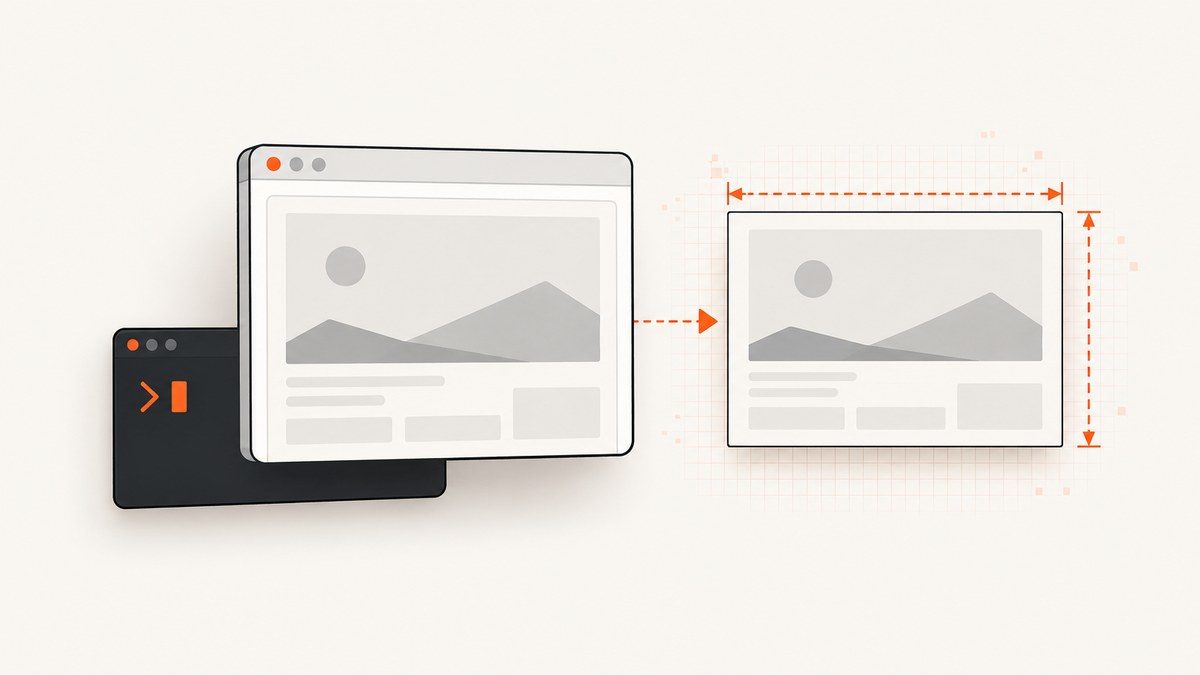
Use Chrome Headless with --screenshot and --window-size=WIDTH,HEIGHT when you need a fixed capture viewport:
chrome --headless --screenshot --window-size=412,892 https://example.com/Chrome writes screenshot.png to its current working directory. The values define the browser window or viewport setup used for the capture. They do not universally guarantee the final PNG dimensions when device scale factors or virtual-screen settings change, so inspect the output image in any workflow that requires exact raster dimensions. See the Chrome Headless documentation.
1. Set a fixed screenshot size
Replace the width and height with the viewport your test or asset pipeline requires:
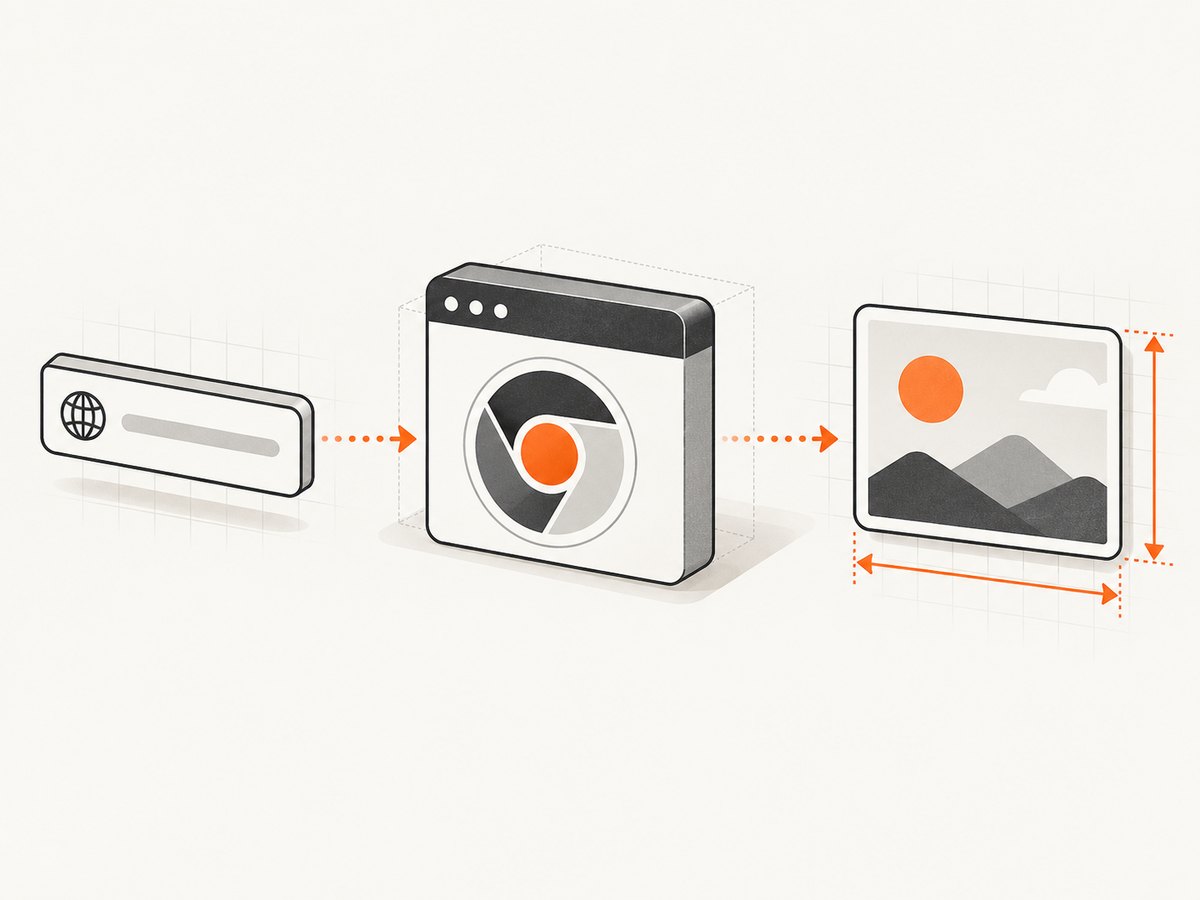
# Desktop-style viewport
chrome --headless --screenshot --window-size=1440,900 https://example.com/ -o desktop.png

# Mobile-style viewport
chrome --headless --screenshot --window-size=390,844 https://example.com/ -o mobile.png
Some Chrome builds use the default output name screenshot.png; use the output option supported by your installed build or rename the generated file after capture. Keep the Chrome version and runtime environment consistent in CI because scale-factor behavior can affect the resulting bitmap.
What the dimensions mean
- Width: the horizontal browser window or viewport size in CSS pixels.
- Height: the vertical browser window or viewport size in CSS pixels.
- PNG dimensions: the output raster size, which can be influenced by device scale factor and virtual display configuration.
If a page uses responsive breakpoints, --window-size is the setting that determines which layout the page sees for a basic CLI capture.
2. Control when Chrome captures
Add --timeout when you need a maximum loading wait:
chrome --headless --screenshot --window-size=1280,900 --timeout=5000 https://example.com/--timeout=5000 allows up to five seconds before capture, even if the page is still loading. It controls timing, not resolution. A timeout does not guarantee that client-rendered content, fonts, images, or data requests have completed.
Choosing a wait strategy
- Use a short timeout only for pages whose content is already available in the initial response.
- Increase the timeout for pages that load JavaScript content or remote assets.
- For deterministic readiness, use browser automation that waits for a selector or application state before taking the screenshot.
- Record the URL, Chrome version, viewport, timeout, and output dimensions with each build artifact.
3. Verify the actual PNG dimensions
When acceptance criteria say “exactly 1200 by 800 pixels,” measure the file instead of inferring its size from the command-line values.
# ImageMagick
identify -format '%wx%h\n' screenshot.png

# file(1) may also show image dimensions
file screenshot.png
If the result differs from the requested CSS viewport, check the device scale factor, virtual screen configuration, and the Chrome build running in the same environment as production.
4. Configure a virtual screen and scale factor
--window-size is the convenient option for a basic screenshot. When you need display properties such as scale factor, orientation, origin, or work area, Chrome documents the newer virtual-screen configuration through --screen-info. During a run, the Chrome DevTools Protocol provides Emulation.addScreen and Emulation.removeScreen. Consult the virtual screen guidance and confirm that the installed Chrome version supports it; Google documents this capability in stable Chrome beginning with version 142.
Virtual-screen configuration is useful when your test models a display rather than only a page viewport. It also makes scale-factor behavior explicit. The documented Puppeteer example creates an 800×600 primary screen and a 600×800 secondary screen and reports devicePixelRatio=1 for that example. Treat that value as example output, not a universal result.
When to use each setting
| Requirement | Recommended approach |
|---|---|
| Fixed viewport for a normal screenshot | --screenshot --window-size=WIDTH,HEIGHT |
| Maximum wait before capture | --timeout=MS |
| Scale factor, orientation, or multiple displays | --screen-info or CDP screen commands |
| Entire page beyond the viewport | Browser automation with an explicit full-page capture workflow |
| Guaranteed output pixel dimensions | Inspect the generated image and standardize the runtime scale factor |
5. Full-page screenshots are a separate requirement
The basic CLI --screenshot example is a viewport-sized capture. Chrome’s CLI reference says full-page screenshots require additional steps. If you need the complete scrollable document, use browser automation and request full-page output explicitly.
import puppeteer from 'puppeteer';

const browser = await puppeteer.launch({headless: true});
const page = await browser.newPage();
await page.setViewport({width: 1280, height: 900, deviceScaleFactor: 1});
await page.goto('https://example.com/', {waitUntil: 'networkidle0'});
await page.screenshot({path: 'full-page.png', fullPage: true});
await browser.close();
A full-page image can be much taller than the requested viewport. If your delivery contract requires a fixed width and height, use a viewport capture or resize the resulting image as a separate, documented processing step.
6. Reproducible command-line recipes
CI-friendly desktop capture
set -eu
mkdir -p artifacts
chrome --headless --disable-gpu \
  --screenshot \
  --window-size=1366,768 \
  --timeout=10000 \
  https://example.com/
mv screenshot.png artifacts/example-1366x768.png
identify -format '%wx%h\n' artifacts/example-1366x768.png
Several resolutions
for size in 375,812 768,1024 1440,900; do
  width=${size%,*}
  height=${size#*,}
  chrome --headless --screenshot \
    --window-size="$size" \
    "https://example.com/"
  mv screenshot.png "shot-${width}x${height}.png"
done
Run each capture in an isolated output directory if parallel jobs may otherwise overwrite screenshot.png.
7. Common problems and fixes
| Symptom | Likely cause | Fix |
|---|---|---|
| The image is not the requested pixel size | Device scale factor or virtual display settings changed the raster dimensions. | Measure the PNG, standardize the Chrome environment, and configure the virtual screen when scale matters. |
| Dynamic content is missing | Capture happened before JavaScript or network requests finished. | Increase --timeout or use automation that waits for a selector or network state. |
| The page uses the wrong responsive layout | The window size was omitted or not applied to the process that captured the page. | Pass --window-size=WIDTH,HEIGHT on the same Chrome invocation and verify the page’s reported viewport. |
| The screenshot is blank | The page failed to load, needs authentication, or rendered after the timeout. | Check the URL and browser logs, provide required credentials or headers in an automation workflow, and wait for a visible readiness condition. |
| Long pages are cut off | A viewport screenshot was requested instead of a full-page capture. | Use a full-page automation API and decide how the resulting height should be handled. |
| Concurrent jobs overwrite each other | Every CLI process writes the same default filename. | Use separate working directories or move the file to a unique name immediately after each process exits. |
--screen-info is unavailable |
The installed Chrome version does not include the documented stable capability. | Check chrome --version and use Chrome 142 or later for the documented virtual-screen workflow, or rely on --window-size. |
8. Performance, reliability, and cost notes
- Performance: larger viewports and full-page captures require more rendering and memory. Reuse a browser process in automation when capturing many URLs, but isolate jobs when filesystem output or page state can collide.
- Reliability: pin the Chrome version in CI, record the actual PNG dimensions, and wait for a page-specific readiness signal instead of relying only on a fixed delay.
- Fonts and assets: network-dependent fonts, images, and scripts can change the visual result. A timeout only sets an upper wait bound.
- Cost: the CLI itself has no service charge, but running Chrome consumes your own compute, storage, and CI time. Full-page and high-scale captures generally use more resources.
- Security: treat URLs and page content as untrusted input in automated environments. Restrict network access and credentials according to your deployment policy.
9. Or skip the browser setup
ScreenshotNeo provides a website screenshot API when you want one request instead of managing Chrome processes. Its documentation covers viewport sizing and the other capture options.

cURL
curl -G "https://api.screenshotneo.com/v1/shot" \
  -d access_key=YOUR_API_KEY \
  --data-urlencode url=https://stripe.com \
  -o shot.webp
Python
import requests

r = requests.get(
    "https://api.screenshotneo.com/v1/shot",
    params={"access_key": "YOUR_API_KEY", "url": "https://stripe.com"},
    timeout=90,
)
r.raise_for_status()
open("shot.webp", "wb").write(r.content)
Node.js
const q = new URLSearchParams({ access_key: 'YOUR_API_KEY', url: 'https://stripe.com' });
const res = await fetch(`https://api.screenshotneo.com/v1/shot?${q}`);
if (!res.ok) throw new Error(`HTTP ${res.status}`);
const data = Buffer.from(await res.arrayBuffer());
await import('node:fs/promises').then(fs => fs.writeFile('shot.webp', data));
ScreenshotNeo removes cookie and consent banners, newsletter popups, and chat widgets before the shot. Bot checks, blank pages, failed loads, timeouts, and cache hits are not billed, and the response identifies the page verdict and billing status in X-Page-Verdict and X-Billed headers. Its MCP server lets Claude, Cursor, and other MCP clients use take_screenshot, get_page_info, and capture_pdf. The Free plan includes 1,000 screenshots per month with no card; paid plans start at $5 for 3,000 shots. Create a free ScreenshotNeo account.
10. FAQ
Does --timeout change screenshot resolution?
No. It limits how long Chrome waits before capture. Use --window-size for the basic viewport setup.
Can I assume a 412×892 command always creates a 412×892 PNG?
No. Scale-factor and virtual-screen settings can affect raster dimensions. Inspect the generated file when exact pixels matter.
What is the simplest way to capture a mobile layout?
Pass the desired CSS viewport with --window-size, then verify the output and responsive layout in the target Chrome environment.
When should I use virtual screens?
Use --screen-info or CDP screen commands when display scale, orientation, work area, or multiple virtual displays are part of the requirement.
Does the basic command capture the whole page?
It is a viewport-sized capture. Use an automation workflow with an explicit full-page option for the complete document.


