How to Enhance Screenshot Quality
Make screenshots clearer by recapturing at the right size, preserving the right format, editing carefully, and using upscaling only when appropriate.
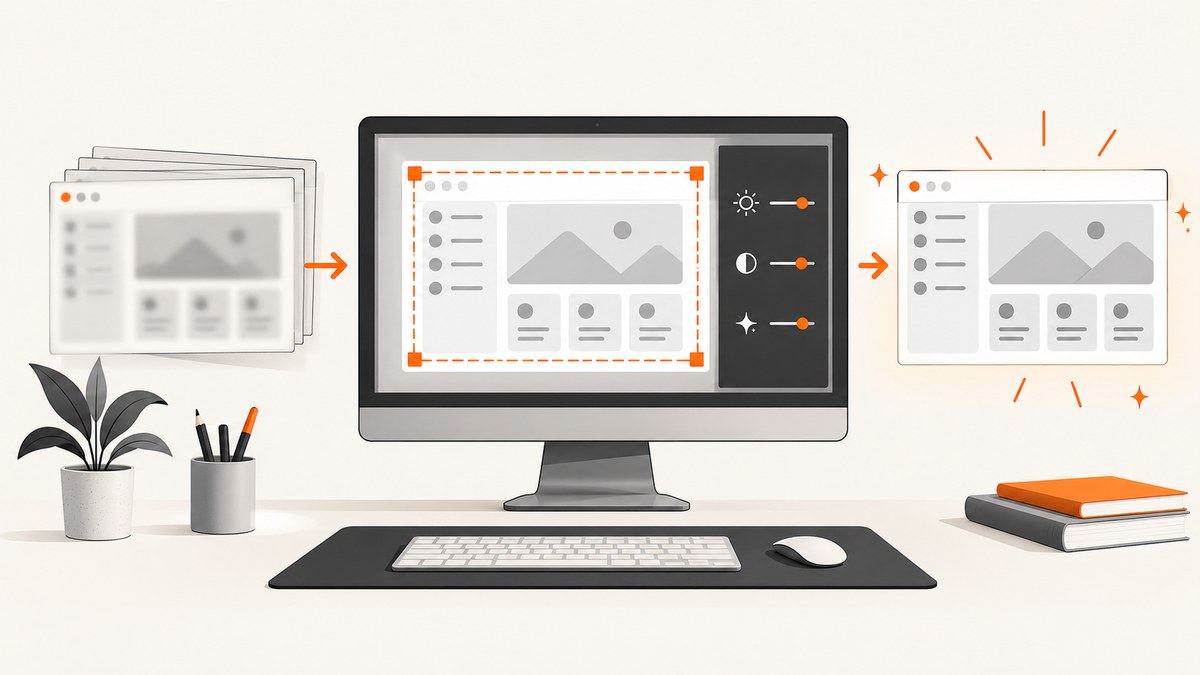
The most reliable way to improve screenshot quality is to capture it again at a useful size. Choose the needed screen, window, or region; prepare the interface before capture; preserve a suitable format; then crop and annotate a copy. Upscaling can make an existing image larger or somewhat sharper, but it cannot restore detail that was never recorded.
This guide explains how to diagnose a poor screenshot, recapture it on common platforms, choose PNG or HDR formats, edit without hiding evidence, use super resolution safely, and automate clean website captures with ScreenshotNeo.
1. Diagnose why the screenshot looks bad
Identify the failure before changing the file:
- Too small: the original capture did not contain enough pixels. Recapture at the required display or output size.
- Soft after sharing: the messaging, document, or publishing tool may have resized or compressed it. Compare the shared copy with the original file.
- Pixelated after enlargement: scaling exposed missing pixels. Sharpening may improve edges, but it does not recreate source detail.
- Wrong colors or highlights: the source may be HDR while the destination display or app handles only SDR.
- Unreadable interface: increase page zoom or UI text size before capturing. Display scaling changes what is captured; it does not repair an existing image.
2. Recapture at the right size
- Open the exact page, dialog, or application state that needs to be shown.
- Increase browser zoom or application text size until labels are readable, while keeping the relevant controls visible.
- Close unrelated windows and move the pointer away from important content.
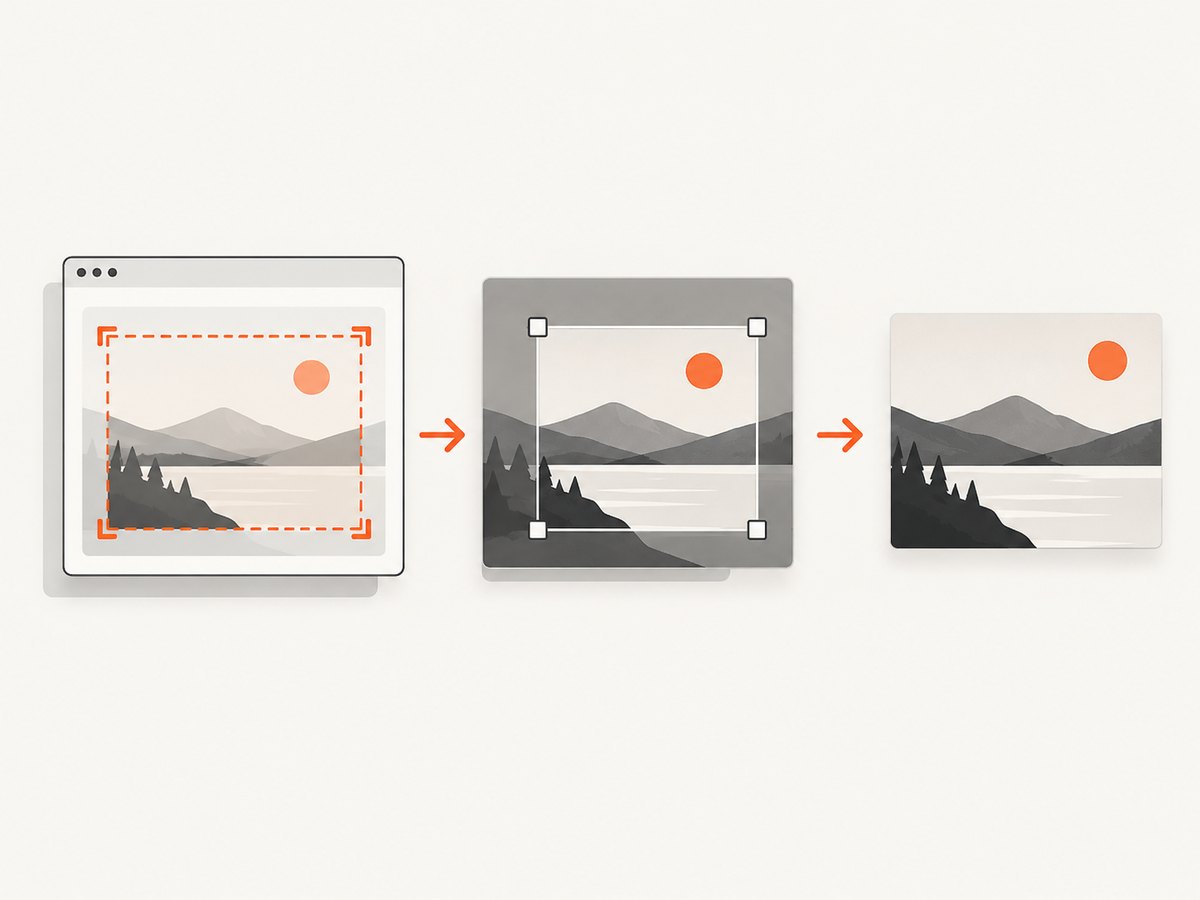
- Capture the whole screen, a window, or a precise region instead of photographing a larger desktop and cropping aggressively later.
- Save the untouched original before editing.
macOS
Apple documents these shortcuts in Take a screenshot on Mac:
- Shift + Command + 3: capture the whole screen.
- Shift + Command + 4: select a region.
- Shift + Command + 4, then Space: capture a window or menu.
- Shift + Command + 5: open the Screenshot app on macOS Mojave 10.14 and later.
On supported Macs running macOS Tahoe 26 or later, Apple documents SDR PNG and HDR HEIF choices. Some apps, including Apple TV, may block screenshots.
iPhone
Use the device’s hardware shortcut, then review Settings → General → Screen Capture. Apple’s iPhone screenshot guide describes PNG for SDR captures and HEIF for HDR captures. HDR requires an HDR-capable display to show its full range; on a standard display it may be shown as SDR.
Windows, Android, and Linux
Use the current built-in capture utility for the operating system and device. Shortcuts and available format options vary by version and manufacturer. Capture the smallest useful region at the display size you need, then verify the saved file’s pixel dimensions before editing.
3. Choose a format that preserves useful detail
| Situation | Recommended choice | Reason |
|---|---|---|
| Interface, text, or diagrams in an ordinary display workflow | PNG | Lossless compression keeps sharp edges and text intact. |
| HDR capture and an HDR-aware destination | HEIF HDR | Retains HDR data when the viewing and publishing path supports it. |
| Small web previews or photo-heavy images | JPEG or WebP | Smaller files, with some compression trade-off. |
| Evidence or archival source | Original lossless file | Preserves a reference copy before resizing or annotation. |
Do not repeatedly open and export a JPEG. Keep the original, make edits from that copy, and export once for the final destination. Confirm that the destination does not silently resize images.
4. Edit for clarity without changing the evidence
- Duplicate the original. Keep a pristine source file.
- Crop to the relevant content. Remove empty desktop space and unrelated panels, but retain enough context to understand the screen.
- Annotate sparingly. Use one or two arrows, boxes, or highlights where they explain a step. Avoid covering labels or controls.
- Remove private information. Hide email addresses, usernames, tokens, customer data, and browser profile details before sharing.
- Reduce visual noise. Close unrelated panels and simplify complex examples. Mozilla’s contributor guidance recommends light mode when practical for its documentation.
- Export for the destination. A documentation page may need a smaller derivative, while print or later analysis needs the full-resolution original.
Mozilla suggests keeping screenshots below 620 pixels in both dimensions for its own knowledge-base context. That is a loading and accessibility recommendation for that site, not a universal limit.
5. Use upscaling only as a limited rescue
Upscaling is useful when the source is otherwise clear but too small for a layout. It cannot recover text or interface detail that was absent from the capture. For accuracy-sensitive material, compare the enhanced copy with the original and label any result that may contain invented or sharpened detail.
Microsoft Photos Super Resolution
Microsoft Photos provides Super Resolution on Copilot+ PCs running Windows 11. Microsoft describes this feature as enlarging and sharpening images locally with a non-generative AI model. Availability depends on the eligible hardware and operating system.
Scaling limits
Microsoft’s Windows AI documentation describes Image Super Resolution scaling up to 8× and warns that higher factors can introduce artifacts and compromise accuracy. Treat 8× as an API maximum, not a promise that every image should be enlarged that far. A practical workflow is:
- Keep the original beside the enhanced version.
- Try the smallest enlargement that meets the output dimensions.
- Inspect small text, straight lines, icons, and repeated patterns at 100%.
- Reject the enhancement if it changes labels or creates edges that were not present.
6. Keep display scaling separate from image resolution
Monitor scaling and application UI scaling make controls easier to read while you work. They do not restore pixels missing from a screenshot already saved. Adobe’s Photoshop guidance on Windows scaling concerns the application’s interface and high-density monitors, with UI settings from 100% to 400% in 25% increments; it is not evidence that changing monitor scale repairs an existing image.
7. Automate clean website screenshots with ScreenshotNeo
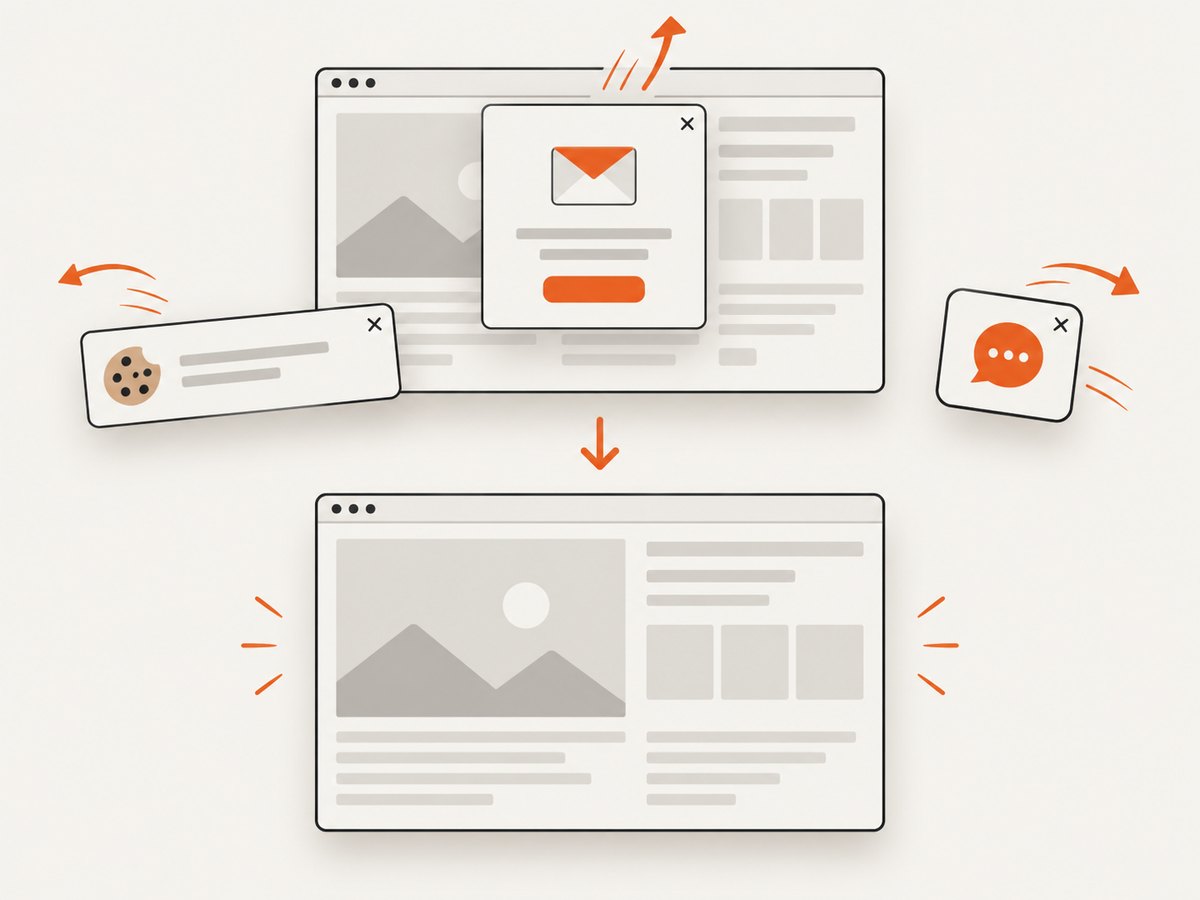
For website captures, ScreenshotNeo provides a GET endpoint that returns PNG, JPEG, WebP, or PDF. It accepts cookie and consent banners like a visitor, then removes more than 60 known consent platforms, newsletter popups, and chat widgets before capture. Each cleanup step can be disabled.
Only clean shots are billed. Bot checks or CAPTCHAs, blank pages, timeouts, failed loads, and cache hits cost nothing; the response identifies the result with X-Page-Verdict and X-Billed headers. The service also supports full-page captures with lazy images loaded, CSS-selector element capture, dark mode, device presets, arbitrary viewports, retina scale, custom CSS and JavaScript, clicks, selector waits, delays, network-idle waits, blocked requests, headers, cookies, user agents, authorization, timezone, geolocation, transparent backgrounds, resizing, TTL caching, signed links, asynchronous jobs, webhooks, bulk capture of up to 100 URLs per call, usage reporting, and an OpenAPI specification.
Or skip the browser setup
See the ScreenshotNeo API documentation for all parameters. The following calls are runnable; replace the URL and API key.
cURL
curl -G "https://api.screenshotneo.com/v1/shot" -d access_key=YOUR_API_KEY --data-urlencode url=https://stripe.com -o shot.webpPython
import requests

r = requests.get(
    "https://api.screenshotneo.com/v1/shot",
    params={"access_key": "YOUR_API_KEY", "url": "https://stripe.com"},
    timeout=90,
)
r.raise_for_status()
open("shot.webp", "wb").write(r.content)
Node.js
const q = new URLSearchParams({ access_key: 'YOUR_API_KEY', url: 'https://stripe.com' });
const res = await fetch(`https://api.screenshotneo.com/v1/shot?${q}`);
if (!res.ok) throw new Error(`HTTP ${res.status}`);
const buffer = Buffer.from(await res.arrayBuffer());
require('fs').writeFileSync('shot.webp', buffer);
ScreenshotNeo is useful when you need repeatable dimensions, full-page loading, popup cleanup, or an automated pipeline. An MCP server exposes take_screenshot, get_page_info, and capture_pdf to Claude, Cursor, and other MCP clients. The Free plan includes 1,000 screenshots each month with no card; paid plans start at $5 for 3,000 shots. Create a free ScreenshotNeo account.
8. Troubleshooting checklist
| Symptom | Likely cause | Fix |
|---|---|---|
| Text is blurry in the original | Capture region or source viewport was too small | Zoom the interface and recapture at the needed dimensions. |
| Image looks fine locally but soft online | Destination resized or recompressed it | Compare pixel dimensions and upload a destination-sized derivative. |
| Colors look washed out | HDR source viewed through an SDR path | Export or capture SDR PNG for broad compatibility, or use an HDR-aware workflow. |
| Upscaled text has strange letters | Enhancement invented edge detail | Use a smaller scale, keep the original, or recapture. |
| Private data remains visible | Only the obvious crop was edited | Inspect the entire frame, browser chrome, URLs, notifications, and metadata. |
| ScreenshotNeo returns a bot or blank verdict | The target blocked automation or failed to render | Read X-Page-Verdict, retry after checking the URL, and adjust waits, headers, cookies, or user agent when appropriate. |
| Dynamic content is missing | Capture occurred before the page finished rendering | Use a selector wait, delay, or network-idle wait; enable full-page lazy-image loading when needed. |
| Automation costs more than expected | Repeated uncached captures or unnecessary retries | Set a cache TTL, avoid duplicate requests, and inspect X-Billed on every response. |
9. Performance, reliability, and cost practices
- Capture only what you need: an element or region is usually faster and smaller than a full page.
- Wait for a meaningful condition: selector waits are more deterministic than a long fixed delay when content loads asynchronously.
- Use caching: choose a TTL when the page does not change frequently.
- Batch work: ScreenshotNeo bulk capture accepts up to 100 URLs per call.
- Handle failures explicitly: inspect HTTP status, verdict, and billed headers; retry transient failures with a bounded backoff.
- Protect credentials: keep API keys server-side and use custom authorization or cookies only when the target permits it.
- Control output size: choose viewport, device scale, format, and resizing deliberately to balance readability and transfer time.
10. A quality checklist before sharing
- Is every label readable at 100%?
- Does the frame contain only the needed context?
- Did you preserve an untouched original?
- Are annotations clear and away from evidence?
- Did you remove personal or secret data?
- Does the format match the destination’s HDR and compression support?
- Did you verify dimensions after export?
- If enhanced, can you compare the result against the original?
FAQ
Can a blurry screenshot be made perfectly sharp?
No. Recapturing at the correct size is the only dependable way to obtain missing detail. Upscaling can improve presentation but may introduce artifacts.
Should every screenshot be PNG?
PNG is a strong default for text and interface screenshots. JPEG or WebP can reduce transfer size, while HDR workflows may require HEIF.
Does changing monitor resolution improve an existing screenshot?
No. It changes the display or capture conditions for a future screenshot, not the pixels already stored.
When should I use a full-page capture?
Use it when the complete document matters. For instructions or bug reports, an element or focused region is often clearer.
How can I avoid paying for failed automated captures?
ScreenshotNeo does not bill bot checks or CAPTCHAs, blank pages, timeouts, failed loads, or cache hits. Check the X-Page-Verdict and X-Billed response headers.


