How to Ensure Images Load Before Generating a PDF
Wait for every required image to load and decode before PDF generation, including lazy content, failures, fonts, and print CSS.

Direct answer: wait for the page to navigate, make sure every image required in the PDF has actually been requested (including lazy images), then wait for each image to finish and decode successfully before calling the PDF API. Treat a failed image as an explicit error or a deliberate fallback. A load event, networkidle, or img.complete alone does not prove that the pixels you need will print.
Navigation and image readiness are different milestones. A browser can report that a document loaded while a CDN image is still downloading, an image is complete but failed (naturalWidth === 0), or a lazy image has never been requested because it is below the viewport. The reliable sequence is:
- Navigate with a bounded timeout.
- Run application actions that populate the page.
- Trigger lazy content and background assets that must appear.
- Wait for image load and decode, and report failures.
- Wait for fonts when needed, choose print or screen media, then generate the PDF.
Why navigation waits do not guarantee images
Puppeteer’s PDF guide shows page.goto(url, {waitUntil: 'networkidle2'}) before page.pdf(). Its guide also states that PDF generation waits for fonts by default (waitForFonts is true). That sequence is useful, but it does not assert that every image decoded successfully. See the Puppeteer PDF guide.
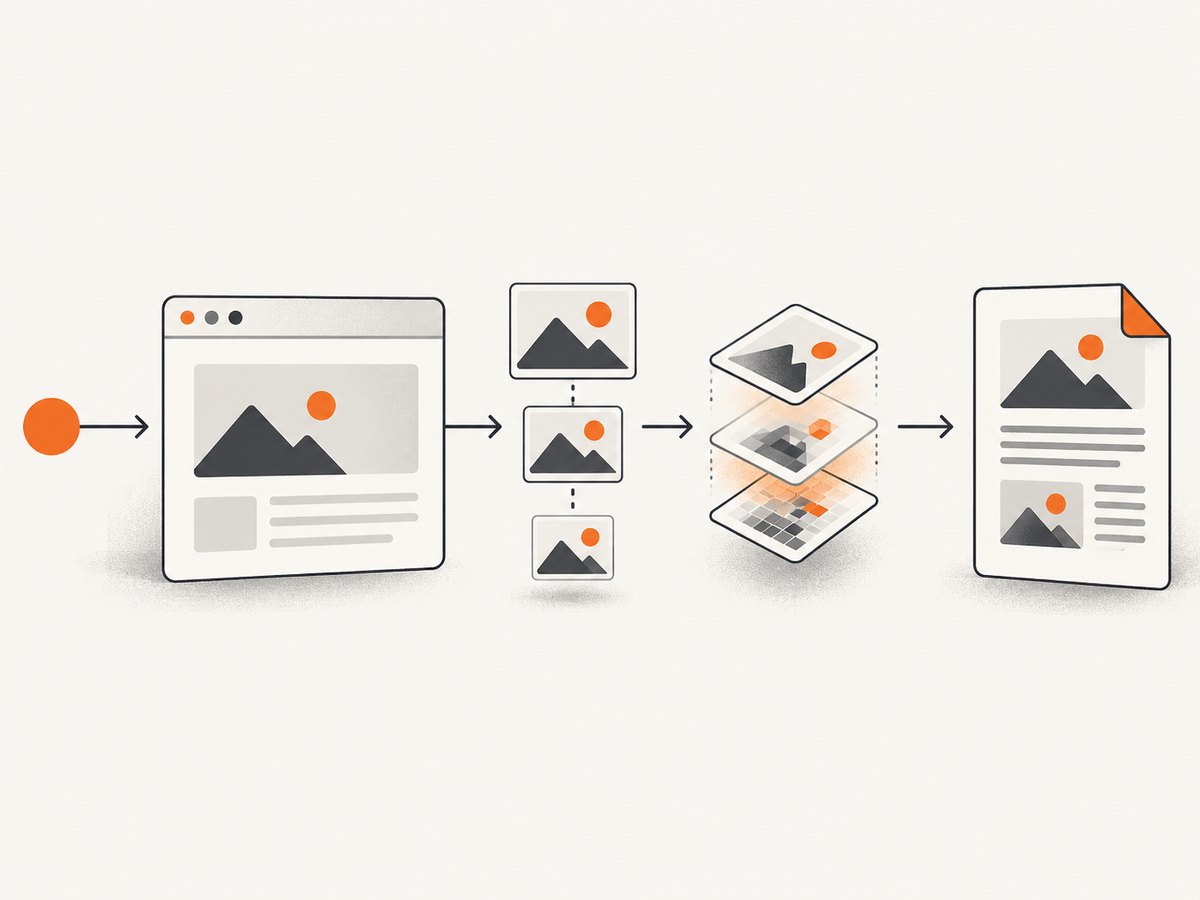
Playwright defines networkidle as no network connections for at least 500 ms and discourages using it as a readiness test. Analytics, polling, sockets, ads, and slow third-party requests can keep the page busy; a quiet network can also occur before a lazy image is requested. Use a condition tied to the content your PDF must contain. See the Playwright page API.
The browser’s load lifecycle covers resources participating in navigation, not necessarily images inserted later by JavaScript. The complete property means the request reached a terminal state; it is also true after an error. Check naturalWidth (or another application-level success signal) and decode the image before export.
Reliable Playwright implementation
This runnable Node.js example waits for required images, surfaces failures, and then creates a PDF. Replace the URL and output path with your own values.
import { chromium } from 'playwright';

const browser = await chromium.launch();
const page = await browser.newPage({
  viewport: { width: 1440, height: 1200 },
  deviceScaleFactor: 1
});

try {
  await page.goto('https://example.com/report', {
    waitUntil: 'domcontentloaded',
    timeout: 30_000
  });

  // Trigger app code that fills the report, if applicable.
  await page.locator('[data-report-ready]').waitFor({ timeout: 15_000 });

  // Bring lazy images into the loading range.
  await page.evaluate(async () => {
    for (const img of document.images) img.scrollIntoView({ block: 'center' });
    window.scrollTo(0, 0);
  });

  const imageResult = await page.evaluate(async () => {
    const images = [...document.images];
    const details = await Promise.all(images.map(async (img) => {
      try {
        if (!img.complete) {
          await new Promise((resolve, reject) => {
            img.addEventListener('load', resolve, { once: true });
            img.addEventListener('error', () => reject(new Error('load error')), { once: true });
          });
        }
        if (img.decode) await img.decode();
        return { src: img.currentSrc || img.src, ok: img.naturalWidth > 0 };
      } catch (error) {
        return { src: img.currentSrc || img.src, ok: false, error: String(error) };
      }
    }));
    return details;
  });

  const failed = imageResult.filter((item) => !item.ok);
  if (failed.length) throw new Error(`Required images failed: ${JSON.stringify(failed)}`);

  await page.evaluate(() => document.fonts?.ready);
  await page.emulateMedia({ media: 'print' });
  await page.pdf({
    path: 'report.pdf',
    format: 'A4',
    printBackground: true,
    preferCSSPageSize: true,
    waitForFonts: true
  });
} finally {
  await browser.close();
}
The snippet scrolls every <img> into view to provoke common viewport-based lazy loaders. Sites that use an IntersectionObserver with a custom root, a “Load more” button, or a data attribute may need an app-specific trigger instead. Verify that the image’s currentSrc points to the intended asset after the trigger.
Use an export-ready signal when you own the app
The most maintainable contract is an application-owned signal. After your data query, image URLs, and transformations finish, set document.documentElement.dataset.exportReady = 'true'. In Playwright, wait for html[data-export-ready='true'], then run the image checks above. This avoids guessing about framework hydration and gives you a place to fail early with a useful message.
Reliable Puppeteer implementation
Puppeteer uses the same browser primitives. The following code evaluates the image checks in the page, waits for fonts, and writes a PDF.
import puppeteer from 'puppeteer';

const browser = await puppeteer.launch();
const page = await browser.newPage();
await page.setViewport({ width: 1440, height: 1200, deviceScaleFactor: 1 });

try {
  await page.goto('https://example.com/report', {
    waitUntil: 'domcontentloaded',
    timeout: 30_000
  });
  await page.waitForSelector('[data-report-ready]', { timeout: 15_000 });
  await page.evaluate(() => {
    for (const img of document.images) img.scrollIntoView({ block: 'center' });
    window.scrollTo(0, 0);
  });

  const failed = await page.evaluate(async () => {
    const result = [];
    for (const img of document.images) {
      try {
        if (!img.complete) await new Promise((resolve, reject) => {
          img.addEventListener('load', resolve, { once: true });
          img.addEventListener('error', reject, { once: true });
        });
        if (img.decode) await img.decode();
        if (img.naturalWidth === 0) throw new Error('zero natural width');
      } catch (error) {
        result.push({ src: img.currentSrc || img.src, error: String(error) });
      }
    }
    return result;
  });
  if (failed.length) throw new Error(`Image readiness failed: ${JSON.stringify(failed)}`);

  await page.pdf({
    path: 'report.pdf',
    format: 'A4',
    printBackground: true,
    waitForFonts: true,
    preferCSSPageSize: true
  });
} finally {
  await browser.close();
}
waitUntil: 'networkidle2' can be an additional hint for pages with predictable traffic, but keep the explicit image assertion. Bound both navigation and image waits so a broken origin cannot hold a worker forever.
Handling lazy images, CSS backgrounds, and canvases
An <img>-only check misses content rendered in other ways:
- Lazy images: scroll in steps, call the page’s “Load more” action, or temporarily replace
loading='lazy'withloading='eager'when your app permits it. Then wait for the newly inserted elements. - CSS background images: inspect computed styles for
background-image, extract URLs, and preload them withnew Image(); gradients need no network wait. A background can also be supplied by a pseudo-element. - Responsive sources: validate
currentSrc, not only thesrcattribute, becausesrcsetand<picture>select a different file. - Canvas and SVG: wait for the application’s render promise or a custom “chart-ready” marker. There may be no network image to decode.
- Print CSS: Playwright PDFs use print media by default. Print rules can hide or replace images. Use
page.emulateMedia({ media: 'screen' })only when screen styling is the intended output; otherwise fix the print stylesheet.
Choosing a readiness strategy
| Strategy | What it proves | Typical gap |
|---|---|---|
load |
Navigation resources reached a terminal lifecycle point | Late JavaScript, lazy assets, and decode are not covered |
networkidle |
No observed connections for the library’s idle window | Can be delayed by background traffic or happen before lazy content is requested |
| Image load + decode | Each selected image loaded and decoded, with a measurable failure | You must select all required images and trigger lazy loading |
| App export signal | Your own data and rendering pipeline says it is ready | Requires an explicit contract and still benefits from image assertions |
Use the narrowest strategy that matches your output. A report page you control can expose an export signal and still validate image dimensions. A third-party page usually needs navigation, lazy-load triggering, per-image checks, and a timeout.
Timeouts, failures, and deliberate fallbacks
Never wait forever for an image. Wrap the page-side promise in a timeout (for example, with Promise.race) and include the URL, selector, and error in your job log. Decide policy per document:
- Fail closed: reject the PDF if any required image fails. Best for invoices, legal exhibits, and evidence.
- Warn and continue: produce a PDF with a visible placeholder and record the missing URL. Best for dashboards where partial data is acceptable.
- Fallback asset: replace a failed remote image with a local, versioned placeholder. Do this only when the document’s meaning remains correct.
Use request interception sparingly. Blocking trackers can improve determinism, but blocking a shared CDN hostname can remove the images you need. Log response status, MIME type, and redirects for failures; a 200 response containing an HTML bot challenge is still not a valid image.
Common errors and fixes
| Symptom | Cause | Fix |
|---|---|---|
| Blank image area | Lazy image was never requested | Scroll or invoke the component’s load action before waiting. |
complete === true, image missing |
Request failed; complete also covers errors | Require naturalWidth > 0 and capture the error event. |
| PDF has old image | Service worker or cache returned stale content | Use a versioned URL, disable cache for the job, or wait for the app’s refresh promise. |
| Works on screen, absent in PDF | Print CSS hides it or changes srcset selection |
Inspect print media, emulate the intended media, and validate currentSrc. |
| Intermittent timeout | Slow origin, third-party request, or never-ending polling | Set separate navigation and image deadlines; collect per-image timings and retry only idempotent work. |
| CORS or certificate error | Browser cannot fetch the asset in the capture context | Fix the origin headers/certificate, proxy the asset you are authorized to use, or apply a documented fallback. |
| Fonts shift layout | Font loading finished after layout measurement | Await document.fonts.ready and keep Puppeteer’s waitForFonts enabled. |
Performance and reliability checklist
- Use one browser instance per worker and reuse contexts when safe; avoid launching a process for every image.
- Set a realistic viewport and device scale factor so responsive image selection is deterministic.
- Record navigation time, each image’s load/decode time, PDF time, and output size. This reveals whether the bottleneck is the origin or rendering.
- Cache immutable assets with long-lived URLs. For changing reports, include a content version in the URL.
- Retry transient network failures with a small bounded count; do not retry deterministic 404s or authorization failures.
- Keep concurrency below the target site’s capacity and your own memory limit. Large full-page PDFs can consume substantial RAM.
- Validate the resulting PDF in a sample set: page count, expected image count, and (where possible) image dimensions.
Or skip the browser setup
ScreenshotNeo provides a website capture API and MCP server. It handles the browser lifecycle for a single GET request and can return PNG, JPEG, WebP, or PDF. For a PDF workflow, its full-page capture loads lazy images before capture; you can also set waits, custom JavaScript, CSS, headers, cookies, viewport, timezone, geolocation, and PDF paper settings. See the ScreenshotNeo documentation.

curl -G "https://api.screenshotneo.com/v1/shot" -d access_key=YOUR_API_KEY --data-urlencode url=https://stripe.com -o shot.webpimport requests; r = requests.get("https://api.screenshotneo.com/v1/shot", params={"access_key": "YOUR_API_KEY", "url": "https://stripe.com"}, timeout=90); open("shot.webp", "wb").write(r.content)const q = new URLSearchParams({ access_key: 'YOUR_API_KEY', url: 'https://stripe.com' }); const res = await fetch(`https://api.screenshotneo.com/v1/shot?${q}`);Cookie and consent banners, newsletter popups, and chat widgets are removed before the shot. Bot checks, blank pages, timeouts, failed loads, and cache hits are not billed; the response includes X-Page-Verdict and X-Billed headers. An MCP server lets Claude, Cursor, and other MCP clients call take_screenshot, get_page_info, and capture_pdf. The Free plan includes 1,000 screenshots each month with no card; paid plans start at $5 for 3,000.
Create a free ScreenshotNeo account and start with 1,000 screenshots per month at no charge.
Cost and output considerations
Self-hosted Playwright or Puppeteer costs your compute, browser maintenance, retries, and operational time. A hosted API shifts those costs into per-capture usage. For ScreenshotNeo, only clean shots are billed; cache hits and failed captures are not. Choose PNG for lossless diagrams, JPEG for photographic pages, WebP for compact web delivery, and PDF when pagination and print rules matter. Set a cache TTL when the source is stable, and use signed links when an image must be embedded in a public <img>.
FAQ
Does networkidle wait for images?
It waits for the library’s network-idle condition, not for successful decode of every required image. Trigger lazy content and assert image success explicitly.
Is img.complete enough?
No. It is true for both successful and failed terminal states. Check naturalWidth and await decode() when available.
Should I wait for fonts too?
Yes when typography affects layout. Await document.fonts.ready; Puppeteer’s PDF option waitForFonts defaults to true.
Why does a screenshot contain an image while the PDF does not?
PDF generation uses print media by default in Playwright, so print CSS or a different responsive source may hide or replace the image. Inspect the print stylesheet and selected URL.
How do I handle a page I cannot modify?
Use a bounded browser workflow that triggers lazy loading and validates each image, or use ScreenshotNeo’s full-page capture and PDF options to avoid maintaining browser infrastructure.


