How to Enter Text in Web Scraping Instructions
Learn how to locate fields, enter text with Selenium or Playwright, submit reliably, debug failures, and capture clean results with ScreenshotNeo.

Direct answer: entering text during web scraping is a browser-automation action. Locate the exact editable control, wait until it is usable, then use Selenium’s send_keys (or the equivalent method in another binding). Clear the field first when you intend to replace existing content, submit with the page’s own button, and verify the result. Static HTML parsers can read markup, but they cannot make a browser type into a live control.
This guide shows the complete Selenium workflow, explains Playwright’s equivalent APIs, and covers selectors, waits, JavaScript-driven fields, authentication, reliability, and failure recovery. The examples use the official Selenium web form and documented framework behavior; adapt the URL and selectors to your target.
1. What “enter text” means in a scraper
A scraper normally downloads HTML and extracts data. Typing is different: it requires a real browser session with focus, keyboard events, and page state. Selenium describes its element command this way: “The element send keys command types the provided keys into an keyboard interactable element.” The target is typically an <input>, <textarea>, or content-editable element. A heading, disabled control, hidden node, or read-only field cannot accept keys.
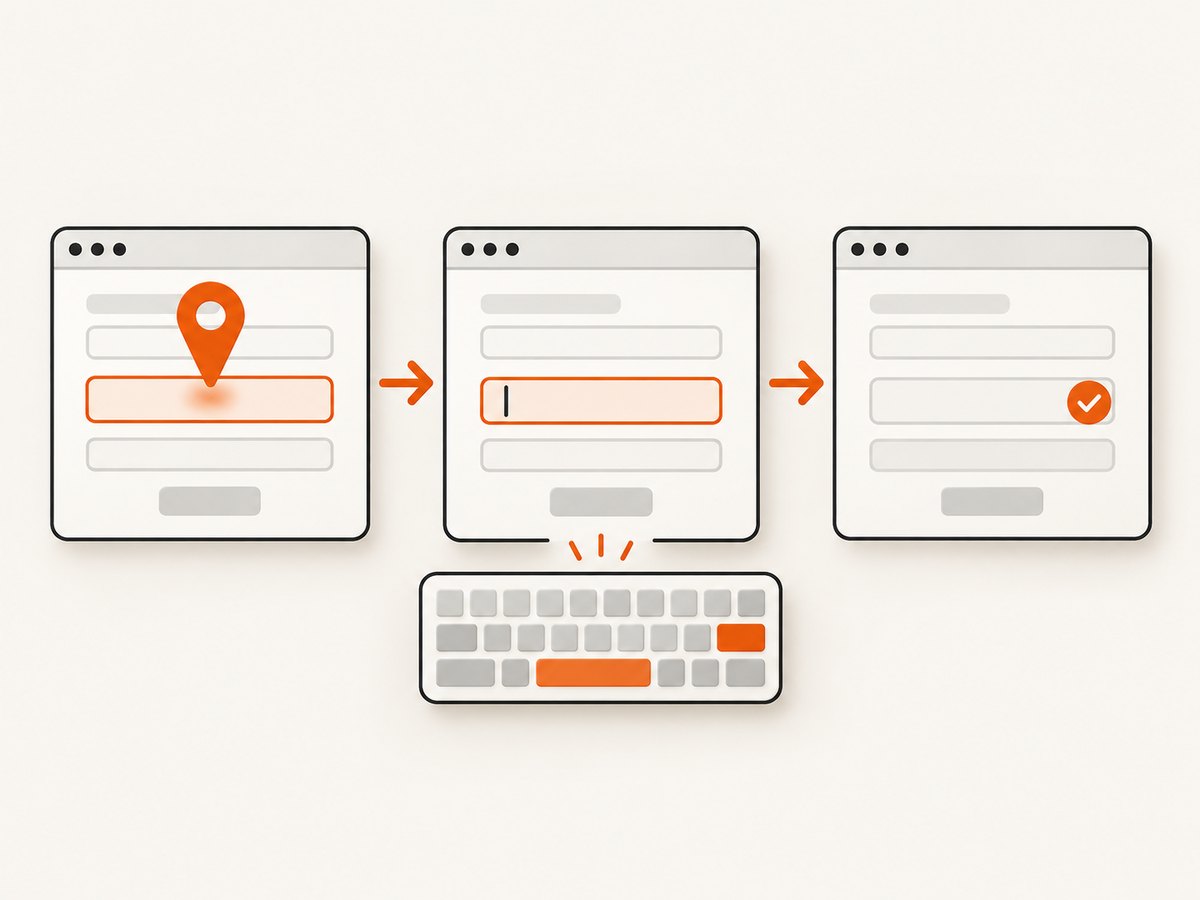
The reliable sequence is:
- Open the page and wait for the relevant UI.
- Locate one intended control with a meaningful selector.
- Scroll or focus it if necessary.
- Clear it only if replacement is intended.
- Send text or special keys.
- Click the page’s submit/action button.
- Wait for a result condition and read the result.
Typing alone does not guarantee submission. A site may require a button click, an Enter key, validation, a second factor, or an event emitted by a framework.
2. Install Selenium and start a browser
Install the Python binding:
python -m pip install -U seleniumRecent Selenium versions can manage a compatible browser driver automatically. You still need Chrome, Firefox, or another supported browser installed. In CI, run headless and pin browser versions when reproducibility matters.
from selenium import webdriver
from selenium.webdriver.chrome.options import Options

options = Options()
options.add_argument("--headless=new")
options.add_argument("--window-size=1280,900")
driver = webdriver.Chrome(options=options)
try:
    driver.get("https://example.com")
    print(driver.title)
finally:
    driver.quit()
3. Find the intended field before typing
Use a selector tied to page structure rather than a generic match such as “the first input.” Selenium’s locator strategies include ID, name, CSS selector, XPath, tag name, and more; its documentation also shows narrowing searches to a form or other parent element (finding web elements).
| Selector | Good use | Risk to check |
|---|---|---|
By.ID |
Stable unique field ID | Some apps generate IDs per session |
By.NAME |
Server-facing form field name | Several forms may reuse a name |
By.CSS_SELECTOR |
Labelled, scoped structure such as form#search input[name=q] |
Overly long selectors break after redesigns |
By.XPATH |
Relationships unavailable in CSS, used sparingly | Text or DOM paths can be brittle |
Prefer a label, accessible role, or stable attribute. Scope to the correct form when a page contains login, search, and newsletter controls at once. Confirm that the locator resolves to exactly one visible, enabled element.
4. Complete Selenium example (Python)
This follows Selenium’s documented first-script flow: open the page, find the text box, type, click the button, and read the message (official first script).
from selenium import webdriver
from selenium.webdriver.common.by import By
from selenium.webdriver.support.ui import WebDriverWait
from selenium.webdriver.support import expected_conditions as EC

URL = "https://www.selenium.dev/selenium/web/web-form.html"
driver = webdriver.Chrome()
wait = WebDriverWait(driver, 10)
try:
    driver.get(URL)
    text_box = wait.until(EC.visibility_of_element_located((By.NAME, "my-text")))
    submit_button = wait.until(EC.element_to_be_clickable((By.CSS_SELECTOR, "button")))

    text_box.clear()                 # remove old value when replacement is intended
    text_box.send_keys("Selenium")
    submit_button.click()

    message = wait.until(EC.visibility_of_element_located((By.ID, "message")))
    print(message.text)
finally:
    driver.quit()
clear() is conditional: Selenium documents it for editable, resettable text fields and content-editable elements. Do not assume it works on every node. If a field is custom-built, click it and use CTRL+A followed by BACKSPACE, or interact with the component’s documented API.
Special keys and multiline input
from selenium.webdriver.common.keys import Keys

text_box.send_keys("line one", Keys.SHIFT, Keys.ENTER, "line two")
text_box.send_keys(Keys.CONTROL, "a", Keys.BACKSPACE)
text_box.send_keys("query", Keys.ENTER)  # only when Enter is the page's submit behavior
On macOS, use Keys.COMMAND instead of Keys.CONTROL for select-all. For a textarea, newline handling is native; for content-editable editors, the site’s JavaScript may intercept Enter.
5. Wait for dynamic pages instead of guessing
Modern pages render controls after JavaScript, network calls, consent dialogs, or route changes. A fixed sleep slows fast runs and still fails on slow runs. Use an explicit wait with a condition that expresses what must be true: presence, visibility, clickability, a value, a URL, or a result message.
from selenium.webdriver.support import expected_conditions as EC

wait.until(EC.presence_of_element_located((By.CSS_SELECTOR, "form#search")))
wait.until(EC.visibility_of_element_located((By.NAME, "q")))
wait.until(EC.element_to_be_clickable((By.CSS_SELECTOR, "form#search button[type=submit]")))
wait.until(EC.text_to_be_present_in_element((By.ID, "status"), "Complete"))
Presence only means the node exists; it may still be hidden or covered. Visibility checks rendering, and clickability checks enabled state, but an overlay can still intercept a click. Wait for the overlay to disappear when the site exposes one.
6. Playwright alternative: fill or type
Playwright requires the same first step—locate the intended control—but offers a high-level locator.fill. Its documentation says fill focuses the target, sets the value, and triggers an input event for <input>, <textarea>, and [contenteditable]. Use press_sequentially only when the page depends on handling each keystroke; Playwright recommends fill for ordinary fields (actions).
import asyncio
from playwright.async_api import async_playwright

async def main():
    async with async_playwright() as p:
        browser = await p.chromium.launch(headless=True)
        page = await browser.new_page()
        await page.goto("https://www.selenium.dev/selenium/web/web-form.html")
        box = page.get_by_label("Text input")
        await box.fill("Selenium")
        await page.get_by_role("button", name="Submit").click()
        print(await page.locator("#message").inner_text())
        await browser.close()

asyncio.run(main())
Use get_by_label for an associated label and get_by_placeholder when placeholder text is the stable contract (locators). If a label is absent, use a role, test ID, or scoped CSS selector.
7. Fields that need extra handling
React, Vue, and controlled inputs
Framework-controlled fields can reject direct DOM assignment because state changes only after an input event. Selenium’s send_keys produces real keyboard input and usually updates state. If you use JavaScript as a last resort, dispatch the events the component expects and verify the visible value and resulting state.
Content-editable editors
Locate the element with [contenteditable="true"]. Click it, clear only if supported, then send text. Rich editors may create an inner paragraph node, intercept newlines, or sanitize pasted content; verify the editor’s serialized value rather than only its visible text.
Shadow DOM and iframes
A field inside an iframe must be addressed after switching into that frame:
frame = wait.until(EC.presence_of_element_located((By.CSS_SELECTOR, "iframe.payment")))
driver.switch_to.frame(frame)
wait.until(EC.visibility_of_element_located((By.NAME, "cardholder"))).send_keys("Ada Lovelace")
driver.switch_to.default_content()
For an open shadow root, use Selenium’s shadow-root support or a locator exposed by the component. Closed shadow roots may not be addressable through normal WebDriver APIs.
Autocomplete, date, and file controls
Autocomplete widgets often need a pause for suggestions, then an arrow key and Enter. Native date inputs may require a locale-specific format; prefer the control’s value contract or calendar actions. File inputs are not typed like text: call send_keys with an absolute file path on the <input type=file> element, without opening the OS picker.
Login, consent, and bot checks
Keep credentials in environment variables or a secret manager, never source code. A consent banner can cover the field; close it only according to the site’s permitted flow. CAPTCHA and bot challenges are not ordinary form controls. Do not claim that a generic scraper can solve them; stop, use an approved integration, or arrange authorized access.
8. Submit and verify the result
Selenium’s interaction guidance recommends clicking the applicable form button rather than relying on a separate submit shortcut (interacting with elements). After the click, wait for a concrete result: a message, changed URL, new table row, download, or application state. Capture diagnostics when it fails: current URL, page title, screenshot, HTML snippet, and browser console or network logs where available.
9. Troubleshooting checklist
| Error or symptom | Likely cause | Fix |
|---|---|---|
NoSuchElementException |
Wrong selector, frame, or page not rendered | Check the live DOM, wait for the control, and switch into the correct iframe. |
ElementNotInteractableException |
Hidden, disabled, off-screen, or non-editable target | Wait for visibility, scroll, remove the overlay through the UI, and confirm the element type. |
InvalidElementStateException |
Read-only or otherwise non-editable element | Choose the actual input/contenteditable control and check its disabled/readonly attributes. |
| Click intercepted | Cookie banner, modal, sticky header, or animation | Wait for the covering element to disappear, close it, or scroll the target into a clear position. |
| Text appears but app state is unchanged | Controlled component did not receive expected events | Use real send_keys/fill, then wait for validation or state feedback. |
| Works locally, fails in CI | Different browser size, timing, fonts, or missing dependency | Set a known viewport, use explicit waits, run headless with matching versions, and save failure artifacts. |
| Stale element reference | Framework replaced the node after rendering | Locate the element again after the update; do not retain stale references across navigation. |
10. Performance, reliability, and cost
- Reuse sessions carefully: one browser process can serve many pages, but clear cookies and state between accounts or tenants.
- Use the narrowest wait: waiting for a result condition reduces idle time compared with long global sleeps.
- Reduce page weight: block unnecessary images or third-party requests only when doing so cannot change the behavior you need to test.
- Retry selectively: retry transient navigation or stale-element failures with a limit; do not blindly repeat form submissions that create side effects.
- Make runs observable: log selector, URL, elapsed step, and outcome; store a screenshot and DOM on failure.
- Plan for site changes: selectors, consent flows, and validation rules are part of the target site’s interface and can change without notice.
- Budget browser infrastructure: self-hosted automation consumes CPU, memory, browser images, and maintenance time. Respect robots rules, terms, authentication boundaries, and rate limits.
11. Or skip the browser setup
If your goal is a clean image or PDF of a page rather than interacting with a form, ScreenshotNeo provides a single GET request. See the API documentation for all parameters. It removes cookie/consent banners, newsletter popups, and chat widgets before capture; bot checks, blank pages, failed loads, timeouts, and cache hits are not billed. The X-Page-Verdict and X-Billed response headers identify the result.

curl -G "https://api.screenshotneo.com/v1/shot" -d access_key=YOUR_API_KEY --data-urlencode url=https://stripe.com -o shot.webpimport requests
r = requests.get("https://api.screenshotneo.com/v1/shot", params={"access_key": "YOUR_API_KEY", "url": "https://stripe.com"}, timeout=90)
open("shot.webp", "wb").write(r.content)const q = new URLSearchParams({ access_key: 'YOUR_API_KEY', url: 'https://stripe.com' });
const res = await fetch(`https://api.screenshotneo.com/v1/shot?${q}`);The API also supports full-page and element captures, dark mode, device presets or custom viewports, retina scale, PDF settings, custom CSS and JavaScript, clicks and waits, request blocking, headers/cookies/user agents, timezone and geolocation, transparent backgrounds, resizing, TTL caching, signed links, asynchronous webhooks, bulk capture, usage reporting, and an OpenAPI specification. An MCP server exposes take_screenshot, get_page_info, and capture_pdf to Claude, Cursor, and other MCP clients.
Plans include 1,000 screenshots per month free with no card; paid plans start at $5 for 3,000 shots. Every feature is on every plan, and yearly billing gives two months free. Create a free ScreenshotNeo account and use the 1,000 included screenshots to try a capture.
12. FAQ
Can Selenium type into any HTML element?
No. The element must be keyboard-interactable, such as an editable input, textarea, or contenteditable control. A visible label or wrapper is not itself an input.
Should I use send_keys or JavaScript?
Use send_keys first because it follows the browser interaction path and emits keyboard/input behavior. JavaScript is a fallback only when you understand the page’s event and state model.
When is Playwright fill preferable?
For ordinary form fields when you want a concise operation that focuses the control and emits an input event. Use sequential key presses when each character has special meaning to the page.
How do I know typing succeeded?
Read the field’s current value or visible editor state, then verify the post-submit result. A keystroke call returning without an exception is not proof that the application accepted the value.
Can ScreenshotNeo submit a form for me?
ScreenshotNeo is for page information, screenshots, and PDFs. Use Selenium or Playwright when your workflow must enter text and submit an interactive form, then use ScreenshotNeo when you need a clean capture of the resulting page.


