How to Take a Screenshot of an Entire Web Page on iPad
Capture a full Safari webpage on iPad, inspect and crop it, then save it as an image in Photos or a PDF in Files.
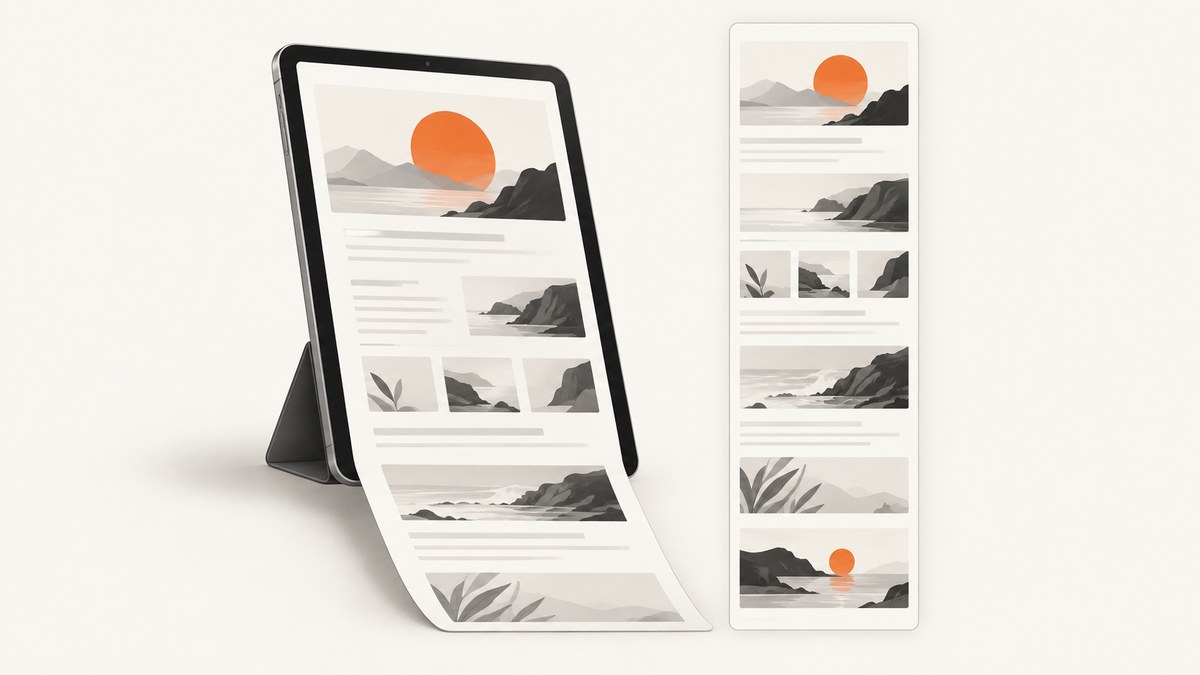
Short answer: Open the page in Safari, take a screenshot, tap the preview, choose Full Page, then tap Done. You can inspect and crop the capture, save it as an image in Photos, or save it as a PDF in Files.
1. Take an entire webpage screenshot in Safari
Apple documents full-page screenshots for webpages in Safari. The button shortcut depends on whether your iPad has a Home button.
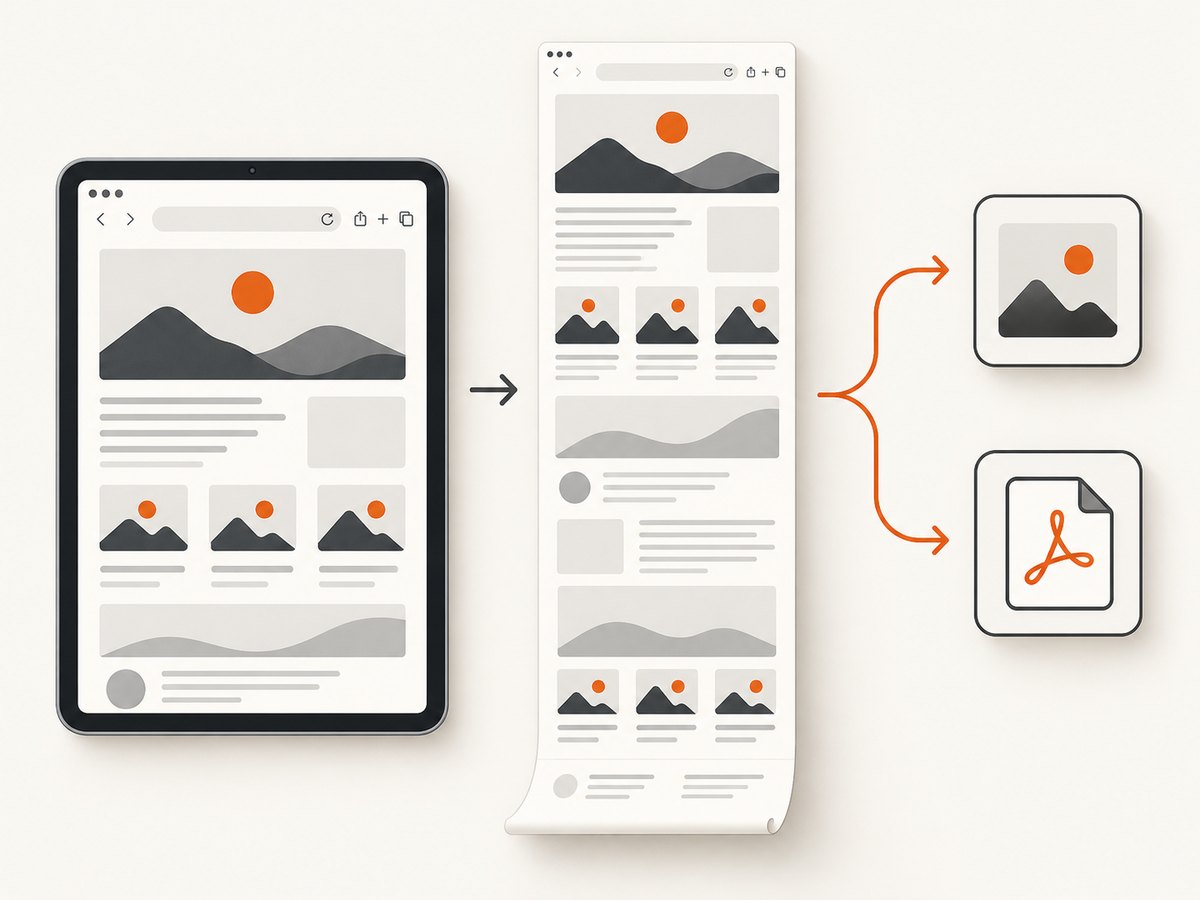
- Open the webpage in Safari.
- Wait for the content you need to appear. If the page loads more content as you scroll, give it time to finish loading before capturing.
- Take a screenshot:
- iPad without a Home button: quickly press and release the top button and either volume button together.
- iPad with a Home button: quickly press and release the top button and the Home button together.
- Tap the screenshot preview that appears.
- Tap Full Page at the top of the editor.
- Drag through the preview to inspect the whole capture. Use the crop controls if you only need part of the page.
- Tap Done, then choose where to save it:
- Save to Photos: keeps an image in your photo library.
- Save PDF to Files: creates a PDF and lets you select a Files location.
See Apple’s current instructions for taking a screenshot on iPad.
2. Choose an image or a PDF
| Choose | Use it when | Result |
|---|---|---|
| Save to Photos | You want a visual reference, annotation, or an image to share. | An image saved with your screenshots and photos. |
| Save PDF to Files | You need a document file for filing, handoff, or attachment. | A PDF stored in the Files location you select. |
Apple’s guide supports both destinations for a full-page screenshot. It does not establish that one format always has better quality or a smaller file size, so choose based on how you plan to use the capture.
3. If you cannot use the button shortcut
Apple lists several alternate ways to trigger a screenshot:
- Apple Pencil: swipe diagonally upward from either lower corner.
- AssistiveTouch: use the on-screen accessibility menu to run the screenshot action.
- Siri: ask Siri to take a screenshot.
These methods only trigger the screenshot. After the preview opens, choose Full Page in the same way. An Apple Pencil is optional; it is not required for full-page capture.
4. Save a Safari webpage as a PDF with Markup
Safari also has a separate webpage-to-PDF workflow. This is useful when you want to annotate the page before saving it:
- Open the page in Safari.
- Tap Share.
- Tap View More if needed.
- Choose Markup.
- Annotate the document if required.
- Save the PDF to Files.
This is an alternative Safari PDF workflow, separate from the screenshot editor’s Full Page option. Apple describes it in Annotate and save a webpage as a PDF in Safari.
5. Troubleshooting
“Full Page” does not appear
Make sure the screenshot was taken in Safari and that the preview editor is open. Apple documents the full-page example for an entire Safari webpage; the option may not be available in every app or view.
The capture stops before the bottom
Some pages load content only after scrolling or after a delay. Wait for the visible page to finish loading, then retry. A dynamically changing page may not expose all of its content to the full-page capture.
The page looks blank or incomplete
Check that the page finished loading and that you are online. Retry after dismissing overlays or returning to the normal Safari page view.
I saved the wrong format
Reopen the screenshot preview and tap Done. Choose the image destination for Photos or the PDF destination for Files. If you need annotations, use Safari’s Markup PDF route.
The shortcut does nothing
Press and release the buttons quickly and at the same time. Use the shortcut that matches your hardware: top plus a volume button on iPads without a Home button, or top plus Home on iPads with one. You can also use Apple Pencil, AssistiveTouch, or Siri.
The capture includes a cookie banner, popup, or chat bubble
Dismiss the overlay before taking the screenshot. Safari’s built-in capture records the page as it is displayed; it does not promise to remove consent banners or other widgets.
6. Reliability, privacy, and file-size notes
- Capture state matters: the result reflects what Safari has loaded when you take the screenshot.
- Long pages can be large: an image containing an entire page may take more storage than a viewport screenshot. A PDF can be easier to file when the content is document-like.
- Review before sharing: inspect the preview and crop out account details, private URLs, or other information you did not intend to distribute.
- Repeatable captures: for pages that change frequently, record the URL and capture date with the saved file.
7. Or skip the browser setup
For automated captures from a script or build process, ScreenshotNeo provides a website screenshot API. Its endpoint returns PNG, JPEG, WebP, or PDF output from one GET request. See the ScreenshotNeo API documentation for the available options.

cURL
curl -G "https://api.screenshotneo.com/v1/shot" -d access_key=YOUR_API_KEY --data-urlencode url=https://stripe.com -o shot.webpPython
import requests

r = requests.get(
    "https://api.screenshotneo.com/v1/shot",
    params={"access_key": "YOUR_API_KEY", "url": "https://stripe.com"},
    timeout=90,
)
r.raise_for_status()
open("shot.webp", "wb").write(r.content)
Node.js
const q = new URLSearchParams({ access_key: 'YOUR_API_KEY', url: 'https://stripe.com' });
const res = await fetch(`https://api.screenshotneo.com/v1/shot?${q}`);
if (!res.ok) throw new Error(`Screenshot failed: ${res.status}`);
const fs = await import('node:fs/promises');
await fs.writeFile('shot.webp', Buffer.from(await res.arrayBuffer()));
ScreenshotNeo removes cookie and consent banners, newsletter popups, and chat widgets before capture. Bot checks, blank pages, timeouts, failed loads, and cache hits are not billed; response headers identify the page verdict and whether the request was billed. It also offers full-page capture with lazy images loaded, custom CSS and JavaScript, waits, blocking rules, device and viewport controls, PDFs, signed links, asynchronous jobs, bulk capture, and an MCP server with take_screenshot, get_page_info, and capture_pdf for AI agents.
The Free plan includes 1,000 screenshots per month with no card. Paid plans start at $5 for 3,000 screenshots, and every feature is available on every plan. Create a free ScreenshotNeo account.
8. FAQ
Can I capture an entire webpage, not just what is visible?
Yes. In Safari’s screenshot editor, choose Full Page to capture content beyond the display.
Where does an image full-page screenshot go?
Choose Save to Photos; Apple documents Photos as the image destination.
Where does the PDF go?
Choose Save PDF to Files, then select a folder or storage provider.
Does this work in every iPad app?
The documented full-page example is an entire webpage in Safari. Other apps and views may offer only a regular screenshot.
Can I crop before saving?
Yes. In the screenshot preview, inspect the capture and use the crop controls before tapping Done.
Do I need an Apple Pencil?
No. It is one optional way to trigger a screenshot. The hardware buttons, AssistiveTouch, and Siri are alternatives.


