Take a Screenshot of an Entire Webpage in Safari
Learn how to capture a full Safari webpage on iPhone, iPad and Mac, save it as an image or PDF, fix common problems, and automate captures.
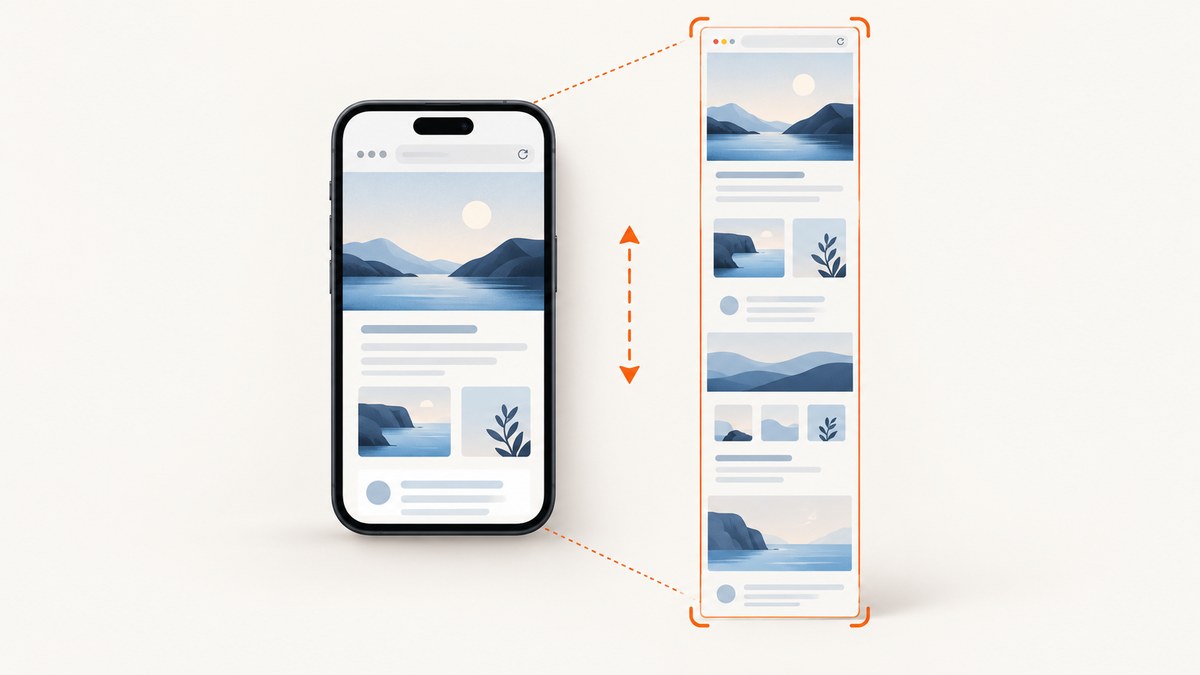
On an iPhone or iPad, open the page in Safari, take a normal screenshot, open its thumbnail, choose Full Page, inspect the long preview, then save it. The Full Page control captures content below the visible screen. On a Mac, Safari does not provide the same built-in Full Page screenshot button: use a normal screen capture for visible pixels, or use Safari’s save and share tools when you need the whole document.
This guide covers the exact steps for each Apple device, the difference between an image and a PDF, what to do when Full Page is missing, and an automated option for developers who need repeatable captures.
iPhone: capture an entire webpage
- Open the webpage in Safari and wait for the page to finish loading.
- Take a screenshot. On an iPhone with Face ID, quickly press and release the side button and volume up button together. On an iPhone with a Home button, press the side button and Home button together.
- Tap the screenshot thumbnail that appears in the lower-left corner. If the thumbnail disappears, open the screenshot from Photos and use the editing controls available there.
- Tap Full Page at the top of the screenshot editor. Apple describes this option as capturing content beyond the screen, including an entire webpage in Safari. Apple’s iPhone screenshot guide
- Drag the preview’s scroll bar to inspect the complete page. Use the crop handles if you want to remove headers, footers or unrelated content.
- Save the result using the controls shown by your iOS version. Screenshots normally go to Photos when thumbnail previews are enabled.
The output is a tall image-like document inside Apple’s screenshot editor. Very long pages can be awkward to read as one image, so crop the capture to the content that matters or choose PDF when the document will be printed or shared.
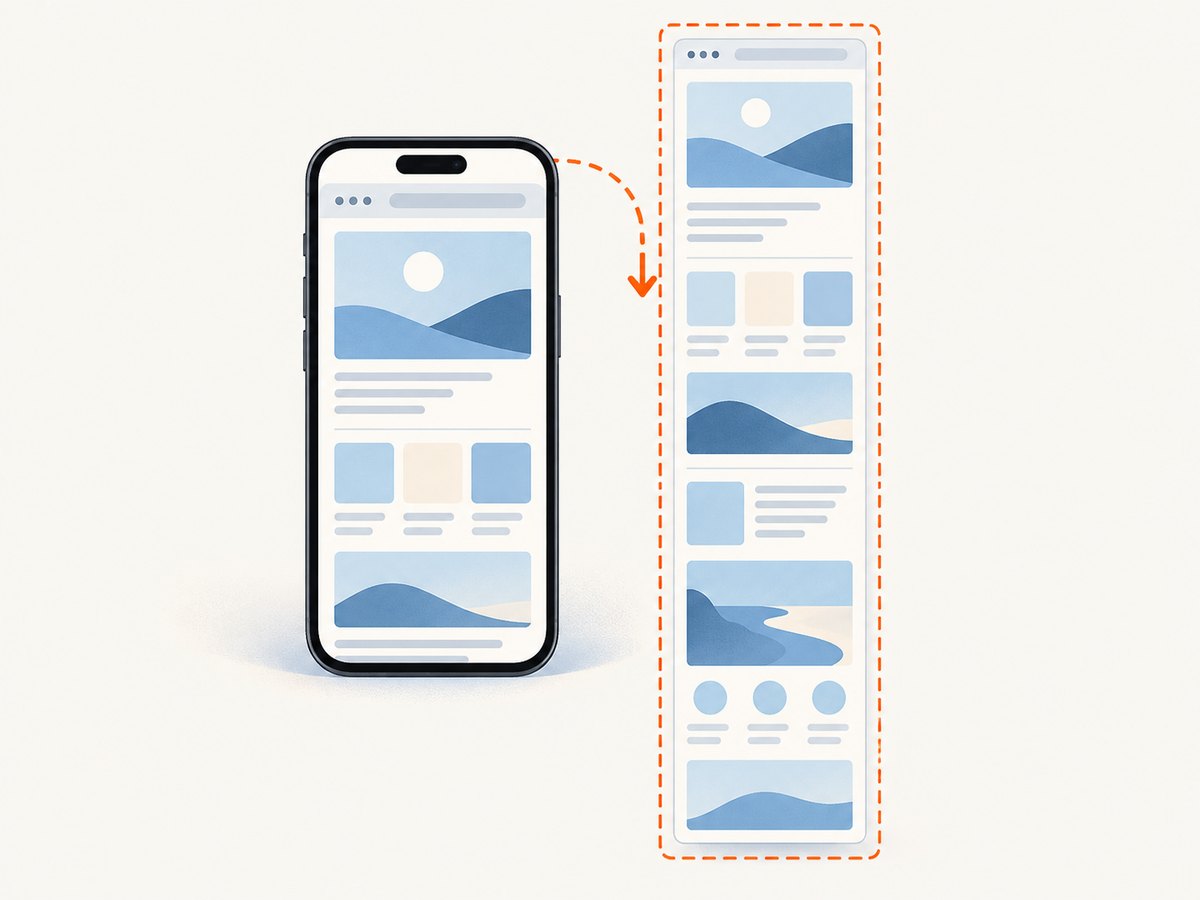
iPhone button combinations
| iPhone type | Screenshot shortcut |
|---|---|
| Face ID models | Side button + Volume Up |
| Home button models | Side button + Home |
Press and release both buttons quickly. Holding them can open the power-off or emergency screen instead of taking a screenshot.
iPad: capture the complete Safari page
- Open the page in Safari.
- On an iPad without a Home button, quickly press and release the top button and either volume button. On an iPad with a Home button, press the top button and Home button together.
- Tap the thumbnail, then choose Full Page.
- Drag through the long preview to verify that images, tables and the bottom of the page are present.
- Crop or annotate if needed, then tap Done and select the save destination shown on your iPad.
Apple also documents Apple Pencil corner swipes, Siri and AssistiveTouch as alternate ways to start a screenshot. The hardware shortcut is usually fastest, but an alternate method helps when a button is difficult to press. Apple’s iPad screenshot instructions
Why the preview matters
A full-page capture can include navigation, cookie notices, comments, advertisements and dynamically loaded sections. Scroll through the preview before saving. If the page contains private information, check the entire strip, not only the top viewport, and crop or mark up sensitive areas before sharing.
Save the webpage as a PDF on iPhone or iPad
Use a PDF when the deliverable should behave like a document rather than a single raster image.
- In Safari, tap the Share button.
- Choose Markup.
- Use the annotation tools if required.
- Tap the share button, choose Save to Files (shown as Save File To on some versions), and select a folder.
This creates a PDF document. It is separate from the screenshot editor’s Full Page image workflow and is generally easier to print, search or send as an attachment. Apple’s Safari sharing documentation covers the PDF path. Apple’s iPhone Safari sharing guide
Mac: what Safari can and cannot capture
macOS includes shortcuts for the whole screen, a selected region and a window, but Apple’s Mac screenshot guide does not document a Safari-specific Full Page control. Use these shortcuts when you need the pixels currently visible:
| Result | Shortcut |
|---|---|
| Entire screen | Shift-Command-3 |
| Selected area | Shift-Command-4 |
| Window or menu | Shift-Command-4, then Space |
These shortcuts do not automatically scroll through a webpage. Do not expect Shift-Command-3 to produce a full-length Safari document.
Save a complete page from Safari on Mac
For an editable or archival copy, choose File > Save As in Safari. Apple provides Web Archive and Page Source options:
- Web Archive: stores page graphics and keeps links functional while their destination pages remain available.
- Page Source: saves the HTML source, not a rendered visual snapshot.
Some webpages may prevent Safari from saving items displayed on the page. A saved archive is therefore not guaranteed to reproduce every interactive or protected resource. Apple’s Safari guide to saving webpages
If you need a document for sharing, Safari can also share a webpage as a PDF through the Share menu. The resulting PDF is usually more practical than stitching many viewport screenshots together.
Manual capture checklist
- Confirm you are in Safari, not an in-app browser.
- Wait for lazy-loaded images and embedded content to appear.
- Dismiss or accept consent banners when they cover page content.
- Use Full Page only after opening the screenshot editor.
- Inspect the bottom of the preview before saving.
- Crop private data and temporary popups.
- Choose PNG or a PDF based on how the result will be used.
Common problems and fixes
Full Page is not visible
Full Page appears in the screenshot editor for supported webpage and document views. Make sure the screenshot was taken while Safari was displaying the page, then tap the thumbnail immediately. If you opened an image, video or another app, the control may not be offered. Updating iOS or iPadOS can also change the editor layout.
The capture stops before the bottom
Some pages use nested scrolling panels, virtualized lists or content that appears only after interaction. Scroll the page once before taking the screenshot so the browser has a chance to load content. For a panel inside a page, capture the panel separately or use the site’s export function.
Images are blank or missing
Wait for images to finish loading and check your connection. Images supplied only after a click, login or consent choice may not be included in a passive full-page capture. A protected resource can also fail when the page is saved or rendered outside its original session.
The screenshot contains a cookie banner or chat bubble
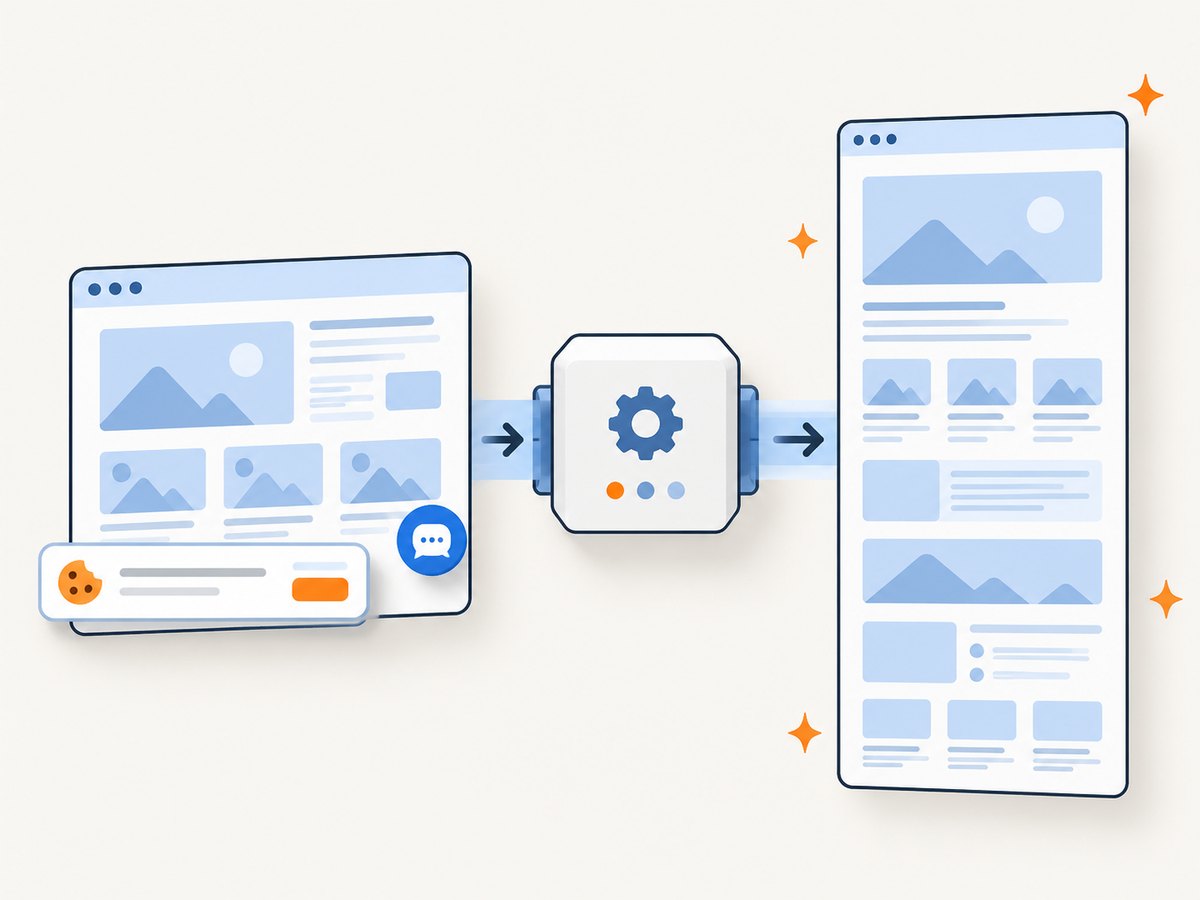
Close the overlay before capturing. If it cannot be dismissed, crop it from the preview. Automated browser capture gives you more control over hiding selectors and accepting consent, which is useful for recurring jobs.
The Mac result is only one screen
That is expected from the standard macOS screenshot shortcuts. Use Safari’s Web Archive or PDF sharing workflow, or use a browser automation service for a rendered, full-length image.
The page looks different after saving
Websites can change based on viewport width, device pixel ratio, login state, cookies, location and time. Record those conditions when a capture must be reproducible. A screenshot is a rendering at one point in time, not a permanent copy of every network resource.
Automate full-page Safari-style captures
For one-off work, Apple’s built-in workflow is enough. For documentation builds, visual regression checks, reports or batches of URLs, a screenshot API avoids maintaining a browser, device emulation and scrolling code.
Or skip the browser setup
ScreenshotNeo provides a website screenshot API and MCP server. It can capture a full page with lazy images loaded, a single element by CSS selector, a selected device preset or any viewport, with retina scale, dark mode, custom CSS and JavaScript, cookies, headers, user agents, timezone and geolocation. PDF output supports paper size, margins, landscape mode and page ranges. See the ScreenshotNeo documentation for all options.
curl -G "https://api.screenshotneo.com/v1/shot" -d access_key=YOUR_API_KEY --data-urlencode url=https://stripe.com -o shot.webpimport requests
r = requests.get("https://api.screenshotneo.com/v1/shot", params={"access_key": "YOUR_API_KEY", "url": "https://stripe.com"}, timeout=90)
open("shot.webp", "wb").write(r.content)const q = new URLSearchParams({ access_key: 'YOUR_API_KEY', url: 'https://stripe.com' });
const res = await fetch(`https://api.screenshotneo.com/v1/shot?${q}`);ScreenshotNeo removes cookie and consent banners, newsletter popups and chat widgets before capture. Each step can be turned off. Bot checks and CAPTCHAs, blank pages, timeouts, failed loads and cache hits are not billed, and the response identifies the result with X-Page-Verdict and X-Billed headers.
For production workflows, configure a wait for a selector, a delay or network idle; block ads, trackers, requests or resource types; set a cache TTL; and use signed links, asynchronous jobs, signed webhooks or bulk capture for up to 100 URLs per call. The usage API and OpenAPI specification help integrate monitoring and client generation. The parameter names used by other screenshot APIs also work, which can simplify migration.
ScreenshotNeo includes an MCP server with take_screenshot, get_page_info and capture_pdf tools for Claude, Cursor and other MCP clients. The Free plan includes 1,000 shots each month with no card; paid plans start at $5 for 3,000 shots. Yearly billing gives two months free, and every feature is available on every plan.
Create a free ScreenshotNeo account to get 1,000 screenshots a month with no card.
Performance, reliability and cost considerations
- Interactive pages: wait for a known selector or network idle rather than relying on a fixed short delay.
- Large pages: full-page rendering and lazy-image loading take longer than a viewport capture. Set a client timeout that allows for slow pages.
- Repeat requests: use a cache TTL when an unchanged page can reuse a result.
- Failures: inspect response status and the verdict headers before storing a capture as valid content.
- Privacy: avoid putting API keys in client-side JavaScript or public image URLs unless you use signed links.
- Cost: ScreenshotNeo bills only clean shots; bot checks, blank pages, timeouts, failed loads and cache hits cost nothing.
FAQ
Does Full Page work in every iPhone app?
No. It is intended for supported document and webpage views such as Safari. An app may provide its own export or scrolling capture feature.
Is a Full Page screenshot a PDF?
No. The screenshot editor creates a long capture. Use Safari’s Share and Markup flow when you specifically need a PDF.
Can Mac Safari take a full-page PNG by default?
Apple’s standard Mac screenshot shortcuts capture the screen, a selection or a window. They do not document an automatic full-webpage PNG workflow.
Can I capture a page that requires login?
On a device, capture it while signed in. For automation, pass the required cookies or headers through a service that supports authenticated requests, and protect the resulting files.
What should I use for recurring captures?
Use a repeatable API workflow with explicit viewport, wait, authentication and output settings. This avoids manually repeating the iPhone or iPad steps for every URL.


