How to Use ES2015 with Mocha, Karma, and Headless Chrome
Compile ES2015 tests with Babel, run them in ChromeHeadless through Karma, and make CI reliable with complete configuration and fixes.
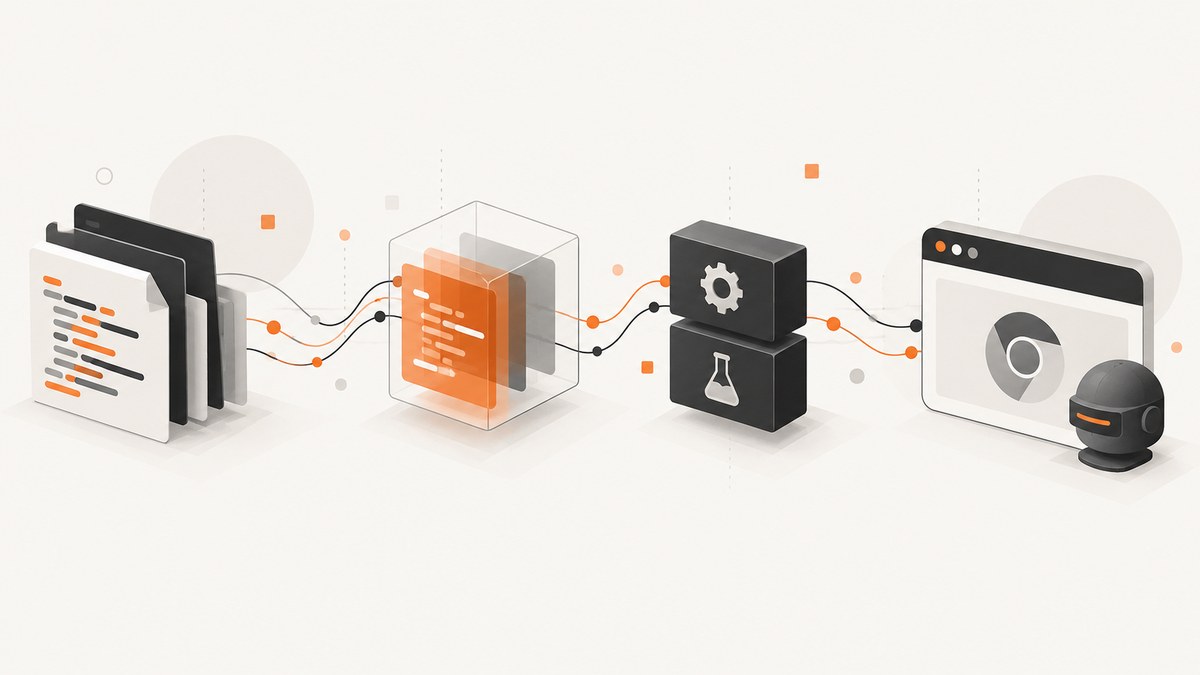
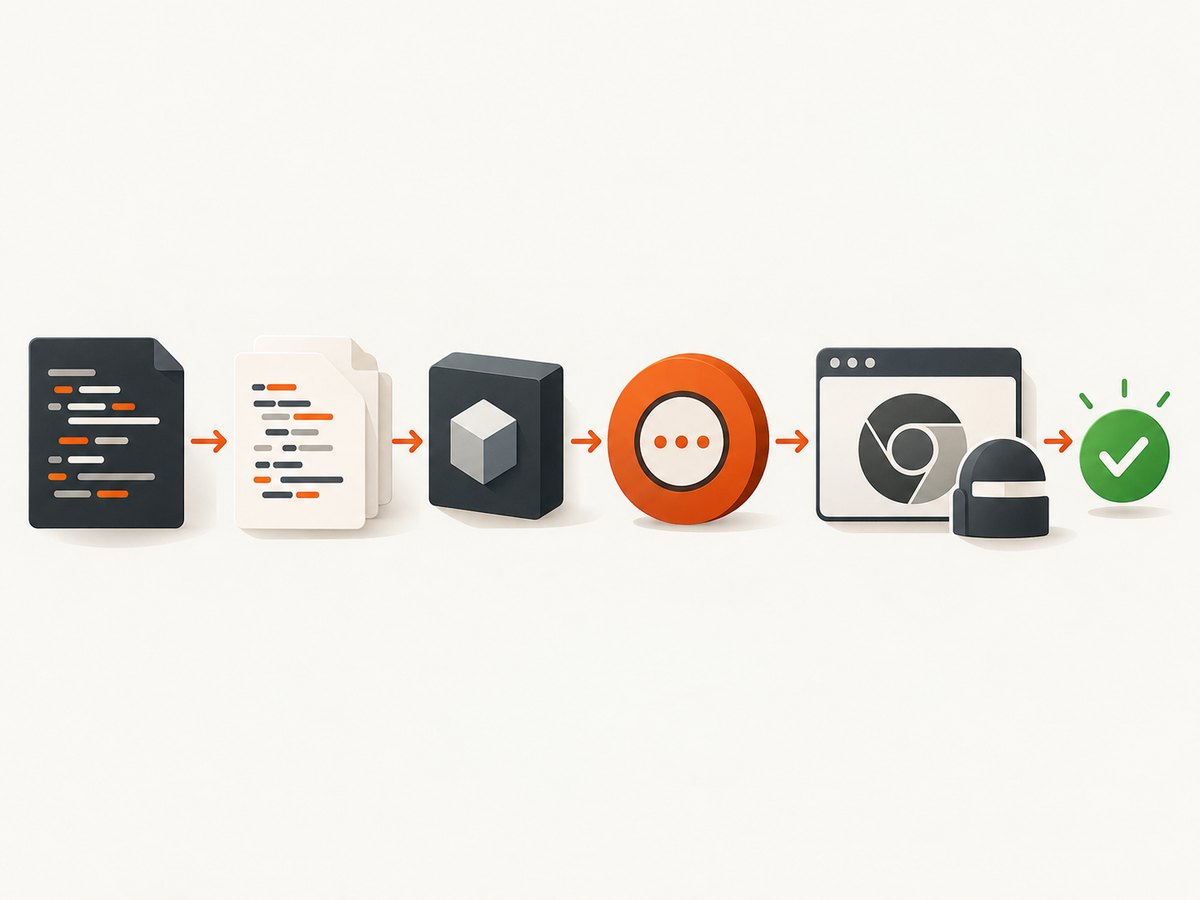
Use Babel to transpile ES2015 syntax, Karma to load the test bundle, Mocha and Chai for the test API and assertions, and ChromeHeadless to execute the suite in a real browser engine. The essential flow is:
- Install Babel, Karma, the Chrome launcher, Mocha, and Chai.
- Add a Babel configuration with
@babel/preset-env. - Tell Karma to use the Mocha and Chai frameworks and discover your source and test files.
- Run
ChromeHeadlessin watch mode locally or with--single-runin CI.
This keeps ES2015 modules, classes, arrow functions, and other modern syntax in your source while executing tests in the same browser environment your users receive. Chrome for Developers describes this browser parity as a key benefit of Headless Chrome compared with running tests directly in Node: the JavaScript runs in the same environment as users of the site. See the Chrome documentation and the Babel preset-env documentation for the current behavior of those tools.
1. Create the project and install the test stack
Start with a normal Node project. Use a current Node version supported by the versions you install, and commit your lockfile so local and CI dependency resolution stays consistent.
mkdir es2015-karma-tests
cd es2015-karma-tests
npm init -y
npm install --save-dev @babel/core @babel/preset-env babel-loader \
  karma karma-chrome-launcher karma-mocha karma-chai mocha chai
The core Karma/Mocha/Chai setup documented by Chrome uses karma, karma-chrome-launcher, karma-mocha, and karma-chai, with Mocha and Chai as development dependencies. The launcher package provides the ChromeHeadless and ChromiumHeadless names. The launcher documentation also records that headless mode requires a browser version of at least 59; in practice, use a maintained Chrome or Chromium build.
If your project already has a bundler, use its Babel integration instead of adding a second build path. The examples below use Karma’s preprocessing so the setup is explicit and easy to copy.
2. Configure Babel for ES2015 and later
Create babel.config.json at the repository root:
{
  "presets": ["@babel/preset-env"]
}
@babel/preset-env selects transforms for ES2015 and later syntax according to its target configuration. With no explicit targets, it applies a broad compatibility policy. For a production repository, consider declaring the browsers you actually support in package.json or a Babel configuration so that the generated code is no larger or older than necessary.
Babel transforms syntax; it does not automatically polyfill every missing Web API. If a test needs a feature absent from the target browser, add the appropriate polyfill deliberately and load it before the tests. Do not confuse a syntax error with a missing runtime API: an arrow-function parse error points to preprocessing, while Promise is not defined points to runtime compatibility.
3. Add source and ES2015 tests
Use ES2015 in both application code and tests. This small module exports a class and a function:
// src/greeting.js
export class Greeter {
  constructor(prefix = 'Hello') {
    this.prefix = prefix;
  }

  message(name) {
    return `${this.prefix}, ${name}!`;
  }
}

export const unique = values => [...new Set(values)];
Now write a Mocha test using imports, a default parameter, an arrow callback, and Chai assertions:
// test/greeting.test.js
import { expect } from 'chai';
import { Greeter, unique } from '../src/greeting';

describe('Greeter', () => {
  it('formats a greeting', () => {
    const greeter = new Greeter();
    expect(greeter.message('Ada')).to.equal('Hello, Ada!');
  });

  it('accepts a custom prefix', () => {
    expect(new Greeter('Hi').message('Lin')).to.equal('Hi, Lin!');
  });
});

describe('unique', () => {
  it('removes duplicate values while preserving order', () => {
    expect(unique([2, 1, 2, 3, 1])).to.deep.equal([2, 1, 3]);
  });
});
Mocha’s describe and it functions are supplied by the Karma adapter. Chai’s expect interface supplies assertions. Arrow functions are valid callbacks once Babel has processed the file.
4. Configure Karma and ChromeHeadless
Create karma.conf.js:
module.exports = function (config) {
  config.set({
    basePath: '',
    frameworks: ['mocha', 'chai'],
    files: [
      'src/**/*.js',
      'test/**/*.test.js'
    ],
    preprocessors: {
      'src/**/*.js': ['babel'],
      'test/**/*.test.js': ['babel']
    },
    reporters: ['progress'],
    port: 9876,
    colors: true,
    logLevel: config.LOG_INFO,
    autoWatch: true,
    browsers: ['ChromeHeadless'],
    singleRun: false,
    concurrency: Infinity
  });
};
Install the Karma Babel preprocessor used by that configuration:
npm install --save-dev karma-babel-preprocessorThe frameworks array loads the Mocha and Chai adapters. files determines what Karma serves and injects into the browser. The two preprocessor globs send source and test files through Babel before Chrome receives them. ChromeHeadless launches Chrome without a visible window; set singleRun: true in a CI-specific configuration or override it from the command line.
If you prefer to bundle first, replace the file globs and preprocessing with your bundler’s output. Keep one authoritative module-resolution path; mixing a prebuilt bundle with the original modules can execute tests twice.
5. Run locally and in continuous integration
Add scripts to package.json:
{
  "scripts": {
    "test": "karma start karma.conf.js",
    "test:ci": "karma start --single-run --browsers ChromeHeadless karma.conf.js"
  }
}
Run npm test while developing. Karma keeps the browser connected and reruns when files change. Run npm run test:ci in CI. The --single-run flag captures the browser, executes the suite once, reports the result, and exits, which prevents a build from hanging in watch mode.
A minimal CI sequence is:
npm ci
npm run test:ci
Use npm ci with a committed lockfile for reproducible installs. Cache the package manager directory if your CI provider supports it, but invalidate that cache when the lockfile or Node major version changes.
6. Provision Chrome when CI has no system browser
On a workstation, karma-chrome-launcher normally finds Chrome automatically. On a container or minimal CI image, install Chromium/Chrome through the image package manager, then point Karma at it with CHROME_BIN:
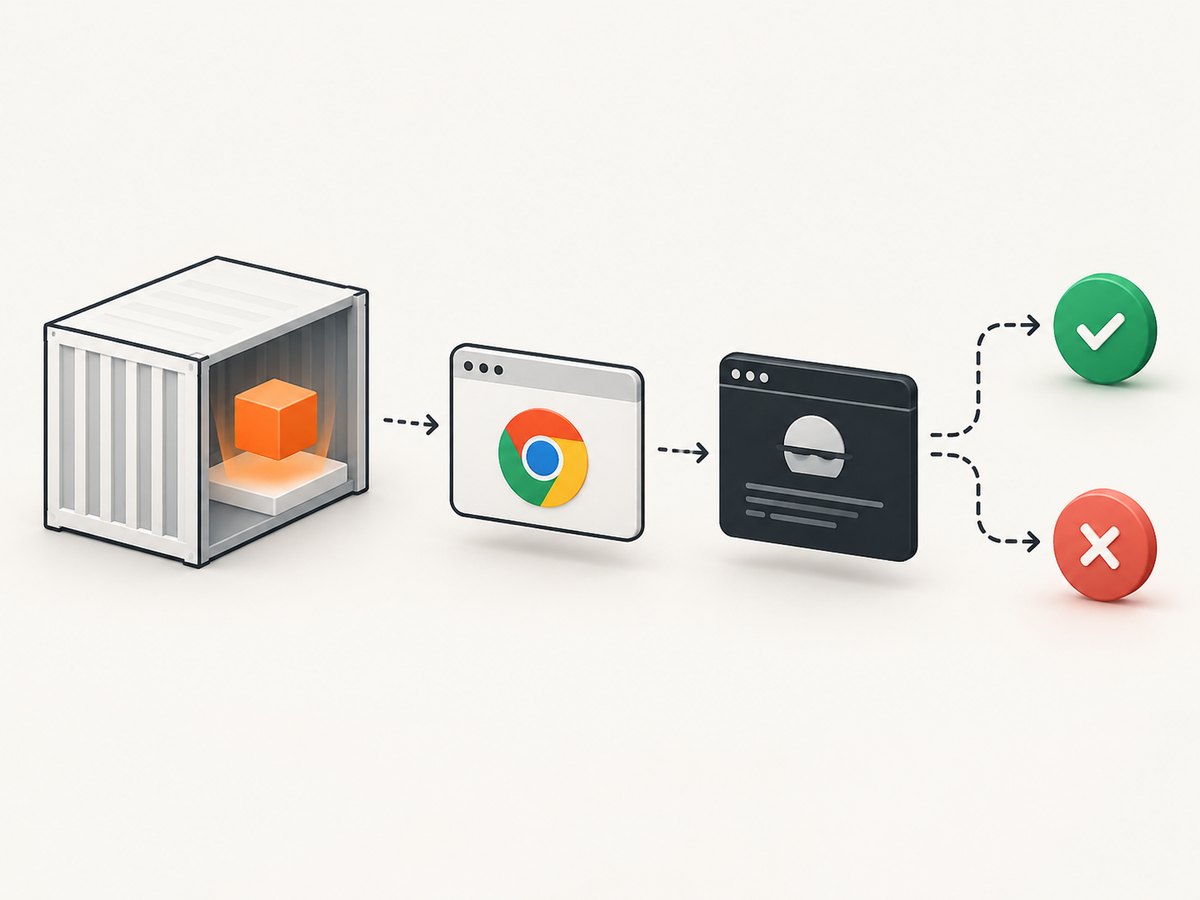
CHROME_BIN=/usr/bin/google-chrome npm run test:ciThe launcher also supports ChromiumHeadless when the executable is Chromium. Verify the actual path in the runner before changing the configuration.
When the image has no system browser, Puppeteer can provide one. Install it and set the executable path before Karma starts:
npm install --save-dev puppeteer// karma.conf.js
if (!process.env.CHROME_BIN) {
process.env.CHROME_BIN = require('puppeteer').executablePath();
}
module.exports = function (config) {
config.set({
frameworks: ['mocha', 'chai'],
files: ['src/**/*.js', 'test/**/*.test.js'],
preprocessors: {
'src/**/*.js': ['babel'],
'test/**/*.test.js': ['babel']
},
browsers: ['ChromeHeadless'],
singleRun: true,
reporters: ['progress']
});
};Keep Puppeteer’s downloaded browser aligned with the Puppeteer package version in your lockfile. A system Chrome and a Puppeteer Chrome can differ in flags, sandbox behavior, and supported features, so use the same provisioning path across CI jobs.
7. Custom launchers and flags
Some containers require extra Chrome flags. Extend the built-in launcher rather than changing every test command:
module.exports = function (config) {
  config.set({
    frameworks: ['mocha', 'chai'],
    files: ['src/**/*.js', 'test/**/*.test.js'],
    preprocessors: {
      'src/**/*.js': ['babel'],
      'test/**/*.test.js': ['babel']
    },
    customLaunchers: {
      ChromeHeadlessCI: {
        base: 'ChromeHeadless',
        flags: [
          '--no-sandbox',
          '--disable-dev-shm-usage'
        ]
      }
    },
    browsers: ['ChromeHeadlessCI'],
    singleRun: true
  });
};
Only add flags required by the runner. --no-sandbox can be necessary in an appropriately isolated container, but changing security defaults should be a deliberate infrastructure decision. --disable-dev-shm-usage helps when a container has a very small shared-memory mount. A custom remote-debugging port can be added when another process already occupies the default port; the launcher documentation describes custom launchers for these cases.
8. Troubleshooting common failures
| Symptom | Likely cause | Fix |
|---|---|---|
ChromeHeadless is not registered |
karma-chrome-launcher is missing or not installed in the project running Karma. |
Install it as a development dependency and run Karma from that project. |
| Chrome cannot be captured or executable not found | No browser is installed, or the binary is outside the launcher’s search path. | Install Chrome/Chromium, set CHROME_BIN, or use Puppeteer’s executablePath(). |
SyntaxError: Cannot use import statement |
The file was not passed through Babel. | Check the preprocessors glob, confirm karma-babel-preprocessor is installed, and ensure babel.config.json is at the repository root. |
describe is not defined |
The Mocha adapter was not loaded. | Set frameworks: ['mocha', 'chai'] and verify karma-mocha is installed. |
Assertions fail with an undefined expect |
Chai was not loaded or the test imported the wrong interface. | Keep karma-chai in the framework list and import { expect } from chai. |
| Tests run twice | Both source globs and a generated bundle include the same test files. | Serve either the modules or the bundle, and remove the duplicate glob. |
| CI never exits | Karma is watching files. | Use --single-run or set singleRun: true. |
| Browser disconnects in a container | Shared memory is too small, the sandbox cannot start, or the process is killed for memory. | Try --disable-dev-shm-usage, increase container memory, and use a custom launcher with only the flags your environment needs. |
| Works locally, fails in CI | Different Node, Chrome, dependency, timezone, or locale. | Pin versions with the lockfile, print Node and browser versions in CI logs, and keep the same browser provisioning strategy. |
For a failing browser startup, run Karma with a more verbose log level and inspect the launcher’s executable path. For a failing assertion, first confirm that the test is actually loaded; an empty suite can otherwise look like a successful run depending on reporter settings.
9. Reliability, speed, and test design
Keep unit tests deterministic. Avoid real network calls, current time, random values, and shared mutable state unless the test explicitly controls them. Stub network boundaries and reset fixtures in beforeEach. Browser execution catches DOM and Web API differences that Node-only tests miss, but it does not replace server-side tests.
Use the fastest feedback loop locally: autoWatch with a focused file set or a grep-like Mocha filter supplied by your project tooling. Use the complete suite in CI. Parallel CI workers can reduce wall-clock time for large repositories, but each worker needs an isolated port and browser process.
Large suites spend time loading files before executing assertions. Narrow globs, avoid shipping development-only assets to the browser, and split slow integration tests into a separate Karma configuration. Headless Chrome still consumes CPU and memory; set a sensible CI concurrency rather than launching unbounded browsers on a small runner.
Record the versions that matter when diagnosing drift:
node --version
npm --version
npx karma --version
google-chrome --version || chromium --version
10. Option checklist
- Transpilation:
@babel/preset-envinbabel.config.json; add polyfills only for APIs your target browser lacks. - Frameworks:
mochasupplies the test structure andchaisupplies assertions. - Files: include every source and test module once.
- Preprocessors: apply Babel to every ES2015 file before Chrome receives it.
- Browser: choose
ChromeHeadlessorChromiumHeadlessand make its executable explicit in CI. - Execution: use watch mode for development and
--single-runfor CI. - Flags: add container-specific flags through a custom launcher.
- Reproducibility: commit the lockfile and align Node, browser, and dependency versions.
Or skip the browser setup
If your goal is a clean screenshot of a page after your tests or documentation build, ScreenshotNeo provides a website screenshot API and MCP server. It accepts one GET request and returns PNG, JPEG, WebP, or PDF. The request below is ready to run; see the ScreenshotNeo API docs for all options.
curl -G "https://api.screenshotneo.com/v1/shot" -d access_key=YOUR_API_KEY --data-urlencode url=https://stripe.com -o shot.webpimport requests
r = requests.get("https://api.screenshotneo.com/v1/shot", params={"access_key": "YOUR_API_KEY", "url": "https://stripe.com"}, timeout=90)
open("shot.webp", "wb").write(r.content)const q = new URLSearchParams({ access_key: 'YOUR_API_KEY', url: 'https://stripe.com' });
const res = await fetch(`https://api.screenshotneo.com/v1/shot?${q}`);Cookie and consent banners are accepted before capture, and more than 60 known consent platforms, newsletter popups, and chat widgets are removed; each step can be disabled. Bot checks or CAPTCHAs, blank pages, timeouts, failed loads, and cache hits cost nothing, and response headers identify the page verdict and whether the shot was billed. Its MCP server exposes take_screenshot, get_page_info, and capture_pdf to Claude, Cursor, and other MCP clients. You can use full-page or element captures, device presets, custom viewports, retina scale, dark mode, waits, custom CSS and JavaScript, headers and cookies, blocking rules, caching, signed links, asynchronous jobs, bulk capture, and PDF options.
The Free plan includes 1,000 screenshots each month with no card. Paid plans start at $5 for 3,000 shots; every feature is on every plan. Create a free ScreenshotNeo account.
FAQ
Does Babel replace Chrome?
No. Babel changes syntax so the browser can parse it. ChromeHeadless still executes the resulting JavaScript and supplies browser APIs.
Can I run Karma with Chromium?
Yes. Use the launcher’s ChromiumHeadless browser name and set CHROME_BIN if the executable is not discoverable.
Should CI use singleRun?
Yes. A one-shot run makes the process exit with the suite’s status and avoids a build waiting for file changes.
Why do Node tests pass while browser tests fail?
Node and Chrome expose different globals, DOM behavior, module loading, and Web APIs. Browser execution is useful precisely because it reveals those differences.
Where should browser setup live?
Keep installation and executable selection in the CI image or setup step, and keep test behavior in karma.conf.js. This makes infrastructure changes visible without rewriting tests.


