Why Evo PDF Generates Large Files and How to Reduce PDF Size
Learn why Evo PDF files become large and how to reduce image, font, and structural overhead without damaging document quality.
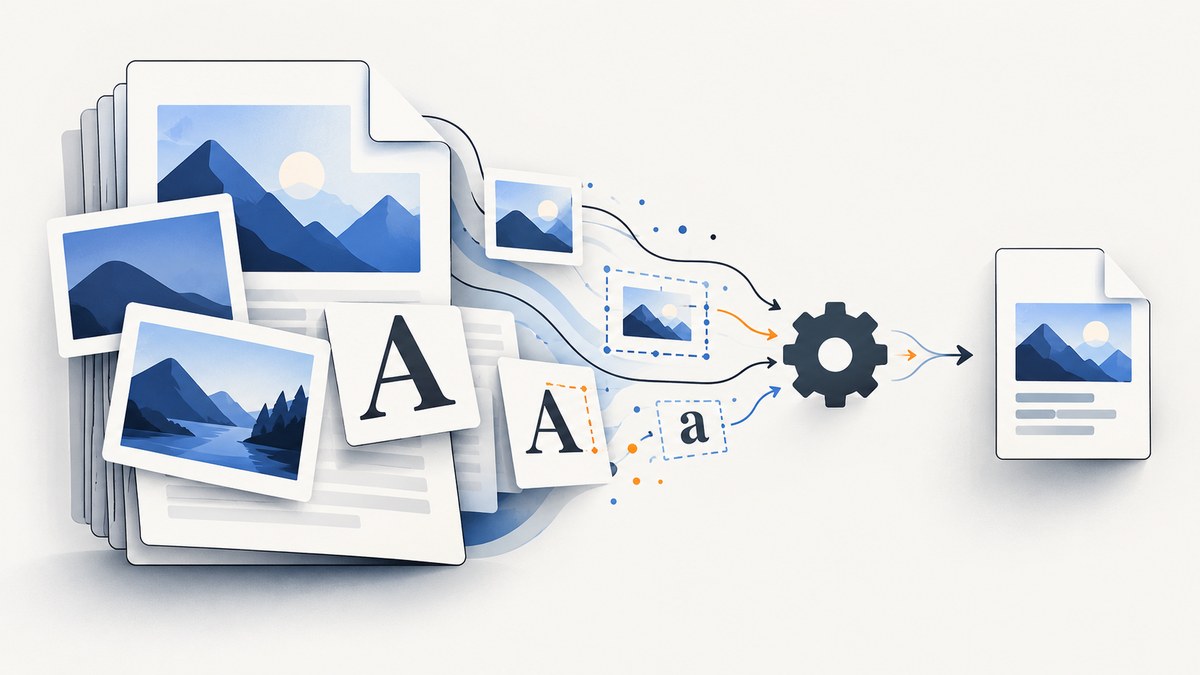
Short answer: Evo PDF files are usually large because they contain high-resolution image data, embedded fonts, or uncompressed PDF structures. Keep JPEG compression enabled, tune JpegCompressionLevel gradually, inspect font usage before changing EmbedFonts, and evaluate CompressCrossReference. Measure every change on your own documents because Evo PDF’s documentation does not provide a universal percentage reduction.
What usually makes an Evo PDF large?
Three areas account for most avoidable growth:
- Images: bitmap image data can dominate a file. Evo PDF documents JPEG compression for generated images. Turning compression off stores images as bitmaps, which preserves maximum image quality but can create a very large PDF and slow conversion.
- Fonts: embedded fonts add bytes but preserve appearance when a recipient does not have the original font installed. Evo PDF documents font embedding as enabled by default for the relevant converter options.
- PDF structure: cross-reference tables and trailers can be stored in compressed cross-reference streams with
CompressCrossReference. The documented default isfalse.
The correct setting depends on the document. A photo-heavy report needs a different balance from an invoice made mostly of text.
Diagnose the file before changing settings
- Keep the original generated PDF.
- Open a copy in a PDF analysis or optimization tool and run a space-usage audit.
- Record total bytes and the contribution from images, fonts, forms, comments, bookmarks, and other objects.
- Change one setting at a time.
- Compare file size and inspect representative pages at their intended viewing size.
- Check links, forms, bookmarks, selectable text, page count, and print output.
Adobe’s PDF optimization documentation describes an audit that reports bytes used by elements such as fonts and images. There is no supported universal Evo PDF breakdown or expected reduction percentage, so use measurements from your own input, Evo PDF version, and converter configuration.
Evo PDF settings that affect size
| Setting or factor | Effect on size | Trade-off | How to evaluate |
|---|---|---|---|
JpegCompressionLevel |
Higher values apply more JPEG compression and generally reduce image bytes. | Image quality decreases as compression increases. | Test incremental values and inspect images at their delivery size. |
| JPEG compression disabled | Images are stored as bitmaps and can make the PDF very large. | Best image fidelity, larger output, slower conversion. | Leave compression enabled unless bitmap-quality data is required. |
EmbedFonts |
Embedded font programs add data. | Disabling embedding can cause font substitution and layout changes. | Inspect the font contribution before changing it. |
CompressCrossReference |
Compresses cross-reference data and the trailer. | Compatibility should be checked with every PDF consumer. | Enable it, measure the result, and open the output in your supported viewers. |
Web fonts via @font-face |
Downloaded web fonts are embedded and increase output. | Consistent typography requires those font bytes. | Audit fonts and remove unused families and weights from the source page. |
Tune image compression safely
Evo PDF documents JpegCompressionLevel as an integer from 0 to 100. A value of 0 means the lowest compression and best quality; 100 means the highest compression and worst quality. Evo PDF support identifies 10 as its default balance. That default is not a universal optimum: image dimensions, content, and intended display size matter.
Keep JPEG compression enabled for ordinary photographs and screenshots. Increase the level in small steps, regenerate the PDF, and compare both bytes and visual quality. Do not judge a technical drawing, small text inside an image, or a scanned document only from a thumbnail.
// Illustrative Evo PDF configuration. Use the equivalent options object
// exposed by the Evo PDF converter version used by your application.
var converter = CreateYourEvoPdfConverter();
converter.Options.JpegCompressionLevel = 20; // compare with 10, 30, and 40
converter.Options.EmbedFonts = true;
converter.Options.CompressCrossReference = true;
var pdfBytes = converter.ConvertHtmlToPdf(html);
File.WriteAllBytes("report-optimized.pdf", pdfBytes);
Use the exact converter construction and conversion method from your Evo PDF integration. The size-related option names above are the documented controls; the surrounding API differs between Evo PDF products and versions.
When not to increase compression
- Documents contain fine labels, screenshots with small text, barcodes, or line art embedded as raster images.
- The PDF is an archival or print master where image fidelity is a requirement.
- Repeated recompression would compound visible artifacts.
Review embedded fonts deliberately
Font embedding increases file size, but it keeps layout and typography stable when recipients lack the source fonts. Evo PDF support also notes that web fonts declared with @font-face are downloaded and embedded. Fonts referenced only by name must be installed and visible to the conversion environment.
Before disabling embedding:
- Use a space audit to determine whether fonts are actually a large part of the file.
- Check whether recipients control the viewing environment.
- Open the result on a machine without the original fonts.
- Compare line wrapping, pagination, symbols, and text selection.
Reducing unused font families, weights, and styles in the HTML/CSS is usually safer than removing embedding globally. If appearance must remain consistent, keep EmbedFonts enabled.
Enable cross-reference compression and measure it
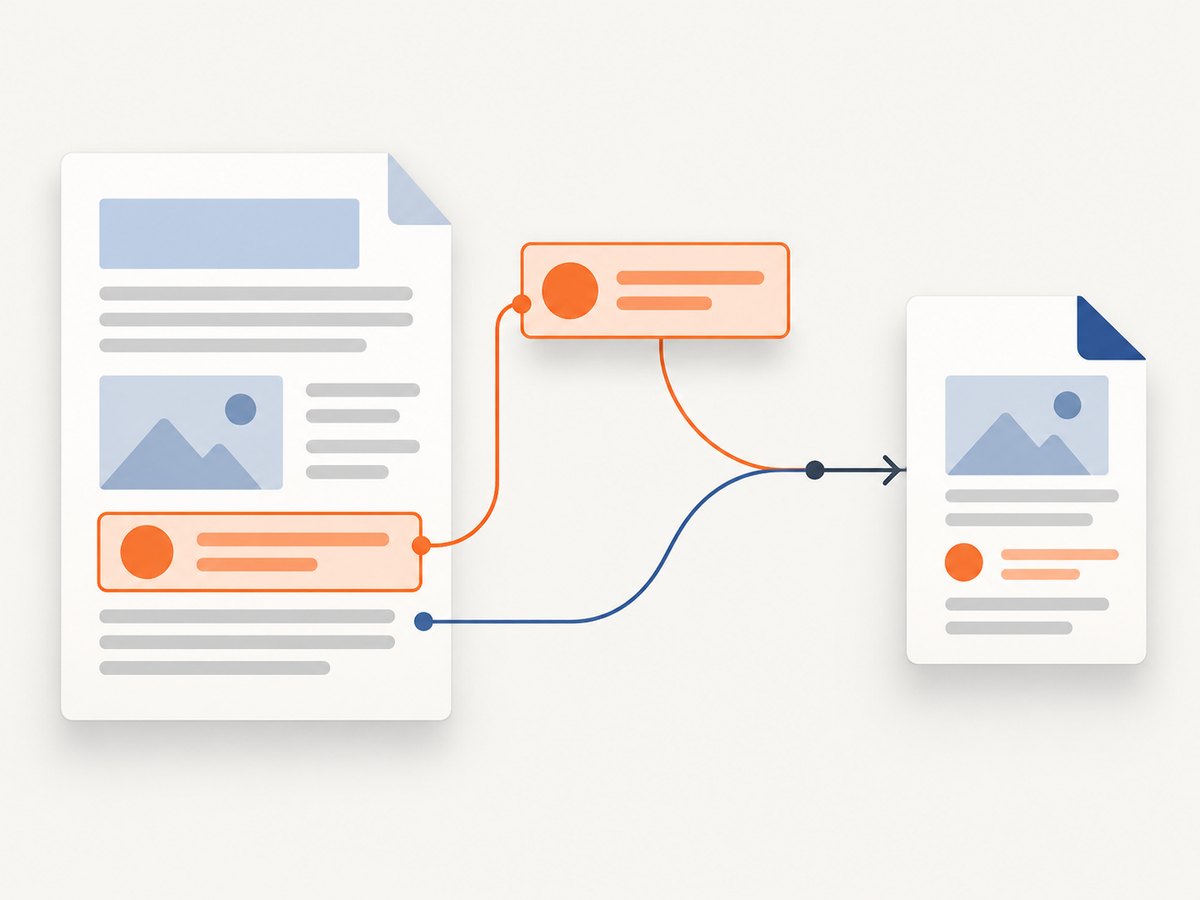
CompressCrossReference stores the cross-reference table and trailer in compressed cross-reference streams. Evo PDF documents this as a size-reduction option and lists its default as false. The available documentation does not quantify typical savings, so treat it as a measured optimization rather than a guaranteed large reduction.
converter.Options.CompressCrossReference = true;Generate a representative sample, open it in every viewer or downstream processor you support, and compare the byte count. Keep the setting only if compatibility and output requirements remain satisfied.
Optimize an existing PDF after generation
If the file is already generated, a PDF optimizer can recompress images and adjust other document elements. Adobe Acrobat PDF Optimizer documents controls for image compression, fonts, transparency, and related structures. Save an optimized copy and verify readability, layout, links, forms, bookmarks, signatures, and accessibility metadata before replacing the original.
- Run the optimizer’s audit first.
- Change image settings only when images dominate.
- Preserve fonts when substitution would change appearance.
- Save to a new file.
- Compare visual and functional behavior with the source PDF.
Complete reduction workflow
- Establish a baseline: record file size, conversion time, page count, and a few representative pages.
- Audit: identify whether images, fonts, or structural objects consume the most bytes.
- Fix source content: remove unused CSS font faces, unnecessary image dimensions, and duplicate assets.
- Tune images: keep JPEG compression on and adjust
JpegCompressionLevelincrementally. - Evaluate structure: test
CompressCrossReference = true. - Review fonts: change embedding only after measuring its contribution and validating appearance.
- Post-process if needed: optimize an existing PDF and inspect every required feature.
- Document the result: record input, Evo PDF version, settings, output bytes, and quality checks.
Edge cases
Photo-heavy reports
Images are likely to dominate. Test compression levels against the actual viewing size and retain a high-quality original outside the distribution PDF.
Scanned documents
Scans can contain very large bitmap pages. Compression may reduce size substantially, but inspect small text, signatures, and marks at 100%.
Web-font-heavy pages
Each downloaded family and weight can add embedded font data. Remove unused declarations and confirm the converter can access the intended fonts.
PDFs with forms or interactive features
After optimization, verify field behavior, calculations, JavaScript, annotations, and tab order. A smaller file is not useful if required behavior is lost.
Archival, signing, or compliance workflows
Preserve the required fonts, image fidelity, metadata, and signatures. Optimize only within the rules of the target workflow and validate the resulting document.
Troubleshooting
| Symptom | Likely cause | Fix |
|---|---|---|
| PDF size increased after a quality change | Compression level moved toward lower compression, or compression was disabled. | Keep JPEG compression enabled and test a higher JpegCompressionLevel. |
| Images look soft or blocky | Compression is too aggressive for the image content. | Lower the compression level and inspect at intended viewing size. |
| Text reflows after font changes | Fonts were not embedded and the viewer substituted another font. | Restore embedding or ensure the required fonts are installed wherever the PDF is viewed. |
| Web-font text is missing or different | The conversion environment cannot download or access the declared font. | Make the font available to the converter and verify the generated PDF embeds it when required. |
| Cross-reference option has no visible effect | Structural data is a small portion of this document. | Keep the option only after measuring; focus on images or fonts if they dominate. |
| Optimized PDF opens but a feature is broken | Post-processing changed forms, links, transparency, metadata, or another object. | Revert to the original, change one optimizer control, and validate the affected feature. |
| Conversion became slower | Bitmap storage or large image data increased processing work. | Keep JPEG compression enabled and reduce unnecessary source image dimensions. |
Performance, reliability, and cost considerations
- Performance: Evo PDF support states that disabling JPEG compression can slow conversion. Large images and downloaded web fonts also increase work and memory use.
- Reliability: Change one variable at a time, retain the original, and validate output in the viewers and workflows that matter to you.
- Storage and transfer: Smaller PDFs reduce storage and network transfer, but the savings must be weighed against image quality and font portability.
- Measurement: No source supports a generic expected reduction. Publish or rely on measured results for your own documents rather than promising a percentage.
Or skip the browser setup
If your PDF workflow starts with capturing web pages or report views, ScreenshotNeo can return a screenshot or PDF with one GET request. It removes cookie banners, newsletter popups, and chat widgets before the shot; bot checks, blank pages, timeouts, failed loads, and cache hits are not billed; and each response identifies the page verdict and billing status. Its MCP server lets Claude, Cursor, and other MCP clients call take_screenshot, get_page_info, and capture_pdf.
See the ScreenshotNeo API documentation for all options.
curl -G "https://api.screenshotneo.com/v1/shot" -d access_key=YOUR_API_KEY --data-urlencode url=https://stripe.com -o shot.webpimport requests
r = requests.get("https://api.screenshotneo.com/v1/shot", params={"access_key": "YOUR_API_KEY", "url": "https://stripe.com"}, timeout=90)
open("shot.webp", "wb").write(r.content)const q = new URLSearchParams({ access_key: 'YOUR_API_KEY', url: 'https://stripe.com' });
const res = await fetch(`https://api.screenshotneo.com/v1/shot?${q}`);ScreenshotNeo includes 1,000 screenshots per month free with no card; paid plans start at $5 for 3,000 shots. Create a free ScreenshotNeo account.
FAQ
What is the first setting to change?
Audit the file first. If images dominate, keep JPEG compression enabled and tune JpegCompressionLevel.
Is a higher JPEG compression level always better?
No. Higher values usually reduce bytes while lowering image quality. Choose from measured size and visual checks.
Should I disable font embedding?
Only when the size audit and distribution environment justify the appearance risk. Embedded fonts preserve consistent rendering.
How much smaller will my Evo PDF become?
The supplied documentation gives no universal reduction percentage. Results depend on images, fonts, dimensions, and other content.
Can I optimize a PDF after Evo PDF creates it?
Yes. Use a PDF optimizer, save a separate copy, and verify visual and interactive behavior before distribution.


