How to Capture an Excel Spreadsheet Screenshot with Python
Capture a spreadsheet with Python by screenshotting its rendered browser view or rendering a local workbook in an office application first.
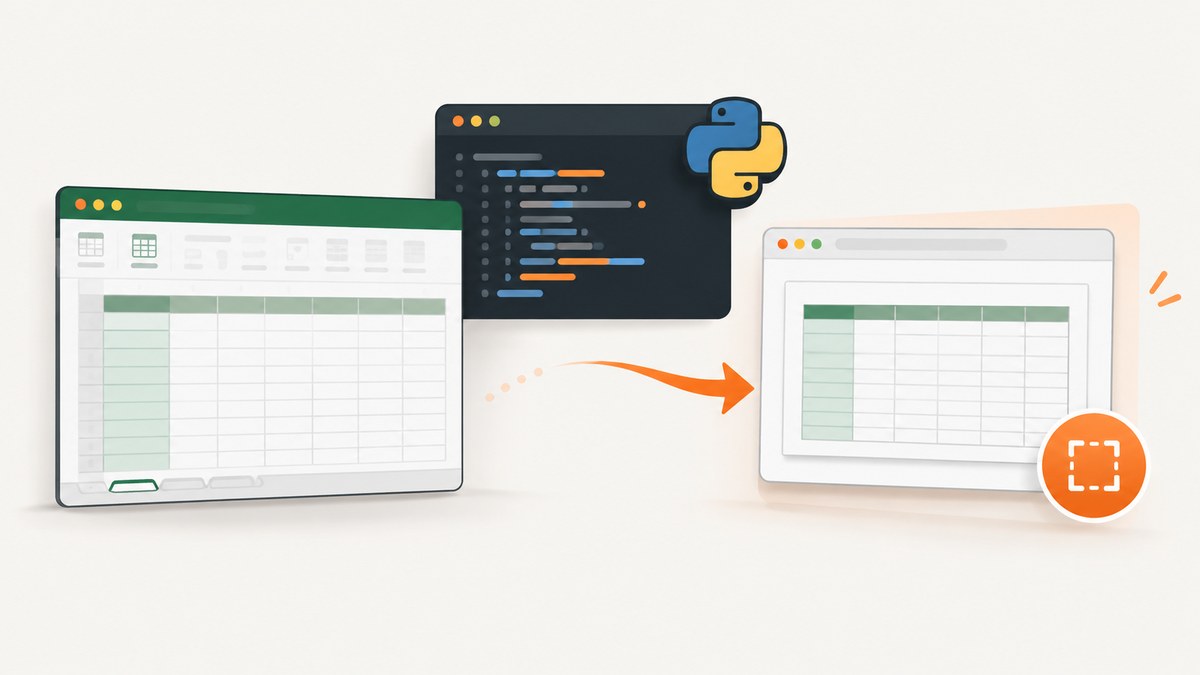
An Excel workbook is data and formatting, not an image. To capture its displayed appearance with Python, first show it in a browser or an office application, then capture the rendered view. For a spreadsheet already open in a web app, Playwright can take a screenshot of the page or a selected element. For a local .xlsx file, use an office application to render it; openpyxl reads and writes workbook content but does not render worksheets into screenshots. [openpyxl tutorial] [Playwright screenshot documentation]
This guide shows the browser route, explains the local-workbook boundary, and covers setup, capture scope, troubleshooting, and practical reliability. The exact steps for automating a desktop office application depend on the operating system and application.
1. Choose how the workbook will be rendered
Start by deciding where the spreadsheet will appear when the capture is taken. A screenshot records rendered pixels. It does not interpret the workbook file by itself.

| Situation | Approach | Key limit |
|---|---|---|
| The spreadsheet is already displayed in a browser | Use Playwright to capture the page, the full scrollable page, or a specific element. | Playwright captures browser-rendered content; it does not turn an arbitrary local workbook into a rendered page. |
| You have a local workbook and need its application appearance | Open or render it in an office application, then capture or export the displayed result using an environment-appropriate Python automation method. | Desktop automation and export details vary by platform and application. |
| You need to inspect or change workbook data first | Use openpyxl to read or edit workbook content, then render it separately. |
openpyxl is not a screenshot renderer. |
For a faithful view, the office application matters: it determines how formulas, fonts, page layout, charts, and other workbook elements are displayed. LibreOffice publishes Python and spreadsheet automation examples in its SDK, but the examples page is not a universal worksheet-to-PNG recipe. [LibreOffice SDK examples]
2. Capture a spreadsheet that is already in a browser with Playwright
Install Playwright’s Python package and its browser binaries. The code below assumes you have a URL for the page that displays the spreadsheet and that you can access it in the same way as the browser automation session.
python -m pip install playwright
python -m playwright install chromium
Save this as capture_spreadsheet.py. Replace the example URL and, if needed, the CSS selector with the one that identifies the spreadsheet in your web app.
import asyncio
from pathlib import Path
from playwright.async_api import async_playwright

URL = "https://example.com/spreadsheet"
SHEET_SELECTOR = "[data-testid='spreadsheet']"

async def main():
    async with async_playwright() as p:
        browser = await p.chromium.launch(headless=True)
        page = await browser.new_page(viewport={"width": 1440, "height": 1000}, device_scale_factor=1)
        await page.goto(URL, wait_until="domcontentloaded", timeout=60_000)

        # Wait for the app's spreadsheet surface; adjust this selector for your page.
        sheet = page.locator(SHEET_SELECTOR)
        await sheet.wait_for(state="visible", timeout=30_000)

        # If the app loads cells asynchronously, wait for a known cell or stable marker too.
        await page.screenshot(path="spreadsheet.png", full_page=False)
        # To capture just the spreadsheet element instead, use:
        # await sheet.screenshot(path="spreadsheet-element.png")
        await browser.close()

asyncio.run(main())
The Playwright Python screenshot API supports page screenshots, full-page screenshots, element screenshots, and screenshot bytes. The script uses a normal viewport capture so the output represents what fits in the browser window.
Capture the full scrollable page or only the spreadsheet
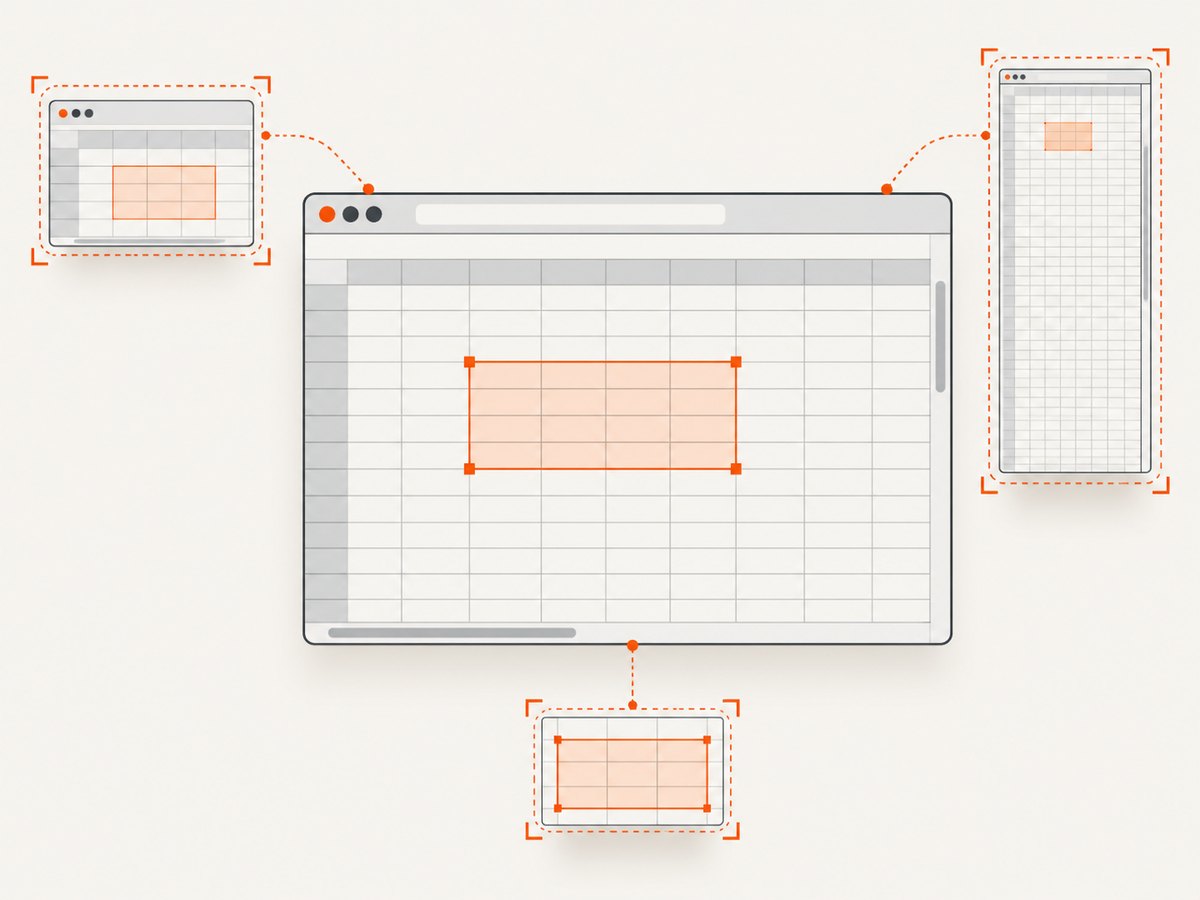
Choose the smallest scope that includes what the reader needs to see:
- Viewport:
page.screenshot(path="spreadsheet.png")captures the currently visible browser area. This is usually easiest to read when the sheet is zoomed and positioned deliberately. - Full page:
page.screenshot(path="spreadsheet-full.png", full_page=True)asks Playwright to capture the full page height. This may create a very tall image, and virtualized spreadsheet grids may only render the rows currently near the viewport. - Element:
await page.locator("[data-testid='spreadsheet']").screenshot(path="sheet.png")captures one element. It is useful for excluding navigation and surrounding controls. The selected element must be visible and have a usable size.
# Save screenshot bytes instead of writing directly through Playwright.
image_bytes = await page.screenshot(full_page=True)
Path("spreadsheet-full.png").write_bytes(image_bytes)
A virtualized grid often creates only visible rows and columns in the DOM. A full-page screenshot cannot include rows that the app has not rendered. Scroll through the grid and capture sections separately, use the app’s own export, or use an office application’s print/export path when the goal is the complete workbook view.
Wait for the right condition
domcontentloaded means the initial document has been parsed; it does not guarantee that spreadsheet data, formulas, fonts, or remote assets have finished loading. Prefer a meaningful application marker, such as a visible sheet container or a known cell, and wait for it. If a page has a reliable loaded state, wait for that state explicitly rather than relying only on a fixed delay.
# Example: wait for a known cell after navigation.
await page.locator("[data-cell='A1']").wait_for(state="visible", timeout=30_000)
# For apps with a loading indicator, wait for it to disappear:
await page.locator(".loading-indicator").wait_for(state="hidden", timeout=30_000)
Selectors are app-specific examples, not universal spreadsheet selectors. Inspect the page’s DOM and choose a selector that identifies the actual sheet or a stable cell. If the grid is inside an iframe, locate the frame first and run the selector and screenshot operation against its frame locator.
3. Handle a local Excel workbook
A local .xlsx file cannot be passed to page.screenshot() and expected to look like Excel. The workbook must first be opened or rendered by an office application. Then Python can automate the application or capture/export its visible output using tools suited to that operating system and office suite.
LibreOffice’s SDK lists Python and spreadsheet automation examples, which can help when building an automation workflow. The reviewed documentation does not establish one complete cross-platform command that captures any worksheet as a PNG. Treat the office-rendering and capture steps as environment-specific, and verify the result in the target office application. [LibreOffice SDK examples]
If the goal is a shareable page image rather than a pixel-faithful view of the desktop application, another possible workflow is to put the spreadsheet into a browser-based viewer and use the Playwright method above. That changes the renderer, so layout and visual fidelity may differ from Excel or LibreOffice.
Use openpyxl for workbook data, not pixels
openpyxl can load and save workbook files. It is useful for inspecting cell values, formulas, and workbook structure before preparing a capture. It does not provide the documented route for rendering a worksheet to an image. Its tutorial also explains that data_only=True reads the cached value stored for a formula rather than evaluating the formula, and warns that not all Excel items are supported. In particular, shapes may be lost if a workbook is opened and saved. Work on a copy and inspect it if preservation matters. [openpyxl tutorial]
from openpyxl import load_workbook

path = "report.xlsx"
# Read-only inspection: do not save this workbook as part of the screenshot step.
wb = load_workbook(path, data_only=False, read_only=True)
ws = wb["Summary"]
print("A1 formula/value:", ws["A1"].value)
print("Sheet dimensions:", ws.max_row, "rows x", ws.max_column, "columns")
wb.close()
For formula results, data_only=True reads cached values if present; it does not calculate formulas. A workbook without recently stored cached results may therefore show missing or stale values to a reader of the data. Use a spreadsheet application to recalculate when current formula results are required, then render and capture the displayed sheet.
Do not confuse adding an image to an Excel worksheet with capturing the worksheet. The openpyxl images guide demonstrates inserting an existing image file into a workbook; it is the opposite direction from making a screenshot of the workbook. [openpyxl image documentation]
4. Make the capture readable and reproducible
Before sharing or using the image in a report, check that the intended sheet, range, and display state are present. A screenshot can succeed technically and still omit important rows or make numbers unreadable.
- Open the correct workbook and worksheet, or navigate to the correct browser view.
- Choose a viewport large enough for the necessary columns, then set browser or application zoom deliberately.
- Wait for data, formulas, fonts, and embedded content to finish rendering.
- Position the target range so headers and relevant context are visible.
- Capture the viewport, full page, or selected element according to the intended use.
- Open the resulting image and inspect text legibility, clipping, blank regions, and whether the output has the intended dimensions.
For repeatable browser captures, keep the viewport, device scale factor, browser version, and page state consistent. Dynamic dates, user-specific data, and asynchronous content can change between runs. Save the screenshot with a descriptive filename and record the page URL and capture conditions if it is part of a debugging or review process.
5. Troubleshooting common problems
| Symptom | Likely cause | Fix |
|---|---|---|
| The PNG is blank or shows a loading screen | The capture ran before the application populated the sheet. | Wait for a stable sheet or cell selector, or for the app’s loading marker to disappear. Check that navigation reached the expected page. |
| The target selector times out | The selector is an example that does not match the app, the sheet is inside an iframe, or the user has not reached the required page. | Inspect the DOM, use a stable selector, handle the iframe, and confirm authentication or navigation state. |
| Rows are missing from a full-page capture | The grid may virtualize rows and render only the visible region. | Scroll and capture sections, use the app’s export, or render through an office application. |
| Text is clipped or too small | The viewport or zoom does not suit the selected range, or the element’s dimensions are constrained. | Increase the viewport, adjust zoom and scroll position, or capture the sheet element at a larger rendered size. |
| Images or fonts are missing | Remote resources have not loaded, are blocked, or require authentication. | Wait for the relevant resource or application state, verify access in the same browser context, and inspect the page’s network and console errors. |
| Formula values are stale or absent in Python inspection | openpyxl reads stored formula results and does not calculate them. |
Recalculate and save through a spreadsheet application when current formula output is needed, then render the workbook. |
| Workbook objects disappear after a script runs | The workbook was saved after a library round trip, and an unsupported item such as a shape was not preserved. | Keep the original untouched, operate on a copy, and verify the saved workbook in the target office app. Avoid saving if the task only requires a screenshot. |
6. Performance, reliability, and cost
Browser capture time depends on page navigation, authentication, application loading, and how much content must render. A page screenshot is generally a smaller operation than a full-height capture, while an oversized full-page image can take longer to produce and may be harder to inspect. A selector-based capture can exclude irrelevant page chrome and reduce the output area.
For reliability, wait on page-specific state rather than sleeping an arbitrary number of seconds. Set explicit navigation and selector timeouts, close the browser in cleanup code, and preserve a failure screenshot or page log when diagnosing intermittent issues. For repeat jobs, use a stable test workbook and a fixed viewport; keep the workbook copy separate from source material when an automation workflow could modify it.
Local automation has no per-screenshot API charge, but it does require maintaining Python, browser or office application dependencies, and a working display or headless setup. Hosted capture services trade that setup for a usage plan; compare their format, rendering controls, billing behavior, and failure reporting against your capture requirements.
Or skip the browser setup
ScreenshotNeo is a website screenshot API and MCP server from Yorker Media. It captures a URL with one request and can return PNG, JPEG, WebP, or PDF. For a browser-accessible spreadsheet view, a simple Python request looks like this. See the ScreenshotNeo API documentation for parameters and response details.
import requests

r = requests.get(
    "https://api.screenshotneo.com/v1/shot",
    params={"access_key": "YOUR_API_KEY", "url": "https://example.com/spreadsheet"},
    timeout=90,
)
r.raise_for_status()
with open("spreadsheet.webp", "wb") as f:
    f.write(r.content)
ScreenshotNeo removes cookie banners, popups, and chat widgets before the shot; bot checks, blank pages, and failed loads are never billed. Its MCP server lets AI agents take screenshots. The free plan includes 1,000 screenshots a month with no card, and paid plans start at $5 for 3,000. These are URL captures, so the spreadsheet still needs to be available at a page the service can reach.
Create a free ScreenshotNeo account for 1,000 screenshots a month with no card.
7. Frequently asked questions
Can openpyxl save a worksheet directly as a screenshot?
The documented openpyxl workflow covers workbook reading and writing, not rendering a worksheet as pixels. Render the workbook in an office application or display it in a browser before taking a screenshot.
Can Playwright capture a local .xlsx file?
Playwright’s screenshot API captures rendered browser pages and elements. It does not itself render the workbook file; open it through an office application or a browser-based viewer first.
Will a full-page screenshot include every row in a large spreadsheet?
Not necessarily. A virtualized grid may only render rows near the visible area. Capture sections or use an export or office rendering workflow designed for the full sheet.
Does data_only=True calculate formulas?
No. It reads a cached formula result saved in the workbook, if one exists. It does not recalculate formulas.
Does inserting an image with openpyxl create a screenshot?
No. That operation places an existing image into a worksheet. It does not turn the worksheet view into an image.